
In an increasingly digital world, the ability to access and manage online media is more crucial than ever. From educational lectures and crucial news broadcasts to creative content and personal memories, video and audio form the bedrock of our online experience. However, reliance on constant internet connectivity or platform-specific apps can often be a bottleneck. This is where tools like yt-dlp come into play, transforming how we interact with online content.
yt-dlp stands as a powerful, versatile command-line program designed to download videos and audio from a vast array of websites. More than just a simple “downloader,” it’s a sophisticated piece of software that offers unparalleled control over resolution, format, metadata, and much more. For tech enthusiasts, digital content creators, researchers, or anyone simply looking to archive important online media, mastering yt-dlp is an indispensable skill. It liberates content from the confines of fleeting online availability, offering a robust solution for offline viewing, archival, and even content conversion.

This comprehensive guide will walk you through the entire process of installing yt-dlp on various operating systems, ensuring you’re equipped to harness its full potential. We’ll cover the prerequisites, step-by-step installation instructions for Windows, macOS, and Linux, initial configuration, and common troubleshooting tips. By the end of this article, you’ll not only have yt-dlp up and running but also understand the nuances that make it such a valuable addition to your digital toolkit. Embrace enhanced productivity and control over your digital media with yt-dlp.
Understanding yt-dlp: What It Is and Why You Need It
Before diving into the technicalities of installation, it’s essential to grasp what yt-dlp is and why it has become the go-to utility for downloading online videos and audio. Originally a fork of youtube-dl, yt-dlp has rapidly evolved, surpassing its predecessor in terms of maintenance, feature set, and site compatibility. It’s a testament to open-source software development, continuously updated by a dedicated community to keep pace with the ever-changing landscape of online media platforms.
At its core, yt-dlp is a command-line interface (CLI) tool. This means it operates through text commands in a terminal or command prompt, rather than a graphical user interface (GUI). While this might seem intimidating to some initially, it offers immense power and flexibility. Users can script complex tasks, automate downloads, and fine-tune every aspect of the download process that a typical GUI application might not expose.
Beyond Basic Downloads: The Power of yt-dlp
What truly sets yt-dlp apart from basic browser extensions or online downloaders is its extensive feature set:
- Vast Site Support: While its name hints at YouTube,
yt-dlpsupports thousands of websites, including Vimeo, Twitch, Facebook, major news outlets, and many more. Its active development ensures new sites are continually added and existing ones maintained. - Quality and Format Control: You’re not limited to a single download option.
yt-dlpallows you to specify preferred video resolutions (e.g., 1080p, 4K), audio quality, and file formats (MP4, WebM, MKV, MP3, etc.). It can even extract only the audio track from a video. - Playlist and Channel Downloads: Effortlessly download entire playlists, user channels, or even specific ranges within them, making bulk content acquisition incredibly efficient.
- Subtitle and Metadata Integration:
yt-dlpcan download available subtitles (in various languages) and embed metadata (like title, artist, thumbnail) directly into the downloaded file, enriching your media library. - Post-processing Capabilities: With the help of
FFmpeg(which we’ll discuss as a prerequisite),yt-dlpcan perform post-processing tasks such as converting video formats, merging separate audio and video streams, or cutting specific sections of a video. - Proxy and VPN Support: For content that might be geographically restricted,
yt-dlpintegrates seamlessly with proxies and VPNs, allowing access to content that would otherwise be unavailable. - Configuration Files: For advanced users,
yt-dlpsupports configuration files where you can store your default preferences, command-line arguments, and site-specific settings, streamlining your workflow.
Legal and Ethical Considerations
While yt-dlp is an incredibly powerful tool, it’s paramount to use it responsibly and ethically. The legality of downloading copyrighted material varies significantly by jurisdiction, and most online platforms have terms of service that prohibit downloading their content.
Always ensure you have the necessary rights or permissions to download content. This typically includes:
- Public Domain Content: Material explicitly released into the public domain.
- Creative Commons Licenses: Content shared under licenses that permit downloading and sometimes modification.
- Your Own Content: Videos or audio you have personally created and uploaded.
- Offline Viewing: Many platforms offer an official “offline viewing” feature for subscribers;
yt-dlpcan be used for personal archival of such content if permitted by the platform.
Never use yt-dlp to infringe on copyright, redistribute content without permission, or engage in any illegal activities. This guide is provided for educational purposes and to empower users with the technical know-how to manage their legitimately owned or freely available digital media.
Prerequisites for a Smooth Installation
Before you begin the yt-dlp installation process, there are a few foundational components you might need. Ensuring these are in place will prevent common errors and enable yt-dlp to function at its full potential, especially for advanced features like merging audio and video streams.
Python (for pip installation)
While yt-dlp offers standalone executables, one of the most common and often recommended ways to install and update it is via pip, Python’s package installer. If you choose this method, you’ll need Python installed on your system.
- Why Python?
yt-dlpitself is written in Python.pipmakes managing Python-based tools incredibly easy, handling dependencies and updates efficiently. - Version:
yt-dlprequires Python 3.8 or newer. Most modern operating systems come with Python pre-installed, or it’s easily installable. You can check your Python version by opening a terminal/command prompt and typing:python3 --versionorpython --version. - Installation:
- Windows: Download the installer from the official Python website (python.org). Make sure to check the box “Add Python X.X to PATH” during installation.
- macOS: Python 3 is often pre-installed or easily obtainable via Homebrew (
brew install python). - Linux: Python 3 is almost always pre-installed. If not, use your distribution’s package manager (e.g.,
sudo apt install python3on Debian/Ubuntu,sudo dnf install python3on Fedora).
FFmpeg (for advanced functionalities)
FFmpeg is an incredibly powerful, open-source multimedia framework that can decode, encode, transcode, mux, demux, stream, filter, and play virtually any media file. yt-dlp relies on FFmpeg for crucial post-processing tasks.
- Why FFmpeg?
- Merging Audio/Video: Many streaming sites deliver video and audio as separate streams to allow for flexible quality selection.
yt-dlpusesFFmpegto combine these separate streams into a single playable file (e.g., an MP4). - Format Conversion: If you download a video in WebM and want it as MP4,
FFmpeghandles the conversion. - Embedding Thumbnails/Metadata: It assists in embedding cover art and other metadata.
- Merging Audio/Video: Many streaming sites deliver video and audio as separate streams to allow for flexible quality selection.
- Installation:
- Windows: Download the
ffmpeg.zipfile from the officialFFmpegwebsite (ffmpeg.org/download.html, typically under “Windows builds” or “SourceForge”). Extract it, and add thebinfolder within the extractedffmpegdirectory to your system’s PATH environment variable. This step is crucial foryt-dlpto findFFmpeg. - macOS: The easiest way is via Homebrew:
brew install ffmpeg. - Linux: Use your distribution’s package manager:
- Debian/Ubuntu:
sudo apt install ffmpeg - Fedora:
sudo dnf install ffmpeg - Arch Linux:
sudo pacman -S ffmpeg
- Debian/Ubuntu:
- Windows: Download the
Basic Command-Line Knowledge
Since yt-dlp is a CLI tool, a fundamental understanding of how to navigate and execute commands in your system’s terminal (Command Prompt/PowerShell on Windows, Terminal on macOS/Linux) is essential.
- Key commands you should know:
cd(change directory): To navigate between folders.ls(Linux/macOS) ordir(Windows): To list contents of a directory.- Executing programs: Simply typing the program name (e.g.,
yt-dlp) and its arguments. - Copying and pasting commands.
Don’t worry if you’re new to the command line; yt-dlp is an excellent tool to help you get comfortable with it, and its commands are generally straightforward.
Step-by-Step Installation Guides
Now that you’ve prepared your system, let’s get yt-dlp installed. We’ll cover the most common methods for each major operating system.
Installing yt-dlp on Windows
Windows users have a couple of primary options for installing yt-dlp: using pip (if Python is installed) or using the standalone executable.
Using pip (Recommended if Python is installed)
- Open Command Prompt or PowerShell: Search for “cmd” or “PowerShell” in your Start menu and open it.
- Install/Upgrade yt-dlp: Type the following command and press Enter:
bash

pip install -U yt-dlp
The-Uflag ensures that ifyt-dlpis already installed, it gets upgraded to the latest version. - Verify Installation: Once the installation completes, type:
bash

yt-dlp --version
You should see the installed version number printed, confirming a successful installation.
Using the Standalone Executable
This method doesn’t require Python, making it simpler if you prefer not to install Python.
- Download the Executable: Go to the official
yt-dlpGitHub releases page (github.com/yt-dlp/yt-dlp/releases). - Locate
yt-dlp.exe: Scroll down to the “Assets” section of the latest release. Downloadyt-dlp.exe. - Place the Executable:
- Create a new folder somewhere accessible, like
C:yt-dlp. - Move the downloaded
yt-dlp.exeinto this folder. - Add to PATH (Optional but Recommended): To run
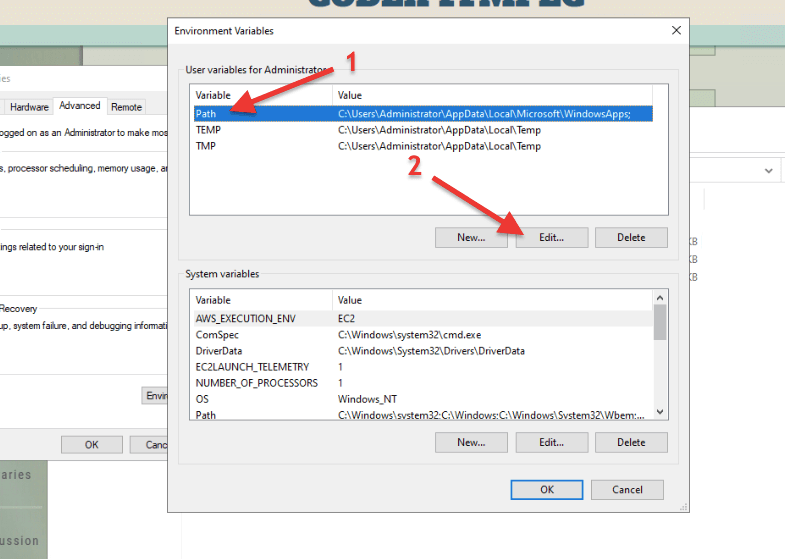
yt-dlpfrom any directory in your Command Prompt, you need to add its folder to your system’s PATH environment variable.- Search “Environment Variables” in the Start menu and select “Edit the system environment variables.”
- Click “Environment Variables…”
- Under “System variables,” find and select
Path, then click “Edit…” - Click “New” and add the path to your
yt-dlpfolder (e.g.,C:yt-dlp). - Click “OK” on all windows to save changes. You might need to restart your Command Prompt for changes to take effect.
- Create a new folder somewhere accessible, like
- Verify Installation: Open Command Prompt and type
yt-dlp --version. If you didn’t add it to PATH, navigate to theC:yt-dlpdirectory first usingcd C:yt-dlp.
Updating yt-dlp on Windows
- If installed via
pip: Open Command Prompt and run:pip install -U yt-dlp - If using standalone executable: Re-download the latest
yt-dlp.exefrom GitHub and replace the old one in yourC:yt-dlpfolder.
Installing yt-dlp on macOS
For macOS users, Homebrew is the most convenient and recommended way to install yt-dlp and FFmpeg.
Using Homebrew (Recommended)
- Install Homebrew (if you haven’t already): Open Terminal (found in Applications/Utilities) and paste the following command. Follow the on-screen instructions.
bash

/bin/bash -c "$(curl -fsSL https://raw.githubusercontent.com/Homebrew/install/HEAD/install.sh)"
- Install yt-dlp: Once Homebrew is installed, simply run:
bash

brew install yt-dlp
- Install FFmpeg (if not already present):
bash

brew install ffmpeg
- Verify Installation:
bash

yt-dlp --version

ffmpeg -version
Using pip (if you prefer Python)
If you have Python 3 installed via pyenv or directly, you can use pip:
- Open Terminal.
- Install yt-dlp:
bash

pip install -U yt-dlp
- Verify Installation:
bash

yt-dlp --version
Updating yt-dlp on macOS
- If installed via Homebrew:
brew upgrade yt-dlp - If installed via
pip:pip install -U yt-dlp
Installing yt-dlp on Linux
Linux offers various package managers, but pip and the standalone executable are universally applicable.
Using Package Managers (Distribution Specific)
Some Linux distributions include yt-dlp in their official repositories. This is often the easiest method, but might not always provide the absolute latest version.
- Debian/Ubuntu:
bash

sudo apt update

sudo apt install yt-dlp ffmpeg
- Fedora:
bash

sudo dnf install yt-dlp ffmpeg
- Arch Linux:
bash

sudo pacman -S yt-dlp ffmpeg
- OpenSUSE:
bash

sudo zypper install yt-dlp ffmpeg
Using pip
This is a very reliable way to get the latest version on any Linux distribution.
- Ensure Python 3 and pip are installed:
bash

sudo apt install python3 python3-pip # Debian/Ubuntu example
- Install yt-dlp:
bash

pip install -U yt-dlp

# You might need to use pip3 if your system uses python for Python 2

# pip3 install -U yt-dlp
- Verify Installation:
bash

yt-dlp --version
Using the Standalone Executable (Binary)
This method ensures you get the absolute latest version directly from the developers.
- Download the Binary:
bash

sudo curl -L https://github.com/yt-dlp/yt-dlp/releases/latest/download/yt-dlp -o /usr/local/bin/yt-dlp
- Make it Executable:
bash

sudo chmod a+rx /usr/local/bin/yt-dlp
This command downloads the latest Linux binary, saves it to/usr/local/bin(which is usually in your PATH), and makes it executable. - Verify Installation:
bash

yt-dlp --version
Updating yt-dlp on Linux
- If installed via package manager: Use your package manager’s update command (e.g.,
sudo apt update && sudo apt upgrade yt-dlp). - If installed via
pip:pip install -U yt-dlp - If installed via standalone binary:
sudo yt-dlp -U(the binary has a self-update mechanism!) or re-run the download andchmodcommands above.
Initial Configuration and First Use
Once yt-dlp is successfully installed, it’s time to put it to use. This section will guide you through verifying your setup and executing your first downloads.
Verifying the Installation
Regardless of your operating system or installation method, the first step is always to confirm that yt-dlp is accessible from your command line and that FFmpeg is recognized.
- Check
yt-dlpversion:
bash

yt-dlp --version
You should see a version string (e.g.,2024.03.10). If you get an error like “command not found,” it meansyt-dlpis not in your system’s PATH, or the installation failed. Double-check your installation steps, especially the PATH configuration for Windows standalone executable users. - Check
FFmpegversion:
bash

ffmpeg -version
This should output details about yourFFmpeginstallation. If it says “command not found,”yt-dlpwon’t be able to merge audio/video or convert formats. Refer back to theFFmpeginstallation section.
Downloading Your First Video
Let’s start with a simple download. Replace [VIDEO_URL] with the actual URL of a video you wish to download (e.g., a non-copyrighted creative commons video from YouTube).
yt-dlp [VIDEO_URL]
Example:
yt-dlp https://www.youtube.com/watch?v=dQw4w9WgXcQ
(Disclaimer: The above link is often used as a harmless example; replace it with actual content you intend to download.)
By default, yt-dlp will attempt to download the best available quality video and audio, typically merging them into an MP4 or WebM file, and save it to your current working directory (the folder you were in when you opened the terminal).
Essential Command-Line Flags and Options
To truly harness yt-dlp‘s power, you need to understand its command-line flags. Here are some fundamental ones:
-For--list-formats: Lists all available formats (quality, codecs, file sizes) for a given URL. This is invaluable for choosing specific qualities.
bash

yt-dlp -F [VIDEO_URL]
-f [FORMAT_CODE]or--format [FORMAT_CODE]: Downloads a specific format using the code obtained from-F. You can combine video and audio streams.
bash

# Example: Download video format 248 (1080p webm) and audio format 251 (opus audio)

yt-dlp -f 248+251 [VIDEO_URL]

# Example: Download the best video and best audio merged

yt-dlp -f bestvideo+bestaudio [VIDEO_URL]

# Example: Download best MP4 quality

yt-dlp -f "bestvideo[ext=mp4]+bestaudio[ext=m4a]/best[ext=mp4]/best" [VIDEO_URL]
-o [OUTPUT_TEMPLATE]or--output [OUTPUT_TEMPLATE]: Specifies the output file name and path. You can use variables like%(title)s,%(uploader)s,%(ext)s.
bash

yt-dlp -o "~/Downloads/%(title)s.%(ext)s" [VIDEO_URL]
-xor--extract-audio: Extracts only the audio from a video, converting it to MP3 by default (requiresFFmpeg).
bash

yt-dlp -x --audio-format mp3 [VIDEO_URL]
--write-subs/--all-subs/--embed-subs: Downloads subtitles, all available subtitles, or embeds them into the video file.
bash

yt-dlp --write-subs --sub-langs en --embed-subs [VIDEO_URL]
--playlist-start [N]/--playlist-end [N]: Downloads a specific range from a playlist.
bash

yt-dlp --playlist-start 5 --playlist-end 10 [PLAYLIST_URL]
This is just a glimpse. yt-dlp has hundreds of options, which you can explore further by typing yt-dlp --help or consulting its extensive GitHub documentation.
Troubleshooting Common Issues
Even with careful installation, you might encounter issues. Here are some common problems and their solutions.
“yt-dlp is not recognized” Error
This is the most frequent issue, especially on Windows, and indicates that your system can’t find the yt-dlp executable.
- Cause: The directory where
yt-dlp.exeor theyt-dlpscript is located is not included in your system’s PATH environment variable. - Solution:
- If using standalone executable on Windows: Revisit the “Add to PATH” steps in the Windows installation section. Ensure the correct directory (e.g.,
C:yt-dlp) is added and that you’ve restarted your Command Prompt/PowerShell. - If installed via
pip: Ensure Python is correctly installed and itsScriptsdirectory (wherepipplaces executables) is in your PATH. Sometimes,pipmight install to a user-specific directory not automatically added to PATH. You might need to addC:UsersYourUserAppDataRoamingPythonPython3XScripts(Windows) or~/.local/bin(Linux/macOS) to your PATH. - Temporary fix: Navigate to the directory containing
yt-dlpusingcdbefore running anyyt-dlpcommands.
- If using standalone executable on Windows: Revisit the “Add to PATH” steps in the Windows installation section. Ensure the correct directory (e.g.,
Download Errors and Geoblocking
Sometimes yt-dlp might fail to download a video, reporting errors like “Access denied,” “Geo-restricted,” or “Unsupported URL.”
- Cause: The video might be geo-blocked (unavailable in your region), restricted by age, or require login. The site’s structure might have changed, temporarily breaking
yt-dlp‘s extractor for that specific URL. - Solution:
- Update
yt-dlp: Always ensure you’re running the latest version (yt-dlp -U) as developers constantly update extractors for various sites. - Use a VPN or Proxy: For geo-restricted content, use a VPN or
yt-dlp‘s built-in proxy options (--proxy SOCKS5://localhost:1080or--proxy http://user:pass@host:port). - Provide Cookies/Login Credentials: For age-restricted or login-required content,
yt-dlpcan use your browser’s cookies (--cookies-from-browser firefoxor--cookies path/to/cookies.txt) or your username/password (-u USERNAME -p PASSWORD). Be cautious with credentials. - Check the URL: Ensure the URL is correct and points directly to the video page, not a playlist or channel page unless you intend to download those.
- Report the Issue: If it’s a persistent problem with a specific site and
yt-dlpis up-to-date, it might be a bug. Consider reporting it on theyt-dlpGitHub issues page.
- Update
Updating Problems
If yt-dlp -U fails or reports issues, it’s typically related to permissions or pip conflicts.
- Cause: Insufficient permissions to write to the installation directory, or conflicts with other Python installations/virtual environments.
- Solution:
- Permissions: On Linux/macOS, try
sudo yt-dlp -U(if using the binary) orsudo pip install -U yt-dlp(if using pip, though generally discouraged unless absolutely necessary for system-wide installs). On Windows, ensure your Command Prompt/PowerShell is run as administrator. pipissues: If you have multiple Python versions or virtual environments, ensure you’re using thepipassociated with the Python installation whereyt-dlpresides. Usingpython3 -m pip install -U yt-dlpis often safer than justpip.
- Permissions: On Linux/macOS, try
Missing FFmpeg Functionality
If yt-dlp reports errors like “FFmpeg is not found” when trying to merge streams or convert formats, it means FFmpeg isn’t accessible.
- Cause:
FFmpegis either not installed, or itsbindirectory (containingffmpeg.exe,ffmpeg, etc.) is not in your system’s PATH. - Solution:
- Install
FFmpeg: Revisit theFFmpeginstallation steps for your operating system. - Add to PATH: Ensure the
bindirectory of yourFFmpeginstallation is correctly added to your system’s PATH environment variable. - Restart Terminal: Always restart your terminal or command prompt after modifying PATH variables.
- Verify FFmpeg: Run
ffmpeg -versionto confirmFFmpegis recognized.
- Install

Conclusion
yt-dlp is an exceptionally powerful and flexible tool that empowers users with unprecedented control over their digital media consumption and archival. From downloading your favorite educational content for offline study to preserving historical news broadcasts or personal videos, yt-dlp streamlines the process with an array of advanced features. Its active development ensures compatibility with an ever-expanding list of websites and provides continuous improvements, making it a reliable choice for anyone serious about managing online video and audio.
By following this comprehensive guide, you’ve successfully navigated the installation process across various operating systems, understood its core functionalities, and gained insights into troubleshooting common issues. You’ve installed not just a piece of software, but unlocked a new level of digital productivity and security by taking ownership of the content you legally access.
Remember to always use yt-dlp responsibly and ethically, respecting copyright and platform terms of service. Explore its vast array of command-line options (yt-dlp --help), experiment with different output templates, and customize your download workflows. The command line might seem daunting at first, but with yt-dlp, you have an excellent companion for mastering it, enhancing your technical skills, and ultimately enriching your digital life. Dive in, experiment, and enjoy the freedom that yt-dlp brings to your digital media experience.