
The Witcher 3: Wild Hunt stands as a titan in the gaming world, a sprawling epic lauded for its rich narrative, immersive world, and unforgettable characters. Yet, even a masterpiece can be improved upon, customized, and extended. For PC players, the vibrant modding community offers an incredible array of enhancements, from subtle graphical tweaks and quality-of-life improvements to entirely new quests and gameplay mechanics. Embracing the world of Witcher 3 mods is a journey into unlocking the game’s full potential, transforming your experience and ensuring Geralt’s adventures remain fresh for years to come.
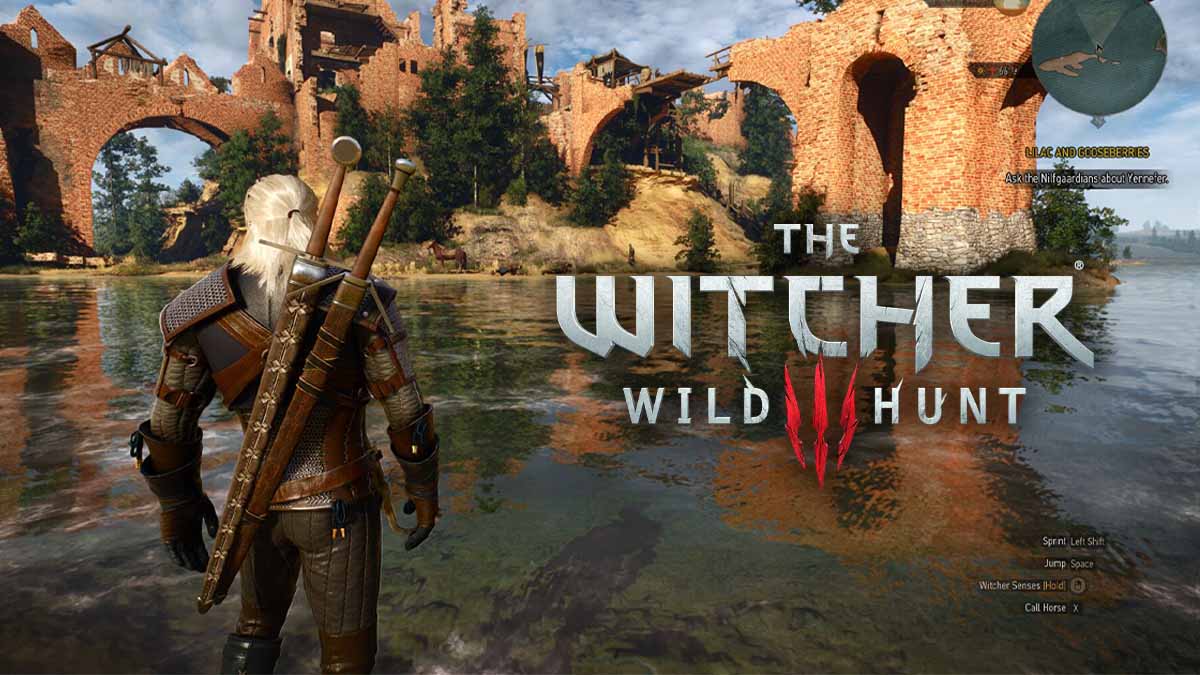
This guide delves deep into the “Tech” behind modifying your Witcher 3 installation, providing a step-by-step roadmap for both novice and experienced modders. We’ll cover everything from essential preparation and installation techniques to advanced troubleshooting and best practices, ensuring a smooth and rewarding modding journey. Beyond the technicalities, we’ll also touch upon how modding contributes to a game’s “Brand” longevity and even offers “Money”-saving value by extending your entertainment dollar.
Preparing Your Game for Modding: The Foundation of a Stable Experience
Before diving headfirst into the exciting world of custom armor, enhanced combat, or graphical overhauls, proper preparation is paramount. Rushing into mod installations without the right groundwork can lead to frustrating crashes, conflicts, and a broken game. Think of it as laying a solid technological foundation for your personalized Witcher experience.
Essential Tools and Software: Your Modding Arsenal
Successfully installing and managing Witcher 3 mods often requires more than just dragging and dropping files. Several key tools have become indispensable for the community, streamlining the process and resolving common conflicts. Familiarizing yourself with these programs is the first step towards a stable modded game.
- Nexus Mod Manager (NMM) / Vortex: These are the titans of mod management. Developed by Nexus Mods, the largest repository for Witcher 3 mods, these tools automate the installation, uninstallation, and management of mods.
- Vortex is the newer, more powerful, and recommended manager, offering advanced dependency handling, conflict resolution, and a sophisticated staging system. It’s designed to be user-friendly while providing powerful features under the hood. For those new to modding or familiar with other Bethesda titles, Vortex offers a relatively intuitive interface for managing complex load orders. Its smart conflict resolution aims to make modding less daunting, though understanding its suggestions is still key.
- While Nexus Mod Manager (NMM) is older and less maintained, some users still prefer its simplicity. However, for a complex game like The Witcher 3, Vortex’s robust features are generally superior. Using a mod manager significantly reduces the chances of human error during installation, a critical aspect of digital security for your game files.
- Script Merger: This tool is an absolute necessity for any serious Witcher 3 modder. Many mods, particularly those that alter gameplay mechanics or UI, modify the game’s script files. When multiple mods try to change the same script, a conflict occurs, leading to crashes or incorrect behavior. Script Merger automatically detects these conflicts and attempts to merge the changes, creating a unified script file that allows multiple mods to coexist. Understanding how to use Script Merger is crucial for maintaining game stability, as it directly addresses potential “software” conflicts. It’s a prime example of a specialized “AI Tool” (in a basic sense, an automated conflict resolver) making complex tech accessible.
- Unification Patch / Community Patch – The Witcher 3: These are community-made patches that aim to fix various bugs and inconsistencies that CD Projekt Red did not address after their final official update. While not strictly a modding tool, installing these first can provide a more stable base game upon which to build your modded experience, potentially reducing conflicts with other mods. They represent a collective community effort to enhance the core “software” experience.
- 7-Zip or WinRAR: Most mods downloaded from Nexus Mods or other sources will be compressed in archives (.zip, .rar, .7z). You’ll need a file archiving utility like 7-Zip (free and open-source) or WinRAR to extract these files before manual installation or to allow your mod manager to process them.
Backing Up Your Files: The Golden Rule of Modding
This cannot be stressed enough: always back up your game files and save data before you begin modding. This is your digital security blanket. Modding, by its nature, involves altering core game files. While mod managers and tools try to prevent issues, mistakes can happen, conflicts can be unforeseen, or a mod might simply be poorly made.
- Game Files: Copy your entire Witcher 3 installation folder to another location on your hard drive. This can be time-consuming due to the game’s size, but it’s invaluable. If your game becomes unplayable, you can simply delete the corrupted installation and copy your clean backup back, saving you from a full re-download or re-installation. This is a critical “productivity” tip, as it minimizes downtime and frustration.
- Save Files: Your save games are arguably even more important. Witcher 3 save files are typically located in
DocumentsThe Witcher 3gamesaves. Copy this entire folder to a safe place. A corrupted mod could potentially corrupt your save games, wiping out hours of progress. Regularly backing up your saves, even when not modding, is a smart practice for any game. This isn’t just about tech; it’s about protecting your emotional investment and ensuring a positive “user experience.”
Understanding Mod Types: A Primer on Witcher 3 Enhancements
Mods for The Witcher 3 come in various forms, each affecting different aspects of the game and requiring slightly different installation approaches. Knowing the general categories will help you understand what you’re dealing with:
- Script Mods (Script Extenders): These mods alter gameplay mechanics, add new features, change UI elements, or modify how existing systems work. They often inject new code or modify existing scripts. These are the mods most likely to cause conflicts and necessitate Script Merger. Examples include FCR3 (Friendly HUD), Autoloot, or new combat systems.
- Texture/Mesh Mods: These mods change the visual appearance of objects, characters, environments, or user interface elements. They replace existing image files or 3D models with higher-resolution versions or different designs. These are generally “safer” and less prone to conflicts, though multiple texture mods for the same item might overwrite each other. Examples include HD Reworked Project, different armor appearances, or improved monster textures.
- DLC Mods: Some mods are structured like mini-DLCs, adding new quests, areas, items, or characters. They often come with their own dedicated folders within the game’s DLC directory. These can be complex and may involve scripts and textures.
- INI Tweaks: These involve editing configuration files (typically ending in
.ini) to change game settings not accessible through the in-game menus, such as graphical parameters, draw distances, or key bindings. These are usually simple text edits but can significantly impact performance or visuals. - Sound Mods: Replace or add new sound effects or music tracks. Generally straightforward to install but less common.
By understanding these categories, you can better anticipate potential conflicts and choose the appropriate installation method, ensuring your “Tech” modifications are applied correctly.
Step-by-Step Mod Installation Guide: Bringing Your Visions to Life
With your game prepared and tools at the ready, it’s time to embark on the actual mod installation process. We’ll cover both manual methods for simpler mods and the recommended approach using a mod manager, emphasizing clarity and stability.
Manual Installation: For Simple Additions
While mod managers are preferred for complex setups, some simple mods, especially those that are just texture replacements or small additions, can be installed manually. This method also helps you understand the game’s file structure.
- Locate Your Witcher 3 Directory: Typically
C:Program Files (x86)SteamsteamappscommonThe Witcher 3orC:Program Files (x86)GOG GalaxyGamesThe Witcher 3 Wild Hunt. - Download the Mod: Obtain the mod file (usually a
.zip,.rar, or.7zarchive) from a reputable source like Nexus Mods. - Extract the Mod: Use 7-Zip or WinRAR to extract the contents of the archive. Inside, you’ll usually find a folder starting with
mod(e.g.,modCustomArmor) ordlc(e.g.,dlcNewQuest). Sometimes there’s also abinfolder for scripts. - Place the Mod Folder:
- For
modfolders: Copy the entiremodCustomArmorfolder into your game’sModsdirectory (e.g.,The Witcher 3 Wild HuntMods). If theModsfolder doesn’t exist, create it. - For
dlcfolders: Copy the entiredlcNewQuestfolder into your game’sDLCdirectory (e.g.,The Witcher 3 Wild HuntDLC). - For
binfolders (script mods): These usually need to be merged. It’s generally not recommended to manually drop script files unless you are very familiar with the process and know they won’t conflict. This is where Script Merger becomes indispensable.
- For
- Read the Mod Description: Always, always read the mod page’s description and installation instructions carefully. Mod authors often provide specific steps for their particular mod. This is a crucial “productivity” tip that prevents many issues.
Manual installation is suitable for small, isolated mods, but for anything more involved, a mod manager offers significant advantages in terms of “software” management and error reduction.
Using a Mod Manager: The Recommended Approach
For a vast majority of mods, especially script-heavy ones or those with complex dependencies, using a mod manager like Vortex is highly recommended. It automates much of the manual work, handles file conflicts, and allows for easy activation/deactivation.
- Install Vortex: Download and install Vortex from the Nexus Mods website.
- Set up Witcher 3 in Vortex: Launch Vortex, navigate to the Games tab, and find “The Witcher 3: Wild Hunt.” If Vortex doesn’t detect it automatically, you may need to point it to your game’s installation directory.
- Download Mods (Mod Manager Download): On Nexus Mods, locate the mod you want. Most mod pages will have a “Mod Manager Download” button. Clicking this will typically initiate the download directly through Vortex.
- Install in Vortex: Once downloaded, switch back to Vortex. The mod will appear in your “Mods” tab. Click “Install” for the desired mod.
- Enable and Deploy: After installation, ensure the mod is “Enabled.” Then, click “Deploy Mods.” Vortex will stage the files into your game’s directory. If conflicts arise (which they often do), Vortex will prompt you to resolve them. It usually offers smart suggestions based on rules you can define (e.g., “Load this mod after that mod”). This is where Vortex truly shines in its “Tech” prowess, making complex load orders manageable.
- Read Mod Specific Instructions: Even with a mod manager, always check the mod page for unique instructions. Some mods might require additional manual steps, INI edits, or compatibility patches.
Installing Script Mods and Running Script Merger: Conflict Resolution
This is often the most critical and challenging part of Witcher 3 modding. Script mods are powerful but prone to conflicts.
- Install Script Mods: Install all your script-altering mods using Vortex or manually (by placing
modfolders in yourModsdirectory, not manually dropping script files intobinunless specifically instructed by a mod author). - Download and Install Script Merger: If you haven’t already, download and install Script Merger. It’s typically a standalone executable.
- Run Script Merger: Launch Script Merger. It will automatically detect your Witcher 3 installation and scan for conflicts among your installed mods.
- Resolve Conflicts:
- Script Merger will display a list of conflicting files. For each conflict, you’ll see a merging interface.
- Often, Script Merger can resolve “trivial” conflicts automatically.
- For more complex conflicts, you’ll need to manually choose which lines of code to keep from which mod, or select a specific mod as the “winner” for that script. This requires careful consideration and, sometimes, knowledge of what each mod is trying to achieve.
- The “Merge” button will create a unified script file that aims to incorporate changes from all conflicting mods.
- Prioritization: In cases where a manual merge is too complex or undesirable, you can often “prioritize” one mod’s script over another in Script Merger, meaning one mod’s changes will override the other’s for that specific script. This is a last resort but can be effective for minor conflicts.
- Save and Exit: After resolving all conflicts, save the merged scripts. Script Merger places the merged files in your
Modsfolder (often undermod0000_MergedFiles).
Failure to properly run Script Merger after installing multiple script mods is a guaranteed way to experience crashes, broken features, or a game that simply won’t launch. This tool is a cornerstone of maintaining “digital security” and “productivity” in your modding efforts.
Troubleshooting Common Issues: Navigating the Bumps
Even with careful preparation and the right tools, issues can arise. Knowing how to diagnose and fix common problems is a valuable “Tech” skill for any modder.
- Game Crashes on Startup:
- First Suspect: Script conflicts. Run Script Merger. If you’ve already run it, try to re-merge and pay closer attention to any manual merges you made.
- Mod Order: If using Vortex, check your load order rules. Sometimes, a specific mod needs to load after or before another.
- Recent Mod: If the game crashed immediately after installing a new mod, that mod is likely the culprit. Disable or uninstall it.
- Corrupted Install: If all else fails, a clean install might be necessary. This is where your backup truly saves the day.
- Missing Textures/Models (Pink or Missing Objects):
- This usually indicates a texture/mesh mod was installed incorrectly or overwritten.
- Check if another mod is overwriting the one causing the issue in your mod manager.
- Reinstall the problematic texture mod.
- Mod Not Appearing In-Game:
- Did you enable it in your mod manager?
- Is it in the correct directory (
ModsorDLC)? - Did you read the mod’s specific instructions? Some mods require an in-game menu activation.
- Performance Issues (Stuttering, Low FPS):
- Too many high-resolution texture mods can severely impact performance, especially on older hardware.
- Some script mods can be performance-intensive.
- Try disabling graphical mods one by one to identify the culprit. Consider “performance” versions of mods if available. This ties directly into “Tech” optimization and system requirements.
- Corrupted Save Games:
- This is rare but devastating. It often happens if a major gameplay mod is uninstalled mid-playthrough. Always keep backups.
- If you revert to an unmodded game, sometimes old saves from a heavily modded game won’t load correctly.
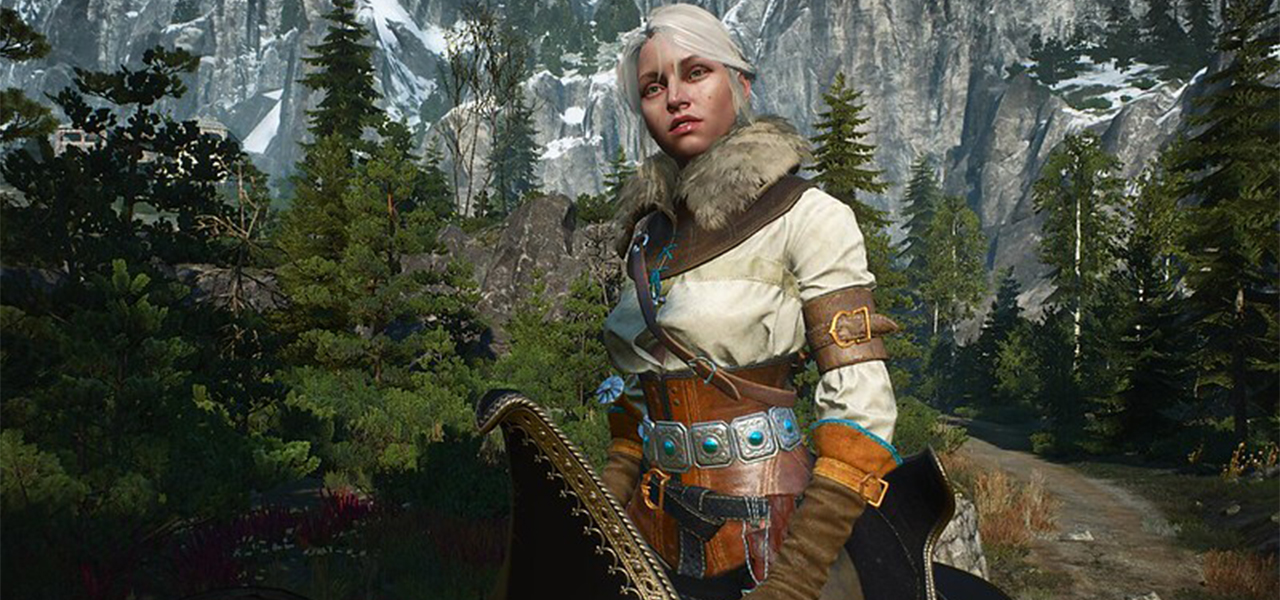
When troubleshooting, be systematic. Change one thing at a time, test, and then proceed. Your backups are your best friend during this process, making it a highly “productive” and less stressful endeavor.
Curating Your Modding Experience and Best Practices: The Art of Enhancement
Beyond mere installation, effective modding involves careful curation, understanding potential pitfalls, and adopting habits that ensure a stable and enjoyable experience. This is where the “Art” of modding meets the “Science” of “Tech” management.
Finding Quality Mods: Navigating the Nexus
The vast majority of Witcher 3 mods reside on Nexus Mods. It’s an unparalleled resource, but knowing how to sift through the sheer volume is key to finding reliable and high-quality content.
- Filter by Top/Endorsed/Trending: Start your search by filtering mods by “Top Files,” “Most Endorsed,” or “Trending.” These filters often highlight popular and well-maintained mods that have received positive community feedback. High endorsement counts are a good indicator of a mod’s stability and impact, contributing to the modder’s “Brand” within the community.
- Read Descriptions and Posts: A thorough mod description, detailing features, compatibility, requirements, and known issues, is a sign of a responsible mod author. Always check the “Posts” section for user feedback, bug reports, and solutions. This community engagement is crucial for assessing a mod’s reliability.
- Check Last Updated Date: While not always a deal-breaker, mods that haven’t been updated in years might have compatibility issues with newer game versions or other popular mods. Look for mods that are actively maintained or have clear statements about their compatibility.
- Endorse Good Mods: If you enjoy a mod, endorse it on Nexus. This not only shows appreciation to the mod author but also helps other users discover quality content, strengthening the overall “Brand” and reputation of the modding community.
Load Order and Conflict Resolution: Advanced Management
As your mod list grows, managing the load order becomes crucial, especially with mods that affect similar aspects of the game. Vortex helps significantly with this, but understanding the underlying principles is beneficial.
- Understanding Overwrites: When two mods modify the same file (e.g., a texture, a script, or an INI entry), one will “win” and overwrite the other. Mod managers help visualize and manage these overwrites.
- Vortex’s Rule System: Vortex allows you to create rules (e.g., “Load Mod A after Mod B”) to dictate which mod takes precedence in an overwrite conflict. Learning to use these rules effectively is a powerful “software” management technique. For example, if you have a base HD texture pack and then a specific texture mod for Geralt’s hair, you’d want the hair mod to load after the base pack to ensure its specific textures are applied.
- Manual INI Edits: Some mods require manual edits to
user.settingsor other INI files. Always make a backup of these files before editing. If conflicts occur between INI mods, you might need to manually merge the changes using a text editor or a specialized INI merger tool.
Performance Optimization: Balancing Beauty and Frame Rate
Modding can be a double-edged sword: stunning visuals often come at a cost to performance. Smart optimization is key to a smooth experience.
- Hardware Limitations: Be realistic about your PC’s capabilities. A powerful graphics card is essential for high-resolution texture packs and demanding graphical enhancers.
- Mod Alternatives: Many popular graphical mods offer “lite” or “performance” versions. Opt for these if you’re struggling with frame rates.
- Disable Unnecessary Mods: If a mod isn’t adding much to your experience but is using resources, consider disabling it. A clean, efficient mod list is often better than an overloaded one.
- In-Game Settings: Don’t forget to tweak your in-game graphical settings. Reducing shadows, foliage visibility, or post-processing effects can free up significant performance without drastically impacting visual quality, allowing your chosen “Tech” mods to shine.
Maintaining Your Modded Game: Long-Term Stability
Modding isn’t a one-time setup; it’s an ongoing process, especially if you continue to add new mods or if the game receives unexpected updates.
- Game Updates: Official game updates (though rare now for Witcher 3) can break mods, especially script mods. If the game updates, disable all mods, check mod pages for compatibility updates, and re-enable them gradually.
- Mod Updates: Keep an eye on the “Updates” tab in Vortex or your Nexus Mods tracking page. Mod authors frequently release updates that fix bugs, improve performance, or add new features.
- Cleanliness: Periodically review your mod list. Remove mods you no longer use. A lean mod list is easier to manage and less prone to conflicts, contributing to better “productivity” in the long run.
The Impact of Modding: Beyond Just Gameplay
While the primary appeal of modding is undoubtedly the enhanced gameplay and visuals, its influence extends far beyond mere “Tech” improvements. Modding fosters community, extends product life, and even opens avenues for content creation, touching upon “Brand” perception and “Money” value.
Enhancing User Experience and Replayability: A Game Transformed
The most immediate and obvious benefit of modding is the profound enhancement of the user experience. Mods can:
- Refresh Visuals: High-resolution texture packs, advanced lighting overhauls, and improved weather systems can make a years-old game look brand new, rivaling contemporary releases. This elevates the “Brand” perception of the game itself, showcasing its enduring quality.
- Refine Gameplay: Quality-of-life mods can address minor annoyances, streamline inventory management, or improve crafting systems. New combat mechanics, magic overhauls, or alternative progression systems can radically alter the gameplay loop, providing a fresh challenge even for seasoned players.
- Extend Content: New quests, characters, and even entire regions created by modders breathe new life into the Northern Realms, offering dozens, if not hundreds, of additional hours of exploration and storytelling. This directly extends the value proposition of the game.
By customizing the experience, players develop a deeper connection with the game, transforming it into a personalized artifact. This extended engagement fuels ongoing discussions and keeps the game relevant in an ever-evolving market.
Community & Content Creation: Building Brands and Opportunities
The modding ecosystem is a powerful example of community-driven innovation.
- Modder Brand: Talented mod authors build significant “Brand” recognition within the community. Their mods are sought after, and their names become synonymous with quality and reliability. This reputation can open doors for them, potentially leading to careers in game development or related fields.
- Content Creation: Modding directly fuels the content creation economy. Streamers and YouTubers constantly look for new and interesting mods to showcase. A popular mod can provide endless hours of unique content, attracting viewers and subscribers. This translates directly to “Money” opportunities for content creators through ad revenue, sponsorships, and platform subscriptions. Mod showcases keep The Witcher 3 in the public eye, acting as organic marketing long after official support has ended.
- Collaborative Spirit: The modding community is often highly collaborative, with modders sharing knowledge, resources, and even working together on larger projects. This collective effort strengthens the overall “Brand” of the game’s community as a welcoming and innovative space.
Future-Proofing and Value for Money: An Enduring Investment
In an era of rapidly released games and subscription services, modding offers incredible “Money” value.
- Extending Game Life: By continually refreshing the experience, mods allow players to revisit The Witcher 3 for years without feeling stale. This means you get more entertainment value out of your initial purchase, effectively future-proofing your gaming investment. Instead of buying a new game, you can enhance an old favorite.
- Avoiding Repurchases: For many, mods are the reason they don’t feel the need to buy “remastered” or “definitive” editions of older games. The community provides those enhancements for free, giving you control over the updates you want.
- Digital Preservation: Modders often fix bugs or improve performance where official developers no longer do, effectively preserving and enhancing the game for future generations of players. This long-term “Tech” stewardship ensures the game remains playable and enjoyable for decades, securing its place as a valuable cultural and entertainment asset.
In essence, modding The Witcher 3 is more than just installing files; it’s an investment in your personal gaming experience, a contribution to a vibrant digital culture, and a testament to the enduring power of community-driven “Tech” innovation.

Conclusion: Embrace the Power of Customization
Embarking on the journey of modding The Witcher 3: Wild Hunt is an incredibly rewarding endeavor. It transforms an already legendary game into a uniquely personalized epic, tailored precisely to your preferences. By understanding the essential “Tech” steps – from preparing your game and utilizing powerful modding tools like Vortex and Script Merger, to troubleshooting common issues and curating your mod list – you empower yourself to unlock countless hours of fresh adventure.
Beyond the immediate gameplay enhancements, modding reinforces the “Brand” appeal of The Witcher 3, showcasing its adaptability and the enduring passion of its community. It allows players to extract immense “Money” value from their initial purchase, extending the game’s lifespan and even fostering new opportunities for content creators.
So, arm yourself with knowledge, embrace the spirit of experimentation, and dive into the boundless possibilities that modding offers. Geralt’s path through the Northern Realms is yours to define, and with the right mods, that journey can be more immersive, visually stunning, and endlessly replayable than ever before. Happy modding, and may your adventures be ever wilder!
aViewFromTheCave is a participant in the Amazon Services LLC Associates Program, an affiliate advertising program designed to provide a means for sites to earn advertising fees by advertising and linking to Amazon.com. Amazon, the Amazon logo, AmazonSupply, and the AmazonSupply logo are trademarks of Amazon.com, Inc. or its affiliates. As an Amazon Associate we earn affiliate commissions from qualifying purchases.