
In the fast-evolving landscape of technology, developers are constantly seeking tools that enhance productivity, streamline workflows, and empower them to build innovative solutions. Among the myriad of Integrated Development Environments (IDEs) and code editors available, Visual Studio Code (VS Code) has emerged as a dominant force, celebrated for its lightweight yet powerful features, extensive customization options, and vibrant ecosystem. For users of Ubuntu, a popular and robust Linux distribution, installing VS Code is a straightforward process that unlocks a world of development possibilities, from web applications and mobile apps to data science and cloud services.
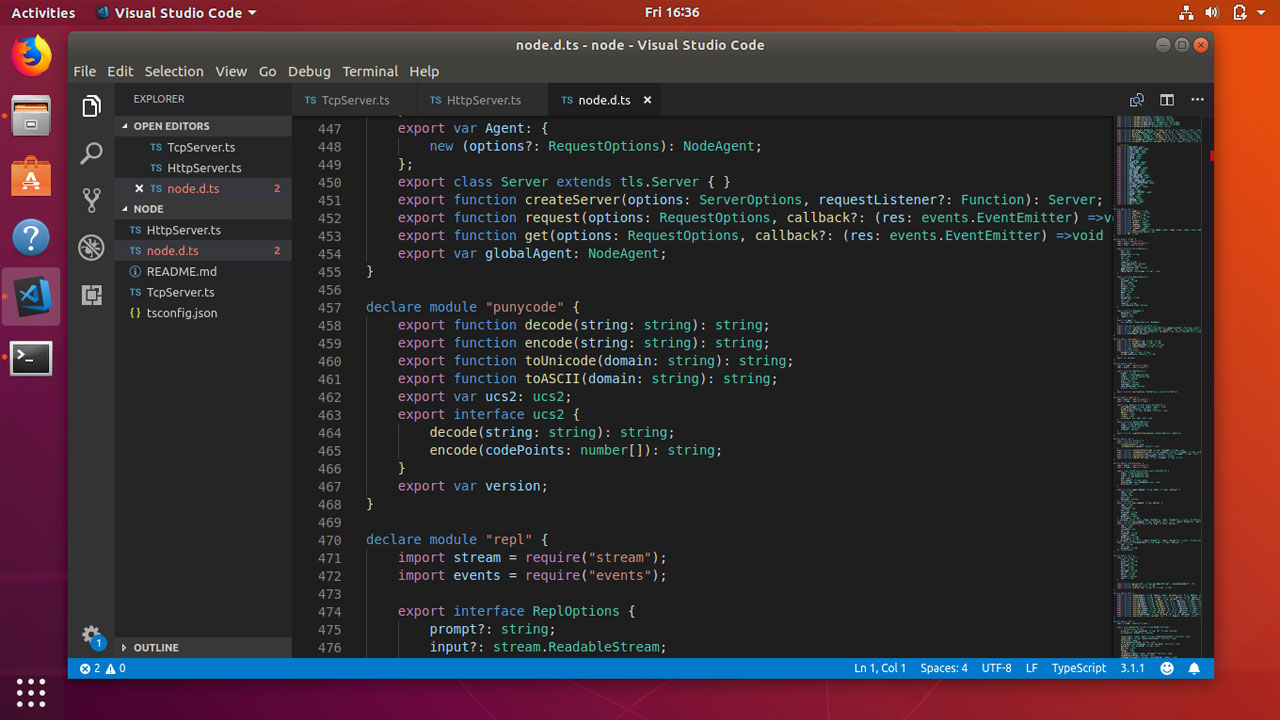
This guide will walk you through the various methods of installing VS Code on your Ubuntu system, ensuring you can choose the approach that best fits your technical comfort and requirements. Beyond the installation, we’ll explore why VS Code is an indispensable asset for modern developers, touching upon its role in boosting productivity, facilitating lucrative side hustles, and contributing to a strong professional tech brand. Whether you’re a seasoned developer or just starting your coding journey, mastering VS Code on Ubuntu is a foundational step towards greater efficiency and success in the digital realm.
Why Visual Studio Code is Your Development Essential
Before diving into the installation process, it’s worth understanding why VS Code has garnered such immense popularity and why it should be a staple in your developer toolkit. Its appeal lies in a perfect blend of power, flexibility, and community support, making it an ideal choice for a diverse range of programming tasks.
The Power of a Lightweight Yet Robust Editor
At its core, VS Code is a source-code editor developed by Microsoft. Unlike full-fledged IDEs which can be resource-intensive and often come with a steep learning curve, VS Code strikes a balance. It’s lightweight, ensuring snappy performance even on moderately spec’d machines, yet it boasts an incredible array of features that rival many heavier environments. This efficiency is a boon for productivity, allowing developers to focus more on coding and less on waiting for their tools. For those engaging in online income generation or managing tight project deadlines, every saved second translates directly into enhanced output and potential financial gains.
An Ecosystem of Extensions for Every Need
One of VS Code’s most compelling features is its extensive marketplace of extensions. These add-ons can transform the editor into a specialized IDE for virtually any programming language or development task. From syntax highlighting and intelligent code completion (IntelliSense) for Python, JavaScript, Java, C++, and Go, to integrated debugging tools, Git integration, and live collaboration features, extensions empower developers to tailor their environment precisely to their needs.
Consider the impact on your “Tech” stack:
- Web Development: Extensions like Live Server, Prettier, and ESLint streamline front-end and back-end web development.
- Data Science: Python extensions with Jupyter notebook support, data visualization tools, and linting improve data analysis workflows.
- Cloud Development: Tools for AWS, Azure, and Google Cloud allow you to deploy and manage resources directly from the editor.
- Version Control: GitLens and other Git extensions provide powerful insights and controls for source code management, crucial for collaborative projects and maintaining a professional workflow.
This adaptability not only makes development smoother but also positions VS Code as a versatile tool for various side hustles or business ventures, allowing you to quickly pivot between projects without needing to learn entirely new software.
Cross-Platform Accessibility and Community Support
VS Code’s cross-platform nature means it runs seamlessly on Windows, macOS, and Linux (including Ubuntu). This consistency allows developers to maintain a familiar environment regardless of their operating system, which is particularly useful in team settings or when transitioning between personal and work machines. Furthermore, the active open-source community constantly contributes to its improvement, ensuring regular updates, bug fixes, and new features. This vibrant community also fuels the extension marketplace, providing developers with a continuously expanding toolkit. Relying on a tool with strong community backing not only enhances security through collective vetting but also assures longevity and continuous evolution, safeguarding your investment in learning and integrating it into your workflow.
Preparing Your Ubuntu System for VS Code Installation
Before proceeding with the installation of VS Code, it’s always a good practice to ensure your Ubuntu system is up-to-date. This step helps prevent potential conflicts, ensures you have the latest security patches, and often resolves dependency issues before they even arise.
Open your terminal (you can usually do this by pressing Ctrl + Alt + T) and run the following commands:
sudo apt update
sudo apt upgrade -y
The sudo apt update command refreshes your package lists, informing your system about the latest available versions of software. The sudo apt upgrade -y command then installs any available updates for the packages currently installed on your system. The -y flag automatically confirms any prompts, making the process smoother. While VS Code itself has minimal hardware requirements, a stable and updated system provides the best foundation for a smooth installation and optimal performance.
Installation Methods: Choose Your Path
Ubuntu users have several reliable methods for installing VS Code, each with its own advantages. We will cover the three most popular and recommended approaches: using the official APT repository, leveraging the Snap Store, and performing a manual .deb package installation.
Method 1: Installing VS Code via the Official APT Repository (Recommended)
This is generally the most recommended method for Ubuntu users. Installing from the official APT repository ensures that you receive automatic updates directly through Ubuntu’s standard software update mechanism, keeping your VS Code installation secure and up-to-date with minimal effort.
Step-by-step instructions:
-
Import the Microsoft GPG Key: The GPG key is used to verify the authenticity of the packages you download from Microsoft’s repository, ensuring they haven’t been tampered with.
wget -qO- https://packages.microsoft.com/keys/microsoft.asc | gpg --dearmor > packages.microsoft.gpg
sudo install -D -o root -g root -m 644 packages.microsoft.gpg /etc/apt/keyrings/packages.microsoft.gpg
rm packages.microsoft.gpg
wget -qO- https://packages.microsoft.com/keys/microsoft.asc: Downloads the GPG key from Microsoft’s servers. The-qO-options ensure it’s quiet and outputs to standard output.| gpg --dearmor > packages.microsoft.gpg: Pipes the output togpg --dearmorto convert it into an APT-compatible format and saves it aspackages.microsoft.gpg.sudo install -D -o root -g root -m 644 packages.microsoft.gpg /etc/apt/keyrings/packages.microsoft.gpg: Moves the key to the/etc/apt/keyrings/directory, which is the standard location for APT keyrings in modern Ubuntu versions.rm packages.microsoft.gpg: Removes the temporary key file from your current directory.
-
Add the Visual Studio Code Repository: Now, add the repository to your system’s APT sources list. This tells your system where to find the VS Code packages.
echo "deb [arch=amd64 signed-by=/etc/apt/keyrings/packages.microsoft.gpg] https://packages.microsoft.com/repos/code stable main" | sudo tee /etc/apt/sources.list.d/vscode.listThis command adds a new line to
vscode.listwithin yoursources.list.ddirectory. This line specifies that anamd64architecture Debian package repository for VS Code (code) exists at the given URL, is signed by the key we just added, and containsstable maincomponents. -
Update Your Package Lists: After adding a new repository, you need to update APT’s cache so it knows about the new packages available.
sudo apt update -
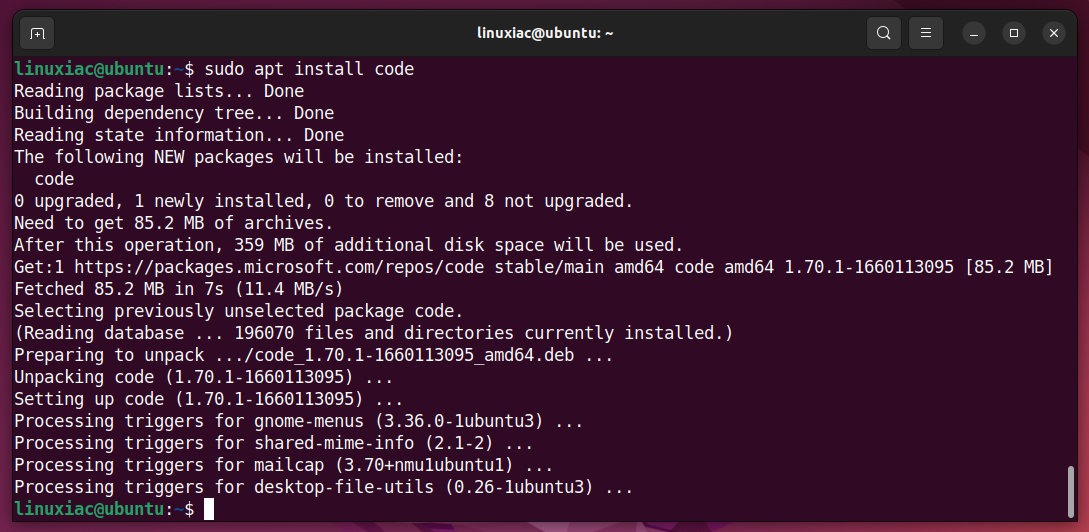
Install Visual Studio Code: Finally, you can install VS Code using the
apt installcommand.sudo apt install codeThis command will download and install the latest stable version of VS Code along with any necessary dependencies.
Once installed, you can launch VS Code by typing code in your terminal or by searching for “Visual Studio Code” in your applications menu.
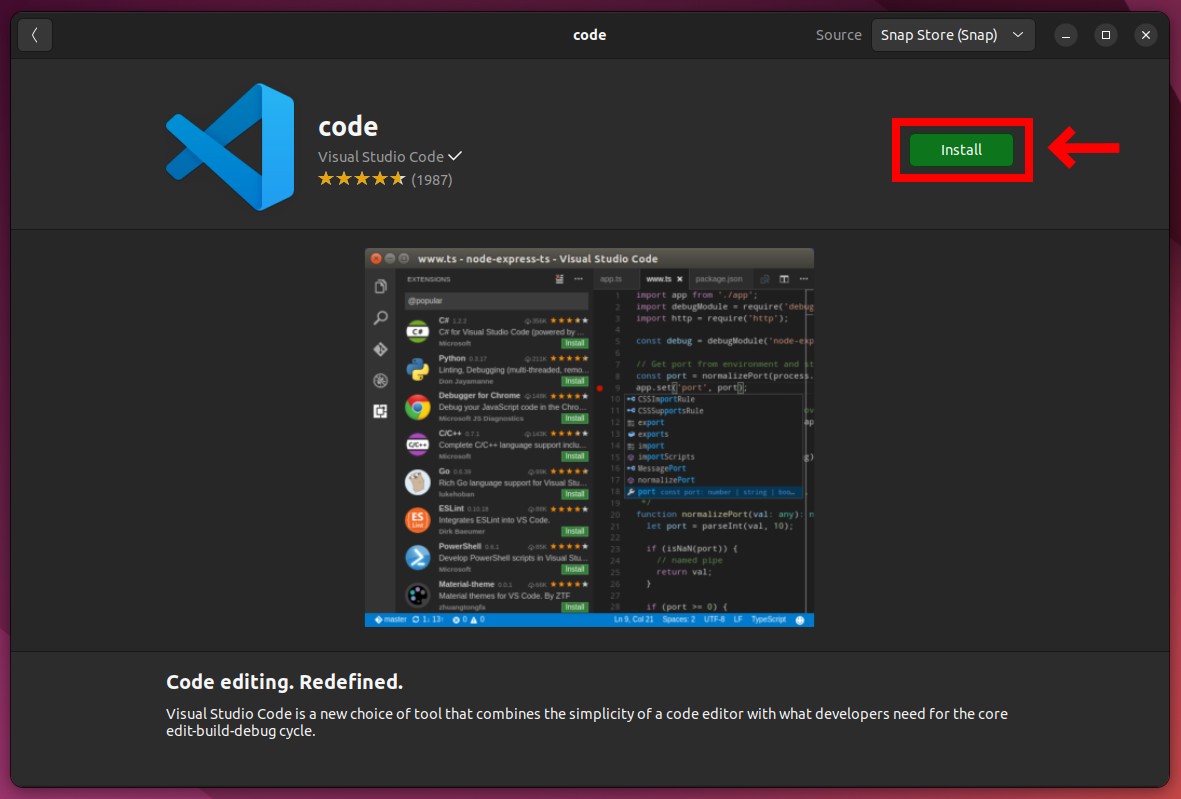
Method 2: Installing VS Code via the Snap Store
Snap is a universal software packaging and deployment system developed by Canonical (the creators of Ubuntu). Snaps are self-contained applications that bundle all their dependencies, making them easy to install and ensuring they run consistently across various Linux distributions. This method offers simplicity and strong isolation, which can be beneficial for digital security and preventing dependency conflicts.
Step-by-step instructions:
-
Ensure Snapd is Installed: Snap is usually pre-installed on modern Ubuntu versions. If for any reason it’s not, you can install it with:
sudo apt update
sudo apt install snapd
-
Install Visual Studio Code Snap: The
--classicflag is important here. It grants the Snap package broader access to your system resources, which is necessary for a development environment like VS Code that needs to interact with files across your system.sudo snap install --classic codeThis command will download and install the VS Code Snap package. The process might take a few moments depending on your internet connection.
Snaps update automatically in the background, which is a significant advantage for maintenance. To launch VS Code, simply type code in your terminal or find “Visual Studio Code” in your applications menu.
Method 3: Manual .deb Package Installation
This method involves downloading the official .deb package directly from the VS Code website and installing it using Ubuntu’s package manager (dpkg). This can be useful if you prefer manual control over versions, need to install offline, or encounter issues with the repository method.
Step-by-step instructions:
-
Download the .deb Package: Open your web browser and navigate to the official Visual Studio Code download page: https://code.visualstudio.com/download
Look for the “Linux .deb (64-bit)” option and download the file. It will typically be named something likecode_1.xx.x-xxxxxxxx_amd64.deb. Save it to yourDownloadsdirectory or a location of your choice. -
Install the .deb Package: Open your terminal and navigate to the directory where you downloaded the
.debfile.cd ~/DownloadsNow, install the package using
dpkg:sudo dpkg -i code_*.debReplace
code_*.debwith the exact filename if you prefer, butcode_*.debshould work if it’s the only.debfile starting withcode_in that directory. -
Resolve Dependencies (if necessary): Sometimes,
dpkgmight report dependency errors. You can fix these by tellingaptto install the missing dependencies:sudo apt --fix-broken installThis command will automatically find and install any missing packages that VS Code requires.
After successful installation, you can launch VS Code from your applications menu or by typing code in the terminal. The downside of this method is that VS Code will not automatically update; you’ll need to manually download and install new .deb packages for updates, or add the APT repository as shown in Method 1 to enable automatic updates. In fact, installing the .deb package usually adds the Microsoft APT repository anyway, enabling future apt upgrade updates.
First Steps After Installation: Customizing Your VS Code Environment
Once VS Code is installed, the real fun begins: tailoring it to your specific needs. A well-configured editor significantly boosts productivity and helps you maintain a consistent workflow, essential for delivering high-quality work and building a strong personal brand in tech.
Navigating the Interface and Basic Usage
Upon launching VS Code, you’ll be greeted by its intuitive interface:
- Activity Bar (leftmost): Contains icons for Explorer (file management), Search, Source Control, Run and Debug, and Extensions.
- Sidebar: Displays views corresponding to the selected Activity Bar icon (e.g., file tree, search results).
- Editor Group: Where your code files are displayed and edited. You can open multiple editor groups side-by-side.
- Panel (bottom): Contains the integrated Terminal, Output, Debug Console, and Problems view.
- Status Bar (bottom): Shows information about your project, line endings, language mode, Git branch, and more.
You can open folders (File > Open Folder...) or individual files (File > Open File...) to start coding. The integrated terminal (Ctrl + ) is a powerful feature, allowing you to run commands, scripts, and build tools directly within VS Code, eliminating the need to switch between applications.
Essential Extensions for Enhanced Productivity
The Extensions Marketplace is where VS Code truly shines. Head to the Extensions view (the square icon in the Activity Bar or Ctrl + Shift + X) and start exploring. Here are a few indispensable categories and examples:
- Language Support: Install extensions for the languages you work with most (e.g., Python, JavaScript (ES7 React/Redux/GraphQL/React-Native snippets), C++, Java Extension Pack). These provide intelligent IntelliSense, debugging, and code formatting.
- Themes and Icons: Personalize your editor’s appearance with themes (e.g., Dracula Official, One Dark Pro) and icon packs (e.g., Material Icon Theme). A visually pleasing environment can subtly enhance your focus and enjoyment, contributing to a more positive work experience.
- Productivity Tools:
- GitLens: Supercharges Git capabilities, showing blame annotations, commit history, and more. Essential for professional software development and collaborative projects.
- Prettier / ESLint: Code formatters and linters that enforce consistent code styles, making your code cleaner, more readable, and easier to maintain. This is crucial for team collaborations and maintaining a high standard for your “Brand.”
- Live Share: Enables real-time collaborative coding, allowing you to share your editor and debug sessions with teammates. Perfect for pair programming or remote assistance.
- Docker: Integrate Docker commands and views directly into VS Code for containerized development.
Investing a little time in exploring and installing relevant extensions will pay dividends in increased efficiency and reduced frustration.
Customizing Settings and Synchronizing Your Environment
VS Code offers extensive customization options via its settings. You can access them through File > Preferences > Settings (or Ctrl + ,). Settings can be applied globally (User Settings) or on a per-project basis (Workspace Settings). From font sizes and auto-save behavior to integrated terminal shell choices, you have fine-grained control.
For developers working across multiple machines or those who frequently reinstall their OS, Settings Sync is a lifesaver. This feature, built directly into VS Code, allows you to synchronize your settings, extensions, keybindings, and UI state across different installations using your GitHub or Microsoft account. This ensures a consistent development environment no matter where you work, saving setup time and maintaining your personalized “Brand” of development workspace.
Beyond Installation: How VS Code Empowers Your Tech Journey
Installing VS Code on Ubuntu is more than just adding another piece of software; it’s an investment in your productivity, financial potential, and professional standing. Let’s briefly revisit how this powerful tool aligns with the broader themes of Tech, Brand, and Money.
Boosting Productivity: The Tech Advantage
VS Code’s feature set is designed from the ground up to make developers more efficient. The integrated terminal eliminates context switching, IntelliSense speeds up coding and reduces errors, and robust debugging tools simplify troubleshooting. For any tech enthusiast or professional, a tool that maximizes output with minimal overhead is invaluable. It frees up time to explore new technologies, learn new languages, or innovate on existing projects, keeping your tech skills sharp and relevant.
Empowering Side Hustles and Online Income: The Money Connection
For those looking to generate online income or launch side hustles, VS Code is a formidable ally. Its versatility means you can use it for:
- Freelance Web Development: Quickly build and deploy websites for clients.
- Scripting and Automation: Create Python or Bash scripts to automate repetitive tasks, either for personal use or to sell as services.
- Mobile App Development: With frameworks like React Native or Flutter, VS Code becomes a powerful environment for building cross-platform mobile apps.
- Content Creation: Even for technical writing or creating educational content, VS Code’s markdown support and preview features are excellent.
Being able to rapidly prototype, develop, and test solutions directly impacts your ability to take on diverse projects and generate multiple streams of income. The fact that VS Code is free and open-source also keeps your initial software investment at zero, maximizing your profit margins from the outset.
Building a Professional Tech Brand: The Branding Aspect
Your choice of tools, and how effectively you use them, contributes significantly to your professional brand. Using a well-regarded, industry-standard editor like VS Code signals professionalism and a commitment to quality. The clean, consistent code produced with its formatting tools, the efficiency gained from its features, and the seamless collaboration it enables, all reflect positively on your work. For developers, a strong personal brand translates into better job opportunities, more reputable freelance gigs, and a higher perceived value for your skills. In a competitive market, projecting an image of efficiency and expertise through your tooling choices can make all the difference.
Conclusion
Installing Visual Studio Code on Ubuntu is a foundational step for any developer aiming to maximize their potential in the modern tech landscape. Whether you choose the reliable APT repository method, the convenient Snap Store, or a direct .deb package installation, you’re gaining access to a highly versatile and powerful code editor.
Once installed, take the time to customize your environment with essential extensions and settings. This personalization will not only make your coding experience more enjoyable but will significantly enhance your productivity, enabling you to tackle complex projects with greater ease. From accelerating your development workflows and facilitating diverse income-generating projects to strengthening your professional tech brand, VS Code on Ubuntu is a tool that truly empowers you to build, innovate, and succeed. Dive in, explore its vast capabilities, and transform your coding journey on Ubuntu.
aViewFromTheCave is a participant in the Amazon Services LLC Associates Program, an affiliate advertising program designed to provide a means for sites to earn advertising fees by advertising and linking to Amazon.com. Amazon, the Amazon logo, AmazonSupply, and the AmazonSupply logo are trademarks of Amazon.com, Inc. or its affiliates. As an Amazon Associate we earn affiliate commissions from qualifying purchases.