
In the vast and interconnected world of technology, sound is often taken for granted until it vanishes. Imagine trying to watch a tutorial, attend a virtual meeting, or enjoy your favorite music only to be met with an eerie silence from your speakers or headphones. This frustrating experience often points to a common culprit: an issue with your sound drivers. For anyone navigating the complexities of their computer’s operating system, understanding how to properly install and manage these critical software components is not just a convenience, but a necessity for maintaining an efficient and enjoyable digital experience.

This guide will demystify the process of installing sound drivers, whether you’re setting up a new machine, troubleshooting a persistent audio problem, or simply aiming to optimize your system’s performance. We’ll cover everything from identifying your current sound status to exploring various installation methods, ensuring you can restore your digital audio with confidence and clarity.
Understanding Sound Drivers and Why They Matter
Before diving into the “how-to,” it’s crucial to grasp what sound drivers are and their indispensable role in your computer’s ecosystem. Think of them as the unsung heroes facilitating communication between your operating system and your sound hardware. Without them, your computer simply wouldn’t know how to “speak” to your speakers, headphones, or microphone.
What Exactly is a Sound Driver?
At its core, a sound driver is a piece of software that enables your computer’s operating system (like Windows, macOS, or Linux) to communicate with a specific hardware device, in this case, your sound card or integrated audio chip. Your sound hardware is responsible for converting digital audio signals into analog sound waves that you can hear, and vice-versa for input devices like microphones. The driver acts as a translator, ensuring that the complex instructions from your software applications (like a music player or video editor) are correctly interpreted by the hardware, and that the hardware’s responses are understood by the operating system.
When a driver is missing, outdated, or corrupted, this communication breaks down, leading to a range of audio issues from complete silence to distorted sound quality, or even intermittent audio dropouts. Modern systems often come with generic drivers that provide basic functionality, but specific drivers from the hardware manufacturer are typically required to unlock the full potential and features of your sound device, including advanced audio processing, surround sound capabilities, and optimal performance.
Common Scenarios Requiring Driver Installation
While sound drivers generally operate in the background without much fuss, there are several key situations where manual intervention—whether it’s an initial installation or an update—becomes necessary:
- New PC Build or Operating System Installation: When you build a new computer or perform a clean installation of your operating system, the system will only have basic, generic drivers. To get full functionality and optimal performance from your onboard or dedicated sound card, you’ll need to install the manufacturer’s specific drivers.
- No Sound Output: This is the most obvious and frustrating symptom. If your computer suddenly goes silent and you’ve already checked volume levels and speaker connections, a missing or corrupted sound driver is often the culprit.
- Poor Sound Quality or Distortions: Even if you have sound, issues like crackling, popping, low volume, or generally poor fidelity can indicate that your current drivers are outdated or incompatible. Updating them can often resolve these quality issues, unlocking clearer, richer audio.
- After a Major Windows Update: Sometimes, large operating system updates can inadvertently overwrite existing drivers with generic versions or introduce incompatibilities, leading to sound problems. Reinstalling or updating drivers often fixes these post-update glitches.
- Installing New Audio Hardware: If you upgrade your sound card or connect a new external audio interface, you’ll almost certainly need to install its specific drivers to ensure it integrates properly with your system and delivers its intended performance.
- Driver Conflicts or Errors: Occasionally, different drivers can conflict with each other, or a driver might become corrupted due to software issues, leading to error messages or system instability. Reinstalling the sound driver can resolve these conflicts.
Addressing these scenarios promptly not only restores your audio but also contributes to overall system stability and productivity, preventing interruptions to your work or entertainment.
Pre-Installation Checks and Identification
Before you embark on the journey of installing or updating sound drivers, a few preliminary steps can save you time and prevent unnecessary hassle. Identifying your current sound status and hardware specifics is crucial for choosing the right driver.
Verifying Your Current Sound Status
The first step is to confirm that the issue is indeed driver-related and not a simpler problem.
- Check Volume Levels: Ensure your system volume isn’t muted or turned down. Check both the taskbar volume icon and any physical volume controls on your speakers or headphones.
- Inspect Connections: Verify that your speakers, headphones, or other audio devices are correctly plugged into the appropriate audio jacks on your computer. Loose or incorrect connections are a surprisingly common cause of no sound.
- Test with Different Devices: If possible, try connecting a different set of headphones or speakers to rule out a hardware fault with your audio output device.
- Run Windows Audio Troubleshooter: Windows has a built-in troubleshooter that can often automatically diagnose and fix common audio problems.
- Right-click the speaker icon in your taskbar.
- Select “Troubleshoot sound problems.”
- Follow the on-screen prompts.
If these basic checks don’t resolve the issue, it’s highly likely a driver problem.
Identifying Your Sound Hardware
To download the correct drivers, you need to know what sound hardware your computer uses. This is especially important for downloading drivers directly from a manufacturer’s website.
- Access Device Manager:
- Right-click the Start button (Windows logo) and select “Device Manager.”
- Alternatively, search for “Device Manager” in the Windows search bar and open it.
- Locate Sound, Video and Game Controllers: Expand this section by clicking the arrow next to it.
- Identify Your Audio Device: Here, you’ll see a list of your audio devices. Common names include “Realtek High Definition Audio,” “NVIDIA High Definition Audio,” “AMD High Definition Audio Device,” or names corresponding to dedicated sound cards (e.g., “Creative Sound Blaster”).
- If you see a yellow exclamation mark (!) next to your sound device, it indicates a problem with the driver (missing, corrupted, or incompatible).
- If your sound device is missing entirely, it might not be detected, or its driver is completely absent.
- Note Down Details: Make a note of the exact name of your sound device. If you’re using a pre-built PC (like Dell, HP, Lenovo) or a laptop, it’s also crucial to know your computer’s specific model number. For custom-built PCs, you’ll need the model of your motherboard (for onboard audio) or your dedicated sound card. You can find your PC model number on a sticker on the case or in System Information (search for “System Information” in Windows).
With this information in hand, you are now equipped to find and install the appropriate drivers.
Step-by-Step Guide to Installing Sound Drivers
Once you’ve identified your sound hardware and confirmed a driver issue, it’s time to install or update the necessary software. There are several reliable methods, each with its own advantages.
Method 1: Utilizing Windows Update
For many users, especially those with integrated audio on a relatively modern system, Windows Update is the simplest starting point. It can often automatically detect, download, and install generic or even specific drivers for your hardware.
- Open Settings: Click the Start button and then the gear icon (Settings).
- Navigate to Windows Update: Select “Update & Security” (Windows 10) or “Windows Update” (Windows 11).
- Check for Updates: Click “Check for updates.” Windows will scan for available updates, including driver updates.
- Review Optional Updates: Sometimes, driver updates are listed under “Optional updates” or “View all optional updates.” Click on this section and select any available audio driver updates.
- Install Updates: Allow Windows to download and install the updates.
- Restart Your PC: A restart is often required for driver changes to take full effect.
Pros: Extremely easy, often provides basic functionality, integrated into the OS.
Cons: May not provide the latest or most feature-rich drivers from the manufacturer; can be slower to receive updates.
Method 2: Through Device Manager
The Device Manager offers more control over your drivers, allowing you to update, roll back, or even completely uninstall drivers.
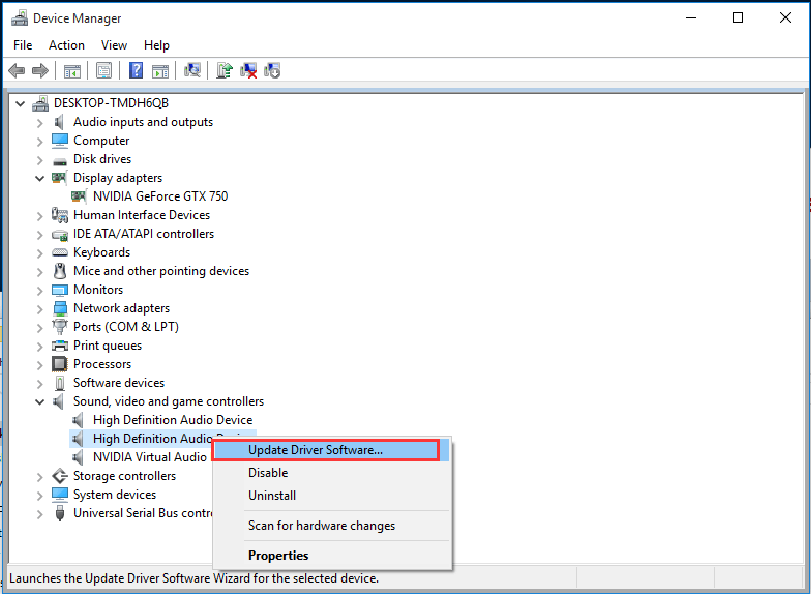
- Open Device Manager: Right-click the Start button and select “Device Manager.”
- Expand “Sound, video and game controllers”: Locate your audio device (e.g., Realtek High Definition Audio).
- Update Driver:
- Right-click on your audio device.
- Select “Update driver.”
- Choose “Search automatically for drivers.” Windows will attempt to find a driver on your computer or online. If it finds one, follow the prompts to install it.
- If Windows reports that “The best drivers for your device are already installed,” but you suspect an issue, proceed to the next method.
- Uninstall and Reinstall (Troubleshooting Step): If updating doesn’t work or you see an error, uninstalling the driver can sometimes resolve conflicts and force a fresh installation.
- Right-click on your audio device.
- Select “Uninstall device.”
- Important: If prompted, check the box “Delete the driver software for this device.” This ensures a clean slate.
- Restart your computer. Upon restarting, Windows will usually attempt to automatically reinstall a generic driver or the previously installed driver, which might resolve the issue. If not, proceed to Method 3.
Pros: Good for troubleshooting, allows for manual driver updates from downloaded files, can resolve corrupted driver issues.
Cons: Still relies somewhat on Windows’ ability to find drivers, which might not always be the optimal choice.
Method 3: Downloading from Manufacturer’s Website (Recommended)
This is generally the most reliable method for ensuring you have the latest and most compatible drivers, unlocking all the features and optimal performance of your sound hardware. This is especially true for custom-built PCs, gaming rigs, or high-performance workstations where optimal audio is key to productivity and enjoyment.
-
Identify Your Hardware (if not already done): As covered in “Identifying Your Sound Hardware,” know your PC model (for pre-built systems/laptops), motherboard model (for custom-built with onboard audio), or dedicated sound card model.
- For pre-built PCs/Laptops (Dell, HP, Lenovo, ASUS, Acer, etc.): Go to your PC manufacturer’s support website. Search for your specific computer model. Look for a “Drivers,” “Support,” or “Downloads” section.
- For custom-built PCs with onboard audio: Go to your motherboard manufacturer’s website (e.g., ASUS, MSI, Gigabyte, ASRock). Search for your specific motherboard model. Look for the “Drivers & Utilities” or “Support” section. The audio driver will often be listed under “Audio” or “Chipset.”
- For dedicated sound cards (e.g., Creative, ASUS Xonar): Go to the sound card manufacturer’s website. Search for your specific sound card model.
-
Navigate to the Driver Download Page: Once you find your product’s support page, locate the “Drivers,” “Support,” or “Downloads” section.
-
Select Your Operating System: It’s crucial to select the correct version of your operating system (e.g., Windows 10 64-bit, Windows 11 64-bit). Mismatched OS versions can cause installation failures or instability.
-
Download the Audio Driver: Identify the latest audio driver for your device. It will usually be clearly labeled as “Audio Driver,” “Sound Driver,” or sometimes specify the audio chipset (e.g., “Realtek Audio Driver”). Download the executable file (.exe) or a compressed archive (.zip).
-
Install the Driver:
- If it’s an .exe file, simply double-click it to run the installer.
- If it’s a .zip file, extract its contents to a folder, then look for a “setup.exe” or “install.exe” file and run it.
- Follow the on-screen prompts of the installer. You may be asked to accept terms, choose installation options, and restart your computer.
-
Restart Your PC: Always restart your computer after installing new drivers to ensure they are properly initialized.
Pros: Provides the latest, most stable, and feature-rich drivers; ensures full compatibility and performance; often includes utility software for advanced audio control.
Cons: Requires manual identification and navigation; can be slightly more time-consuming.
Method 4: Considering Third-Party Driver Utilities (with caution)
Several third-party driver update utilities claim to automatically detect, download, and install drivers for your entire system. While they can be convenient, exercise extreme caution when using them.
Pros (Potential): Can automate the process, useful for identifying obscure hardware.
Cons (Significant):
- Security Risks: Many free or less reputable tools can bundle malware, adware, or potentially unwanted programs (PUPs).
- Incorrect Drivers: They might install incorrect or generic drivers, leading to system instability or further audio issues.
- Cost: Reputable tools often come with a subscription fee.
Recommendation: It’s generally best to avoid third-party driver utilities unless you are an advanced user who understands the risks and can verify the legitimacy of the software. Stick to Windows Update or, preferably, manufacturer websites for critical drivers like sound. The potential productivity gains from automation are often outweighed by the risks of system compromise or further technical problems.
Troubleshooting Common Sound Driver Issues
Even after installing drivers, you might encounter persistent sound problems. Don’t despair; several troubleshooting steps can help pinpoint and resolve the issue.
Post-Installation Checks
After installing new drivers, perform these checks:
- Verify in Device Manager: Go back to Device Manager. Is your sound device listed without any yellow exclamation marks or red “X” icons? This indicates the driver is installed correctly.
- Check Playback Devices:
- Right-click the speaker icon in your taskbar and select “Sound settings” or “Open Sound settings.”
- Under “Output” (or “Playback devices” in older Windows versions), ensure your preferred output device (speakers, headphones) is selected as the default. Sometimes, after driver updates, the default output can change.
- Test Audio: Play some audio (music, a YouTube video) to confirm functionality.
Advanced Troubleshooting Tips
If sound still isn’t working, consider these more advanced steps:
- Roll Back Driver: If sound worked before a driver update and stopped working afterward, you can revert to a previous driver version. In Device Manager, right-click your audio device, select “Properties,” go to the “Driver” tab, and click “Roll Back Driver” if available.
- Check BIOS/UEFI Settings: For onboard audio, ensure that the audio controller is enabled in your computer’s BIOS or UEFI settings. Access BIOS by pressing a key (often Del, F2, F10, or F12) during startup.
- Run System File Checker (SFC): Corrupted system files can sometimes interfere with drivers. Open Command Prompt as an administrator and type
sfc /scannow, then press Enter. - Check Event Viewer: Search for “Event Viewer” in Windows. Look under “Windows Logs” > “System” for any error messages related to audio or drivers around the time the issue occurred. This can provide clues.
- Consider Hardware Failure: If all software and driver-related troubleshooting fails, it’s possible your sound card or integrated audio chip has failed. You might consider purchasing an inexpensive USB sound card as a temporary or permanent solution.
Best Practices for Sound Driver Maintenance
Keeping your sound drivers in good working order is an ongoing task that contributes significantly to your overall computing experience, touching upon productivity and digital security.
Regular Updates and System Hygiene
- Stay Updated (Strategically): While you don’t need to update drivers daily, periodically checking for new versions (especially if you experience issues or notice new features advertised by your hardware manufacturer) is a good practice. Prioritize updates from official manufacturer websites.
- Create Restore Points: Before undertaking any major driver update, especially if you’re experimenting with different versions, create a system restore point. This provides a safety net, allowing you to easily revert your system to a stable state if the new driver causes problems. Search for “Create a restore point” in Windows.
- Keep Driver Backups (Optional): Some advanced users choose to back up known-good driver versions. This can be useful for older hardware where newer drivers might introduce unforeseen issues.
The Productivity Angle: Uninterrupted Workflow
Reliable audio is fundamental to modern productivity. From participating in online meetings and collaborating with colleagues to learning through video tutorials or focusing with background music, uninterrupted sound ensures a smooth workflow. Driver issues can cause significant disruptions, wasting valuable time and hindering efficiency. Proactive driver management minimizes these frustrating interruptions.

Digital Security Considerations
The world of drivers isn’t just about functionality; it also has digital security implications:
- Malware via Fake Drivers: As mentioned with third-party tools, downloading drivers from unofficial or suspicious websites is a significant security risk. These files can be disguised as legitimate drivers but actually contain malware, ransomware, or spyware, compromising your entire system and personal data. Always stick to official channels (Windows Update, hardware manufacturer websites).
- Vulnerability Patches: Sometimes, driver updates include security patches that address vulnerabilities. Keeping your drivers reasonably current can protect your system from potential exploits targeting outdated software.
By adhering to these best practices, you not only ensure crystal-clear audio but also safeguard your system against common pitfalls, contributing to a more secure, stable, and productive digital environment.
In conclusion, knowing how to install and manage sound drivers is an essential skill for any computer user. While it may seem daunting initially, by following the steps outlined in this guide, you can confidently troubleshoot, install, and maintain your sound system, ensuring your digital world is always filled with the sounds you desire. From seamless streaming to clear communication, well-maintained sound drivers are the key to an optimal audio experience.
aViewFromTheCave is a participant in the Amazon Services LLC Associates Program, an affiliate advertising program designed to provide a means for sites to earn advertising fees by advertising and linking to Amazon.com. Amazon, the Amazon logo, AmazonSupply, and the AmazonSupply logo are trademarks of Amazon.com, Inc. or its affiliates. As an Amazon Associate we earn affiliate commissions from qualifying purchases.