
In the digital age, software is the lifeblood of our computers, transforming them from mere hardware into powerful tools for work, creativity, communication, and entertainment. From word processors to video editing suites, productivity apps to cutting-edge AI tools, the right software empowers us to achieve our goals. However, the process of getting these essential programs onto your machine, while seemingly straightforward, involves nuances that can significantly impact your system’s performance, security, and your overall digital experience.
This guide aims to demystify software installation across popular operating systems, providing you with the knowledge and best practices to confidently manage your digital toolkit. We’ll delve into various installation methods, offer practical tips for troubleshooting, and discuss how intelligent software management contributes to your digital security and productivity, aligning with the core principles of effective technology utilization.
Understanding Software Installation Fundamentals
Before diving into the “how-to,” it’s crucial to grasp the basic concepts behind software and its installation processes. Understanding these fundamentals will not only make the installation smoother but also equip you to make informed decisions about the software you choose to run on your system.
Types of Software and Their Purpose
Software broadly falls into a few categories, each with a distinct role in your computer’s operation:
- Operating Systems (OS): This is the foundational software, like Windows, macOS, or Linux, that manages all the computer’s hardware and software resources. While not typically “installed” in the same way as an application (it’s often pre-installed or a complex dedicated process), it’s important to recognize its role as the environment for all other software.
- Application Software: These are the programs designed to perform specific tasks for the user. This is the category we primarily focus on when discussing “installing software.” Examples include web browsers (Chrome, Firefox), office suites (Microsoft Office, Google Workspace apps), graphic design tools (Photoshop, GIMP), games, and AI tools like ChatGPT or Midjourney clients.
- System Software (Utilities/Drivers): These programs help manage and tune the computer hardware and OS. Device drivers enable your hardware (printer, graphics card) to communicate with the OS. Utility software includes antivirus programs, disk cleaners, and backup tools. Often, these are installed in a similar fashion to application software, or sometimes automatically by the OS.
Common Installation Sources and Their Reliability
The origin of your software is paramount for both functionality and security. Downloading software from untrustworthy sources is a leading cause of malware infections and system instability.
- Official Developer Websites: The most reliable source. Downloading directly from the software developer’s official site ensures you get the legitimate, latest version, free from modifications or bundled unwanted software (bloatware). Always double-check the URL to ensure it’s the genuine site.
- Operating System App Stores: Windows Store, macOS App Store, and various Linux package managers (like apt for Ubuntu or dnf for Fedora) offer a curated, secure environment for installing applications. These platforms vet apps for security and compatibility, making them a highly recommended option.
- Physical Media (CD/DVD/USB): While less common today, some specialized or older software might still come on physical disks. The principle of trust applies: ensure the media is original and sealed from a reputable vendor.
- Third-Party Download Sites (Exercise Caution): Websites like CNET Download.com, Softonic, or SourceForge once served as popular software repositories. However, many have gained a reputation for bundling legitimate software with adware, spyware, or other unwanted programs. While some have improved, it’s generally best to avoid them unless you’re absolutely certain of their current practices and can verify the downloaded files.
- Software Repositories/Package Managers (Linux): For Linux users, package managers are the primary and most secure way to install software. They pull packages from trusted repositories maintained by the distribution, handling dependencies and updates automatically.
Essential Pre-Installation Checklist
Before you click that “Install” button, a few preparatory steps can save you significant headaches.
- Check System Requirements: Does your computer meet the minimum specifications (operating system version, processor speed, RAM, hard drive space, graphics card) for the software? Installing software on an underpowered machine leads to poor performance and frustration.
- Administrative Privileges: Most software installations require administrator rights to make changes to the system. Ensure you’re logged into an account with administrative privileges, or have the admin password ready.
- Stable Internet Connection: For downloading installers or during online installations (where components are fetched during the process), a reliable internet connection is crucial.
- Sufficient Disk Space: Verify you have enough free space on the drive where you intend to install the software. Installations can consume a surprising amount of space, and a full drive can cause system slowdowns.
- Backup Important Data (Optional but Recommended): While rare, a software installation could theoretically cause system instability. If you’re installing complex system-level software or experimenting, a recent backup of critical data is always a good safety net.
- Antivirus/Malware Scan: If you downloaded the installer from a non-official source, or even just for peace of mind, run a quick scan of the installer file with your antivirus software before executing it.
- Close Other Applications: Closing unnecessary programs before installation can prevent conflicts and ensure a smoother process, especially for memory-intensive installations.
Step-by-Step Installation Guides for Popular Operating Systems
The installation process varies slightly depending on your operating system. Here, we’ll cover the most common methods for Windows, macOS, and provide a brief overview for Linux.
Windows Software Installation
Windows offers multiple ways to install applications, from traditional setup wizards to modern app store experiences.
Method 1: Using an Installer (.exe, .msi)
This is the classic method for most desktop applications.
- Download the Installer: Obtain the software’s executable file (often named
setup.exeorinstall.exe, or an.msifile) from the official website. - Locate and Run the Installer: Navigate to your “Downloads” folder or wherever you saved the file. Right-click the installer and select “Run as administrator” to ensure full permissions.
- Follow the Setup Wizard:
- User Account Control (UAC) Prompt: If prompted, click “Yes” to allow the app to make changes to your device.
- Welcome Screen: Click “Next” to begin.
- End-User License Agreement (EULA): Read (or at least scroll through) the terms and conditions, then click “I accept” or “Agree” to proceed. You cannot install the software without accepting these terms, which also have implications for your brand and compliance.
- Installation Type (Custom vs. Express/Typical):
- Express/Typical: Recommended for most users. Installs the software with default settings in a standard location (usually
C:Program Files). - Custom: Allows you to choose the installation directory, select specific components to install (or omit), and sometimes configure shortcuts. Use this if you have specific preferences or want to avoid bundled bloatware. Pay close attention during custom installations, as this is where unwanted toolbars or extra programs are often sneakily offered.
- Express/Typical: Recommended for most users. Installs the software with default settings in a standard location (usually
- Installation Location: If you chose “Custom,” specify the folder where you want the software installed. It’s generally best to stick to the default
Program Filesdirectory unless you have a good reason not to. - Create Shortcuts: Opt to create desktop icons, start menu entries, or quick launch shortcuts.
- Begin Installation: Click “Install” and wait for the process to complete. A progress bar will usually indicate status.
- Finish: Once complete, click “Finish.” The wizard might offer to launch the application immediately or display a “Read Me” file.
Method 2: Using the Microsoft Store
The Microsoft Store offers a streamlined and secure way to install UWP (Universal Windows Platform) apps and some traditional desktop applications.
- Open the Microsoft Store: Click the “Store” icon on your taskbar or search for “Microsoft Store” in the Start menu.
- Search for the App: Use the search bar at the top right to find the software you want.
- Select and Install: Click on the app’s listing, then click the “Get” or “Install” button.
- Automatic Installation: The app will download and install automatically in the background. Once complete, you can launch it directly from the Store page or from your Start menu.
Method 3: Portable Software
Some Windows applications are “portable,” meaning they don’t require traditional installation.
- Download and Extract: Download the portable version (often a
.zipor.7zarchive). - Extract Files: Unzip the archive to a folder of your choice (e.g., on your desktop, a USB drive).
- Run Directly: Open the folder and double-click the executable file (e.g.,
program.exe) to run the application.- Benefits: No registry entries, leaves no trace on the system after deletion, great for USB drives or temporary use.
- Drawbacks: May not integrate fully with the OS (e.g., context menus, file associations), might not receive automatic updates.
macOS Software Installation
macOS offers a similar mix of drag-and-drop simplicity and traditional installers.
Method 1: Using a Disk Image (.dmg)
This is the most common method for installing third-party applications.
- Download the .dmg File: Download the disk image file from the official developer’s website.
- Open the .dmg File: Double-click the downloaded
.dmgfile. This will mount it as a virtual disk on your desktop or in Finder’s sidebar. - Install the Application: A window will typically open, often displaying the application icon and an “Applications” folder alias. Drag the application icon into the “Applications” folder.
- Eject the Disk Image: Once copied, drag the virtual disk icon from your desktop or Finder sidebar to the Trash (which will change to an eject symbol), or right-click it and choose “Eject.” The application is now installed and accessible from your Applications folder or Launchpad.
Method 2: Using the Mac App Store
Similar to the Microsoft Store, the Mac App Store is a secure channel for macOS applications.
- Open the Mac App Store: Click the “App Store” icon in your Dock or search for it in Spotlight.
- Search for the App: Use the search bar to find the desired software.
- Get and Install: Click the “Get” or “Install” button. You may need to enter your Apple ID password or use Touch ID.
- Automatic Installation: The app will download and install automatically to your Applications folder.
Method 3: Package Installers (.pkg)
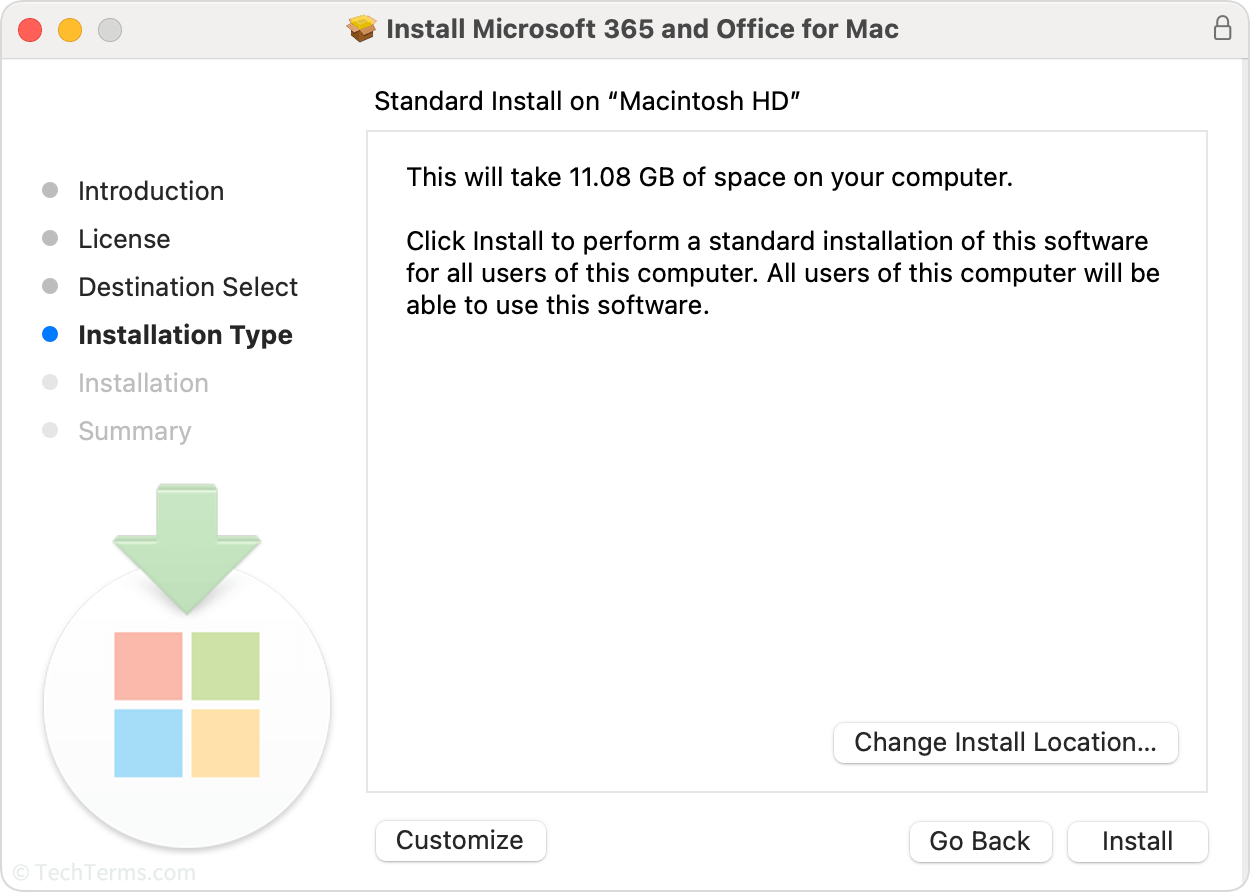
Some applications, especially larger suites or system utilities, use a traditional .pkg installer.
- Download the .pkg File: Obtain the package installer from the official source.
- Run the Installer: Double-click the
.pkgfile. - Follow the Wizard:
- Introduction/License: Read and agree to the terms.
- Destination Select: Choose where to install the software (usually the main drive).
- Installation Type: Typically standard, but might offer custom options.
- Authentication: You’ll need to enter your macOS administrator password to authorize the installation.
- Completion: Click “Close” when finished.
Linux Software Installation (Brief Overview)
Linux offers a highly flexible, but often command-line driven, approach to software installation. The method largely depends on your specific Linux distribution (e.g., Ubuntu, Fedora, Arch).
Method 1: Package Managers (Recommended)
This is the most common and secure way to install software on Linux.
- Update Package Lists: Open a terminal and run
sudo apt update(for Debian/Ubuntu-based) orsudo dnf check-update(for Fedora-based) to refresh your list of available packages. - Install the Software: Use
sudo apt install [package-name]orsudo dnf install [package-name]. The package manager handles dependencies automatically. - Software Centers: Most desktop Linux distributions (Ubuntu Software Center, GNOME Software, KDE Discover) provide a graphical interface for browsing and installing applications from the repositories, similar to app stores.
Method 2: Snap and Flatpak
These are universal packaging systems that allow applications to run across different Linux distributions, often providing newer versions than standard repositories.
- Install Snap/Flatpak (if not present): Follow instructions for your distribution to set up Snap or Flatpak.
- Install the Application: Use
sudo snap install [app-name]orflatpak install flathub [app-id].
Method 3: Compiling from Source (Advanced)
For specialized software or developers, installing by compiling the source code is an option. This is complex, requires development tools, and is generally not recommended for average users due to potential dependency issues and security risks if the source isn’t thoroughly vetted.
Post-Installation and Best Practices for Digital Well-being
Installing software is just the beginning. Effective management, regular updates, and adherence to security best practices are crucial for maintaining a healthy, productive, and secure computing environment.
Initial Setup and Configuration
After installation, take a moment to perform initial setup tasks:
- First Launch: Open the application to ensure it launches correctly. Some software may require an initial setup wizard, account creation, or agreement to additional terms of service.
- Check for Updates: Even if you downloaded the latest version, immediately check for any minor patches or critical security updates that might have been released since the installer was packaged. Many applications have an “Check for Updates” option in their settings or “Help” menu.
- Customize Settings: Adjust preferences to suit your workflow. This can significantly boost your productivity by tailoring the software to your specific needs.
- Pin to Taskbar/Dock (Optional): For frequently used applications, pinning them for quick access can save time.
Managing Installed Software: Updates, Uninstalls, and Security
Effective software management is a cornerstone of digital security and optimal performance.
- Keeping Software Updated: This cannot be stressed enough. Software updates frequently include security patches that fix vulnerabilities exploited by cybercriminals. They also often bring new features, performance improvements, and bug fixes.
- Enable Automatic Updates: Where possible, enable automatic updates for your operating system and essential applications.
- Regular Manual Checks: For applications without automatic updates, make it a habit to check for new versions periodically.
- Uninstalling Software: When you no longer need an application, uninstall it properly to free up disk space and remove potential security risks or conflicts.
- Windows: Go to “Settings” > “Apps” > “Apps & features,” find the program, and click “Uninstall.” Alternatively, use the “Control Panel” > “Programs and Features.”
- macOS: Drag the application from your “Applications” folder to the Trash, then empty the Trash. For apps installed via a
.pkginstaller, look for an uninstaller within the app’s original.dmgor the “Applications” folder, or use a third-party uninstaller tool for a cleaner removal. - Linux: Use your package manager (e.g.,
sudo apt remove [package-name]).
- Digital Security and Bloatware: Always be vigilant.
- Only Install from Trusted Sources: Reinforce this golden rule.
- Beware of Bundled Software: During installation, especially with free software, carefully read each screen. Untick any boxes that offer to install additional “optional” software, toolbars, or change your browser’s homepage. This bloatware can be annoying, slow down your computer, and sometimes even contain spyware.
- Understand Permissions: Pay attention to what permissions an app requests during installation or first launch. Does a calculator app really need access to your microphone or contacts?
- Productivity and Organization: A cluttered digital environment can hinder productivity. Organize your applications, use descriptive folder names, and leverage features like virtual desktops or multiple workspaces to keep your workflow efficient.
Troubleshooting Common Installation Issues
Even with the best preparation, issues can arise. Here’s how to tackle some common problems:
- “Insufficient Privileges”: You need administrator rights. Right-click the installer and choose “Run as administrator” (Windows) or enter your admin password when prompted (macOS/Linux).
- “Missing DLLs” or “Component Not Found”: This often indicates a missing system library or runtime environment (e.g., Microsoft .NET Framework, Visual C++ Redistributable). The software developer’s website or the installation guide usually specifies these prerequisites. Install them first.
- “Software Not Responding” / Freezing: This could be due to system resource conflicts, corrupt installer files, or compatibility issues. Try restarting your computer, redownloading the installer, or checking the software’s website for known issues with your OS version.
- Compatibility Issues: Older software might not run on newer operating systems, and vice-versa. Check the system requirements carefully. On Windows, you can try running the installer or application in “Compatibility Mode.”
- Download Errors: If the installer download fails, check your internet connection, temporarily disable any download accelerators or strict firewall rules, and try again. A corrupted download file will prevent successful installation.
Advanced Considerations: Beyond the Basics
As technology evolves, so do the ways we interact with software. Understanding these advanced concepts can further enhance your digital strategy and decision-making, particularly concerning productivity, financial implications, and personal/corporate branding.
Cloud-Based Software (SaaS) and Virtualization
The landscape of software use is increasingly shifting towards subscription-based cloud services and virtual environments.
- Software as a Service (SaaS): Services like Adobe Creative Cloud, Microsoft 365, Google Workspace, and many modern AI tools operate on a SaaS model. Instead of installing a full application locally, you access the software over the internet via a web browser or a small client app that syncs with cloud services.
- Benefits: No complex installation, automatic updates, accessibility from anywhere, often collaborative features.
- Money Angle: SaaS typically involves subscription fees, shifting from a one-time purchase to recurring operational expenditure. This can be more predictable for budgeting but requires ongoing financial commitment.
- Virtualization and Containerization: Technologies like VirtualBox, VMware, Docker, and Kubernetes allow you to run entire operating systems or isolated applications within a “virtual” environment on your main computer.
- Benefits: Ideal for testing new software without affecting your main system, running incompatible applications, or creating secure, isolated development environments.
- Security Angle: Running potentially risky software in a virtual machine can protect your host system from malware or instability.
The Impact of Software on Productivity, Security, and Your Brand
The choices you make about software installation extend beyond mere functionality; they impact your efficiency, digital safety, and even your professional image.
- Productivity: Selecting the right software and installing it correctly is fundamental to productivity. Efficient installation processes, well-maintained applications, and avoiding bloatware ensure your system runs optimally, minimizing downtime and maximizing output. Regularly updating your software not only patches security flaws but often introduces features that streamline workflows and improve user experience. Conversely, struggling with faulty installations or outdated software can severely hamper your efficiency.
- Digital Security: Every piece of software you install introduces a potential vulnerability. Trusting your sources, checking for malware, and diligently applying updates are non-negotiable for digital security. A single compromised application can be a gateway for ransomware, data breaches, or identity theft. For businesses, this translates directly to financial risk and reputational damage.
- The Money Angle: Software represents an investment, whether it’s the upfront cost of a license or the recurring fees of a SaaS subscription. Understanding licensing terms (EULA) is crucial, not only for compliance but to avoid unforeseen costs or limitations. Choosing legitimate, well-supported software, while potentially costing more initially, often saves money in the long run by reducing support needs, security incidents, and productivity losses. Free software, while appealing, can sometimes come with hidden costs in terms of data privacy or bundled adware.
- Personal and Corporate Branding: The software you use can subtly reflect your brand. Using legitimate, up-to-date, and professional software tools enhances your credibility, especially if you’re a freelancer, business owner, or creative professional. Relying on pirated or unsupported software can not only lead to legal issues but also project an unprofessional image, undermining trust in your digital presence and potentially impacting your brand’s reputation. Moreover, some brands choose to align with open-source software principles, reflecting values of transparency and community.
Conclusion
Mastering software installation is a foundational skill in today’s technology-driven world. It’s not merely about clicking “next” a few times, but about making informed choices that safeguard your digital environment, enhance your productivity, and even subtly shape your digital brand. By understanding the different installation methods, prioritizing trusted sources, adhering to a pre-installation checklist, and consistently practicing post-installation diligence, you empower yourself to harness the full potential of your computer.
The software landscape is constantly evolving, with new tools emerging daily and installation methods becoming increasingly diverse. Whether you’re embracing the simplicity of app stores, navigating complex desktop installers, or leveraging the power of cloud-based solutions, staying informed and proactive is key. Remember that a well-maintained software ecosystem is a secure and productive one, allowing you to focus on your tasks, create without hindrance, and navigate the digital world with confidence and peace of mind.
aViewFromTheCave is a participant in the Amazon Services LLC Associates Program, an affiliate advertising program designed to provide a means for sites to earn advertising fees by advertising and linking to Amazon.com. Amazon, the Amazon logo, AmazonSupply, and the AmazonSupply logo are trademarks of Amazon.com, Inc. or its affiliates. As an Amazon Associate we earn affiliate commissions from qualifying purchases.