
Roblox, a global platform where millions gather daily to create, play, and connect in immersive 3D experiences, has undeniably revolutionized online gaming and social interaction. Its block-based aesthetic might suggest simplicity, but beneath the surface lies a powerful user-generated content engine that empowers developers and entertains players across a vast spectrum of genres. From intricate RPGs to fast-paced action games and social hangout spaces, Roblox offers an unparalleled sandbox of digital possibility.
However, for a significant and growing segment of the tech-savvy community, a persistent question has loomed: how to bring this expansive universe to their preferred operating system, Linux? While Roblox Corporation officially supports Windows, macOS, Android, iOS, and Xbox, a native Linux client remains elusive. This presents a unique challenge for Linux users who value the security, customization, and open-source philosophy of their OS but don’t want to miss out on the Roblox phenomenon. This article aims to demystify the process, providing comprehensive guidance on installing and running Roblox on Linux, transforming what seems like a compatibility hurdle into a testament to the ingenuity of the open-source community. We’ll delve into the underlying reasons for this challenge, explore various robust solutions, and equip you with the knowledge to join the Roblox adventure, all from your Linux machine.

Understanding the Compatibility Challenge: Why No Native Roblox for Linux?
The absence of an official Roblox client for Linux isn’t an oversight but rather a strategic decision rooted in market dynamics and development priorities. Understanding these factors is key to appreciating the solutions that the Linux community has engineered.
Why Roblox Doesn’t Officially Support Linux
At its core, software development is a resource-intensive endeavor. Companies like Roblox must make calculated decisions about where to allocate their engineering efforts to achieve the broadest reach and greatest return on investment.
Firstly, market share plays a pivotal role. While Linux is immensely popular in server environments, embedded systems, and among developers and enthusiasts, its desktop market share, though growing, remains significantly smaller than Windows or macOS. For a company focused on consumer gaming, prioritizing platforms with tens or hundreds of millions of active users (Windows, mobile, consoles) over one with a comparatively smaller desktop footprint is a logical business choice. Developing and maintaining a native Linux client would require dedicated engineering teams, continuous testing across various distributions and hardware configurations, and ongoing support – all substantial costs for a relatively niche audience from a purely commercial perspective.
Secondly, technical complexities are a factor. Linux’s diverse ecosystem, with numerous distributions (Ubuntu, Fedora, Arch, Mint, etc.) and varying desktop environments (GNOME, KDE Plasma, XFCE), presents a fragmentation challenge. Unlike Windows or macOS, where there’s a more standardized environment, ensuring compatibility and optimal performance across such a wide array of setups can be daunting. Furthermore, Roblox utilizes specific APIs and graphics libraries that are deeply integrated with Windows and macOS frameworks. Porting these over to Linux, which often uses different graphics stacks (like Vulkan, OpenGL, and Wayland/X11), can require significant architectural changes and optimization. The effort required might outweigh the perceived benefits of a native client given current market realities.
The Linux Advantage and User Demand
Despite the lack of official support, the demand for Roblox on Linux is substantial and continues to grow. Linux users are drawn to the operating system for a multitude of compelling reasons that resonate with a tech-forward demographic:
- Security and Privacy: Linux is renowned for its robust security model and open-source nature, allowing for greater transparency and control over user data. Many choose Linux specifically for these privacy advantages over proprietary operating systems.
- Performance and Efficiency: Linux can often run more efficiently on a wider range of hardware, breathing new life into older machines or maximizing performance on cutting-edge ones. Its lean nature can result in faster boot times and more responsive applications.
- Customization and Control: The open-source philosophy empowers users to tailor their operating system experience to an unparalleled degree, from the desktop environment to the deepest system configurations. This level of control appeals to users who demand more from their technology.
- The Open-Source Ethos: Many Linux users are deeply invested in the principles of open source, collaboration, and community-driven development. The willingness of the community to build bridges to proprietary software, like Roblox, is a testament to this spirit.
The rise of Linux gaming, spurred by initiatives like Valve’s Proton for the Steam Deck, has also significantly amplified the expectation that popular games should be accessible on Linux. While Roblox isn’t a traditional Steam game, the general trend indicates a burgeoning market that software developers are increasingly recognizing. For Roblox, tapping into this passionate and technically proficient user base would undoubtedly be a boon, even if it currently falls to community-driven solutions to make it happen.
Popular Methods for Running Roblox on Linux
Given the absence of a native client, the Linux community has developed several ingenious methods to bridge the compatibility gap. These solutions leverage various technologies, primarily built around the concept of a “compatibility layer” that translates Windows-specific instructions into something Linux can understand.
Method 1: Utilizing Wine (and Winetricks)
Wine (Wine Is Not an Emulator) is arguably the most foundational and widely recognized compatibility layer for running Windows applications on Linux. Despite its name, Wine doesn’t emulate a full Windows operating system; instead, it directly translates Windows API calls into POSIX calls, allowing Windows programs to run natively on Linux.
- How it works: Wine creates a “Wine prefix,” which is essentially a simulated Windows environment (like a
C:drive) within your Linux home directory. This prefix contains all the necessary Windows system files, registries, and libraries that an application might expect. - Installation: Installing Wine typically involves adding a repository to your distribution’s package manager and then installing the
winepackage. For example, on Ubuntu, you might add the official Wine PPA and then useapt install winehq-stable. - Winetricks: This companion script is invaluable. It helps install various Windows runtime libraries, components, and fonts that many applications, including Roblox, might require (e.g.,
corefonts,vcrun2015). Winetricks simplifies the process of configuring your Wine prefix to meet specific application dependencies. - Pros: Direct control over the Wine environment, good for understanding the underlying process, highly customizable.
- Cons: Can be complex for beginners, requires manual dependency management, performance tuning might be necessary. This method often serves as the bedrock for more user-friendly wrappers.
Method 2: Streamlining with Lutris
Lutris is an open-source gaming platform for Linux that simplifies the installation and management of various game launchers and games, including those requiring Wine. It acts as a centralized game manager, providing an intuitive interface to install, configure, and launch games from various sources.
- How it works: Lutris leverages Wine but wraps it in an easy-to-use GUI. Crucially, it provides community-contributed “install scripts” for thousands of games. These scripts automate the entire installation process, including downloading necessary dependencies (via Winetricks), configuring Wine prefixes optimally, and setting up game-specific launch options.
- Installation: Lutris is typically available in your distribution’s official repositories or via a PPA/Flatpak.
- Roblox via Lutris: You simply search for “Roblox” within the Lutris client, select an installation script (often multiple are available, indicating different Wine versions or configurations), and let Lutris handle the rest. It will download Wine, create a prefix, and install Roblox, often optimizing it for performance right out of the box.
- Pros: User-friendly, automates complex Wine configurations, benefits from community-tested scripts, easy management of multiple games and their respective Wine environments.
- Cons: Relies on community scripts which might occasionally be outdated (though usually quickly updated), requires Lutris itself to be installed.
Method 3: Exploring Grapejuice
Grapejuice is a dedicated wrapper specifically designed to make running Roblox on Linux as seamless as possible. It’s built upon Wine but is tailored to handle the nuances of Roblox, offering a more integrated and potentially more stable experience than a generic Wine setup.
- How it works: Grapejuice acts as a specialized layer between Roblox and Wine. It pre-configures Wine prefixes specifically for Roblox, managing various dependencies and settings automatically. It often comes with optimizations and fixes tailored to common Roblox issues on Linux.
- Installation: Grapejuice is often distributed as a Flatpak, which simplifies installation across different Linux distributions by bundling all necessary dependencies. You can also install it via system packages on some distributions.
- Roblox via Grapejuice: Once installed, Grapejuice provides a launcher that simplifies logging into Roblox and launching games, often automatically updating its internal Wine configurations as Roblox updates.
- Pros: Highly optimized for Roblox, easier setup and management than bare Wine, actively maintained for Roblox compatibility, often integrates well with system theming.
- Cons: Specific to Roblox (not a general-purpose game launcher like Lutris), relies on Flatpak for easiest installation (which some users prefer to avoid), might not offer the same granular control as a manual Wine setup.
Method 4: Bottles – The Next-Gen Wine Prefix Manager
Bottles is a relatively newer application that aims to simplify Wine prefix management by treating each prefix as an isolated “bottle.” It provides a clean, modern graphical interface for creating, configuring, and managing different Wine environments, making it easy to run various Windows applications and games.
- How it works: Bottles uses Cointainer technology to isolate each Wine prefix, ensuring that dependencies and configurations for one application don’t interfere with another. It offers different “environments” (e.g., Gaming, Software) with pre-configured settings tailored for specific use cases.
- Installation: Bottles is primarily distributed as a Flatpak, making it accessible across most modern Linux distributions.
- Roblox via Bottles: You create a new “Gaming” bottle, install Roblox into it, and Bottles will manage the necessary Wine versions and dependencies. Its intuitive UI makes it easy to switch runners, install components, and manage settings.
- Pros: Modern and user-friendly interface, excellent isolation of Wine prefixes, simplifies dependency management, supports multiple Wine runners and components, actively developed.
- Cons: Still maturing compared to more established solutions, primarily Flatpak-based (which may require initial Flatpak setup).
Each of these methods offers a viable path to running Roblox on Linux, catering to different levels of technical comfort and desired control. For most users seeking a balance of ease of use and performance, Lutris or Grapejuice often prove to be excellent starting points.
Step-by-Step Installation Guide (Using Lutris)
While several methods exist, Lutris offers an excellent balance of automation, community support, and robust performance for running Roblox on Linux. This detailed guide will walk you through the process using Lutris.
H3: Prerequisites and System Preparation
Before diving into the installation, ensure your system is ready:
- Updated Graphics Drivers: This is paramount for gaming performance. Ensure your dedicated (NVIDIA, AMD) or integrated (Intel, AMD APU) graphics drivers are up to date. Most distributions offer easy ways to install proprietary drivers (e.g.,
ubuntu-drivers autoinstallon Ubuntu) or ensure open-source drivers are current. - Sufficient Disk Space: Roblox and its games can consume several gigabytes. Ensure you have ample free space on your drive.
- Basic Linux Command-Line Familiarity: While Lutris is GUI-driven, initial setup often involves a few terminal commands for installation and package management.
- Internet Connection: Required for downloading Lutris, Wine, and Roblox files.
- A 64-bit Linux Distribution: Most modern distributions are 64-bit, which is a requirement for running current Windows applications via Wine.
H3: Installing Lutris
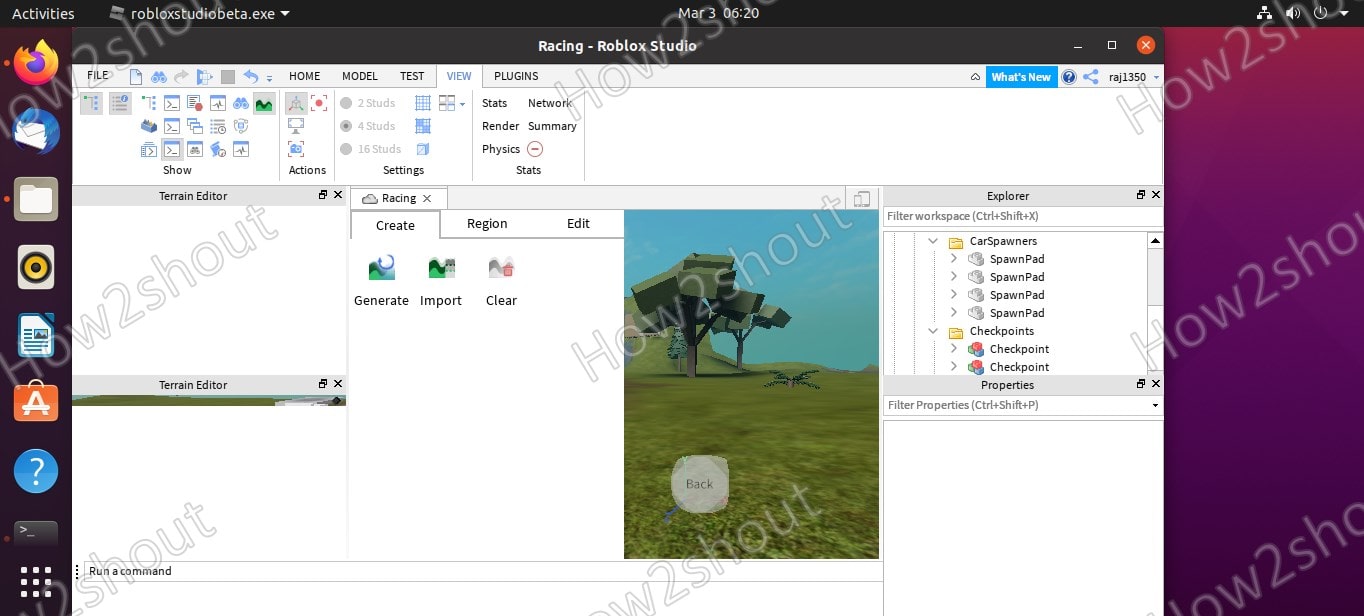
The method for installing Lutris varies slightly depending on your Linux distribution.
For Ubuntu/Debian-based Systems (e.g., Linux Mint, Pop!_OS):
- Add Lutris PPA (Recommended): This ensures you get the latest stable version.
bash

sudo add-apt-repository ppa:lutris-team/lutris

sudo apt update
- Install Lutris:
bash

sudo apt install lutris
For Fedora:
sudo dnf install lutris
For Arch Linux/Manjaro:
sudo pacman -S lutris
If Lutris is not in your main repositories, you might need to enable the multilib repository and install from AUR.
Using Flatpak (Universal Method):
If you prefer Flatpak or your distribution doesn’t easily offer Lutris:
- Ensure Flatpak is installed:
bash

sudo apt install flatpak # Ubuntu/Debian example

sudo dnf install flatpak # Fedora example
(You might need to add the Flathub remote if you haven’t already:flatpak remote-add --if-not-exists flathub https://flathub.org/repo/flathub.flatpakrepo) - Install Lutris via Flatpak:
bash

flatpak install flathub net.lutris.Lutris
Once installed, you can launch Lutris from your applications menu.
H3: Configuring Lutris for Roblox
Now that Lutris is installed, let’s get Roblox set up.
- Launch Lutris: Open Lutris from your applications menu.
- Search for Roblox: In the Lutris window, click the “Search Lutris.net” button (often a magnifying glass icon or a search bar). Type “Roblox” and press Enter.
- Select an Installation Script: You’ll likely see several “Roblox” entries. Look for the one with the highest rating or the most recent update. Click on it.
- Initiate Installation: On the game page within Lutris, click the green “Install” button. Lutris will then present you with options for the installer. Usually, the default choices are fine, but you might be able to select a specific Wine version or other settings. Click “Install” again to confirm.
- Follow On-Screen Prompts:
- Lutris will first download any necessary Wine versions and dependencies. This might take a few minutes.
- Then, the Roblox installer (a Windows executable) will launch within the Lutris-managed Wine prefix. Follow the standard Roblox installation prompts (e.g., select installation directory, accept EULA).
- Once Roblox is installed, the installer might automatically launch Roblox Player or Studio. You can close these for now.
- Launch Roblox from Lutris: Back in the Lutris main window, you should now see “Roblox” listed under your games. Select it and click the “Play” button.
- Log In and Play: Roblox will launch. Log in with your existing account or create a new one. From there, you can browse games and start playing!
H3: Optimizing Performance and Troubleshooting
Even with Lutris, some fine-tuning and troubleshooting might be necessary for the best experience.
- Graphics Settings within Roblox: Inside Roblox, navigate to the game’s graphics settings. Start with lower settings and gradually increase them to find a balance between visual quality and frame rate. Disable features like “shadows” or “global illumination” if performance is an issue.
- Lutris Runner Options:
- Wine Version: Lutris allows you to easily switch between different Wine versions (runners) for a specific game. If you encounter issues, try a different Wine version (e.g., an older stable one or a newer experimental one).
- DXVK/VKD3D: Ensure DXVK (DirectX to Vulkan) and/or VKD3D (DirectX 12 to Vulkan) are enabled in Lutris’s runner options for Roblox. These layers can significantly improve performance by translating DirectX calls to the more performant Vulkan API. Lutris scripts usually enable these by default.
- FSR/NIS: If your hardware supports it, consider enabling FSR (FidelityFX Super Resolution) or NVIDIA Image Scaling in Lutris’s options for sharper upscaling and potentially higher FPS.
- Common Issues:
- “Failed to connect”: This can sometimes be a network issue, but also check if your firewall is blocking Roblox. Ensure the latest Wine version is being used.
- Crashing: Try updating your graphics drivers, switching Wine versions, or reinstalling Roblox within a fresh Lutris prefix.
- Poor FPS: Lower in-game graphics settings, ensure DXVK/VKD3D are active, and check your CPU/GPU utilization using tools like
htopornvtop/radeontop.
- Where to Seek Help:
- Lutris Forums: The official Lutris forums are an excellent resource for game-specific issues and general troubleshooting.
- r/linux_gaming: A vibrant Reddit community dedicated to gaming on Linux, often providing quick solutions and advice.
- ProtonDB: While primarily for Steam Play, its reports can sometimes offer insights into specific game compatibility challenges that might translate to Wine/Lutris setups.
Remember that running Windows applications on Linux via compatibility layers is an ongoing process. Updates to Roblox or Wine might occasionally introduce new challenges, but the community is usually quick to find and share solutions.
Performance, Security, and Future Considerations
Successfully installing Roblox on Linux is a significant step, but it’s equally important to understand the practical implications regarding performance, security, and what the future might hold.
Expected Performance and Graphics
When running Roblox through a compatibility layer like Wine, it’s crucial to manage expectations regarding performance and graphical fidelity.
- Generally Good, but Not Native: For many modern systems, Roblox through Lutris or Grapejuice runs remarkably well, often delivering smooth gameplay at respectable frame rates. Thanks to projects like DXVK, which translate DirectX calls to Vulkan (a high-performance, open-source graphics API), performance can sometimes even rival or surpass native Windows performance in certain scenarios, especially on AMD GPUs.
- Hardware Dependency: Performance will largely depend on your system’s hardware, particularly your CPU and GPU. A powerful processor helps with Wine’s translation layer, while a capable graphics card is essential for rendering Roblox’s diverse environments. Systems with integrated graphics might struggle with higher settings or more graphically intensive Roblox experiences.
- Potential Overheads: While Wine is efficient, there can still be a slight performance overhead compared to a truly native application. This might manifest as marginally lower FPS, occasional stutters, or slightly longer loading times.
- Optimizing for FPS:
- Keep Drivers Updated: As mentioned, up-to-date graphics drivers are non-negotiable.
- In-Game Settings: Prioritize performance by lowering graphics quality, resolution, and disabling effects like shadows or reflections in Roblox’s settings.
- Lutris/Grapejuice Settings: Experiment with different Wine versions and ensure performance-enhancing options like DXVK are enabled. Consider disabling Lutris’s “gamemode” if it causes issues, or ensuring it’s properly configured.
- System Resources: Close other resource-intensive applications while playing Roblox.
Security Implications and Best Practices
Running Windows software on Linux via Wine does introduce some unique security considerations, although generally, the risk is manageable.
- Is it Safe? In general, running Roblox through reputable compatibility layers like Wine and Lutris is considered safe. These tools are open-source, well-audited, and widely used by millions. The primary risk doesn’t come from Wine itself, but from potentially malicious Windows executables.
- Reputable Sources: Always download Wine, Lutris, Grapejuice, and Bottles from their official websites or your distribution’s official repositories. Avoid third-party, unverified sources.
- Wine Prefix Isolation: One of Wine’s strengths is that it creates isolated “prefixes.” This means that the “Windows environment” for Roblox is contained within a specific directory. If an issue were to arise, it’s typically confined to that prefix and less likely to compromise your entire Linux system. Bottles takes this isolation a step further.
- System Updates: Regularly update your Linux distribution, including all packages and security patches. This ensures that any vulnerabilities in Wine or other system components are promptly addressed.
- Antivirus on Linux? While Linux is less susceptible to viruses prevalent on Windows, some users choose to run a Linux-compatible antivirus to scan for Windows malware (especially if they exchange files with Windows users). For Roblox specifically, this is generally not necessary, as the platform itself has its own security measures.
- Roblox Account Security: Standard online security practices apply: use strong, unique passwords, enable two-factor authentication (if Roblox offers it), and be wary of phishing attempts, just as you would on any other platform.
The Future of Roblox on Linux
The landscape of Linux gaming is evolving rapidly, and this has implications for the future of Roblox on the platform.
- Will Roblox Ever Officially Support Linux? This remains a subject of speculation. With the growing success of the Steam Deck (which runs SteamOS, a Linux variant) and the increasing visibility of Linux as a gaming platform, the market share argument might gradually shift. If the number of potential Linux players becomes economically significant, Roblox Corporation might reconsider a native client or at least official support for existing compatibility layers.
- Impact of Steam Deck and Proton: Valve’s Proton, a compatibility layer built on Wine, has proven that Windows games can run exceptionally well on Linux. While Roblox isn’t available on Steam, the general trend demonstrates the viability and demand. If Roblox ever decided to integrate with a platform like Steam or Epic Games Store (which now has robust Linux support via Proton), official support for Linux could become a more realistic prospect.
- The Power of the Open-Source Community: Regardless of Roblox’s official stance, the open-source community will likely continue to innovate and improve compatibility. Projects like Lutris, Grapejuice, and Bottles are constantly refined, adapting to new Roblox updates and optimizing performance. This community-driven effort ensures that even without official endorsement, Linux users can usually find a way to access their favorite applications.
Ultimately, the future is bright for Linux gamers. The ecosystem is maturing, and the technical barriers are continually being lowered by dedicated developers and passionate communities.

Conclusion
The journey to install Roblox on Linux, while not a straightforward native download, is a testament to the power and flexibility of the open-source ecosystem. We’ve navigated the initial challenge of Roblox’s lack of official Linux support, understanding the market and technical reasons behind this decision. From the foundational capabilities of Wine to the user-friendly automation offered by Lutris, the dedicated optimizations of Grapejuice, and the modern containerization approach of Bottles, Linux users have a robust arsenal of tools at their disposal.
We’ve walked through a detailed step-by-step guide using Lutris, highlighting the prerequisites, installation process, and crucial optimization and troubleshooting tips to ensure a smooth gaming experience. Furthermore, we’ve addressed vital considerations regarding expected performance, ensuring you manage expectations while still striving for optimal frame rates, and delved into the security implications, emphasizing best practices to keep your system safe.
While the future of an official Roblox Linux client remains uncertain, the momentum of Linux gaming, fueled by innovative projects like Proton and the unwavering dedication of the open-source community, suggests a promising outlook. The ability to run Roblox on Linux is not just about playing a game; it’s about showcasing the adaptability of open-source technology, the resourcefulness of its users, and the continuous effort to break down digital barriers.
So, whether you’re a seasoned Linux user or just curious about its capabilities, you can confidently set up Roblox on your system. Embrace the adventure, explore the myriad worlds within Roblox, and do it all from the comfort and control of your Linux machine. The digital playground awaits!
aViewFromTheCave is a participant in the Amazon Services LLC Associates Program, an affiliate advertising program designed to provide a means for sites to earn advertising fees by advertising and linking to Amazon.com. Amazon, the Amazon logo, AmazonSupply, and the AmazonSupply logo are trademarks of Amazon.com, Inc. or its affiliates. As an Amazon Associate we earn affiliate commissions from qualifying purchases.