
Chromebooks have emerged as incredibly versatile and accessible devices, bridging the gap between simplicity and robust functionality. While traditionally seen as excellent for web browsing and cloud-based applications, their capabilities extend far beyond that. For those interested in delving into the world of programming, a common question arises: “How do I install Python on my Chromebook?” The good news is that with a few straightforward steps, you can transform your Chromebook into a powerful coding environment. This guide will walk you through the process, empowering you to explore the exciting realm of Python development, irrespective of whether your primary interest lies in cutting-edge tech trends, building your personal brand, or exploring new avenues for online income.

Embracing the Power of Python on ChromeOS
Python’s popularity in the tech world is undeniable. Its readability, extensive libraries, and versatility make it a top choice for beginners and experienced developers alike. Whether you’re looking to automate tasks, build web applications, analyze data, or even dabble in AI tools, Python is your gateway. Chromebooks, with their cloud-centric nature and growing support for Linux applications, are surprisingly well-suited for this.
Why Python on a Chromebook?
The question might linger: why go through the effort of installing Python on a Chromebook when there are other devices available? The answer lies in the unique advantages a Chromebook offers. Firstly, accessibility and affordability are paramount. Chromebooks are generally more budget-friendly, making them an excellent entry point for students and aspiring developers without breaking the bank. Secondly, portability and battery life are unmatched, allowing you to code from anywhere. Thirdly, the integration with ChromeOS means you benefit from a streamlined operating system that requires less maintenance and boots up quickly.
Beyond the device itself, learning Python opens doors to a multitude of opportunities. In the realm of Tech, understanding Python is fundamental for working with AI tools, developing software, and keeping up with the latest technology trends. For individuals focused on Brand building, Python can be instrumental in creating personalized websites, automating marketing efforts, or developing unique digital experiences that set you apart. And when it comes to Money, Python is a powerhouse for personal finance management, developing trading algorithms, creating side hustles through web development or data analysis, and even building tools to manage business finances more effectively.
The Linux (Beta) Environment: Your Gateway to Python
For a long time, running sophisticated software like Python directly on ChromeOS was a challenge. However, Google has progressively enhanced ChromeOS with features that make it a more capable platform for developers. The key to unlocking Python’s potential on your Chromebook lies in its Linux (Beta) environment, also known as Crostini. This feature allows you to run a full Linux distribution (typically Debian) alongside your ChromeOS, giving you access to a vast array of command-line tools and software, including Python.
What is Linux (Beta) and why is it important?
Linux (Beta) is essentially a virtual machine that runs a Linux container within ChromeOS. This means you get a complete Linux desktop environment that you can interact with. This is crucial because Python, along with its package manager (pip), is natively available and widely supported within the Linux ecosystem. By enabling Linux (Beta), you’re not just installing Python; you’re setting up a robust development environment that mirrors what you’d find on a traditional Linux laptop.
The beauty of this setup is that it’s largely isolated from your main ChromeOS. This provides a layer of security and prevents any potential issues within the Linux environment from affecting your core operating system. Furthermore, Google has made the setup process remarkably user-friendly, making it accessible even for those who have never interacted with Linux before.
Setting Up Your Chromebook for Python Development
Before you can start writing code, you need to prepare your Chromebook. This involves enabling the Linux (Beta) environment and then using it to install Python.
Enabling Linux (Beta) on Your Chromebook
This is the foundational step. The process is straightforward and guided by your Chromebook’s settings.
Steps to Enable Linux (Beta):
- Access Settings: Click on the time in the bottom-right corner of your screen, then click the gear icon (Settings).
- Navigate to Advanced: In the Settings menu, scroll down and click on “Advanced” to expand the options.
- Find “Linux (Beta)”: Under the “Developers” section, you will see an option for “Linux (Beta)”. Click on “Turn on”.
- Follow On-Screen Prompts: A window will pop up guiding you through the setup. Click “Next”. You’ll be asked to choose a username and allocate disk space. For most users, the default settings are sufficient. Click “Install”.
The installation process will take a few minutes as ChromeOS downloads and sets up the Linux environment. Once complete, a Linux terminal window will appear, signifying that your Linux subsystem is ready.
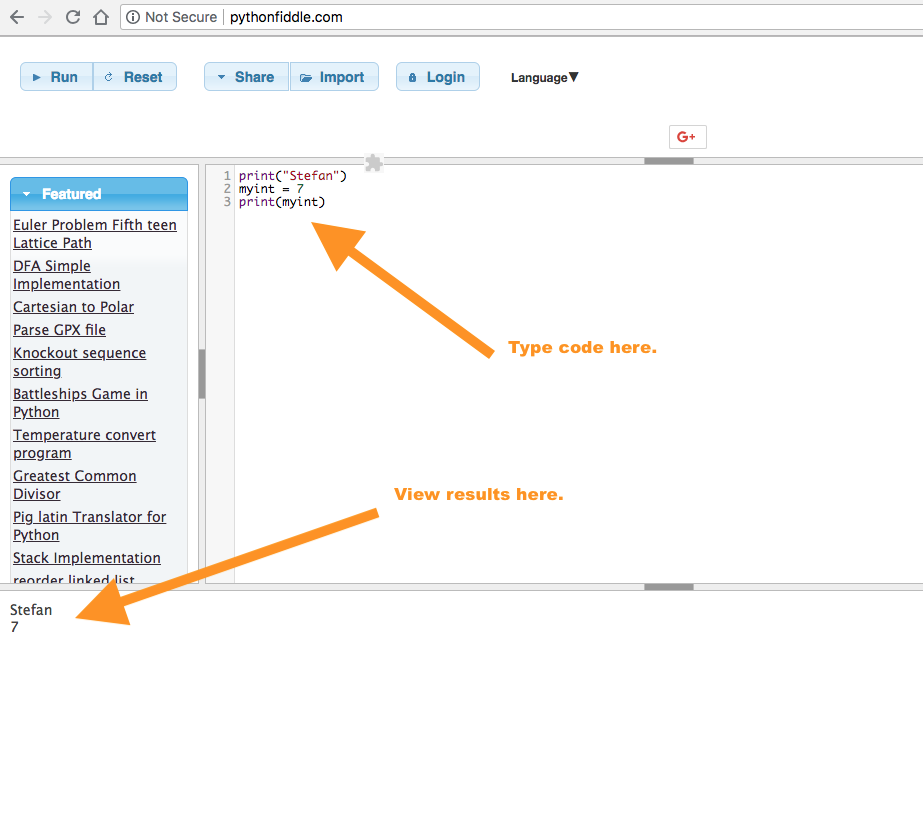
Installing Python within the Linux Environment
With Linux (Beta) up and running, installing Python is as simple as using the Linux package manager. Most Chromebooks will come with Python 3 pre-installed, but it’s always a good idea to ensure you have the latest stable version.
Steps to Install/Update Python:
- Open the Linux Terminal: If the terminal window didn’t open automatically after enabling Linux (Beta), you can find it by clicking the Launcher (the circle icon in the bottom-left corner) and searching for “Terminal”.
- Update Package Lists: Before installing any software, it’s best practice to update your package lists to ensure you’re fetching the latest information about available software. Type the following command and press Enter:
bash

sudo apt update
You may be prompted for your password; enter it carefully (you won’t see characters appear as you type).sudostands for “superuser do,” which gives you administrative privileges to run commands.aptis the package manager for Debian-based Linux distributions. - Upgrade Existing Packages (Optional but Recommended): To upgrade any installed packages to their latest versions, run:
bash

sudo apt upgrade
This command will install newer versions of any software that has updates available. - Install Python 3 (if not already present or to ensure the latest): To install Python 3, use the following command:
bash

sudo apt install python3
This command will download and install the latest version of Python 3 available in the Debian repositories. - Install Pip (Python Package Installer):
pipis essential for installing third-party Python libraries and modules. It’s usually installed alongside Python 3, but it’s good to ensure it’s there.
bash

sudo apt install python3-pip
- Verify Installation: To confirm that Python 3 and pip have been installed correctly, you can check their versions:
bash

python3 --version
And for pip:
bash

pip3 --version
You should see output indicating the installed versions.
Congratulations! You have now successfully installed Python on your Chromebook and are ready to start coding.
Exploring the Python Ecosystem on Your Chromebook
With Python installed, the possibilities are vast. You can now leverage the power of this language for a wide range of projects, aligning with your interests in tech, brand building, or financial endeavors.
Beyond the Basics: Leveraging Python Libraries
The true power of Python lies in its extensive ecosystem of libraries. These pre-written modules provide ready-made solutions for complex tasks, allowing you to build sophisticated applications with less effort.
-
For Tech Enthusiasts:
- Data Science & AI: Libraries like
NumPy,Pandas,Scikit-learn, andTensorFlowenable you to perform data analysis, machine learning, and even work with cutting-edge AI tools directly on your Chromebook. Imagine analyzing trends in technology adoption or building a simple recommendation engine. - Web Development: Frameworks like
FlaskorDjangoallow you to build dynamic websites and web applications. This can be a fantastic way to learn about backend development and potentially create your own online portfolio or platform. - Automation: Libraries like
osandshutilcan help you automate repetitive tasks on your Linux environment, making your workflow more efficient.
- Data Science & AI: Libraries like
-
For Brand Builders:
- Web Scraping: Libraries such as
Beautiful SoupandScrapycan be used to gather data from websites, which can be invaluable for market research, competitor analysis, or understanding public sentiment towards your brand. - Content Generation & Analysis: Python can be used to analyze social media trends, generate marketing copy ideas, or even build simple chatbots to interact with your audience.
- Personalization: Develop tools to personalize user experiences on your website or marketing materials based on collected data.
- Web Scraping: Libraries such as
-
For Financial Navigators:
- Personal Finance Management: Write scripts to track your expenses, budget your income, or analyze your spending habits using libraries like
Pandas. - Investing Tools: Explore libraries for financial data analysis, backtesting trading strategies, or even automating basic investment actions (with extreme caution and thorough understanding).
- Side Hustle Development: Build simple web applications or tools that you can offer as a service, leveraging your Python skills to generate online income.
- Personal Finance Management: Write scripts to track your expenses, budget your income, or analyze your spending habits using libraries like
Installing Libraries:
To install these libraries, you’ll use pip within your Linux terminal. For example, to install Pandas, you would run:
pip3 install pandas
This command fetches the pandas library and all its dependencies from the Python Package Index (PyPI) and installs them into your Python environment.

Your First Python Program on Chromebook
Let’s write a simple “Hello, World!” program to confirm everything is working.
- Create a File: Open your Linux terminal and create a new file using a text editor like
nano.
bash

nano hello.py
- Write Your Code: In the
nanoeditor, type the following:
python

print("Hello, Chromebook Python!")
- Save and Exit: Press
Ctrl + Xto exit, then pressYto confirm saving, and finally pressEnterto accept the filename. - Run Your Program: Back in the terminal, execute your script:
bash

python3 hello.py
You should see the output:Hello, Chromebook Python!
This simple act marks your entry into the world of Python programming on your Chromebook. From here, you can explore more complex programs, learn new concepts, and build projects that align with your personal and professional goals, whether it’s staying ahead in tech trends, crafting a compelling personal brand, or expanding your financial horizons. The journey of a thousand lines of code begins with a single print statement.
aViewFromTheCave is a participant in the Amazon Services LLC Associates Program, an affiliate advertising program designed to provide a means for sites to earn advertising fees by advertising and linking to Amazon.com. Amazon, the Amazon logo, AmazonSupply, and the AmazonSupply logo are trademarks of Amazon.com, Inc. or its affiliates. As an Amazon Associate we earn affiliate commissions from qualifying purchases.