
The allure of classic multiplayer experiences often draws gamers back to beloved titles, even years after their initial release. Call of Duty: Black Ops II (BO2) is a prime example, boasting a dedicated community that continues to enjoy its fast-paced action and iconic maps. However, accessing this classic multiplayer can be challenging through official channels due to its age. This is where fan-made projects like Plutonium come into play, offering a robust and reliable way to relive Black Ops II’s multiplayer glory.
Plutonium is a free, open-source game launcher that provides access to custom servers and enhanced features for select Call of Duty titles, including Black Ops II. It aims to preserve these games for the community, ensuring that players can still connect and compete on dedicated servers with a host of improvements over the original matchmaking system. This article will guide you through the entire process of installing and setting up Plutonium to play Black Ops II multiplayer, covering everything from obtaining the necessary game files to launching your first match.
This guide is structured to be comprehensive, catering to both newcomers and those who may have some familiarity with PC gaming. We will break down the process into manageable steps, ensuring a smooth and frustration-free installation.
Understanding Plutonium and Its Benefits
Before diving into the installation process, it’s essential to understand what Plutonium is and why it’s the go-to solution for playing BO2 multiplayer today. Plutonium is not a game itself but rather a launcher that modifies and enhances the original game client. It’s developed and maintained by a community of dedicated individuals who are passionate about preserving older Call of Duty titles.
The Need for Plutonium for BO2 Multiplayer
Call of Duty: Black Ops II was originally released in 2012. While it was a massive success, the official multiplayer servers are no longer actively maintained by the publisher, Activision. This means that finding official matches can be difficult, unreliable, and often plagued by issues like poor connection quality and cheaters. Plutonium addresses these shortcomings by:
- Dedicated Servers: Plutonium utilizes a network of community-hosted dedicated servers. These servers offer superior stability, lower latency, and a more consistent gaming experience compared to peer-to-peer matchmaking.
- Anti-Cheat Measures: The Plutonium team implements its own anti-cheat system to combat the rampant cheating that often plagues older online games. While no system is perfect, Plutonium’s efforts significantly improve the integrity of matches.
- Community Features: Plutonium often includes community-driven features such as server browsers, custom game modes, and mod support, allowing for a more dynamic and personalized gaming experience.
- Ongoing Support: Unlike official servers, Plutonium is actively developed and maintained. This means bugs are addressed, and new features are occasionally added, ensuring the longevity of the gaming platform.
- Free Access: The Plutonium launcher and its associated services are entirely free to use. The only requirement is owning a legitimate copy of the game files for Black Ops II.
By leveraging Plutonium, players gain access to a thriving and active community that is passionate about Call of Duty: Black Ops II, ensuring that the game remains playable and enjoyable for years to come.
Legal and Ethical Considerations
It’s crucial to address the legal and ethical aspects of using Plutonium. Plutonium itself is a legal and legitimate project that aims to provide a platform for playing games that are no longer officially supported. However, it requires you to own the game files for Call of Duty: Black Ops II. This generally means purchasing a legitimate copy of the game. While the original game is no longer sold digitally on platforms like Steam, it was historically available through retail or other digital stores. The Plutonium team does not distribute game files; they provide the launcher that connects to existing game installations. Always ensure you are obtaining game files through legitimate means to avoid any legal complications.
Step-by-Step Installation Guide
Installing Plutonium and getting Black Ops II up and running is a straightforward process, but it requires careful attention to detail. We’ll break it down into several key stages.
1. Obtaining the Black Ops II Game Files
This is the most critical and sometimes the most nuanced step. Plutonium requires the original game files for Call of Duty: Black Ops II. Plutonium does not provide these files. You must acquire them through legitimate means.
-
Original Retail Copy: If you still possess a physical copy of Call of Duty: Black Ops II for PC, you can install it directly from the disc. However, this is becoming increasingly rare.
-
Digital Purchase (Legacy): In the past, Black Ops II was available digitally. If you purchased it on platforms like Steam or Games for Windows Marketplace and still have access to your account and the game in your library, you might be able to download the necessary files.
-
Community-Assisted Acquisition (Use with Caution and Responsibility): Due to the discontinuation of official sales for Black Ops II on PC, many players resort to obtaining the game files from community-trusted sources. These sources typically provide the necessary game folders and data that Plutonium can utilize.
- Finding Reputable Sources: When looking for these files, it’s essential to be cautious. Seek out well-known and trusted community forums or websites dedicated to Plutonium and Call of Duty preservation. These communities often have guides and links to reliable game file repositories.
- Verification: After downloading, it’s good practice to verify the integrity of the downloaded files if possible (e.g., using checksums if provided by the source) to ensure they are not corrupted or tampered with.
- Installation Location: You will need to install these game files into a dedicated folder on your computer. A common recommendation is to create a folder like
C:GamesCall of Duty Black Ops IIor a similar path. Do not install them into the default “Program Files” or “Program Files (x86)” directories as these can sometimes cause permission issues.
Crucially, the Plutonium team strongly advises against using cracked or pirated versions of the game. This can lead to malware, unstable gameplay, and legal repercussions. Always prioritize legitimate methods for acquiring your game files.
2. Downloading and Installing the Plutonium Launcher
Once you have your Black Ops II game files ready, the next step is to download and install the Plutonium launcher.
- Visit the Official Plutonium Website: Go to the official Plutonium website. You can usually find this by searching for “Plutonium Launcher” on your preferred search engine. The official site is your safest bet to avoid fake or malicious downloads.
- Download the Launcher: On the Plutonium website, you will find a download link for their launcher. Download the installer file. It’s typically a small executable.
- Run the Installer: Locate the downloaded installer file and run it. The installation process is usually very simple. It will likely ask you to choose an installation directory for the launcher itself. It’s recommended to install the launcher in a separate location from your game files, for example,
C:Plutonium. - Follow On-Screen Prompts: The installer will guide you through the setup. Accept the terms and conditions, and choose your desired installation location.
3. Configuring Plutonium and Linking Game Files
After installing the launcher, you need to configure it to recognize your Black Ops II game files.
- Launch the Plutonium Launcher: Once the installation is complete, open the Plutonium launcher.
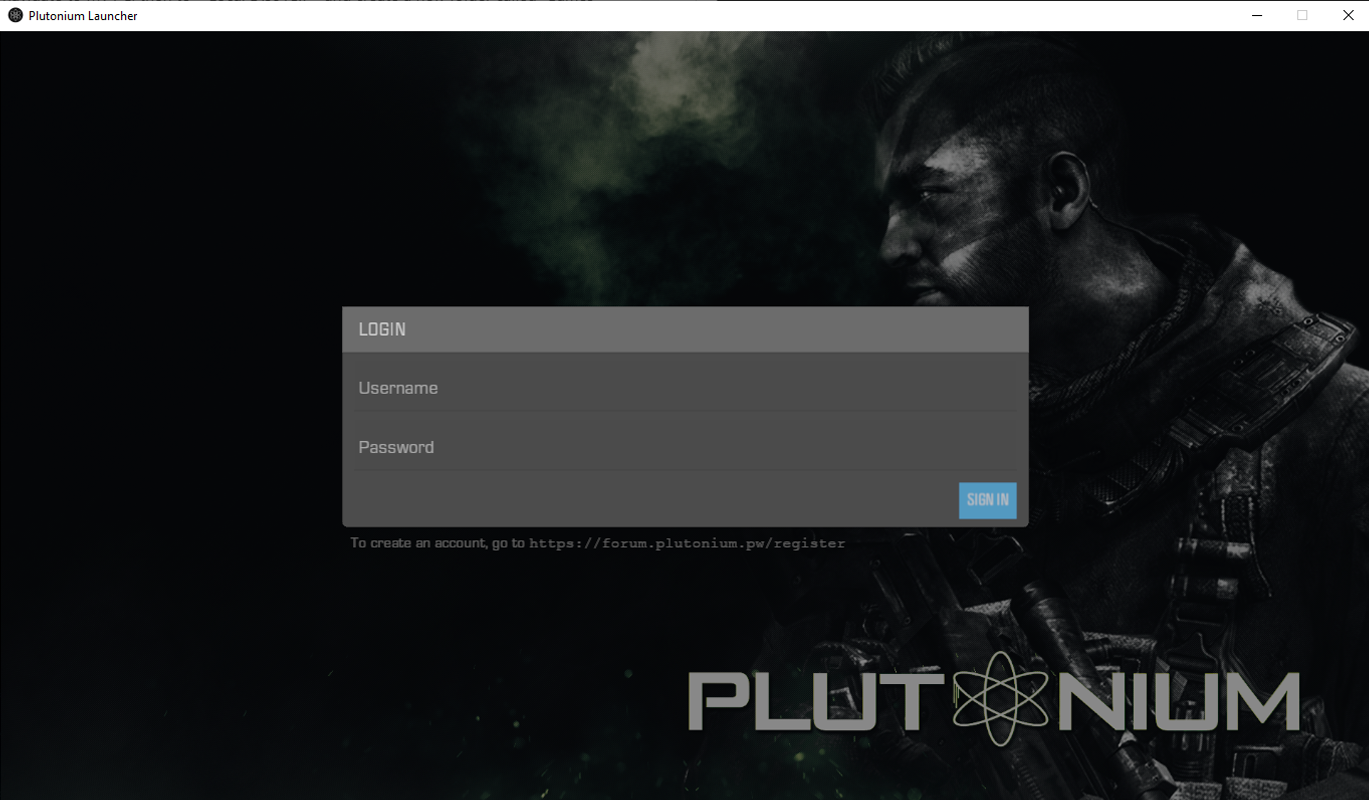
- Login/Account Creation: The first time you launch Plutonium, you’ll be prompted to log in or create an account. This account is for Plutonium’s services and is separate from any Activision or Steam accounts. Follow the on-screen instructions to create a new account or log in if you already have one.
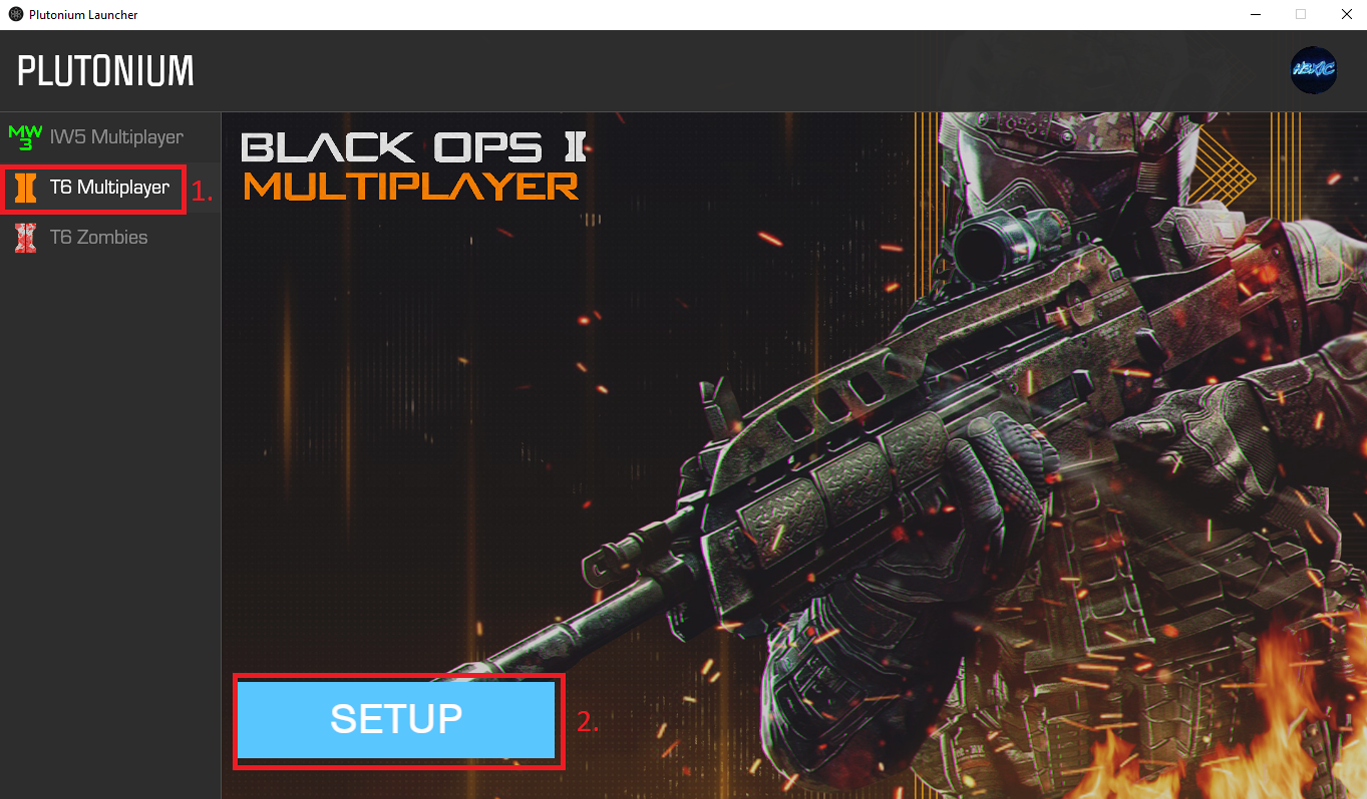
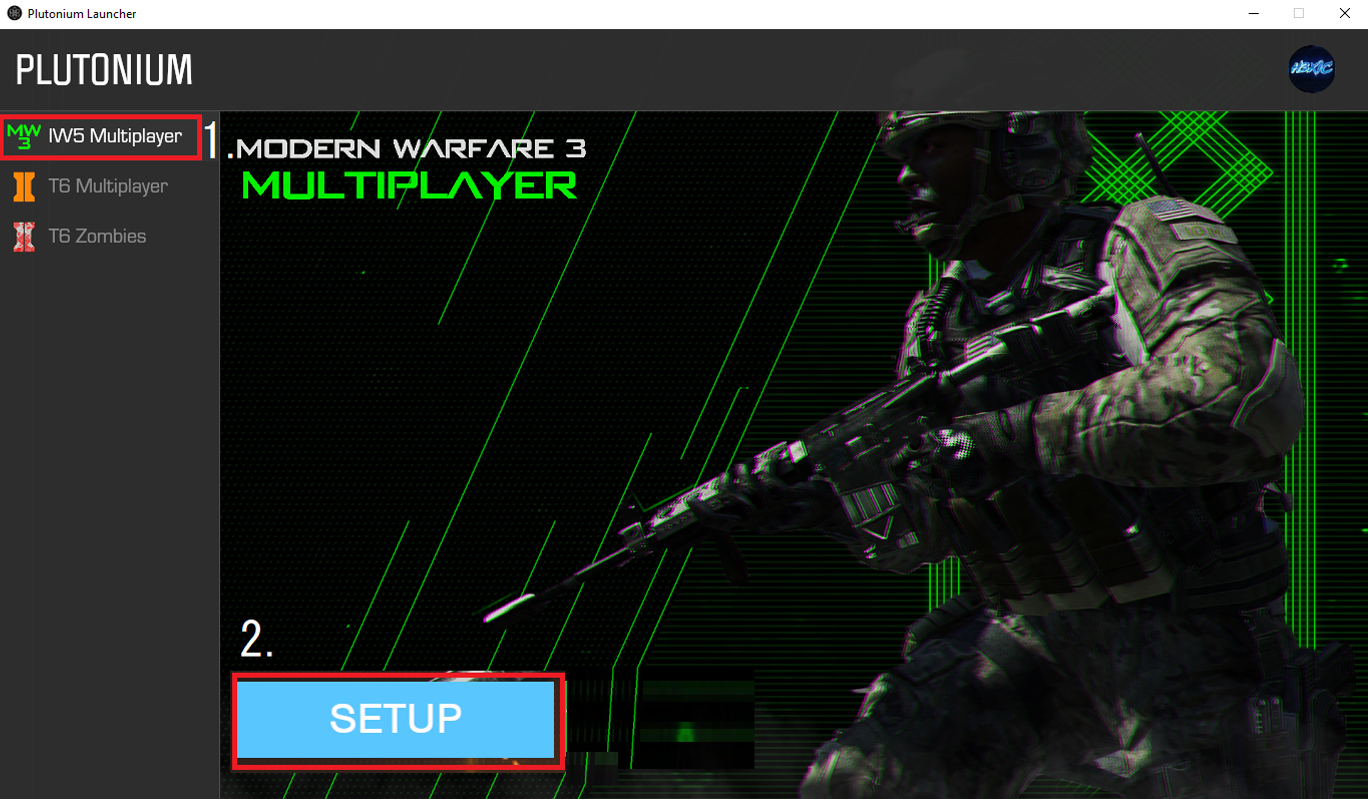
- Game Setup: The launcher will then likely prompt you to locate your game installation. This is where you’ll tell Plutonium where you installed the Black Ops II game files in Step 1.
- Browse for Game Directory: You will typically see an option to “Set up [Game Name]” or “Browse for Game.” Click on this and navigate to the folder where you installed the Black Ops II game files (e.g.,
C:GamesCall of Duty Black Ops II). Select this main game folder.
- Browse for Game Directory: You will typically see an option to “Set up [Game Name]” or “Browse for Game.” Click on this and navigate to the folder where you installed the Black Ops II game files (e.g.,
- Plutonium Downloads: Once Plutonium has identified your game files, it will often perform some initial downloads. These downloads are crucial and can include necessary updates, game assets, and server connection data. This process can take some time depending on your internet speed. Ensure you have a stable connection.
- Launcher Updates: The Plutonium launcher itself will also check for and install any available updates. It’s important to keep the launcher updated for optimal performance and access to the latest features.
4. Launching Black Ops II Multiplayer
With Plutonium configured and updated, you’re ready to jump into the action.
- Select Black Ops II: In the Plutonium launcher, you should now see Call of Duty: Black Ops II listed.
- Click “Play”: Select Black Ops II and click the “Play” button.
- Server Browser: Plutonium will typically open to a server browser. This is where you can see a list of available dedicated servers. You can filter these servers by game mode, player count, ping, and other criteria.
- Joining a Server:
- Direct Connect: Some servers might offer direct IP addresses if you want to connect to a specific server you know.
- Server Browser Selection: The most common method is to browse the list of servers. Look for servers with good ping (lower is better) and that are not full. Click on a server to select it.
- Connect: After selecting a server, there will usually be a “Connect” or “Join Server” button. Click it to attempt to join the game.
- In-Game Experience: Once connected, you’ll be dropped into the game lobby or directly into a match, depending on the server setup. You can then join matches, play with friends, and experience Black Ops II multiplayer as it was meant to be enjoyed, with the enhancements provided by Plutonium.
Troubleshooting Common Issues
While the installation process is generally smooth, occasional issues can arise. Here are a few common problems and their potential solutions:
- “Game Files Not Found” Error:
- Check Installation Path: Ensure you have correctly pointed Plutonium to the main directory where your Black Ops II game files are installed. Double-check that you are not selecting a subfolder.
- Verify Game Files: If you suspect your game files might be corrupted or incomplete, you may need to re-download or re-acquire them from your source and reinstall them.
- Connection Issues:
- Firewall/Antivirus: Your firewall or antivirus software might be blocking Plutonium. Ensure that Plutonium is added to your firewall’s exceptions list and that your antivirus isn’t interfering. Temporarily disabling them for testing purposes can help diagnose this.
- Internet Connection: A stable internet connection is vital. Ensure your network is performing optimally.
- Server Status: The server you are trying to join might be down or experiencing issues. Try joining a different server.
- Launcher Not Updating:
- Run as Administrator: Try running the Plutonium launcher as an administrator (right-click on the launcher icon and select “Run as administrator”).
- Check Internet Connection: Ensure your internet connection is stable and that there are no network restrictions preventing updates.
- Game Crashes:
- Graphics Drivers: Ensure your graphics drivers are up to date. Outdated drivers are a common cause of game crashes.
- Plutonium Updates: Make sure your Plutonium launcher is running the latest version.
- Verify Game Integrity (if applicable): If the method you used to acquire game files offers integrity checks, perform them.
Always refer to the official Plutonium forums or community Discord server for the most up-to-date troubleshooting tips and support. The community is often the best resource for resolving complex issues.
Enhancing Your Plutonium BO2 Experience
Once you have successfully installed and are playing Black Ops II via Plutonium, there are several ways to further enhance your experience and get the most out of this classic title.
Server Browsing and Custom Games
The Plutonium server browser is a powerful tool that opens up a world of possibilities beyond the original matchmaking.
- Filtering Options: Take advantage of the various filtering options in the server browser. You can sort by ping to find low-latency servers, by game mode to find specific playlists (e.g., Team Deathmatch, Domination, Search and Destroy), or by player count to join populated games.
- Community Game Modes: The Plutonium community often hosts servers with custom game modes, modifications, and unique rule sets that add fresh life to familiar maps. Keep an eye out for these to discover new ways to play.
- Server Settings: Some servers allow for custom game settings, such as increased player counts, specific weapon restrictions, or modified gameplay mechanics. Experimenting with these can lead to exciting and unexpected matches.
- Joining Friends: If your friends are playing on Plutonium, you can often join them directly by seeing their server in the browser or by using friend invites if the platform supports it.
Plutonium Features and Community
Plutonium is more than just a launcher; it’s a community hub that offers ongoing benefits.
- Anti-Cheat: As mentioned, Plutonium has its own anti-cheat system. While not foolproof, it’s actively maintained and significantly reduces the prevalence of cheaters compared to older, unsupported official servers.
- Updates and Development: The Plutonium development team regularly releases updates that fix bugs, improve performance, and sometimes introduce new features. Keeping your launcher updated is crucial for a smooth experience.
- Community Support: The Plutonium community is generally very helpful. If you encounter issues, the official forums and Discord server are excellent places to ask for assistance. You’ll often find experienced users and developers willing to guide you.
- Modding Potential: For more advanced users, Plutonium can sometimes offer opportunities for modding, allowing for even deeper customization of the game experience, though this is typically reserved for more technical users and requires careful adherence to community guidelines.
By actively engaging with the server browser and staying connected with the Plutonium community, you can ensure that your Call of Duty: Black Ops II multiplayer experience remains vibrant, competitive, and enjoyable for a long time to come.
Conclusion
Revisiting classic multiplayer games like Call of Duty: Black Ops II offers a nostalgic and often superior gaming experience to what many modern titles provide. Thanks to dedicated community projects like Plutonium, the longevity of these beloved games is secured. By following this comprehensive guide, you’ve learned how to navigate the essential steps of obtaining game files, installing the Plutonium launcher, configuring it correctly, and ultimately launching into the action-packed multiplayer arenas of Black Ops II.
The process, while requiring a bit of initial setup, is well worth the effort for the benefits it provides: stable dedicated servers, an active player base, and a commitment to preserving the game for the enjoyment of its fans. Remember to always acquire your game files through legitimate means and to engage with the Plutonium community for support and to discover the full spectrum of what this platform has to offer.
Now, armed with this knowledge, you’re ready to jump back into the fray, reconnect with old friends, and create new memories on the battlefields of Black Ops II. Enjoy the game!
aViewFromTheCave is a participant in the Amazon Services LLC Associates Program, an affiliate advertising program designed to provide a means for sites to earn advertising fees by advertising and linking to Amazon.com. Amazon, the Amazon logo, AmazonSupply, and the AmazonSupply logo are trademarks of Amazon.com, Inc. or its affiliates. As an Amazon Associate we earn affiliate commissions from qualifying purchases.