
Adobe After Effects stands as the industry standard for motion graphics, visual effects, and compositing. While its built-in capabilities are extensive, the true power of After Effects is unleashed through the integration of plugins. These third-party additions extend functionality, streamline workflows, and unlock creative possibilities that would otherwise be impossible or incredibly time-consuming to achieve. From intricate particle simulations and advanced color grading to seamless tracking and innovative animation tools, plugins are the essential building blocks that empower artists and designers to push the boundaries of their creativity.
For anyone serious about mastering After Effects – be it a budding motion designer, a seasoned VFX artist, or a digital marketer looking to create captivating brand content – understanding how to effectively install and manage plugins is not just beneficial, it’s critical. This guide aims to demystify the process, providing a comprehensive, step-by-step walkthrough that covers various installation methods, common pitfalls, and best practices. By the end of this article, you’ll be equipped with the knowledge to seamlessly integrate new tools into your After Effects pipeline, enhancing your productivity and expanding your creative horizons within the dynamic world of digital media.

Understanding After Effects Plugins and Their Importance
Before diving into the technicalities of installation, it’s crucial to grasp what After Effects plugins are and why they’ve become indispensable tools for professionals across the creative spectrum. They represent a thriving ecosystem of innovation, constantly evolving to meet the complex demands of modern digital production.
What Are Plugins?
In the context of After Effects, a plugin is a piece of software that integrates directly into the application, adding new features, effects, or tools not natively present. These external modules are developed by third-party companies or independent developers and are designed to extend After Effects’ core functionality. They come in various forms, but generally, they perform specific tasks that either automate complex processes, introduce unique visual effects, or provide specialized functionalities like advanced text animation, 3D object rendering, or complex particle systems.
Plugins can range from simple effect presets that modify color and light to complex suites that introduce entirely new workflows, such as advanced character rigging or photorealistic fluid simulations. Their primary goal is to enhance user efficiency, expand creative options, and ultimately, help artists achieve higher quality results in less time.
Why Are They Essential for Motion Graphics and VFX?
The reliance on plugins in motion graphics and visual effects isn’t merely a matter of convenience; it’s a fundamental aspect of industry practice. Here’s why they are so vital:
- Expanded Creative Horizons: Plugins unlock a universe of visual effects and animation styles that are either impossible or incredibly difficult to create with After Effects’ native tools alone. Want to simulate realistic explosions, create stunning fractal patterns, or achieve cinematic film grain? There’s likely a plugin for that. This expansion of creative possibilities directly translates into more unique and compelling visual storytelling, allowing artists to differentiate their work.
- Enhanced Efficiency and Productivity: Time is money, especially in professional production environments. Many plugins are designed to automate repetitive tasks or provide streamlined interfaces for complex operations. For instance, rather than manually keyframing every element of a complex animation, a specialized animation plugin can achieve the desired effect with a few clicks. This boost in efficiency allows artists to complete projects faster, take on more work, and meet tight deadlines, directly impacting profitability for individuals and studios alike.
- Industry Standards and Quality: Many plugins have become de facto industry standards for specific effects or workflows. For example, plugins for color correction (like Colorista), visual effects (like Trapcode Particular for particles or Video Copilot’s Optical Flares), and motion tracking (like Mocha AE) are widely used and often expected in professional pipelines. Using these tools ensures that the quality and style of your work align with current industry benchmarks, making your output competitive and recognizable.
- Specialization and Niche Solutions: The diverse nature of creative projects often requires specialized tools. Plugins cater to these niche requirements, offering tailored solutions for tasks like advanced rigging, dynamic simulations, specific stylistic effects, or integration with other 3D software. This specialization allows artists to tackle a wider range of projects with precision and expertise.
- Staying Ahead of the Curve (Tech & Brand Relevance): The tech landscape is constantly evolving. Plugin developers are often at the forefront of implementing new algorithms, rendering techniques, and user interface improvements. By integrating these cutting-edge tools, artists can keep their skills current, their workflows optimized, and their output visually fresh and modern. For brands, this means access to state-of-the-art visual communication, enabling them to create engaging content that resonates with contemporary audiences and strengthens their market presence. Investing in quality plugins is an investment in professional growth and the ability to deliver high-value work.
Preparing for Plugin Installation
Before you embark on installing any new plugin, a little preparation can save you a lot of headaches down the line. Ensuring compatibility, understanding licensing, and taking precautionary measures are key steps in a smooth installation process.
System Requirements and Compatibility Checks
Not all plugins are created equal, and not all After Effects versions are compatible with every plugin.
- After Effects Version: Always check the plugin developer’s website for supported After Effects versions. A plugin designed for After Effects CC 2020 might not work correctly (or at all) with CS6 or the latest CC 2024.
- Operating System: Confirm whether the plugin is compatible with your operating system (Windows or macOS) and its specific version.
- Hardware Specifications: Some graphically intensive plugins (e.g., those involving 3D rendering or complex simulations) might have specific GPU, CPU, or RAM requirements. Ensure your system meets these to avoid performance issues or crashes.
- Licensing: Most professional plugins require a license. Make sure you have purchased one and have the serial number or activation key readily available. Some offer trial versions, which are great for testing before committing.
Backing Up Your Work and After Effects Settings
While installing plugins is generally safe, unexpected issues can sometimes arise.
- Project Files: Always save and back up any ongoing After Effects projects before installing new software.
- After Effects Preferences: Consider backing up your After Effects preferences. On Windows, these are typically located at
C:Users[Your Username]AppDataRoamingAdobeAfter Effects[Version]. On macOS, they are usually in~/Library/Preferences/Adobe/After Effects/[Version]. While not strictly necessary for plugin installation, it’s good practice for any major software alteration. - Documentation: Download and review any installation instructions or user manuals provided by the plugin developer. They often contain specific nuances for their particular product.
Step-by-Step Plugin Installation Methods
The process of installing After Effects plugins isn’t always uniform; it varies depending on the plugin developer and the type of files involved. Below, we’ll cover the most common methods, ensuring you’re prepared for any scenario.
Method 1: Utilizing Automatic Installers
Many reputable plugin developers, especially those offering comprehensive suites or popular standalone tools (e.g., Red Giant, Video Copilot, Element 3D, Boris FX), provide dedicated automatic installers. This is often the easiest and most recommended method.
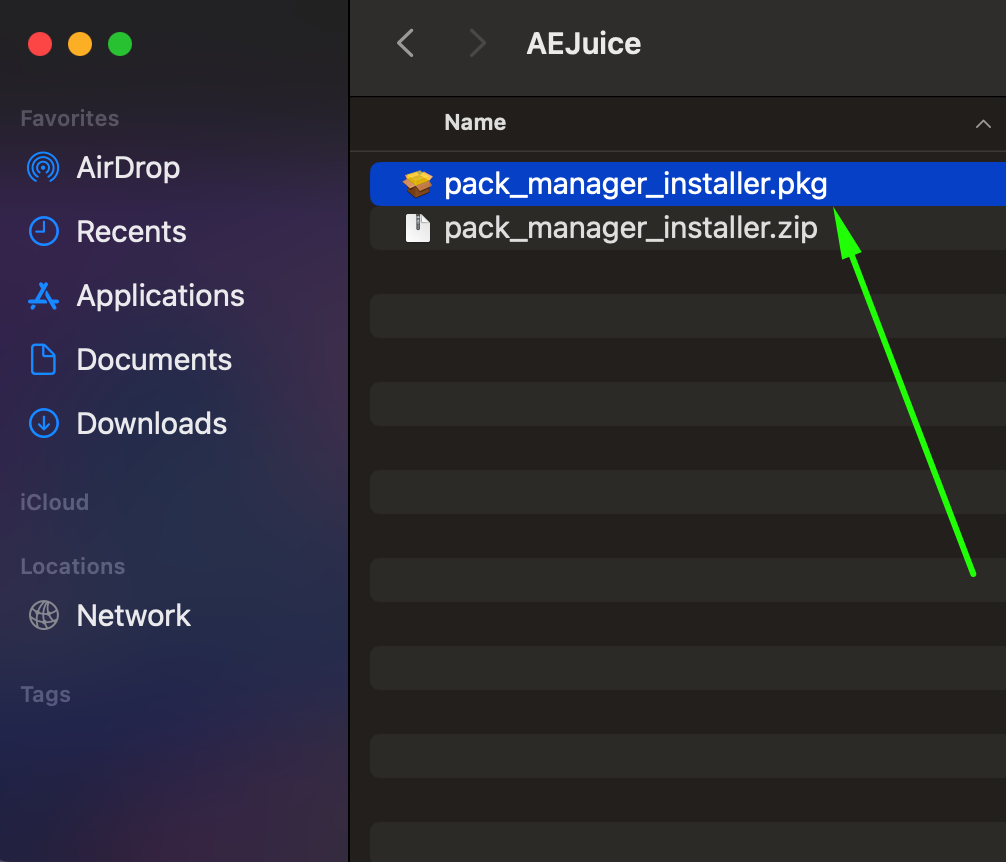
- Download the Installer: Obtain the installer file from the official developer’s website. Ensure you download the correct version for your operating system and After Effects version.
- Close After Effects: Crucially, close After Effects and any other Adobe applications before running the installer. Running an installer while After Effects is open can lead to incomplete installations or file conflicts.
- Run the Installer:
- Windows: Double-click the
.exefile. You may need to grant administrator privileges. - macOS: Double-click the
.dmgfile to mount it, then run the installer application within. You might need to authenticate with your system password.
- Windows: Double-click the
- Follow On-Screen Prompts: The installer will guide you through the process. Key steps usually include:
- Accepting the License Agreement: Read and accept the terms.
- Selecting After Effects Versions: The installer often detects installed After Effects versions. Select the ones where you want the plugin installed.
- Installation Location: While typically predefined, some installers allow you to choose a custom installation path. It’s usually best to stick with the default.
- Entering License Keys: Many installers will prompt you to enter your serial number or license key during the process. If not, you might activate it within After Effects later.
- Complete Installation: Once the installation finishes, you’ll usually see a confirmation message. Restart your computer if the installer recommends it (though not always necessary).
- Launch After Effects and Verify: Open After Effects and check the specified locations (usually under
Effect > [Plugin Category]orWindow > Extensions) to confirm the plugin is present and functioning.
Method 2: Manual Installation for Standard Plugins (.aex, .plugin)
For smaller, independent plugins, or when an automatic installer isn’t provided, manual installation is the way to go. This involves directly placing the plugin files into After Effects’ plugin directory.
Locating Your After Effects Plugins Folder (Windows)
The primary plugin folder for After Effects on Windows is typically located here:
C:Program FilesAdobeAdobe After Effects [Version]Support FilesPlugins
- [Version] will correspond to your After Effects version (e.g., “Adobe After Effects 2024”).
Locating Your After Effects Plugins Folder (macOS)
On macOS, the main plugin folder is usually found at:
/Applications/Adobe After Effects [Version]/Plug-ins/
- [Version] will correspond to your After Effects version (e.g., “Adobe After Effects 2024”).
The Manual Installation Process
- Download the Plugin Files: You’ll typically receive a compressed archive (like a
.zipor.rarfile) containing the plugin. - Extract the Files: Unzip the archive. Inside, you’ll usually find
.aexfiles (Windows),.pluginfiles (macOS), or a folder containing these along with supporting files. - Close After Effects: Ensure After Effects is completely closed.
- Copy Files to the Plugins Folder:
- Single Plugin File: If it’s just a
.aexor.pluginfile, copy it directly into the After EffectsPluginsfolder (as located above). - Plugin Folder: If the downloaded archive contains a folder (e.g., “MyCoolPlugin”) with the
.aex/.pluginfile inside it, copy this entire folder into thePluginsdirectory. This helps keep things organized.
- Single Plugin File: If it’s just a
- Restart After Effects: Launch After Effects. The new plugin should now appear in the
Effectmenu under its relevant category.
Method 3: Installing Scripts (.jsx, .jsxbin)
Scripts are different from traditional plugins; they are snippets of code that automate tasks or provide custom panels within After Effects. They typically use .jsx or .jsxbin file extensions.
Scripts Folder Location
- Windows:
C:Program FilesAdobeAdobe After Effects [Version]Support FilesScripts - macOS:
/Applications/Adobe After Effects [Version]/Scripts/
Some scripts are meant to be placed in the ScriptUI Panels subfolder within the Scripts directory if they create a dockable panel:
- Windows:
C:Program FilesAdobeAdobe After Effects [Version]Support FilesScriptsScriptUI Panels - macOS:
/Applications/Adobe After Effects [Version]/Scripts/ScriptUI Panels/
The Installation Process for Scripts
- Download the Script File: Obtain the
.jsxor.jsxbinfile. - Close After Effects: Close After Effects.
- Copy the Script:
- If it’s a simple script to run once: Copy the
.jsxor.jsxbinfile into the mainScriptsfolder. - If it’s a script with a user interface panel: Copy the
.jsxor.jsxbinfile into theScriptUI Panelssubfolder.
- If it’s a simple script to run once: Copy the
- Enable Scripts in After Effects (if not already):
- Go to
Edit > Preferences > Scripting & Expressions...(Windows) orAfter Effects > Preferences > Scripting & Expressions...(macOS). - Check the box for “Allow Scripts to Write Files and Access Network” (this is essential for many scripts to function).
- Go to
- Launch After Effects:
- Scripts in the main
Scriptsfolder can be run viaFile > Scripts > Run Script File...or found directly underFile > Scriptsif placed there. - Scripts in the
ScriptUI Panelsfolder will appear underWindowin the After Effects menu.
- Scripts in the main
Method 4: Adding Presets (.ffx)
Presets are pre-saved effect and animation settings that can be applied to layers. They have the .ffx extension.
Presets Folder Location
- Windows:
C:Program FilesAdobeAdobe After Effects [Version]Support FilesPresets - macOS:
/Applications/Adobe After Effects [Version]/Presets/
The Installation Process for Presets
- Download the Preset File: Obtain the
.ffxfile or a folder containing multiple.ffxfiles. - Copy to Presets Folder: Copy the
.ffxfile(s) or the entire folder into thePresetsdirectory. - Launch After Effects: Presets can be accessed from the
Effects & Presetspanel in After Effects. You can search for them by name or navigate through the custom folders you’ve added.
Verifying and Troubleshooting Your Plugin Installation
Once you’ve followed the installation steps, the next crucial phase is to confirm everything is working as expected and to address any issues that may arise.
How to Confirm Successful Installation
- Launch After Effects: Open After Effects.
- Check the Effects Menu: For standard effects plugins, navigate to the
Effectmenu in the top bar. You should see new categories or entries corresponding to your installed plugins. If you know the plugin’s name, you can also search for it in theEffects & Presetspanel (Window > Effects & Presets). - Check the Window Menu: For scripts that create UI panels or extensions, go to
Windowin the top bar. Your newly installed script or extension should be listed there. - Apply and Test: Drag the plugin/effect onto a layer in your composition. Adjust its parameters and ensure it renders correctly without errors or crashes. For scripts, run them or open their panels and test their functionality.
Common Installation Issues and Solutions
Even with careful installation, you might encounter problems. Here are some common issues and their troubleshooting steps:
- Plugin Not Appearing in After Effects:
- Did you close After Effects? Always close After Effects before installing. If not, reinstall the plugin after closing After Effects.
- Wrong After Effects Version? Ensure the plugin is compatible with your specific AE version.
- Incorrect Folder Location? Double-check that you copied the files to the correct
PluginsorScriptsfolder for your After Effects installation. - Plugin Requires Activation: Some plugins won’t appear until activated with a license key. Check the developer’s instructions or look for an “About” or “License” option within the plugin’s interface.
- Restart After Effects: Sometimes a simple restart of After Effects (or even your computer) is all that’s needed.
- After Effects Crashes or Freezes After Installation:
- Incompatible Plugin: The plugin might be incompatible with your AE version or OS.
- System Requirements: Your system might not meet the plugin’s minimum hardware requirements.
- Corrupt Installation: Try a clean reinstallation. Uninstall the plugin (if an uninstaller is provided), delete any leftover files manually, then reinstall.
- GPU Issues: Update your graphics card drivers to the latest version. Some plugins heavily rely on GPU acceleration.
- Plugin Appears but Doesn’t Work Correctly / Renders Watermarks:
- Licensing Issue: This is almost always a licensing problem. The plugin isn’t activated, or the trial period has expired. Re-enter your license key or contact the developer for activation support.
- Preferences/Settings: Check the plugin’s specific preferences or settings within After Effects or its external utility for any configuration issues.
- Conflicting Plugins: Very rarely, two plugins might conflict. Try temporarily disabling other newly installed plugins to isolate the issue.
- “Allow Scripts to Write Files and Access Network” Error (for Scripts):
- As mentioned in Method 3, ensure this preference is enabled under
Edit > Preferences > Scripting & Expressions....
- As mentioned in Method 3, ensure this preference is enabled under
Best Practices for Plugin Management
- Keep After Effects Updated: While new After Effects versions can sometimes break older plugins, keeping your software updated ensures compatibility with the latest plugin releases and features.
- Organize Your Plugins: If manually installing, consider creating subfolders within your After Effects
Pluginsdirectory (e.g., “My Custom Tools,” “Particle Effects”) to keep things tidy, especially if you have many. - Regularly Back Up Your System: A full system backup is always a good idea, especially before installing large software packages or critical plugins.
- Purchase from Reputable Sources: Always download plugins from official developer websites. Avoid pirated versions, as they can contain malware, be unstable, or lack critical features and updates. This also supports the developers who create these valuable tools.
- Read Documentation: Seriously, read the manual! Developers often include specific installation instructions, known issues, and usage tips unique to their plugin.
By meticulously following these steps and understanding the nuances of plugin installation, you empower yourself to harness the full potential of Adobe After Effects. This not only enhances your technical skills within the “Tech” domain but also equips you to produce more professional, visually striking work that can elevate your “Brand” and potentially increase your “Money”-making opportunities through increased efficiency and creative output.
Conclusion
The journey through installing plugins in After Effects might seem complex at first, given the myriad of methods and file types. However, by understanding the foundational principles, differentiating between automatic and manual installations, and knowing where to place various file types like .aex, .jsx, and .ffx, you’ve gained a crucial skill that unlocks a vast ecosystem of creative possibilities.
Plugins are more than just add-ons; they are accelerators of creativity, powerful tools for problem-solving, and essential components for maintaining a competitive edge in the fast-evolving fields of motion graphics and visual effects. They bridge the gap between After Effects’ native capabilities and the ever-increasing demands for sophisticated visual storytelling, allowing artists to achieve professional-grade results with greater efficiency and artistic freedom.
By confidently navigating the installation process, troubleshooting potential issues, and embracing best practices for plugin management, you not only optimize your workflow and technical proficiency but also significantly expand your creative toolkit. This continuous enhancement of your skills and resources is an investment in your professional growth, enabling you to consistently deliver high-quality, impactful content that resonates with audiences and reinforces your expertise in the digital landscape. So go forth, explore the incredible world of After Effects plugins, and transform your creative vision into stunning realities.
aViewFromTheCave is a participant in the Amazon Services LLC Associates Program, an affiliate advertising program designed to provide a means for sites to earn advertising fees by advertising and linking to Amazon.com. Amazon, the Amazon logo, AmazonSupply, and the AmazonSupply logo are trademarks of Amazon.com, Inc. or its affiliates. As an Amazon Associate we earn affiliate commissions from qualifying purchases.