
Node.js has revolutionized the way developers build and deploy applications, offering a powerful JavaScript runtime environment that excels in both front-end and back-end development. Its asynchronous, event-driven architecture makes it incredibly efficient for building scalable network applications, microservices, and real-time applications. For users of the Ubuntu operating system, installing Node.js is a straightforward process, enabling you to tap into this vast ecosystem of tools and libraries. This guide will walk you through the most common and recommended methods for installing Node.js on your Ubuntu machine, ensuring you have the right version for your projects and can start coding in no time.
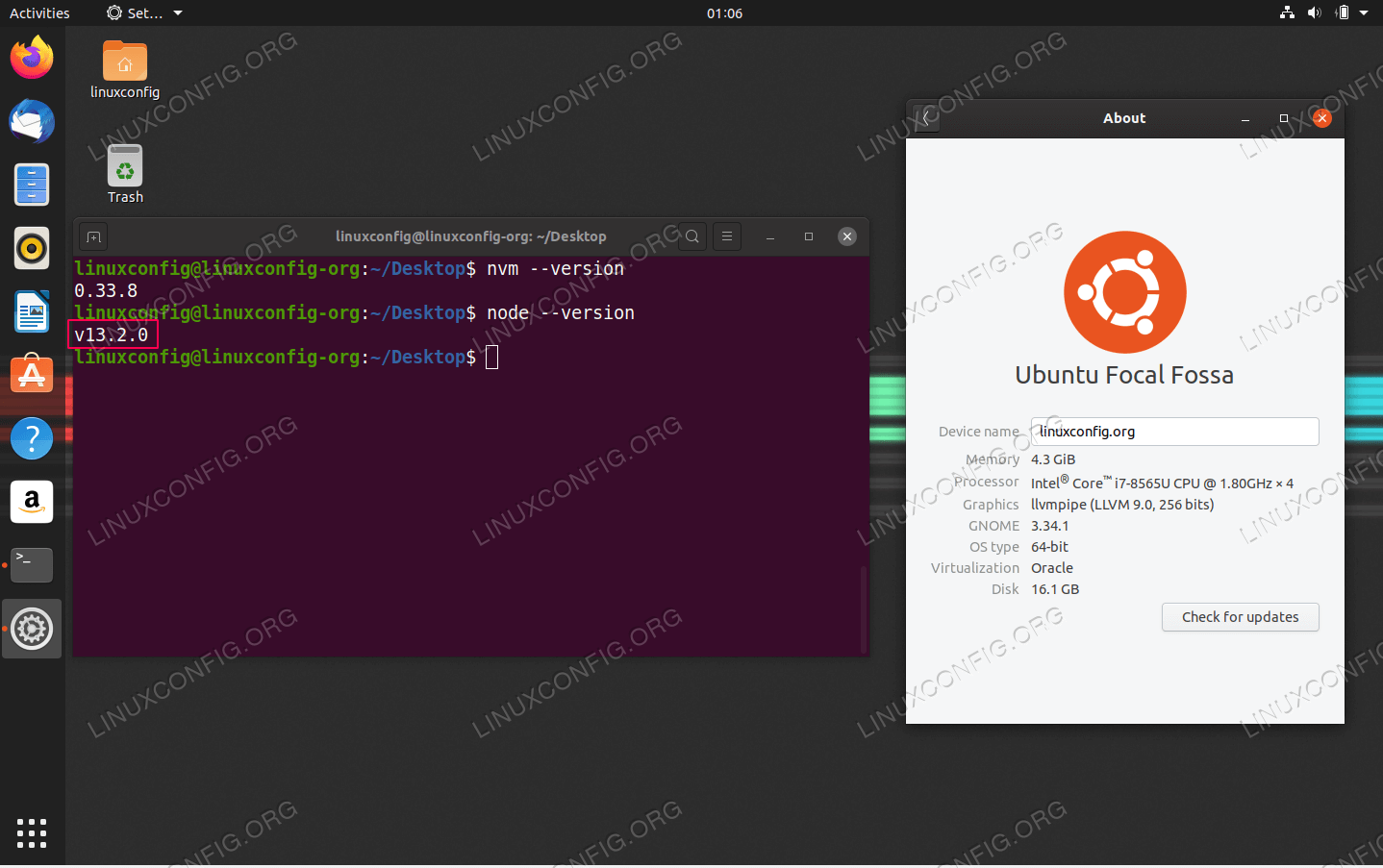
The process is more than just a technical installation; it’s about setting up your development environment to leverage the latest advancements in web technology. Whether you’re a seasoned developer looking to update your setup or a newcomer eager to dive into JavaScript development beyond the browser, understanding how to manage Node.js versions on Ubuntu is crucial for maintaining flexibility and compatibility. We’ll explore different approaches, from using the default Ubuntu repositories to utilizing NodeSource for more up-to-date versions and even managing multiple Node.js versions with NVM (Node Version Manager).
Understanding Node.js and its Significance
Before we delve into the installation steps, it’s beneficial to understand what Node.js is and why it’s become such an indispensable tool in the modern tech landscape. Node.js is not a programming language itself; it’s a runtime environment that allows you to execute JavaScript code outside of a web browser. Built on Chrome’s V8 JavaScript engine, Node.js is designed for building fast, scalable network applications.
The Power of JavaScript Everywhere
One of the most significant advantages of Node.js is its ability to enable developers to use JavaScript for both the client-side (browser) and server-side (backend) of an application. This “JavaScript everywhere” paradigm leads to:
- Code Reusability: Developers can share code and logic between the front-end and back-end, reducing development time and minimizing inconsistencies.
- Faster Development Cycles: A unified language means smaller teams can handle both aspects of development, or individual developers can become full-stack engineers more easily.
- Performance: Node.js’s non-blocking, event-driven I/O model makes it highly efficient for handling a large number of concurrent connections, which is ideal for real-time applications like chat services, streaming platforms, and online gaming.
NPM: The Heartbeat of the Node.js Ecosystem
Bundled with Node.js is NPM (Node Package Manager), the default package manager for the JavaScript programming language. NPM is a command-line utility that allows you to install, share, and manage reusable code packages (libraries, frameworks, tools) that form the backbone of most Node.js projects. The npm registry hosts hundreds of thousands of packages, providing solutions for everything from database interaction and API creation to front-end build tools and testing frameworks.
The ease with which you can access and integrate these packages is a key reason for Node.js’s popularity. From popular frameworks like Express.js for building web servers to utility libraries for data manipulation, NPM makes it incredibly simple to extend Node.js’s capabilities. Understanding how to use NPM effectively is as important as installing Node.js itself, as it’s the gateway to the vast Node.js ecosystem.
Installing Node.js on Ubuntu: Multiple Approaches
Ubuntu, being a popular Linux distribution, offers several ways to install Node.js. The best method for you will depend on your specific needs, particularly regarding the version of Node.js you require and how you prefer to manage it.
Method 1: Using Ubuntu’s Default APT Repository
This is the simplest and most straightforward method, suitable for users who need a stable, but potentially older, version of Node.js. The Ubuntu repositories contain a version of Node.js that has been tested and integrated with the operating system.
Step 1: Update Your Package List
Before installing any new software, it’s always a good practice to update your system’s package list to ensure you’re getting the latest available information about packages and their versions.
sudo apt update
Step 2: Install Node.js and NPM
Once your package list is updated, you can install Node.js and its package manager, NPM, using the apt command.
sudo apt install nodejs npm
This command will download and install the Node.js runtime and NPM from the Ubuntu repositories.
Step 3: Verify the Installation
After the installation is complete, you can verify that Node.js and NPM have been installed correctly by checking their versions:
node -v
npm -v
If the installation was successful, these commands will output the installed versions of Node.js and NPM.
Pros:
- Extremely simple and quick.
- Managed by the system’s package manager, making updates and uninstallation easy.
Cons:
- The version of Node.js available in the default Ubuntu repositories can be significantly outdated compared to the latest releases. This might be an issue if your project requires newer features or specific versions.
Method 2: Installing Node.js from NodeSource APT Repository (Recommended for Latest Versions)
For developers who need more recent versions of Node.js, the NodeSource repository is the recommended approach. NodeSource maintains up-to-date packages for various Node.js versions, which can be added to your system’s APT sources.
Step 1: Update Your Package List
As with any installation, start by updating your package list.
sudo apt update
Step 2: Install Necessary Packages for Adding Repositories
You’ll need curl to download the setup script and gnupg to manage GPG keys for repository authentication.
sudo apt install curl gnupg -y
Step 3: Add the NodeSource Repository
NodeSource provides different setup scripts for various Node.js versions (e.g., Node.js 18.x, Node.js 20.x, Node.js 21.x). You need to choose the script that corresponds to the Node.js version you want to install. For example, to install the latest LTS version (Node.js 20.x as of early 2024), you would use:
curl -fsSL https://deb.nodesource.com/setup_20.x | sudo -E bash -
Replace setup_20.x with setup_18.x for Node.js 18, or setup_21.x for the latest current release. Always check the NodeSource documentation for the most current versioning.
This script will add the NodeSource repository to your system and update your package list automatically.
Step 4: Install Node.js
After adding the repository, you can install Node.js. The package manager will now prioritize the newer versions from NodeSource.
sudo apt install nodejs -y
Note that when installing from NodeSource, npm is typically included with the nodejs package.
Step 5: Verify the Installation
Check the installed versions:

node -v
npm -v
Pros:
- Provides access to recent and LTS (Long-Term Support) versions of Node.js.
- Still managed by APT, allowing for relatively easy updates and uninstallation.
Cons:
- Requires adding an external repository, which involves an extra step.
Method 3: Using NVM (Node Version Manager) for Flexible Version Management
For developers who work on multiple projects that might require different Node.js versions, NVM (Node Version Manager) is an indispensable tool. NVM allows you to install, switch between, and uninstall various Node.js versions on the fly without conflicts.
Step 1: Install NVM
First, you need to install NVM. The easiest way is to download and run the installation script from the official NVM GitHub repository. You can usually find the latest version number on their README.
curl -o- https://raw.githubusercontent.com/nvm-sh/nvm/v0.39.5/install.sh | bash
Replace v0.39.5 with the latest version of NVM.
This script will download NVM and add the necessary lines to your shell profile file (e.g., ~/.bashrc, ~/.zshrc).
Step 2: Load NVM
After running the script, you need to either close and reopen your terminal or source your profile file for NVM to be available.
source ~/.bashrc # Or source ~/.zshrc if you use Zsh
You can verify if NVM is installed by running:
command -v nvm
This should output nvm if it’s loaded correctly.
Step 3: Install a Specific Node.js Version
Now you can use NVM to install any desired Node.js version.
To list available versions:
nvm ls-remote
To install the latest LTS version:
nvm install --lts
To install a specific version (e.g., Node.js 18.17.1):
nvm install 18.17.1
Step 4: Use a Specific Node.js Version
Once installed, you need to tell NVM which version to use for your current session or for a particular project.
To use the latest installed version:
nvm use node
To use a specific installed version:
nvm use 18.17.1
You can also set a default Node.js version that will be used every time you open a new terminal session:
nvm alias default 18.17.1 # Or nvm alias default node for the latest installed
Step 5: Verify the Installation
Check the versions:
node -v
npm -v
Pros:
- Ultimate flexibility for managing multiple Node.js versions.
- Ideal for developers working on diverse projects with varying dependencies.
- Installs Node.js in your user directory, avoiding potential permission issues with
sudo.
Cons:
- Slightly more complex setup compared to APT-based installations.
- Requires managing versions explicitly.
Managing Node.js Projects and Best Practices
Once Node.js is installed on your Ubuntu system, you’re ready to start building. Here are a few tips for effective project management and development.
Understanding package.json
Every Node.js project has a package.json file. This JSON file serves as the manifest for your project, containing metadata about the project, its dependencies, scripts, and more. When you initialize a new project with npm init, you’ll create this file. npm install <package-name> will then add the package to your node_modules directory and list it as a dependency in package.json.
Global vs. Local Installations
It’s important to understand the difference between global and local package installations in Node.js.
- Local Installation: When you install a package using
npm install <package-name>within your project directory, it’s installed locally. This means the package is available only for that specific project and is stored in thenode_modulesfolder. This is the preferred method for project dependencies, ensuring each project has its own isolated set of required libraries. - Global Installation: When you install a package with the
-gflag, likenpm install -g <package-name>, it’s installed globally. These packages are typically command-line tools that you want to use across your system, such as task runners (like Gulp or Grunt), build tools (like Webpack), or linters. Be mindful of global installations and use them judiciously.

Keeping Node.js and NPM Updated
Regularly updating Node.js and NPM is crucial for security, performance, and access to new features.
- Updating Node.js (APT Method): If you used the APT repositories (Ubuntu default or NodeSource), you can update Node.js by running:
bash

sudo apt update

sudo apt upgrade nodejs
- Updating NPM: NPM can be updated independently of Node.js.
bash

npm install -g npm@latest
- Updating Node.js (NVM Method): If you are using NVM, you simply install a new version and switch to it:
bash

nvm install <new-version>

nvm use <new-version>

nvm alias default <new-version>
By following these methods and understanding the underlying principles, you can efficiently install and manage Node.js on your Ubuntu system, paving the way for robust and scalable JavaScript development. The choice between APT and NVM ultimately depends on your workflow and the need for version flexibility. For most developers, especially those working on multiple projects, NVM offers the most comprehensive solution.
aViewFromTheCave is a participant in the Amazon Services LLC Associates Program, an affiliate advertising program designed to provide a means for sites to earn advertising fees by advertising and linking to Amazon.com. Amazon, the Amazon logo, AmazonSupply, and the AmazonSupply logo are trademarks of Amazon.com, Inc. or its affiliates. As an Amazon Associate we earn affiliate commissions from qualifying purchases.