
For many gamers, the thrill of a new title like Dragon Ball: Sparking! ZERO lies not just in its official content, but in the boundless possibilities that community-created modifications (mods) introduce. Modding transforms a great game into an extraordinary, personalized experience, extending its lifespan, enhancing its features, and often adding elements the developers might never have conceived. As a leading voice in technology trends and digital tutorials, we’re here to demystify the process, providing a comprehensive guide to installing mods in Sparking Zero, ensuring you can unlock its full potential safely and effectively.
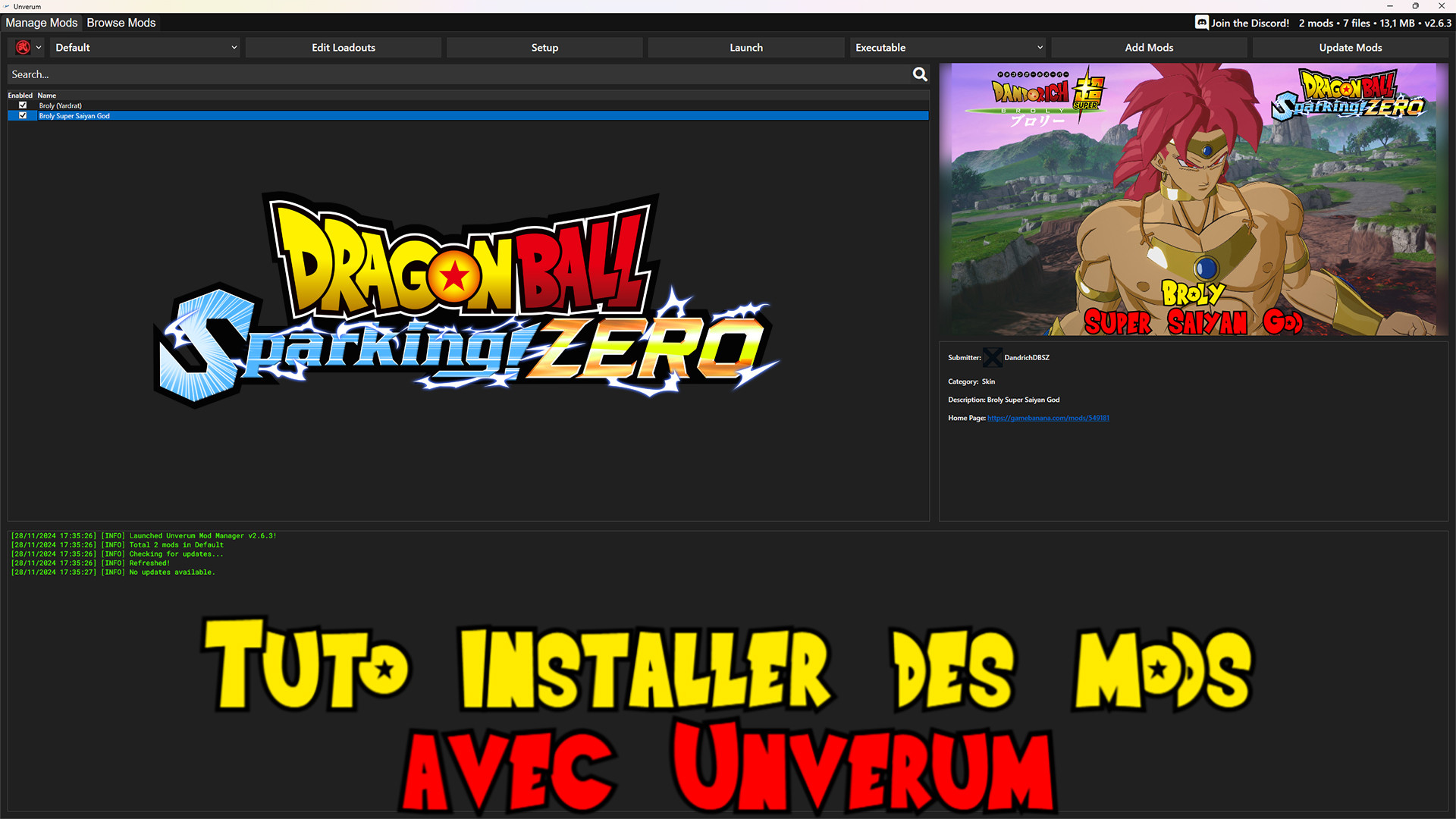
Sparking Zero, with its vibrant universe and intense combat, is ripe for modding. Imagine fighting with characters never officially released, exploring custom arenas, or even tweaking gameplay mechanics to your exact preferences. This guide will walk you through everything from the initial preparations and essential tools to the step-by-step installation process, culminating in troubleshooting tips and best practices that will empower you to become a proficient modder. Dive in, and prepare to elevate your Sparking Zero experience to legendary status.
Why Mod Sparking Zero? Unlocking New Dimensions of Gameplay
The decision to mod a game often stems from a desire to customize, enhance, and extend the core experience. For a title as rich and expansive as Dragon Ball: Sparking! ZERO, the reasons to venture into the modding world are manifold, ranging from aesthetic overhauls to significant gameplay alterations. Understanding these motivations can help you appreciate the value and potential a vibrant modding community brings to any game.
Custom Characters, Arenas, and Abilities: Expanding Beyond Official Content
One of the most compelling reasons to mod Sparking Zero is the opportunity to introduce an almost limitless array of custom content. While the official roster and arenas are undoubtedly impressive, modders can go beyond, bringing in characters from different sagas, fan-made transformations, or even entirely new fighters inspired by the Dragon Ball lore. Imagine battling with obscure characters from spin-offs, or testing the might of fan-designed fusions – the possibilities are truly endless.
Beyond characters, custom arenas can transport your battles to iconic locations not featured in the base game, or completely original environments designed to challenge your combat skills in new ways. These additions aren’t just cosmetic; they can breathe new life into the game, offering fresh challenges and scenarios that keep the gameplay exciting long after you’ve mastered the official offerings. Modders can also tweak or create new abilities, giving existing characters new movesets or empowering custom characters with unique powers, dramatically altering combat strategies and player interactions. This expansion of content directly addresses the desire for continuous novelty and engagement, making the game feel perpetually fresh.
Quality of Life Enhancements: UI, Performance, and Accessibility Tweaks
Not all mods are about adding flashy new content; many focus on refining the existing game experience. These “quality of life” (QoL) mods often address minor frustrations, improve accessibility, or enhance overall performance. For Sparking Zero, this could translate into a variety of beneficial adjustments.
Consider user interface (UI) mods that simplify menus, provide more detailed in-game information, or customize the HUD to your liking, making crucial data more accessible during intense battles. Performance-enhancing mods, while often subtle, can be game-changers for players with varying hardware specifications. These might include optimizations for frame rates, reduced load times, or improved texture streaming, ensuring a smoother, more responsive gaming experience even in the most chaotic fights. Furthermore, accessibility mods can cater to a broader audience, offering colorblind options, customizable keybindings beyond official settings, or font adjustments for easier readability. These improvements, though not always as visually striking as new characters, significantly contribute to player comfort and enjoyment, making the game more pleasant to play for extended periods.
Replayability and Community Engagement: Keeping the Game Fresh
Modding inherently fosters a strong sense of community and dramatically boosts a game’s replayability. When players can continually discover new mods, integrate them into their game, and share their experiences, the game remains vibrant and relevant for years. Sparking Zero, with its dedicated fanbase, is an ideal candidate for such an ecosystem.
The constant influx of new community-created content—be it new characters, story missions, or gameplay variants—means there’s always something fresh to explore. This infinite cycle of content generation ensures that players don’t grow bored, even after sinking hundreds of hours into the base game. Furthermore, engaging with the modding community can be a rewarding experience in itself. From sharing your modded screenshots and videos to participating in discussions about mod development, compatibility, and troubleshooting, you become part of a larger, passionate group. This interaction not only enriches your personal gaming journey but also contributes to the longevity and cultural impact of Sparking Zero as a title that transcends its initial release.
Essential Preparations Before You Begin Modding
Embarking on the modding journey for Sparking Zero requires careful preparation. Skipping these crucial steps can lead to frustration, game instability, or even data loss. Think of this phase as laying a strong foundation before building a complex structure – it’s vital for a smooth and successful modding experience.
Understanding the Risks and Backing Up Your Game
The first and most important step before installing any mod is to acknowledge and mitigate the inherent risks. While most mods are created with good intentions, some can be buggy, incompatible with other mods or game updates, or, in rare cases, even contain malicious software. A common issue is game instability, leading to crashes, corrupted save files, or graphical glitches.
To protect yourself, a comprehensive backup strategy is paramount. Before you install your first mod, we strongly recommend backing up your entire Sparking Zero installation folder. This usually involves locating the game’s directory (often found in C:Program Files (x86)SteamsteamappscommonDragon Ball Sparking Zero or similar for other platforms) and copying it to a safe location on your hard drive or an external drive. This backup serves as a clean slate you can revert to if anything goes wrong. Additionally, back up your save files, which are typically located in a different directory (often DocumentsBandai NamcoDragon Ball Sparking Zero or within your user profile’s AppData folder). Having these backups ensures that even if modding corrupts your game, your progress and ability to play a pristine version remain intact.
Gathering Necessary Software and Tools
Successful modding often relies on a suite of common software tools that facilitate file management and manipulation. These are standard utilities for any PC gamer delving into modifications.
- File Archiver (e.g., 7-Zip or WinRAR): The vast majority of mods are distributed in compressed archive formats (like
.zip,.rar, or.7z). A reliable file archiver is essential for extracting these files. Both 7-Zip (free and open-source) and WinRAR (shareware) are excellent choices, allowing you to unpack mod files into usable formats. - Text Editor (e.g., Notepad++, Visual Studio Code): While Windows Notepad can suffice for simple edits, a more advanced text editor like Notepad++ or Visual Studio Code offers features like syntax highlighting, line numbering, and better handling of large files, which can be invaluable when dealing with configuration files or mod scripts.
- Modding Community Accounts: Most mods are hosted on dedicated community platforms. For Sparking Zero, keep an eye on popular modding hubs like Nexus Mods (if a dedicated section for the game emerges), or game-specific forums and Discord servers. Creating accounts on these platforms allows you to download mods, track updates, and engage with mod authors and fellow modders. These platforms often provide critical information regarding installation instructions, known issues, and compatibility details.
System Requirements and Performance Considerations
Modding isn’t a free lunch; it can impact your game’s performance. While some mods are purely cosmetic and lightweight, others, particularly those adding high-resolution textures, complex character models, or extensive new gameplay systems, can be demanding on your PC’s hardware.
Before you go wild downloading hundreds of mods, it’s wise to consider your system specifications. If your PC barely meets the minimum requirements for Sparking Zero, adding performance-intensive mods could lead to significant frame rate drops, stuttering, or even crashes. Even with a high-end system, an excessive number of mods, especially those that conflict or are poorly optimized, can strain your CPU, GPU, and RAM. Always read the mod description carefully, as authors often specify performance impacts or recommended hardware. Start with a few mods, monitor your performance using in-game FPS counters or external tools like MSI Afterburner, and gradually add more, ensuring your gaming experience remains smooth and enjoyable. Moderation and testing are key to a stable and performant modded game.
The Core Modding Process: Step-by-Step Installation
With your preparations complete, you’re ready to dive into the heart of modding Sparking Zero. This section outlines the typical sequence of installing mods, from foundational frameworks to individual enhancements.
Installing Essential Frameworks: The Foundation of Modding
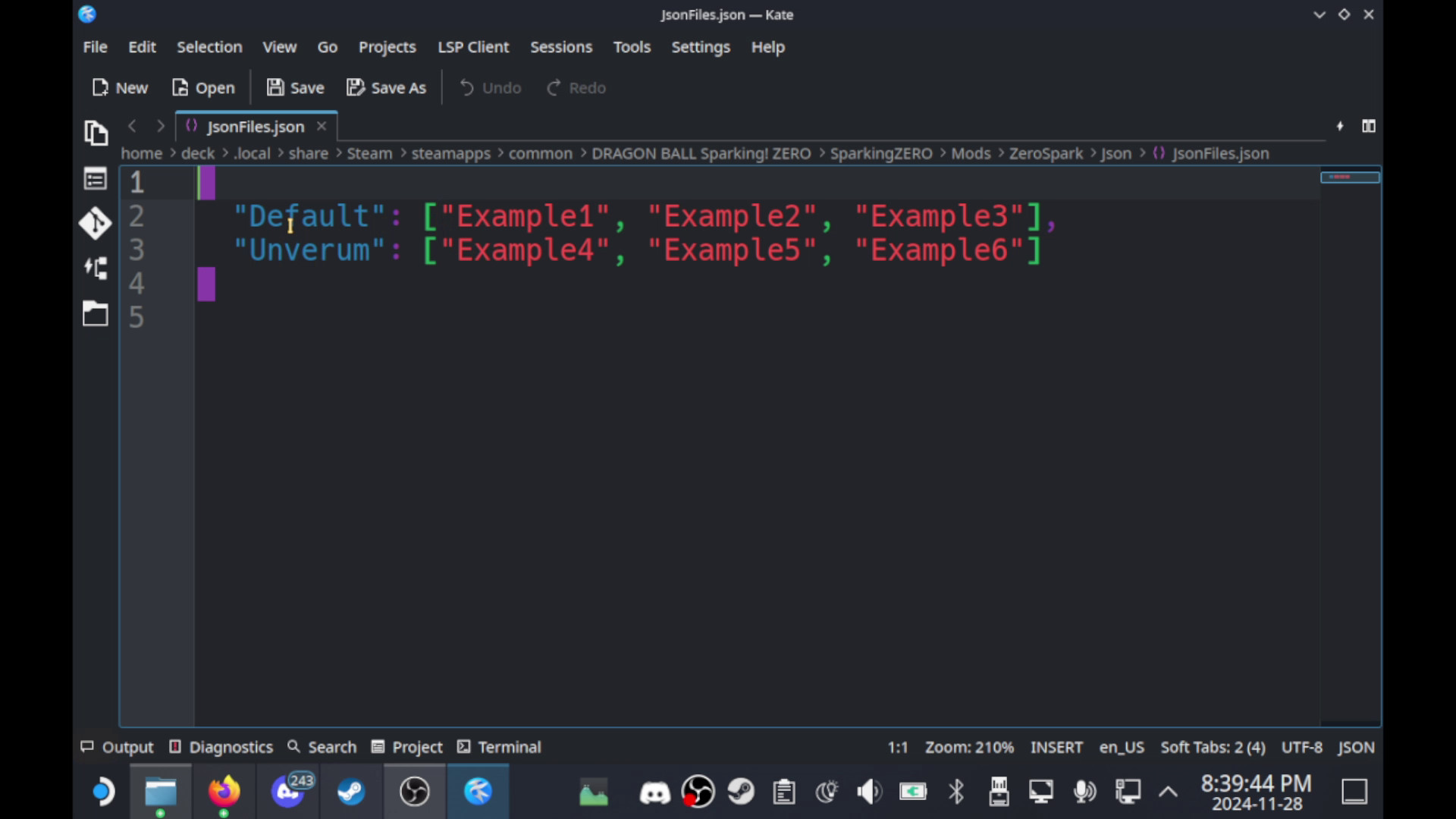
Many modern games, especially those built on engines like Unreal Engine (which is a common choice for games like Sparking Zero), require a fundamental modification framework to allow other, more complex mods to function. These frameworks act as a gateway, injecting code into the game to bypass restrictions and enable deeper customization. For Sparking Zero, a probable scenario involves a dedicated mod loader or script extender.
Let’s assume a generic SparkingZeroModLoader or SparkingZeroAPI is required. The installation process typically follows these steps:
- Download the Framework: Visit the official source (e.g., a dedicated modding website or GitHub repository) for the Sparking Zero Mod Loader. Ensure you download the version compatible with your game’s current patch.
- Extract the Files: Use your chosen file archiver (7-Zip or WinRAR) to extract the contents of the downloaded archive. You’ll usually find a few
.dllfiles, possibly an.inior.jsonconfiguration file, and sometimes aModsfolder. - Place in Game Directory: Navigate to your Sparking Zero installation folder (e.g.,
C:Program Files (x86)SteamsteamappscommonDRAGON BALL Sparking! ZERO). Copy all the extracted files directly into this main game directory, alongside the game’s executable (SparkingZero.exe). Do not place them in a subfolder unless specifically instructed. - Configure (If Necessary): Some frameworks might require initial configuration. Open the
.inior.jsonfile with a text editor and adjust settings as per the framework’s documentation. This might involve enabling debug logs or specifying a custom mods folder. - Run the Game Once: Launch Sparking Zero after installing the framework. This often allows the framework to generate necessary configuration files or folders, and confirms that it has successfully hooked into the game. Close the game afterward.
This framework is the bedrock upon which most other mods will rely, so ensuring its correct installation is paramount.
Downloading and Managing Your Mods
Once the core framework is in place, you can begin acquiring the individual mods that will transform your Sparking Zero experience.
- Identify Trusted Sources: Stick to reputable modding websites and communities. For Sparking Zero, platforms like Nexus Mods (if it gets a dedicated page), official modding forums, or community-verified Discord servers are generally safe bets. Avoid downloading from obscure, unverified sites, as these are higher risk for malware or broken files.
- Read Mod Descriptions Carefully: Before downloading, always read the mod description in its entirety. This is where the mod author provides crucial information: what the mod does, its requirements (e.g., specific framework, other mods), known conflicts, installation instructions, and any performance impacts. Pay close attention to version compatibility with your game.
- Download Mods: Once satisfied, download the mod file. Most mods will come as a compressed archive (
.zip,.rar,.7z). - Organize Your Downloads: Create a dedicated folder on your computer (e.g.,
D:SparkingZero ModsDownloaded) to store all your downloaded mod archives. This helps keep your files organized and makes it easier to track which mods you have, as well as their original download state. You might also create subfolders for different categories (e.g.,Characters,Arenas,UI).
Manual Mod Installation: Placing Files Correctly
While some games benefit from mod managers, for many new titles, manual installation is the primary method. Sparking Zero, particularly if it uses Unreal Engine, will likely rely on .pak files for mod distribution.
- Extract the Mod Files: Using your file archiver, extract the contents of the downloaded mod archive. What you’re looking for is usually a
.pakfile (e.g.,PAK_ModName_P.pak) or a folder structure that mimics the game’s internal directory (e.g.,ContentPaks). - Locate the Mods Folder: Many Unreal Engine games use a specific folder within their directory structure for loading custom
.pakfiles. This is typically found at:
[Your Game Directory]DRAGON BALL Sparking! ZEROContentPaks
Within thePaksfolder, there’s often another subfolder specifically for mods, commonly named~mods(the tilde~ensures these files are loaded last, giving them priority). If this folder doesn’t exist, you’ll need to create it:
[Your Game Directory]DRAGON BALL Sparking! ZEROContentPaks~mods
If the framework you installed created its own mod folder, follow its instructions. - Place the Mod Files: Copy the extracted
.pakfiles directly into the~modsfolder (or the equivalent mod folder specified by your framework/mod author). If the mod came with a different folder structure, follow the mod author’s specific instructions, which might involve merging folders or placing files in other subdirectories. - Check for Overwrites/Conflicts: If you install multiple mods that modify the same game files, you might encounter conflicts. Always prioritize mod author instructions. Some mods might explicitly state they are incompatible or require a specific load order (which is usually handled by the
~modsfolder loadingPAKfiles alphabetically, so renamingPAKfiles with prefixes like_1_,_2_can sometimes dictate load order). - Test the Mod: Launch Sparking Zero and check if the mod is active. Play around to confirm its functionality. If it’s a character mod, try selecting the character. If it’s a UI mod, observe the changes in the interface.
(Optional) Using a Mod Manager for Sparking Zero
As Sparking Zero’s modding scene matures, dedicated mod managers might emerge. While manual installation is reliable, mod managers streamline the process considerably. They offer:
- Automated Installation: Drag-and-drop functionality, often handling file placement and conflict resolution.
- Load Order Management: Intuitive interfaces to arrange mods in a specific sequence, crucial for compatibility.
- Easy Activation/Deactivation: Toggle mods on or off without manually moving files.
- Versioning and Updates: Track mod versions and notify you of updates.
If a popular, community-approved mod manager becomes available for Sparking Zero (e.g., a specific “Sparking Zero Mod Manager” or a generic Unreal Engine mod manager like the Unreal Mod Manager), the workflow would typically involve:
- Download and Install the Mod Manager.
- Point the Manager to Your Sparking Zero Installation.
- Download Mods Directly or Add Existing Archives to the Manager.
- Install Mods via the Manager’s Interface. The manager handles the file placement and often prompts you about potential conflicts.
- Arrange Load Order using the manager’s tools if necessary.
- Launch Game Through the Manager (or directly, depending on the manager’s integration).
Until such a tool becomes dominant, mastering manual installation ensures you’re always capable of modding your game.
Troubleshooting Common Modding Issues and Best Practices
Modding, while rewarding, is not always a smooth process. Issues can arise, from minor graphical glitches to game-breaking crashes. Knowing how to troubleshoot effectively and adhering to best practices will save you considerable frustration and help maintain a stable, enjoyable modded Sparking Zero experience.
Resolving Crashes, Freezes, and Performance Drops
These are the most common and frustrating issues modders face. When your modded Sparking Zero crashes, freezes, or experiences significant performance degradation, follow a systematic approach:
- Isolate the Problem: The golden rule of troubleshooting is to isolate the problematic mod.
- Disable All Mods: Start by temporarily moving or deleting all newly installed mods from your
~modsfolder. Launch the game. If it runs stably, you know one or more of your mods is the culprit. - Reintroduce Mods Gradually: Re-enable mods one by one (or in small batches) and launch the game after each addition. This helps pinpoint which specific mod or combination of mods is causing the issue.
- Disable All Mods: Start by temporarily moving or deleting all newly installed mods from your
- Check Mod Compatibility: Review the mod’s description page for any known conflicts with other mods you’re using. Some mod authors explicitly list incompatible mods.
- Verify Game Files: If the issue persists even after disabling all mods, your base game files might be corrupted. Use your game launcher’s built-in “Verify Integrity of Game Files” function (e.g., in Steam, right-click Sparking Zero > Properties > Installed Files > Verify integrity of game files).
- Update Drivers: Ensure your graphics card drivers are up to date. Outdated drivers can sometimes cause issues with modded games.
- Monitor Performance: Use tools like MSI Afterburner or your GPU’s overlay to monitor CPU/GPU usage, temperatures, and frame rates. High temperatures or sudden spikes in resource usage can indicate a demanding or poorly optimized mod.
- Revert to Backup: If all else fails and you can’t identify or fix the problem, revert to your clean game backup. This is why having a backup is so crucial.
Ensuring Mod Compatibility and Load Order
Conflicts between mods are a frequent source of problems. Two mods might try to modify the same game asset or script, leading to unpredictable behavior.
- Read Mod Descriptions (Again!): This cannot be stressed enough. Mod authors often warn about specific incompatibilities.
- Load Order: In games that load mods via
.pakfiles, the load order is often alphabetical. If two.pakfiles modify the same thing, the one loaded later (alphabetically) will usually take precedence. Some mod authors might instruct you to rename their.pakfile (e.g., adding_ZZ_to the beginning) to ensure it loads last. - Modding Tools: For more complex modding scenes, tools like “mod conflict detectors” or “merge patches” can emerge. Keep an eye on the Sparking Zero modding community for such utilities that simplify conflict resolution.
- Test in Isolation: If you suspect a conflict, test each mod individually before combining them.

Maintaining Your Modded Game
A modded game isn’t a “set it and forget it” endeavor. Regular maintenance is key to a stable and enjoyable experience.
- Keep Mods Updated: Mod authors frequently release updates to fix bugs, improve performance, or add new features. Check your installed mods regularly for new versions on their respective download pages. Always read the update notes carefully before applying, as updates might require fresh game versions or new framework versions.
- Game Updates vs. Mods: Official game updates from Bandai Namco are the biggest disruptors to a modded setup. Patches can break mod compatibility, especially for fundamental frameworks.
- Backup Before Updates: Before allowing Sparking Zero to update, make another backup of your currently modded game folder.
- Disable Mods Before Updates: It’s often safer to temporarily disable or remove all mods (especially the core framework) before a game update. This ensures the update applies cleanly to an unmodded game.
- Wait for Mod Updates: After a game update, be patient. Mod authors will need time to update their mods to be compatible with the new game version. Trying to run old mods on a new game version is a common cause of crashes.
- Regular Cleaning: Over time, you might accumulate many mods, some of which you no longer use. Periodically review your
~modsfolder and remove any inactive or unwanted mods to keep your installation clean and minimize potential conflicts.
By adhering to these troubleshooting steps and best practices, you’ll be well-equipped to navigate the exciting world of modding Sparking Zero. It’s a journey of experimentation, learning, and ultimately, unparalleled customization that truly makes the game your own. Embrace the challenge, engage with the community, and unleash the full, modded power of Dragon Ball: Sparking! ZERO.
aViewFromTheCave is a participant in the Amazon Services LLC Associates Program, an affiliate advertising program designed to provide a means for sites to earn advertising fees by advertising and linking to Amazon.com. Amazon, the Amazon logo, AmazonSupply, and the AmazonSupply logo are trademarks of Amazon.com, Inc. or its affiliates. As an Amazon Associate we earn affiliate commissions from qualifying purchases.