
In today’s fast-paced digital world, productivity is paramount, whether you’re a student, a creative professional, a small business owner, or part of a large enterprise. At the heart of this productivity for millions lies Microsoft 365, a comprehensive suite of applications and cloud services designed to empower you to create, collaborate, and communicate with unparalleled efficiency. Far more than just Word, Excel, and PowerPoint, Microsoft 365 offers a robust ecosystem that includes Outlook for email, Teams for collaboration, OneDrive for cloud storage, and advanced security features, all updated regularly with the latest innovations.
For anyone looking to streamline their workflow, embrace cutting-edge AI tools, or simply ensure they have reliable, professional-grade software at their fingertips, installing Microsoft 365 is a fundamental first step. This guide will walk you through the entire process, from essential pre-installation checks to troubleshooting common issues, ensuring you can seamlessly integrate this powerful platform into your digital life. We’ll delve into the precise steps required, illuminate the hidden benefits, and offer insights that align with the latest technology trends and best practices for digital security and productivity. By the end of this article, you’ll not only have Microsoft 365 up and running but also a deeper understanding of how to leverage its full potential to enhance your personal and professional endeavors.
Before You Begin: Essential Preparations for a Smooth Installation
Embarking on any software installation requires a bit of foresight to prevent hiccups and ensure a seamless experience. Microsoft 365 is no exception. Taking a few moments to perform some crucial pre-installation checks can save you significant time and frustration later on. This section outlines the vital steps you need to take to prepare your system and account, setting the stage for a successful and trouble-free setup.
Verifying System Requirements and Internet Connectivity
First and foremost, it’s imperative to ensure your computer meets the minimum system requirements for Microsoft 365. While Microsoft 365 is designed to be accessible across a wide range of devices, operating system compatibility is key. For Windows users, you typically need Windows 10 or Windows 11. Mac users should confirm they are running one of the three most recent versions of macOS. Beyond the OS, check for sufficient RAM (at least 4 GB is recommended for optimal performance), adequate hard drive space (a few gigabytes for the core applications, plus room for your files), and a compatible processor. You can usually find the most current system requirements on the official Microsoft 365 support pages. Failing to meet these basic criteria can lead to slow performance, crashes, or an inability to install the software at all.
Equally important is a stable and reliable internet connection. The entire installation process, from downloading the installer to activating the software, relies heavily on internet access. A strong, consistent connection will ensure the download completes without interruption and that your product key or subscription is verified swiftly. If you have a slow or intermittent connection, consider moving closer to your Wi-Fi router or using an Ethernet cable for a more stable link during the download phase.
Confirming Your Microsoft 365 Subscription and Account Details
Having an active Microsoft 365 subscription is non-negotiable. Whether you have a Personal, Family, Business, or Enterprise plan, you need to ensure your subscription is current and linked to a Microsoft account. If you’ve just purchased a new subscription, double-check that the payment went through and that you’ve received a confirmation email. For existing subscribers, log in to your Microsoft account (account.microsoft.com) and navigate to the “Services & subscriptions” section. Here, you can verify the status of your Microsoft 365 subscription, check its expiry date, and confirm which account it’s associated with.
It’s also crucial to remember the login credentials for this Microsoft account. This includes your email address and password. This account acts as your digital key to unlock Microsoft 365, not only for installation but also for activation, cloud storage (OneDrive), and accessing other Microsoft services. If you’ve forgotten your password, now is the time to reset it, rather than during the installation process. Keep these details handy, as you’ll need them multiple times.
Uninstalling Previous Versions of Office to Avoid Conflicts
One of the most common causes of installation issues is the presence of older versions of Microsoft Office on your system. While newer versions are generally designed to coexist or upgrade seamlessly, sometimes remnants of an old installation can conflict with a fresh Microsoft 365 setup. This can lead to error messages, incomplete installations, or problems with individual applications.
Before installing Microsoft 365, it’s highly recommended to uninstall any previous versions of Office (e.g., Office 2016, Office 2019, or older perpetual license versions). For Windows users, go to “Settings” > “Apps” > “Apps & features,” locate “Microsoft Office” or “Microsoft 365” (if it’s a trial or previous install), and click “Uninstall.” For Mac users, drag the Office applications from your “Applications” folder to the Trash and then empty the Trash. Microsoft also provides a dedicated “Office uninstall support tool” that can thoroughly remove all traces of Office installations, which is particularly useful if you encounter persistent issues. This proactive step ensures a clean slate, paving the way for a smooth and error-free Microsoft 365 installation.
The Step-by-Step Microsoft 365 Installation Process
With your system prepped and your subscription confirmed, you’re ready to dive into the core of the matter: installing Microsoft 365. This section provides a detailed, step-by-step walkthrough, designed to guide you from your Microsoft account to a fully installed suite of productivity tools on your computer. Follow these instructions carefully to ensure a hassle-free setup.
Accessing Your Microsoft Account and Initiating the Download
The journey begins at your Microsoft account portal. Open your preferred web browser and navigate to account.microsoft.com or directly to microsoft365.com. You’ll need to sign in with the Microsoft account that is associated with your active Microsoft 365 subscription. This is the same email address and password you verified in the preparation stage.
Once signed in, look for a section labeled “Services & subscriptions” or similar. The exact placement might vary slightly depending on your account dashboard’s layout, but it’s usually prominent. Within this section, you should see your Microsoft 365 subscription listed. It might be labeled “Microsoft 365 Family,” “Microsoft 365 Personal,” or “Microsoft 365 Business Standard,” etc., along with its expiry date. Locate your specific subscription and click on the “Install” button. This button is typically easy to spot and serves as the gateway to downloading the installer file.
Customizing Your Installation (Optional) and Downloading the Installer
Upon clicking “Install,” you might be presented with a few options before the download begins. Depending on your subscription type and region, you might be asked to choose your preferred language for the Office applications. If you have a Microsoft 365 Family subscription, you may also see options to install for another user or manage your shares. For most users, simply confirming the default language (often your system’s language) is sufficient.
After making any necessary selections, click “Install” again to confirm your choice. This action will prompt your browser to download the Microsoft 365 installer file. For Windows users, this will typically be an .exe file (e.g., Setup.exe). For macOS users, it will be a .pkg file. Your browser’s download manager will indicate the progress. Make a note of where the file is being saved (usually your “Downloads” folder) or wait for the download to complete. The file size is relatively small, as it’s primarily a web installer that fetches the full application suite during the actual installation process.
Running the Installer and Following On-Screen Prompts
Once the installer file has finished downloading, locate it in your “Downloads” folder or wherever you saved it.
- For Windows: Double-click the
Setup.exefile. You may be prompted by User Account Control (UAC) asking if you want to allow the app to make changes to your device; click “Yes” to proceed. - For macOS: Double-click the
Microsoft 365 Installer.pkgfile. Follow the on-screen prompts to start the installation. You might be asked to agree to the terms and conditions, choose an installation location (though the default is usually fine), and enter your macOS password to authorize the installation.
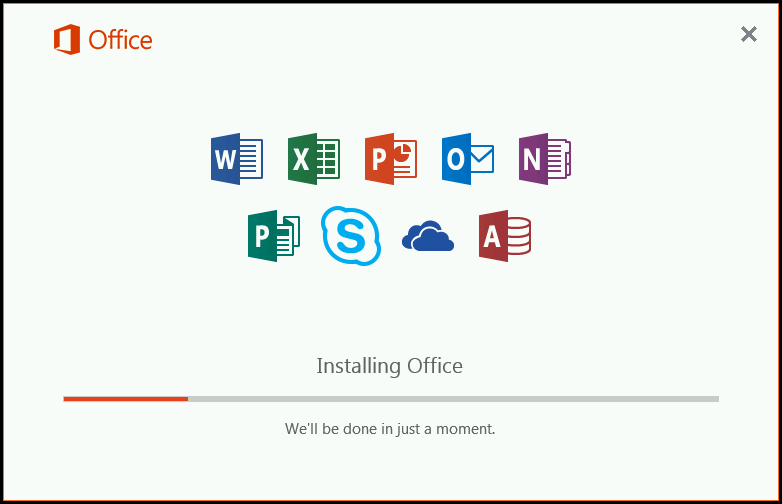
Once the installer launches, it will begin the process of downloading the full Microsoft 365 suite and installing it on your computer. This is usually an automated process, often displaying a progress bar or an animation indicating that “Office is installing” or “We’re getting things ready.” This part can take anywhere from a few minutes to half an hour or more, depending on your internet speed, computer performance, and the size of the applications being installed. It’s crucial not to turn off your computer or interrupt the process during this stage. You might see messages like “Please stay online” or “You’ll be ready to use Office in just a moment.” Just let it run its course.
Upon successful completion, you’ll typically see a message stating, “You’re all set! Office is installed now.” or “Installation complete.” You can then click “Close” or “Done.” At this point, the Microsoft 365 applications are installed on your computer, but they are not yet activated.
Activating Microsoft 365 and Getting Started with Productivity
With the installation files successfully copied to your system, the final crucial step is activation. This process links your installed software to your active Microsoft 365 subscription, unlocking all its features and ensuring you receive ongoing updates. Once activated, you can immediately begin exploring the powerful applications and leveraging their capabilities for enhanced productivity and collaboration.
Signing In to Activate Your Microsoft 365 Suite
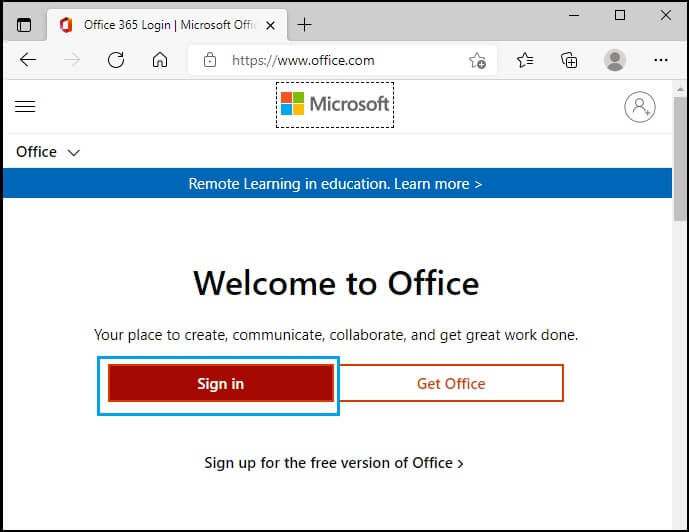
After the installation process concludes, the applications are on your computer, but they are in an unactivated state. To activate them, you need to sign in to any of the Microsoft 365 applications with the Microsoft account associated with your subscription.
- Open an Office Application: Search for and open any Microsoft 365 application, such as Word, Excel, PowerPoint, or Outlook, from your Start Menu (Windows) or Applications folder (macOS).
- Initial Sign-in Prompt: The first time you open an application, you’ll likely see a “Welcome to Office” screen or a prompt asking you to “Sign in to set up Office” or “Activate Office.”
- Enter Your Microsoft Account Details: Click on the sign-in option and enter the email address and password for the Microsoft account linked to your Microsoft 365 subscription. This is the same account you used to initiate the download.
- Follow On-Screen Instructions: Microsoft 365 will then communicate with Microsoft’s servers to verify your subscription. Once verified, you may be asked to accept the license agreement. If your subscription is part of a Family plan, you might be asked to confirm whose subscription you are activating.
- Activation Confirmation: Upon successful activation, the application will fully open, and you’ll often see a message confirming that “Your account is set up,” or you’ll notice that the “Activate Office” banner disappears. Your name or account picture should appear in the top right corner of the application window, indicating you are signed in and the product is activated.
It’s important to remain connected to the internet during this activation process. If you encounter any issues, double-check your internet connection and ensure you’re using the correct Microsoft account credentials. Sometimes, a simple restart of the application or your computer can resolve minor activation glitches.
Exploring Your New Suite and Leveraging Key Features
Congratulations! Your Microsoft 365 suite is now fully installed and activated. You have access to a wealth of tools designed to boost your productivity, foster collaboration, and secure your digital workflow. Take a moment to open each application and familiarize yourself with its interface.
- Word, Excel, PowerPoint: These core applications are likely familiar but always come with new features. Explore the latest templates, AI-powered writing assistance in Word, dynamic array functions in Excel, and innovative presentation tools in PowerPoint.
- Outlook: Set up your email accounts, manage your calendar, and organize your contacts. Outlook integrates seamlessly with your other Office apps and offers robust features for managing communications.
- OneDrive: Your Microsoft 365 subscription typically includes 1 TB of cloud storage with OneDrive. This is a game-changer for digital security and productivity. Save your documents, photos, and files directly to OneDrive, and they’ll be accessible from any device, anywhere. It also enables automatic backups and version history, protecting your work from accidental deletion or hardware failure.
- Teams: For collaboration, Microsoft Teams is an invaluable tool. It allows you to chat, host video meetings, share files, and collaborate on documents in real-time with colleagues, friends, or family. Dive into creating a team or joining an existing one to experience its full potential.
- OneNote: For note-taking and organization, OneNote provides a digital notebook that can capture text, images, web clippings, and even audio. It syncs across your devices, ensuring your ideas are always with you.
By exploring these applications, you’ll quickly discover how Microsoft 365 integrates to create a cohesive and powerful environment. Make use of the built-in tutorials and help features within each app to learn new tips and tricks. This initial exploration is key to maximizing your investment and transforming the way you work and create.
Troubleshooting Common Microsoft 365 Installation and Activation Issues
Even with careful preparation, technology can sometimes present unexpected challenges. When installing or activating Microsoft 365, users occasionally encounter common issues that can halt progress. This section aims to equip you with effective troubleshooting strategies to resolve these problems swiftly, getting you back on track to productivity.
Dealing with Download and Installation Errors
One of the most frustrating hurdles can be when the download or installation process fails to complete. Here are some common error types and their solutions:
-
“Something Went Wrong” / Error Codes: These generic messages often point to an underlying conflict or an interruption.
- Internet Connectivity: Double-check your internet connection. A fluctuating or lost connection during the download of core files is a frequent culprit. Try restarting your router or switching to a more stable network.
- Antivirus/Firewall Interference: Your security software might be blocking the installation. Temporarily disable your antivirus or firewall (or create an exception for the Microsoft 365 installer) during the installation process. Remember to re-enable it afterward for your digital security.
- Insufficient Disk Space: Although the initial installer is small, the full suite requires several gigabytes. Ensure you have ample free space on your hard drive.
- Corrupted Download: If the download was interrupted, the installer file might be corrupted. Delete the existing installer file from your Downloads folder and try downloading it again from your Microsoft account.
- Previous Office Installations: As mentioned earlier, remnants of old Office versions can cause conflicts. Use the “Office uninstall support tool” from Microsoft’s website to perform a thorough cleanup before attempting a fresh install.
- Proxy Settings: If you are on a corporate network, proxy settings might interfere. Consult your IT department for assistance or try installing from a home network if possible.
-
Slow Installation: If the installation is taking an unusually long time, it could be due to:
- Slow Internet Speed: The installer downloads large files. A slow connection will naturally extend the process.
- System Resources: Ensure other demanding applications are closed to free up CPU and RAM for the installation.
- Server Load: Rarely, Microsoft’s servers might be experiencing high traffic. Waiting a bit and trying again later can sometimes help.
Addressing Activation Problems
Once installed, activation issues can prevent you from using the full features of Microsoft 365.
-
“Product Notice: Unlicensed Product” or “Activate Office” Banner Persists:
- Wrong Microsoft Account: The most common reason. Ensure you are signing in with the exact Microsoft account (email and password) that has the active Microsoft 365 subscription. Many users have multiple Microsoft accounts, leading to confusion.
- Expired or Inactive Subscription: Verify that your Microsoft 365 subscription is still active and hasn’t expired by checking your “Services & subscriptions” page on
account.microsoft.com. Renew if necessary. - Internet Connection: Activation requires an internet connection to communicate with Microsoft’s servers. Ensure your connection is stable.
- Incorrect Date/Time Settings: Discrepancies in your computer’s date and time can interfere with activation protocols. Ensure your system’s date, time, and time zone are set correctly.
- Activation Troubleshooter: Microsoft provides an Activation Troubleshooter tool that can automatically detect and fix common activation issues. Search for it on Microsoft’s support website.
- Reboot and Re-open: Sometimes, simply restarting your computer and then opening an Office application again can trigger the activation process correctly.
- Proxy or VPN: If you are using a VPN or a proxy server, temporarily disable it during activation, as it might prevent your computer from reaching Microsoft’s activation servers.
-
Multiple Activations Used (Family Plan): If you have a Microsoft 365 Family plan, it allows sharing with multiple people. If you’ve reached the maximum number of installs for your subscription, you’ll need to manage your installations from your Microsoft account dashboard, potentially deactivating an older device to free up a slot.
For persistent issues, remember that Microsoft’s official support website is a valuable resource, offering detailed guides and contact options for live chat or phone support. Don’t hesitate to reach out if you’ve exhausted common troubleshooting steps.
Maximizing Your Microsoft 365 Experience: Productivity and Beyond
Installing Microsoft 365 is just the beginning. The true value lies in harnessing its extensive capabilities to transform your approach to work, learning, and personal organization. Beyond the familiar Word, Excel, and PowerPoint, Microsoft 365 is a dynamic ecosystem that constantly evolves with new features, cloud integration, and intelligent tools designed to elevate your productivity and financial efficiency.
Leveraging Cloud Integration and Seamless Collaboration
One of Microsoft 365’s most powerful aspects, aligning perfectly with modern technology trends, is its deep cloud integration. With OneDrive, you automatically gain 1 TB of cloud storage (for most plans), allowing you to save all your documents, photos, and files securely in the cloud. This isn’t just about storage; it’s about accessibility and digital security. Your files are available from any device—your laptop, tablet, or smartphone—as long as you have an internet connection and are signed in to your Microsoft account. This ensures you’re never without your critical documents, making it a cornerstone of efficient work and personal finance management where records need to be readily available.
Furthermore, cloud integration facilitates unparalleled collaboration. Co-authoring documents in real-time with Word, Excel, or PowerPoint becomes effortless. Multiple users can work on the same file simultaneously, track changes, and leave comments, all without the hassle of version control issues or emailing endless attachments. Microsoft Teams further enhances this by providing a centralized hub for communication, file sharing, and virtual meetings. For businesses and teams, this translates into significant time savings and improved project outcomes, embodying a smart brand strategy through efficient internal operations. For personal users, it means easier coordination of family budgets, event planning, or school projects.
Harnessing AI-Powered Features and Advanced Security
Microsoft 365 is at the forefront of integrating AI tools to enhance user experience and productivity. Features like “Ideas” in Excel can automatically analyze your data and suggest charts and pivot tables, turning complex numbers into actionable insights. “Designer” in PowerPoint helps you create visually appealing slides with minimal effort, transforming basic text into professional designs. “Editor” in Word goes beyond basic spell-check, offering grammar, clarity, and conciseness suggestions, improving your writing style and helping you craft more impactful communications – a boon for both corporate identity and personal branding. These AI capabilities reduce manual effort, allowing you to focus on the core message and creative aspects of your work.
Beyond productivity, Microsoft 365 places a strong emphasis on digital security, a critical concern in today’s online landscape. Advanced threat protection helps safeguard your email from phishing and malware. OneDrive includes Personal Vault, a protected area where you can store your most sensitive files with an extra layer of identity verification. Ransomware detection and file recovery mean your cloud-stored documents are protected against malicious attacks, with the ability to revert to previous versions. For “Money” topics, this means greater peace of mind for financial documents, investment portfolios, and sensitive business data. These features provide a robust defense against cyber threats, protecting your data and ensuring business continuity.

The Value Proposition for Individuals and Businesses
The decision to install Microsoft 365 isn’t just about getting software; it’s an investment in a powerful ecosystem that delivers tangible value. For individuals, it offers a complete suite for personal productivity, learning, and managing household finances, along with generous cloud storage and advanced security features. This comprehensive offering often proves to be more cost-effective than purchasing individual software licenses or separate cloud storage subscriptions.
For businesses, Microsoft 365 is an indispensable tool for enhancing corporate identity and operational efficiency. It provides a consistent platform for all employees, fostering seamless collaboration and communication, which are vital for a strong brand strategy. The continuous updates mean businesses always have access to the latest features and security patches without needing to purchase new software versions annually. The integration with other Microsoft services, robust administrative controls, and compliance features make it an intelligent financial tool for managing resources, improving workflows, and ensuring data governance. By streamlining operations and protecting assets, Microsoft 365 directly contributes to both short-term savings and long-term growth, proving its worth as a strategic business investment.
In conclusion, installing Microsoft 365 is the first step towards unlocking a world of enhanced productivity, seamless collaboration, and robust digital security. By following this guide, you’ve successfully set up a powerful tool that will support your journey, whether you’re managing personal projects, building a brand, or navigating complex financial landscapes. Embrace the features, stay updated with new trends, and let Microsoft 365 empower your digital future.
aViewFromTheCave is a participant in the Amazon Services LLC Associates Program, an affiliate advertising program designed to provide a means for sites to earn advertising fees by advertising and linking to Amazon.com. Amazon, the Amazon logo, AmazonSupply, and the AmazonSupply logo are trademarks of Amazon.com, Inc. or its affiliates. As an Amazon Associate we earn affiliate commissions from qualifying purchases.