
MacBooks are renowned for their sleek design, robust macOS operating system, and seamless integration within the Apple ecosystem. For many, this polished experience is precisely why they choose a MacBook. However, beneath the surface of Apple’s proprietary software lies hardware capable of far more versatility than macOS alone might suggest. Enthusiasts, developers, and even casual users are increasingly looking to unlock this potential by installing Linux on their MacBooks.
Why would you choose to embark on such a journey? Perhaps your older MacBook is starting to feel sluggish, its macOS updates no longer supported, or you simply crave a different computing experience altogether. Linux offers a compelling alternative: a powerful, open-source operating system known for its flexibility, performance, and vast community support. From breathing new life into aging hardware to providing a highly customizable and secure environment, running Linux on a MacBook can be a transformative experience.
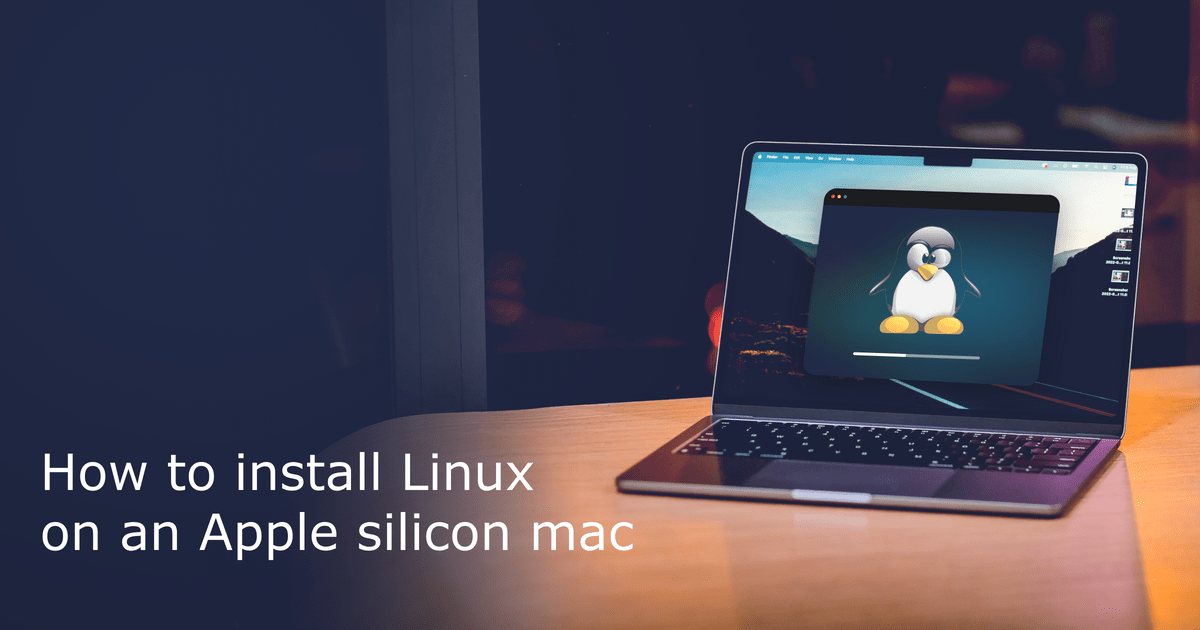
This comprehensive guide will walk you through the entire process, from understanding the “why” to the precise “how-to,” including essential preparation, step-by-step installation instructions, and common troubleshooting tips. By the end, you’ll be well-equipped to give your MacBook a powerful open-source makeover, tapping into a world of software freedom and enhanced productivity.
Why Choose Linux for Your MacBook? Exploring the Advantages
The decision to install Linux on a MacBook is often driven by a desire for greater control, better performance, or access to a different software ecosystem. While macOS excels in user-friendliness and creative applications, Linux offers a unique set of benefits that can significantly enhance your computing experience, especially when dealing with specific hardware or software requirements.
Revitalizing Older Hardware and Extending Lifespan
One of the most compelling reasons to install Linux on an older MacBook is its ability to breathe new life into seemingly obsolete hardware. As MacBooks age, Apple’s support for macOS updates eventually ceases, and newer macOS versions demand more resources, leading to slower performance on older machines. Linux distributions, many of which are lightweight and highly efficient, can dramatically improve performance on these older devices.
By shedding the resource-intensive overhead of macOS, Linux can make an old MacBook feel snappy again. This not only improves your daily computing experience but also extends the useful lifespan of your hardware, representing a significant return on investment and a more sustainable approach to technology. Instead of discarding a perfectly functional laptop, you can repurpose it as a powerful Linux machine, saving you money and reducing electronic waste – a win for both your wallet and the environment.
Enhanced Control, Customization, and Productivity
Linux is synonymous with freedom and flexibility. Unlike the relatively rigid macOS environment, Linux allows for unparalleled customization at every level, from the desktop environment (GNOME, KDE Plasma, XFCE, etc.) to the very kernel. This deep level of control means you can tailor your operating system precisely to your needs and preferences, optimizing it for specific workflows, aesthetics, or performance goals.
For developers, system administrators, and tech enthusiasts, Linux provides a superior command-line interface, robust scripting capabilities, and access to a wealth of open-source development tools. This makes it an ideal environment for programming, server management, and various technical tasks, often leading to significant productivity gains for those in these fields. The ability to fine-tune your OS can directly translate into a more efficient and enjoyable work environment.
A World of Open-Source Software and Digital Security
The open-source nature of Linux extends to its vast software ecosystem. You gain access to thousands of free and powerful applications covering nearly every conceivable task, from office suites like LibreOffice to professional-grade image editors like GIMP, video editors, CAD software, and much more. This means you can achieve professional results without investing in expensive proprietary software, again offering a substantial financial benefit.
Furthermore, Linux has a well-deserved reputation for robust security and privacy. Its open-source code means vulnerabilities are often quickly identified and patched by a global community of developers. Its permission-based system and user management typically make it more resilient to malware and viruses compared to more widely targeted operating systems. For those concerned about digital security and data privacy, Linux offers a transparent and empowering computing environment.
Learning and Development Opportunities
For individuals interested in deepening their understanding of computing, operating systems, and software, installing and using Linux is an invaluable educational experience. It encourages exploration, problem-solving, and a hands-on approach to technology. It’s an excellent platform for learning about file systems, networking, system administration, and programming fundamentals. This knowledge can be highly beneficial for career development in tech-related fields and provides a solid foundation for understanding more complex systems.
Preparing Your MacBook for a Linux Installation
Installing a new operating system is a significant undertaking, and proper preparation is crucial to ensure a smooth process and prevent data loss. Rushing this stage is the leading cause of headaches later on. Take your time, follow each step diligently, and double-check your work.
Crucial Pre-Installation Steps: Backup, Compatibility, and Space
- Backup, Backup, Backup (Seriously, Backup Everything!): This is the single most important step. Installing Linux involves partitioning your hard drive, a process that inherently carries a risk of data loss. Do not proceed without a complete and verified backup of your macOS data. Use Time Machine to an external drive, cloud storage, or a manual copy of all critical files. Imagine losing years of photos, documents, and projects – a backup prevents this nightmare.
- Check MacBook Model Compatibility: Not all MacBooks are created equal, especially when it comes to Linux compatibility. Older models (pre-2015) often have better support, but some components like Wi-Fi cards (especially Broadcom chips) or integrated graphics might require specific drivers or workarounds. Newer models, particularly those with Apple’s T2 security chip or M1/M2/M3 silicon, present significantly greater challenges and may not be fully supported by mainstream Linux distributions (or require specialized projects like Asahi Linux, which is outside the scope of a general installation guide). Research your specific MacBook model (e.g., “Linux on MacBook Pro 2013”) and the Linux distribution you plan to use to identify potential issues beforehand.
- Disable Secure Boot and Gatekeeper (for specific scenarios): While less common for Intel Macs to explicitly require disabling Secure Boot for many distros, some older setups or specific Linux configurations might necessitate adjustments. For modern Intel MacBooks, the T2 Security Chip introduces “Secure Boot” and “Startup Security Utility.” You may need to restart your Mac, hold
Command + Rto enter Recovery Mode, and then go toUtilities > Startup Security Utilityto lower the security setting (e.g., “No Security” or “Medium Security”) and allow booting from external media. Gatekeeper on macOS might interfere with downloading or running tools, so temporarily allowing apps from “Anywhere” inSystem Preferences > Security & Privacycan be helpful, though less directly related to the boot process. - Create Free Disk Space and Partition Your Drive: You’ll need sufficient free space on your MacBook’s internal drive to install Linux.
- Dual Boot: If you want to keep macOS and be able to choose between macOS and Linux at startup, you will need to shrink your existing macOS partition. Open
Disk Utility(inApplications > Utilities), select your main macOS volume, and click “Partition.” Select the “APFS Container” and then click the minus (-) button to create a new partition, or use the resize handle to shrink the macOS volume and create free space. Aim for at least 30-50 GB for a comfortable Linux installation, though more is always better. Crucially, do not format this new free space in Disk Utility; leave it as “free space” or unallocated. The Linux installer will handle partitioning it correctly. - Single Boot (Replacing macOS): If you intend to completely replace macOS with Linux, you won’t need to manually partition beforehand, as the Linux installer can erase the entire disk. However, be absolutely certain about this choice, as it is irreversible without a macOS reinstallation.
- Dual Boot: If you want to keep macOS and be able to choose between macOS and Linux at startup, you will need to shrink your existing macOS partition. Open
- Gather Your Tools:
- A USB Flash Drive: At least 8GB in size. This will become your bootable Linux installer. Ensure it’s empty or contains data you’re willing to lose, as it will be formatted.
- Linux Distribution ISO File: Download the
.isofile of your chosen Linux distribution (e.g., Ubuntu, Linux Mint, Pop!_OS). We recommend beginner-friendly options for your first foray. - Disk Imager Software: A tool like Balena Etcher (cross-platform) or Rufus (Windows only) is needed to write the ISO file to the USB drive, making it bootable.
- Stable Internet Connection: For downloading files and performing post-installation updates.
- Power Supply: Keep your MacBook plugged in during the entire installation process to avoid power interruptions.
Step-by-Step Guide: Installing Linux on Your MacBook
With your preparations complete, you’re ready to embark on the core installation process. This section provides detailed instructions for creating your bootable USB, booting into it, and navigating the Linux installer.
Choosing Your Linux Distribution
Before you start, select a Linux distribution that suits your needs. For MacBook users, especially those new to Linux, these are highly recommended:
- Ubuntu: The most popular and well-supported distribution. It has a large community, extensive documentation, and a user-friendly GNOME desktop environment. Good for general use and development.
- Linux Mint: Based on Ubuntu, Mint offers a more traditional desktop experience (Cinnamon, MATE, XFCE editions) that many ex-Windows or macOS users find intuitive. It includes many multimedia codecs and proprietary drivers out-of-the-box.
- Pop!OS: Built by System76, Pop!OS is another Ubuntu-based distribution popular among developers and creators. It features a custom GNOME-based desktop environment (COSMIC) and excellent out-of-the-box support for NVIDIA graphics.
Download the .iso file for your chosen distribution from its official website.
Creating a Bootable USB Drive
This USB drive will act as your installer. We’ll use Balena Etcher, a reliable and cross-platform tool.
- Download and Install Balena Etcher: Go to balena.io/etcher and download the version for macOS. Install it like any other macOS application.
- Launch Etcher: Open the Balena Etcher application.
- Select Your Linux ISO: Click “Flash from file” and navigate to the
.isofile you downloaded earlier. - Select Your USB Drive: Click “Select target” and carefully choose your USB flash drive from the list. Double-check that you’re selecting the correct drive, as flashing will erase all data on the chosen target.
- Flash the Image: Click “Flash!” Etcher will then write the ISO image to your USB drive, verify it, and make it bootable. This process can take several minutes. Once complete, you can safely eject the USB drive.
Booting from the USB Drive
Now it’s time to tell your MacBook to boot from the Linux installer instead of macOS.
- Insert the Bootable USB: Plug your newly created bootable USB drive into a USB port on your MacBook.
- Restart Your MacBook: Go to the Apple menu (
) and select “Restart…”. - Hold the Option (Alt) Key: As your MacBook restarts and before you hear the startup chime (or see the Apple logo), immediately press and hold down the
Option(sometimes labeledAlt) key on your keyboard. Keep holding it until you see the Startup Manager screen. - Select the USB Drive: On the Startup Manager screen, you’ll see icons for all detectable bootable drives. You should see your macOS partition and an icon labeled “EFI Boot” or “Windows” (even though it’s Linux, the bootloader sometimes registers as Windows due to UEFI standards). Use your arrow keys or trackpad to select this option and press
Enter. - Start Linux Live Environment: After a few moments, you should see the boot menu for your chosen Linux distribution. Most distributions will offer an option like “Try Ubuntu without installing” or “Start Linux Mint.” Select this to boot into a live environment. This allows you to test Linux on your hardware, check Wi-Fi, graphics, and other functionalities before committing to an installation.
The Installation Process
Once you’re in the live Linux environment, you’ll typically find an icon on the desktop like “Install Ubuntu” or “Install Linux Mint.” Double-click this icon to start the installer.
- Language and Keyboard Layout: Choose your preferred language and keyboard layout.
- Connect to Wi-Fi (Optional but Recommended): If your Wi-Fi works in the live environment, connect to it. This allows the installer to download updates and potentially proprietary drivers during installation.
- Updates and Other Software: The installer will usually ask if you want to “Download updates while installing Linux” and “Install third-party software for graphics and Wi-Fi hardware, and additional media formats.” It is highly recommended to check both of these options. This helps resolve common driver issues upfront.
- Installation Type (Crucial Step for Partitioning): This is where you decide how Linux will coexist with (or replace) macOS.
- “Install Linux alongside macOS” (Dual Boot): This is the safest and most common choice if you want to keep macOS. The installer will detect your existing macOS installation and suggest resizing it to make space for Linux. You can often adjust the slider to allocate more or less space to each OS.
- “Erase disk and install Linux” (Single Boot): BE EXTREMELY CAREFUL WITH THIS OPTION. This will wipe your entire MacBook’s drive, including macOS and all your data, and install Linux as the sole operating system. Only choose this if you are absolutely sure you want to remove macOS entirely and have a complete backup.
- “Something else” (Manual Partitioning): This option provides the most control but is recommended for advanced users. If you created free space earlier using Disk Utility, you would select this. You would then create new partitions in the free space for:
/(Root): Essential for the OS. Mount point/, chooseext4filesystem. Allocate at least 20-30 GB.swap: Used as virtual RAM. Generally, match your RAM size or be slightly larger (e.g., 4-8 GB). No mount point./home(Optional but Recommended): Separates user data from the system. Mount point/home, chooseext4filesystem. Allocate the remaining space here.
- Once you’ve made your partitioning choice, click “Install Now.” The installer will show you a summary of changes; confirm to proceed.
- Time Zone, User Account: Select your time zone, then create your user account (username, computer name, password). Your password will be used for system administration tasks (e.g.,
sudocommands), so remember it. - Installation Begins: The installer will now copy files and configure your system. This can take anywhere from 15 minutes to an hour, depending on your MacBook’s speed and your choices.
- Restart: Once the installation is complete, you’ll be prompted to restart your computer. Remove the USB drive when instructed, and press
Enter.
Post-Installation Essentials
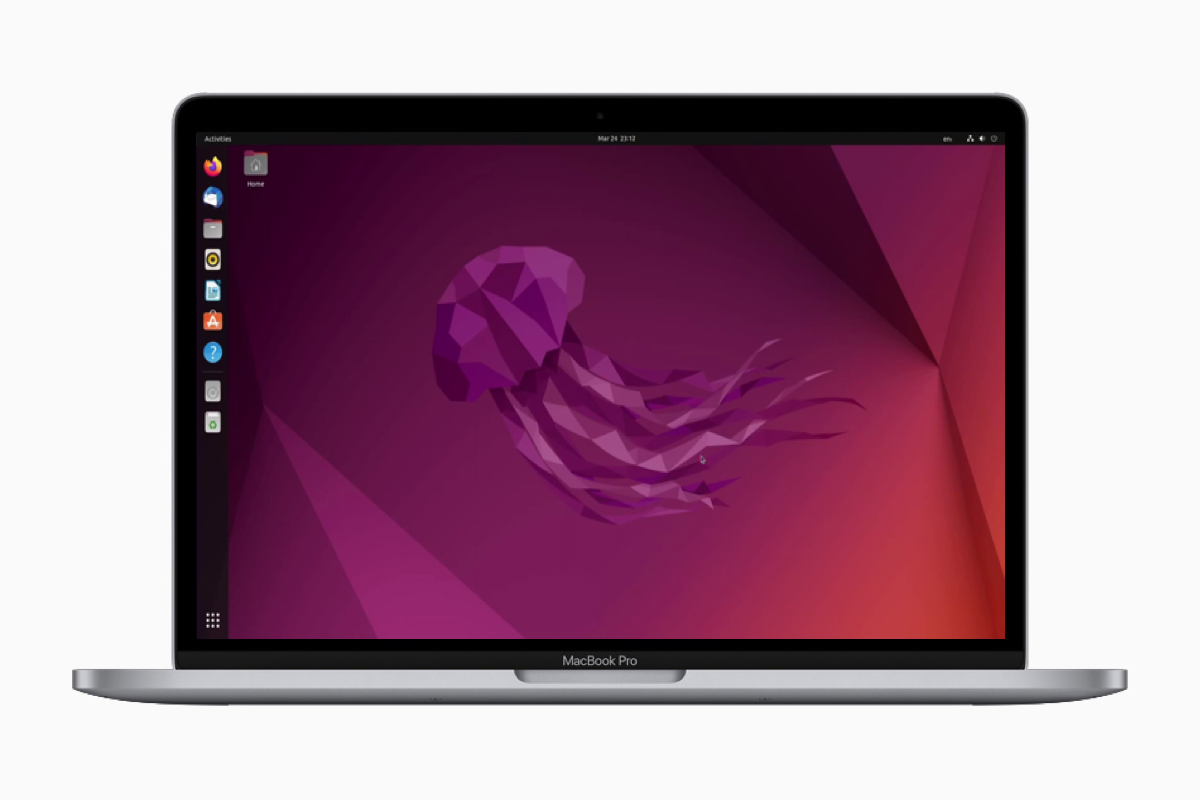
After your MacBook reboots, you should be greeted by the GRUB bootloader, which allows you to choose between Linux and macOS (if you chose dual boot). Select your new Linux installation to boot into it.
- Update Your System: The very first thing you should do is ensure your system is fully updated. Open a terminal (usually found in your applications menu) and run:
bash

sudo apt update

sudo apt upgrade
Enter your password when prompted. This fetches the latest software information and installs any available updates. - Install Proprietary Drivers (if needed): For some MacBooks, especially older ones with Broadcom Wi-Fi chips or certain NVIDIA/AMD graphics, you might need proprietary drivers.
- Wi-Fi: If your Wi-Fi isn’t working, try navigating to
Software & Updates > Additional Drivers(or similar, depending on your distro). It should scan for and recommend proprietary drivers. For many older MacBooks, Broadcom Wi-Fi drivers can often be installed viasudo apt install broadcom-sta-dkms. - Graphics: Similar to Wi-Fi, if you experience screen tearing or poor graphics performance, check
Additional Driversfor NVIDIA or AMD proprietary drivers.
- Wi-Fi: If your Wi-Fi isn’t working, try navigating to
- Install Essential Software: Your Linux distribution comes with many applications, but you’ll likely want to add more.
- Web Browser: Firefox is usually pre-installed, but you might want Chrome/Brave.
- Office Suite: LibreOffice is excellent, but you might need other specific tools.
- Media Players, Photo Editors, etc.
- You can install most software through your distribution’s software center (e.g., Ubuntu Software, Mint’s Software Manager) or via the command line (
sudo apt install <package-name>).
- Battery Management: MacBooks are known for good battery life on macOS. Linux battery performance can vary. Consider installing tools like TLP (
sudo apt install tlp tlp-rdw && sudo tlp start) for advanced power management to optimize battery life.
Common Challenges and Troubleshooting Tips
Installing Linux on a MacBook isn’t always a flawless process. Here are some common issues you might encounter and how to address them.
Wi-Fi Not Working After Installation
This is perhaps the most frequent problem, especially with older MacBooks that often use Broadcom Wi-Fi chipsets not natively supported by open-source drivers.
- Solution: Connect your MacBook to the internet via an Ethernet adapter (USB-C to Ethernet or Thunderbolt to Ethernet) if possible. Once connected, open “Software & Updates” (or your distribution’s equivalent for “Additional Drivers”) and look for proprietary Broadcom drivers. Install them. Alternatively, via the terminal:
sudo apt update && sudo apt install broadcom-sta-dkms. Reboot after installation. If you can’t get an Ethernet connection, you might need to download the.debpackage for the driver on another computer and transfer it to your MacBook via USB.
Graphics Issues (Screen Tearing, Low Resolution, Poor Performance)
Some MacBooks, particularly those with dedicated NVIDIA or AMD GPUs, might not perform optimally with the default open-source drivers.
- Solution: Again, check “Additional Drivers” for proprietary NVIDIA or AMD drivers. Installing these often resolves performance issues. For severe display issues during boot (e.g., black screen), you might need to add
nomodesetto your GRUB boot options temporarily to get into the system, then install the correct drivers.
Dual Boot Issues (GRUB Not Appearing or Booting Straight to macOS)
Sometimes, after installation, your MacBook might skip the GRUB menu and boot directly into macOS, or GRUB might not function correctly.
- Solution:
- Check Startup Disk (macOS): In macOS, go to
System Settings/Preferences > Startup Diskand see if your Linux installation is listed. If so, select it. - Boot holding Option key: Always try holding the
Optionkey at startup. If GRUB is installed, it should appear as “EFI Boot.” - Reinstall GRUB: If GRUB is truly broken, you might need to boot from your live USB, open a terminal, and use tools like
boot-repair(available in many Ubuntu/Mint derivatives) to fix or reinstall GRUB. This is a more advanced troubleshooting step.
- Check Startup Disk (macOS): In macOS, go to
Battery Life Shorter Than on macOS
While Linux has improved greatly, battery life on a MacBook running Linux might still be less optimized than on macOS, which is tightly integrated with Apple’s hardware.
- Solution: Install power management tools like TLP (
sudo apt install tlp tlp-rdw && sudo tlp start). TLP automatically applies various power-saving tweaks. You can also explore specific power-saving settings for your desktop environment.
Trackpad and Keyboard Functionality
Sometimes, advanced trackpad gestures (like multi-touch scrolling) or certain keyboard keys might not work perfectly out-of-the-box.
- Solution: Ensure your kernel is up to date (
sudo apt upgrade). Some desktop environments (like GNOME) have excellent trackpad support; others might require tweaking settings. Search for solutions specific to your MacBook model and Linux distribution regardingxinputorlibinputconfigurations.
Conclusion
Installing Linux on your MacBook is more than just swapping an operating system; it’s an act of embracing open-source philosophy, reclaiming control over your hardware, and potentially extending the life and utility of your device. While the journey might present a few technical hurdles, the rewards are substantial: a faster, more flexible, and highly customizable computing experience tailored precisely to your needs.
You’ve learned why millions choose Linux for its power, security, and open-source software ecosystem. You’ve prepared your MacBook meticulously, created your bootable installer, and navigated the installation process. And you’re now equipped with the knowledge to troubleshoot common post-installation issues.
Whether you’re looking to revitalize an aging MacBook, dive deeper into development, or simply explore a different computing paradigm, Linux offers an exciting and empowering path. By taking this step, you’re not just installing an OS; you’re unlocking new potential, fostering productivity, and making a smart, sustainable choice for your technology. Welcome to the world of open computing – enjoy your newly liberated MacBook!
aViewFromTheCave is a participant in the Amazon Services LLC Associates Program, an affiliate advertising program designed to provide a means for sites to earn advertising fees by advertising and linking to Amazon.com. Amazon, the Amazon logo, AmazonSupply, and the AmazonSupply logo are trademarks of Amazon.com, Inc. or its affiliates. As an Amazon Associate we earn affiliate commissions from qualifying purchases.