
In an increasingly digital world, e-readers like the Kobo have become indispensable tools for avid readers, students, and professionals alike. They offer a portable, eye-friendly gateway to vast libraries, saving space and making knowledge more accessible than ever. However, while Kobo’s native software is excellent for general EPUB and Kobo-specific formats, it doesn’t always cater to the power user seeking advanced customization, superior PDF rendering, or broader file format support. This is where KOReader steps in – an open-source, highly customizable document viewer that can transform your Kobo from a simple e-reader into a versatile digital reading powerhouse.
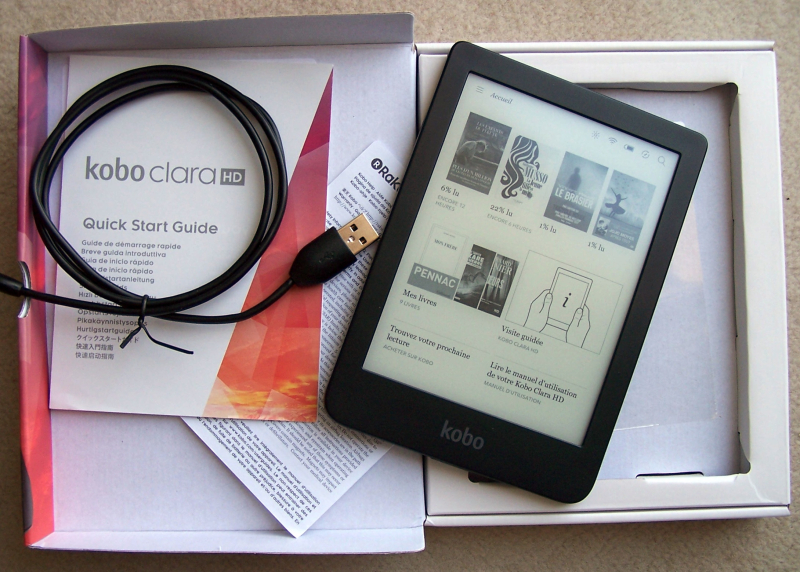
This comprehensive guide will walk you through the process of installing KOReader on your Kobo device. We’ll cover everything from the initial prerequisites to step-by-step installation methods, post-installation setup, and crucial troubleshooting tips. By the end of this article, you’ll be equipped to unlock a new realm of reading possibilities, enhancing your productivity, and maximizing the value of your Kobo device.
Why Upgrade Your Kobo Experience with KOReader?
Before diving into the technicalities, it’s worth understanding why so many Kobo users choose to install KOReader. It’s more than just an alternative reading app; it’s a significant upgrade that addresses several limitations of the stock Kobo firmware, particularly for those who frequently interact with diverse document types or demand a highly personalized reading environment.
Enhanced File Format Support
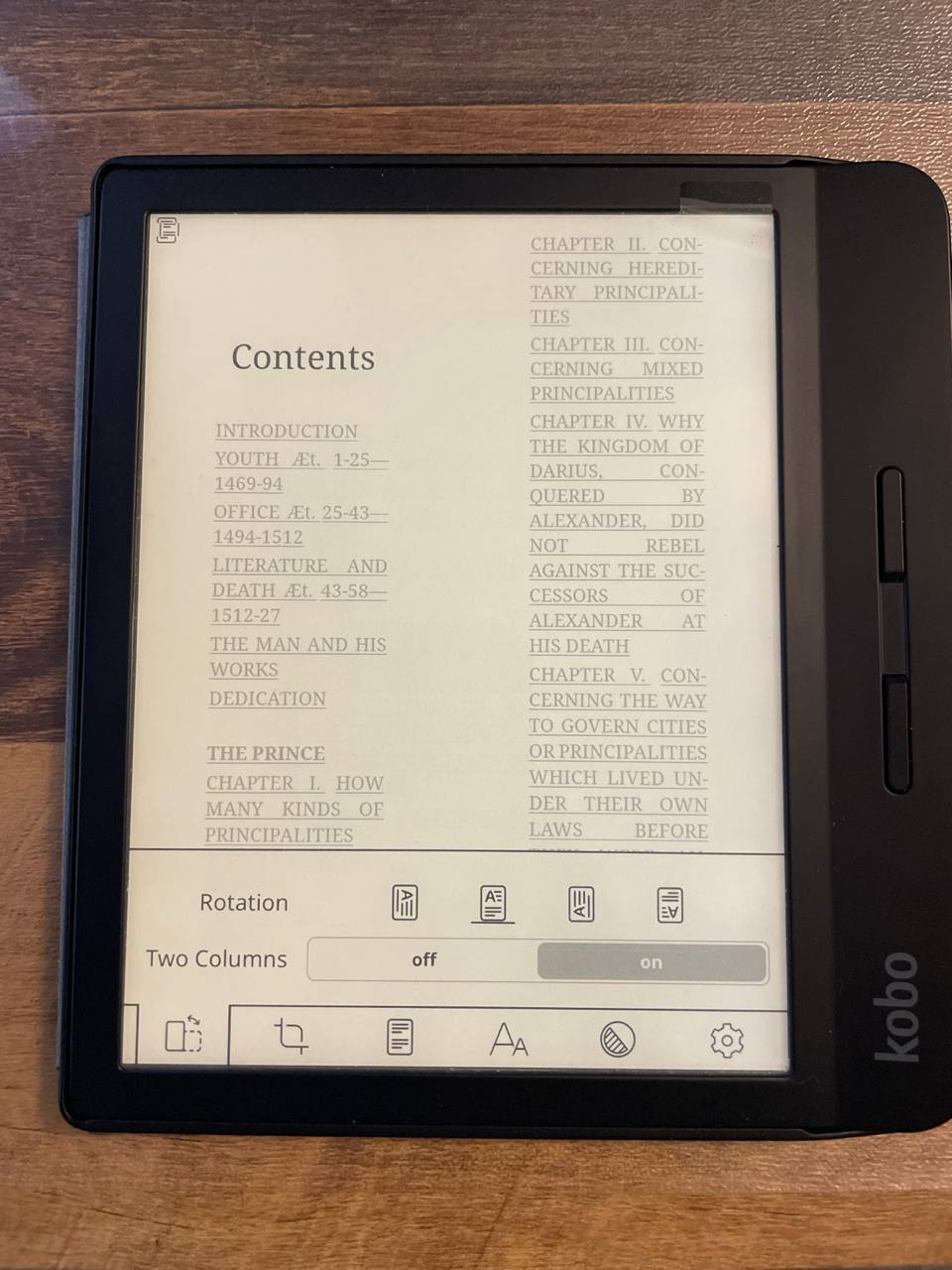
While Kobo natively handles EPUB, PDF, and a few others, KOReader boasts an impressive array of supported formats, including:
- PDF/DjVu: Often cited as KOReader’s strongest suit, it offers unparalleled PDF rendering with features like automatic cropping of margins, reflow capabilities (attempting to convert multi-column PDFs into a single scrolling column), and advanced contrast adjustments, making even complex academic papers or technical manuals readable on a smaller screen.
- CBZ/CBR: Ideal for comic book and manga enthusiasts, providing a smooth reading experience with optimization for image-rich content.
- FB2, DOCX, RTF, TXT, MOBI, CHM: Expanding your library beyond the conventional.
Unparalleled Customization and Productivity Features
KOReader is designed for those who appreciate control. Its extensive settings allow you to fine-tune virtually every aspect of your reading experience:
- Font Management: Install custom fonts and adjust sizes, weights, and anti-aliasing to your exact preference.
- Layout and Margins: Precisely control page margins, line spacing, and text alignment for optimal readability.
- Dictionary Integration: Seamlessly look up words using various dictionary formats (e.g., StarDict), a critical feature for language learners or those tackling technical jargon.
- Progress Tracking and Annotation: Advanced bookmarking, highlighting, and note-taking features that often surpass stock offerings.
- Plugin Architecture: Extend functionality further with a rich ecosystem of plugins for cloud synchronization (Dropbox, WebDAV), SSH access for advanced users, custom gestures, and more. This truly transforms your Kobo into a versatile computing tool, leveraging open-source “Tech” to boost “Productivity.”
Open Source Advantage and Community Support
Being an open-source project, KOReader benefits from a dedicated community of developers and users. This means continuous development, regular updates, bug fixes, and a vibrant forum where you can find support, share tips, and even contribute. This collaborative environment ensures that KOReader evolves to meet user needs, always pushing the boundaries of what an e-reader can do.
For professionals, academics, or anyone who values a robust, flexible, and efficient reading platform, installing KOReader on your Kobo isn’t just a technical tweak; it’s an investment in your digital reading “Productivity” and an embrace of superior “Tech” capabilities without having to buy a new device, ultimately offering greater “Value for Money” from your existing hardware.
Essential Prerequisites Before You Begin
Before embarking on the KOReader installation journey, it’s crucial to ensure you have everything in place. Skipping these preliminary steps can lead to frustration or potential issues down the line.
What You’ll Need:
- A Kobo E-Reader: This guide is designed for Kobo devices. While KOReader is also available for other platforms, the installation steps are specific to Kobo’s operating system.
- A Computer (Windows, macOS, or Linux): You’ll need a computer to download files, extract archives, and transfer them to your Kobo.
- A USB Cable: The standard micro-USB or USB-C cable that came with your Kobo device, used to connect it to your computer.
- Internet Access: To download the KOReader installation files.
- Basic File Management Skills: Familiarity with navigating file systems, copying, pasting, and extracting ZIP archives is helpful.
- Sufficient Battery Life on Your Kobo: Ensure your Kobo is adequately charged to prevent it from shutting down mid-installation.
Important Considerations:
- Backup Your Kobo (Optional but Recommended): While installing KOReader is generally safe and doesn’t interfere with your Kobo’s stock firmware or books, it’s always good practice to back up any critical personal files or notes if you have them on your Kobo, especially if you plan on experimenting with advanced modifications.
- Understand the Risks: Installing third-party software like KOReader is generally low-risk. However, in rare cases, incorrect procedures or corrupted files could lead to minor software glitches. Rest assured, reverting to the stock Kobo experience is straightforward, and we’ll cover how to do so if needed.
Step-by-Step Installation: Manual Method
The manual installation method is the most direct and widely used approach for getting KOReader onto your Kobo. It involves downloading the correct files and placing them in specific directories on your device.
Step 1: Download the Latest KOReader Release
-
Navigate to the Official KOReader GitHub Releases Page: Open your web browser and go to
https://github.com/koreader/koreader/releases. This is the official source for all KOReader releases. -
Identify the Kobo-Specific Release: Scroll down to the “Assets” section of the latest stable release (or a “nightly” build if you prefer the absolute bleeding edge, though stable is recommended for first-time users). Look for a file named something like
koreader-kobo-vYYYY.MM.X.zip(where YYYY.MM.X represents the version number). Download this ZIP file to your computer.- Pro Tip for “Tech” Enthusiasts: The nightly builds often contain the latest features and bug fixes but might be less stable. Stable releases are thoroughly tested and recommended for general use.
Step 2: Connect Your Kobo to Your Computer
- Power On Your Kobo: Ensure your Kobo device is turned on and at the home screen.
- Connect via USB: Use your USB cable to connect your Kobo to an available USB port on your computer.
- Allow Connection: Your Kobo will display a message asking if you want to connect to your computer. Tap “Connect.”
- Access Kobo Storage: Your computer should recognize the Kobo as a removable storage device (e.g., “Kobo eReader”). Open this drive in your file explorer (Finder on macOS, File Explorer on Windows).
Step 3: Extract and Prepare KOReader Files
- Locate the Downloaded ZIP: Find the
koreader-kobo-vYYYY.MM.X.zipfile you downloaded in Step 1. - Extract the Contents:
- Windows: Right-click the ZIP file and select “Extract All…” Choose a temporary folder (e.g., your Desktop or Downloads folder) for the extracted files.
- macOS: Double-click the ZIP file. A new folder with the same name as the ZIP file will appear.
- Linux: Right-click and choose “Extract Here” or use a command-line tool like
unzip.
- Understand the Structure: Inside the extracted folder, you’ll typically find a directory named
koreaderand sometimes a.kobodirectory. These are the crucial components.
Step 4: Transfer Files to Your Kobo
This is the most critical step. You need to place the extracted KOReader files into the correct locations on your Kobo’s internal storage.
- Copy the
.koboFolder Contents:- Open the extracted
koreader-kobo-vYYYY.MM.Xfolder on your computer. - Locate the
.kobofolder inside it. - Copy the contents of this
.kobofolder (usually akoreaderfolder and potentially aKoboRoot.tgzfile) to the root of your Kobo’s internal storage. This means directly into theKobo eReaderdrive you opened in Step 2, not into any subfolders within it. If prompted to merge folders or overwrite files, confirm. - Note: The
.kobofolder on your Kobo’s root is a hidden system folder. If you can’t see it, ensure your operating system is set to show hidden files. However, you are copying the contents of the.kobofolder from the extracted archive into the existing.kobofolder on your Kobo.
- Open the extracted
-
Copy the
koreaderFolder:- From the extracted
koreader-kobo-vYYYY.MM.Xfolder on your computer, locate thekoreaderdirectory. - Copy this entire
koreaderdirectory directly to the root of your Kobo’s internal storage (next to the.kobofolder,Digital Editionsfolder, etc.).
Summary of target locations on your Kobo:
- Files from
koreader-kobo-vYYYY.MM.X/.kobo/go intoKobo eReader/.kobo/ - The folder
koreader-kobo-vYYYY.MM.X/koreader/goes intoKobo eReader/koreader/
- From the extracted
Step 5: Eject Your Kobo Safely
- Safely Eject: Before disconnecting, always safely eject your Kobo from your computer.
- Windows: Right-click the “Kobo eReader” drive in File Explorer and select “Eject.”
- macOS: Drag the “Kobo eReader” icon from your Desktop to the Trash, or click the eject icon next to the drive in Finder.
- Linux: Unmount the device using your file manager or the
umountcommand.
- Disconnect USB: Once safely ejected, you can disconnect the USB cable from your Kobo.
Step 6: Reboot and Verify Installation
- Kobo Auto-Reboot: After disconnecting, your Kobo will likely process the new files and restart itself. If it doesn’t, manually restart it (hold the power button until it prompts you to power off, then power it back on).
- Launch KOReader:
- On most Kobo devices, after installation, KOReader will appear as a “book” in your Kobo library with a title like “KOReader” or “KoboRoot.tgz” (depending on the specific Kobo model and KOReader version). Tap this “book” to launch KOReader.
- Alternatively, it might be accessible via the “My Books” section, or if your Kobo has a main menu with apps, it might show up there.
- Some Kobo models, especially older ones, might require you to navigate to the “Nickel” (Kobo stock OS) settings and look for an “About” section or “Extras” where KOReader might be listed as an application.
If KOReader launches successfully, congratulations! You’ve successfully installed it on your Kobo.
Exploring KOReader: Initial Setup & Customization
Once KOReader is up and running, you’ll be greeted by its minimalist interface. Don’t let the simplicity fool you; it’s packed with powerful features accessible through its menu system.
Basic Navigation and File Opening
- File Browser: The main screen is a file browser. Navigate through your Kobo’s file system to find your books and documents.
- Opening Files: Tap on a file to open it. KOReader will automatically detect the file type and render it.
- Gestures: Common gestures like tapping the left/right edges to turn pages, and tapping the center to bring up the menu, are standard.
Diving into Settings
The true power of KOReader lies in its extensive settings menu. Tap the center of the screen to bring up the toolbar, then tap the gear icon (⚙️) to access settings. Here, you can configure:
- Reader Settings: Adjust fonts, line spacing, margins, justification, and more. This is where you tailor the “reading comfort” to your specific needs, a key “Productivity” enhancer.
- Document Settings: Specific options for different file types, such as PDF cropping, contrast, and reflow mode. Experiment with these to find the optimal settings for your technical documents or comics.
- UI Settings: Customize the look and feel of KOReader itself, including toolbar visibility, status bar, and gesture zones.
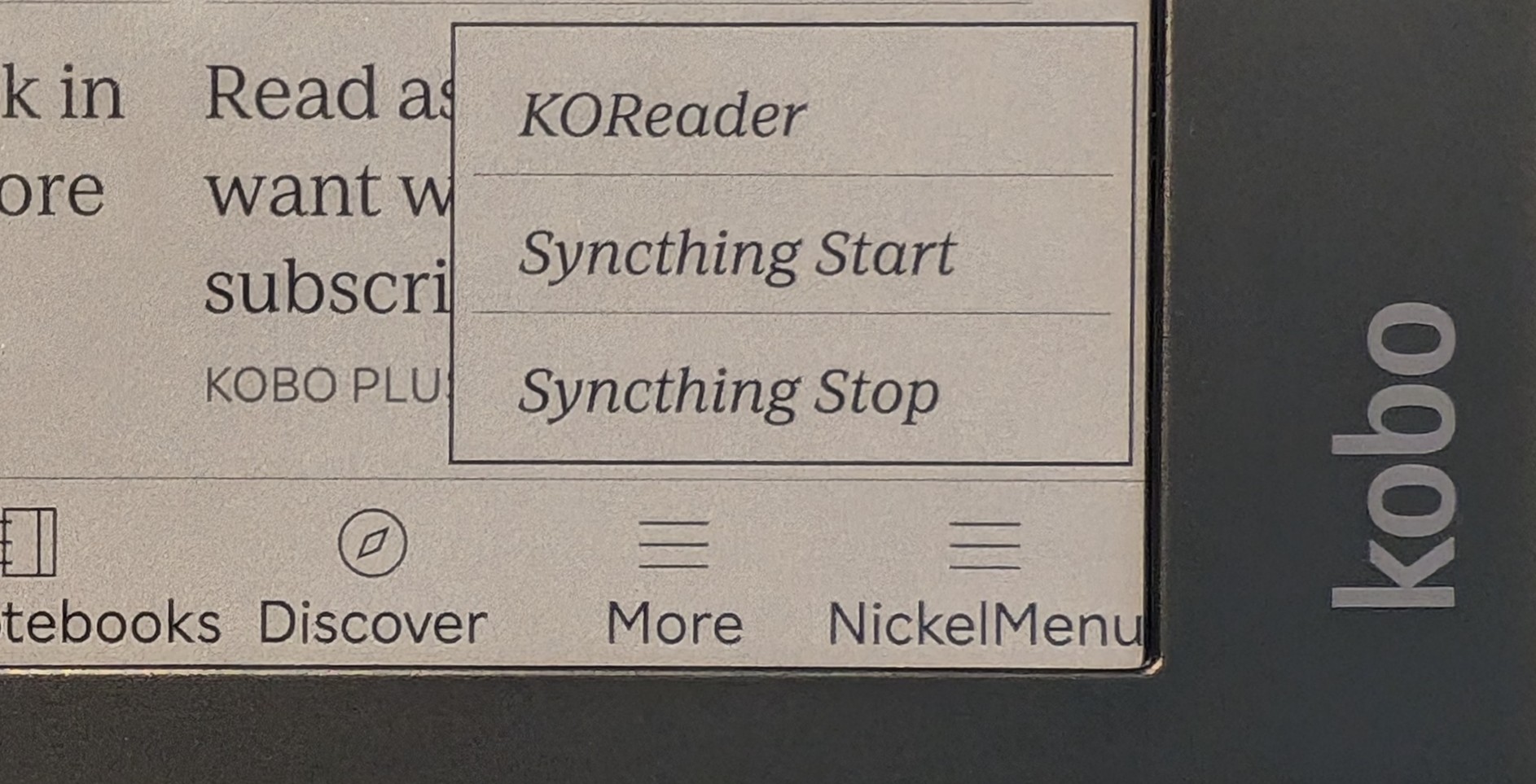
- Plugins: Activate or deactivate various plugins. This is where you can enable advanced features like dictionary lookup, cloud synchronization, or even a basic file manager with SSH capabilities for advanced “Tech” users.
- Dictionaries: Install and manage StarDict dictionaries for instant word lookups. Many free dictionaries are available online.
Keeping KOReader Updated
KOReader is under active development, with frequent updates that bring new features, bug fixes, and performance improvements.
- In-App Update (Recommended): The easiest way to update is directly from within KOReader. Connect your Kobo to Wi-Fi, open KOReader, go to the gear icon (Settings) -> “About” -> “Update KOReader.” This will download and install the latest stable build.
- Manual Update: If you prefer, you can repeat the manual installation steps (Steps 1-6), ensuring you download the newest ZIP file. This will overwrite your existing KOReader files with the updated versions. Your personal settings and books will generally remain intact.
Troubleshooting Common KOReader Issues
While the installation process is robust, occasional issues can arise. Here are some common problems and their solutions:
1. KOReader Not Appearing in Kobo Library
- Check File Paths: Double-check that you copied the
koreaderfolder and the contents of the extracted.kobofolder (specifically thekoreaderfolder andKoboRoot.tgz) to the correct root directories on your Kobo. A common mistake is nesting folders incorrectly. - Show Hidden Files: Ensure your computer is configured to show hidden files/folders. The
.kobodirectory is often hidden. - Reboot Multiple Times: Sometimes, the Kobo needs a couple of reboots to fully register the new files. Disconnect, let it process, then manually restart it once more.
- Corrupted Download: Redownload the KOReader ZIP file to rule out a corrupted download.
- Kobo Firmware Compatibility: Very rarely, a specific KOReader build might have a temporary compatibility issue with the very latest Kobo firmware. Check the KOReader GitHub issues page for any reported problems.
2. KOReader Freezes or Crashes
- Reinstall Cleanly: If crashes are frequent, try a clean reinstallation. Delete the
koreaderfolder and thekoreadersubfolder within your Kobo’s.kobodirectory. Then, repeat the installation steps from scratch. - Try an Older Stable Version: If the latest version is unstable, download and install the previous stable release from the GitHub releases page.
- Large PDF/DjVu Files: Very large or complex PDF/DjVu files can sometimes tax the Kobo’s processor and memory, leading to slow performance or crashes. Try opening a smaller, simpler file first to check general stability. In KOReader’s PDF settings, experiment with “Force dithering” or reducing “Gamma correction” to see if it helps.
- Check Logs (Advanced): For experienced “Tech” users, KOReader creates log files (usually in
koreader/crash.logor similar). These can provide clues about what caused the crash.
3. Sluggish Performance
- Large Files: As mentioned, very large files can be slow. Ensure PDF reflow is used judiciously and consider pre-processing large PDFs on your computer if they cause persistent issues.
- Too Many Plugins: While plugins are great, having too many active simultaneously can consume resources. Disable any plugins you don’t frequently use.
- Older Kobo Models: Older Kobo devices naturally have less powerful hardware. KOReader will still work, but performance on demanding tasks might be slower.
4. How to Revert to Stock Kobo Only
If you decide KOReader isn’t for you, or if you encounter an unresolvable issue, reverting to the stock Kobo experience is straightforward:
- Connect Kobo to Computer: Connect your Kobo and tap “Connect.”
- Delete KOReader Files:
- Navigate to the root of your Kobo’s internal storage.
- Delete the entire
koreaderfolder. - Navigate into the
.kobofolder (remember to show hidden files if needed). - Delete the
koreadersubfolder within.kobo. - Also, delete any
KoboRoot.tgzfiles if you find them in the root or.kobofolder that were part of the KOReader installation.
- Safely Eject and Reboot: Safely eject your Kobo, then disconnect it. Your Kobo will restart, and KOReader will no longer be present or launchable. Your Kobo will be back to its original state.
Conclusion: Unleashing Your Kobo’s True Potential
Installing KOReader on your Kobo is more than just adding another app; it’s about empowering yourself with a superior reading experience, unlocking advanced functionality, and extending the utility of your e-reader. For those who delve into technical documents, enjoy comics, or simply demand greater control over their digital library, KOReader is an invaluable enhancement.
By following this guide, you’ve taken a significant step in optimizing your Kobo for “Productivity” and harnessing the power of open-source “Tech.” You’ve transformed your device into a versatile tool capable of handling virtually any document you throw at it, all while enjoying a highly customized and comfortable reading environment. This not only enhances your personal reading journey but also extracts maximum “Value for Money” from your existing hardware, proving that sometimes, the best upgrade isn’t a new device, but smarter software. Dive in, explore the vast settings, and rediscover the joy of reading with KOReader!
aViewFromTheCave is a participant in the Amazon Services LLC Associates Program, an affiliate advertising program designed to provide a means for sites to earn advertising fees by advertising and linking to Amazon.com. Amazon, the Amazon logo, AmazonSupply, and the AmazonSupply logo are trademarks of Amazon.com, Inc. or its affiliates. As an Amazon Associate we earn affiliate commissions from qualifying purchases.