
In the vast ecosystem of modern computing, your Graphics Processing Unit (GPU) stands as one of the most critical components, especially for tasks ranging from high-fidelity gaming and professional video editing to advanced scientific simulations and the burgeoning field of AI development. While the hardware itself is a marvel of engineering, its true potential can only be unlocked through the corresponding software that acts as its interpreter and conductor: the GPU driver. Without up-to-date and correctly installed drivers, your powerful graphics card is little more than an expensive paperweight, prone to performance issues, crashes, or even complete non-functionality.
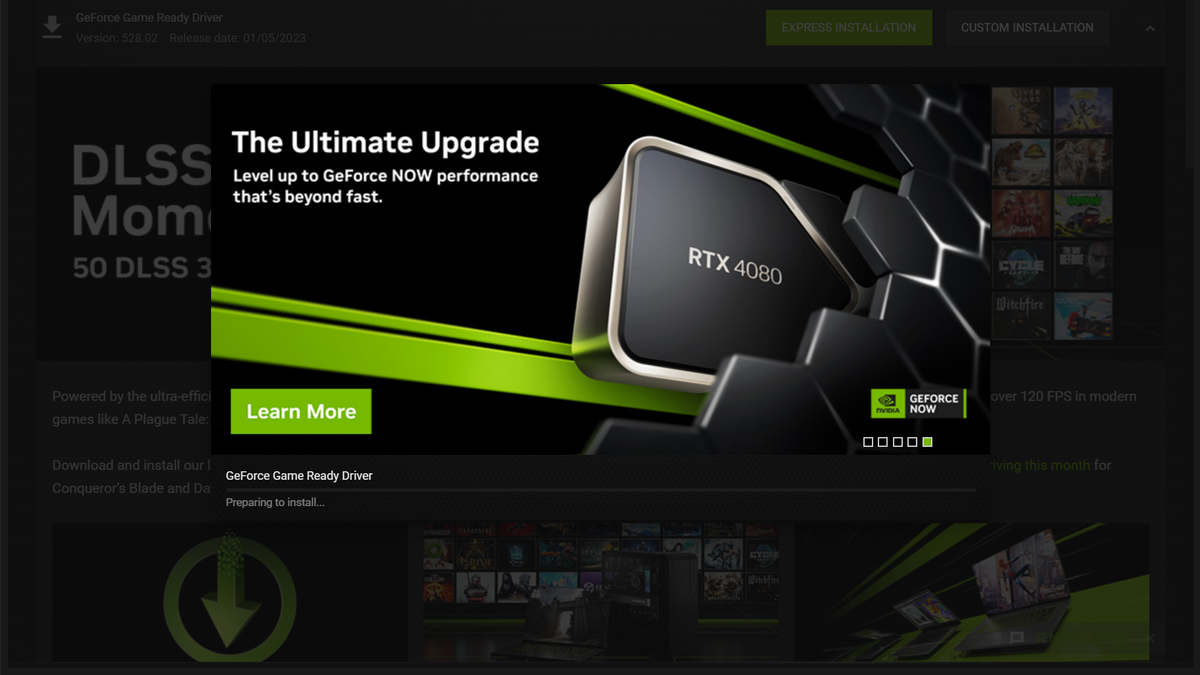
This comprehensive guide will walk you through everything you need to know about installing GPU drivers, from understanding their importance to step-by-step installation processes for the major manufacturers – NVIDIA, AMD, and Intel – and essential troubleshooting tips. Whether you’re setting up a brand-new system, upgrading your graphics card, or simply looking to resolve performance hiccups, mastering driver installation is a fundamental skill for any tech enthusiast or professional.
Understanding GPU Drivers: Why They Matter for Your Tech Experience
At its core, a GPU driver is a piece of software that allows your operating system (Windows, macOS, Linux) and applications to communicate effectively with your graphics card. Think of it as a translator that ensures your computer’s brain (CPU) can send instructions to the graphics card, and the graphics card can respond efficiently.
The Role of Graphics Drivers in Your System’s Performance
The role of graphics drivers extends far beyond mere communication. They are instrumental in:
- Optimizing Performance: Developers of graphics cards (NVIDIA, AMD, Intel) continually release new drivers that include performance enhancements for the latest games and applications. These updates can significantly boost frame rates, reduce latency, and ensure smoother gameplay or faster rendering times. For users involved in tasks like competitive gaming, 3D rendering, or video encoding, the right driver can make a tangible difference in productivity and experience.
- Enhancing Stability and Compatibility: Drivers often contain bug fixes and stability improvements, addressing issues that could lead to crashes, freezes, or graphical glitches. They also ensure compatibility with new operating system updates, software versions, and hardware peripherals, preventing frustrating conflicts that might otherwise cripple your system.
- Enabling New Features: Modern GPUs are incredibly versatile, supporting a wide array of advanced features like ray tracing, DLSS (NVIDIA), FSR (AMD), Vulkan API, and more. These features often require specific driver versions to function correctly, allowing users to leverage the cutting-edge capabilities of their hardware. For professionals in design or AI, access to these features can unlock new creative possibilities or accelerate computational workloads.
- Digital Security and Updates: While less direct, updated drivers can sometimes include security patches that protect against vulnerabilities that might be exploited through graphics-related processes. Relying on outdated drivers can expose your system to potential risks, making regular updates a good practice for overall digital security.
When Do You Need to Install or Update GPU Drivers?
Knowing when to act is almost as important as knowing how. Here are common scenarios that necessitate driver installation or updates:
- New Graphics Card Installation: This is the most obvious scenario. A brand-new GPU, whether a discrete card or an integrated graphics solution on a new CPU, will require its specific drivers to function. Windows might install a generic driver that allows basic display output, but it won’t unleash the card’s full potential.
- Building a New PC or OS Installation: When you build a new computer from scratch or perform a fresh installation of your operating system (e.g., Windows 10/11), your system will likely start with generic drivers. Installing the latest specific GPU drivers should be one of your first post-OS installation tasks.
- Performance Issues or Stability Problems: If you notice your games stuttering, applications crashing with graphical errors, or inexplicable system freezes, outdated or corrupted GPU drivers are often the prime suspects. An update can frequently resolve these issues.
- New Game Releases or Software Updates: Major game titles often release with “Game Ready” drivers from NVIDIA or “Adrenalin” drivers from AMD, specifically optimized for the new game. Similarly, professional software (e.g., Adobe Creative Suite, AutoCAD) may recommend or require newer drivers for optimal performance and feature support.
- Regular Maintenance: Even without specific issues, a good rule of thumb is to check for driver updates every few months, especially if you actively engage in graphically demanding activities. While not every update is a must-have, staying reasonably current ensures you benefit from ongoing optimizations.
Identifying Your Graphics Card and Operating System
Before you can install the correct drivers, you need to know what hardware you’re dealing with. Installing the wrong driver can lead to errors, instability, or even prevent your system from booting correctly.
Determining Your GPU Manufacturer and Model
There are several straightforward ways to identify your graphics card:
- Windows Device Manager: This is the most common and reliable method.
- Right-click on the “Start” button (or press
Win + X). - Select “Device Manager.”
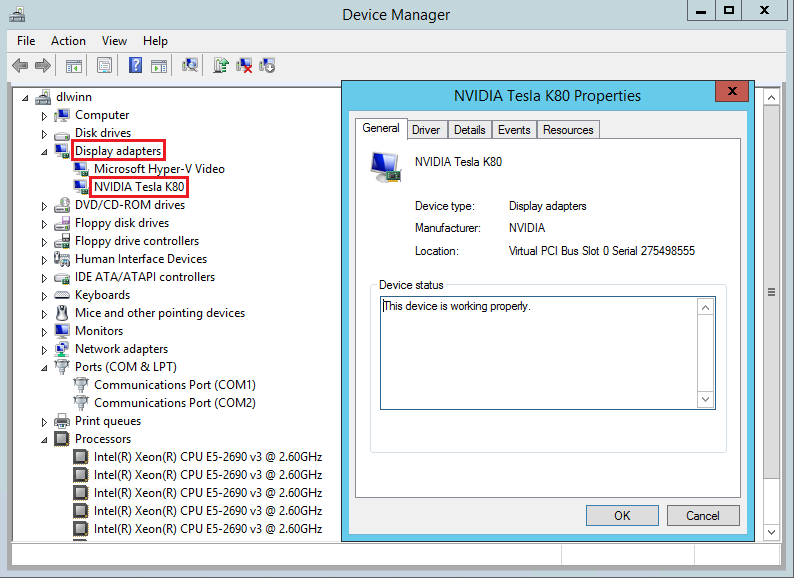
- Expand the “Display adapters” section.
- Here, you will see your graphics card(s) listed (e.g., NVIDIA GeForce RTX 3070, AMD Radeon RX 6800 XT, Intel Iris Xe Graphics). If you have both integrated graphics (from your CPU) and a dedicated GPU, both might be listed. Focus on the dedicated GPU for gaming/demanding tasks.
- Right-click on the “Start” button (or press
- Third-Party System Information Tools: Software like Speccy, HWMonitor, or GPU-Z provide detailed information about all your system components, including your GPU’s exact model, clock speeds, and driver version. These are excellent tools for getting a comprehensive overview.
- Physical Inspection: If you’re comfortable opening your PC case, the graphics card itself usually has the manufacturer (NVIDIA, AMD) and model prominently displayed on its shroud or backplate.
- Original Purchase Documentation: If you still have the box or invoice for your PC or graphics card, the model information will be clearly stated there.
Checking Your Operating System (OS) Version and Architecture
GPU drivers are specific not only to the graphics card but also to your operating system and its architecture (32-bit or 64-bit).
- For Windows:
- Right-click on the “Start” button.
- Select “System” or go to “Settings” > “System” > “About.”
- Under “Device specifications,” you’ll find “System type,” which indicates whether your OS is 32-bit or 64-bit (most modern systems are 64-bit). You’ll also see your Windows edition (e.g., Windows 10 Home, Windows 11 Pro) and its build version. This information is crucial for downloading the correct driver package.
While macOS and Linux also use GPU drivers, the installation process is typically more integrated (macOS handles drivers automatically) or more varied (Linux distributions have different approaches). This guide primarily focuses on Windows, which represents the vast majority of consumer GPU installations.
Preparing for Driver Installation: Best Practices for a Smooth Update
Before diving into the actual installation, a few preparatory steps can prevent headaches and ensure a clean, stable driver environment. This is particularly important when switching GPU brands (e.g., from NVIDIA to AMD) or resolving persistent graphical issues.
Backing Up Important Data
While driver installation is generally safe, any significant system change carries a minuscule risk. Before proceeding, it’s always prudent to back up any critical files, documents, and projects. This could involve cloud storage, an external hard drive, or a system restore point. A system restore point specifically allows you to revert your system to a previous state if something goes wrong with the driver installation.
- Creating a System Restore Point (Windows):
- Search for “Create a restore point” in the Windows search bar.
- In the “System Properties” window, click “Create…”.
- Give the restore point a descriptive name (e.g., “Before GPU Driver Update”).
- Click “Create.”
Uninstalling Old Drivers: The Clean Slate Approach
For many driver updates, simply running the new installer will suffice. However, for a “clean” installation – highly recommended when upgrading your GPU, troubleshooting issues, or moving between AMD/NVIDIA cards – it’s best to completely remove existing drivers first. This prevents potential conflicts from residual files.
- Using Windows’ Built-in Uninstaller:
- Go to “Settings” > “Apps” > “Apps & features.”
- Search for “NVIDIA Graphics Driver,” “AMD Software,” or “Intel Graphics Driver.”
- Select the relevant entries and click “Uninstall.” Follow the on-screen prompts.
- The Display Driver Uninstaller (DDU): For the most thorough clean, DDU is a widely recommended third-party utility. It completely scrubs your system of all graphics driver traces, including registry entries and hidden files.
- Download DDU: Get it from its official source (typically Guru3D).
- Boot into Safe Mode: This is crucial. DDU works best and safest in Safe Mode, preventing Windows from trying to load drivers during the uninstall process.
- Press
Win + R, typemsconfig, and press Enter. - Go to the “Boot” tab, check “Safe boot,” and select “Minimal.” Click “Apply” and “OK.” Restart your computer.
- Press
- Run DDU: Once in Safe Mode, run DDU. Select your GPU vendor (NVIDIA, AMD, or Intel) and choose “Clean and restart.”
- Exit Safe Mode: After DDU completes and restarts, go back to
msconfig, uncheck “Safe boot,” and restart again to boot back into normal Windows.
Downloading the Correct Drivers from Official Sources
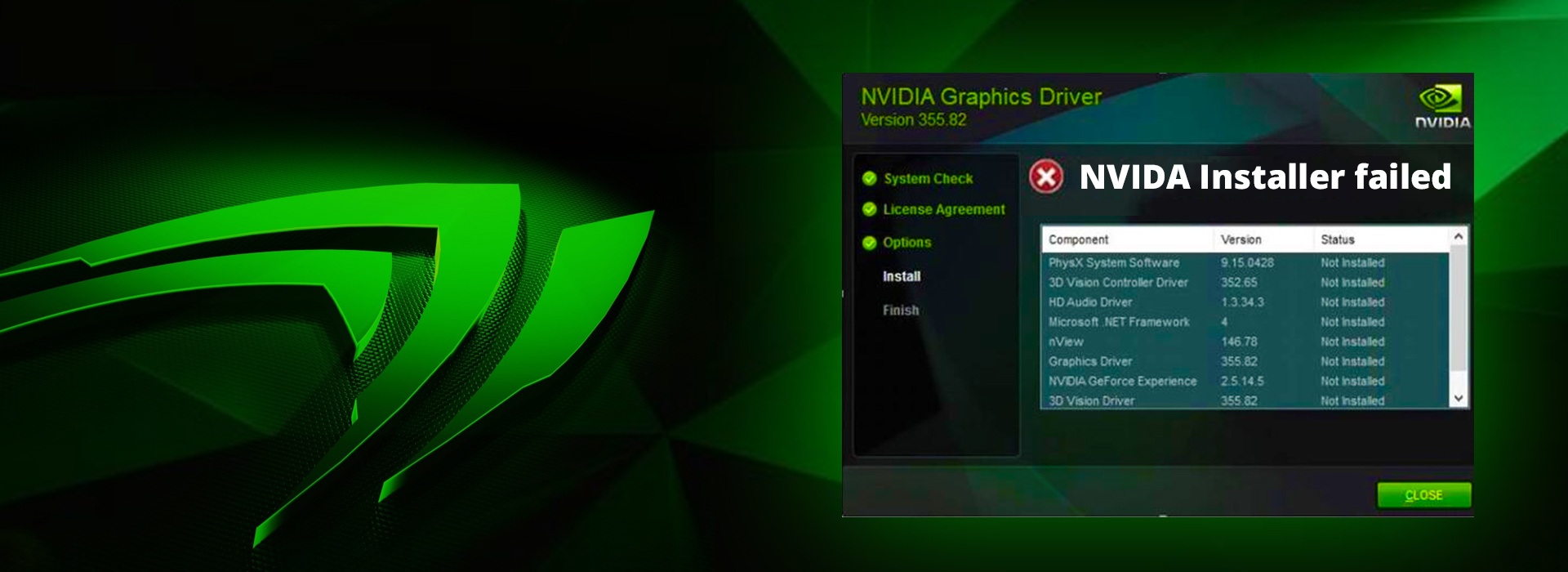
This is perhaps the most critical step for digital security and system stability. ALWAYS download drivers directly from the official manufacturer’s website. Avoid third-party driver download sites, as they can host outdated, incorrect, or even malicious software.
- For NVIDIA GPUs:
- Go to the official NVIDIA Driver Downloads page:
nvidia.com/drivers - Use the “Manual Driver Search” to select your “Product Type” (e.g., GeForce), “Product Series” (e.g., RTX 30 Series), “Product” (your specific card, e.g., RTX 3070), “Operating System,” and “Windows Driver Type” (Game Ready Driver (GRD) for most users, Studio Driver (SD) for content creators).
- Click “Search” and then “Download.”
- Go to the official NVIDIA Driver Downloads page:
- For AMD GPUs:
- Go to the official AMD Drivers & Support page:
amd.com/support - You can use the “Auto-Detect and Install” tool, which will automatically identify your GPU and recommend the correct driver. This is often the easiest method for beginners.
- Alternatively, use the “Browse for your product” section to manually select your “Graphics” type, “AMD Radeon” series, and specific model.
- Once selected, choose your “Operating System” and download the recommended “Adrenalin Software.”
- Go to the official AMD Drivers & Support page:
- For Intel Integrated Graphics:
- Go to the official Intel Download Center:
intel.com/support/downloads - Intel provides the “Intel Driver & Support Assistant” (Intel DSA), which automatically detects your Intel hardware and recommends relevant updates, including graphics drivers. This is the most convenient method.
- You can also manually search for your specific Intel processor model to find integrated graphics drivers.
- Go to the official Intel Download Center:
Save the downloaded driver package to an easily accessible location, such as your desktop or a dedicated “Drivers” folder.
Step-by-Step Installation Guides for Major GPU Manufacturers
Once you have your clean slate (if you chose to uninstall old drivers) and the correct driver package downloaded, the installation process itself is relatively straightforward, though it varies slightly between manufacturers.
For NVIDIA GPUs
NVIDIA’s installer is generally user-friendly.
- Run the Installer: Double-click the downloaded NVIDIA driver executable file.
- Extraction Path: The installer will ask for a location to extract the installation files. The default is usually fine.
- License Agreement: Read and accept the NVIDIA software license agreement.
- Installation Options:
- Express Installation: This is recommended for most users. It automatically updates your current drivers while keeping your existing NVIDIA settings.
- Custom (Advanced) Installation: This option allows you to select specific components to install (e.g., PhysX, GeForce Experience, 3D Vision) and choose whether to perform a “Clean Installation.” If you used DDU, you might not strictly need to check “Perform a clean installation,” but it doesn’t hurt. If you didn’t use DDU but want a clean install, select this.
- Follow Prompts: The installer will proceed. Your screen may flicker or go black momentarily as the new drivers are applied.
- Restart: Once the installation is complete, you will usually be prompted to restart your computer. Do so immediately to finalize the driver installation and ensure all changes take effect.
For AMD GPUs
AMD’s Adrenalin Software package is comprehensive, including drivers, control panel, and other utilities.
- Run the Installer: Double-click the downloaded AMD Adrenalin Software executable.
- Initial Scan: The installer will perform a quick scan of your system to detect your hardware.
- Installation Type:
- Install: This is the standard option.
- Factory Reset (Optional but Recommended for Clean Install): This option is AMD’s equivalent of a clean install. It will remove previous drivers and settings before installing the new ones. If you didn’t use DDU and want a clean slate, select this. It’s often the best choice when updating drivers to prevent issues.
- Accept License Agreement: Agree to the terms.
- Installation Progress: The installer will proceed, and your screen may flicker or go black multiple times. Do not interrupt this process.
- Restart: Once finished, you will be prompted to restart your computer. A restart is essential for the drivers to be fully active.
For Intel Integrated Graphics
Intel’s driver installation is typically simpler, especially if using their support assistant.
- Using Intel Driver & Support Assistant (Recommended):
- Install and run the Intel DSA tool.
- It will automatically scan your system and display available updates, including graphics drivers.
- Follow the prompts to download and install the recommended drivers. The tool automates most of the process.
- Manual Installation (If not using DSA):
- Double-click the downloaded Intel graphics driver executable.
- Follow the on-screen prompts, accepting the license agreement.
- The installation process is usually quick and straightforward.
- Restart your computer if prompted.
Post-Installation and Troubleshooting: Ensuring Optimal Performance
After the installation, it’s crucial to verify that everything is working as expected and know how to address common issues.
Verifying Driver Installation
You can confirm your new drivers are active using a few methods:
- Device Manager:
- Go back to “Device Manager” (
Win + X> “Device Manager”). - Expand “Display adapters.”
- Right-click on your graphics card and select “Properties.”
- Go to the “Driver” tab. Here, you can see the “Driver Version” and “Driver Date.” Compare these with the version you intended to install.
- Go back to “Device Manager” (
- Manufacturer’s Control Panel:
- NVIDIA: Open the NVIDIA Control Panel (right-click on desktop or search). Under “Help” > “System Information,” you’ll see the installed driver version.
- AMD: Open the AMD Adrenalin Software (right-click on desktop or search). The “Home” or “System” tab usually displays the driver version.
- Intel: Open the Intel Graphics Command Center. The “System” section will show driver details.
- Check Performance: Launch a demanding game or application that previously had issues. If performance is smoother, crashes are gone, or new features are available, your drivers are likely installed correctly.
Common Installation Issues and Solutions
Even with careful preparation, problems can arise. Here are some common issues and their solutions:
- Black Screen or No Display Output:
- Solution: This often happens if the driver installation went wrong or you installed an incompatible driver. If you can still hear sounds, try pressing
Win + Ctrl + Shift + Bto restart the graphics driver. If that fails, force-restart your PC and try booting into Safe Mode (during startup, press F8 or Shift + F8 or delve into advanced startup options from Windows Recovery Environment) to uninstall the problematic driver using DDU, then try installing the correct one.
- Solution: This often happens if the driver installation went wrong or you installed an incompatible driver. If you can still hear sounds, try pressing
- Driver Not Installing / Installer Errors:
- Solution: Ensure you’ve downloaded the correct driver for your GPU model and OS (32-bit vs. 64-bit). Disable antivirus temporarily, as it can sometimes interfere. Try running the installer as an administrator (right-click > “Run as administrator”). Make sure your Windows is fully updated.
- Performance Worse After Update:
- Solution: While rare, sometimes a newer driver can introduce issues or not be optimized for older hardware/games. Reinstalling the driver using the “clean installation” method (DDU or manufacturer’s clean option) is the first step. If the issue persists, you might consider rolling back to a previous, known-stable driver version.
- Graphical Glitches or Artifacts:
- Solution: This indicates a driver conflict or a potentially faulty GPU. Try a clean installation of the latest driver. If it persists, roll back to an older version. If the problem remains across multiple driver versions, consider contacting your GPU manufacturer for support or checking your card’s warranty.
- “Windows has stopped this device because it has reported problems (Code 43)” in Device Manager:
- Solution: This is a generic error indicating a hardware or driver issue. A clean driver reinstallation is usually the first fix. If it doesn’t work, it might point to a hardware defect in the GPU itself.
Automating Driver Updates and Staying Current
While manual installation offers maximum control, keeping drivers perpetually up-to-date can be time-consuming.
- Manufacturer Software:
- NVIDIA GeForce Experience: This application provides automatic notifications for new Game Ready Drivers and Studio Drivers, and allows one-click installation. It also optimizes game settings.
- AMD Adrenalin Software: Similarly, AMD’s software suite notifies users of new Adrenalin driver releases and facilitates easy updates.
- Intel Driver & Support Assistant (DSA): This tool is specifically designed to keep all your Intel hardware drivers, including graphics, current.
- Windows Update (Limited): Windows Update will sometimes provide graphics driver updates, especially for integrated graphics or as part of major OS feature updates. However, these are often not the very latest versions from the GPU manufacturers and may lack specific game optimizations. For dedicated GPUs, relying solely on Windows Update is not recommended if you prioritize performance.
Regularly checking these manufacturer-specific tools or visiting their websites every few months is a good balance between staying current and avoiding unnecessary updates.
Conclusion
Installing GPU drivers might seem like a daunting task at first, but by following these steps, you can ensure your graphics card is performing at its best. From understanding the fundamental role drivers play in your system’s performance and stability to confidently navigating the installation process for NVIDIA, AMD, and Intel GPUs, you are now equipped with the knowledge to maintain an optimal visual computing experience.
Remember, drivers are the lifeblood of your graphics card. Regular updates not only unlock new features and performance enhancements but also contribute to the overall digital security and stability of your system. Embrace this essential tech maintenance, and your GPU will reward you with smoother gameplay, faster rendering, and a more reliable computing environment for all your technology needs.
aViewFromTheCave is a participant in the Amazon Services LLC Associates Program, an affiliate advertising program designed to provide a means for sites to earn advertising fees by advertising and linking to Amazon.com. Amazon, the Amazon logo, AmazonSupply, and the AmazonSupply logo are trademarks of Amazon.com, Inc. or its affiliates. As an Amazon Associate we earn affiliate commissions from qualifying purchases.