
In the modern digital landscape, the synergy between hardware and software defines the quality of our computing experience. At the heart of this relationship lies the display driver—a critical piece of software that acts as a translator between your operating system and your graphics processing unit (GPU). Whether you are a hardcore gamer seeking the highest frame rates, a creative professional rendering 8K video, or a casual user wanting a flicker-free browsing experience, knowing how to update your display driver is a fundamental skill.
An outdated driver is often the silent culprit behind system crashes, graphical artifacts, and sluggish performance. This guide provides an in-depth exploration of the “why” and “how” of driver maintenance, ensuring your visual output remains crisp, stable, and optimized for the latest technological demands.
1. Understanding the Role and Importance of Display Drivers
Before diving into the technical procedures, it is essential to understand what a display driver actually does. Your GPU is a powerhouse of parallel processing, but without a driver, your operating system (like Windows or macOS) wouldn’t know how to send instructions to it. The driver provides the necessary instructions for the OS to render the desktop, play high-definition video, and execute complex 3D calculations.
The Evolution of Graphics Drivers
In the past, display drivers were relatively static. You installed them once and rarely touched them. However, with the advent of modern APIs like DirectX 12, Vulkan, and Ray Tracing technology, drivers have become living documents. Manufacturers like NVIDIA, AMD, and Intel now release monthly (or even weekly) updates to provide “day-zero” optimizations for new software and security patches for emerging vulnerabilities. Keeping these updated ensures that your hardware can communicate effectively with the latest software releases.
Identifying When an Update is Necessary
While “if it ain’t broke, don’t fix it” applies to some legacy systems, modern tech environments benefit from regular updates. You should prioritize an update if you encounter any of the following:
- System Instability: Frequent Blue Screen of Death (BSOD) errors often point to driver conflicts.
- Visual Glitches: Screen flickering, “tearing,” or strange colors appearing in applications.
- Poor Performance: Significant drops in frames per second (FPS) or stuttering during hardware-intensive tasks.
- Software Compatibility: New games or creative suites (like Adobe Premiere Pro) often require a minimum driver version to launch.
2. Standard Methods for Updating Drivers on Windows
For the majority of users, the process of updating a display driver can be handled through built-in Windows tools or manufacturer-provided utilities. These methods range from fully automated to semi-manual, depending on the level of control you wish to exert over your system.
Using Windows Update for Basic Maintenance
Windows Update is the most seamless method for the average user. Microsoft works with hardware vendors to distribute “WHQL” (Windows Hardware Quality Labs) certified drivers.
- Open Settings via the Start menu.
- Navigate to Update & Security (or Windows Update on Windows 11).
- Click Check for updates.
If Microsoft has a verified driver for your integrated or discrete graphics, it will download and install automatically. However, keep in mind that Windows Update often lags behind the latest versions released by manufacturers, as the certification process takes time.
Utilizing the Device Manager for Targeted Updates
If you suspect a specific issue with your display adapter, the Device Manager allows for a more focused approach.
- Right-click the Start button and select Device Manager.
- Expand the Display adapters section.
- Right-click your graphics card (e.g., NVIDIA GeForce RTX 3060 or Intel Iris Xe) and select Update driver.
- Choose Search automatically for drivers.
This method is particularly useful for resolving “yellow exclamation mark” errors where the hardware isn’t being recognized correctly by the OS.
Automated Manufacturer Software (NVIDIA, AMD, and Intel)
For those who use their PCs for more than just basic office work, manufacturer-specific software is the gold standard.
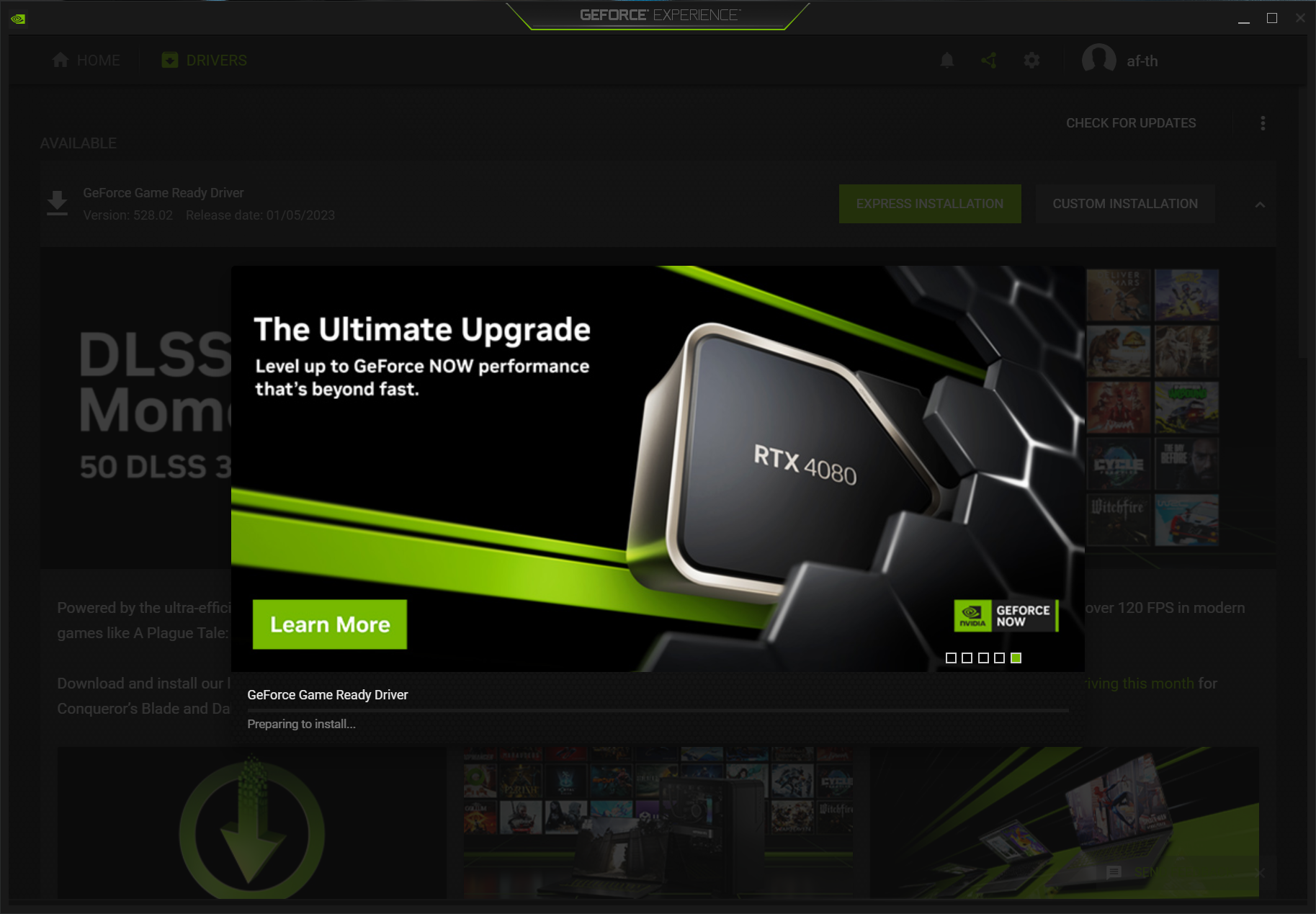
- NVIDIA GeForce Experience: This tool automatically notifies you of new drivers. It also offers “Game Ready” drivers optimized for new releases and “Studio” drivers for creative stability.
- AMD Software: Adrenalin Edition: A robust suite that allows for one-click updates and provides performance tuning features for Radeon users.
- Intel Driver & Support Assistant (DSA): Essential for laptops using integrated Intel graphics, this web-based tool scans your system and identifies the exact driver needed for your chipset.
3. Advanced Manual Updates and Troubleshooting
Sometimes, automated tools fail. Whether it’s a network error or a corrupted installation, knowing how to manually source and install a driver is a vital troubleshooting skill. This section covers the more technical aspects of driver management.
Sourcing Drivers from Official Repositories
To ensure system security, never download drivers from third-party “driver update” websites, which are often bundled with adware or malware. Always go directly to the source:
- NVIDIA: Visit the “Download Drivers” page, select your product series, and choose between the Game Ready Driver (GRD) or Studio Driver (SD).
- AMD: Use the “Drivers + Support” selector to find your specific Radeon or Ryzen model.
- Intel: Navigate to the Intel Download Center.
When downloading manually, pay close attention to your OS version (Windows 10 vs. Windows 11) and system architecture (64-bit).
Performing a “Clean Install” to Resolve Corruption
Over time, old driver files can accumulate and conflict with new ones, leading to “driver rot.” A clean installation wipes the old files before applying the new ones. NVIDIA and AMD both offer a “Factory Reset” or “Perform a clean installation” checkbox during their manual installation wizards.
For extreme cases where the system refuses to boot or graphics are severely distorted, tech enthusiasts use Display Driver Uninstaller (DDU). DDU is a third-party utility that, when run in Safe Mode, completely nukes every trace of a graphics driver from the Windows Registry and file system. Once the cleanup is done, you can install a fresh driver without any legacy interference.
Rolling Back a Driver
Not every update is an improvement. Occasionally, a new driver version may introduce a bug specific to your hardware configuration. If your performance degrades after an update:
- Go to Device Manager.
- Right-click your display adapter and select Properties.
- Under the Driver tab, click Roll Back Driver.
This reverts the system to the previously installed version, buying you time until a more stable patch is released.
4. Maximizing Hardware Potential Post-Update
Updating the driver is only half the battle. To truly benefit from the latest software, you must ensure your system settings are aligned with the new driver capabilities. Modern drivers unlock features that can significantly enhance your visual experience.
Configuring Refresh Rates and Resolutions
After a major driver update, Windows occasionally resets your display settings to a “safe” default. To ensure you aren’t stuck at 60Hz on a 144Hz monitor:
- Right-click the desktop and select Display settings.
- Navigate to Advanced display.
- Ensure the Refresh rate is set to the maximum supported by your hardware.
A current driver also ensures that features like HDR (High Dynamic Range) and Variable Refresh Rate (G-Sync/FreeSync) are functioning correctly within the Windows environment.
Leveraging AI and Rendering Features
For users with modern GPUs, updating drivers is the key to unlocking AI-driven performance boosts.
- NVIDIA DLSS (Deep Learning Super Sampling): Latest drivers are required to run DLSS 3 or 3.5, which uses AI to generate frames and improve image quality in supported games.
- AMD FSR (FidelityFX Super Resolution): Updates often bring improvements to AMD’s upscaling tech, allowing older cards to run modern games more smoothly.
- AI Accelerators: In the professional sphere, updated drivers allow applications like Topaz Labs or DaVinci Resolve to utilize the “Tensor cores” or “AI Accelerators” on your GPU for faster rendering and noise reduction.

Conclusion: The Path to a Stable and Powerful System
Maintaining an up-to-date display driver is more than just a routine chore; it is a vital part of digital hygiene in the tech world. By understanding the difference between a simple Windows Update and a manufacturer-specific installation, you can tailor your system’s performance to your specific needs.
Whether you are troubleshooting a persistent crash or simply preparing your rig for the latest AAA game title, the steps outlined above—ranging from automated tools to manual clean installs—provide a roadmap to success. In an era where software evolves at breakneck speeds, your display driver is the bridge that ensures your hardware doesn’t get left behind. Stay updated, stay secure, and enjoy the full visual potential of your technology.
aViewFromTheCave is a participant in the Amazon Services LLC Associates Program, an affiliate advertising program designed to provide a means for sites to earn advertising fees by advertising and linking to Amazon.com. Amazon, the Amazon logo, AmazonSupply, and the AmazonSupply logo are trademarks of Amazon.com, Inc. or its affiliates. As an Amazon Associate we earn affiliate commissions from qualifying purchases.