
In the modern digital landscape, managing one’s online presence is as much about curation and removal as it is about creation. Whether you are streamlining your professional portfolio, shifting your content strategy, or performing a routine “digital deep clean” to enhance your privacy, knowing how to properly decommission a YouTube channel is a vital skill. This process is not merely a matter of clicking a “delete” button; it involves understanding the hierarchy of Google’s ecosystem, data preservation protocols, and the distinction between hiding content and permanent erasure.
This guide provides a deep dive into the technical steps required to delete a YouTube channel, ensuring your digital footprint is managed with precision and security.

1. The Pre-Deletion Protocol: Data Integrity and Security
Before initiating the deletion process, a professional approach requires a thorough audit of the channel’s data. Deleting a channel is an irreversible action regarding the content, comments, and metadata associated with that specific entity. Therefore, securing your intellectual property should be your first priority.
Leveraging Google Takeout for Video Backups
Google Takeout is an essential tool for any tech-savvy user. It allows you to export a copy of the content in your Google Account to back it up or use it with a service outside of Google. Before deleting your channel, navigate to Google Takeout and select “YouTube and YouTube Music.”
From here, you can choose specific data types—such as your original video uploads, subscriptions, and even your comment history—to be exported as a compressed archive (.zip or .tgz). Understanding the file formats provided (often MP4 for videos and JSON or HTML for metadata) ensures that you can repurpose or archive your content on local storage or alternative cloud solutions without losing the fidelity of your original work.
Auditing Third-Party App Permissions
Many users utilize third-party SEO tools, analytics suites, or social media management software that are linked to their YouTube channel via OAuth tokens. Before deleting your channel, it is a technical best practice to visit your Google Account Security settings and revoke access for these applications. This prevents “ghost” permissions where a third-party app continues to seek data from a non-existent channel, which can occasionally trigger security alerts or sync errors within those external software environments.
2. Navigating the YouTube Studio Backend
The actual deletion process takes place within the YouTube Studio—the command center for creators. Accessing this via a desktop browser is recommended over the mobile app, as the web interface provides more granular control over account settings and advanced configurations.
Accessing Advanced Account Settings
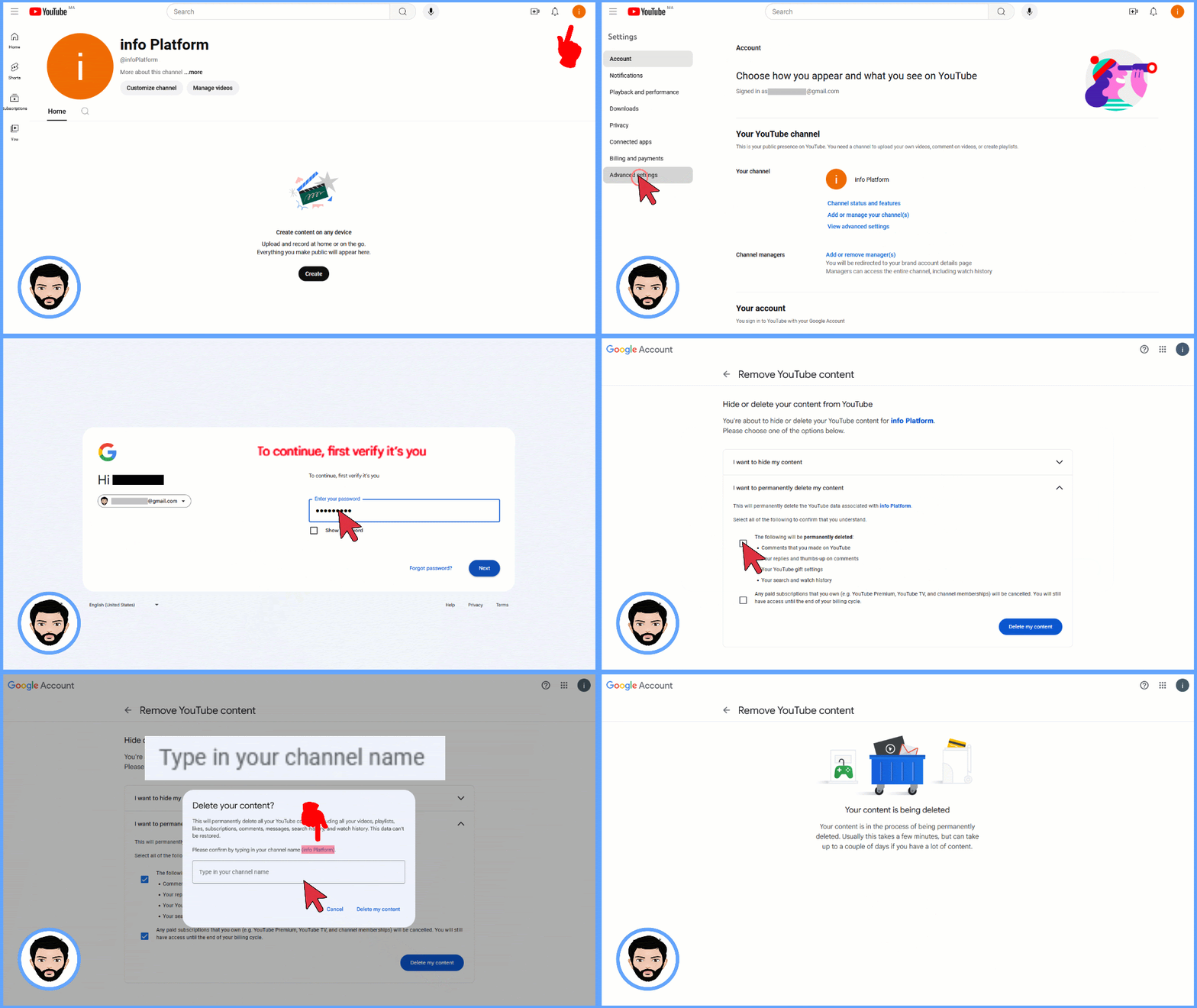
To begin, log into the YouTube account associated with the channel you wish to remove. Click on your profile icon in the top right corner and select “Settings.” From the left-hand sidebar, navigate to “Advanced settings.” This section is the technical “engine room” of your channel, where you can find your User ID and Channel ID. At the bottom of this page, you will find the option to “Delete channel.”
Clicking this will not immediately erase the channel; instead, it will redirect you to a Google authentication screen. This is a critical security layer designed to prevent unauthorized or accidental deletions. You will be required to re-enter your password or provide biometic authentication through a passkey.
Permanent Deletion vs. Content Hiding
Once authenticated, Google presents two distinct technical paths: “I want to hide my channel” and “I want to permanently delete my content.”
- Hiding the Channel: This is a soft-deletion method. It makes your videos, playlists, and channel name private, effectively taking them offline without erasing the data. This is useful if you are undergoing a rebranding phase or a temporary hiatus.
- Permanent Deletion: This is a hard-deletion method. Selecting this option will permanently delete your videos, playlists, subscriptions to other channels, and comments you’ve made on YouTube. It also clears your search and watch history associated with that specific channel identity.
3. Deleting Brand Accounts vs. Personal Channels
In the Google infrastructure, there is a significant technical distinction between a “Personal Channel” and a “Brand Account.” Understanding which one you own is crucial for a successful deletion without unintended consequences for your primary Google identity.
Understanding the Hierarchy of Google Identities
A personal channel is directly tied to your primary Google Account (and usually shares your real name). Deleting this channel removes the YouTube presence but keeps the Google Account (Gmail, Drive, Photos) intact.
A Brand Account, however, is a separate entity that can have multiple owners or managers. This architecture allows a business or a creator to manage a channel without revealing their personal email address. When you delete a Brand Account, you are removing a specific sub-identity. If you have multiple channels under one Google Account, ensure you have “switched” to the correct channel profile before initiating the deletion to avoid removing the wrong asset.
Transferring Ownership Before Deletion
If you are part of a technical team or a collaborative brand, you might not want to delete the channel but rather remove your association with it. In the “Permissions” tab of YouTube Studio, you can transfer “Primary Ownership” to another user’s email address. Once the transfer is complete (usually requiring a 7-day waiting period for security verification), you can then remove your own access. This is the professional way to “offboard” from a digital project without destroying the collective work of a team.
4. Post-Deletion Technical Impacts: Search and Metadata
The deletion of a YouTube channel does not result in an instantaneous disappearance from the entire internet. There is a period of “digital decay” that occurs as search engines and databases update their indexes.
Metadata and Indexing: What Happens to Search Results?
Even after a channel is deleted, the metadata (titles, descriptions, and thumbnails) may still appear in Google Search or Bing results for several days or even weeks. This is due to the nature of web crawling and caching. The URL of your deleted channel will eventually return a “404 Not Found” or “410 Gone” HTTP status code. To speed up this process, technical users can use the Google Search Console “Removals tool” to request that Google’s crawlers re-evaluate the defunct URLs and remove them from the search index.
The Persistence of Community Interactions
While your channel and comments are deleted, certain interactions might persist in a “ghost” state. For instance, if you were a guest on someone else’s livestream, that video remains on their channel because they own the rights to that specific broadcast. Similarly, mentions of your handle in other users’ descriptions or community posts will remain as text, though the link to your channel will break. This is an important consideration for those seeking a total “right to be forgotten”—YouTube’s deletion tool only affects data within your direct sphere of control.
5. Troubleshooting Common Deletion Errors
Occasionally, users encounter technical roadblocks when attempting to close a channel. These are often related to account synchronization or administrative restrictions.
Resolving Administrative and Workspace Restrictions
If you are using a Google Workspace account (formerly G Suite) provided by an employer or educational institution, you may find that the “Delete channel” option is greyed out or missing. This is because the organization’s IT administrator has set a policy preventing users from managing certain service settings. In this scenario, the deletion must be handled by the administrator through the Google Admin Console, or they must temporarily grant you the necessary permissions to manage the service independently.
Handling “Stuck” Deletions and Recovery Options
In rare cases, a channel may enter a “deletion pending” state where it remains visible but inaccessible. This usually happens during high-traffic periods on Google’s servers or if there is a conflict with a linked Google Ads account. If the channel is still visible 48 hours after deletion, it is advisable to check the “Linked Accounts” section in your Google profile to ensure no active subscriptions or API hooks are keeping the channel “alive.”
Conversely, if you experience “deleter’s remorse,” Google provides a very narrow window for recovery. If you deleted a Brand Account, you can sometimes restore it through the “Deleted accounts” section of the Brand Accounts page. However, for a standard personal YouTube channel, once the “Permanent Deletion” process is finalized and the data is purged from the active servers, recovery is virtually impossible through standard user-facing tools.

Conclusion: Mastering Digital Lifecycle Management
Deleting a YouTube channel is a significant technical action that requires careful execution. By following a structured protocol—starting with a Google Takeout backup, navigating the YouTube Studio settings with precision, and understanding the nuances of Brand Accounts—you can ensure that your digital transition is seamless and secure.
In an era where our digital footprints are more extensive than ever, the ability to effectively manage, archive, and delete redundant platforms is a cornerstone of digital literacy. Whether you are a professional creator or a casual user, treating the deletion of a channel with the same technical rigor as its creation ensures that your online presence remains intentional, organized, and under your absolute control.
aViewFromTheCave is a participant in the Amazon Services LLC Associates Program, an affiliate advertising program designed to provide a means for sites to earn advertising fees by advertising and linking to Amazon.com. Amazon, the Amazon logo, AmazonSupply, and the AmazonSupply logo are trademarks of Amazon.com, Inc. or its affiliates. As an Amazon Associate we earn affiliate commissions from qualifying purchases.