
In today’s digitally driven world, our smartphones have become indispensable tools for a multitude of tasks, from communication and entertainment to, increasingly, academic and professional problem-solving. Among these everyday digital assistants, the calculator app stands out as a fundamental utility. While most people are familiar with its basic arithmetic functions, a significant portion of users may not realize the sophisticated capabilities embedded within their phone’s calculator, particularly when it comes to handling fractions. Whether you’re a student grappling with algebra homework, a professional reviewing financial reports, or a hobbyist tackling a recipe conversion, accurately inputting and manipulating fractions on your mobile device can streamline calculations and enhance efficiency. This guide will delve into the intricacies of using your phone’s calculator for fractions, offering practical tips and exploring the various functionalities that make this seemingly simple task more powerful than you might imagine.

Understanding Fraction Input Methods
The ability to effectively input fractions is the cornerstone of using a calculator for fractional calculations. While the visual representation and input methods can vary slightly between different operating systems (iOS and Android) and even between different calculator apps, the underlying principles remain consistent. Understanding these methods is crucial for avoiding errors and ensuring accurate results.
The “Numerator over Denominator” Approach
The most intuitive way to input a fraction is by representing its structure directly. Most smartphone calculators employ a dedicated fraction button or a combination of symbols that visually mimics the fraction bar. Typically, you’ll encounter an input sequence that involves entering the numerator, pressing a specific fraction key (often depicted as a horizontal line or a slash with numbers above and below), and then entering the denominator.
For instance, to input the fraction 3/4, you would usually:
- Tap the ‘3’ for the numerator.
- Locate and press the fraction button (e.g., a button labeled ‘a/b’ or a graphical representation of a fraction).
- Tap the ‘4’ for the denominator.
Once entered, the calculator will store and display the fraction in a format that clearly shows the numerator and denominator separated by the fraction line, making it easy to verify your input. This visual confirmation is a critical step in preventing mistakes that can propagate through subsequent calculations.
Handling Mixed Numbers
Mixed numbers, which combine a whole number with a fraction (e.g., 2 ½), require a slightly different input strategy. While some advanced calculator apps might have a dedicated mixed number input mode, many rely on a sequential input that builds the mixed number from its components.
To input a mixed number like 2 ½:
- Enter the whole number part (e.g., ‘2’).
- Use the fraction input method described above to enter the fractional part (e.g., ‘1’ followed by the fraction button, then ‘2’).
The calculator will then recognize this sequence as a mixed number. Some calculators may automatically convert mixed numbers to improper fractions (like 5/2) for internal calculations, while others will maintain the mixed number format for display. Understanding how your specific calculator app handles mixed numbers is important for interpreting results.
Using the Decimal Input as an Alternative
While direct fraction input is ideal for precision, there are instances where converting a fraction to its decimal equivalent might be a viable alternative, especially if your calculator app has limited fraction functionality or if you’re quickly performing a calculation where exact fractional representation isn’t paramount.
To use decimal input:
- Divide the numerator by the denominator using the standard division operator. For example, to represent 3/4, you would perform 3 ÷ 4.
- The calculator will display the decimal result (0.75).
However, it’s crucial to be aware of the limitations of this method. Repeating decimals (like 1/3, which is 0.333…) will be truncated or rounded by the calculator, leading to potential inaccuracies in subsequent calculations if high precision is required. Therefore, for precise mathematical work, utilizing the dedicated fraction input is always recommended.
Performing Operations with Fractions
Once you’ve mastered the art of inputting fractions, the next logical step is to leverage your phone’s calculator for performing various mathematical operations involving these fractional numbers. Modern smartphone calculators are surprisingly adept at handling these calculations, simplifying complex problems that might otherwise be time-consuming to solve manually.
Addition and Subtraction of Fractions
Adding and subtracting fractions on your phone calculator is straightforward once the fractions are correctly entered. The process typically involves entering the first fraction, selecting the addition or subtraction operator, entering the second fraction, and then pressing the equals button.
Example: To calculate 1/2 + 3/4:
- Input ‘1/2’ using the fraction input method.
- Press the ‘+’ button.
- Input ‘3/4’ using the fraction input method.
- Press the ‘=’ button.
The calculator will display the sum, likely in its simplest fractional form (e.g., 5/4 or 1 ¼). Most calculators are programmed to automatically find a common denominator and simplify the result, saving you the manual effort of these often-tedious steps. Similarly, for subtraction, you would simply replace the ‘+’ with the ‘-‘ operator.
Multiplication and Division of Fractions
Multiplying and dividing fractions on your phone calculator follows a similar input pattern to addition and subtraction. The key difference lies in using the multiplication (‘x’ or ‘*’) and division (‘÷’ or ‘/’) operators.
Example: To calculate 2/3 x 1/4:
- Input ‘2/3’.
- Press the ‘x’ button.
- Input ‘1/4’.
- Press the ‘=’ button.
The result will be the product of the two fractions, again typically simplified automatically (e.g., 1/6).
Example: To calculate 3/5 ÷ 1/2:
- Input ‘3/5’.
- Press the ‘÷’ button.
- Input ‘1/2’.
- Press the ‘=’ button.
The calculator will compute the division, which involves multiplying the first fraction by the reciprocal of the second (e.g., 3/5 x 2/1), yielding the correct result (6/5 or 1 1/5).
Simplifying and Converting Fractions
A significant advantage of using a digital calculator for fractions is its built-in capability for simplification and conversion. Manual simplification of fractions, especially those with large numerators and denominators, can be prone to errors. Your phone’s calculator can perform this task with speed and accuracy.

-
Simplification: After performing an operation, or even when inputting a single fraction, many calculators will automatically simplify the result to its lowest terms. If your calculator doesn’t do this automatically, there might be a dedicated “simplify” button or a function within a more advanced menu that you can activate. This ensures that the fraction is presented in its most concise form.
-
Improper to Mixed Number Conversion: As seen in the examples above, calculators often display improper fractions (where the numerator is larger than the denominator) as mixed numbers, which can be more intuitive for understanding quantities. If your calculator presents an improper fraction and you prefer a mixed number, look for a conversion function, often accessible by tapping the result or through a menu option.
-
Fraction to Decimal Conversion: Conversely, if you need to convert a fraction to its decimal form, this is usually a simple process. Often, tapping the fraction result or selecting a “decimal” conversion option will provide the decimal equivalent. This is useful for comparing fractional values or for use in contexts that require decimal inputs.
Advanced Fraction Features and Third-Party Apps
While the built-in calculator apps on most smartphones are quite capable, the world of mobile applications offers an even wider array of tools for those who frequently work with fractions. These can range from simple enhancements to powerful, specialized scientific calculators.
Enhanced Built-in Calculator Functions
Modern operating systems often include calculator apps with hidden depths. For instance, some iOS and Android devices offer a “scientific calculator” mode, accessible by rotating the phone to a landscape orientation. This mode often unlocks more advanced functions, including more sophisticated fraction handling, roots, exponents, and trigonometric operations. Familiarizing yourself with these modes can reveal functionalities you might not have known were available.
Furthermore, explore the settings or menus within your default calculator app. You might find options to adjust display preferences, such as how mixed numbers are shown or whether fractions are automatically simplified. Some apps also allow you to switch between exact fractional answers and approximate decimal answers, giving you control over the precision of your results.
Exploring Third-Party Calculator Apps
For users who require more robust fractional capabilities or a more specialized interface, the app stores offer a vast selection of third-party calculator applications. These apps often cater to specific needs, such as:
-
Scientific Calculators: These apps replicate the functionality of physical scientific calculators, offering extensive support for fractions, exponents, logarithms, trigonometry, and more. They often feature a more detailed interface for inputting complex expressions. Examples include PCalc (iOS) or DigiCal (Android, though more of a calendar app with calculation features, highlighting the broad category of tools).
-
Fraction-Specific Calculators: Some apps are designed exclusively for fraction manipulation. They might offer features like visual fraction builders, step-by-step solutions for fraction problems, or tools for converting fractions to percentages and vice versa. Searching the app store for “fraction calculator” will reveal numerous options.
-
Educational Apps: Many educational apps designed for math students include powerful calculator components that excel at handling fractions. These apps often provide tutorials and practice exercises alongside their calculation tools, making them ideal for learning and reinforcing fractional concepts.
When choosing a third-party app, consider your specific needs. If you only need occasional fraction help, your built-in calculator might suffice. However, if you’re a student, engineer, or anyone who frequently performs complex fractional calculations, investing time in finding a specialized app can significantly improve your efficiency and accuracy. Look for apps with good user reviews, clear interfaces, and the specific features you require, such as automatic simplification, mixed number support, and precise input methods.
Practical Applications and Tips for Efficient Fraction Use
Understanding how to input and operate with fractions on your phone is more than just a theoretical exercise; it has numerous practical applications that can simplify daily tasks and enhance productivity. By integrating these digital tools into your routine, you can overcome common challenges and approach problems with greater confidence.
Academic and Educational Use
For students, mastering fraction calculations on a phone calculator can be a game-changer for homework, quizzes, and exams. Algebra problems involving fractions, geometry calculations requiring fractional measurements, and even basic arithmetic exercises become more manageable.
- Homework Assistance: Quickly verify your manual calculations, check answers, and explore different problem-solving approaches.
- Exam Preparation: Practice performing fraction operations under timed conditions, building familiarity with the calculator’s interface to avoid time loss during assessments.
- Understanding Concepts: Some advanced calculator apps provide step-by-step solutions, which can be invaluable for understanding how a fraction problem is solved, not just getting the answer.
Cooking and Recipe Adjustments
The culinary world is a prime example of where fractions are used constantly. Whether scaling a recipe up or down, or converting between measurement systems, your phone calculator can be an invaluable kitchen companion.
- Scaling Recipes: If a recipe calls for 2 ½ cups of flour and you only need to make half the batch, your calculator can easily compute that you need 1 ¼ cups. Inputting 2.5 and multiplying by 0.5, or inputting the mixed number 2 ½ and multiplying by ½, will yield the correct adjustment.
- Unit Conversions: While not strictly fraction input, many recipe conversions involve fractional equivalents (e.g., pints to quarts). Using your calculator for these conversions ensures accuracy.
DIY Projects and Measurements
Home improvement and crafting often involve precise measurements that may not always be whole numbers. Fractional calculations are essential for accurate cutting, fitting, and assembly.
- Woodworking and Construction: Calculating material needs, cutting lengths, or determining angles often requires fractional arithmetic. For instance, if you need to cut a piece of wood to 18 ¾ inches and your current piece is 20 inches, subtracting 18 ¾ is straightforward.
- Sewing and Crafting: Pattern adjustments, fabric calculations, and intricate designs frequently rely on fractional measurements.
Financial Calculations and Budgeting
While often expressed in decimals, understanding the fractional components of financial figures can sometimes be beneficial, especially when dealing with interest rates, discounts, or allocations that are inherently fractional.
- Interest and Discounts: Calculating a 12.5% discount is equivalent to calculating 1/8th of the price.
- Budget Allocations: Dividing a budget into fractional parts for different categories can be easily managed.
Tips for Efficient Fraction Use:
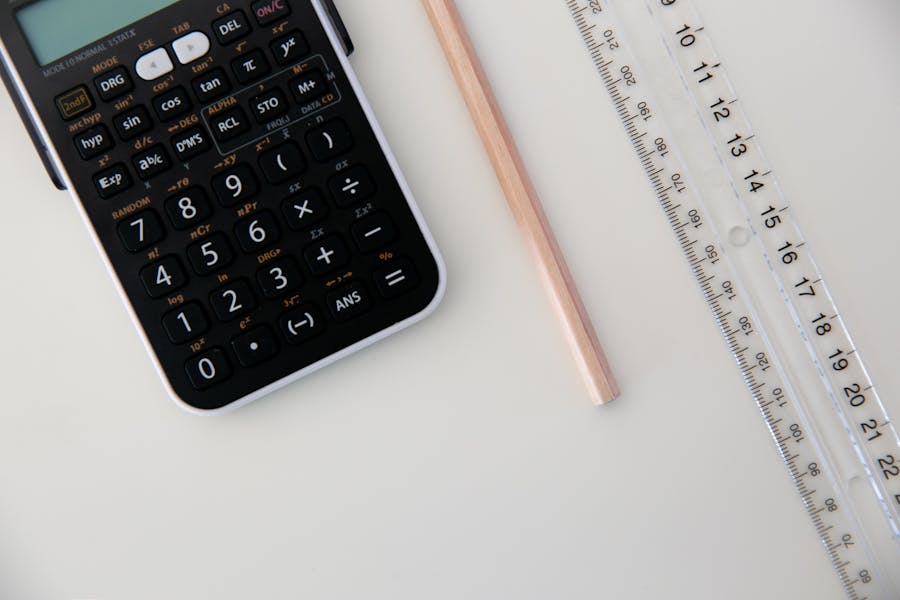
- Know Your Calculator: Before you encounter a complex problem, spend a few minutes exploring the capabilities of your phone’s default calculator app. Identify the fraction button, understand how to input mixed numbers, and check for any simplification or conversion features.
- Landscape Mode for Power: Remember to rotate your phone to landscape mode to access scientific calculator functions if available.
- Verify Input: Always double-check that you’ve entered the numerator and denominator correctly. A misplaced digit can lead to a completely incorrect answer.
- Use Simplification: Whenever possible, let the calculator simplify fractions for you. This reduces the chance of manual errors and presents answers in their most digestible form.
- Consider Third-Party Apps for Frequent Users: If you find yourself constantly struggling with fraction calculations or need advanced features, don’t hesitate to explore specialized third-party apps.
- Understand the Context: While calculators are powerful, always apply a layer of critical thinking. Does the answer make sense in the context of the problem? For example, if you’re halving a recipe, the resulting quantities should logically be smaller.
By embracing the fraction functionalities of your smartphone calculator, you unlock a powerful tool for academic success, practical problem-solving, and everyday efficiency.
aViewFromTheCave is a participant in the Amazon Services LLC Associates Program, an affiliate advertising program designed to provide a means for sites to earn advertising fees by advertising and linking to Amazon.com. Amazon, the Amazon logo, AmazonSupply, and the AmazonSupply logo are trademarks of Amazon.com, Inc. or its affiliates. As an Amazon Associate we earn affiliate commissions from qualifying purchases.