
In the modern landscape of personal computing, the Graphics Processing Unit (GPU) has evolved from a simple component that renders windows and icons into a powerhouse of parallel processing. For gamers, creative professionals, and AI enthusiasts, the NVIDIA GeForce and RTX series represent the gold standard of hardware. However, even the most expensive RTX 4090 is only as capable as the software that dictates its behavior. This software—the driver—acts as the vital translator between your operating system, your applications, and your hardware.
Failing to keep these drivers current can lead to a cascade of issues, from diminished frame rates and visual artifacts to catastrophic system crashes and security vulnerabilities. This guide provides a comprehensive technical walkthrough on how to update NVIDIA drivers, ensuring your system remains at the cutting edge of performance and reliability.
Why Keeping Your NVIDIA Drivers Current is Crucial for Modern Computing
Before diving into the “how,” it is essential to understand the “why.” Drivers are not static files; they are living pieces of software that NVIDIA’s engineers constantly refine to adapt to an ever-changing digital environment.
Performance Gains and Framerate Optimization
The most immediate benefit of a driver update is often found in performance benchmarks. NVIDIA frequently releases “Game Ready” drivers coinciding with the launch of major AAA titles. These updates contain specific optimizations designed to eliminate bottlenecks within a game’s engine. Without the latest driver, your GPU may not utilize its full clock speed or memory bandwidth efficiently, resulting in stuttering or lower average FPS (Frames Per Second).
Support for New Technologies: DLSS, Ray Tracing, and Reflex
NVIDIA is a pioneer in AI-driven rendering. Technologies like Deep Learning Super Sampling (DLSS), Frame Generation, and Path Tracing require complex instructions that are updated via drivers. To access the latest version of DLSS 3.5 or to benefit from improvements in Ray Reconstruction, a driver update is mandatory. Furthermore, for competitive gamers, NVIDIA Reflex updates ensure that system latency is kept to an absolute minimum, providing a measurable advantage in fast-paced environments.
Security Patches and System Stability
Beyond the pixels, drivers are a critical component of your system’s security. High-level hardware access makes GPUs a potential target for exploits. NVIDIA regularly patches vulnerabilities that could allow for unauthorized data access or “denial of service” attacks. Additionally, as Windows or macOS updates their kernel architecture, driver updates ensure that the hardware remains compatible, preventing the dreaded “Blue Screen of Death” (BSOD).
Method 1: The Automated Approach via NVIDIA GeForce Experience
For the vast majority of users, NVIDIA GeForce Experience (GFE) is the most efficient tool for maintaining a healthy system. This companion application automates the discovery and installation process, removing the guesswork from driver management.
Setting Up and Initializing the Software
If you have a modern NVIDIA GPU, GeForce Experience is likely already installed. If not, it can be downloaded directly from the NVIDIA website. Once installed and logged in, the software scans your hardware configuration to determine exactly which driver branch is compatible with your specific architecture, whether it be Pascal, Turing, Ampere, or Ada Lovelace.
Navigating the Drivers Tab
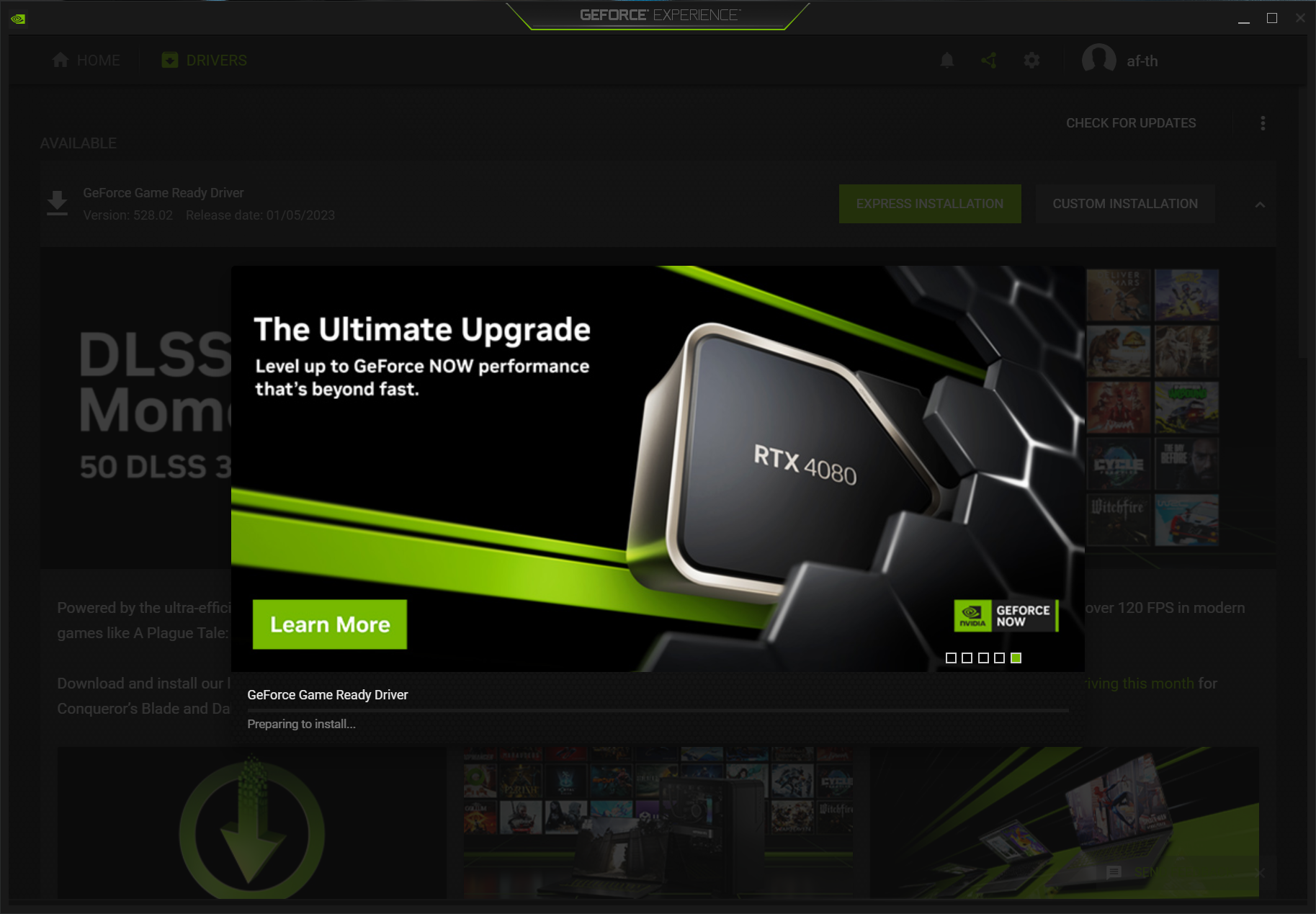
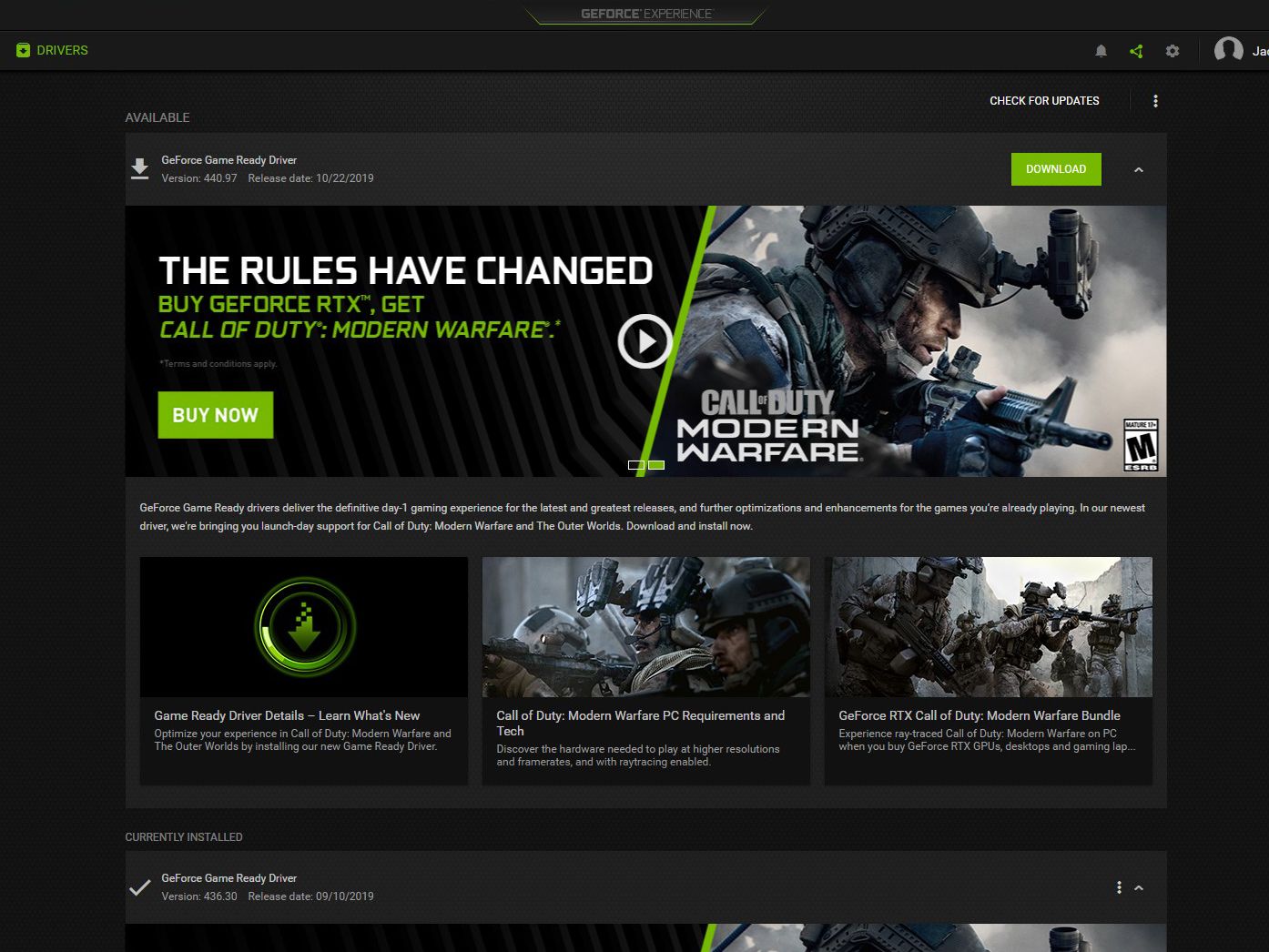
Within the GFE interface, the “Drivers” tab is your primary hub. At the top of this screen, a “Check for Updates” button allows the software to ping NVIDIA’s servers. If a new version is available, a “Download” button will appear. The software downloads the package in the background, allowing you to continue working or gaming until the installation is ready to begin.
Understanding Game Ready vs. Studio Drivers
A unique feature of NVIDIA’s ecosystem is the choice between “Game Ready Drivers” (GRD) and “Studio Drivers” (SD).
- Game Ready Drivers: Optimized for the latest games, these are released frequently and provide the best experience for enthusiasts who want immediate support for new releases.
- Studio Drivers: These are prioritized for stability and performance in creative applications like Adobe Premiere Pro, Autodesk Maya, and Davinci Resolve. They undergo more rigorous testing across creative workflows and are released less frequently.
GFE allows you to switch between these two paths via a simple three-dot menu next to the “Check for Updates” button.
Method 2: Manual Installation for Power Users and Clean Setups
While automated tools are convenient, power users often prefer the manual approach. This method is essential if you are experiencing network issues with GFE, or if you need to install a specific legacy driver for compatibility reasons.
Identifying Your GPU Model and OS Specifications
To download the correct driver manually, you must know your hardware. You can find this information by right-clicking “This PC” and selecting “Manage” > “Device Manager” > “Display Adapters,” or by using a tool like “DxDiag.” You will need to know:
- Product Type (e.g., GeForce)
- Product Series (e.g., GeForce RTX 40 Series)
- Operating System (e.g., Windows 11 64-bit)
- Download Type (Game Ready vs. Studio)
Navigating the NVIDIA Official Download Portal
Once you have your specifications, visit the NVIDIA Driver Downloads page. Use the dropdown menus to match your hardware. Once you click “Search,” you will be presented with the most recent version. Download the .exe file to a known location on your drive.
The Benefits of a “Clean Installation”
When running the manual installer, you are presented with two choices: “Express” or “Custom.” By selecting Custom (Advanced), you gain the option to perform a “Clean Installation.” This checkbox tells the installer to delete all previous profiles and settings before installing the new driver. This is highly recommended if you have been experiencing glitches, as it ensures that corrupted configuration files from older versions do not interfere with the new software.
Advanced Troubleshooting: Dealing with Driver Conflicts and Errors
Sometimes, a standard update isn’t enough. If your drivers refuse to install, or if you experience “driver timeouts” after an update, more aggressive measures are required.
Using Display Driver Uninstaller (DDU) for a Fresh Start
Display Driver Uninstaller (DDU) is a third-party niche utility that is widely respected in the tech community. It is designed to completely remove every trace of the NVIDIA driver from the Windows Registry and file system.
To use DDU effectively:
- Download the latest NVIDIA driver but do not run it yet.
- Boot Windows into Safe Mode.
- Run DDU and select “Clean and restart.”
- Once the system reboots into normal Windows, install the driver you downloaded in step one.
This process eliminates “driver persistence” issues where remnants of old files cause conflicts with the new ones.
Rollback Procedures: What to Do if an Update Fails
Not every update is a step forward. Occasionally, a new driver may introduce a bug specific to your hardware configuration. In these cases, you should “Roll Back” your driver. This can be done through the Windows Device Manager by right-clicking your GPU, selecting “Properties,” and clicking “Roll Back Driver” under the Driver tab. If that option is greyed out, you must manually download the previous stable version from NVIDIA’s “Advanced Driver Search” archive.
Common Installation Error Codes and How to Fix Them
Errors such as “NVIDIA Installer Failed” or “This NVIDIA graphics driver is not compatible with this version of Windows” are usually the result of a mismatch in Windows build versions or background processes interfering with the installer. Always ensure your Windows Update is current before installing GPU drivers, and temporarily disable aggressive antivirus software that might block the installer’s attempts to modify system files.
Best Practices for Long-Term GPU Maintenance
Maintaining your GPU is an ongoing process that extends beyond a single update. Consistency is key to longevity.
Scheduling Regular Checks
While it may be tempting to “set it and forget it,” making a habit of checking for updates once a month is a healthy practice. This ensures you are protected by the latest security patches and are ready for any surprise software launches.

Monitoring Hardware Health Post-Update
After a major driver update, it is wise to monitor your GPU’s thermals and power draw. Tools like MSI Afterburner or the GeForce Experience Overlay (Alt+Z) allow you to see real-time data. If you notice a significant spike in temperature or a drop in clock speed after an update, it may indicate that the driver’s power management profile has changed, requiring a settings adjustment or a rollback.
By understanding the intricacies of the NVIDIA software ecosystem, you transform your computer from a static machine into a dynamic, optimized workstation. Whether you choose the streamlined automation of GeForce Experience or the precision of manual installation and DDU scrubbing, keeping your drivers updated is the single most effective way to protect your hardware investment and unlock its true potential.
aViewFromTheCave is a participant in the Amazon Services LLC Associates Program, an affiliate advertising program designed to provide a means for sites to earn advertising fees by advertising and linking to Amazon.com. Amazon, the Amazon logo, AmazonSupply, and the AmazonSupply logo are trademarks of Amazon.com, Inc. or its affiliates. As an Amazon Associate we earn affiliate commissions from qualifying purchases.