
In the rapidly evolving landscape of financial technology, the transition from physical leather wallets to digital ecosystems is no longer a futuristic concept—it is a daily reality. Google Pay, often abbreviated as GPay, stands at the forefront of this digital revolution. As a multifaceted payment platform developed by Google, it facilitates seamless contactless purchases, peer-to-peer (P2P) transactions, and the digitization of everything from boarding passes to loyalty cards. Understanding how to use Google Pay is more than just learning a new app; it is about leveraging modern software and hardware integration to streamline your digital life.
Getting Started: Setting Up Google Pay on Your Device
The foundation of a successful Google Pay experience lies in the initial configuration. Unlike simple apps that only require a login, Google Pay interacts deeply with your device’s hardware and the global banking infrastructure.
Hardware and Software Requirements
Before diving into the app, you must ensure your hardware is compatible. For mobile payments in physical stores, your smartphone must be equipped with Near Field Communication (NFC) technology. On Android, you can typically check this in the “Connected Devices” or “Connection Preferences” section of your settings. Furthermore, your device must be running a supported version of Android (usually Android 7.0 or higher) or iOS. From a security standpoint, Google Pay requires that your device is not “rooted” or running a custom ROM that compromises the Android hardware backed keystore, as this would fail the SafetyNet compatibility check.
Adding Your First Payment Method
Once you have downloaded the Google Pay app from the Play Store or App Store, the first step is linking a funding source. You can add credit cards, debit cards, or even link a bank account directly for P2P transfers. To add a card, you can use your phone’s camera to scan the physical card, or enter the details manually. Google’s software utilizes Optical Character Recognition (OCR) to accurately pull the card number and expiration date, minimizing manual entry errors.
Verification and Security Protocols
Security is the cornerstone of the Google Pay setup. After entering your card details, your financial institution will require verification. This is usually handled via a One-Time Password (OTP) sent through SMS or email, or via a quick verification call to your bank. This multi-factor authentication (MFA) ensures that the person adding the card to the digital wallet is the authorized owner. Once verified, your card is “tokenized,” a process we will explore in detail later, making it ready for use.
Navigating the Interface: Core Features and Functionality
Google Pay’s user interface is designed with a “mobile-first” philosophy, prioritizing speed and accessibility. The app is generally divided into several key sections: “Pay,” “Explore,” and “Insights” (though these may vary slightly by region).
Contactless Payments (NFC)
The most common use of Google Pay is the “Tap to Pay” feature. When you are at a retail terminal that supports contactless payments—indicated by the universal wave symbol—you simply wake your phone, ensure NFC is on, and hold the back of the device near the reader. The software communicates with the terminal in milliseconds. One of the primary advantages here is that for many smaller transactions, you don’t even need to open the app; the OS handles the handshake in the background as long as the phone is unlocked.
Peer-to-Peer (P2P) Transfers
Beyond retail, Google Pay serves as a powerful tool for sending money to friends and family. By tapping into your contact list, you can send or request money using just an email address or phone number. This feature utilizes the Unified Payments Interface (UPI) in certain regions or direct bank-to-bank transfers in others. The software manages the ledger, providing a clear history of transactions, which is encrypted and stored in the cloud for easy access across multiple devices.
Managing Digital Passes, Tickets, and Loyalty Cards
Google Pay aims to declutter your physical wallet by hosting digital versions of non-payment cards. You can scan the barcodes of your gym membership, grocery store loyalty programs, or movie tickets. Furthermore, when you receive a flight confirmation via Gmail, Google Pay’s integration allows it to automatically pull the boarding pass into your wallet. This cross-app synergy is a hallmark of the Google ecosystem, ensuring that your relevant information is available exactly when the GPS detects you are at the airport or the store.
Advanced Settings and Integration with the Google Ecosystem

To truly master Google Pay, one must look beyond the basic tap-and-go functionality and explore how the software integrates with broader digital workflows.
Using Google Pay for Online and In-App Purchases
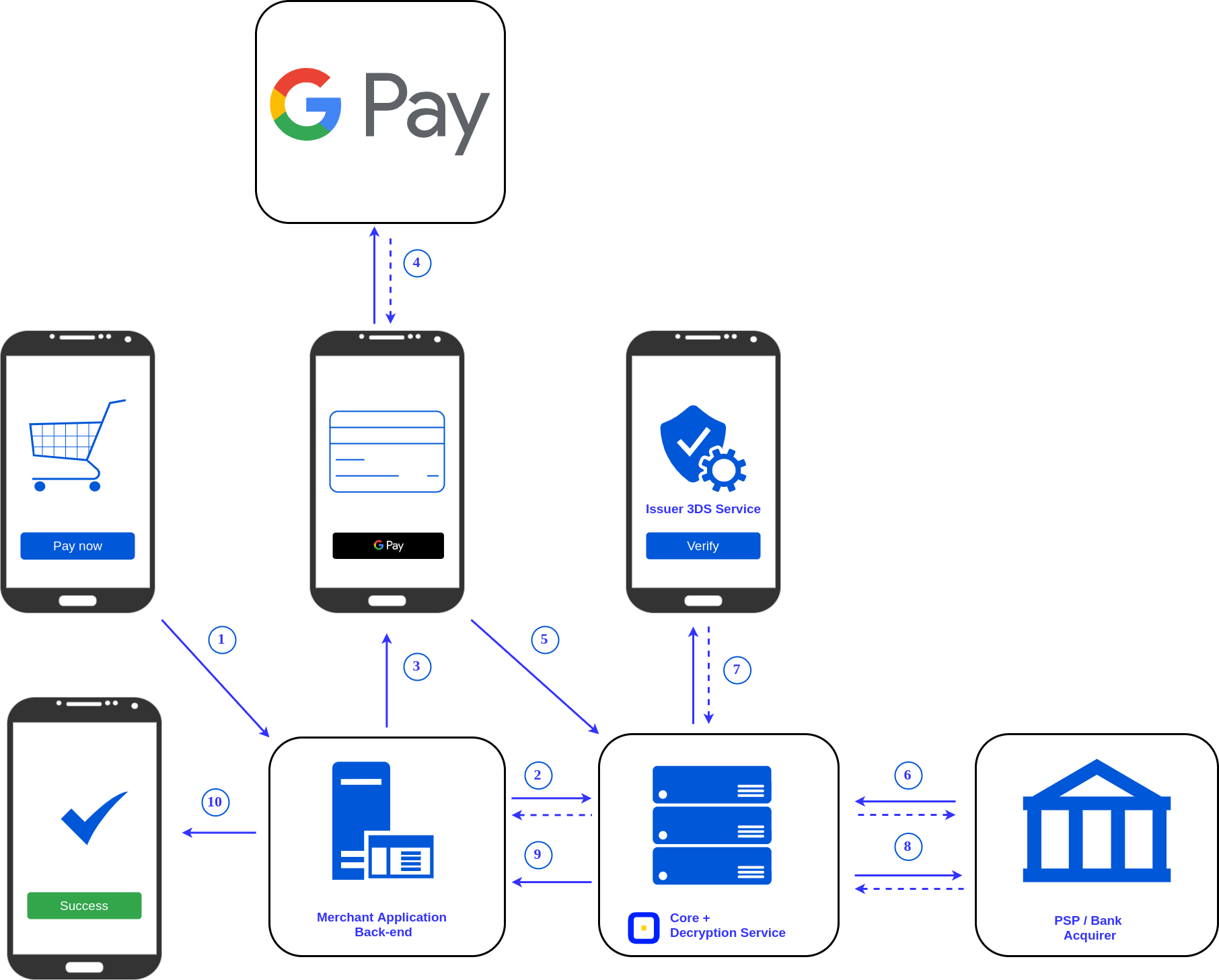
Google Pay isn’t limited to physical stores. It is a dominant force in the e-commerce space. When shopping on websites or within other apps (like Uber or DoorDash), look for the “Buy with Google Pay” button. Selecting this option eliminates the need to manually type in your 16-digit card number and shipping address. The software securely passes your encrypted payment token to the merchant, significantly reducing the friction of the checkout process and increasing conversion rates for developers.
Syncing with Wear OS and Smartwatches
For those who prefer a hands-free experience, Google Pay is deeply integrated into Wear OS. By setting up the app on your smartwatch, you can pay for items by simply flicking your wrist near a terminal. The tech involves a localized version of the Google Pay app on the watch that syncs with your phone’s encrypted credentials. Even if your phone is left in the car, most smartwatches can complete a limited number of transactions offline using stored tokens.
Privacy Controls and Transaction History
Google provides a dedicated web dashboard and an in-app “Insights” tab to manage your data. Here, users can toggle whether Google uses their transaction history to personalize experiences across other Google services. From a technical standpoint, this data is siloed and protected by high-level encryption. You can also view a categorized map of where you have spent money, which is a useful tool for digital budgeting and monitoring for unauthorized activity.
The Tech Behind the Scenes: Security and Encryption
The primary concern for users adopting digital wallets is security. Google Pay utilizes several layers of sophisticated technology to ensure that your financial data remains inaccessible to hackers and even the merchants themselves.
Tokenization and Virtual Account Numbers
The “magic” of Google Pay security is a process called tokenization. When you add a card to the app, Google Pay does not store your actual card number on the device. Instead, it assigns a “Virtual Account Number” or a “Token.” When you tap to pay, the merchant receives this one-time-use or device-specific token rather than your actual credit card details. If a merchant’s database is ever breached, the hackers only find useless tokens that cannot be used elsewhere.
Biometric Authentication
Google Pay leverages the biometric hardware of modern smartphones to add a layer of physical security. Depending on your device, you may be required to verify your identity via a fingerprint sensor, 3D facial recognition, or a secure PIN before a transaction is authorized. This ensures that even if your phone is stolen, your digital wallet remains locked. The software communicates with the “Titan M” or similar security chips on the device to process this authentication in a “Trusted Execution Environment” (TEE) that is isolated from the main operating system.
Remote Management via Google Find My Device
Because Google Pay is tied to your Google Account, it benefits from the “Find My Device” infrastructure. If you lose your phone, you do not necessarily need to cancel your physical credit cards immediately. You can remotely lock the device or wipe its data entirely through the Google web portal. This action instantly de-authorizes the tokens stored on that specific hardware, rendering the digital wallet useless to anyone who finds the device.
Troubleshooting Common Issues and Future Trends
Even the most robust software can encounter occasional hiccups. Understanding how to troubleshoot these issues is key to a smooth user experience.
Resolving Connection and NFC Errors
If Google Pay fails at a terminal, the culprit is often the NFC chip’s placement. Most NFC antennas are located near the top of the phone or around the camera module. If you have a particularly thick or metal-reinforced phone case, it may interfere with the signal. Additionally, ensuring that “Google Play Services” is updated is vital, as this background software manages the security handshakes required for payments. Clearing the cache of the Google Pay app is another common fix for software “hangs.”

The Future of Digital Identity and Wallets
Looking ahead, Google Pay is expanding from a payment tool into a comprehensive “Digital Identity” hub. We are seeing the integration of digital driver’s licenses and car keys (using Ultra-Wideband or UWB technology). This evolution suggests that the “Tech” niche will continue to merge with daily utility, where the software on your phone becomes the master key to your physical and digital world.
In conclusion, using Google Pay is a sophisticated blend of hardware utilization and software security. By understanding the setup process, mastering the interface, and trusting the underlying tokenization technology, users can enjoy a level of convenience and security that traditional payment methods simply cannot match. As Google continues to refine the app and expand its ecosystem, Google Pay remains an essential tool for anyone looking to navigate the modern world with technical efficiency.
aViewFromTheCave is a participant in the Amazon Services LLC Associates Program, an affiliate advertising program designed to provide a means for sites to earn advertising fees by advertising and linking to Amazon.com. Amazon, the Amazon logo, AmazonSupply, and the AmazonSupply logo are trademarks of Amazon.com, Inc. or its affiliates. As an Amazon Associate we earn affiliate commissions from qualifying purchases.