
In the modern digital landscape, the Graphics Processing Unit (GPU) has evolved from a mere component for displaying text into the powerhouse of the personal computer. Whether you are a competitive gamer seeking high frame rates, a creative professional rendering 4K video, or a software developer training machine learning models, your video driver serves as the essential bridge between your operating system and your hardware. Keeping this software updated is not merely a matter of routine maintenance; it is a critical practice for ensuring system stability, security, and peak performance. This guide provides an exhaustive look at how to update your video drivers across various platforms and why this technical task remains a cornerstone of digital literacy.
The Critical Role of Graphics Drivers in Modern Computing
Before diving into the “how,” it is vital to understand the “what” and “why.” A video driver (or display driver) is a specialized piece of software that allows your operating system (Windows, macOS, or Linux) to communicate with your graphics hardware. Without a functional driver, the OS cannot utilize the GPU’s capabilities, often defaulting to a “Basic Display Adapter” mode that offers low resolution and sluggish performance.
Bridging the Gap Between Software and Hardware
Modern GPUs are incredibly complex, containing thousands of small cores designed for parallel processing. Software applications—ranging from your web browser to high-end CAD software—do not talk directly to these cores. Instead, they send instructions to the video driver. The driver then translates these high-level commands into a language the hardware understands. As software evolves and new graphical APIs (Application Programming Interfaces) like DirectX 12, Vulkan, or Metal are updated, drivers must be updated in tandem to interpret these new commands efficiently.
Why Routine Updates Are Essential for Security and Stability
While performance gains often grab the headlines, the security implications of outdated drivers are equally significant. Like any software, video drivers can contain vulnerabilities that malicious actors might exploit to gain kernel-level access to your system. Manufacturers frequently release “Security Bulletins” alongside driver updates to patch these holes. Furthermore, system stability is heavily dependent on driver quality. “Blue Screen of Death” (BSOD) errors or application crashes are frequently traced back to driver conflicts or bugs. Updating ensures that you have the latest bug fixes, reducing the likelihood of system-wide failures during intensive tasks.
Identifying Your Graphics Hardware and Current Driver Version
To update your drivers effectively, you must first know exactly what hardware is inside your machine. Using the wrong driver can lead to installation errors or, in rare cases, system instability.
Utilizing Device Manager for Quick Identification
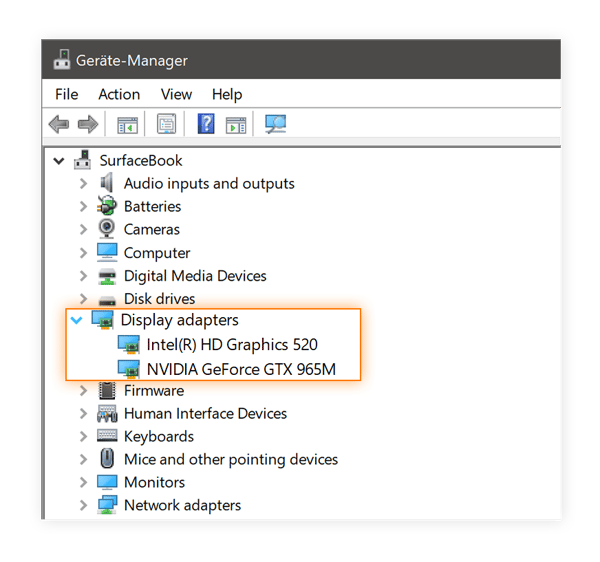
For Windows users, the built-in Device Manager is the most reliable tool for identifying hardware. By right-clicking the Start button and selecting “Device Manager,” you can navigate to the “Display adapters” section. Expanding this will reveal the exact model of your GPU—be it an NVIDIA GeForce, an AMD Radeon, or an Intel UHD Graphics chip. By right-clicking the device and selecting “Properties,” then the “Driver” tab, you can see your current driver version and its release date. This information is crucial for determining if a newer version is actually available.
Understanding Integrated vs. Dedicated Graphics Units
It is important to distinguish between integrated and dedicated graphics. Integrated graphics (typically Intel Iris Xe or AMD Radeon Graphics) are built directly into the computer’s CPU. These are common in thin-and-light laptops and office PCs. Dedicated graphics, on the other hand, are separate components with their own dedicated memory (VRAM). Many modern laptops utilize a “hybrid” system where the integrated graphics handle low-power tasks like web browsing, while the dedicated GPU kicks in for gaming or rendering. In such cases, both sets of drivers may require periodic updates to ensure the switching mechanism (such as NVIDIA Optimus) works correctly.
Step-by-Step Methods to Update Your Video Drivers
There are several ways to approach the update process, ranging from fully automated background tasks to manual “clean” installations.
The Automated Route: Windows Update and macOS Updates
For the average user, the easiest way to stay current is through the operating system’s built-in update utility. On Windows 10 and 11, Microsoft works with hardware vendors to distribute “WHQL” (Windows Hardware Quality Labs) certified drivers via Windows Update.
- Pros: It is seamless and tested for stability.
- Cons: These drivers are often several months behind the latest versions released by the manufacturers. If you are a gamer or professional, this method may not provide the “day-one” optimizations needed for new software releases.

On macOS, video drivers are bundled directly into the OS updates. Apple manages the driver stack for its proprietary M-series silicon, meaning you simply need to keep your macOS version current via “System Settings” > “General” > “Software Update.”
Manufacturer-Specific Software: NVIDIA, AMD, and Intel
The most common way to ensure you have the absolute latest features is through the manufacturer’s proprietary software suites:
- NVIDIA GeForce Experience / NVIDIA App: This software automatically notifies you when a new “Game Ready” or “Studio” driver is available. It offers a “one-click” installation process that handles the download and execution of the update.
- AMD Software: Adrenalin Edition: Similar to NVIDIA, AMD’s suite provides a comprehensive dashboard for checking for updates, as well as performance tuning tools.
- Intel Graphics Command Center: For those using Intel integrated or Arc dedicated graphics, this tool facilitates easy updates and display configurations.
These applications are generally the preferred method for anyone who uses their computer for more than basic productivity, as they offer the most recent performance profiles for new games and creative applications.
Manual Installation: Finding Drivers on Official Websites
For power users or those troubleshooting a specific issue, downloading the driver package directly from the manufacturer’s website is the most precise method. You must navigate to the support or “Drivers” section of NVIDIA.com, AMD.com, or Intel.com, manually select your product series, operating system, and download the executable file. This method is essential if you need to install a specific older version of a driver or if your automated software is failing to connect to the update servers.
Advanced Maintenance: Clean Installations and Troubleshooting
Sometimes, simply clicking “update” isn’t enough. If you are experiencing persistent graphical glitches, flickering, or crashes, a “dirty” update (installing a new driver over an old one) might be the culprit. Residual files from previous versions can occasionally cause conflicts.
When to Use Display Driver Uninstaller (DDU)
Display Driver Uninstaller (DDU) is a third-party niche tool highly regarded in the tech community. It is designed to completely remove all traces of previous graphics drivers from the Windows Registry and system folders. This is often a “last resort” for fixing deep-seated driver issues. To use it properly, one should boot into Windows Safe Mode, run DDU to wipe the existing drivers, and then perform a fresh installation of the latest driver downloaded manually. This ensures that no legacy settings or corrupted files interfere with the new software.
Rolling Back Drivers After a Faulty Update
Not every update is an improvement. Occasionally, a new driver version may introduce a bug that affects a specific game or professional program you use. If you notice a decline in performance immediately after an update, Windows allows you to “Roll Back Driver” through the Device Manager. This reverts the system to the previously installed version. Keeping a record of which driver version worked best for your specific workflow is a hallmark of an advanced user.
The Impact of Modern Drivers on Gaming and Productivity
The evolution of video drivers has moved beyond simple compatibility; they now act as a platform for groundbreaking AI-driven features. Updating your driver today often unlocks entirely new capabilities for your hardware that didn’t exist when you bought it.
Unlocking Features: DLSS, FSR, and Ray Tracing
For gamers, driver updates are the key to technologies like NVIDIA’s DLSS (Deep Learning Super Sampling) and AMD’s FSR (FidelityFX Super Resolution). These features use AI and sophisticated upscaling algorithms to increase frame rates without significantly sacrificing visual quality. Because these technologies are constantly being refined, a driver update can sometimes provide a 10-15% performance boost in specific titles simply by optimizing how the AI handles the workload. Similarly, optimizations for Ray Tracing—the realistic simulation of light—are frequently packaged in driver updates to improve efficiency.

Driver-Level Optimizations for Creative Professionals
It is a common misconception that “Game Ready” drivers are only for entertainment. However, for those in the creative arts, manufacturers often offer “Studio Drivers.” These are branched off the main driver tree but undergo more rigorous testing with applications like Adobe Premiere Pro, DaVinci Resolve, and Autodesk Maya. Updating to a Studio Driver ensures that the GPU’s hardware encoders (like NVENC) are operating at maximum efficiency, significantly reducing video export times and improving the stability of live-streamed content.
In conclusion, maintaining your video drivers is one of the most effective ways to enhance your computing experience. It is a technical necessity that safeguards your system against vulnerabilities while ensuring that your hardware remains capable of handling the latest software demands. By understanding the tools at your disposal—from the simplicity of Windows Update to the precision of a manual clean install—you can ensure your system remains fast, stable, and secure.
aViewFromTheCave is a participant in the Amazon Services LLC Associates Program, an affiliate advertising program designed to provide a means for sites to earn advertising fees by advertising and linking to Amazon.com. Amazon, the Amazon logo, AmazonSupply, and the AmazonSupply logo are trademarks of Amazon.com, Inc. or its affiliates. As an Amazon Associate we earn affiliate commissions from qualifying purchases.