
In an era defined by digital subscriptions and interconnected services, managing your online memberships has become as crucial as managing your physical assets. Amazon Prime, a ubiquitous offering, stands at the forefront of this digital landscape, providing a vast array of benefits from expedited shipping to extensive streaming libraries. However, circumstances change, needs evolve, and sometimes, the most tech-savvy decision is to reassess and, if necessary, terminate a subscription. Understanding the precise digital pathway to end your Amazon Prime membership is not just about saving money; it’s about mastering your digital footprint, controlling your personal data, and optimizing your relationship with the software and services you consume. This comprehensive guide will navigate the digital terrain of Prime cancellation, empowering you with the knowledge to make an informed and efficient exit.

Understanding Your Prime Digital Ecosystem and Why Cancellation Matters
Amazon Prime is more than just a delivery service; it’s a sprawling digital ecosystem designed to integrate deeply into a user’s online life. From Prime Video to Prime Music, Twitch Prime, Whole Foods discounts, and unlimited photo storage, the membership offers a tapestry of digital conveniences. This extensive integration is precisely why approaching its cancellation requires a methodical, tech-centric understanding.
The Multifaceted Digital Benefits of Prime
At its core, Amazon Prime leverages sophisticated algorithms and network infrastructure to deliver value across numerous digital touchpoints. The immediate allure often lies in its shipping benefits, offering unparalleled speed and reliability for e-commerce transactions. Beyond this, however, lies a rich array of digital content platforms: Prime Video competing with other streaming giants, Prime Music offering ad-free listening, and Prime Reading providing a rotating library of e-books. Gamers benefit from Twitch Prime, while cloud enthusiasts appreciate Amazon Photos’ unlimited storage. These components are not disparate services; they are intricately linked through your Amazon account, forming a cohesive digital experience that, for many, becomes a staple of their online routine. Recognizing this integrated structure is the first step in understanding what you’re digitally disengaging from.
Reasons for Digital Disengagement: A User’s Perspective
While Prime’s value proposition is strong, several tech-related factors might prompt a user to consider cancellation. One common reason is service redundancy. With the proliferation of streaming services, users often find themselves subscribed to multiple platforms that offer similar content, leading to an overlap in digital expenditures. Another factor could be a shift in usage patterns; perhaps a user no longer shops frequently on Amazon, or their interest in Prime Video’s library has waned. Performance issues, such as slow streaming speeds or difficulties accessing certain digital benefits, though less common, can also contribute to dissatisfaction. Furthermore, with increasing awareness around digital security and data privacy, some users might choose to minimize their active subscriptions as a way to reduce their online footprint and potential exposure. Ultimately, the decision to cancel often stems from a careful evaluation of the actual utility derived from the digital service against its recurring cost and the resources it implicitly consumes (e.g., bandwidth, storage).
Auto-Renewal: The Default Digital Behavior
A crucial technical aspect of most subscription services, including Amazon Prime, is the auto-renewal mechanism. Designed for user convenience and continuous service provision, auto-renewal automatically extends your membership at the end of each billing cycle (monthly or annually) by charging your linked payment method. While convenient, this default digital behavior means that if a user decides the service is no longer beneficial, they must proactively intervene to stop the recurring charge. Failure to do so can lead to unexpected billing and continued access to services that are no longer desired. Understanding that auto-renewal is the system’s default setting underscores the necessity of taking explicit digital action to terminate the membership, rather than simply letting it lapse. This mechanism highlights the power that digital platforms hold over subscription management and the user’s responsibility to actively manage their account settings.
The Step-by-Step Digital Process to End Your Membership
Successfully ending your Amazon Prime membership is a straightforward digital task, provided you know where to navigate within Amazon’s extensive online interface. The process is designed to be accessible, whether you’re on a desktop browser or using a mobile application.
Accessing Your Account: Web vs. App Interface
The journey to cancellation begins with accessing your Amazon account, and you typically have two primary digital interfaces for this: the Amazon website via a web browser (on a desktop or mobile device) or the Amazon Shopping mobile application. Both pathways offer full functionality for managing your Prime membership, though the visual layout and navigation might differ slightly.
- Via Web Browser: On a computer, navigate to Amazon.com. Log in to your account if prompted. Once logged in, you’ll typically find account management options under “Account & Lists” in the top right corner. For mobile browsers, the interface might be slightly condensed, but the core options remain.
- Via Mobile App: Open the Amazon Shopping app on your smartphone or tablet. Tap on the three horizontal lines (menu icon) usually located in the bottom right or top left corner. From the menu, navigate to “Account.”
While both methods are effective, many users find the desktop web interface to offer a clearer, less cluttered view of account settings, which can be advantageous when navigating multiple sub-menus. Regardless of your chosen interface, ensuring you are logged into the correct Amazon account associated with your Prime membership is the critical first step.
Navigating to Membership Settings: The Digital Path
Once you’ve successfully accessed your account, the next step is to locate the specific section dedicated to Prime membership management. Amazon has a complex digital architecture, but the pathway to Prime settings is generally consistent:
- From “Account & Lists” (Web): After clicking on “Account & Lists,” look for the “Prime” section. This might be explicitly labeled “Prime Membership,” “Your Prime Membership,” or simply an icon representing Prime. Clicking this will take you to your dedicated Prime management page.
- From “Your Account” (App): Within the mobile app, after tapping “Account,” scroll down to the “Account Settings” section. Here, you should see an option like “Manage Prime Membership” or “Prime Membership.” Tapping this will direct you to the same management page as on the web.
This page is your digital hub for all things Prime. It displays your membership status, renewal date, and options to update payment information, view benefits, and crucially, manage your membership. This interface is Amazon’s central point for users to control their interaction with the Prime service’s technical backend.
Executing the Cancellation: Prompts and Confirmations
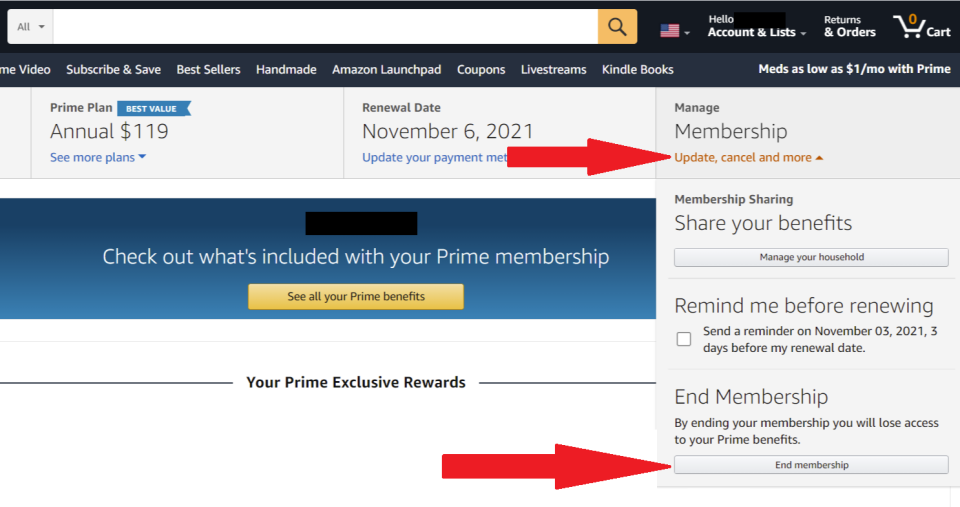
Upon reaching your Prime membership management page, you’ll need to find the specific command to initiate cancellation. This option is usually designed to be discoverable but not overly prominent, reflecting the platform’s desire to retain subscribers while adhering to user control.
- Locating the “End Membership” or “Manage Membership” Option: On the Prime management page, look for a link or button that says something akin to “End Membership and Benefits,” “Manage Membership,” or “Update, Cancel and More.” This option is often nestled within a section detailing your membership type and renewal date. Clicking this will begin the cancellation workflow.
- Navigating Retention Prompts: Amazon, like many digital service providers, will often present a series of prompts designed to encourage you to reconsider your cancellation. These digital nudges might highlight the benefits you’ll lose, offer alternatives like a reminder before renewal, or even propose a discounted rate. It’s important to understand these are automated retention mechanisms. You must continue to select options like “End Membership” or “Continue to Cancel” to proceed.
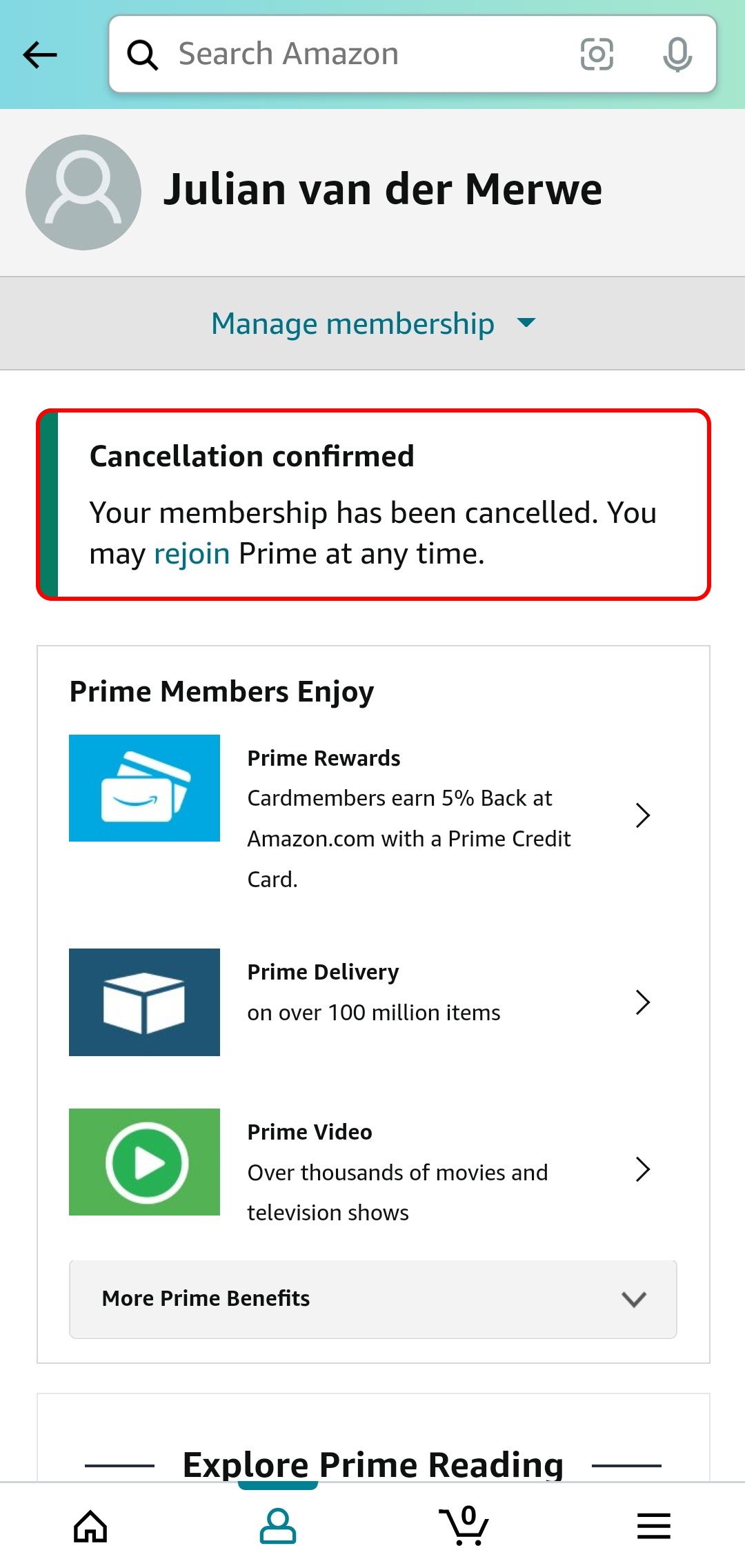
- Final Confirmation: The cancellation process typically culminates in a final confirmation screen. Here, Amazon will usually inform you of your exact end date for benefits, any potential refund eligibility (if applicable), and request a definitive confirmation. Clicking “End Prime Benefits” or a similar button at this stage irrevocably processes your cancellation request. You should then receive a digital confirmation email, serving as a crucial record of your action. This final step is the successful execution of your command within Amazon’s software.
Post-Cancellation Digital Management and Strategic Alternatives
The act of canceling your Amazon Prime membership isn’t the absolute final step in managing your digital relationship with Amazon. There are important post-cancellation considerations, particularly concerning data, content, and the possibility of future re-engagement.
Refund Eligibility and Digital Credit Impact
One of the most immediate financial and technical considerations post-cancellation is refund eligibility. Amazon’s policy dictates that if you haven’t used any Prime benefits (like fast shipping or streaming services) during the current billing period, you are generally eligible for a full refund of your membership fee. If you’ve partially used benefits, Amazon might offer a prorated refund based on usage. This calculation is performed automatically by Amazon’s billing system and reflects a sophisticated backend process for managing customer entitlements. For those who pay annually, this prorated refund can be significant. It’s also important to consider the impact on digital credits or gift cards linked to Prime promotions. While direct gift card balances remain, any specific Prime-related credits (e.g., credits for no-rush shipping) might expire or become unusable once your membership ends. Always review the final confirmation screen and subsequent email for precise details regarding refunds and credit impacts.
Managing Digital Content and Personal Data Post-Prime
Ending your Prime membership does not typically delete your Amazon account or all your purchased digital content. Your Amazon account, which is distinct from your Prime membership, remains active, allowing you to continue shopping, access purchased Kindle books, digital videos, and music. However, certain Prime-exclusive benefits related to content will cease:
- Prime Video and Music: Any content streamed through Prime Video or Prime Music (not purchased) will become inaccessible.
- Prime Reading: Access to the rotating library of free e-books will end.
- Amazon Photos: While previously uploaded photos remain accessible, the unlimited full-resolution storage benefit will revert to the standard 5 GB free tier, potentially requiring you to download files or purchase additional storage if you exceed the limit. This transition is a key point of digital data management.
Regarding personal data, Amazon retains your account information as per its privacy policy and legal obligations. If you wish to completely remove your data from Amazon, you would need to close your entire Amazon account, a much more drastic step than simply canceling Prime. Understanding this distinction is crucial for managing your digital privacy and data footprint effectively.
Considering Pausing Your Membership: A Digital Compromise
For some users, a full cancellation might feel too definitive, especially if they anticipate needing Prime benefits again in the future. Amazon offers a “pause” option, though its availability can vary and is often targeted at specific scenarios, such as when users don’t frequently shop or use streaming services for a period. While not universally available to all accounts at all times, if presented, the “pause” option allows you to temporarily suspend your membership and its associated billing, often for a month or two. This is a strategic digital compromise: it avoids the full cancellation process and makes re-engagement simpler, as your account settings remain largely intact. For those fluctuating in their Prime usage, checking for a “pause” option before fully canceling could be an intelligent way to manage your subscription dynamically, reflecting a flexible approach to digital service consumption.
Ensuring a Smooth Digital Transition and Troubleshooting Tips
Even with a clear step-by-step guide, navigating digital cancellation processes can sometimes encounter unforeseen issues. Knowing how to verify your cancellation and troubleshoot common problems ensures a smooth transition away from Prime.
Verifying Cancellation: Digital Confirmation and Email Records
The most critical step post-cancellation is verification. After completing the process, Amazon’s system should immediately update your Prime membership status. You can verify this by revisiting the “Your Prime Membership” page through your account settings. It should clearly state that your membership has ended or is scheduled to end on a specific date, with no further charges.
Equally important is the digital confirmation email. Amazon sends an email to the address associated with your account, explicitly confirming the cancellation. This email is your official digital receipt and proof of action. It typically reiterates the end date of your benefits and any refund information. It’s advisable to retain this email for your records, perhaps by creating a dedicated folder for subscription confirmations in your digital mailbox. This ensures you have concrete evidence if any billing discrepancies arise later.
Common Digital Roadblocks and Their Solutions
While Amazon’s cancellation process is generally robust, users occasionally encounter digital roadblocks:
- Difficulty Locating the “End Membership” Option: If you can’t find the cancellation link, try searching Amazon’s help pages for “cancel Prime” or “end Prime membership.” These guides usually feature up-to-date screenshots and direct links. Sometimes, the interface might have undergone a slight update, moving the option.
- Persistent Retention Prompts: If you feel stuck in a loop of retention offers, patiently read each screen and select the most direct option to proceed with cancellation (e.g., “End my benefits,” “Continue to cancel”). Amazon is legally obligated to allow you to cancel, so persistence will eventually get you through.
- Billing After Cancellation: If you are charged after receiving a cancellation confirmation, immediately check your Prime membership status again. If it shows as active despite your cancellation, gather your confirmation email and transaction details. This usually points to a technical error in the system’s processing.
- Login Issues: Unable to log in to your Amazon account? Use the “Forgot Password” option. If the problem persists, this could indicate a broader account issue requiring direct Amazon support.
Leveraging Amazon’s Digital Support Channels
Should you encounter persistent issues or require clarification on refunds or data management, Amazon’s digital support channels are your primary recourse.
- Help & Customer Service Page: This section of the Amazon website (and app) provides extensive FAQs and troubleshooting guides. A quick search can often resolve common issues without direct interaction.
- Chat Support: For real-time assistance, Amazon offers a highly efficient chat support system. This digital channel allows you to communicate with a customer service representative without waiting on hold, and conversations are often logged for future reference.
- Phone Support: While a digital company, Amazon still offers phone support, which can be beneficial for complex issues that are difficult to explain via chat or email.
- Email Support: For non-urgent inquiries, sending an email through the “Contact Us” section provides a formal written record of your communication.
When contacting support, be prepared to provide your account details, the date you attempted to cancel, and any confirmation numbers or emails you received. Leveraging these digital channels effectively ensures that any technical hitches in the cancellation process can be swiftly addressed and resolved, maintaining your control over your digital subscriptions.
Ending your Amazon Prime membership is a fundamental exercise in managing your digital life. It underscores the importance of understanding the digital interfaces, automated systems, and data implications of the services we subscribe to. By following these steps and understanding the underlying tech mechanisms, you can confidently navigate the cancellation process, reclaiming control over your subscriptions and ensuring your digital footprint aligns with your current needs and preferences. In an increasingly connected world, mastering such digital tasks is not merely convenient; it’s an essential skill for every informed tech user.
aViewFromTheCave is a participant in the Amazon Services LLC Associates Program, an affiliate advertising program designed to provide a means for sites to earn advertising fees by advertising and linking to Amazon.com. Amazon, the Amazon logo, AmazonSupply, and the AmazonSupply logo are trademarks of Amazon.com, Inc. or its affiliates. As an Amazon Associate we earn affiliate commissions from qualifying purchases.