
In the contemporary digital landscape, streaming services have transitioned from being a luxury to a fundamental component of the modern home entertainment stack. Amazon Prime Video stands as a titan in this space, leveraging Amazon’s massive cloud infrastructure (AWS) to deliver high-bitrate content to millions of devices worldwide. Getting Prime Video is not merely about clicking a “subscribe” button; it involves understanding a sophisticated ecosystem of software compatibility, hardware requirements, and network optimization.
Whether you are looking to integrate Prime Video into a high-end home theater or simply want to watch on a mobile device during a commute, this guide provides a deep dive into the technical pathways for accessing and optimizing the service.
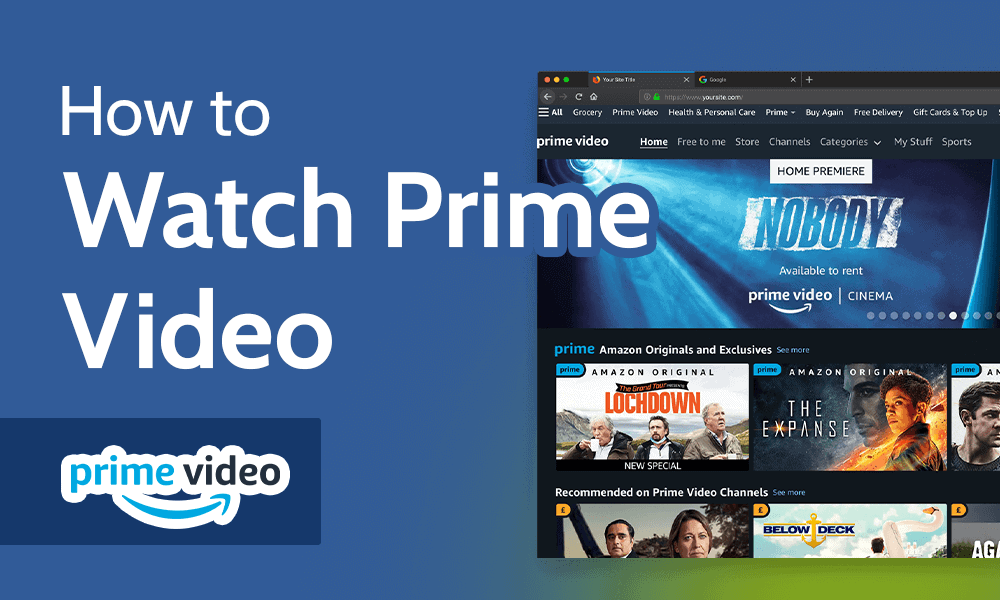
Understanding the Ecosystem: Requirements and Platform Compatibility
Before initiating the setup process, it is vital to understand the technical architecture of Prime Video. Unlike traditional broadcast television, Prime Video relies on an adaptive bitrate streaming protocol. This means the software constantly analyzes your hardware capabilities and internet throughput to deliver the best possible image quality without buffering.
Hardware Requirements: From Smart TVs to Streaming Sticks
Prime Video is designed for cross-platform interoperability. However, the hardware you choose significantly impacts the supported resolution and audio formats.
- Smart TVs: Most modern displays from manufacturers like Samsung (Tizen OS), LG (webOS), and Sony (Android TV/Google TV) come with the Prime Video app pre-installed. These platforms typically support 4K Ultra HD and HDR10+ natively.
- Streaming Media Players: Devices such as the Amazon Fire TV Stick, Roku, Apple TV 4K, and Chromecast with Google TV are the most common ways to get Prime Video on older televisions. The Fire TV ecosystem, in particular, offers the tightest integration with the service’s UI.
- Gaming Consoles: The PlayStation 4/5 and Xbox One/Series X/S families support the app, making them excellent hubs for users who want to consolidate their entertainment hardware.
Software and Operating System Compatibility
To run the Prime Video application effectively, your device’s operating system must meet specific version requirements. For mobile users, this generally means having a relatively recent version of iOS or Android. On desktop environments, Prime Video is accessible through web browsers (Chrome, Firefox, Safari, Edge), though browser-based streaming is often capped at 1080p (HD) due to Digital Rights Management (DRM) restrictions. For the highest quality on Windows, it is recommended to use the dedicated Prime Video app available in the Microsoft Store.
Network Infrastructure: Bandwidth and Data Standards
The technical “gatekeeper” of your Prime Video experience is your internet connection. To get Prime Video running in Standard Definition (SD), a minimum of 1 Mbps is required. However, for a modern experience, the requirements scale significantly:
- High Definition (HD): 5 Mbps minimum.
- 4K Ultra HD: 25 Mbps minimum.
Beyond raw speed, the stability of your local network is paramount. Utilizing a 5GHz Wi-Fi band or a wired Ethernet connection is recommended to reduce latency and prevent the “handshake” issues that can occur between your router and the streaming server.
Step-by-Step Setup: From Account Creation to First Stream
Getting started with Prime Video requires a bridge between your Amazon identity and the specific device you intend to use. This process involves account provisioning and device authentication.
Registering Your Amazon Account and Prime Membership
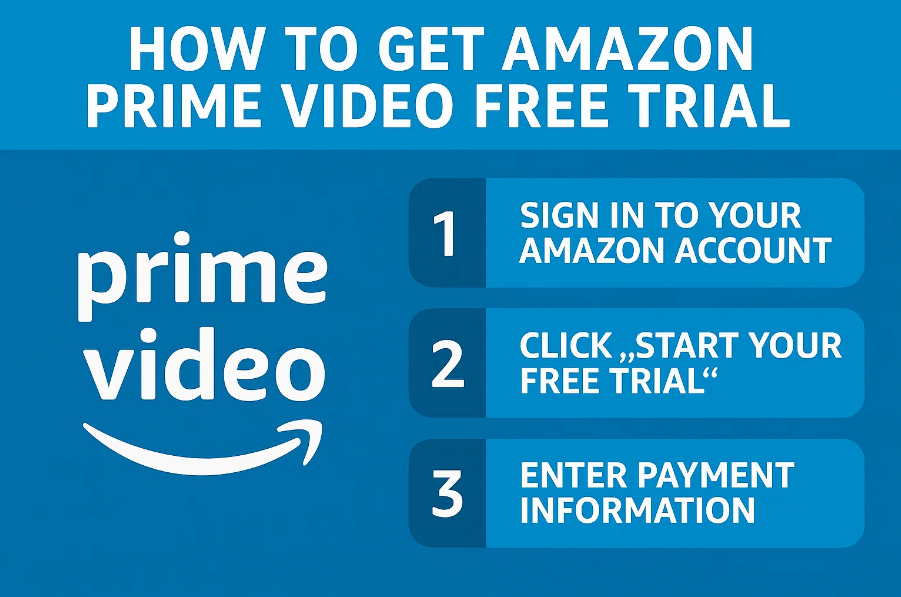
The first technical step is creating or logging into an Amazon account. Prime Video is available through two primary avenues: as part of a full Amazon Prime membership or as a standalone Prime Video subscription. From a technical standpoint, the credentials remain the same. Once the subscription is active, your account is assigned a unique digital signature that allows you to bypass the paywall on any compatible app.
Installing the Prime Video App Across Devices
The installation process varies by platform but follows a consistent logic:
- Mobile (iOS/Android): Navigate to the App Store or Google Play Store, search for “Prime Video,” and download. The app acts as a local container for the cloud-based library.
- Streaming Sticks/Smart TVs: Access the “Apps” or “Store” section of your device’s UI. If the app isn’t pre-loaded, search and install.
- Desktop: While you can stream via a browser, installing the standalone app provides better offline download management and potentially higher bitrates.
Authenticating and Linking Devices
Amazon utilizes a “Register Your Device” protocol to ensure security. When you open the app on a new TV or console for the first time, you will often be presented with a six-digit alphanumeric code.
- The Technical Handshake: You must go to
amazon.com/mytvon a separate computer or smartphone, log in, and enter the code. This links the hardware ID of your device to your Amazon account via an encrypted token, eliminating the need to type complex passwords using a TV remote.
Optimizing the Viewing Experience: Technical Features and Settings
Once you have successfully accessed Prime Video, the next step is fine-tuning the software to match your hardware’s potential. Amazon provides several proprietary tools and settings that enhance the user experience beyond simple playback.
Managing Video Quality and Data Usage
Within the app settings, users can manually adjust “Streaming Quality.” This is particularly useful for users on metered data plans or those using mobile hotspots. The app generally offers three tiers: “Good,” “Better,” and “Best.” These settings adjust the compression algorithms used during playback. By choosing “Best,” the app prioritizes high-bitrate HEVC (High Efficiency Video Coding) or VP9 codecs to deliver crisp visuals, while “Good” utilizes higher compression to save data.
Leveraging Amazon’s Exclusive “X-Ray” Technology
One of the most advanced software features of Prime Video is X-Ray, powered by IMDb. This feature uses time-synced metadata to provide real-time information about the actors on screen, the music playing in a scene, and trivia. Technically, this is achieved by layering a metadata track over the video stream, which remains dormant until the user interacts with the UI. For tech-savvy viewers, X-Ray provides a deeper layer of engagement without needing to leave the application.
Audio and Accessibility Configurations
Prime Video supports advanced audio passthrough, including Dolby Atmos for a 3D soundstage. To get this working, you must ensure that your hardware (e.g., a soundbar or AVR) supports the Dolby Digital Plus codec, which is the container Prime Video uses for Atmos. Furthermore, the platform offers robust accessibility features, such as Audio Descriptions (AD) and customizable Subtitles/Closed Captions, which can be modified for font size, opacity, and color to suit the viewer’s visual requirements.
Advanced Troubleshooting and Digital Security
As with any complex software-as-a-service (SaaS), technical hurdles can arise. Understanding how to navigate these issues is essential for maintaining a seamless viewing experience.
Resolving Common Connectivity and Buffering Issues
If you encounter the dreaded “spinning wheel” or low-resolution playback, the issue is often related to the Content Delivery Network (CDN) or local cache.
- Cache Clearing: On Android TV or Fire TV devices, navigating to the app settings and “Clearing Cache” can resolve UI lag.
- DNS Optimization: Sometimes, the default DNS provided by your ISP can slow down the initial connection to Amazon’s servers. Switching to a high-speed DNS like Google (8.8.8.8) or Cloudflare (1.1.1.1) can improve “Time to First Frame” (TTFF).
- Firmware Updates: Ensure that both the Prime Video app and your device’s firmware are up to date. Updates often include patches for new DRM protocols or security certificates that are required for 4K playback.
Securing Your Account with Two-Factor Authentication (2FA)
Since your Prime Video account is tied to your Amazon shopping account—containing sensitive payment and personal data—security is paramount. It is highly recommended to enable Two-Factor Authentication (2FA) in your Amazon account settings. This adds a layer of security, requiring a code from an authenticator app or an SMS before a new device can be linked to your Prime Video profile.
Managing Profiles and Parental Controls
Prime Video allows for the creation of up to six user profiles. Each profile maintains its own watch history and “Watch Next” queue, powered by Amazon’s machine learning recommendation engine. For households with children, the “Parental Controls” feature allows for the implementation of PIN-based viewing restrictions. These restrictions are applied at the account level but can be tailored to specific devices, ensuring that younger viewers only access age-appropriate content across all technical touchpoints in the home.
By following this technical roadmap, users can go beyond a basic setup and truly master the Prime Video platform. From selecting the right hardware to optimizing network bitrates and securing the account, getting Prime Video is a gateway to a sophisticated, high-performance digital cinema experience.
aViewFromTheCave is a participant in the Amazon Services LLC Associates Program, an affiliate advertising program designed to provide a means for sites to earn advertising fees by advertising and linking to Amazon.com. Amazon, the Amazon logo, AmazonSupply, and the AmazonSupply logo are trademarks of Amazon.com, Inc. or its affiliates. As an Amazon Associate we earn affiliate commissions from qualifying purchases.