
In the rapidly evolving landscape of digital streaming, YouTube TV has established itself as a dominant force in the “Cord Cutting” movement. By bridging the gap between traditional linear television and the flexibility of internet-protocol-based viewing, it offers a robust tech stack for the modern consumer. However, the fluid nature of the software-as-a-service (SaaS) economy means that users frequently need to rotate their subscriptions based on content availability, UI preferences, or technical requirements. Whether you are transitioning to a different service provider or simply streamlining your digital footprint, understanding the technical nuances of canceling YouTube TV is essential.

This guide provides a deep dive into the technical workflow of subscription termination, the data implications of account deactivation, and the broader ecosystem of digital alternatives.
The Technical Workflow: How to Execute a Clean Cancellation
Canceling a high-level service like YouTube TV is not merely a matter of clicking a button; it involves navigating through specific UI layers designed for retention and ensuring that the instruction is successfully communicated to Google’s billing servers. Because YouTube TV integrates deeply with the broader Google account ecosystem, the method of cancellation can vary depending on the device and the original point of purchase.
Executing Cancellation via Web Browser
The most reliable method to ensure a successful cancellation is through a desktop web browser. This interface provides the most granular control over your account settings.
- Authentication: Navigate to
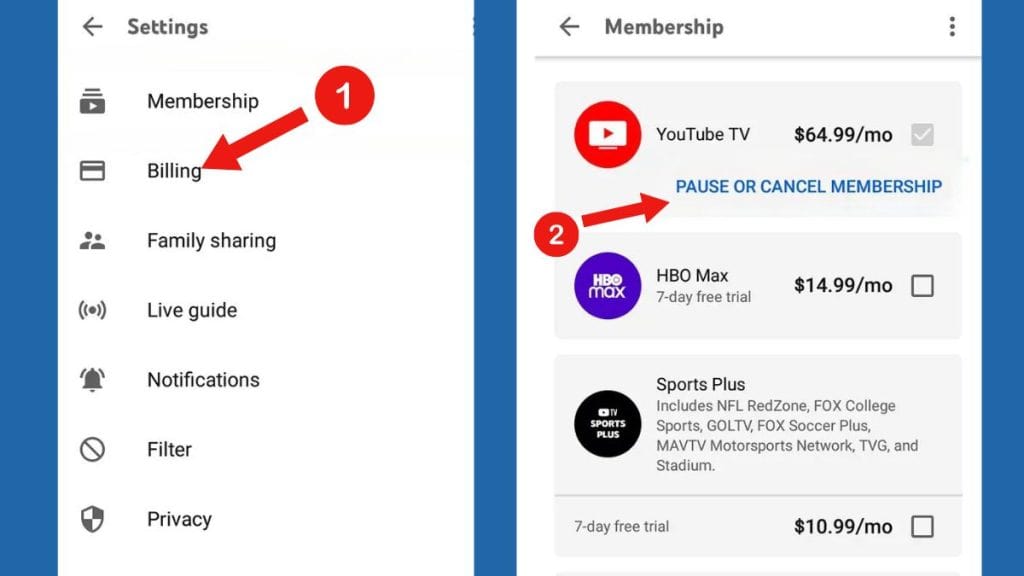
tv.youtube.comand ensure you are logged into the primary account holder’s profile. - Navigation: Click on your profile avatar in the top-right corner and select “Settings.”
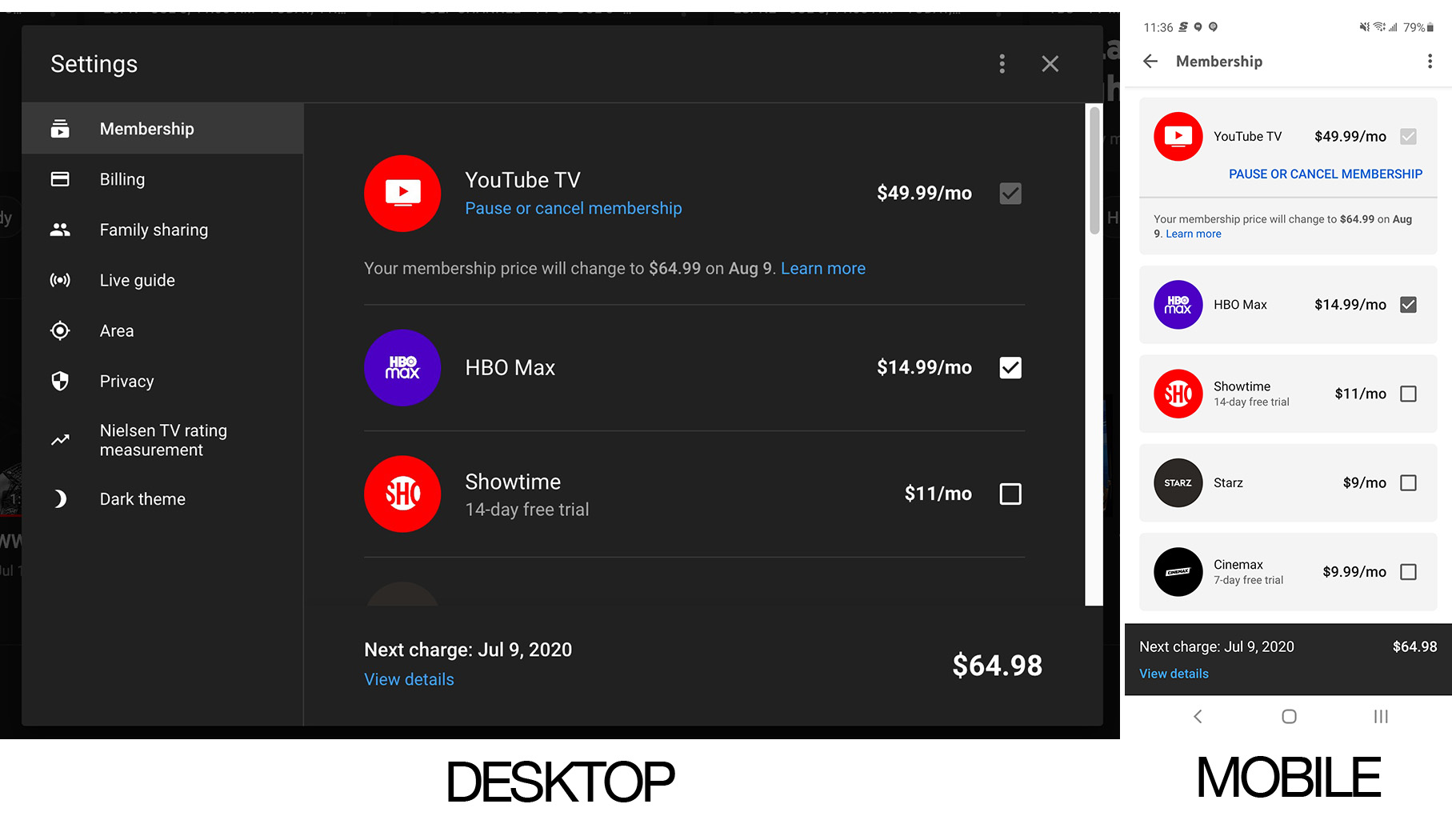
- The Membership Tab: Within the settings menu, the “Membership” tab acts as the command center for your subscription. Here, you will see your current plan and any “add-on” networks like HBO Max or Sports Plus.
- Deactivation: Click “Manage.” You will be presented with two primary options: “Pause” or “Cancel.” To proceed with a full termination, select “Cancel.”
- Retention Flow: Google’s UI will prompt you with a series of feedback questions. From a technical standpoint, this is part of their churn analysis software. Selecting a reason and confirming the cancellation is the final step to updating your status on their database.
Managing Subscriptions via Mobile Ecosystems (iOS and Android)
For users who signed up via mobile applications, the process differs due to the integration with the Apple App Store or Google Play Store. If your billing is handled by a third party, the YouTube TV interface will redirect you to the respective mobile OS subscription manager. In these instances, the “Cancel” command must be sent to the app store’s API rather than directly to YouTube TV’s servers to prevent recurring “In-App Purchase” charges.
Handling Third-Party Billing Gateways
Many users integrate YouTube TV into broader tech bundles through providers like Roku, Frontier, or T-Mobile. In these scenarios, the YouTube TV “Membership” tab will indicate that your subscription is managed by a partner. To cancel, you must access the partner’s specific administrative dashboard. Failing to do so can result in “ghost billing,” where the service is inactive but the automated clearing house (ACH) transfer continues through the third-party provider.
Understanding the “Pause” vs. “Cancel” Mechanics
Google’s engineering team introduced the “Pause Membership” feature as a middle ground for users who wish to temporarily suspend service. Understanding the technical difference between these two states is crucial for managing your digital storage and user profile.
The Logic of the Pause Feature
When you “Pause” a membership, you can set a duration ranging from 4 weeks to 6 months. During this state, the billing cycle is frozen, and your access to live content is revoked. However, the system maintains your personalized settings and, most importantly, your Cloud DVR recordings. From a backend perspective, your account remains “Active-Suspended,” keeping your data pointers intact for an easy resume.
Data Retention: What Happens to Your Library and DVR?
One of the most significant technical advantages of YouTube TV is its unlimited Cloud DVR. However, this storage is contingent on an active subscription status. If you choose to cancel rather than pause:
- Recording Expiration: Your recorded programs are typically stored for 9 months from the time of recording. If you cancel, these recordings are effectively hidden.
- The 21-Day Grace Period: Google generally retains your library settings and preferences for 21 days following the end of your billing cycle. If you restart the service within this window, your data remains intact. After this period, the system may purge your personalized recommendations and DVR pointers to optimize server space.
- Access Until Cycle End: Crucially, canceling does not result in an immediate blackout. Your access remains active until the final day of your current “paid-through” period, as the system has already authorized the license for that 30-day block.
Navigating Post-Cancellation Access and Troubleshooting
Even after the cancellation command is sent, users often encounter technical hurdles or questions regarding the remaining lifecycle of their account.
Pro-rated Billing vs. End-of-Cycle Access
Unlike some legacy cable providers, YouTube TV does not typically offer pro-rated refunds for mid-month cancellations. The system is designed on a “pre-paid” logic. When you initiate a cancellation, the software updates your account status to “Pending Cancellation,” allowing you to utilize the service for the remainder of the days you have already funded. Users should verify the “End Date” in their settings to ensure the automated system has logged the request correctly.
Troubleshooting Common Cancellation Errors
Occasionally, a synchronization error between the YouTube TV app and the Google Billing API can occur. If you receive a confirmation email but still see “Active” status in your app:
- Cache Clearance: The local application cache may be displaying stale data. Force-closing the app or clearing the cache in your device settings usually resolves this.
- The “Multiple Accounts” Conflict: Many users have multiple Google identities. It is a common technical oversight to cancel the subscription on one email while the billing is actually tied to another. Always verify the “Payment Method” linked to the specific Google ID.
Exploring the Post-YouTube TV Tech Landscape
Once you have successfully navigated the cancellation process, the next step is evaluating the technological alternatives that fill the void of live-streamed content. The streaming market is currently bifurcated into two primary tech categories: vMVPDs and FAST services.
Evaluating Competitive vMVPD Protocols
If your reason for canceling was related to UI friction or specific technical limitations (such as bitrate or 4K availability), other Virtual Multichannel Video Programming Distributors (vMVPDs) offer different technological frameworks:
- Hulu + Live TV: Offers a more integrated experience for users already embedded in the Disney/Hulu ecosystem, though its UI logic differs significantly from YouTube’s “grid” layout.
- FuboTV: Targeted toward sports enthusiasts, Fubo utilizes a different compression algorithm optimized for high-motion content, often providing a different visual experience for live sports.
The Rise of FAST Services (Free Ad-supported Streaming TV)
For users who are canceling to move away from the “Linear TV” model entirely, the industry has seen a massive influx of FAST services like Pluto TV, Tubi, and Amazon Freevee. These platforms use a different technical delivery model, relying on server-side ad insertion (SSAI) to provide content for free. Transitioning to these services requires a shift in how you interact with your Smart TV’s hardware, often moving from a dedicated app to a broader “content aggregator” interface.
Security and Privacy Considerations After Deactivation
The technical process of canceling a subscription should also include a brief audit of your digital security and data permissions.
Managing Linked Google Account Permissions
YouTube TV requires extensive permissions to function, including access to your location data (to verify local affiliate broadcasting rights) and your viewing habits (to feed the recommendation engine). After canceling, it is a sound technical practice to visit your Google Account Security Dashboard. Here, you can review which third-party apps still have access to your YouTube TV data and revoke permissions that are no longer necessary.
Revoking App Access and Protecting Personal Data
If you accessed YouTube TV via a shared device (like a hotel Roku or a friend’s smart TV), canceling the subscription does not automatically sign you out of those devices. To protect your primary Google account, use the “Security” tab in your Google profile to “Sign out of all devices.” This sends a global command to terminate all active sessions, ensuring that your account information and any remaining “end-of-cycle” access are not exploited by unauthorized users.
By approaching the cancellation of YouTube TV as a technical workflow rather than a simple chore, you ensure that your data is protected, your billing is halted accurately, and your transition to the next stage of your digital consumption is seamless. The modern “Tech Stack” of a household is always in flux; mastering the entry and exit points of these services is the key to maintaining a streamlined digital life.
aViewFromTheCave is a participant in the Amazon Services LLC Associates Program, an affiliate advertising program designed to provide a means for sites to earn advertising fees by advertising and linking to Amazon.com. Amazon, the Amazon logo, AmazonSupply, and the AmazonSupply logo are trademarks of Amazon.com, Inc. or its affiliates. As an Amazon Associate we earn affiliate commissions from qualifying purchases.