
The landscape of television has undergone a radical transformation over the last decade. As traditional cable infrastructure begins to sunset, software-driven solutions have taken center stage. Leading this digital revolution is YouTube TV, Google’s premier live TV streaming service. Far more than just a repository for viral clips, YouTube TV is a sophisticated piece of software that integrates cloud computing, artificial intelligence, and high-speed data streaming into a seamless user interface.
For many users, transitioning from a physical cable box to a cloud-based application can feel daunting. However, understanding how to use YouTube TV is not just about learning how to change channels; it is about mastering a tech ecosystem designed to personalize your media consumption. This guide explores the technical intricacies of the platform, from initial setup to advanced feature optimization.
The Foundation: Setting Up YouTube TV on Your Hardware
Before diving into content, one must understand the technical environment required to run YouTube TV efficiently. Unlike cable, which relies on coaxial lines, YouTube TV is an over-the-top (OTT) service that operates via the internet. This means the quality of your experience is directly tied to your local area network (LAN) and the processing power of your hardware.
Device Compatibility: From Smart TVs to Dongles
YouTube TV is designed with cross-platform compatibility in mind. To begin, you need a supported device. This includes smart TVs (Samsung, LG, Vizio, and Sony), dedicated streaming sticks (Google Chromecast, Roku, Amazon Fire TV, and Apple TV), and even gaming consoles like the PlayStation 5 and Xbox Series X.
The application architecture is optimized for different operating systems, meaning the experience on an Android-based TV might feel slightly more integrated than on a proprietary OS. For the best performance, it is recommended to use hardware that supports 4K decoding and has a modern processor to ensure the UI remains snappy and responsive.
Initial Configuration and App Integration
Once the app is installed, the setup process utilizes Google’s unified account system. This is a significant technical advantage, as it allows your preferences, search history, and DVR recordings to sync across all devices. Upon first launch, the app will request a “Home Area” verification using your device’s IP address and GPS. This is a critical step because it determines your local broadcast affiliate access (ABC, NBC, CBS, Fox). If you are using a mobile device for setup, ensure your location services are enabled to allow the software to calibrate your local network permissions correctly.
Navigating the Digital Interface: Home, Live, and Library
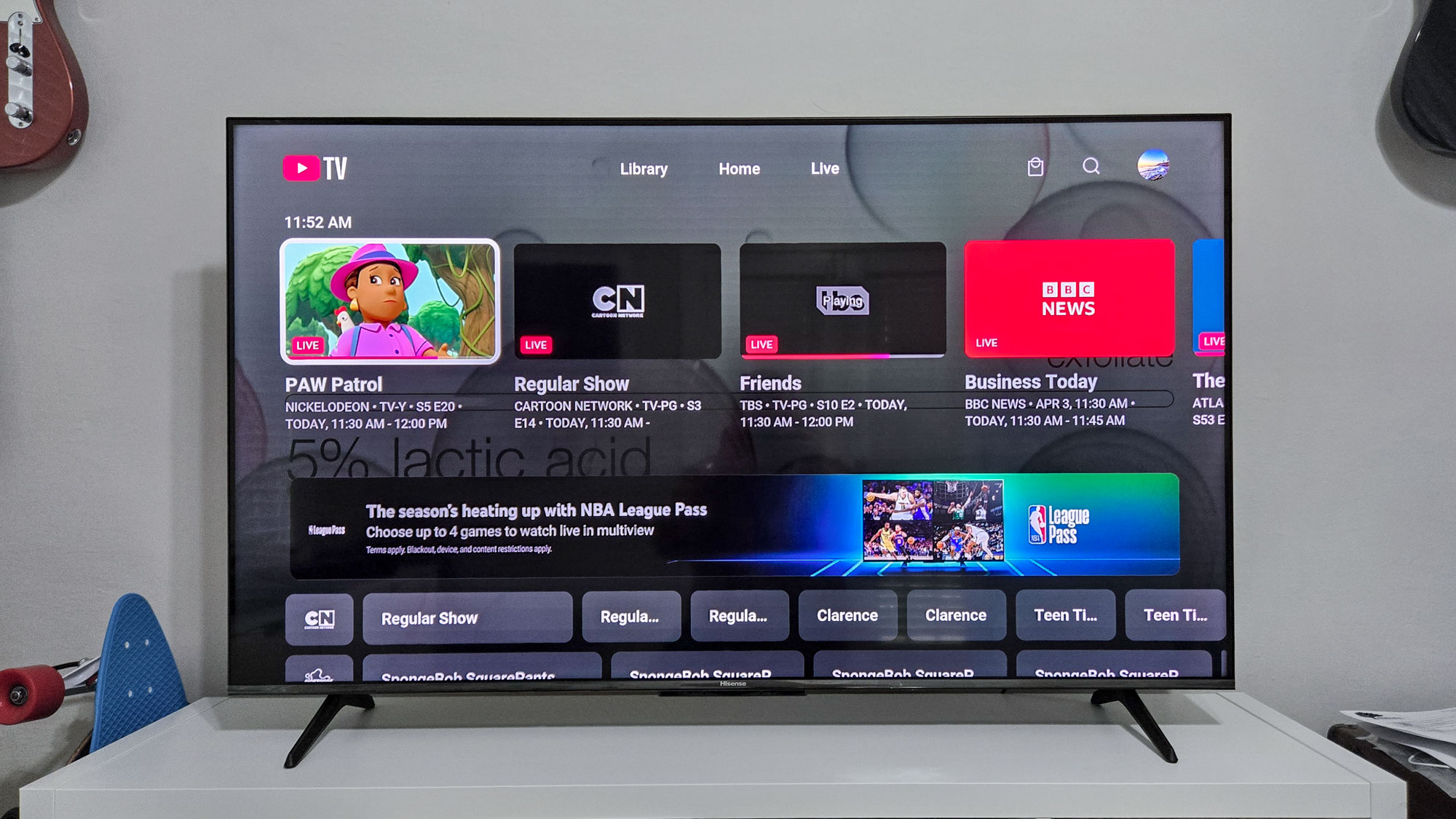
The user interface (UI) of YouTube TV is built on a minimalist design philosophy, focusing on low-latency navigation. The software is divided into three primary sections that serve as the pillars of the user experience.
Understanding the Three-Tab Architecture
- Home: This is the AI-driven heart of the application. Using machine learning algorithms similar to those found on the standard YouTube platform, the Home tab suggests content based on your viewing habits, time of day, and trending topics.
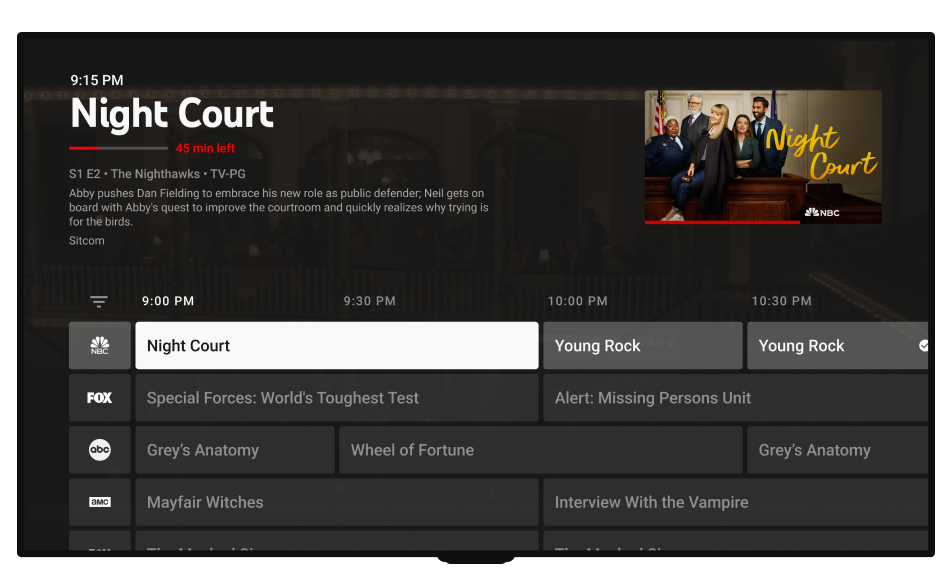
- Live: This is a digital recreation of the traditional Electronic Programming Guide (EPG). It provides a real-time look at what is currently broadcasting across more than 100 channels.
- Library: This is the interface for your Cloud DVR. Everything you “add” to your library is stored here, categorized by show type, recently recorded, and watched status.
Customizing Your Live Guide for Maximum Efficiency
One of the most powerful technical features of YouTube TV is the ability to reorganize the Live Guide. Unlike cable, where channel numbers are static, YouTube TV allows you to go to the “Custom” settings on a web browser or mobile app and drag-and-drop channels into any order you prefer. You can also hide channels you never watch, reducing the data overhead of the guide and making it faster to find the content you value. This level of UI customization is a hallmark of modern software design, putting the user in control of the information hierarchy.
Leveraging Cloud DVR and AI-Powered Search
The true “killer app” within YouTube TV is its Cloud DVR. From a technical perspective, this is a marvel of cloud storage management. Traditional DVRs were limited by the physical hard drive inside the box; YouTube TV removes this bottleneck entirely.
The “Unlimited” Advantage: How Storage Works in the Cloud
YouTube TV offers unlimited storage space for your recordings. When you tell the software to record a show, you aren’t actually downloading data to your device. Instead, you are flagging a specific segment of a stream on Google’s servers to be associated with your account.
These recordings are kept for nine months. The software is intelligent enough to track “New Episodes” versus “Reruns,” allowing you to automate your library management without manual intervention. Because the storage is server-side, you can start a show on your living room TV and resume it exactly where you left off on your smartphone while commuting.
Intelligent Search: Finding Content with Google’s Algorithms
Leveraging Google’s massive search index, the search function in YouTube TV is incredibly robust. You don’t just search for show titles; you can search for “Sports,” “Oscar-winning movies,” or even specific actors. The metadata associated with each broadcast is indexed in real-time, allowing the software to provide granular results. For sports fans, this includes the ability to search for a specific team and “Add to Library,” which instructs the AI to record every televised game for that team regardless of the channel it airs on.
Enhancing Your Viewing with Technical Add-ons
For users looking to push their home theater setup to the limit, YouTube TV offers several high-end technical features that cater to “power users.”
Multi-view and 4K Plus: Pushing the Limits of Bandwidth
One of the most impressive technical feats recently introduced is “Multi-view.” This feature allows users to watch up to four different live streams simultaneously on a single screen—a feature previously reserved for high-end sports bars with expensive hardware matrices. The processing for Multi-view is handled on Google’s servers, meaning it doesn’t require extra processing power from your local streaming stick.
Additionally, the “4K Plus” add-on enables ultra-high-definition streaming for select content. This requires a stable internet connection of at least 25 Mbps per stream. The 4K Plus package also unlocks “Offline Viewing,” allowing you to download DVR recordings to your mobile device, a technical necessity for frequent travelers.
Mobile Synchronization and Remote Management
The YouTube TV app acts as a sophisticated remote control. Using “Cast” technology (Google Cast or AirPlay), you can find content on your phone and beam it to your television. This integration also allows for “Second Screen” experiences; for example, while watching a live NFL game, your mobile device can display real-time stats, fantasy scores, and league standings, all synced to the live broadcast via the app’s backend API.
Security, Privacy, and Account Architecture
As with any cloud-based service, security and account management are paramount. YouTube TV is integrated into the broader Google security infrastructure, providing a level of protection that traditional cable providers cannot match.
Family Sharing: Managing Multiple Streams and Permissions
A single YouTube TV subscription allows for up to six individual profiles. Technically, this is managed through “Google Family Sharing.” Each profile gets its own personalized Home tab and private Library. This is a crucial distinction: your child’s cartoons will not clutter your DVR, and your sports preferences will not influence their recommendations.
The service allows for three concurrent streams. This requires the software to constantly monitor active sessions. If a fourth stream is attempted, the system will prompt the user to manage their active devices, ensuring that the service is not being misused or shared outside the household.
Privacy Settings and Data Control
Because YouTube TV is a Google product, it records viewing data to improve its recommendation engine. However, users have granular control over this data. Within the “Settings” menu, you can pause your watch history or search history. From a digital security standpoint, it is highly recommended to enable Two-Factor Authentication (2FA) on the primary Google account associated with the service to prevent unauthorized access to your billing and subscription data.

The Future of Live TV Tech
Mastering how to use YouTube TV is an ongoing process as the software continues to evolve. With regular updates that introduce new codecs for better picture quality at lower bandwidths, and deeper AI integration for personalized discovery, the platform represents the pinnacle of current streaming technology. By understanding the hardware requirements, mastering the UI, and leveraging the power of the Cloud DVR, users can move beyond the limitations of linear television and embrace a truly digital, on-demand media experience. As internet speeds increase and 5G becomes more prevalent, the technical gap between YouTube TV and traditional cable will only continue to widen, making it the definitive choice for the modern tech-savvy viewer.
aViewFromTheCave is a participant in the Amazon Services LLC Associates Program, an affiliate advertising program designed to provide a means for sites to earn advertising fees by advertising and linking to Amazon.com. Amazon, the Amazon logo, AmazonSupply, and the AmazonSupply logo are trademarks of Amazon.com, Inc. or its affiliates. As an Amazon Associate we earn affiliate commissions from qualifying purchases.