
For digital artists, ArtStation serves as an indispensable global stage, a meticulously curated portfolio platform that connects talent with opportunities and provides a vibrant community for sharing work. Presenting your artwork in its best light is paramount, and often, artists grapple with technical specifications like “DPI” when preparing their images for upload. The question, “what does the DPI on an image for ArtStation should be?” is a common one, rooted in a fundamental misunderstanding of how digital images are displayed online versus how they are prepared for print. In the realm of web content, DPI often takes a back seat to more critical factors like pixel dimensions and file size. This article will thoroughly demystify DPI, clarify its relevance (or lack thereof) for platforms like ArtStation, and provide actionable best practices for preparing your digital art for online exhibition.

Understanding DPI: More Than Just a Number
The term “DPI” is frequently misused and misunderstood in digital contexts. While it’s a critical specification in print, its role in web display is often negligible, leading to confusion among artists transitioning from print-focused workflows to digital-first presentations.
What is DPI (Dots Per Inch)?
DPI stands for Dots Per Inch. It’s a measurement predominantly used in the print industry, referring to the density of tiny ink dots a printer lays down on a physical surface within a one-inch linear span. A higher DPI generally means a finer, more detailed print quality because more ink dots contribute to forming the image. Standard print resolutions typically range from 300 DPI for high-quality photographs to 600 DPI or even 1200 DPI for very detailed graphics. This measurement dictates the physical size and quality of an image when it’s rendered on paper.
DPI vs. PPI (Pixels Per Inch): The Digital Distinction
While DPI describes the physical density of ink dots on paper, PPI stands for Pixels Per Inch, and it describes the density of pixels on a digital display. Every digital image is composed of a grid of pixels. PPI determines how many of these pixels are packed into a one-inch span on a screen. For example, a 72 PPI image means there are 72 pixels for every inch on the screen.
The crucial distinction is this:
- DPI is for print output. It affects the physical size and sharpness of a printed image.
- PPI is for digital display, but critically, it only becomes relevant when a digital image is assigned a physical print dimension. For instance, if you tell Photoshop to print a 1000-pixel wide image at 10 inches wide, it will effectively be printed at 100 PPI.
- For online display, PPI itself is largely irrelevant. What truly matters are the total pixel dimensions of the image (e.g., 1920 pixels wide by 1080 pixels high). A monitor doesn’t care if an image is “72 PPI” or “300 PPI”; it will simply display all the pixels it receives, using its own native pixel density (which is its PPI). If an image is 1920 pixels wide, a monitor will dedicate 1920 of its own pixels to display that width, regardless of the “PPI” value embedded in the image file metadata.
Why DPI Matters (and Doesn’t) for Web Platforms
For web platforms like ArtStation, the DPI value embedded in an image file’s metadata is essentially ignored. Web browsers and display monitors operate solely on pixel dimensions. An image uploaded at 300 DPI with dimensions of 1920×1080 pixels will appear exactly the same on a screen as an image uploaded at 72 DPI with the same 1920×1080 pixel dimensions. The DPI value is merely an instruction for a printer, not for a digital screen.
The only way DPI indirectly matters for the web is if a digital image intended for print at a high DPI (e.g., 300 DPI for a 10×8 inch print, resulting in 3000×2400 pixels) is then scaled down for web display. The original high pixel dimensions from the print-ready file are what make it suitable for scaling down, not the DPI value itself. For web display, focus solely on the total number of pixels.
ArtStation’s Image Requirements: A Focus on Dimensions, Not DPI
Given that DPI is irrelevant for screen display, ArtStation, like most other online portfolio and social media platforms, specifies its image requirements in terms of pixel dimensions and file size, not DPI. Understanding these specifications is key to ensuring your artwork is displayed beautifully and loads efficiently.
ArtStation’s Official Stance on Image Uploads
ArtStation’s primary concern for uploaded images is their overall pixel dimensions and file size. While they don’t explicitly state a “maximum DPI,” because it’s not a relevant metric for web display, they do provide guidelines for resolutions. The platform will automatically optimize and resize images as needed, but uploading within their recommended parameters ensures the best initial quality and fastest processing. ArtStation’s system prioritizes displaying images clearly across a range of devices, from high-resolution desktop monitors to smaller mobile screens. They want to avoid overly large files that slow down page loading, which can detract from the user experience.
The Primacy of Pixel Dimensions for Web Display
When uploading to ArtStation, the critical numbers to pay attention to are the width and height of your image in pixels. For portfolio pieces, artists generally aim for high-resolution images that allow viewers to appreciate detail without excessively large file sizes. A common recommendation for portfolio images is to have the longest side be anywhere from 1920 pixels to 3840 pixels. For instance, a landscape image could be 3840 pixels wide, and a portrait image could be 3840 pixels high.
- Optimal Display: Images with widths around 1920 pixels or 2560 pixels (common monitor resolutions) will look sharp on most displays without excessive scaling.
- Detail Preservation: Going up to 3000-4000 pixels on the longest side allows for good zoom functionality on ArtStation and retains significant detail for viewers on high-DPI (Retina) displays. However, remember that ArtStation will serve scaled versions of your image depending on the user’s screen and bandwidth, so there’s a diminishing return past a certain point for immediate display.
Recommended Resolutions for Different Content Types (Portfolio, Banners, Thumbnails)
ArtStation requires different image sizes for various parts of your profile and projects:

- Main Portfolio Images: Aim for high pixel dimensions. As mentioned, 1920-3840 pixels on the longest side is generally a good range. This allows for detail while keeping file sizes manageable. ArtStation will downscale for thumbnails and mobile viewing, but it uses your high-res upload for the main display and zoom features.
- Project Covers/Thumbnails: These are often square or near-square. ArtStation typically recommends sizes like 800×800 pixels or 1280×720 pixels (16:9 aspect ratio) for project covers. Check ArtStation’s most current guidelines directly, as these can be updated. These smaller images are crucial for attracting clicks and should be visually compelling even at reduced sizes.
- Profile Banners: These are usually wide and short. Common dimensions might be around 1920×300 pixels or 2560×400 pixels. The exact dimensions can vary, so ensure your key visual elements are centrally located to account for potential cropping on different screen sizes.
- File Format: For images, JPEG is standard due to its excellent compression for photographic and painted works, allowing for smaller file sizes. Use the highest quality setting that doesn’t result in an excessively large file (e.g., JPEG quality 8-10 out of 12, or 80-90%). For images with sharp edges or transparency (less common for portfolio pieces but good to know), PNG is suitable.
- File Size: Aim to keep individual image files under 5MB, ideally closer to 1-2MB for faster loading, especially for initial views. ArtStation has generous upload limits (e.g., up to 20-30MB per image for some accounts), but efficiency is key for user experience.
Preparing Your Artwork for ArtStation: Best Practices for Digital Artists
The goal is to present your work beautifully and efficiently. This involves smart exporting, understanding aspect ratios, and diligent quality control.
Exporting for Web: File Formats and Compression
When exporting your work from software like Photoshop, Procreate, Clip Studio Paint, or Blender, always choose “Export for Web” or a similar option that allows you to control dimensions, format, and compression.
- Dimensions: Set your target pixel dimensions (e.g., 2560 pixels on the longest side).
- File Format:
- JPEG: Ideal for most digital paintings, renders, and photographs due to its efficient compression. Use a quality setting between 80-95% to balance quality and file size. Avoid saving JPEGs multiple times, as each save introduces compression artifacts.
- PNG: Use for images with transparency, sharp lines, or flat areas of color where JPEG compression might introduce unwanted artifacts. PNGs are generally larger than JPEGs.
- Metadata: Most export options allow you to strip unnecessary metadata (like camera info or embedded profiles) to slightly reduce file size.
- Color Space: Always export in sRGB. This is the standard color space for web display and ensures your colors appear consistently across different monitors. If you work in Adobe RGB or ProPhoto RGB, convert to sRGB before exporting for web.
The Importance of Aspect Ratio and Cropping
Consider the aspect ratio of your artwork and how it will be displayed on ArtStation.
- Original Aspect Ratio: Try to maintain the original aspect ratio of your artwork to prevent distortion. When resizing, use options that constrain proportions.
- Strategic Cropping: Sometimes, cropping can enhance the composition for a web gallery. If your image is extremely wide or tall, consider a tasteful crop that focuses on the strongest part of the image, or present it as part of a multi-image project showing details. For project covers, ensure the key visual elements are central, as these often get automatically cropped for thumbnails.
- Vertical vs. Horizontal: ArtStation handles both orientations well. Just ensure your chosen pixel dimensions are appropriate for the orientation (e.g., 2560 pixels wide for a horizontal piece, or 2560 pixels high for a vertical piece).
Quality Control: Ensuring Visual Fidelity on ArtStation
Before hitting “publish,” always preview your work as a viewer would.
- Test Uploads: If unsure, upload a small test image to a private project or an unlisted post to see how ArtStation processes it.
- Browser Check: View your ArtStation profile on different web browsers (Chrome, Firefox, Edge) to catch any inconsistencies.
- Device Check: Critically, check your profile on a mobile device and a desktop monitor. This will show you how ArtStation’s responsive design affects your image display and whether your chosen resolutions hold up.
- Zoom Functionality: ArtStation offers a zoom feature. Make sure your uploaded image, when zoomed, still reveals details clearly without becoming pixelated or blurry, indicating you uploaded with sufficient pixel dimensions.
- Readability: For images containing text, ensure it remains legible after uploading and scaling.
Dispelling Common Misconceptions and Advanced Tips
Understanding the nuances of digital image presentation goes beyond basic technical requirements. It’s about leveraging the platform effectively and safeguarding your original work.
The Myth of High DPI for Online Galleries
One of the most persistent myths is that uploading images at 300 DPI will make them look sharper online than 72 DPI images. As established, this is incorrect. The DPI value in the metadata is an instruction for a printer, not for a screen. A monitor simply displays the pixels it’s given. Uploading an image with high pixel dimensions (e.g., 3840 pixels wide) will make it look sharp because there are many pixels to display, regardless of whether the metadata says 72 DPI or 300 DPI. Forcing a higher DPI value on an image without increasing its pixel dimensions achieves absolutely nothing for web display, and if it somehow inflates the file size without adding pixel information, it’s actually detrimental.
Future-Proofing Your Portfolio: Archiving High-Resolution Originals
While you should optimize images for ArtStation with appropriate pixel dimensions and file sizes for web display, it’s crucial to always retain your original, full-resolution, uncompressed master files. These are your “print-ready” versions or the highest quality versions you’ve created.
- Why Archive? You might need these for print orders, client requests, licensing, or if a platform’s requirements change in the future.
- Storage: Store these masters on external hard drives, cloud storage (like Google Drive, Dropbox, Backblaze), or network-attached storage (NAS) with reliable backup strategies.
- Workflow: Incorporate archiving into your post-production workflow. Once a piece is finalized, save the master, and then create a separate “web-ready” version specifically for online platforms.
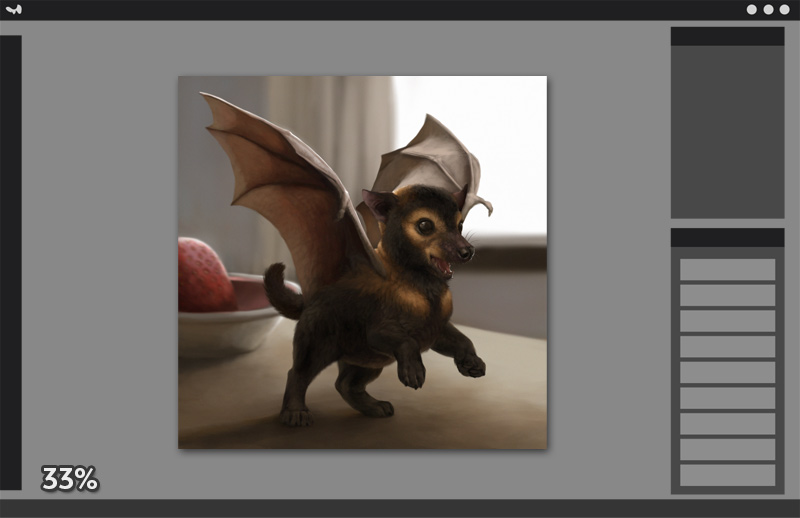
Leveraging ArtStation’s Features for Optimal Display
ArtStation offers several features to enhance how your work is presented:
- Image Stacks and Multiple Views: Don’t just upload one image per project. Use multiple images to show different angles, close-up details, wireframes, breakdowns, or process shots. This provides a richer viewing experience and showcases your skill more comprehensively.
- Embedded Media: For 3D artists, game developers, or animators, ArtStation allows embedding Sketchfab models, YouTube/Vimeo videos, and other interactive media. These are crucial for displaying your work in its intended interactive or animated form.
- Project Description and Tags: Use the project description to provide context, explain your process, and detail the tools you used. Employ relevant tags to improve discoverability. While not directly image-related, a good description enhances the overall presentation of your visual work.
- Responsive Design: Trust ArtStation’s responsive design. When you upload a high-resolution image (e.g., 3840 pixels wide), the platform will automatically serve appropriately scaled versions to users on different devices and with varying internet speeds. Your job is to provide a high-quality source image; ArtStation handles the delivery optimization.
In conclusion, when preparing your digital art for ArtStation, shift your focus entirely from DPI to pixel dimensions and file size. Aim for sufficiently high pixel dimensions (e.g., 1920-3840 pixels on the longest side) to preserve detail and allow for good zoom, while keeping file sizes manageable (e.g., 1-5MB per JPEG) to ensure fast loading times. By adhering to these tech-centric best practices, you empower your artwork to shine brightly on one of the art world’s most prominent digital stages.
aViewFromTheCave is a participant in the Amazon Services LLC Associates Program, an affiliate advertising program designed to provide a means for sites to earn advertising fees by advertising and linking to Amazon.com. Amazon, the Amazon logo, AmazonSupply, and the AmazonSupply logo are trademarks of Amazon.com, Inc. or its affiliates. As an Amazon Associate we earn affiliate commissions from qualifying purchases.