
In the high-stakes world of modern gaming, communication is as vital as mechanical skill. Whether you are coordinating a complex raid in an MMO or calling out enemy positions in a fast-paced shooter, the clarity and control of your voice are paramount. One feature that has become a staple of the Xbox ecosystem—yet remains misunderstood by many—is “Mic Monitoring.” At its core, mic monitoring is a technical solution to a physiological problem created by high-quality gaming headsets.
By understanding the mechanics of mic monitoring, how to configure it on Xbox Series X|S and Xbox One, and the technical benefits it provides, gamers can significantly enhance their immersion and social interaction. This article explores the depths of this technology, moving beyond the surface-level settings to understand why it is a fundamental tool for the modern digital athlete.
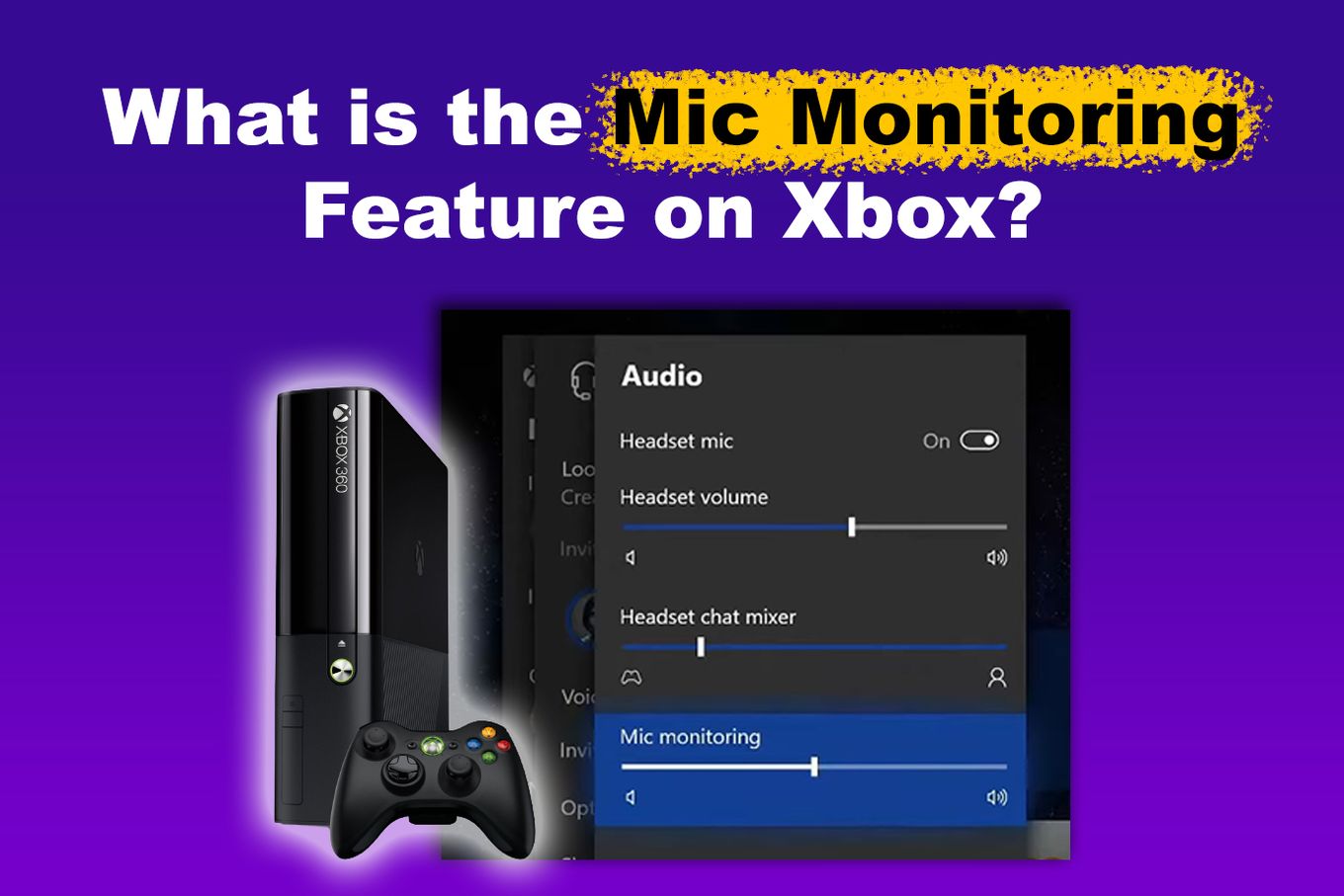
Understanding Mic Monitoring: The Science of Sidetone
To understand mic monitoring, one must first understand the concept of “sidetone.” Sidetone is an electronic feature that feeds a small portion of the user’s own voice back into their headset in real-time. In the context of the Xbox, this means that when you speak into your microphone, the console or the headset hardware captures that audio and plays it back through your speakers or earcups with zero perceptible latency.
What is Mic Monitoring?
Technically speaking, mic monitoring is a feedback loop designed for clarity rather than distortion. When gamers use “closed-back” headphones—which are designed to isolate the user from outside noise—they often lose the ability to hear their own voice naturally. This creates an “occlusion effect,” similar to the sensation of speaking while plugging your ears. Mic monitoring electronically bypasses this physical barrier, ensuring you have an accurate auditory representation of your own vocal input.
How Sidetone Prevents “Shouting” in Multi-Player Gaming
One of the most common issues in online gaming is “volume creep.” Without mic monitoring, a player cannot gauge how loud they are speaking because their headset is muffling their voice. This often leads to accidental shouting, which can be disruptive to others in the household and annoying for teammates in a party chat. By providing a real-time monitor of your voice, your brain receives the necessary feedback to regulate your volume naturally. It bridges the gap between the digital environment and physical reality, allowing for a more controlled and professional communication style.
The Role of Latency in Monitoring
For mic monitoring to be effective, it must be instantaneous. In the tech world, this is referred to as “zero-latency monitoring.” If there were even a 50-millisecond delay between you speaking and hearing your voice, it would cause a psychological phenomenon called Delayed Auditory Feedback (DAF), which often causes speakers to stutter or stop talking entirely. Xbox’s integration of mic monitoring is handled at a low level within the audio stack or the headset’s internal hardware to ensure that the feedback is immediate and seamless.
Setting Up Mic Monitoring on Xbox Series X|S and Xbox One
While the technology behind mic monitoring is complex, Microsoft has made the implementation user-friendly. However, finding the settings requires navigating the Xbox “Guide” menu, which has evolved through various software updates.
Step-by-Step Configuration Guide
To access and adjust mic monitoring on your Xbox console, follow these technical steps:
- Connect your headset: Ensure your headset is plugged into the 3.5mm jack on your controller or connected via a compatible wireless adapter.
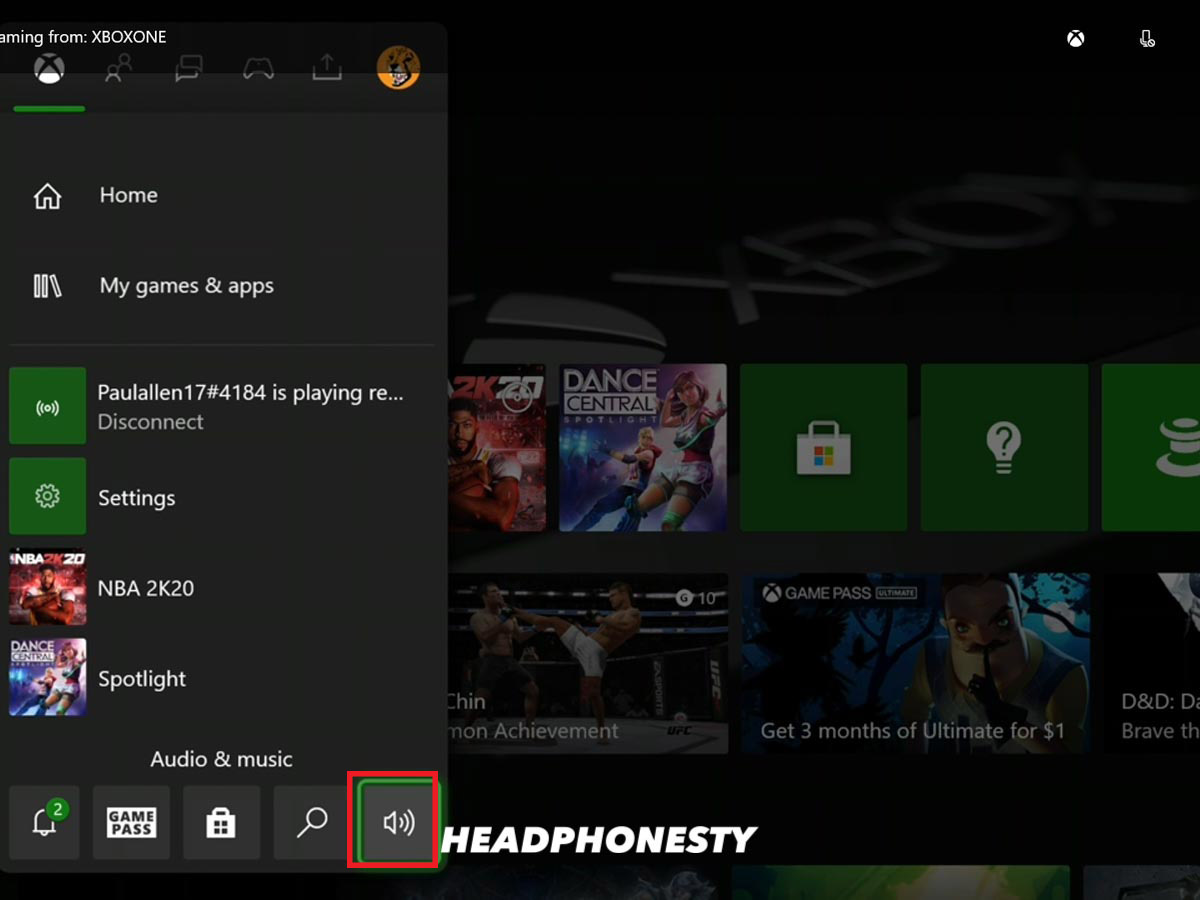
- Open the Guide: Press the Xbox button in the center of your controller to bring up the side menu.
- Navigate to Audio & Music: Scroll to the bottom right of the Guide to find the speaker icon labeled “Audio & Music.” Note: This icon only appears when a headset is actively detected by the system.
- Adjust the Slider: Within this menu, you will see three main sliders: Headset Volume, Headset Chat Mixer, and Mic Monitoring.
Adjusting the Monitoring Level Slider
The Mic Monitoring slider allows you to control the intensity of the sidetone. Moving the slider to the right increases the volume of your own voice in your ears. Most professional gamers prefer a “middle-ground” setting. If it is too high, you might hear background noise from your room (like a mechanical keyboard or a fan). If it is too low, you lose the benefit of vocal regulation. Finding the “sweet spot” depends heavily on the sensitivity of your microphone and the ambient noise in your environment.
Requirements: Compatible Headsets and Controllers
It is important to note that mic monitoring behaves differently depending on your hardware.
- Wired Headsets: Most headsets plugged directly into the 1537, 1697, or 1708 model Xbox controllers support software-driven mic monitoring through the Xbox OS.
- Wireless Headsets: High-end wireless headsets (such as those from SteelSeries, Turtle Beach, or Astro) often have their own internal mic monitoring systems. In these cases, the Xbox “Audio & Music” slider may be greyed out, and you will need to adjust the sidetone using the physical dials on the headset or a proprietary mobile app.
- Legacy Hardware: Older Xbox One controllers without a 3.5mm jack require a Stereo Headset Adapter, which features physical buttons for controlling chat mix and monitoring levels.
The Benefits of Mic Monitoring for Competitive and Casual Play
Beyond simply hearing yourself talk, mic monitoring offers several technical and ergonomic advantages that improve the overall gaming experience. It is a tool that serves both the individual and the wider community.
Enhanced Communication Clarity
In a competitive environment like Halo Infinite or Call of Duty, communication must be concise. Mic monitoring allows you to hear if your voice is “clipping” or if you are breathing too heavily into the microphone. By hearing exactly what your teammates hear, you can adjust the physical position of the mic boom or change your speech patterns to ensure that your tactical call-outs are heard clearly without distortion.
Audio Balance: Game Sound vs. Voice Chat
Modern game design relies heavily on “spatial audio”—the ability to hear exactly where a footstep or gunshot is coming from. However, loud explosions and cinematic scores can drown out voice chat. Mic monitoring helps you maintain a mental separation between “internal” sounds (your voice) and “external” sounds (the game). This cognitive distinction makes it easier to process multiple streams of information simultaneously, a crucial skill for high-level play.
Reducing Vocal Strain and Ear Fatigue
Gaming sessions can last for hours. Without sidetone, players tend to strain their vocal cords to “overpower” the sound isolation of their headsets. Over time, this leads to vocal fatigue. Similarly, shouting into a closed environment can lead to “ear fatigue,” where the listener’s brain becomes tired of processing high-volume, muffled input. Mic monitoring promotes a relaxed speaking volume, which preserves your voice and allows for longer, more comfortable gaming sessions.
Troubleshooting Common Mic Monitoring Issues
Despite its utility, users occasionally encounter technical hurdles when trying to utilize mic monitoring. Understanding the troubleshooting path is essential for maintaining a high-quality audio setup.
Dealing with Latency or Delays
If you experience a delay in your mic monitoring, it is usually a sign of a hardware mismatch or a firmware issue. Wireless interference is a common culprit. If you are using a wireless headset, ensure there are no large metal objects or high-powered routers between the console and the headset. Additionally, check for firmware updates via the Xbox Accessories app on your console. Microsoft frequently releases updates for controllers and wireless protocols to minimize audio latency.
Static and Interference Problems
Because mic monitoring amplifies the input from your microphone, it can also amplify unwanted noise. If you hear a persistent hiss or static, it could be due to “ground loop” interference or a damaged 3.5mm cable.
- Check the cable: Inspect for frays or bends.
- Lower the sensitivity: If your mic monitoring is set to maximum, it may pick up the internal “noise floor” of the controller’s digital-to-analog converter (DAC). Lowering the slider slightly can often eliminate this hiss without losing the benefits of the feature.
Compatibility Issues with Third-Party Adapters
Some third-party controllers or audio adapters do not fully support the Xbox’s native mic monitoring protocol. If the slider is missing from the menu despite having a headset plugged in, the hardware may not be communicating correctly with the Xbox OS. In these instances, using a first-party Xbox controller or a “Designed for Xbox” certified headset is the most reliable way to ensure all software features are unlocked.

Conclusion: Why Mic Monitoring is Essential Tech
In the evolution of gaming peripherals, mic monitoring stands as a testament to the importance of user experience design. It is a feature that addresses the physical reality of how humans interact with technology. By reintroducing the natural feedback of our own voices, it solves the problem of isolation created by high-fidelity, noise-canceling audio gear.
For the Xbox gamer, mic monitoring is more than just a slider in a menu; it is a gateway to better communication, increased comfort, and a more professional presence in the digital world. Whether you are a casual player looking to keep the peace at home or a competitive player seeking every possible technical advantage, mastering your audio environment through mic monitoring is an essential step in your gaming journey. As audio technology continues to advance with spatial sound and AI-driven noise cancellation, the humble sidetone remains the foundation of clear, human-centric communication.
aViewFromTheCave is a participant in the Amazon Services LLC Associates Program, an affiliate advertising program designed to provide a means for sites to earn advertising fees by advertising and linking to Amazon.com. Amazon, the Amazon logo, AmazonSupply, and the AmazonSupply logo are trademarks of Amazon.com, Inc. or its affiliates. As an Amazon Associate we earn affiliate commissions from qualifying purchases.