
Initializing a PlayStation 4 (PS4) is a fundamental process for any user looking to prepare their console for a new owner, troubleshoot persistent issues, or simply start with a clean slate. Far from being a simple “reset,” initialization is a more profound operation that returns the PS4 to its factory default settings, erasing all user data, installed games, applications, and system settings. Understanding what this process entails is crucial for managing your console effectively and ensuring a smooth transition, whether you’re selling your PS4, giving it away, or attempting to resolve deep-seated software problems.
This comprehensive guide will delve into the intricacies of PS4 initialization, exploring its purpose, the different methods available, the implications of performing this action, and what steps to take before and after the process. By the end, you’ll have a clear understanding of what initializing your PS4 truly means and how to execute it with confidence.
Understanding the Core Concept: What Initialization Entails
At its heart, initializing a PS4 is akin to wiping a computer’s hard drive and reinstalling the operating system. It’s a deep-level reset that removes all personalized data, leaving the console in a state identical to when it was first unboxed. This is a critical distinction from simply turning off and on the console or deleting individual games. Those actions are superficial, affecting only specific data points or temporary system states. Initialization, however, targets the entire storage medium and system software, ensuring a complete erasure of your digital footprint.
Data Erasure: A Comprehensive Purge
The primary function of initialization is the thorough deletion of all user-generated content. This includes:
- User Accounts and Profiles: All user profiles, save data for games, screenshots, video clips, and downloaded themes will be permanently removed.
- Installed Games and Applications: Every game purchased digitally or installed from discs, along with all downloaded applications, will be uninstalled and their data erased.
- System Settings: Custom network configurations, parental controls, audio/video output settings, trophy data, and any other personalized system adjustments will revert to their default values.
- User-Created Content: Any unique creations within games that save to the system’s storage, such as custom levels or character designs, will also be deleted.
It is paramount to understand that once initialization is complete, this data cannot be recovered. There is no “undo” button. Therefore, before proceeding, it is vital to back up any data you wish to preserve.
System Software: A Fresh Start
Beyond personal data, initialization also affects the PS4’s system software. While it doesn’t typically involve a complete reinstallation of the operating system from scratch in the same way a PC’s OS might be reinstalled, it does reset the existing system software to its pristine, factory state. This means that any software glitches, corrupted system files, or configuration errors that might have accumulated over time are effectively wiped clean. This is why initialization is often a go-to troubleshooting step for a wide range of PS4 performance issues.
Why and When to Initialize Your PS4
The decision to initialize your PS4 isn’t taken lightly, but several scenarios necessitate this comprehensive reset. Understanding these reasons will help you determine if initialization is the right course of action for your specific situation.
Preparing to Sell or Give Away Your Console
This is arguably the most common and important reason for initializing a PS4. When you’re transferring ownership of your console, it’s imperative to ensure that your personal information and data are completely removed. Failure to do so could lead to unauthorized access to your PlayStation Network (PSN) account, compromise your financial information if it’s stored on the console, or expose sensitive personal data. Initialization provides a robust layer of security, ensuring that the new owner starts with a completely blank slate and cannot access any of your past activities or information.
Troubleshooting Persistent Issues
If your PS4 is experiencing persistent problems that other troubleshooting steps haven’t resolved, initialization can be an effective last resort. These issues might include:
- Frequent Freezing or Crashing: If your console repeatedly freezes or crashes during gameplay or while navigating the menu, it could indicate underlying software corruption that a reset can fix.
- Slow Performance: A gradual slowdown in menu navigation, game loading times, or overall responsiveness can sometimes be attributed to a buildup of temporary files or system errors.
- Network Connectivity Problems: Persistent issues with connecting to Wi-Fi or the PlayStation Network, even after router troubleshooting, might be resolved by a fresh system configuration.
- Disc Drive Errors: While not always a software issue, initialization can sometimes help resolve read errors related to the Blu-ray drive by resetting associated system services.
- Application Crashes: If specific games or applications consistently crash, a full system reset might clear the underlying issues.
It’s important to remember that initialization is a software-level solution. If the problem is due to a hardware failure, initialization will not fix it.
Starting with a Clean Slate
Sometimes, users simply desire a fresh start. Over time, a console can accumulate a vast amount of installed games, applications, and settings, leading to a cluttered experience. An initialization allows you to reclaim storage space, remove old or unused software, and rebuild your gaming library from the ground up. This can be particularly appealing if you’ve been experiencing performance degradation that you suspect is related to system bloat or if you simply want to reorganize your digital life on the console.
The Initialization Process: Methods and Steps
Sony provides straightforward methods for initializing your PS4, accessible through the system’s settings menu. There are two primary options, each serving a slightly different purpose and offering varying levels of data erasure.
Method 1: Restore Default Settings
This is the less aggressive of the two initialization options. It essentially resets the PS4’s system settings to their factory defaults without erasing your installed games and applications.
When to use this:
- You’re experiencing minor software glitches or configuration issues.
- You want to revert all system settings to their defaults without losing your game library.
- You’re troubleshooting minor connectivity or performance problems.
Steps:
- Navigate to Settings: From the PS4 home screen, scroll up to the top bar and select the “Settings” icon (it looks like a toolbox).
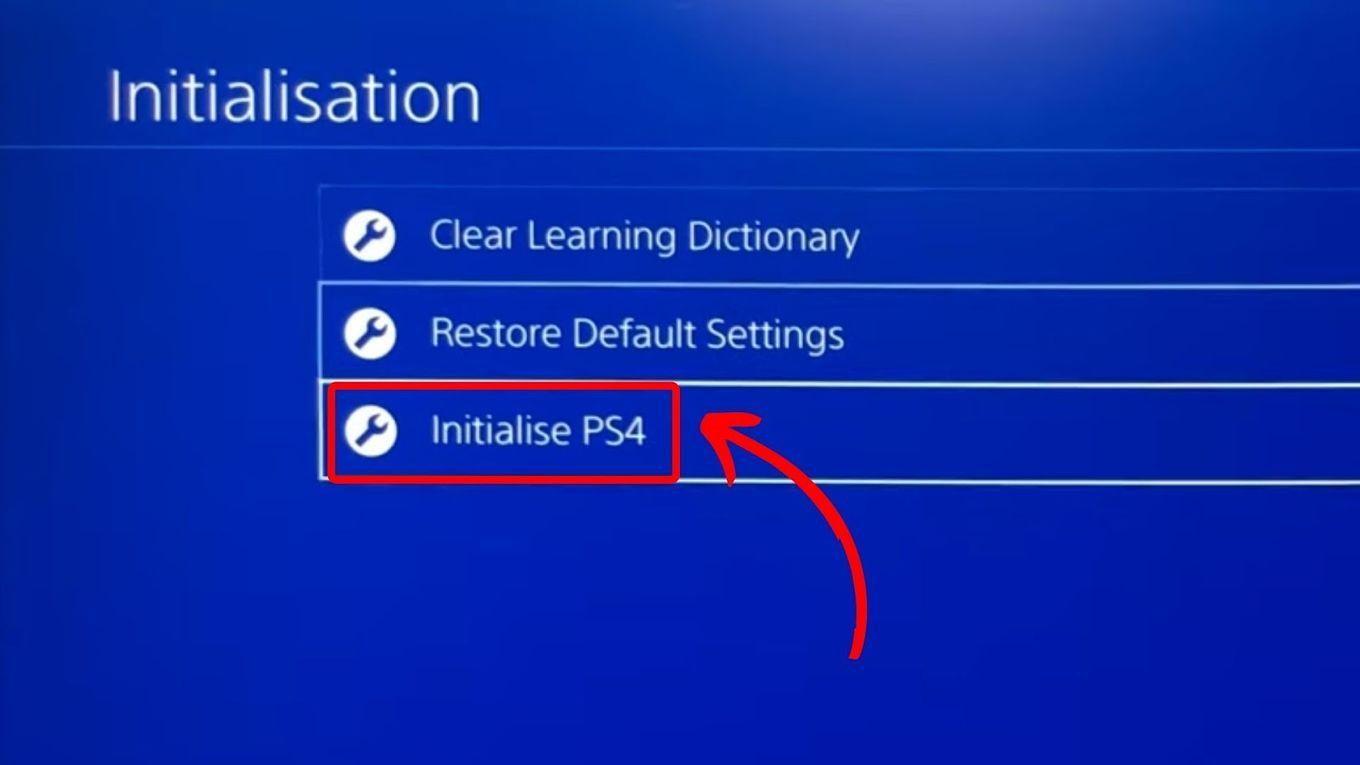
- Select Initialization: In the Settings menu, find and select “Initialization.”
- Choose “Restore Default Settings”: This will be the first option.
- Confirm: The system will prompt you to confirm that you want to restore default settings. Select “Yes.”
- Wait: The PS4 will then proceed to reset all system settings. This process is relatively quick and does not require a restart.
Method 2: Initialize PS4
This is the more comprehensive and commonly understood meaning of “initializing.” It performs a full system reset, deleting all user data, installed applications, and settings. This is the option you should choose when selling, giving away, or performing a deep troubleshoot.
When to use this:
- You are selling, trading in, or giving away your PS4.
- You are experiencing significant software issues that “Restore Default Settings” did not resolve.
- You want to completely wipe the console and start over.
Steps:
- Navigate to Settings: From the PS4 home screen, scroll up to the top bar and select the “Settings” icon.
- Select Initialization: In the Settings menu, find and select “Initialization.”
- Choose “Initialize PS4”: This is the second option.
- Select a Full Format: You will be presented with two options:
- Quick: This erases the data, but the data blocks are not overwritten. It’s faster but less secure if the console is going to someone you don’t trust implicitly.
- Full: This overwrites the data blocks multiple times, making it much more difficult, if not impossible, to recover any erased data. This is the highly recommended option for security purposes.
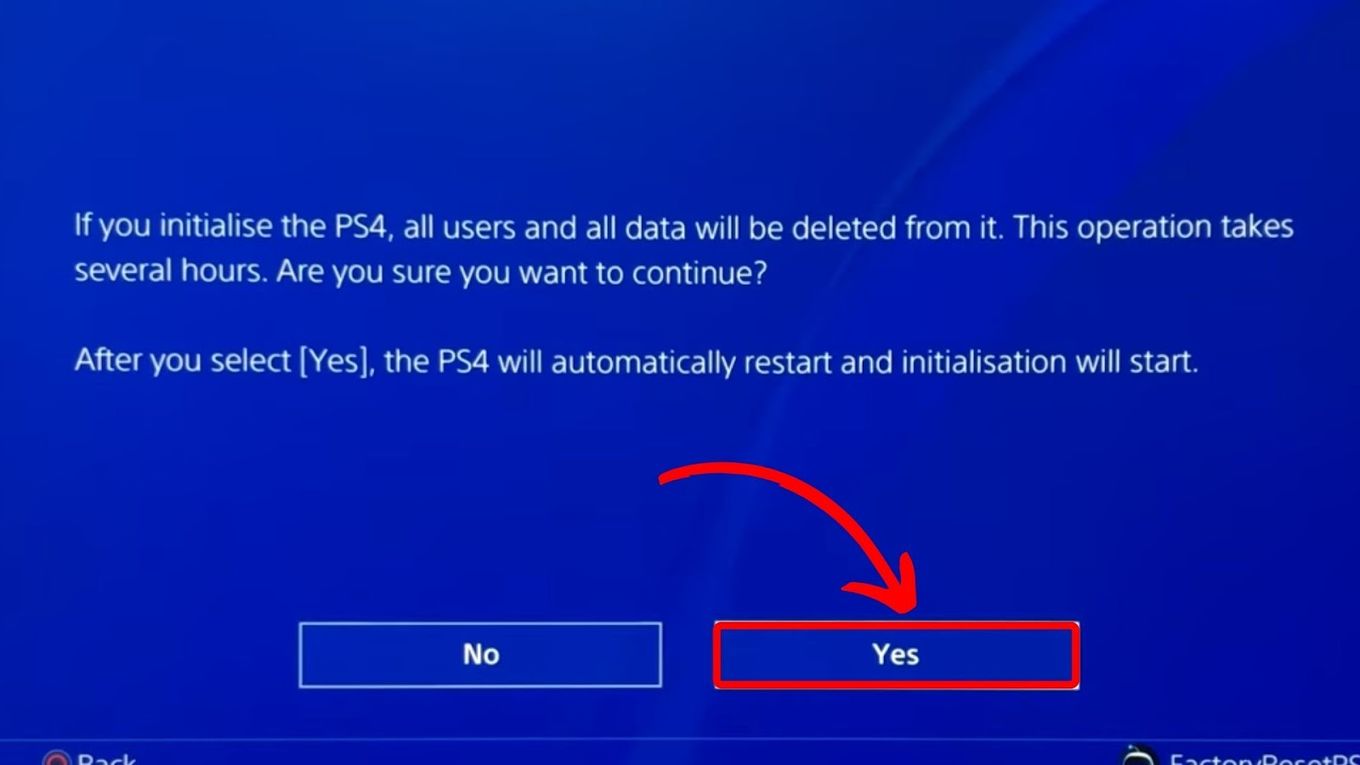
- Confirm Initialization: The system will warn you that all data will be deleted. Select “Yes” to proceed.
- Second Confirmation: You will be prompted for a final confirmation. Select “Initialize.”
- Third Confirmation: Another confirmation will appear. Select “Yes.”
- Wait: The PS4 will now begin the initialization process. This can take a significant amount of time, ranging from a few hours to much longer, depending on the size of your hard drive and whether you chose the “Quick” or “Full” format. During this process, the console will display a progress bar. Do not turn off the PS4 or disconnect it from power during this time.
Special Case: Safe Mode Initialization
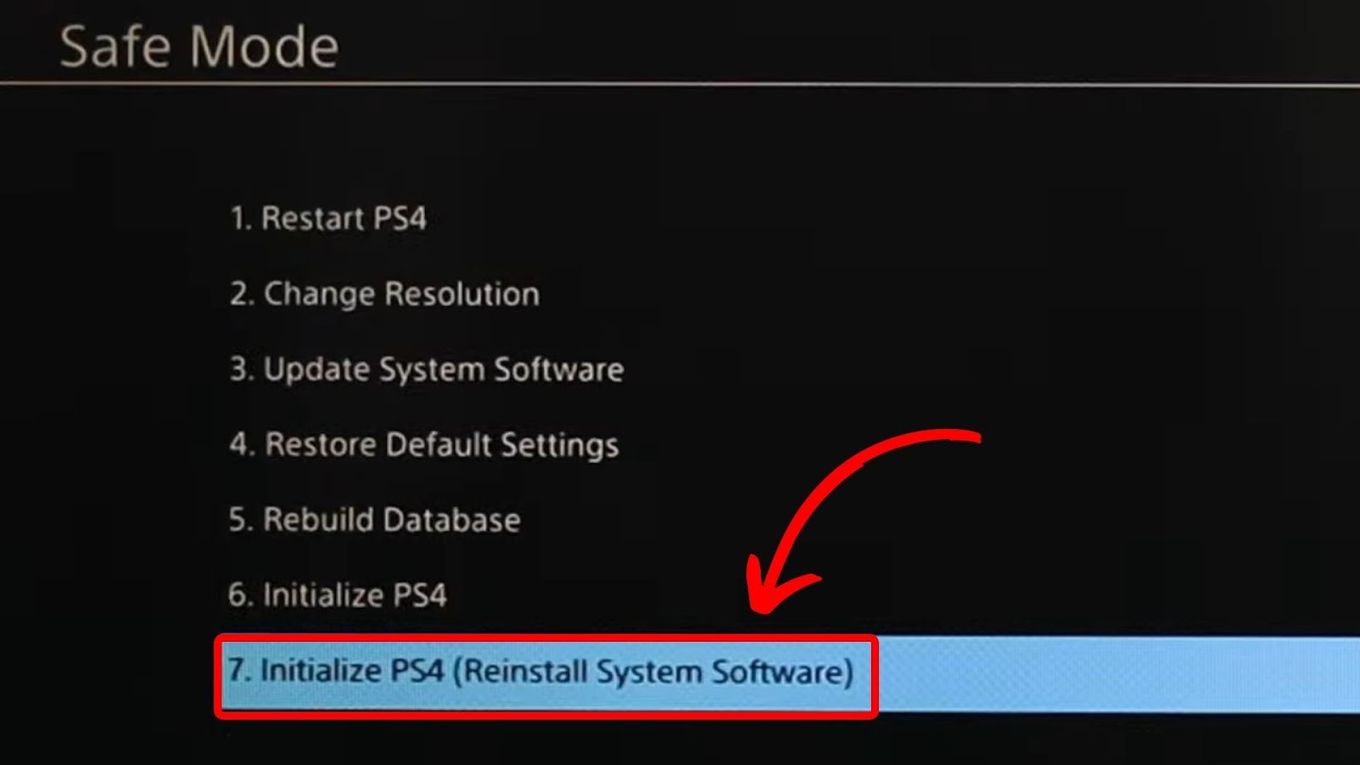
In rare instances where the PS4 is severely malfunctioning and you cannot access the main system settings, you may need to initialize the console through Safe Mode. This is a diagnostic startup mode that allows access to a limited set of recovery options.
When to use this:
- The PS4 fails to boot up normally into the system menu.
- The system menu is inaccessible or corrupted.
Steps to enter Safe Mode:
- Turn off the PS4 completely: Ensure the console is powered off, not just in Rest Mode.
- Press and hold the Power button: Press and hold the power button on the front of the console. You’ll hear the first beep as you press it, and then a second beep approximately seven seconds later. Release the button after the second beep.
- Connect the DualShock 4 controller: Connect your controller to the PS4 using a USB cable.
- Press the PS button on the controller: Press the PlayStation button on your connected controller.
Once in Safe Mode, you will see a menu of options. Select “Initialize PS4 (Reinstall System Software).” This will guide you through a process similar to the “Initialize PS4” option described above, but it may also prompt you to reinstall the system software from a USB drive if the existing system files are too corrupted. You will likely need to download the latest PS4 firmware from the official PlayStation website and put it on a USB stick in a specific folder structure to perform this reinstallation.
Considerations Before and After Initialization
Initializing your PS4 is a significant step with lasting consequences. To ensure a smooth experience and avoid any unintended data loss or complications, it’s crucial to be prepared beforehand and know what to expect afterward.
Pre-Initialization Checklist: What to Do First
Before you initiate the initialization process, a thorough checklist will save you from potential regret:
- Back Up Your Save Data: This is the most critical step. Save data for most games can be backed up to PlayStation Plus cloud storage or to a USB drive.
- PlayStation Plus Cloud Storage: If you have an active PlayStation Plus subscription, navigate to Settings > Application Saved Data Management > Saved Data in System Storage > Upload to Online Storage. Select the games you want to back up and upload them.
- USB Storage Device: Connect a USB flash drive to your PS4. Navigate to Settings > Application Saved Data Management > Saved Data in System Storage > Copy to USB Storage Device. Select the games and copy them.
- Back Up Screenshots and Video Clips: If you want to keep any media you’ve captured, copy them to a USB drive. Go to Settings > System Storage Management > Media > Screenshots or System Storage Management > Media > Videos. Select the files and copy them to USB.
- Deactivate as Your Primary PS4: If you plan to sell the console or give it away, it’s vital to deactivate it as your primary PS4. This disconnects it from your PSN account and allows you to sign in on a new console. Go to Settings > Account Management > Activate as Your Primary PS4 > Deactivate All Other Consoles.
- Sign Out of Your PSN Account: While deactivating as primary is crucial, signing out of your PSN account provides an additional layer of separation.
- Gather System Software (If needed for Safe Mode): If you anticipate needing to use Safe Mode for initialization, download the latest PS4 system software update file from the official PlayStation website. You’ll need a USB drive formatted to FAT32 and a folder structure named “PS4” with a subfolder named “UPDATE” containing the downloaded file.
- Ensure Stable Power Supply: Make sure your PS4 is connected to a reliable power source. A power interruption during initialization can corrupt the system and potentially render the console unusable.
Post-Initialization: What to Expect
Once the initialization process is complete, your PS4 will restart, and you’ll be greeted with the initial setup screen, just as you were when you first unboxed it.
- Initial Setup: You will need to go through the entire PS4 setup process again, including language selection, internet connection, and agreeing to the PlayStation Network terms of service.
- Re-downloading Content: You will need to re-download all your games, applications, and themes from the PlayStation Store. If you have a physical game disc, you’ll still need to insert it to play, but the game itself will need to be installed or its data verified from the disc.
- Restoring Save Data: If you backed up your save data, you can now restore it.
- PlayStation Plus Cloud Storage: Go to Settings > Application Saved Data Management > Saved Data in Cloud Storage > Download to System Storage.
- USB Storage Device: Connect your USB drive, go to Settings > Application Saved Data Management > Saved Data on USB Storage Device > Copy to System Storage.
- Reconfiguring Settings: You’ll need to reconfigure all your system settings, such as display options, sound settings, and parental controls.
Initializing your PS4 is a powerful tool for maintaining your console’s health, ensuring your privacy, and managing its lifecycle. By understanding the implications, preparing adequately, and following the correct procedures, you can confidently navigate this essential aspect of PlayStation ownership.
aViewFromTheCave is a participant in the Amazon Services LLC Associates Program, an affiliate advertising program designed to provide a means for sites to earn advertising fees by advertising and linking to Amazon.com. Amazon, the Amazon logo, AmazonSupply, and the AmazonSupply logo are trademarks of Amazon.com, Inc. or its affiliates. As an Amazon Associate we earn affiliate commissions from qualifying purchases.