
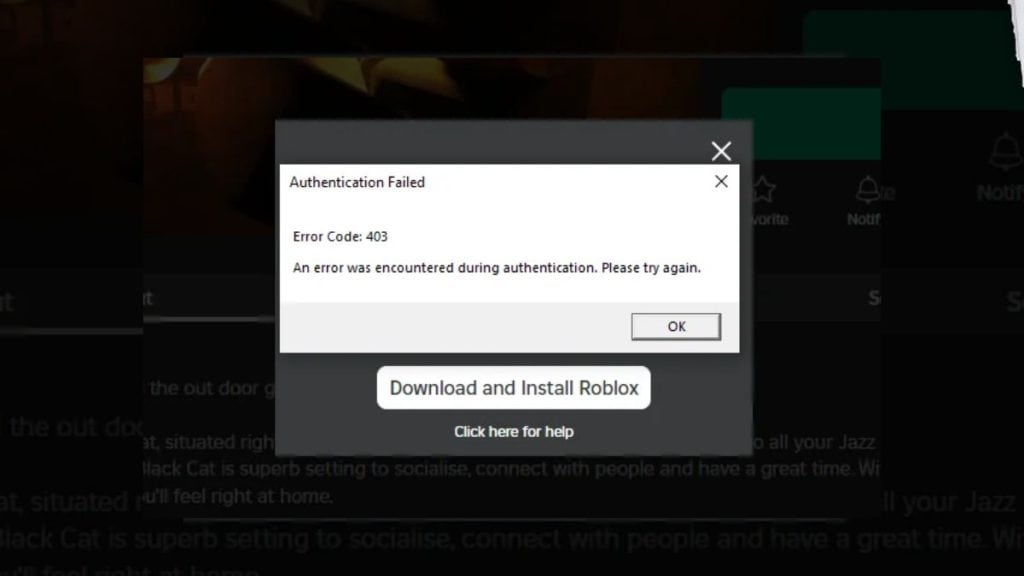
The digital landscape of online gaming is built upon a complex architecture of client-server communications, data packets, and security protocols. For the millions of users on Roblox, a platform that functions as both a game engine and a social network, technical hurdles are an occasional but frustrating reality. Among the most common yet misunderstood issues is the “Error 403.” When this code appears, it signals a definitive “Forbidden” response from the server, effectively barring the user from accessing the platform’s resources.
Understanding Error 403 requires moving beyond the surface-level frustration and looking at the underlying network mechanics. In the world of HTTP status codes, the 4xx category represents client-side errors, but the implications of a 403 error on Roblox often point to a conflict between the user’s local configuration and the platform’s security parameters.

The Anatomy of HTTP Error 403: What Forbidden Access Means in a Gaming Context
To troubleshoot Error 403 effectively, one must first understand what the code signifies in the Hypertext Transfer Protocol (HTTP) hierarchy. Unlike a 404 error, which indicates that a page or resource simply cannot be found, a 403 error acknowledges that the server is reachable and has received the request, but it is explicitly refusing to grant access.
The Client-Server Handshake
When you launch Roblox, your device (the client) initiates a “handshake” with Roblox’s servers. This process involves verifying your identity, your location, and your authorization levels. Error 403 occurs when the server decides that the “credentials” provided by your network or device do not meet the security criteria required to enter the environment. This is not necessarily a ban on your account; rather, it is a rejection of the specific connection attempt.
Why Roblox Servers Deny Entry
Roblox utilizes sophisticated web application firewalls (WAFs) and Content Delivery Networks (CDNs) to manage its massive traffic. These systems are programmed to look for anomalies. If your connection appears to originate from a suspicious IP address, or if your browser/client sends malformed headers that look like a bot attack, the server triggers a 403 Forbidden response as a defensive measure.
Common Technical Triggers for Roblox Error 403
In the majority of cases, Error 403 on Roblox is the result of network-level conflicts or software misconfigurations. By identifying the specific technical trigger, users can move toward a resolution without unnecessary trial and error.
IP Bans and Network Integrity
One of the primary reasons for a 403 error is an IP-based restriction. Roblox employs automated systems to flag IP addresses associated with malicious activity, excessive “pinging,” or previous terms-of-service violations. If you are using a shared network—such as those found in schools, offices, or apartment complexes—you may be experiencing a “collateral” 403 error where another user on the same IP address triggered a temporary block.
DNS Configuration and Cache Corruption
The Domain Name System (DNS) acts as the phonebook of the internet, translating the human-readable “Roblox.com” into a machine-readable IP address. If your local DNS cache is outdated or corrupted, your client may attempt to connect to a legacy server or an incorrect endpoint that Roblox has since secured or decommissioned. This mismatch results in the server rejecting the request with a 403 code.
Software Interference: VPNs and Firewalls
Virtual Private Networks (VPNs) are a common tool for digital privacy, but they are a frequent culprit behind Error 403. Many VPN providers use “recycled” IP addresses that have been flagged by security services like Akamai or Cloudflare, which Roblox uses for protection. Similarly, overly aggressive local firewall settings or third-party antivirus “web shields” may strip necessary authentication tokens from your outgoing data packets, leading the Roblox server to view the request as unauthorized.
Step-by-Step Technical Troubleshooting Guide
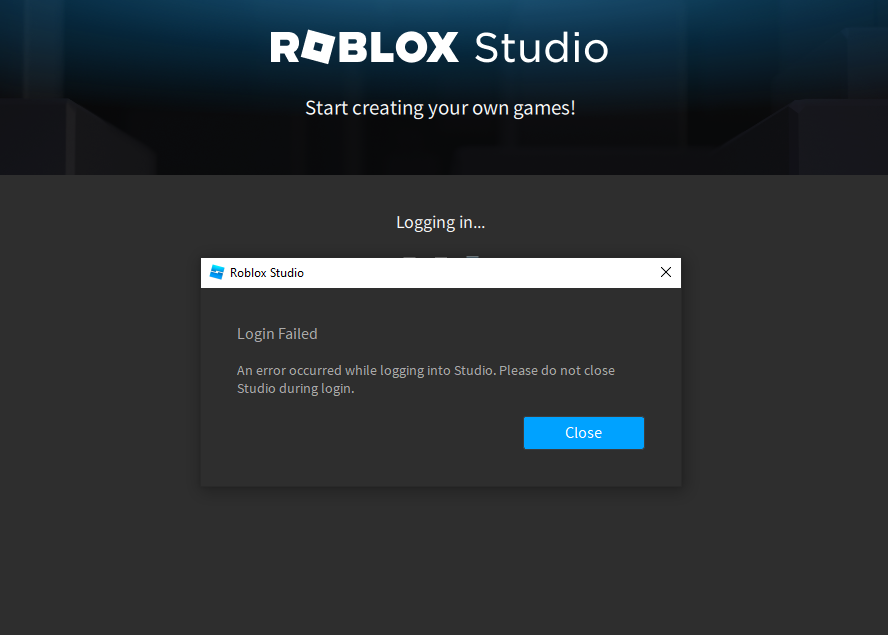
Resolving Error 403 requires a methodical approach to cleaning up your digital footprint and resetting your network’s relationship with Roblox’s servers.
Clearing the Roblox Local Cache
Software glitches often stem from “stale” data stored on your hard drive. Roblox saves temporary files to speed up loading times, but if these files become corrupted, they can interfere with the authentication process.
- Press the Windows Key + R to open the Run dialog.
- Type
%localappdata%and hit Enter. - Locate the Roblox folder and delete it. (Note: This will not delete your games or account data, only the temporary application files).
- Restart the Roblox player to allow it to generate a fresh, clean set of configuration files.
Flushing DNS and Resetting Network Protocols
If the issue lies within your network’s routing, a DNS flush is the most effective “soft reset.”
- Open the Command Prompt as an Administrator.
- Type
ipconfig /flushdnsand press Enter. This clears the old IP mappings. - Follow this with
netsh winsock reset. This command repairs the Windows Socket API, which manages how your computer accesses network services. - Restart your computer to ensure the new network stack is fully initialized.
Assessing Third-Party Security Software
If the error persists, the conflict may be happening in real-time within your security suite. To test this, temporarily disable your VPN or third-party firewall. If Roblox functions correctly without them, you will need to “whitelist” the Roblox executable (RobloxPlayerBeta.exe) within your security software’s settings. This ensures that the software does not intercept or modify the packets being sent to Roblox’s servers.
Advanced Mitigation Strategies for Persistent Connectivity Issues
For some users, standard troubleshooting may not suffice. When Error 403 becomes a recurring obstacle, it indicates a deeper systemic issue within the operating system or the network hardware.
Reinstalling Roblox and Registry Cleanup
Sometimes, the installation of Roblox becomes fundamentally flawed due to interrupted updates. A clean reinstallation is often necessary.
- Uninstall Roblox via the “Apps & Features” menu in Windows.
- After uninstallation, ensure the
C:Users[YourUser]AppDataLocalRobloxfolder is completely gone. - For advanced users, checking the Windows Registry for orphaned Roblox keys can prevent the new installation from inheriting old errors. However, this should be done with caution, as the registry is vital for system stability.
- Download the latest version of the installer directly from the official Roblox website rather than using a previously downloaded setup file.
Monitoring Server Status and Regional Outages
It is important to recognize when the problem is not on your end. Roblox operates on a global infrastructure, and occasionally, specific regional data centers may experience “Forbidden” errors during maintenance or DDoS (Distributed Denial of Service) mitigation phases. Before performing drastic system changes, check third-party status monitors or the official Roblox Status page. If the “User Authentication” or “Website” categories show degraded performance, the 403 error is likely a server-side issue that will resolve once Roblox engineers deploy a fix.
The Future of Platform Stability: How Roblox is Evolving its Infrastructure
As Roblox continues to grow into a “metaverse” titan, the technology behind its connectivity is undergoing significant evolution. The platform is moving toward more robust edge computing solutions to reduce latency and minimize errors like 403.
Roblox’s engineering team is increasingly relying on sophisticated machine learning algorithms to distinguish between legitimate users and automated bots. While these systems are designed to be invisible, they are the reason why certain network behaviors—like rapid-fire refreshing or using unverified proxy servers—trigger the 403 Forbidden code. By understanding that these errors are a byproduct of the platform’s security evolution, users can better navigate the technical requirements of modern online gaming.
In the future, we may see more integrated “self-healing” clients that can detect a 403 error and automatically suggest a DNS flush or identify a conflicting background application. Until then, maintaining a clean network configuration, using reliable DNS providers (such as Google DNS or Cloudflare’s 1.1.1.1), and ensuring that local software remains updated are the best ways to ensure an uninterrupted experience.
Error 403 is rarely a permanent “ban.” In the vast majority of cases, it is a technical misunderstanding between two computers. By applying the logic of network administration and software maintenance, users can clear the “Forbidden” hurdle and return to the creative world of Roblox with minimal downtime. Staying informed about these technical nuances not only solves the immediate problem but also builds a greater understanding of the complex digital systems that power our favorite virtual experiences.
aViewFromTheCave is a participant in the Amazon Services LLC Associates Program, an affiliate advertising program designed to provide a means for sites to earn advertising fees by advertising and linking to Amazon.com. Amazon, the Amazon logo, AmazonSupply, and the AmazonSupply logo are trademarks of Amazon.com, Inc. or its affiliates. As an Amazon Associate we earn affiliate commissions from qualifying purchases.