
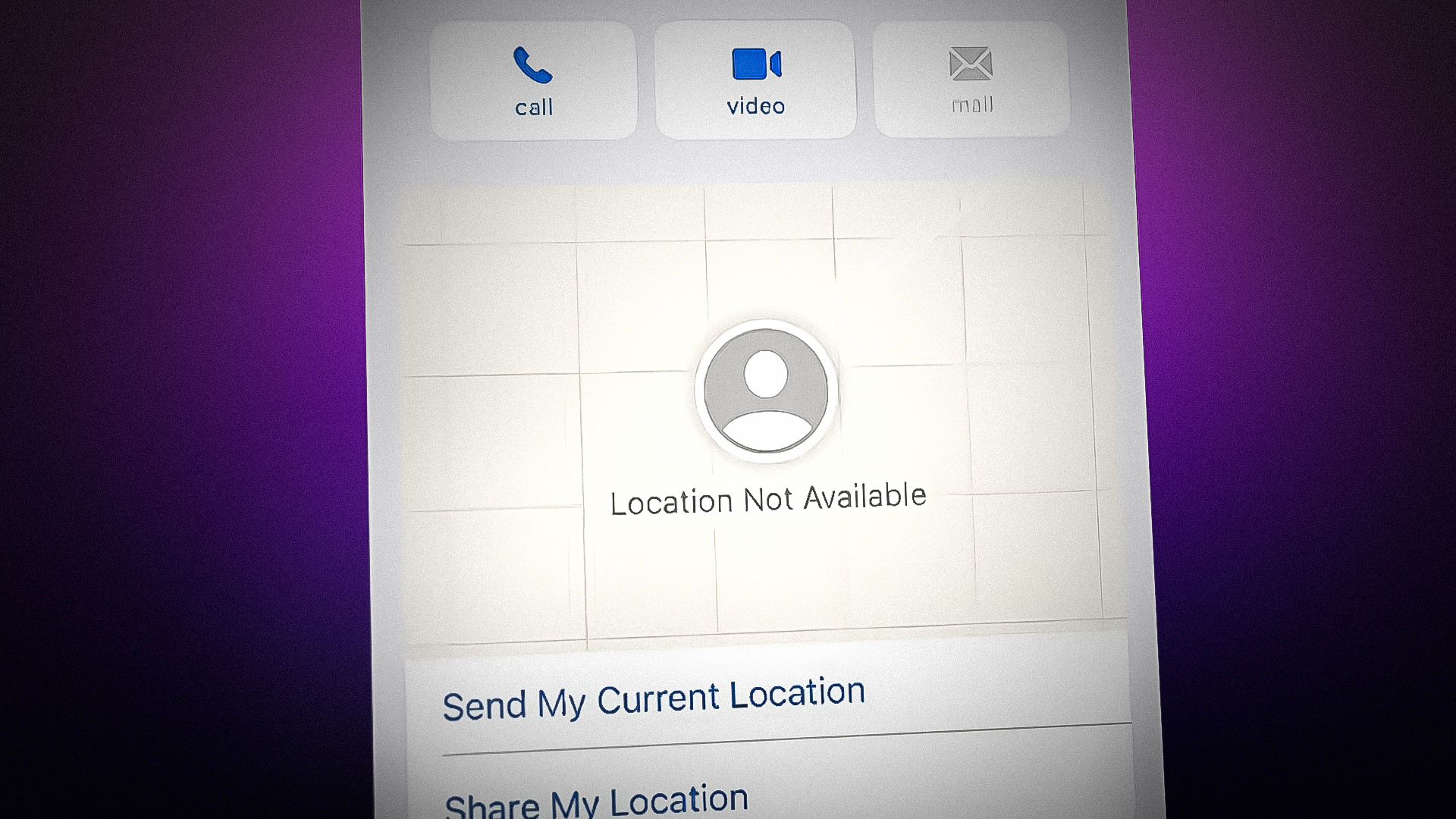
The ubiquitous “No location found” message on an iPhone can be a source of confusion and frustration. Whether you’re trying to navigate to a new destination, share your live location with a friend, or simply check the weather, the inability of your device to pinpoint your whereabouts can disrupt everyday tasks. This isn’t merely an aesthetic inconvenience; it’s a signal that a core functionality of your smartphone is experiencing an issue. Understanding what this message signifies, the underlying technologies at play, and how to effectively troubleshoot it is crucial for any iPhone user.
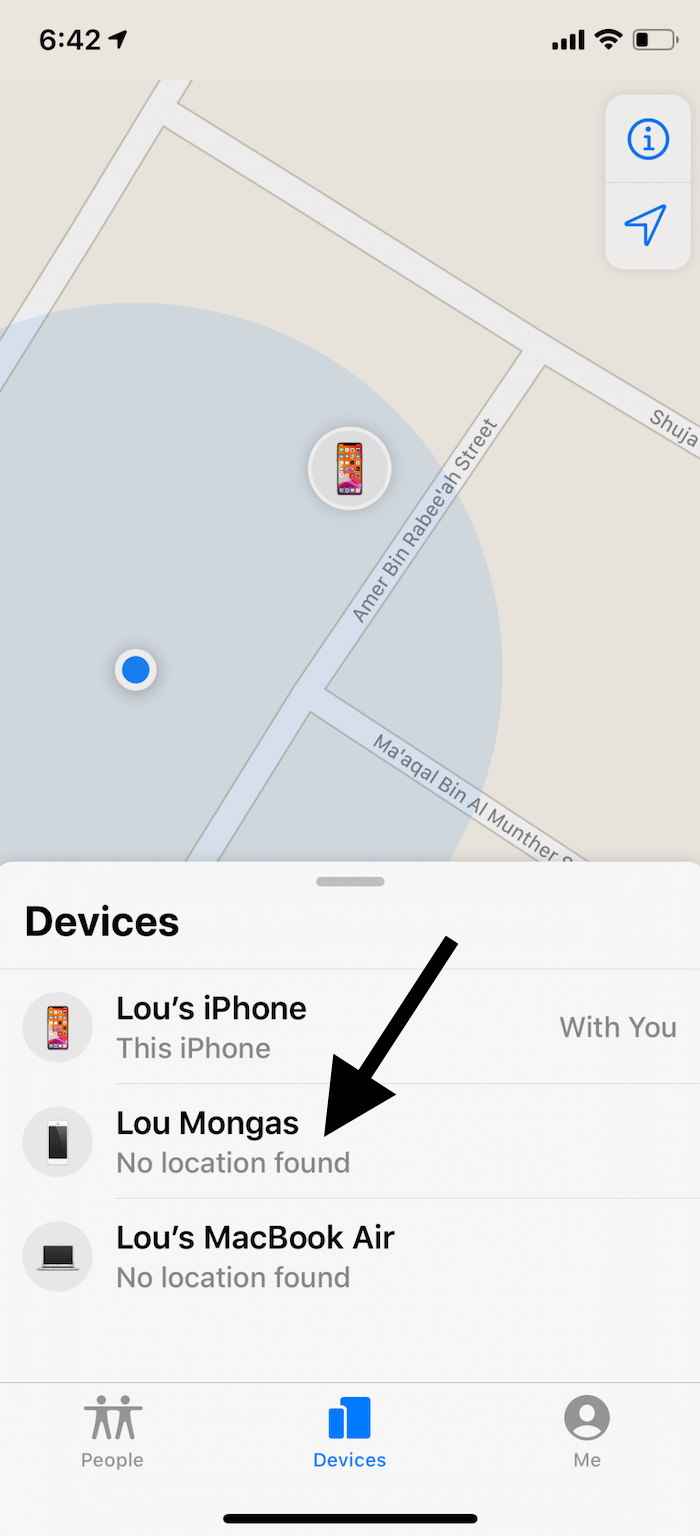
This article delves into the intricacies of location services on iPhones, dissecting the meaning behind the “No location found” alert, exploring the various factors that can contribute to this problem, and providing a comprehensive guide to resolving it. We will navigate the technical landscape of GPS, Wi-Fi, and cellular triangulation, shedding light on how your iPhone determines your position and why those signals might falter.
Understanding iPhone Location Services: The Technical Backbone
At its core, the “No location found” message indicates that your iPhone is unable to acquire a reliable fix on your geographical position. This isn’t a singular, monolithic system but rather a sophisticated interplay of several technologies working in concert. The accuracy and speed of your iPhone’s location determination depend on the availability and quality of signals from these different sources.
The Trio of Location Technologies: GPS, Wi-Fi, and Cellular Triangulation
Your iPhone leverages a combination of three primary technologies to determine your location:
-
Global Positioning System (GPS): This is perhaps the most well-known location technology. GPS relies on a network of satellites orbiting the Earth. Your iPhone’s GPS receiver listens for signals from these satellites. By calculating the time it takes for signals from at least four satellites to reach your device, your iPhone can triangulate its position with a high degree of accuracy, especially when outdoors with a clear view of the sky. However, GPS signals are relatively weak and can be obstructed by buildings, dense foliage, and even inclement weather, leading to slow fixes or complete signal loss in challenging environments.
-
Wi-Fi Positioning System (WPS): When GPS signals are weak or unavailable, your iPhone can utilize Wi-Fi networks to estimate its location. Your iPhone scans for nearby Wi-Fi networks and sends this information to Apple’s location servers. These servers maintain a massive database of Wi-Fi access points, mapping their approximate geographic locations based on crowdsourced data. By comparing the Wi-Fi networks your iPhone detects with this database, it can infer your position. WPS is particularly effective in urban areas where Wi-Fi networks are abundant and can provide a reasonably accurate location indoors.
-
Cellular Triangulation: Similar to Wi-Fi positioning, your iPhone can also use nearby cellular towers to estimate its location. Your device communicates with the nearest cell towers, and by measuring the signal strength and timing from multiple towers, it can triangulate its approximate position. This method is generally less accurate than GPS or Wi-Fi positioning but serves as a crucial fallback, especially in areas where both GPS and Wi-Fi signals are scarce. It’s essential for basic location services, such as determining which cellular network you’re connected to.
The Role of Assisted GPS (A-GPS)
To enhance the speed and accuracy of GPS, iPhones utilize Assisted GPS (A-GPS). A-GPS uses data from cellular networks and Wi-Fi to help your iPhone acquire satellite signals faster. It downloads orbital data (ephemeris and almanac) from the GPS satellites via the internet (cellular or Wi-Fi), which significantly reduces the time it takes for your device to lock onto a GPS signal. Without A-GPS, acquiring a GPS fix could take several minutes, making real-time navigation impractical.
Location Services and Privacy: How Your Data is Used
It’s important to note that your iPhone’s location services are governed by privacy settings. When an app requests your location, you have the option to grant it permission “Always,” “While Using the App,” or “Never.” Even when location services are enabled, Apple collects anonymous and encrypted location data to improve its services, such as enhancing its Maps database and traffic information. However, your precise location data is not personally identifiable. The “No location found” message can sometimes be a consequence of privacy settings being overly restrictive or an app not having the necessary permissions.
Common Causes for the “No Location Found” Message
The “No location found” error isn’t typically a sign of a hardware failure but rather a symptom of various software, settings, or environmental factors hindering your iPhone’s ability to establish a location fix. Understanding these common culprits is the first step towards diagnosis and resolution.
Software Glitches and Outdated iOS Versions
Software is a complex ecosystem, and even minor glitches can sometimes interfere with core functionalities like location services. A temporary software bug, a misbehaving app, or an issue with the operating system itself can prevent your iPhone from accessing or processing location data correctly.
- Temporary System Glitches: Like any computer, an iPhone can experience transient software hiccups. These can occur randomly and might resolve themselves after a device restart.
- Corrupted Location Data Cache: Your iPhone maintains a cache of location data to speed up future location requests. If this cache becomes corrupted, it can lead to inaccuracies or complete failure to acquire a location.
- Outdated iOS Versions: Apple regularly releases software updates that include bug fixes, performance improvements, and enhancements to location services. Running an outdated version of iOS can mean you’re missing out on critical patches that address known location-related issues.
Incorrect Settings: The Culprit Lurking in Plain Sight
More often than not, the “No location found” message is a result of misconfigured settings on your iPhone. These can range from simple toggles to more nuanced configurations.
- Location Services Disabled: This is the most straightforward reason. If Location Services are turned off entirely in your iPhone’s settings, no app or system service will be able to access your location.
- Specific App Permissions: Even if Location Services are enabled globally, individual apps must be granted permission to access your location. If an app hasn’t been granted the necessary permission, or if its permission has been revoked, it will be unable to find your location.
- Incorrect Date & Time Settings: While seemingly unrelated, accurate date and time settings are crucial for many GPS functions, including A-GPS. If your iPhone’s date and time are significantly off, it can interfere with the satellite communication required for accurate positioning.
- Low Power Mode Interference: Low Power Mode on iPhones is designed to conserve battery life by reducing background activity and certain features. While it doesn’t directly disable location services, some of its optimizations might indirectly impact the efficiency or availability of location data acquisition in the background.
- Airplane Mode or Do Not Disturb: While these modes don’t directly disable GPS, they can interfere with the cellular and Wi-Fi signals that A-GPS relies on, potentially slowing down or preventing a location fix.
Environmental Factors: The World Outside Your Device
The physical environment in which you are using your iPhone plays a significant role in the accuracy and availability of location data.
- Poor GPS Signal Reception: As mentioned earlier, GPS signals are easily obstructed. Being indoors, surrounded by tall buildings (urban canyons), in tunnels, or under dense tree cover can severely degrade or completely block GPS signals, leading to a “No location found” message.
- Weak or Unavailable Wi-Fi Networks: If you’re relying on Wi-Fi positioning and there are no or very few nearby Wi-Fi networks, or if the available networks are not properly mapped in Apple’s database, your iPhone will struggle to determine your location using this method.
- Limited Cellular Signal Strength: Similarly, a weak cellular signal can impact the effectiveness of cellular triangulation and A-GPS functionality.
Hardware Issues: A Less Common but Possible Cause
While software and settings are the primary suspects, it’s important to acknowledge that hardware problems can, in rare instances, be the root cause of persistent “No location found” issues.
- Faulty GPS Chip: The GPS receiver is a physical component within your iPhone. If this chip is damaged or malfunctioning, it will be unable to acquire GPS signals.
- Damage to Wi-Fi or Cellular Antennas: The antennas responsible for receiving Wi-Fi and cellular signals are also critical for location services. Physical damage to these components can impair their ability to connect to the necessary networks.
Troubleshooting Steps: Restoring Your iPhone’s Location Capabilities
When faced with the “No location found” message, a systematic approach to troubleshooting can help you identify and resolve the issue efficiently. Start with the simplest solutions and progressively move to more complex ones.
Initial Checks: The Quick Fixes
Before diving into deeper settings or potential hardware issues, try these quick and easy steps that often resolve transient problems.
-
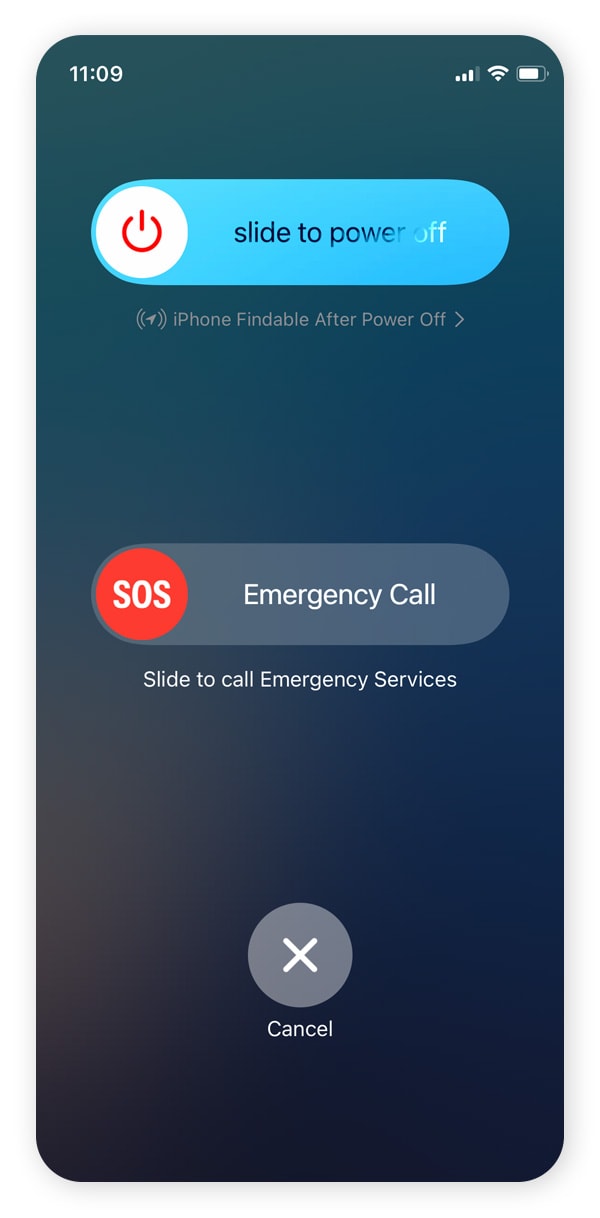
Restart Your iPhone: This is the universal first step for almost any electronic device issue. A simple restart can clear temporary software glitches and refresh system processes, including location services. Press and hold the side button (or top button) and either volume button until the power off slider appears, drag the slider, then wait for your iPhone to turn off. Press and hold the side button (or top button) again until you see the Apple logo.
-
Toggle Location Services On and Off: This can help reset the location services module.
- Go to
Settings>Privacy & Security>Location Services. - Toggle
Location Servicesoff. - Wait a few seconds.
- Toggle
Location Servicesback on.
- Go to
-
Toggle Airplane Mode On and Off: This can help refresh your cellular and Wi-Fi connections, which are important for A-GPS.
- Go to
Settingsand toggleAirplane Modeon. - Wait a few seconds.
- Toggle
Airplane Modeoff.
- Go to
Verifying and Adjusting Settings: The Core Configuration
This section focuses on ensuring that your iPhone’s settings are correctly configured to allow for accurate location determination.
-
Ensure Location Services are Enabled:
- Go to
Settings>Privacy & Security>Location Services. - Make sure the toggle for
Location Servicesis green (on).
- Go to
-
Check App-Specific Permissions:
- Scroll down in the
Location Servicesmenu to see a list of apps that have requested access to your location. - For the app that is showing “No location found,” tap on it.
- Ensure the permission is set appropriately (e.g., “While Using the App” or “Always,” depending on the app’s function). If it’s set to “Never,” change it to one of the other options.
- For apps that require precise location (like navigation apps), ensure
Precise Locationis toggled on for that app.
- Scroll down in the
-
Verify Date & Time Settings:
- Go to
Settings>General>Date & Time. - Ensure
Set Automaticallyis toggled on. This ensures your iPhone automatically syncs with network time servers, which is crucial for GPS accuracy. If it’s already on, try toggling it off and on again.
- Go to
-
Manage Low Power Mode:
- Go to
Settings>Battery. - If
Low Power Modeis on, try disabling it temporarily to see if it resolves the location issue. If it does, you may need to accept that Low Power Mode might impact location accuracy.
- Go to
-
Reset Network Settings: This will reset all network-related settings, including Wi-Fi passwords, cellular settings, and VPN configurations. While it doesn’t directly affect GPS, it can help resolve issues with Wi-Fi and cellular connectivity that might be indirectly impacting location services.
- Go to
Settings>General>Transfer or Reset iPhone>Reset. - Tap
Reset Network Settings. You will need to enter your passcode.
- Go to
Environmental Adjustments and Further Steps
If the above steps don’t resolve the issue, consider the external factors and more advanced troubleshooting.
-
Move to an Open Area: If you are indoors or in a location with obstructed views of the sky, try moving to an open area with a clear view of the sky (e.g., outdoors, away from tall buildings). Wait a few minutes for your iPhone to acquire a GPS signal.
-
Update Your iPhone’s Software: Ensure you are running the latest version of iOS.
- Go to
Settings>General>Software Update. - If an update is available, download and install it.
- Go to
-
Reset All Settings: This is a more drastic step that will reset all your iPhone’s settings to their defaults, including network settings, dictionary settings, home screen layout, and location settings, but it will not erase your data or media.
- Go to
Settings>General>Transfer or Reset iPhone>Reset. - Tap
Reset All Settings. You will need to enter your passcode. You will be prompted to confirm this action.
- Go to
When to Seek Professional Help
If you have gone through all the troubleshooting steps and your iPhone continues to display “No location found,” it is possible that there is a hardware issue with your device.
- Contact Apple Support: If you suspect a hardware problem, your next step should be to contact Apple Support or visit an Apple Store or authorized service provider. They can diagnose hardware issues and advise on repair or replacement options.
By understanding the technological underpinnings of iPhone location services and systematically working through these troubleshooting steps, you can effectively address the “No location found” message and restore your device’s ability to pinpoint your location accurately.
aViewFromTheCave is a participant in the Amazon Services LLC Associates Program, an affiliate advertising program designed to provide a means for sites to earn advertising fees by advertising and linking to Amazon.com. Amazon, the Amazon logo, AmazonSupply, and the AmazonSupply logo are trademarks of Amazon.com, Inc. or its affiliates. As an Amazon Associate we earn affiliate commissions from qualifying purchases.