
In the dynamic world of personal computing, understanding the intricacies of your operating system is fundamental. Whether you’re a seasoned IT professional or a casual user, knowing your Windows version is not just a piece of trivia; it’s a crucial piece of information that impacts everything from software compatibility and driver updates to security patches and feature access. This knowledge empowers you to make informed decisions about upgrades, troubleshoot effectively, and ensure your system is running optimally. In this comprehensive guide, we will delve into the various methods for discerning your Windows version, offering clear, step-by-step instructions that cater to users of all technical proficiencies.
Why Knowing Your Windows Version Matters
Before we embark on the journey of discovering your Windows version, it’s essential to understand the significance of this seemingly simple piece of data. The operating system is the backbone of your computer, and its version dictates a multitude of functionalities and possibilities.
Software and Hardware Compatibility
One of the most immediate reasons to know your Windows version is for software and hardware compatibility. Developers design their applications and hardware manufacturers their peripherals to function with specific versions and editions of Windows. Installing software that is not compatible with your version can lead to installation errors, crashes, or the software simply not running at all. Similarly, outdated drivers for your hardware might not be available or optimized for older Windows versions, potentially leading to performance issues or malfunctioning components. For example, a brand-new graphics card might require a more recent version of Windows to leverage its full capabilities or even to be recognized by the system.
Access to Features and Updates
Microsoft continually evolves Windows, introducing new features, improving existing ones, and patching security vulnerabilities. Each major release of Windows, such as Windows 10 or Windows 11, comes with a unique set of capabilities. Knowing your version ensures you’re aware of the features you have access to. More importantly, it’s critical for receiving timely security updates. These updates are vital for protecting your system from malware, viruses, and other cyber threats. Older versions of Windows may no longer receive security support from Microsoft, leaving them vulnerable to exploits. For instance, Windows 7 is no longer officially supported by Microsoft, meaning it doesn’t receive security patches, making it a significant risk for users still operating on it.
Troubleshooting and Support
When you encounter technical difficulties with your computer, your Windows version is almost always the first piece of information support personnel will ask for. This is because many troubleshooting steps and solutions are version-specific. Whether you’re seeking help from online forums, technical support hotlines, or even a tech-savvy friend, providing your Windows version streamlines the diagnostic process and helps pinpoint the problem more efficiently. This is also true for researching solutions online; searching for “[your Windows version] + [problem]” will yield much more relevant and accurate results than a generic search.
Methods for Determining Your Windows Version
Fortunately, Microsoft provides several straightforward ways to identify your Windows version directly from your system. These methods are accessible through graphical user interfaces (GUIs) and command-line tools, offering flexibility depending on your preference and the situation.
Using the “About your PC” Settings (Windows 10 & 11)
For users of Windows 10 and Windows 11, the most intuitive method is through the “Settings” app. This modern interface consolidates system information in an easily digestible format.
Step-by-Step Guide
- Open Settings: Click on the Start button (the Windows logo) in the taskbar and select the Settings gear icon, or press the
Windows key + Ion your keyboard. - Navigate to System: In the Settings window, click on System.
- Scroll to “About”: In the left-hand pane, scroll down to the bottom and select About.
- Locate Device Specifications: On the “About” page, you will find a section titled “Device specifications.” Here, you can see your Windows specifications, which will clearly display the Edition (e.g., Windows 11 Home, Windows 10 Pro) and the Version number (e.g., 22H2). You’ll also find information about your installed RAM, processor, and system type (64-bit or 32-bit).
This method is particularly useful for quickly getting an overview of your system’s core information. The “version number” often refers to the major feature update, which is crucial for understanding the feature set and support lifecycle.
Utilizing the “Run” Command and System Information
Another quick and accessible method, available across many Windows versions, involves using the “Run” dialog box and the System Information utility. This is an excellent way to get detailed system information, including the exact version and build number.
Exploring System Information
- Open the Run Dialog: Press the
Windows key + Ron your keyboard. This will open the “Run” dialog box. - Type
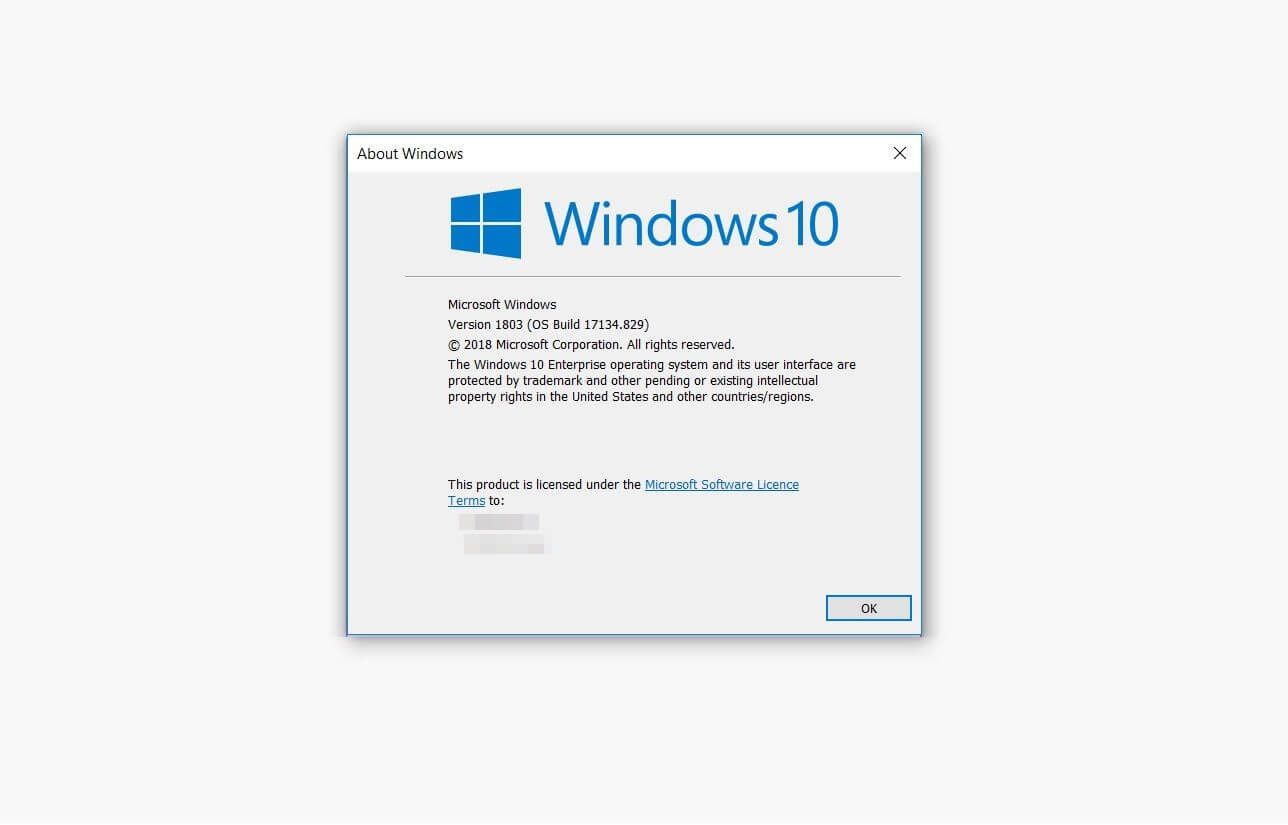
winver: In the “Open” field, typewinverand press Enter or click OK. - Interpret the “About Windows” Window: A small window titled “About Windows” will appear. This window will display the Microsoft Windows logo and clearly state the Version (e.g., Version 21H2) and the OS Build number. The edition (e.g., Home, Pro, Enterprise) will also be indicated here.
Alternatively, you can use the “Run” dialog to access the more comprehensive System Information tool:
- Open the Run Dialog: Press the
Windows key + R. - Type
msinfo32: In the “Open” field, typemsinfo32and press Enter or click OK. - Locate OS Name: The System Information window will open. In the right-hand pane, under “System Summary,” look for the line item labeled OS Name. This will provide a detailed description, including the version, edition, and build number of your Windows operating system.
The winver command is a shortcut to a subset of this information, while msinfo32 provides a much deeper dive into your system’s hardware and software configuration.
Checking via File Explorer (Older Versions of Windows)
For users who might still be on older versions of Windows like Windows 7 or Windows 8.1, the method for accessing system information is slightly different, often involving File Explorer and the Control Panel.
Navigating through System Properties
- Open File Explorer: Click on the File Explorer icon in the taskbar (it looks like a folder), or press
Windows key + E. - Access Computer Properties: Right-click on This PC (or Computer in older versions) in the left-hand pane of File Explorer. From the context menu, select Properties.
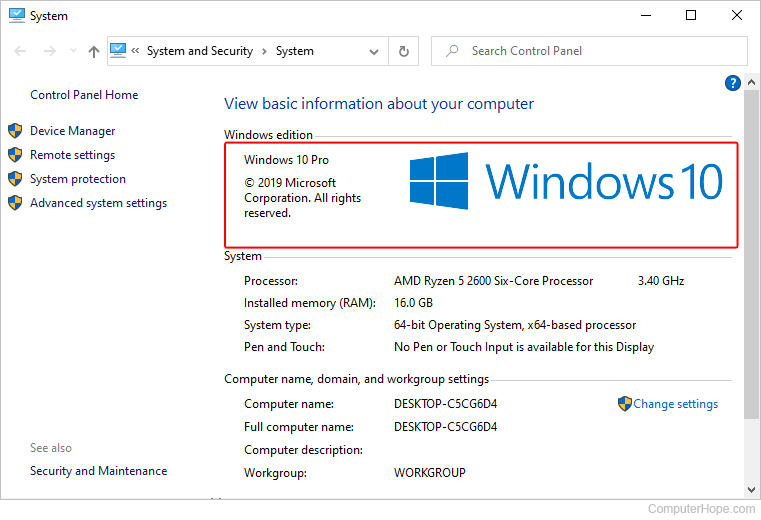
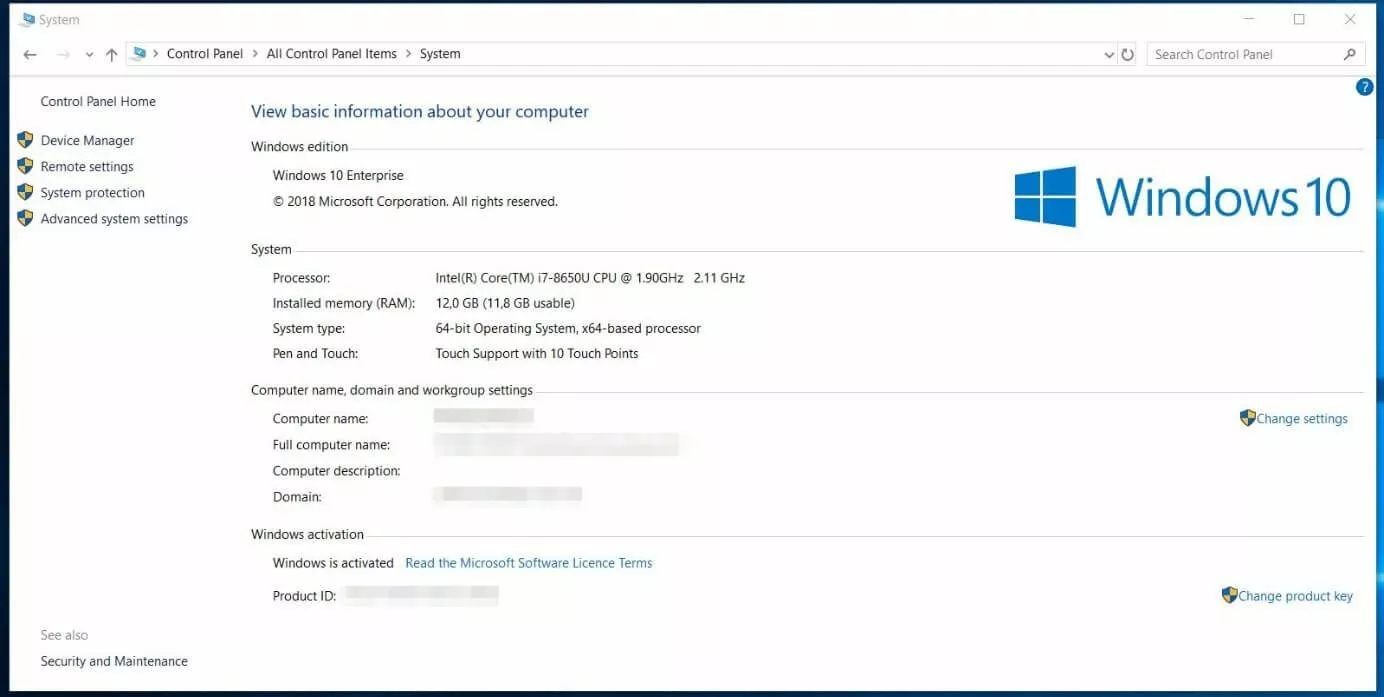
- View System Information: A window labeled System will open. Here, under the “Windows edition” section, you will find the version and service pack information (if applicable). For example, on Windows 7, you might see “Windows 7 Home Premium Service Pack 1.”
This method provides a quick glance at the core operating system details. It’s a familiar pathway for many long-time Windows users and remains a reliable way to confirm your version.
Command Prompt and PowerShell for Advanced Users
For those who are more comfortable with command-line interfaces, both Command Prompt and PowerShell offer robust ways to retrieve Windows version information. These methods are particularly useful for scripting or when a graphical interface is unavailable.
Querying System Information via Command Line
Using Command Prompt:
- Open Command Prompt: Search for
cmdin the Start menu, right-click on Command Prompt, and select Run as administrator (though administrator privileges are not strictly necessary for this command). - Execute the Command: Type the following command and press Enter:
bash

systeminfo | findstr /B /C:"OS Name" /C:"OS Version"
This command queries the system for its information and then filters the output to display only the lines starting with “OS Name” and “OS Version,” providing the edition and exact version number.
Using PowerShell:
- Open PowerShell: Search for
PowerShellin the Start menu, right-click on Windows PowerShell, and select Run as administrator (again, not always required). - Execute the Command: Type the following command and press Enter:
powershell

Get-ComputerInfo | Select-Object OsName, OsVersion
This cmdlet retrieves detailed computer information and then selects only the operating system name and version for display.
These command-line methods are efficient and provide precise information, making them valuable tools for system administrators and advanced users. They offer a programmatic way to gather system details, which can be integrated into scripts for automated inventory or diagnostics.
Understanding Windows Version Numbers and Editions
Once you’ve identified your Windows version, it’s helpful to understand what the various numbers and names signify. Microsoft uses specific terminology to distinguish between different releases and feature sets.
Decoding Version Numbers and Builds
Microsoft releases major updates to Windows periodically. These updates are often identified by a version number, such as 22H2 (representing the second half of 2022) or 21H1 (the first half of 2021). These version numbers indicate the feature update that has been installed. Alongside the version number, you’ll often see an OS Build number. This is a more granular identifier that pinpoints the specific cumulative update that has been applied to that version. For instance, Windows 11 Version 22H2 OS Build 22621.1413 tells you that you have the second half of 2022 feature update for Windows 11, and it’s updated to a specific cumulative build.
Differentiating Between Windows Editions
Beyond the version, Windows also comes in different editions, each tailored to specific user needs and market segments. The most common editions include:
- Windows Home: Designed for typical home users, offering core features for everyday computing, web browsing, and entertainment.
- Windows Pro: Includes all Home features plus business-oriented capabilities like remote desktop, BitLocker drive encryption, and domain join.
- Windows Enterprise: Aimed at larger organizations, offering advanced management, security, and deployment features.
- Windows Education: Similar to Enterprise but licensed for academic institutions.
- Windows S Mode: A more locked-down version of Windows that primarily allows applications from the Microsoft Store, enhancing security.
Knowing your edition is important for understanding which features are available to you and for determining which version is appropriate if you consider upgrading.
Conclusion
The ability to accurately determine your Windows version is a fundamental skill in the digital age. It’s the gateway to understanding your system’s capabilities, ensuring compatibility, and maintaining its security and performance. By leveraging the straightforward methods outlined above, whether through the modern Settings app, the versatile Run command, or the powerful command line, you can effortlessly identify your Windows version and edition. This knowledge serves as a cornerstone for informed decision-making regarding software installations, hardware upgrades, and proactive system maintenance. In a world where technology evolves at a rapid pace, staying informed about your operating system is not just beneficial; it’s essential for a smooth and secure computing experience.
aViewFromTheCave is a participant in the Amazon Services LLC Associates Program, an affiliate advertising program designed to provide a means for sites to earn advertising fees by advertising and linking to Amazon.com. Amazon, the Amazon logo, AmazonSupply, and the AmazonSupply logo are trademarks of Amazon.com, Inc. or its affiliates. As an Amazon Associate we earn affiliate commissions from qualifying purchases.