
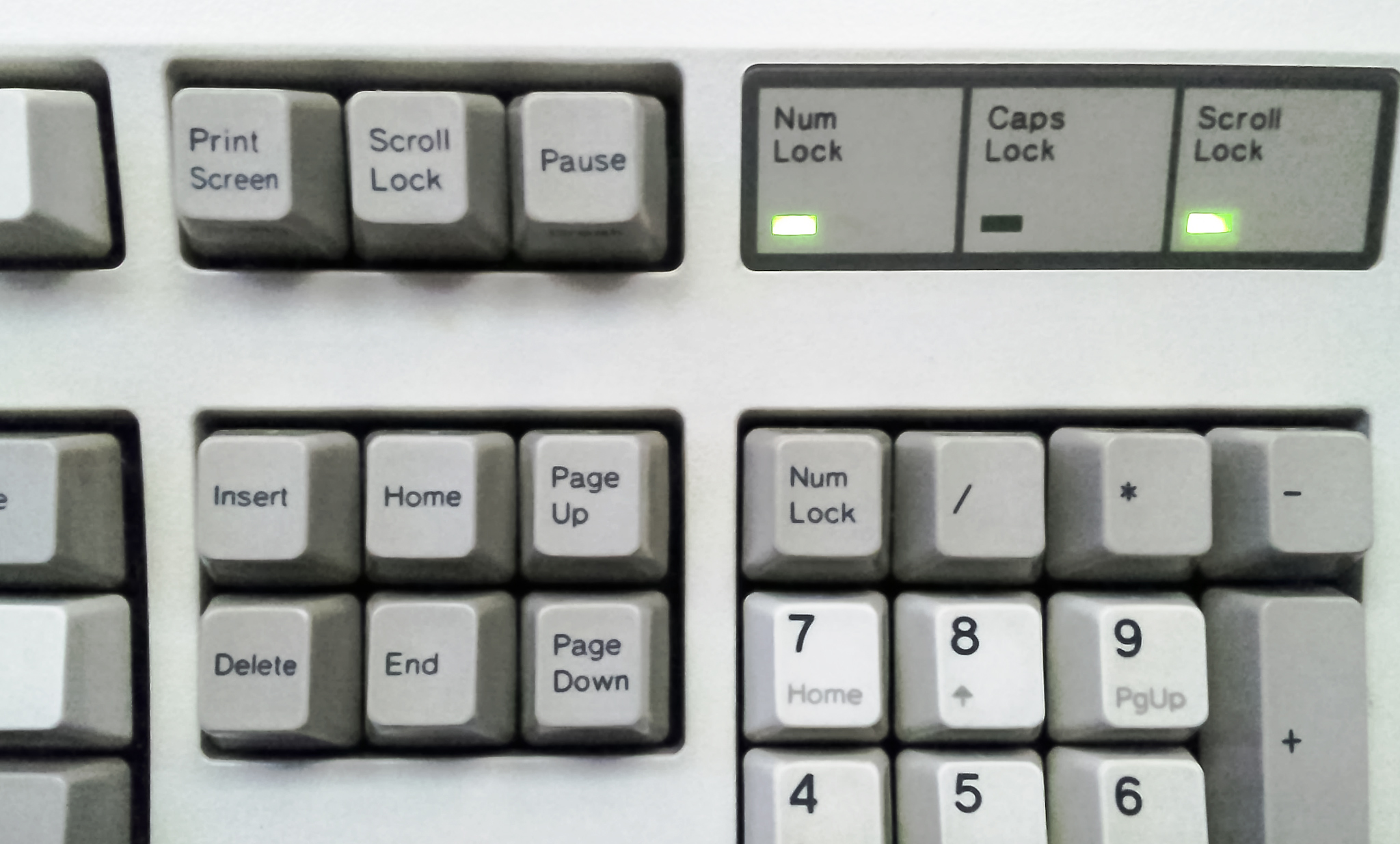
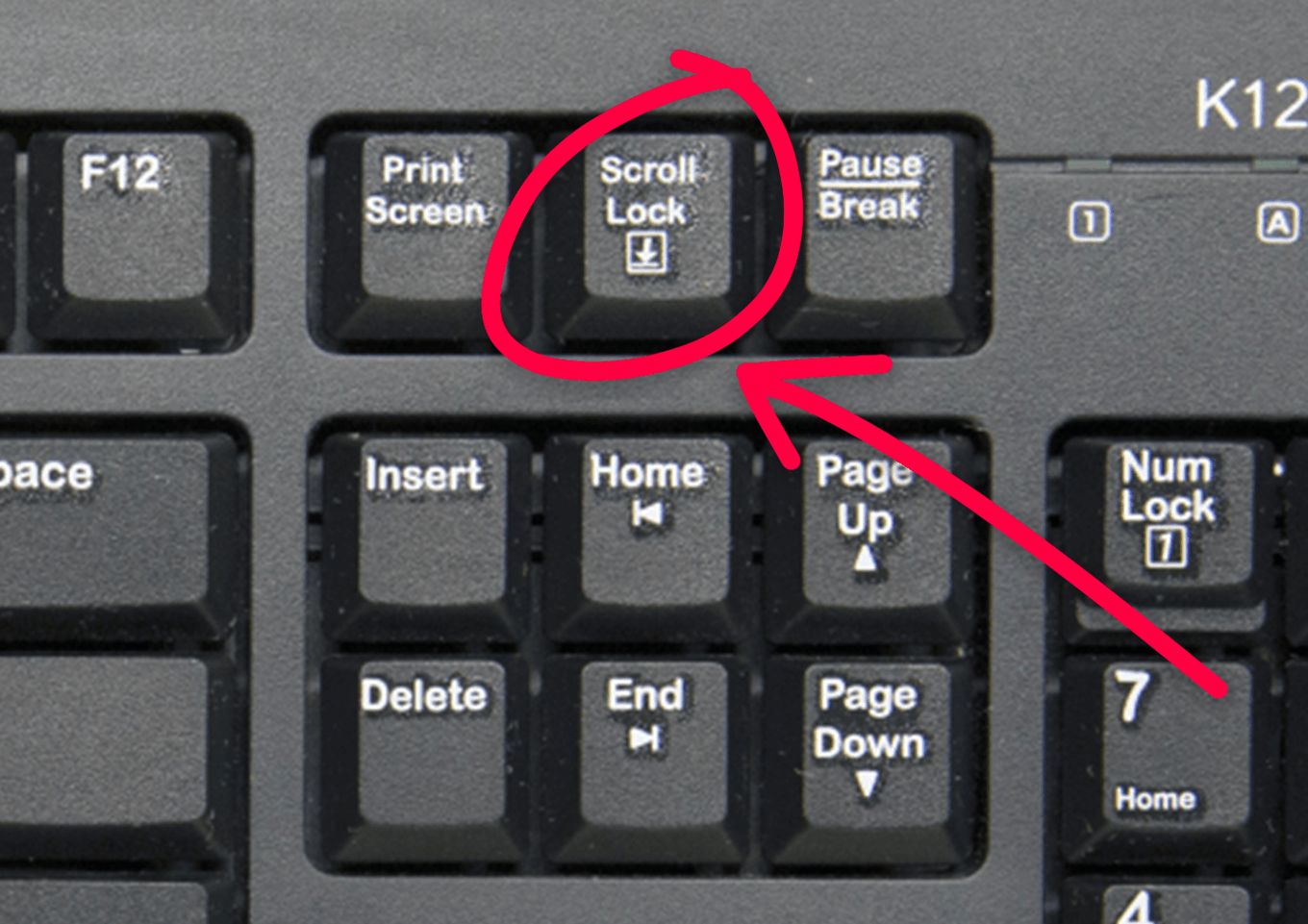
The humble Scroll Lock key, often found lurking in the top-left corner of a standard keyboard, is one of those enigmatic functionalities that many users encounter but few truly understand. In an era dominated by touchscreens and sophisticated gesture controls, a dedicated key for “scrolling” might seem anachronistic. Yet, Scroll Lock, despite its niche application, has a surprisingly enduring presence in computing, primarily within spreadsheet software and certain specialized applications. To truly grasp its purpose, we must delve into the historical context of its creation and its evolution within the digital landscape.
The Genesis of Scroll Lock: A Pre-GUI Era Solution
Before the advent of graphical user interfaces (GUIs) and the intuitive scrolling mechanisms we take for granted today, interacting with large datasets on a computer screen was a far more rudimentary affair. The Scroll Lock key emerged from this environment, designed to address a specific challenge: navigating expansive documents and data tables without losing one’s bearing.
Navigating the Text-Based Frontier
In the early days of personal computing, displays were often limited in resolution and the primary mode of interaction was through text-based interfaces. Think of command-line environments or early word processors. When dealing with a document or a table that extended beyond the visible screen area, users had to employ a combination of cursor keys (arrow keys) and other modifiers. Without a clear way to dictate how the cursor movement affected the displayed content, a simple press of the arrow key could either move the cursor within the visible window or scroll the entire window to reveal more content. This ambiguity could lead to disorienting experiences.
The Cursor vs. The Viewport
The core problem Scroll Lock aimed to solve was the distinction between controlling the cursor’s position and controlling the viewport’s position.
Cursor Lock: The Default Behavior
When Scroll Lock is off (its default state), pressing the arrow keys typically moves the cursor (or insertion point) within the current view of the document or data. If the cursor reaches the edge of the screen, scrolling may occur to keep the cursor visible, but the primary action is cursor movement.
Viewport Lock: The Scroll Lock Functionality
When Scroll Lock is on, the behavior of the arrow keys changes fundamentally. Instead of moving the cursor, the arrow keys now scroll the entire viewport (the visible portion of the document or data) up, down, left, or right. The cursor, in this mode, remains stationary on the screen, essentially anchored. This allowed users to move their view across a large dataset or document without the cursor inadvertently jumping around, which was particularly useful for data analysis and review in text-based environments. Imagine meticulously examining a large spreadsheet; you could use Scroll Lock to move through rows and columns while keeping your focus on a specific cell or region.
The “Lock” in Scroll Lock
The “Lock” in Scroll Lock is analogous to the Caps Lock or Num Lock keys. When activated, it latches the key’s function, altering the behavior of other keys until it’s deactivated. This was a common design paradigm in early keyboards to manage limited key real estate and provide distinct modes of operation.
Scroll Lock’s Enduring Legacy: Microsoft Excel and Beyond
While the Scroll Lock key’s original purpose was rooted in text-based navigation, its most prominent and widely recognized application today is within Microsoft Excel and other spreadsheet applications. This is where its functionality often surprises new users and becomes a staple for experienced ones.
The Excel Phenomenon: Arrow Keys Scroll, Not Move the Cursor
In Microsoft Excel, when Scroll Lock is on, the behavior of the arrow keys changes dramatically from the default. Instead of moving the active cell selection, the arrow keys will scroll the worksheet. This means pressing the right arrow key will move the entire spreadsheet view one column to the left, revealing the next column to the right, while the active cell remains the same. Similarly, pressing the down arrow key will scroll the worksheet up, revealing the rows below.
This functionality is incredibly useful for navigating large spreadsheets without accidentally changing the selected cell. For instance, if you’re analyzing a financial report with hundreds of rows and columns, you can activate Scroll Lock, then use the arrow keys to quickly scan through data, perform comparisons, or locate specific information, all while maintaining focus on your current cell or a specific selection. Deactivating Scroll Lock then returns the arrow keys to their default function of moving the cell selection.
Accidental Activation and User Confusion
The primary reason Scroll Lock often causes confusion in Excel is its accidental activation. Many keyboards have a dedicated Scroll Lock indicator light. However, it’s easy to inadvertently press the key, especially when reaching for other keys like Tab or Backspace. When this happens, users suddenly find their arrow keys behaving erratically, leading to frustration and the common question: “Why won’t my arrow keys move the cell in Excel anymore?” The solution, of course, is to simply press the Scroll Lock key again to deactivate it.
Other Applications and Use Cases
While Excel is the most common context, Scroll Lock has found its way into other areas of computing, though often in more specialized or technical capacities:
- Command-Line Interfaces (CLI) and Terminal Emulators: Some terminal programs might utilize Scroll Lock to control scrolling behavior, especially when dealing with lengthy output. For example, it might freeze the output and allow manual scrolling through what has already been displayed.
- Remote Desktop Software: In certain remote desktop or KVM (Keyboard, Video, Mouse) switch applications, Scroll Lock can be used as a hotkey to switch between different computers or to activate specific control functions. Its unique position and relatively unused nature make it a good candidate for such dedicated shortcuts.
- System Information and Diagnostics: In some low-level system tools or BIOS/UEFI settings, Scroll Lock might be used to toggle certain display modes or information overlays, allowing for detailed diagnostics.
- Gaming: While less common, some older or niche games might have incorporated Scroll Lock for specific in-game actions, although this is rare in modern game design.
- Hardware Control: In some industrial or specialized hardware, Scroll Lock might be mapped to control specific functions of the device.
Understanding the Scroll Lock Indicator Light
Most modern keyboards feature an indicator light for Scroll Lock, often grouped with Caps Lock and Num Lock. This light serves as a visual cue to the current state of the Scroll Lock key.
The Visual Clue: On or Off?
When the Scroll Lock indicator light is illuminated, it signifies that the Scroll Lock functionality is active. Conversely, when the light is off, Scroll Lock is inactive, and the arrow keys (and potentially other associated functions) will revert to their default behavior.
Troubleshooting Common Issues
A common troubleshooting step for the “arrow keys not working in Excel” problem is to check the Scroll Lock indicator light. If it’s on, the solution is as simple as pressing the Scroll Lock key to turn it off. If the light itself is faulty and doesn’t illuminate or turn off, it can add to the confusion, but the underlying functionality of the key remains the same. In such cases, relying on the observed behavior of the arrow keys is the primary diagnostic method.
Keyboard Layout Variations
It’s worth noting that keyboard layouts can vary. While the standard QWERTY layout typically places Scroll Lock in the top-left, some compact or ergonomic keyboards might have different arrangements. However, the presence and function of the Scroll Lock key, where it exists, generally remain consistent.
The Future of Scroll Lock: Evolution or Obsolescence?
In a world increasingly dominated by touch interfaces, intuitive gestures, and sophisticated scrolling techniques via mouse wheels and trackpads, the Scroll Lock key’s continued presence might seem like a relic of a bygone era. However, its persistence, particularly within the pervasive ecosystem of Microsoft Office, suggests it’s not entirely obsolete.
The Niche Appeal in Productivity Software
For power users of spreadsheet software, the Scroll Lock key provides a highly efficient way to navigate vast datasets without compromising their position. This granular control is something that traditional mouse scrolling or trackpad gestures might not always replicate with the same precision or intent. The ability to “lock” the view and move through data systematically is a distinct advantage for focused analysis.
The Rise of Alternatives and the Decline of General Use
However, for general computing tasks, the Scroll Lock key has largely been superseded by more intuitive methods. Scrolling with a mouse wheel, using trackpad gestures (like the two-finger scroll), or even dedicated keyboard shortcuts for page up/down have become the standard. The need for a key that fundamentally alters the behavior of the arrow keys for general document navigation has diminished significantly.
The Diminishing Role in Modern Software
As software design continues to evolve, with a greater emphasis on user-friendliness and discoverability, dedicated keys that require specific knowledge of their state (like Scroll Lock) are becoming less common for general-purpose functions. Many applications might not even recognize or utilize the Scroll Lock key for any of its intended purposes, rendering it effectively inert within those environments.

A Persistent Anomaly
Despite the trend towards more modern interaction methods, Scroll Lock remains a persistent anomaly. Its continued inclusion on standard keyboards, largely driven by the inertia of legacy software like Excel, ensures its continued (though often accidental) interaction with users. Whether it will continue to hold its niche value or eventually fade into keyboard history remains to be seen, but for now, understanding “what is Scroll Lock” offers a glimpse into the evolution of computer interaction and the enduring power of specific, albeit specialized, functionalities.
aViewFromTheCave is a participant in the Amazon Services LLC Associates Program, an affiliate advertising program designed to provide a means for sites to earn advertising fees by advertising and linking to Amazon.com. Amazon, the Amazon logo, AmazonSupply, and the AmazonSupply logo are trademarks of Amazon.com, Inc. or its affiliates. As an Amazon Associate we earn affiliate commissions from qualifying purchases.