
In the modern digital landscape, the subscription-as-a-service (SaaS) model has become the standard for consumer-facing platforms. Amazon Prime stands as perhaps the most complex and multi-faceted example of this model, integrating logistics, streaming media, cloud storage, and digital storefronts into a single cohesive identity. However, for many users, the time eventually comes to de-clutter their digital lives or pivot to different service providers.
Navigating the technical architecture of Amazon’s cancellation funnel requires more than just a cursory glance at the settings menu. This guide provides a comprehensive technical walkthrough on how to cancel a Prime membership while exploring the underlying user experience (UX) design choices and data implications of exiting the Prime ecosystem.

Understanding the SaaS Architecture of Amazon Prime
Before initiating a cancellation, it is essential to understand that Amazon Prime is not a singular software application but a centralized authentication token that grants access to an array of disparate microservices. When you cancel Prime, you are essentially instructing Amazon’s central identity provider to revoke your access permissions across multiple platforms, including Prime Video, Amazon Music, and Prime Photos.
Navigating the Digital Interface: Mobile vs. Desktop
The technical path to cancellation varies significantly depending on the environment you are using. On a desktop browser, the interface relies on a complex web of CSS and JavaScript designed to provide a “sticky” user experience. The desktop site offers a more granular view of your account settings, allowing you to see the exact expiration date of your current billing cycle and the various API-linked services associated with your account.
In contrast, the Amazon mobile app (available on iOS and Android) utilizes a hybrid app framework. While the app feels native, the “Manage Membership” section often loads a secure web view. This is done to ensure that the sensitive logic governing subscription status is handled on Amazon’s servers rather than locally on the device, maintaining a high level of digital security and data integrity.
The Role of User Experience (UX) in Membership Retention
From a software engineering perspective, Amazon’s cancellation process is a prime example of “friction-based design.” While many apps strive for a frictionless experience when onboarding new users, the offboarding process is intentionally layered. These layers serve as “checkpoints” in the software logic, designed to verify that the user understands the loss of digital assets (such as cloud storage or streaming history) that will occur upon termination. This technical hurdle ensures that accidental cancellations are minimized while providing the platform one last opportunity to programmatically offer incentives, such as a temporary membership pause or a discounted rate.
Executing the Cancellation: A Technical Walkthrough
Canceling a Prime membership involves navigating a multi-stage funnel designed to confirm your intent. Below is the technical breakdown of the steps required to terminate the subscription via a web browser, which offers the most transparent view of the process.
Step 1: Accessing Your Digital Account Settings
To begin, you must authenticate your session. Navigate to the Amazon homepage and hover over the “Account & Lists” dropdown. From a technical standpoint, this menu is a gateway to your user profile database. Select “Your Prime Membership” to be directed to the central management hub for your subscription.
In this dashboard, you will see a summary of your membership type, your next renewal date, and your primary payment method. This page is dynamically generated based on your unique User ID (UID) and reflects the real-time status of your subscription within Amazon’s relational database.
Step 2: Deciphering the “End Membership” Funnel
On the management page, locate the “Update, cancel and more” tab under the “Manage Membership” section. Once you click “End Membership,” you will enter a three-stage confirmation sequence.
- The Impact Summary: Amazon’s servers will query your usage data to show you exactly what you stand to lose. This includes your Prime Video watch history, your Prime Music playlists, and your shipping savings.
- The Retention Offer: The system may programmatically trigger a “Save” offer. This could be a switch to a monthly billing cycle or a trial extension.
- The Final Termination: The final screen provides three buttons: “Keep My Benefits,” “Remind Me Later,” and “Continue to Cancel.”
Technically, selecting “Continue to Cancel” does not immediately delete your data; it sets a flag in your account status to “Pending Cancellation” and prevents the automated billing script from triggering on your next renewal date.
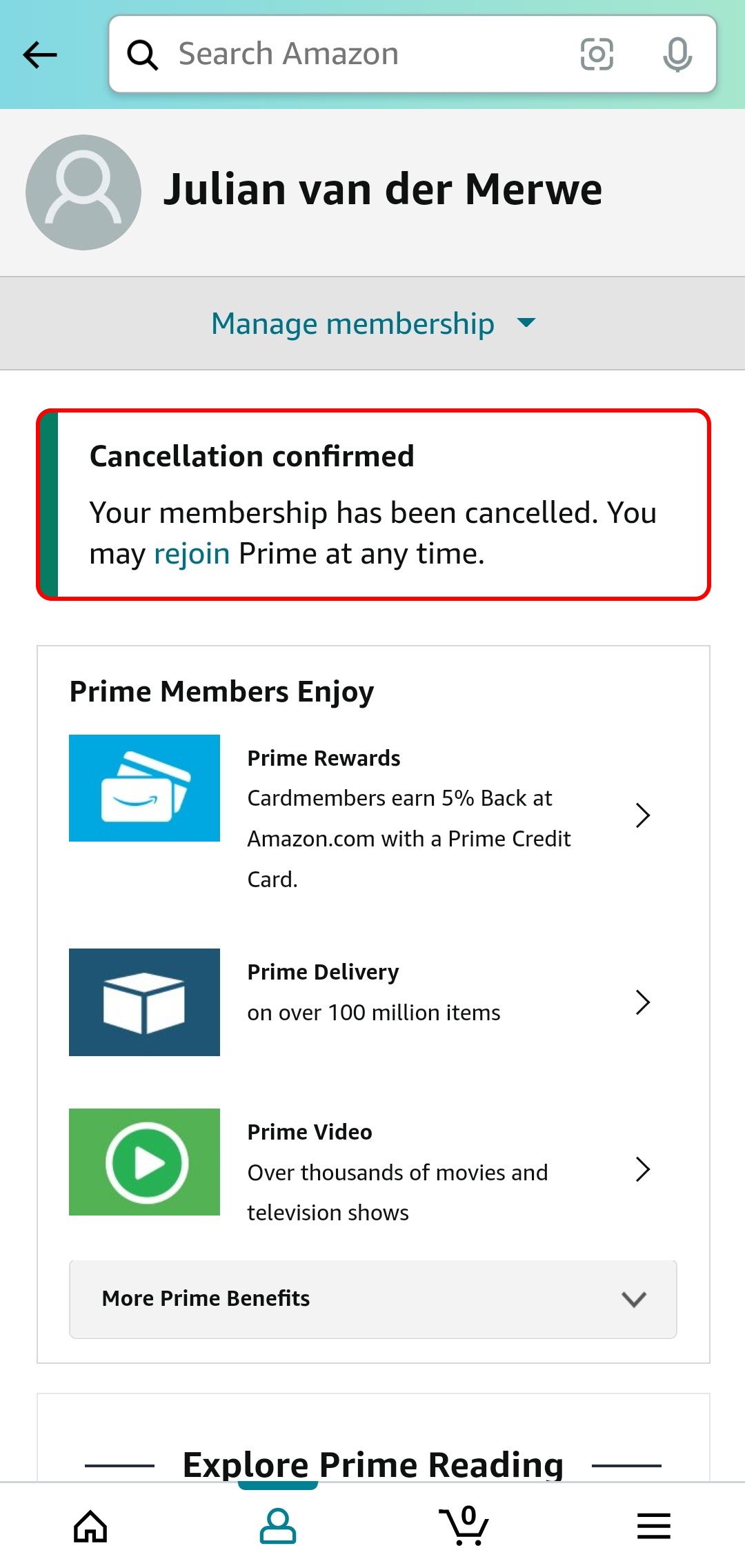
Step 3: Confirming the API Handshake and Final Termination
After the final confirmation, you should receive an automated email. This is a crucial step in digital security, as it provides a paper trail for the transaction. Behind the scenes, Amazon’s billing system performs an API handshake with your financial institution to ensure that no further pre-authorization holds are placed on your card.
It is important to note the difference between “Ending Membership” and “Ending Now.” Most users will choose to keep their benefits until the end of the current billing cycle. However, if you have not used any Prime benefits during the current period, the system may offer an “End Now” option, which triggers an automated refund logic that calculates the pro-rated amount based on your last payment.
Managing Your Digital Footprint and Data Residuals
Canceling a subscription is only one part of managing your digital life. Because Amazon Prime is deeply integrated with other hardware and software, you must consider the residual data left behind.
What Happens to Your Cloud Storage and Digital Assets?
One of the most significant technical consequences of canceling Prime relates to Amazon Photos. Prime members typically receive unlimited full-resolution photo storage. Once the membership is terminated, your storage limit reverts to the standard 5GB tier.
If your data exceeds this 5GB limit, the system will prevent you from uploading new files. More importantly, after a grace period (the duration of which is governed by Amazon’s Data Retention Policy), the system may begin to programmatically delete files to bring your account back within the free-tier limits. Users should utilize an FTP client or Amazon’s desktop download tool to migrate their assets to a local drive or an alternative cloud provider like Google Drive or iCloud before the final cancellation date.
Revoking Third-Party App Permissions
Many users use their Amazon credentials to sign into third-party apps and websites (a protocol known as OAuth). While canceling Prime does not delete your basic Amazon account, it can impact apps that rely specifically on Prime-only APIs. For example, third-party shopping tools or package trackers may lose access to certain data streams once the Prime-specific permissions are revoked. It is a best practice to review your “Login with Amazon” settings to see which third-party applications still have access to your profile data.
Future-Proofing: Alternatives and Subscription Management Tools
The ease with which we sign up for digital services often leads to “subscription creep,” where multiple monthly fees go unnoticed. Effectively managing these requires a proactive approach to digital hygiene.
Utilizing “Pause” Features vs. Full Deletion
For users who are undecided, Amazon has introduced a “Pause” feature in certain regions. Technically, this suspends the billing cycle and access to benefits without purging your preferences or history from the active cache. This is an excellent tool for users who may be traveling or looking to reduce digital noise for a specific period. It keeps your data “warm” in the database, allowing for a seamless one-click reactivation in the future.
Digital Security: Protecting Your Payment Methods Post-Prime
After canceling, it is a wise security measure to review the stored payment methods in your Amazon “Wallet.” Even with an inactive Prime membership, your credit card data remains on file for standard purchases. If you do not plan on using the platform at all, removing these payment tokens reduces your surface area for potential data breaches.
Furthermore, consider using virtual credit cards or digital wallet services (like Apple Pay or Google Pay) for future subscriptions. These tools allow you to set “spend limits” or “merchant locks,” giving you a secondary technical layer of control over your finances that exists independently of the service provider’s cancellation funnel.

Conclusion
Canceling an Amazon Prime membership is a significant step in re-asserting control over your digital ecosystem. By understanding the software architecture and the UX logic behind the process, you can navigate the transition with confidence. Whether you are migrating data from Prime Photos, managing API permissions, or simply looking to reduce your digital footprint, a technical approach ensures that no data is lost and no unauthorized charges occur. In the age of the subscription economy, the ability to effectively “offboard” from a service is just as important as the initial setup.
aViewFromTheCave is a participant in the Amazon Services LLC Associates Program, an affiliate advertising program designed to provide a means for sites to earn advertising fees by advertising and linking to Amazon.com. Amazon, the Amazon logo, AmazonSupply, and the AmazonSupply logo are trademarks of Amazon.com, Inc. or its affiliates. As an Amazon Associate we earn affiliate commissions from qualifying purchases.