
In the world of modern computing, the Central Processing Unit (CPU) is often referred to as the “brain” of the system. Like any high-performance engine, it generates a significant amount of heat while processing complex calculations. For enthusiasts, gamers, and professionals alike, monitoring CPU temperature is not just a niche hobby—it is a critical aspect of system maintenance and performance optimization. Understanding what constitutes a “normal” temperature is the first step toward ensuring your hardware lives a long, productive life.
As processors become more powerful and transistors shrink to the microscopic level, the density of heat generation increases. This article provides an in-depth exploration of CPU thermal dynamics, ranging from idle benchmarks to stress-test limits, and offers professional insights into maintaining an optimal computing environment.
Decoding the Numbers: What is a “Normal” CPU Temperature?
Determining a “normal” temperature is not a one-size-fits-all calculation. It depends heavily on the specific architecture of your processor, the task at hand, and your cooling solution. Generally, thermal performance is categorized into three distinct states: idle, under load, and maximum capacity.
Idle Temperatures
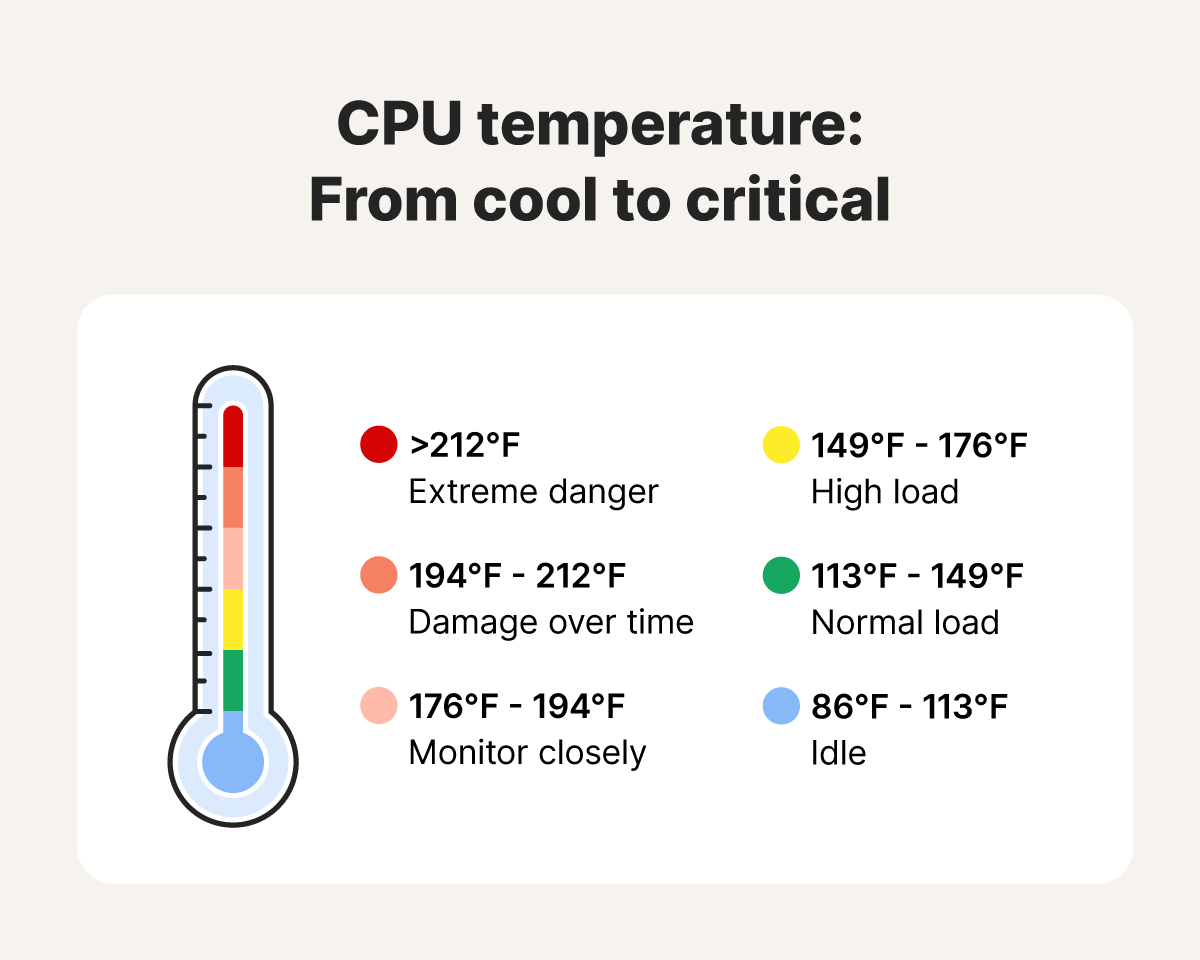
When your computer is sitting on the desktop with no major applications running, it is in an “idle” state. For most modern processors, a healthy idle temperature falls between 30°C and 45°C (86°F to 113°F). If your temperatures are consistently above 50°C while doing nothing, it may indicate background processes consuming resources or an inefficient cooling setup.
Normal Workload (Gaming and Productivity)
When you engage in typical high-demand activities—such as gaming, video editing, or complex software compiling—your CPU works harder and generates more heat. During these tasks, a temperature range of 65°C to 80°C (149°F to 176°F) is considered normal and safe. Most modern chips from Intel and AMD are designed to operate within this window for extended periods without any risk of damage.
The Maximum Threshold (Stress Testing)
When pushed to its absolute limit through stress-testing software or heavy 4K rendering, a CPU may reach 85°C to 95°C (185°F to 203°F). While modern CPUs can handle these temperatures briefly, sustained operation in this range is not ideal. Most processors have a “T-Junction” or “Max Operating Temp” of 100°C to 105°C. Once this limit is hit, the system will trigger a safety mechanism known as thermal throttling.
Why Heat Management Matters: The Tech Behind Thermal Throttling
Heat is the natural enemy of electronic components. To understand why we monitor these numbers, we must look at how hardware reacts to thermal stress.
How Modern CPUs Protect Themselves
In the early days of computing, an overheated CPU could literally melt or catch fire. Today, processors are much smarter. When a CPU detects that it is approaching its maximum safe temperature, it initiates Thermal Throttling. This process involves the CPU automatically reducing its clock speed (GHz) and lowering its voltage to reduce heat output. While this saves the hardware from permanent damage, it results in a massive drop in performance, leading to lag, stuttering, and slower render times.
The Impact on Hardware Longevity
While a single instance of high heat won’t kill a CPU, chronic overheating leads to a phenomenon known as Electromigration. This is the gradual displacement of atoms in the processor’s conductive filaments caused by the high density of current and heat. Over years, this can lead to permanent instability or total failure. By keeping your CPU within a normal temperature range, you are essentially preserving the integrity of the silicon.
Essential Tools for Real-Time Temperature Monitoring
You cannot manage what you do not measure. Fortunately, the tech industry provides several high-fidelity tools to help you keep an eye on your thermals.

Third-Party Software Solutions
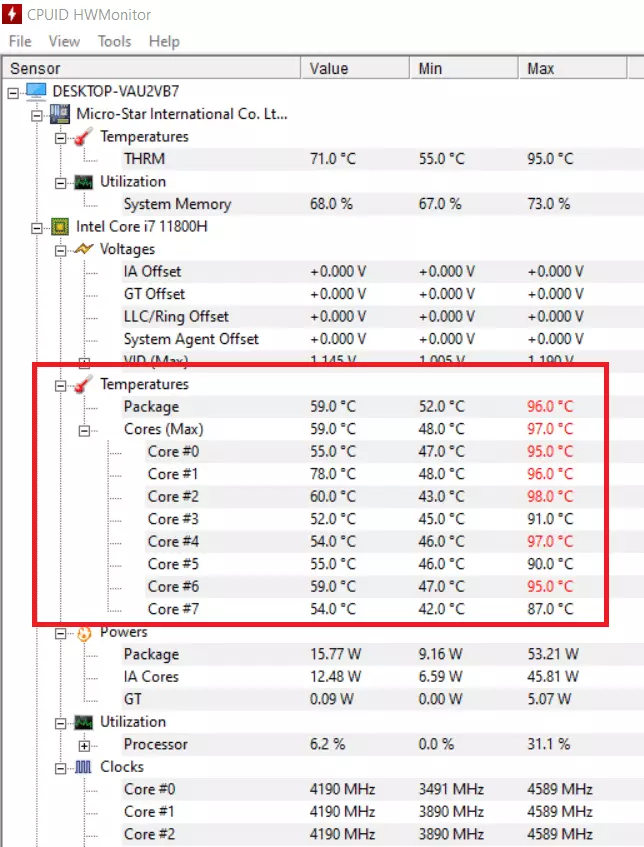
For Windows users, several lightweight applications provide real-time data on every core of your processor.
- Core Temp: A simple, no-frills tool that shows the temperature of each individual core in your system tray.
- HWInfo64: The gold standard for professionals. It provides exhaustive data, including voltages, fan speeds, and thermal limits.
- MSI Afterburner: While primarily a GPU tool, its “On-Screen Display” feature is a favorite for gamers who want to monitor CPU temps while playing.
Checking Temps via UEFI/BIOS
If you suspect your operating system is reporting incorrect data, you can check the temperature directly at the hardware level. By entering the BIOS or UEFI (usually by pressing F2 or Delete during startup), you can see the “raw” temperature of the CPU before the OS loads. This is particularly useful for troubleshooting a system that crashes before it can even reach the desktop.
Primary Drivers of Excessive CPU Heat
If your temperatures are exceeding the “normal” ranges mentioned above, it is usually due to one of three primary factors.
Overclocking and Voltage Regulation
Many enthusiasts “overclock” their CPUs to gain extra performance. This involves increasing the clock speed and the voltage supplied to the chip. However, heat generation is exponentially related to voltage. Even a small increase in voltage can result in a massive spike in temperature. If you are overclocking, “normal” temperatures will naturally be higher, but they require much more robust cooling solutions to stay under the 90°C danger zone.
Hardware Inefficiency and Dust Accumulation
The most common cause of rising temperatures over time is dust. Over months of use, fans pull in dust that settles on the fins of the heatsink, creating an insulating blanket that prevents heat from escaping. Furthermore, the Thermal Interface Material (TIM), or thermal paste, between the CPU and the cooler can dry out over two or three years, losing its ability to transfer heat efficiently.
Ambient Environment and Case Airflow
A PC is only as cool as the air around it. If your room is 30°C, your PC will struggle to stay at 40°C. Additionally, the internal airflow of your computer case (chassis) is vital. If the case doesn’t have enough intake fans to bring in cool air or exhaust fans to push out the hot air generated by the CPU and GPU, the interior of the case becomes a “heat soak,” causing all components to run significantly hotter.
Proactive Solutions: Cooling Your System Like a Pro
If your CPU is running hot, there are several technological interventions you can take to bring it back to a normal range.
Air Cooling vs. Liquid Cooling
Choosing the right cooling tech is paramount.
- Air Coolers: Use heat pipes and aluminum fins to dissipate heat. They are reliable and long-lasting but can be bulky.
- All-In-One (AIO) Liquid Coolers: Use a pump to circulate liquid coolant from the CPU to a radiator. These are often more efficient at handling “bursty” heat loads and are preferred for high-end workstations and gaming rigs.
The Importance of High-Quality Thermal Paste
Thermal paste is a liquid substance applied between the CPU lid and the cooler. Its job is to fill microscopic air gaps—air is a terrible conductor of heat. Upgrading from a generic “stock” paste to a high-performance carbon-based or silver-based paste (like Noctua NT-H2 or Thermal Grizzly Kryonaut) can drop temperatures by as much as 5°C to 10°C.
Optimizing Fan Curves and Case Pressure
Most modern motherboards allow you to set “Fan Curves” in the BIOS. This allows you to tell the system: “When the CPU hits 60°C, spin the fans at 70% speed.” By customizing these curves, you can find the perfect balance between acoustic silence and thermal performance. Furthermore, aiming for Positive Air Pressure (more intake air than exhaust) helps prevent dust from entering through the small cracks in your case, keeping your heatsinks cleaner for longer.
Summary: Maintaining the Balance
In conclusion, a “normal” CPU temperature is a moving target that shifts based on what you are doing. For the average user, keeping the chip under 80°C during heavy tasks is the benchmark for success. By utilizing monitoring software, understanding the mechanics of thermal throttling, and ensuring your hardware is free of dust and properly cooled, you can ensure that your system remains fast, stable, and reliable for years to come. In the high-stakes world of technology, staying cool isn’t just a preference—it’s a requirement for peak performance.
aViewFromTheCave is a participant in the Amazon Services LLC Associates Program, an affiliate advertising program designed to provide a means for sites to earn advertising fees by advertising and linking to Amazon.com. Amazon, the Amazon logo, AmazonSupply, and the AmazonSupply logo are trademarks of Amazon.com, Inc. or its affiliates. As an Amazon Associate we earn affiliate commissions from qualifying purchases.