
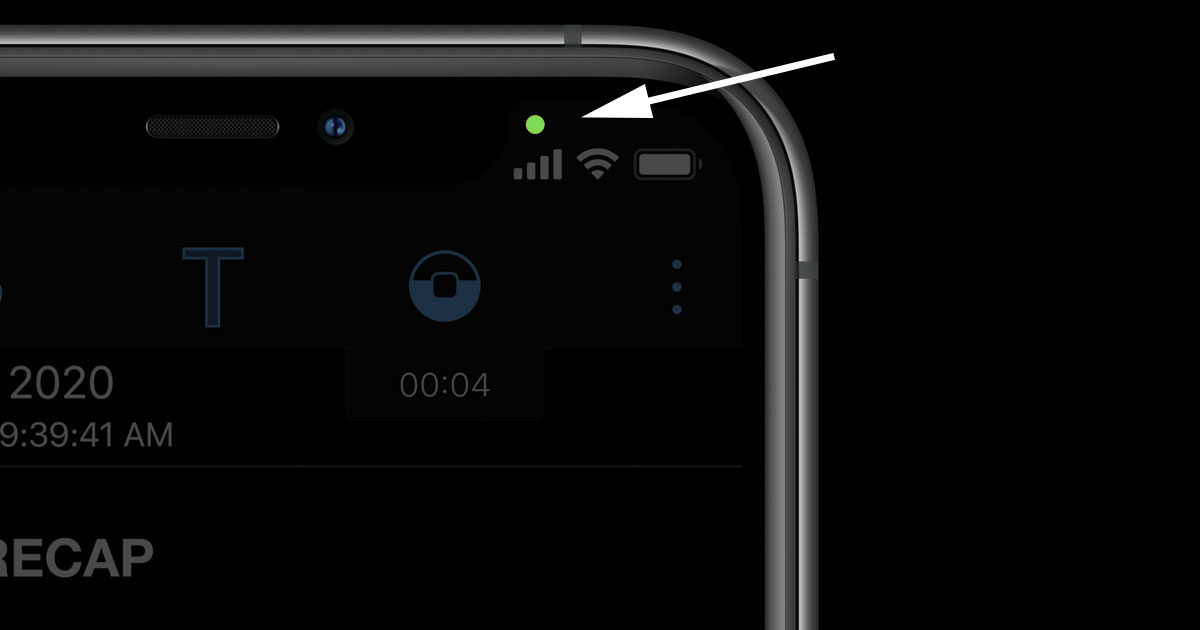
The glowing green dot that intermittently appears in the upper right corner of your iPhone’s screen might seem like a minor visual cue, but it’s a crucial indicator of your device’s activity and, more importantly, your privacy. In an era where digital footprints are constantly being tracked and data security is paramount, understanding these subtle symbols is no longer a niche concern for tech enthusiasts but a fundamental aspect of responsible smartphone usage. This article delves deep into the meaning behind the green dot on your iPhone, exploring its technical underpinnings, its implications for your privacy, and how you can leverage this information to maintain greater control over your digital life.
The Evolution of Privacy Indicators on iOS
Apple, with its strong emphasis on user privacy, has progressively introduced visual cues to inform users about how their devices are functioning and what data is being accessed. The green dot is a relatively recent addition, building upon previous privacy features.
Precursors to the Green Dot: The Orange and Red Dots
Before the introduction of the green dot, iPhone users became familiar with two other colored indicators: the orange and red dots. These served as early warnings about microphone and camera usage, respectively.
The Orange Dot: Microphone Access
The orange dot, which appeared in the status bar, signified that an application was actively using your iPhone’s microphone. This could be during a phone call, a voice recording, or when using a voice assistant. While less immediately intrusive than camera access, microphone access still raised privacy concerns, as it implied the potential for eavesdropping.
The Red Dot: Camera and Microphone Access
The red dot was a more potent signal, indicating that either the camera or the microphone, or both, were in use. This typically occurred when you were taking photos or videos, participating in a video call, or using apps that leveraged these sensors. The red dot served as a direct alert that visual or auditory data was being captured, prompting users to be mindful of their surroundings and the applications they were using.
The Green Dot: A Unified and More Granular Approach
The introduction of the green dot marked a significant advancement in iOS privacy indicators. It consolidated the concept of sensor access under a single, more informative umbrella.
Camera and Microphone Access Unified
The green dot primarily indicates that an application has recently accessed your iPhone’s microphone or camera, or both. This means that regardless of whether it’s just the microphone or both sensors, the green dot will appear. This unification simplifies the visual language, making it easier for users to grasp the general notion of active sensor usage.
Recent Activity: Not Constant Surveillance
It’s important to understand that the green dot does not signify continuous, ongoing access by an app. Instead, it indicates recent access. This means that the app has used the microphone or camera within a specific, recent timeframe. The dot will typically appear when the app starts using the sensor and may remain visible for a short period after the access has ceased. This distinction is crucial; it’s a notification of a specific event, not a perpetual state of monitoring.
Deeper Dive into Green Dot Functionality
The green dot’s functionality extends beyond a simple on/off switch. It provides valuable insights into how your apps are interacting with your device’s hardware, empowering you to make informed decisions about app permissions and usage.
Identifying Suspicious Activity
One of the most significant benefits of the green dot is its ability to help you identify potentially suspicious or unwanted app behavior.
Unexplained Green Dot Appearances
If you notice the green dot appearing on your screen when you are not actively using an app that requires camera or microphone access, it’s a red flag. This could indicate that a rogue application is attempting to access your sensors without your explicit knowledge or consent. This could be a malicious app, or it could be a legitimate app that has a bug or an unintended privacy loophole.
Verifying App Behavior
Conversely, the green dot can also be reassuring. When you are intentionally using your camera for a FaceTime call or your microphone for dictation, the green dot’s appearance confirms that the app is functioning as expected and has the necessary permissions. This confirmation can alleviate concerns about whether an app is truly accessing the sensors it claims to.
How to Investigate and Control Green Dot Activity
When the green dot appears, it’s not just a notification; it’s an invitation to take action and investigate. iOS provides built-in tools to help you understand which app is responsible and to regain control over sensor access.
Accessing the Control Center
The most straightforward way to identify the app responsible for the green dot is by accessing your iPhone’s Control Center.
Swiping Down for Control Center
Depending on your iPhone model, you can access Control Center by swiping down from the top-right corner of the screen (for iPhones with Face ID) or swiping up from the bottom of the screen (for iPhones with a Home button).
The “Now Playing” and Sensor Information Bar
Once Control Center is open, look for a bar at the top. If an app has recently used your microphone or camera, you will see information here indicating which app was responsible. This might be labeled as “Now Playing” if it’s audio-related, or it will directly state the app name if it accessed the camera or microphone.
Reviewing App Permissions
The ultimate control over what your apps can access lies in their permissions. The green dot’s appearance is a prompt to review these permissions regularly.
Navigating to Privacy Settings
Go to your iPhone’s “Settings” app, then tap on “Privacy & Security.” Here, you’ll find a list of various privacy-related settings, including “Camera” and “Microphone.”
Managing App-Specific Access
Within the “Camera” and “Microphone” sections, you will see a list of all apps that have requested permission to access these sensors. You can toggle these permissions on or off for each app individually. If you see an app listed that you don’t recognize or that you don’t believe needs access to your camera or microphone, you can revoke its permission. This proactive approach is a cornerstone of digital security.
The Green Dot in the Context of iOS Security and Privacy
The green dot is more than just a technical indicator; it’s a vital component of Apple’s broader strategy to foster a more secure and privacy-conscious ecosystem. Understanding its role within this ecosystem is key to appreciating its significance.
Apple’s Commitment to Privacy
Apple has consistently positioned privacy as a core differentiator for its products. Features like end-to-end encryption, App Tracking Transparency, and the visual privacy indicators like the green dot are all part of this commitment.
Design Philosophy and User Trust
The design philosophy behind these indicators is to provide users with transparency and control. By making sensor access visible, Apple empowers users to be active participants in protecting their data, fostering a greater sense of trust in the platform. The green dot, in this regard, is a tangible manifestation of Apple’s dedication to putting users in the driver’s seat of their digital privacy.
Best Practices for Maintaining Privacy
While the green dot is a helpful tool, it’s just one piece of the puzzle when it comes to maintaining robust digital privacy. Adopting a comprehensive set of best practices is essential.
Principle of Least Privilege
A fundamental principle in cybersecurity is the “principle of least privilege.” This means granting applications only the permissions they absolutely need to function. Regularly reviewing app permissions, as facilitated by the insights from the green dot, is a direct application of this principle. If an app doesn’t need your microphone to play a game, revoke that permission.
Software Updates and Vigilance
Keeping your iPhone’s operating system and all your applications updated is paramount. Software updates often include security patches that fix vulnerabilities that could be exploited by malicious actors. Furthermore, staying vigilant about app downloads, only installing apps from trusted sources like the App Store, and being critical of the permissions they request are all crucial steps in safeguarding your privacy.

Understanding App Behavior Beyond the Dot
While the green dot signals microphone and camera use, it doesn’t reveal the full extent of an app’s data collection. Some apps might collect location data, contacts, or browsing history without necessarily triggering the green dot. Therefore, it’s also wise to review other privacy settings within your iPhone, such as location services and contact access, and to read app privacy policies (though this can be a daunting task).
In conclusion, the green dot on your iPhone is a powerful, albeit subtle, tool for enhancing your digital security and privacy. It serves as an immediate alert for microphone and camera activity, allowing you to identify and investigate potential misuse. By understanding its functionality, leveraging the available iOS tools for investigation, and integrating this knowledge with broader privacy best practices, you can significantly strengthen your control over your personal data and navigate the digital world with greater confidence and peace of mind.
aViewFromTheCave is a participant in the Amazon Services LLC Associates Program, an affiliate advertising program designed to provide a means for sites to earn advertising fees by advertising and linking to Amazon.com. Amazon, the Amazon logo, AmazonSupply, and the AmazonSupply logo are trademarks of Amazon.com, Inc. or its affiliates. As an Amazon Associate we earn affiliate commissions from qualifying purchases.