
The modern living room has undergone a radical transformation over the last decade. No longer just a passive display for cable broadcasts, the television has evolved into a sophisticated computing hub. At the forefront of this evolution is Samsung, whose line of Smart TVs—powered by the proprietary Tizen Operating System—offers one of the most robust ecosystems in the consumer electronics market. However, as users seek to replicate the limitless flexibility of their smartphones on their television screens, they often encounter the nuances of TV-specific software limitations. This guide provides an in-depth exploration of how to download and manage any app on a Samsung Smart TV, ranging from standard installations to advanced sideloading techniques and hardware workarounds.
1. Navigating the Native Ecosystem: Using the Samsung Smart Hub
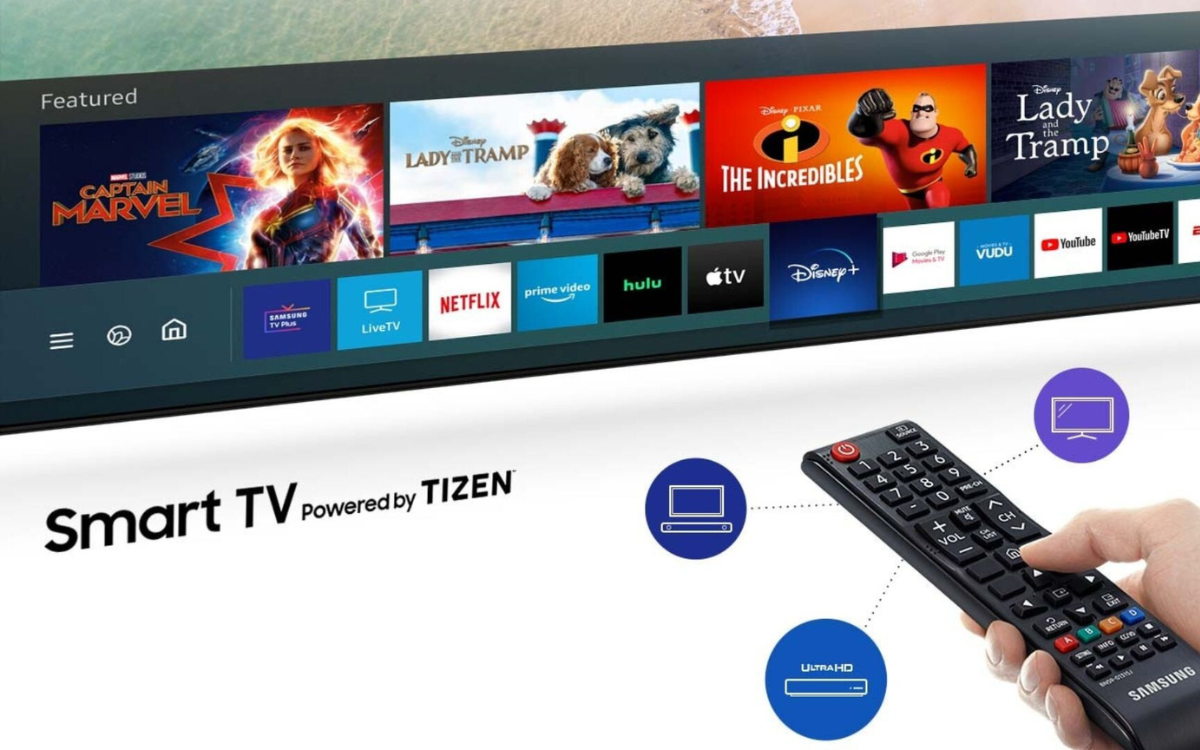
The Samsung Smart Hub is the gateway to your television’s software capabilities. Unlike Android TV, which uses the Google Play Store, Samsung utilizes its own curated marketplace. Understanding how to navigate this ecosystem is the first step in maximizing your device’s utility.
Accessing the Official App Store
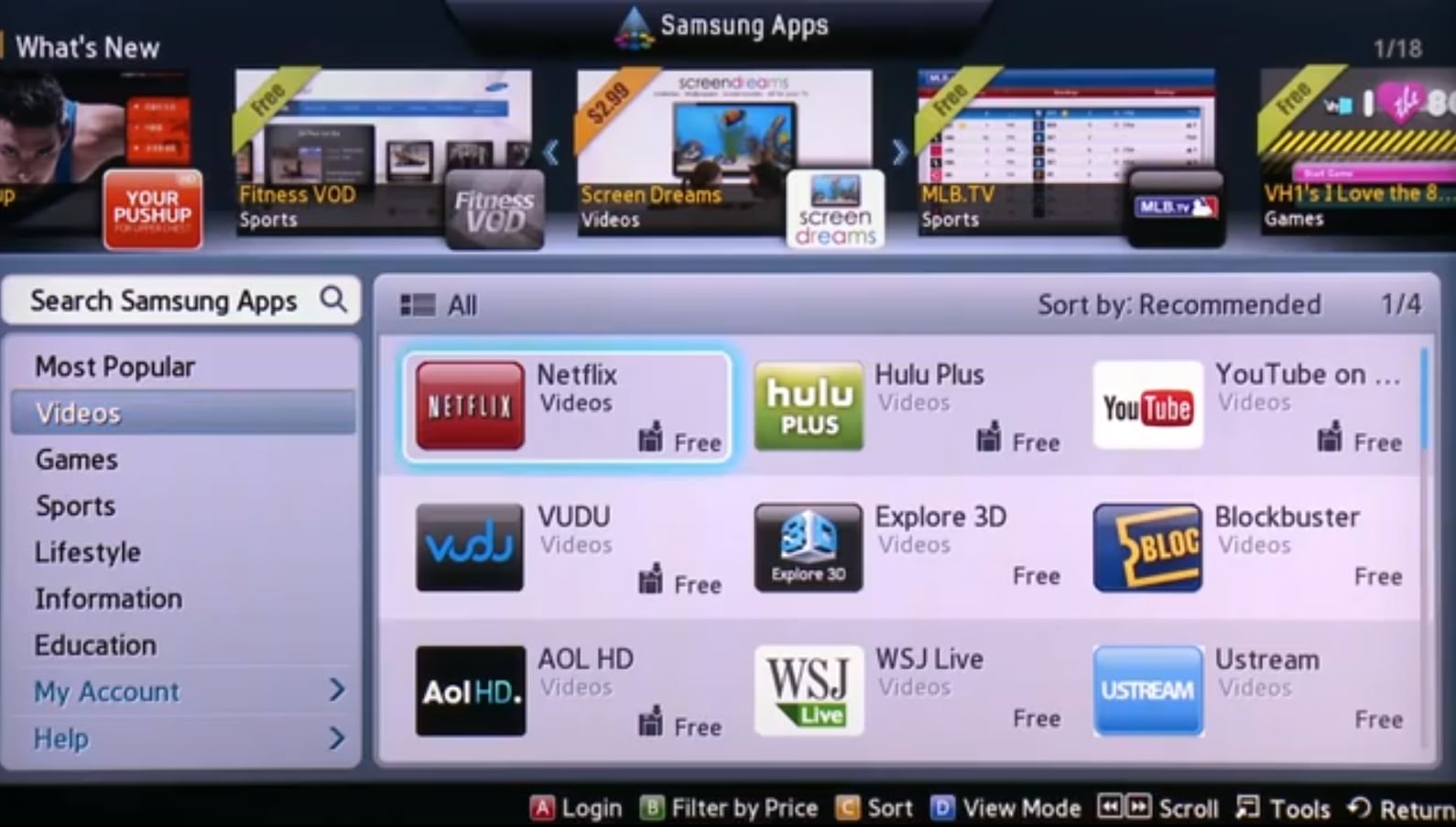
To begin, ensure your TV is connected to a stable internet connection via Wi-Fi or Ethernet. Press the “Home” button on your remote to bring up the Smart Hub ribbon. Navigate to the left until you find the “Apps” icon—represented by four small squares. Selecting this icon opens the Samsung App Store. This interface is categorized into sections such as “Most Popular,” “What’s New,” and specific genres like “Video,” “Games,” and “Lifestyle.”
Searching and Installing Applications
If you have a specific app in mind, use the magnifying glass icon in the top-right corner. Use the on-screen keyboard or voice command (if your remote supports Bixby, Alexa, or Google Assistant) to type the name of the app. Once you select the desired application, you will be taken to its description page. Here, you can view the file size, version history, and user ratings. Click “Install” to download the app directly to your TV’s internal storage.
Customizing Your Home Screen for Quick Access
Downloading an app is only half the battle; efficiency requires easy access. Once an app is installed, you can choose to “Add to Home.” This places the app on the main ribbon, allowing you to launch it without navigating back through the App Store. For power users, the “Settings” menu within the Apps section allows for “Auto-update” functionality, ensuring your software is always patched against security vulnerabilities and performance bugs.
2. Beyond the Basics: How to Install Third-Party Apps and Sideloading
While the Samsung App Store features thousands of titles, it is a “walled garden.” Some niche streaming services, utility tools, or regional apps may not be available for direct download. In these instances, tech-savvy users look toward “sideloading”—the process of installing software from outside the official marketplace.
Enabling Developer Mode on Tizen OS
Because Samsung Smart TVs run on Tizen, you cannot simply install an Android APK file. To sideload, you must first enable Developer Mode. Navigate to the “Apps” panel and enter the sequence “12345” on your remote (or the specific numerical sequence for your model). A popup will appear; toggle “Developer Mode” to “On” and enter the IP address of your computer. This creates a bridge between your PC and the TV, allowing for custom app deployment.
Using Tizen Studio for App Deployment
For those looking to install specific .tpk files (the Tizen equivalent of an APK), you will need the Tizen Studio SDK installed on a laptop or desktop. By connecting your TV and computer to the same network, you can use the “Device Manager” in Tizen Studio to push custom applications to the TV. This is the primary method used by developers to test apps and by enthusiasts to install software that hasn’t officially cleared Samsung’s rigorous certification process.
The Risks and Security Implications of Sideloading
It is vital to approach sideloading with a focus on digital security. Unlike apps in the official store, sideloaded applications have not been vetted for malware or data-logging scripts. Furthermore, installing incompatible software can lead to system instability or “bricking” the TV’s firmware. Always ensure your source files are from reputable developers and understand that sideloading may, in some jurisdictions, void certain aspects of your software warranty.
3. Bridging the Gap: Using External Hardware for Non-Native Apps
There are times when a specific app is simply not built for the Tizen architecture. For example, some specialized VPNs, browsers, or experimental AI tools are built exclusively for Android or tvOS. In these cases, the “Tech” solution is to bypass the native OS using external hardware.
Why Some Apps Aren’t on Samsung
The absence of an app is rarely a hardware limitation; it is usually a matter of licensing or software architecture. Samsung uses the Tizen OS, while many developers prioritize the Android TV (Google) or tvOS (Apple) platforms. If a developer hasn’t ported their code to Tizen, that app will never appear in the Samsung Store.
Integrating Media Streamers (Fire Stick, Chromecast, Apple TV)
The most effective way to “download” an app that isn’t on Samsung is to plug a media streamer into one of the HDMI ports. Devices like the Amazon Fire TV Stick, Google Chromecast with Google TV, or the Apple TV 4K provide access to their respective stores. Since these devices are dedicated to app performance, they often provide a smoother UI and more frequent app updates than the TV’s built-in software.
Screen Mirroring and AirPlay 2 as Alternatives
If you only need an app occasionally, you can avoid a download entirely by using casting technology. Most modern Samsung TVs support both Miracast (for Windows and Android) and Apple AirPlay 2. By launching the app on your smartphone and “casting” it to the TV, you leverage the processing power of your phone while enjoying the screen real estate of the Samsung display. This is particularly useful for niche sports apps or presentation tools.
4. Optimizing TV Performance and Storage Management
As you download more applications, you will inevitably encounter the hardware limits of your Smart TV. Unlike computers, TVs often have limited flash storage and RAM. Managing these resources is essential for a lag-free experience.
Clearing Cache and Managing System Memory
Every app accumulates “cache” data over time. If you notice an app like Netflix or YouTube is stuttering, navigate to Settings > Support > Device Care > Manage Storage. From here, you can view which apps are consuming the most space. Selecting an app allows you to “View Details” and “Clear Cache.” This removes temporary files without deleting your login information, often restoring the app to its original speed.
Updating Firmware for App Compatibility
App developers frequently update their software to require the latest APIs. If your TV’s firmware is outdated, new apps may not appear in the store or may fail to launch. Ensure your TV is set to “Auto Update” under the Settings > Support > Software Update menu. A firmware update doesn’t just add features; it often includes security patches that protect your home network from vulnerabilities inherent in Internet of Things (IoT) devices.
Securing Your Smart TV Network
A Smart TV is a computer connected to your home network, making it a potential target for data harvesting. To secure your downloads, consider using a router-level VPN or a DNS service like NextDNS. This ensures that the apps you download are not communicating with unauthorized tracking servers in the background. Additionally, periodically review the “App Permissions” in the settings menu to see which apps have access to your TV’s microphone or camera.
5. Troubleshooting Common App Installation Issues
Even with a perfect setup, technical hurdles are common. Understanding the root cause of an installation failure can save hours of frustration.
Resolving “App Not Compatible” Errors
If you search for an app and find it, but the “Install” button is greyed out, it usually indicates a hardware generation gap. Samsung updates its Tizen version annually, and older models (typically those older than 5 years) may lack the hardware acceleration required for modern, high-bitrate streaming apps. In this scenario, the external hardware solutions mentioned in Section 3 are your best recourse.
Fixing Connectivity and Region Lock Issues
Some apps are geo-restricted. If you are looking for a specific streaming service that is popular in another country, it may not appear in your local Samsung App Store. This is determined by the “Service Location” set in your TV’s hidden service menu. While it is possible to change the region of your Smart Hub, be aware that doing so will delete your currently installed apps and may require a factory reset.
Dealing with “Insufficient Storage”
If your TV runs out of space, Samsung allows for the use of external USB drives on many models to expand storage. However, not all apps can be moved to external storage due to DRM (Digital Rights Management) restrictions. If you hit a storage wall, the most efficient tech strategy is to delete unused factory-installed “bloatware” or apps you haven’t opened in over 30 days to make room for new high-priority software.
By understanding the interplay between the Tizen OS, developer tools, and external hardware, you can effectively transform your Samsung Smart TV into a versatile powerhouse capable of running nearly any application in the digital landscape.
aViewFromTheCave is a participant in the Amazon Services LLC Associates Program, an affiliate advertising program designed to provide a means for sites to earn advertising fees by advertising and linking to Amazon.com. Amazon, the Amazon logo, AmazonSupply, and the AmazonSupply logo are trademarks of Amazon.com, Inc. or its affiliates. As an Amazon Associate we earn affiliate commissions from qualifying purchases.