
The landscape of live television has undergone a monumental transformation over the past decade, driven by the advent of streaming services. Among the most innovative features to emerge from this evolution is “Multiview,” a game-changer for sports fans and multi-taskers alike. YouTube TV, a leader in the live TV streaming space, has championed this technology, offering users the unprecedented ability to watch multiple live streams simultaneously on a single screen. This feature not only enhances the viewing experience but also redefines how audiences consume live content, particularly during major sporting events or breaking news cycles.

Multiview on YouTube TV is more than just a novelty; it’s a sophisticated technological solution designed to address the modern viewer’s desire for comprehensive coverage and control. Imagine the Super Bowl, an NBA playoff night, or a busy Saturday with multiple college football games – instead of frantically switching between channels or juggling multiple screens, Multiview consolidates the action into one cohesive display. This guide will delve into the intricacies of YouTube TV’s Multiview, providing a detailed walkthrough, optimization tips, and a glimpse into its future impact on live streaming.
Understanding YouTube TV’s Multiview Feature
At its core, Multiview is an innovative display option that allows users to simultaneously watch up to four different live streams on a single screen. This capability is a significant leap forward from traditional picture-in-picture (PIP) functions, offering a more integrated and dynamic viewing experience. YouTube TV recognized a critical need among its user base, especially sports enthusiasts, who often follow multiple games or events concurrently.
What is Multiview?
Multiview essentially splits your television screen into several distinct quadrants, each dedicated to a separate live broadcast. While the most common configuration is a four-way split, the underlying technology can theoretically support various layouts. The genius of YouTube TV’s implementation lies in its seamless integration. Users can easily toggle audio between the active streams, making it simple to follow the commentary of a specific game while keeping an eye on the scores and action of others. This eliminates the frustration of missing crucial plays or having to constantly switch inputs or channels.
Beyond sports, Multiview holds potential for news junkies tracking different angles of a breaking story, or even for entertainment purposes, such as watching multiple reality TV show feeds simultaneously (should that become available). The primary appeal, however, remains rooted in its utility for high-stakes, simultaneous live events.
The Technology Behind It
The power behind YouTube TV’s Multiview isn’t simply a client-side trick. Unlike some basic picture-in-picture features that rely on your device’s ability to render multiple video layers, YouTube TV employs server-side rendering for its Multiview bundles. This means that YouTube’s servers are doing the heavy lifting by combining the multiple video streams into a single, composite stream before sending it to your device.
This approach offers several distinct advantages:
- Reduced Device Load: Your streaming device (Smart TV, Roku, Apple TV, etc.) only needs to decode and play one video stream, rather than four individual streams. This significantly reduces processing power requirements and minimizes the chances of buffering or performance lag, especially on older or less powerful hardware.
- Optimized Bandwidth: While the combined stream is higher quality than a single stream, it’s often more efficiently delivered than trying to manage four separate, high-bandwidth connections from the client side.
- Consistent Experience: By controlling the rendering on the server, YouTube TV ensures a consistent layout, synchronization, and quality across a wide range of compatible devices, guaranteeing a uniform user experience.
This sophisticated backend infrastructure is what truly sets YouTube TV’s Multiview apart, providing a robust and reliable platform for multi-stream viewing.
Why YouTube TV Stands Out
While other streaming platforms might offer rudimentary multi-stream options, YouTube TV distinguishes itself through several key aspects:
- Pioneering Implementation: YouTube TV was among the first major live TV streaming services to roll out a polished and widely accessible Multiview feature, particularly emphasizing its application for sports.
- Curated Bundles: Rather than allowing users to pick any four channels, YouTube TV initially focuses on offering curated Multiview bundles. These bundles are intelligently grouped based on relevance, such as “all NBA games,” “NFL RedZone + three other NFL games,” or “local news + national news.” This curation simplifies the selection process and ensures a coherent viewing experience. While user-defined custom bundles might be a future enhancement, the current curated approach is highly effective for immediate sports and news consumption.
- User-Friendly Interface: The integration of Multiview into the existing YouTube TV interface is remarkably intuitive. Finding and launching a Multiview stream is straightforward, typically requiring just a few clicks or remote presses. The ability to easily switch audio focus between streams without interrupting the video further enhances usability.
- Reliability and Performance: Leveraging Google’s vast infrastructure and streaming expertise, YouTube TV’s Multiview offers exceptional reliability and smooth performance, minimizing frustrating lags or drops in quality that can plague less robust solutions.
These factors combine to make YouTube TV a premier destination for anyone seeking a superior multi-channel live streaming experience.
Step-by-Step Guide to Activating Multiview
Engaging with Multiview on YouTube TV is designed to be an intuitive process, allowing users to jump into the action quickly. However, understanding the optimal pathway and necessary prerequisites can enhance your experience.
Prerequisites
Before diving into Multiview, ensure you meet the following basic requirements:
- Active YouTube TV Subscription: Multiview is an exclusive feature for YouTube TV subscribers. You’ll need an active subscription to access live channels and, by extension, the Multiview option.
- Compatible Device: Multiview is primarily available on devices connected to a television. This includes most Smart TVs (Samsung, LG, Sony, Vizio, etc. with the YouTube TV app), streaming devices (Roku, Apple TV, Chromecast with Google TV, Amazon Fire TV Stick), and game consoles (Xbox, PlayStation). While the feature is server-rendered, the YouTube TV app on your device must be up-to-date to support the display and interaction. Multiview is currently not available on mobile devices or web browsers.
- Stable Internet Connection: Given that you are streaming multiple high-definition feeds (even if bundled server-side), a robust and stable internet connection is crucial. A minimum of 25 Mbps is recommended for smooth HD streaming, and more is better to avoid any potential buffering, especially if other devices are using your network simultaneously.
Navigating to Multiview
Accessing Multiview is surprisingly simple, with YouTube TV integrating it seamlessly into its existing user interface:
- From the “For You” Tab/Home Screen: This is often the easiest and most common way to find Multiview options. During periods with multiple live events (e.g., Sunday afternoons during football season, major tournament days), YouTube TV proactively promotes available Multiview streams directly on your home screen or within the “For You” tab. Look for carousels or sections labeled “Multiview” or “Watch multiple games.”
- From a Specific Game/Event Page: If you’re already watching a game or browsing for a specific event, YouTube TV may offer Multiview options directly from that event’s page. For example, if you’re on the page for an NBA game, you might see a suggestion to “Watch this game in Multiview with 3 other NBA games.”
- Searching: While not as direct, you might be able to find Multiview options by searching for “Multiview” or specific sporting events during peak times. The system is designed to surface relevant bundles.
Once you locate a Multiview option, simply select it, and your screen will transform, displaying the chosen live streams simultaneously.
Selecting Your Streams
Currently, YouTube TV’s Multiview primarily functions with curated bundles. This means you generally don’t pick and choose individual channels to combine freely. Instead, YouTube TV intelligently groups related live events into predefined Multiview layouts.
For example, during a major sports weekend, you might see options like:
- “NFL RedZone + 3 other NFL games”
- “All four current NBA games”
- “Two MLB games + two sports news channels”
- “Local news + national news + two weather channels”
The curation is a deliberate choice by YouTube TV to simplify the experience and ensure logical groupings of content. While some users might desire full customizability, the curated approach is highly effective for the most common use cases, especially sports. Simply browse the available bundles and select the one that best suits your viewing preferences for the moment. As the feature evolves, greater customization options may become available, but for now, the curated bundles are the pathway.
Controlling Your Multiview Experience
Once a Multiview stream is active, you retain a good degree of control over your viewing experience:
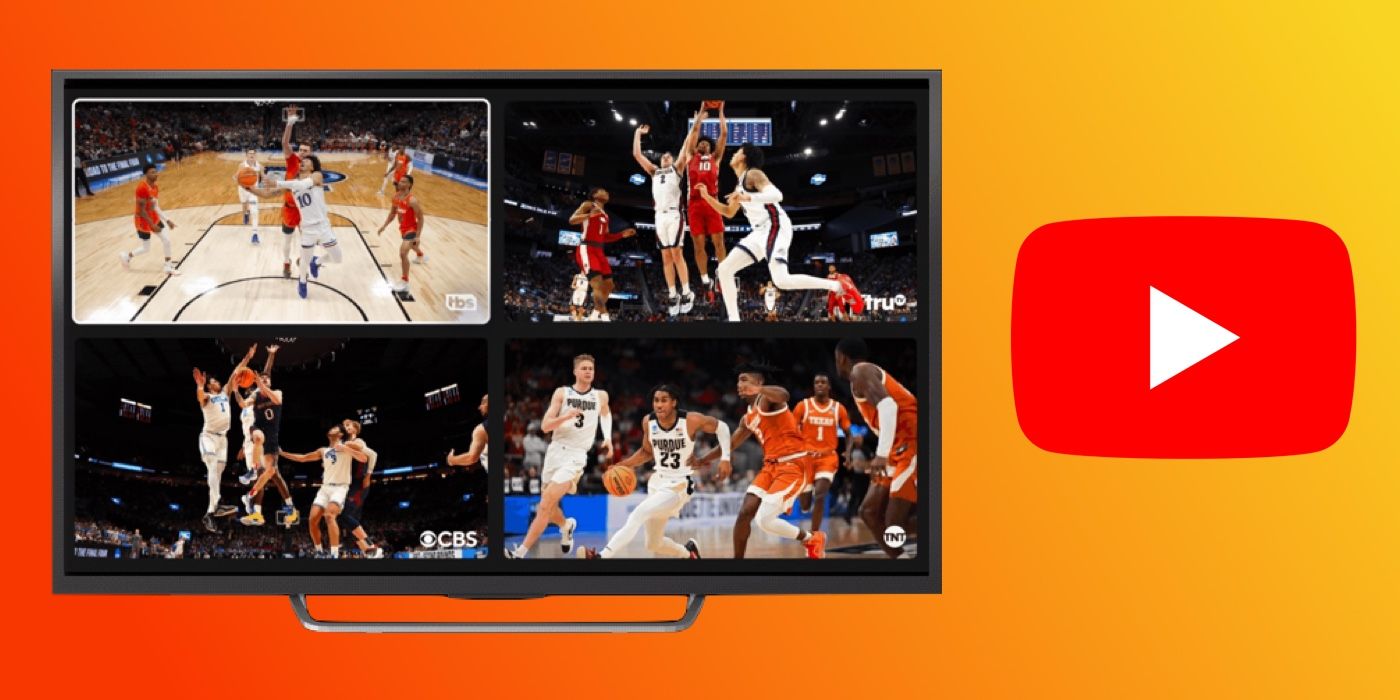
- Audio Focus: The most important control is often switching audio. Use your remote’s navigation buttons (e.g., arrow keys) to highlight the desired video feed. Once highlighted, the audio from that specific stream will become dominant. The other streams will likely be muted or have their volume significantly lowered.
- Switching Feeds: You can navigate between the different video feeds within the Multiview layout. As you highlight a new feed, its audio will become primary, and its picture might slightly enlarge or gain a border to indicate it’s the active focus.
- Full-Screen Toggle: If a particular game or segment captures your full attention, you can usually select the highlighted feed to temporarily expand it to full screen. This allows you to dive deeper into one event without exiting the entire Multiview session. To return to the Multiview layout, simply press the back button on your remote.
- Exiting Multiview: To stop watching in Multiview, simply press the back button on your remote until you return to the main YouTube TV interface.
These controls ensure that while you’re enjoying multiple events, you’re not overwhelmed and can easily focus on the most critical action.
Optimizing Your Multiview Experience
While Multiview is designed for ease of use, a few best practices and technical considerations can significantly enhance your viewing pleasure and help troubleshoot any potential issues.
Best Practices for Sports Enthusiasts
For sports fans, Multiview is a godsend. To make the most of it:
- Plan Ahead: During peak sports days (e.g., NFL Sundays), available Multiview bundles might appear well before game time. Browse and select your preferred bundle early to ensure you don’t miss kickoff.
- Prioritize Audio: Decide which game’s audio you want to follow closely. Keep that feed highlighted to ensure consistent commentary, while using your peripheral vision to track the other games.
- Strategic Full-Screening: Don’t hesitate to go full screen for critical moments—a game-winning drive, a penalty shootout, or a major upset. The ability to quickly switch back to Multiview means you won’t miss the overall action for long.
- Consider a Second Screen: While Multiview minimizes the need for multiple TVs, having a tablet or phone handy to follow stats, fantasy scores, or social media commentary can complement your Multiview experience without being distracting.
Device Compatibility and Performance
Even with server-side rendering, your local setup plays a role in the Multiview experience:
- Device Power: While less critical than client-side rendering, a newer, more powerful streaming device will generally offer a smoother navigation experience within the YouTube TV app and between Multiview feeds. Older devices might experience slight delays in UI responsiveness.
- Internet Speed and Stability: This is paramount. Even if YouTube’s servers are doing the heavy lifting, a weak or intermittent Wi-Fi signal to your device can cause buffering or drops in quality.
- Wired Connection (Ethernet): For the absolute best performance, connect your streaming device directly to your router via an Ethernet cable, if possible. This eliminates Wi-Fi interference and ensures the most stable connection.
- Wi-Fi Optimization: If you must use Wi-Fi, ensure your router is centrally located, not obstructed, and ideally operating on a less congested channel. Consider upgrading to a Wi-Fi 6 (or newer) router if you have many devices and demanding streaming habits.
- App Updates: Always keep your YouTube TV app updated to the latest version. New updates often include performance enhancements, bug fixes, and support for the newest features.
Troubleshooting Common Issues
Encountering issues can be frustrating, but many common problems have simple solutions:
- Buffering or Lag:
- Check Internet Speed: Use an online speed test (e.g., speedtest.net) on a device connected to the same network to verify your internet speed.
- Restart Router/Modem: A simple reboot can often resolve network connectivity issues.
- Restart Device/App: Close and reopen the YouTube TV app, or restart your streaming device entirely.
- Reduce Network Load: If others are streaming or gaming on your network, temporarily pausing their activity can free up bandwidth.
- Multiview Option Not Appearing:
- Check Availability: Remember that Multiview options are curated and event-dependent. If there aren’t relevant simultaneous live events (e.g., off-season for major sports), Multiview bundles might not be available.
- Update App: Ensure your YouTube TV app is fully updated.
- Restart Device: A device restart can sometimes refresh app listings.
- Audio Issues:
- Verify Active Feed: Make sure the feed you want to hear is highlighted as the active one.
- Check Device Volume: Ensure your TV or sound system volume is up.
- App Restart: Sometimes, an app restart can resolve audio glitches.
By proactively addressing these points, you can ensure a consistently smooth and enjoyable Multiview experience.
The Future of Multiview and Live TV
YouTube TV’s Multiview feature is not just a present-day marvel but also a strong indicator of the future trajectory of live television. Its successful implementation has already set a new benchmark, prompting competitors to consider similar functionalities. The evolution of Multiview promises even greater customization, interactivity, and integration, fundamentally altering how we perceive and engage with live content.
Expanding Beyond Sports
While sports remain the primary and most evident application for Multiview, its potential extends far beyond the stadium. Imagine these possibilities:
- News and Current Events: Watch a presidential debate from different network perspectives, or follow breaking news with feeds from a national broadcast, a local affiliate, and a dedicated news ticker, all simultaneously. This offers unparalleled context and a broader understanding of unfolding stories.
- Entertainment and Reality TV: While less common currently, future iterations could offer multiple camera angles for concerts, behind-the-scenes feeds for reality shows, or even split-screen viewing for interconnected cinematic universes (e.g., watching a TV show and a companion web series simultaneously).
- Educational Content: Picture a medical conference where you can watch the main presentation alongside a feed of surgical demonstrations or data visualizations. For online learning, Multiview could allow students to view a lecture, a live chat, and supplementary materials concurrently.
The key will be the availability of suitable content streams and the demand from diverse user segments. As content creators and broadcasters recognize the power of multi-stream consumption, we are likely to see more tailored offerings.
Potential Enhancements
The current Multiview experience, while excellent, is just the beginning. Several technological and experiential enhancements are on the horizon:
- User-Defined Layouts and Customization: The most requested feature is likely the ability for users to pick any four (or more) available live channels and arrange them in a custom Multiview layout. This would put ultimate control in the hands of the viewer, moving beyond curated bundles to truly personalized viewing.
- More Flexible Picture-in-Picture Variations: Beyond a strict grid, we could see more dynamic layouts, such as one dominant main screen with smaller, adjustable PIP windows, or even cascading overlays.
- Interactive Elements: Imagine being able to tap on a specific player in one of the Multiview feeds to pull up their real-time stats without leaving the Multiview experience. Or, for news, tapping on a reporter to bring up their social media feed. Integration with real-time polls, trivia, or fantasy sports interfaces could also become commonplace.
- Spatial Audio and AI-Driven Focus: Advanced audio processing could allow for a more immersive soundscape where you intuitively hear the audio from the active game, but subtle background sounds from the other feeds provide environmental awareness. AI could also predict which game is most likely to have a significant play and subtly draw your attention to it.
- Cross-Platform Integration: While currently limited to TV-connected devices, Multiview could theoretically expand to desktop browsers or even more robust tablet applications, though the screen size limitations would need creative solutions.
These enhancements will require further investment in streaming infrastructure and intelligent software design but are well within the realm of possibility given the rapid pace of technological advancement.
Impact on the Streaming Landscape
YouTube TV’s pioneering work with Multiview has a significant impact on the broader streaming landscape:
- Setting a New Standard: Multiview is quickly becoming a “must-have” feature, especially for sports-centric streaming services. Competitors will be compelled to develop their own robust multi-stream capabilities to remain competitive. This drives innovation across the industry.
- Increased User Engagement: By offering more control and information, Multiview deepens user engagement. Viewers are more likely to spend longer periods within the app, reducing churn and increasing satisfaction.
- Monetization Opportunities: Future Multiview enhancements could open new avenues for advertising, such as targeted ads within specific panels or interactive overlay ads.
- Redefining “Live”: Multiview challenges the traditional linear viewing experience, turning live TV into a more dynamic, user-controlled environment. It empowers viewers to be their own executive producers, curating their immediate live broadcast experience.
Ultimately, Multiview is not just a feature; it’s a philosophy that champions viewer autonomy and comprehensive access. It signals a future where live content is consumed not as a singular, dictated stream, but as a rich tapestry of simultaneous events, woven together by individual choice.

Conclusion
YouTube TV’s Multiview feature stands as a testament to the ongoing innovation within the streaming industry. It brilliantly addresses a long-standing desire among viewers, especially sports aficionados, to follow multiple live events without compromise. By leveraging sophisticated server-side rendering and an intuitive user interface, YouTube TV has transformed the multi-screen dilemma into a seamless, integrated viewing experience.
From understanding the underlying technology to navigating the simple steps for activation and optimizing your setup for peak performance, Multiview is designed to be accessible and robust. While currently leaning towards curated bundles, its future promises an even greater degree of customization and interactivity, hinting at a truly personalized live television experience. As technology continues to evolve, Multiview will undoubtedly remain at the forefront of how we engage with and consume live content, solidifying YouTube TV’s position as a leader in the streaming revolution. Embrace the power of Multiview and unlock a richer, more dynamic way to watch your favorite events unfold.
aViewFromTheCave is a participant in the Amazon Services LLC Associates Program, an affiliate advertising program designed to provide a means for sites to earn advertising fees by advertising and linking to Amazon.com. Amazon, the Amazon logo, AmazonSupply, and the AmazonSupply logo are trademarks of Amazon.com, Inc. or its affiliates. As an Amazon Associate we earn affiliate commissions from qualifying purchases.