
In an age dominated by connectivity and on-demand entertainment, the concept of a “smart TV” has become almost synonymous with a complete home entertainment experience. These internet-connected televisions offer a gateway to a universe of streaming content, apps, and interactive features, transforming a passive viewing device into a dynamic multimedia hub. However, for many, the investment in a brand-new smart TV isn’t always practical or necessary. The good news is that you don’t need to replace your perfectly functional television to enjoy the benefits of a smart entertainment system. With a little technical know-how and the right gadgets, you can effortlessly transform your existing “dumb” TV into a powerhouse of digital content. This guide will walk you through the various methods, popular devices, and essential considerations to help you unlock the full potential of your television.
Understanding What Makes a TV “Smart”
Before diving into the “how-to,” it’s crucial to grasp what truly defines a “smart TV” and why they’ve become so indispensable in modern homes. This understanding will help you choose the best upgrade path for your specific needs and ensure you’re getting the features you desire most.
Beyond Basic Broadcasting: The Core Features of a Smart TV
At its heart, a smart TV is a television set with integrated internet connectivity and an operating system that allows it to run applications, much like a smartphone or tablet. This fundamental capability unlocks a range of features that go far beyond traditional broadcast television:
- Streaming Services: Access popular platforms like Netflix, Hulu, Disney+, Amazon Prime Video, YouTube, HBO Max, and countless others directly from your TV. This is arguably the primary driver for most smart TV conversions.
- App Ecosystem: Beyond streaming, smart TVs support a variety of apps for news, weather, sports, music streaming (Spotify, Pandora), fitness, and even basic web browsing.
- Internet Connectivity: Both Wi-Fi and Ethernet ports allow the TV to connect to your home network, enabling all its smart features.
- Content Casting/Mirroring: Many smart platforms allow you to cast content from your smartphone, tablet, or computer directly to the TV screen, or even mirror your device’s entire display.
- Voice Control: Modern smart TVs and their associated devices often integrate voice assistants (like Amazon Alexa, Google Assistant, or Siri) for hands-free control, content search, and even smart home integration.
- Regular Updates: Like other software-driven devices, smart TVs receive updates that bring new features, improve performance, and enhance security.
The Benefits of a Smart TV in Your Home Entertainment Setup
Integrating smart capabilities into your TV significantly elevates the entire entertainment experience. The convenience of having all your content sources in one place, controlled by a single remote (or your voice), streamlines your viewing habits. You gain access to an unparalleled library of on-demand movies, TV shows, documentaries, and live events, often in stunning 4K HDR quality. Furthermore, the ability to personalize your content with profiles and recommendations creates a tailored experience for every member of the household. It also serves as a central hub for media consumption, reducing the need to juggle multiple devices or cables, ultimately leading to a more intuitive and enjoyable viewing environment.
The Primary Methods to Transform Your TV
Making your TV smart is a straightforward process, primarily revolving around connecting an external device that provides the “intelligence.” The method you choose will depend on your budget, desired features, and existing hardware.
Streaming Devices: Your All-in-One Smart TV Solution
This is by far the most popular and versatile method. Streaming devices are compact gadgets that plug into your TV’s HDMI port, connect to your Wi-Fi, and offer a full smart TV operating system experience. They are purpose-built for streaming and come with their own remote controls, making them incredibly user-friendly.
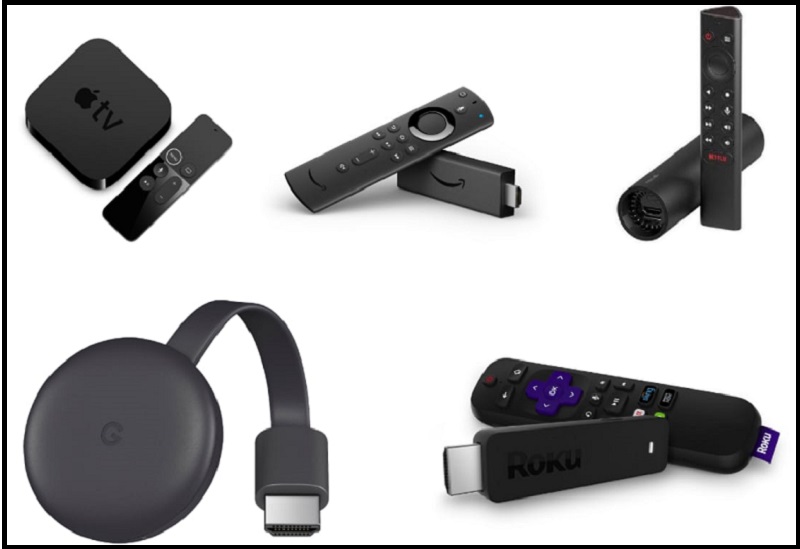
- Roku: Known for its user-friendly interface and extensive app library (channels). Roku offers a range of devices from basic streaming sticks to more powerful boxes supporting 4K HDR.
- Amazon Fire TV Stick: Integrates deeply with Amazon’s ecosystem and features Alexa voice control. Available in various models, including 4K Max for enhanced performance.
- Google Chromecast (with Google TV): While original Chromecasts relied on casting from a phone, newer models like the Chromecast with Google TV feature a full interface and remote, offering access to Android TV apps and Google Assistant.
- Apple TV: A premium option, especially for users within the Apple ecosystem. It offers a polished interface, integration with Apple services (Apple Arcade, Apple Fitness+, Apple Music), and often superior performance.
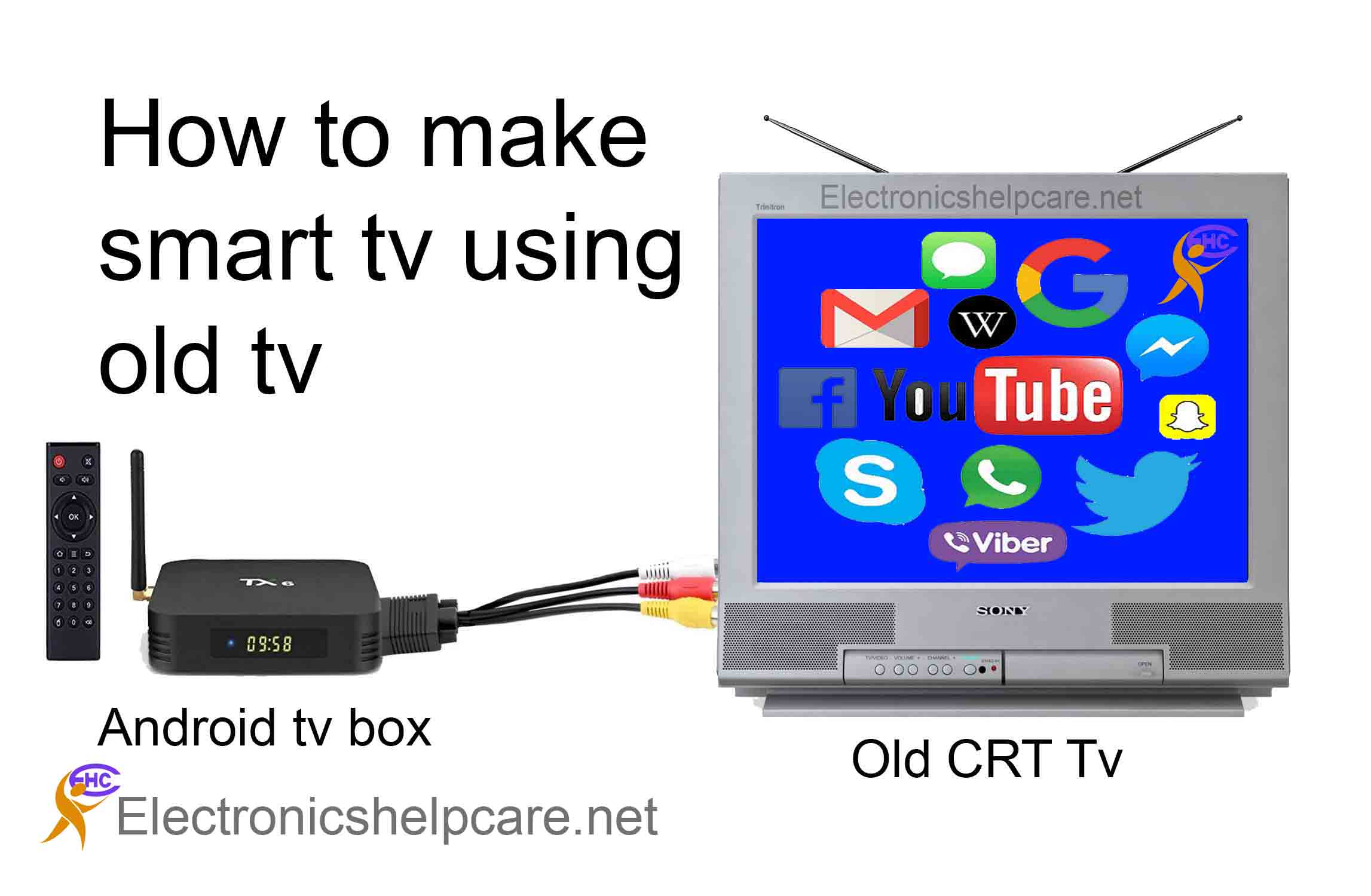
- Android TV Boxes: These devices run the Android TV operating system, offering a vast array of apps from the Google Play Store. Many come from third-party manufacturers and can vary widely in quality and features.
Gaming Consoles: More Than Just Games
Modern gaming consoles like the PlayStation (PS4, PS5) and Xbox (Xbox One, Xbox Series X/S) are powerful entertainment machines that double as excellent smart TV substitutes. They have robust app stores allowing you to download all major streaming services, music apps, and even some social media platforms. While they might be overkill if streaming is your only goal, if you already own one, it’s a ready-made smart TV solution. They offer high performance, support 4K and HDR, and can serve as central media players for your entire setup.
Connecting Your Computer: The Budget-Friendly Approach
If you have a laptop or desktop computer nearby, you can easily use it to stream content to your TV. This is a highly flexible and often budget-free method if you already own the computer and the necessary cables.
- HDMI Cable: The simplest way is to connect your computer to your TV using an HDMI cable. Your TV essentially acts as a large monitor. You can then play anything from your computer (streaming services, local files, web browsing) on the big screen.
- Wireless Casting (Miracast/AirPlay): Some newer computers and smart TVs support wireless display technologies like Miracast (Windows) or AirPlay (macOS/iOS) which allow you to wirelessly mirror your computer’s screen to the TV without cables. This requires compatibility on both ends.
A Deep Dive into Popular Streaming Devices
Choosing the right streaming device can significantly impact your user experience. Each platform has its unique strengths, target audience, and ecosystem integration.
Roku: Simplicity and Broad App Support
Roku devices are celebrated for their intuitive interface, often dubbed the “Roku Channel” operating system, which is incredibly easy to navigate. With a vast library of “channels” (apps), Roku ensures you’ll find virtually every major streaming service, along with many niche content providers. They offer a range of products, from the affordable Roku Express and Roku Streaming Stick+ (for portability and 4K) to the more powerful Roku Ultra, which includes enhanced remote features like a headphone jack for private listening. Roku’s strength lies in its neutrality and focus on content aggregation, making it a great choice for users who don’t want to be tied to a specific tech ecosystem.
Amazon Fire TV Stick: Alexa Integration and Amazon Ecosystem
The Amazon Fire TV Stick is ideal for users deeply embedded in the Amazon ecosystem. It features tight integration with Alexa voice control, allowing you to launch apps, search for content, control smart home devices, and even order products using just your voice. It provides seamless access to Amazon Prime Video, Music, and Photos. Models like the Fire TV Stick 4K Max offer excellent performance, Wi-Fi 6 support, and a responsive user experience. Its interface prioritizes Amazon content but still offers access to all major third-party streaming apps.
Google Chromecast: Cast from Your Phone or Computer
The original Chromecast was revolutionary for its simplicity, allowing users to “cast” content from their mobile devices or computer browsers to the TV. The newer Chromecast with Google TV models, however, offer a complete smart TV experience with a remote and a dedicated Google TV interface. This interface aggregates content from various streaming services into a personalized home screen, making discovery easier. It leverages Google Assistant for voice commands and provides access to the vast app library of Android TV. It’s an excellent choice for those who prefer Google’s ecosystem and enjoy the flexibility of both casting and a traditional remote interface.

Apple TV: Premium Experience for Apple Users
Apple TV is Apple’s premium streaming box, offering a highly polished user experience, powerful hardware, and deep integration with Apple services. It’s the best option for users who own other Apple devices like iPhones, iPads, and MacBooks, as it allows seamless content sharing, AirPlay 2 mirroring, and integration with iCloud Photo Library. It excels in performance, often providing the smoothest navigation and fastest app loading times. While it comes at a higher price point, it delivers a refined interface, excellent picture and sound quality, and exclusive features like Apple Arcade and Apple Fitness+.
Android TV Boxes: Open-Source Flexibility
Android TV boxes are a diverse category, encompassing devices from various manufacturers that run the Android TV operating system. This platform is essentially an optimized version of Android for TVs, offering access to the Google Play Store for a massive selection of apps. Their main advantage is flexibility and customization. Some boxes are certified by Google and major streaming providers (like the Nvidia Shield TV, known for its gaming and media server capabilities), ensuring full app compatibility and performance. Others are generic devices that might offer more open-source customization but can sometimes lack official support for certain high-definition streaming services.
Essential Considerations Before You Buy
Before making a purchase, several factors should influence your decision to ensure you select the best device for your specific setup and preferences.
Compatibility: Ports and Resolutions
Ensure your TV has an available HDMI port. Most modern streaming devices connect exclusively via HDMI. If you have an older TV without HDMI, you might need an HDMI-to-RCA converter, though this can compromise picture quality. Also, consider your TV’s resolution. If you have a 4K TV, opt for a 4K-compatible streaming device to get the best picture quality. If your TV is 1080p, a standard HD device will suffice and save you money.
Ecosystem Preference: Do You Use Apple, Amazon, or Google Services?
Your existing digital ecosystem plays a significant role. If you frequently use Amazon Prime, Alexa, or have an Echo device, an Amazon Fire TV Stick might offer the most seamless integration. Similarly, Apple users will find Apple TV a natural fit, and Google Assistant users will appreciate Chromecast with Google TV. Choosing a device that aligns with your preferred ecosystem will enhance convenience and functionality.
Features and Functionality: Voice Control, 4K, HDR
Beyond basic streaming, consider advanced features. Do you want voice control for hands-free operation? If so, look for devices with built-in mics or Alexa/Google Assistant integration. Is 4K resolution and High Dynamic Range (HDR) important for your viewing experience? Ensure both your TV and the streaming device support these standards. Some devices also offer advanced audio formats like Dolby Atmos, which might be a priority for audiophiles.
Budget: Finding the Right Device for Your Wallet
Streaming devices range from budget-friendly sticks under $30 to premium boxes costing upwards of $150-$200. Evaluate how much you’re willing to spend versus the features you absolutely need. Often, mid-range devices strike a good balance between price and performance for most users.
User Interface and Ease of Use
While most modern streaming interfaces are user-friendly, some people prefer the simplicity of Roku, while others enjoy the content-centric approach of Google TV or the sleekness of Apple TV. If possible, try out a friend’s device or watch reviews to get a feel for the interface before committing. A straightforward remote with dedicated app buttons can also enhance ease of use.
Setting Up Your Newly Smartened TV
Once you’ve chosen your device, the setup process is typically quick and straightforward, getting you from unboxing to streaming in minutes.
Physical Connection: HDMI, Power, and Network
The first step is to physically connect your streaming device. Plug it into an available HDMI port on your TV. Most devices also require external power, usually supplied via a USB cable connected to your TV’s USB port (if it provides enough power) or a wall adapter. Finally, ensure your device is within range of your Wi-Fi network. For some higher-end devices or if you prefer a more stable connection, an Ethernet port might be available.
Initial Configuration: Wi-Fi, Accounts, and Updates
Turn on your TV and select the correct HDMI input. Your device will then guide you through an on-screen setup wizard. This typically involves connecting to your home Wi-Fi network, logging in with your platform account (e.g., Roku account, Amazon account, Google account, Apple ID), and allowing the device to perform any necessary software updates. It’s crucial to complete these updates to ensure optimal performance and access to the latest features.
Customizing Your Experience: App Downloads and Settings
Once the initial setup is complete, you can begin downloading your favorite streaming apps from the device’s app store. Organize your home screen, set up profiles for family members, and explore the various settings to customize your viewing experience. This might include adjusting display settings, audio output, or setting parental controls. Take some time to familiarize yourself with the remote control and any voice command features to truly master your new smart TV capabilities.
Troubleshooting Common Issues
While setup is generally smooth, you might encounter minor issues. Common problems include Wi-Fi connectivity issues (check password, signal strength, router distance), remote control pairing problems (check batteries, try re-pairing), or app loading errors (try restarting the app or the device). Most issues can be resolved by restarting the device, checking internet connection, or referring to the device’s online support documentation.
Conclusion
Transforming your existing TV into a smart TV is a highly effective way to modernize your home entertainment without the expense of a new television. Whether you opt for a dedicated streaming device like a Roku, Fire TV Stick, or Apple TV, or leverage the capabilities of a gaming console or even your computer, the path to on-demand content and interactive features is readily accessible. By understanding the core features of smart TVs, exploring the diverse range of devices available, and considering your personal preferences and technical setup, you can confidently choose the perfect solution. With just a few simple connections and a quick setup, you’ll unlock a world of entertainment, elevating your viewing experience from passive broadcasting to a fully interactive, personalized, and engaging digital hub.
aViewFromTheCave is a participant in the Amazon Services LLC Associates Program, an affiliate advertising program designed to provide a means for sites to earn advertising fees by advertising and linking to Amazon.com. Amazon, the Amazon logo, AmazonSupply, and the AmazonSupply logo are trademarks of Amazon.com, Inc. or its affiliates. As an Amazon Associate we earn affiliate commissions from qualifying purchases.