
In the rapidly evolving landscape of streaming entertainment, services like YouTube TV have redefined how millions access live television and on-demand content. Gone are the days of single-household cable boxes; today’s digital ecosystems promise flexibility, portability, and personalization. Yet, with this freedom comes a new set of parameters, particularly concerning how many screens can simultaneously access your subscription. The question “how many TVs can you have on YouTube TV?” isn’t just about the number of physical television sets; it delves into the intricate policies of simultaneous streams, account sharing, and device management that govern your viewing experience.
This comprehensive guide will demystify YouTube TV’s streaming capabilities, exploring the standard allowances, premium upgrades, and critical considerations for multi-user households. We’ll navigate the technicalities, provide insights into optimizing your setup, and offer practical solutions to common streaming challenges, ensuring every member of your household can enjoy their favorite shows without interruption.
Understanding YouTube TV’s Simultaneous Stream Policy
At its core, YouTube TV’s offering is built around convenience, but this convenience operates within a defined framework of concurrent usage. Unlike traditional cable, which often binds content to a single physical location, streaming services like YouTube TV allow for access across diverse devices, from smart TVs and streaming sticks to tablets and smartphones. However, this flexibility isn’t limitless, especially when it comes to multiple users watching different content at the same time.
The Standard Stream Allowance: What You Get Out of the Box
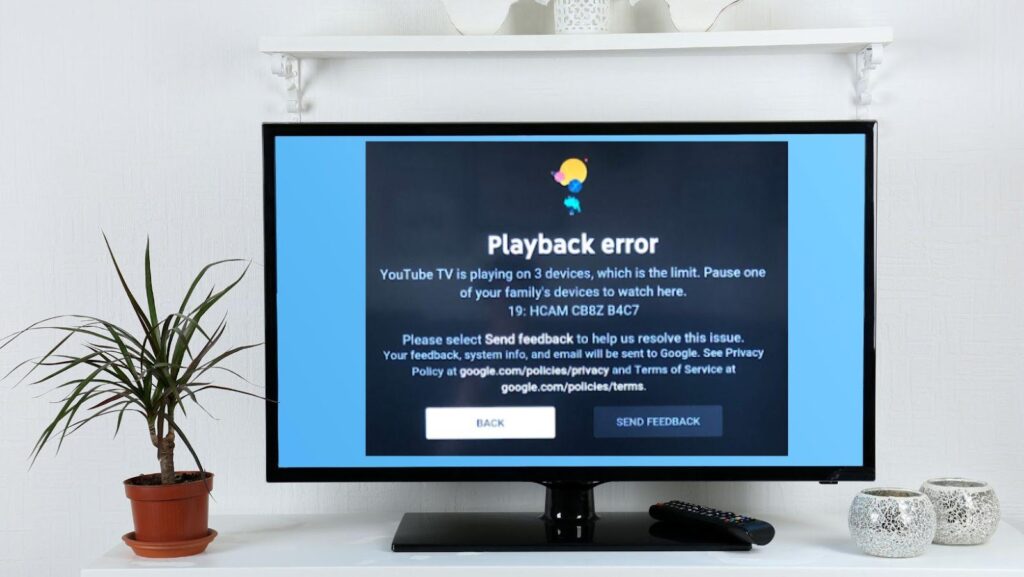
Upon subscribing to the standard YouTube TV base plan, users are granted a generous allowance of three simultaneous streams. This means that up to three different devices, regardless of their location (within the primary household’s designated area), can be actively playing distinct YouTube TV content at the same moment. For many households, particularly those with one or two primary viewers or smaller families, three streams prove more than sufficient.
Consider a scenario where one person is watching a live sports game on the living room TV, another is catching up on a news broadcast on their tablet in the kitchen, and a third is streaming a recorded show from the cloud DVR on a bedroom TV. All three activities would fall within the standard allowance, operating seamlessly without triggering any errors or restrictions. This foundational offering provides a robust solution for diverse viewing habits within a typical family unit.
The 4K Plus Add-on: Expanding Your Streaming Horizons
For larger households, those with a penchant for ultra-high-definition content, or simply those desiring even greater flexibility, YouTube TV offers an optional upgrade: the 4K Plus add-on. Beyond unlocking access to available 4K content, this premium subscription significantly enhances your simultaneous streaming capacity.
With the 4K Plus add-on, your household’s streaming limit expands to an impressive unlimited simultaneous streams while at home, specifically on devices connected to your primary household Wi-Fi network. Additionally, it boosts your mobile streaming capabilities, allowing up to three streams to be active outside the home network. This tiered approach provides a scalable solution, ensuring that even the most demanding multi-user environments can enjoy uninterrupted access, whether it’s kids streaming cartoons, parents watching a movie, and teens gaming with background sports, all at once. The “unlimited at home” feature truly liberates larger families from the constraints of stream counting, making it a compelling option for a bustling smart home.
Differentiating Between Streams and Devices
It’s crucial to understand the distinction between “streams” and “devices” in the context of YouTube TV. Your account can be logged into an almost limitless number of devices—be it a dozen smart TVs, multiple smartphones, tablets, and computers. The service doesn’t restrict the number of devices you can install the app on or sign in with your credentials.
The limitation, rather, lies in the simultaneous playback of content. If you have YouTube TV installed on five different smart TVs in your house, but only three of them are actively playing a show or live channel at any given time, you are within the standard three-stream limit. The moment a fourth device attempts to play content, you would encounter a “Too Many Streams” error message (unless you have the 4K Plus add-on and are within your home network). This distinction is vital for effective device management and troubleshooting.
Managing Your Devices and Family Sharing
Beyond the technical limits of simultaneous streams, YouTube TV incorporates features designed to help households share and manage their subscriptions effectively and securely. These mechanisms ensure that while access is shared, individual viewing preferences are maintained, and the integrity of the account’s designated “home” is preserved.
YouTube TV Family Group: Sharing Without Sharing Logins
YouTube TV leverages Google’s Family Group functionality, allowing up to five additional family members to share the same YouTube TV subscription without needing to share your personal Google account login. This means a total of six individuals (you plus five family members) can have their own profiles within the same subscription. Each family member gets their own personalized library, recommendations, and cloud DVR, ensuring that your viewing history and saved shows don’t get cluttered by others’ preferences.
Each member within the Family Group contributes to the overall simultaneous stream count. If you have a standard plan with three streams, and you, your spouse, and a child are all watching different shows on different devices, that consumes all three streams. The beauty of the Family Group is that it provides individual experiences while pooling resources under one subscription, simplifying billing and access management.
Primary Household Location: The Geofencing Aspect
A critical element of YouTube TV’s policy, particularly concerning simultaneous streams, is the concept of the primary household location. This is the physical address you designate for your YouTube TV account, which the service uses to determine local channel availability and to enforce streaming rules. YouTube TV occasionally checks your location to confirm you’re still within your designated home area, primarily using your device’s IP address when connected to your home Wi-Fi.
This geofencing mechanism is essential for content licensing and preventing widespread account sharing outside a single household. While you can stream YouTube TV on mobile devices outside your home network, these “off-network” streams are still subject to your account’s overall simultaneous stream limit. For standard plans, all three streams can be used anywhere. With the 4K Plus add-on, the “unlimited at home” benefit is strictly tied to your primary household Wi-Fi network. If you move, you can update your home location, typically a few times per year, through the YouTube TV app settings.
Adding and Removing Devices from Your Account
YouTube TV doesn’t have a strict “device limit” in terms of how many physical gadgets you can sign in on. However, for security and management purposes, it’s good practice to periodically review devices linked to your Google account and ensure only authorized ones have access. While you can’t explicitly “remove” devices from YouTube TV’s list in the same way you might with a streaming service that tracks registered devices, signing out of the YouTube TV app on an unwanted device is the primary method.
If you suspect unauthorized access or simply want to clean up, you can review your Google account’s security settings to see where you’re signed in and log out of devices remotely. The flexibility of simply logging in and out means managing devices is less about an explicit registration list and more about account security and managing active sessions.
Optimizing Your YouTube TV Experience for Multiple Screens
Having multiple streams running simultaneously isn’t just about subscription limits; it also places demands on your home network and requires thoughtful setup to ensure a smooth, high-quality viewing experience for everyone.
Bandwidth Considerations for Multiple HD/4K Streams
Streaming, especially in HD or 4K, is bandwidth-intensive. A single 1080p HD stream typically requires around 5-7 Mbps, while a 4K stream can demand 20-25 Mbps or more. If you have three concurrent HD streams, you’re looking at a minimum of 15-21 Mbps dedicated to YouTube TV alone. Add in other internet activities like gaming, video calls, or smart home devices, and your total bandwidth needs can quickly escalate.
For optimal performance with multiple streams, particularly if some are in 4K, a robust internet connection is paramount. A general recommendation for multi-user households with streaming is to have at least 100-200 Mbps download speed. Ensure your Wi-Fi router is modern (Wi-Fi 5 or Wi-Fi 6 compatible), strategically placed, and configured to handle multiple devices efficiently. Consider using Ethernet cables for stationary devices like smart TVs or dedicated streaming boxes whenever possible, as a wired connection provides superior stability and speed compared to Wi-Fi.
Best Practices for Device Setup in a Multi-User Home
Thoughtful device setup can significantly enhance the multi-screen experience. Here are some best practices:
- Prioritize Wired Connections: For primary viewing areas (e.g., living room TV), connect your streaming device directly to your router via an Ethernet cable. This reduces Wi-Fi congestion and ensures the most stable stream.
- Utilize 5GHz Wi-Fi: Most modern routers offer both 2.4GHz and 5GHz Wi-Fi bands. The 5GHz band generally provides faster speeds and less interference, making it ideal for streaming devices, though its range is shorter. Ensure your streaming devices are connected to the 5GHz band if possible.
- Centralized Router Placement: Position your Wi-Fi router in a central location in your home, away from obstructions and other electronics that might cause interference.
- Regular Router Reboots: A simple reboot of your router and modem once a month can help clear cache and resolve minor network glitches that might impact streaming performance.
- Update Device Software: Keep your smart TV apps, streaming stick firmware, and mobile YouTube TV apps updated. Software updates often include performance improvements and bug fixes.
Leveraging Individual Profiles for Personalized Viewing
As mentioned, the Google Family Group allows each member to have their own YouTube TV profile. This isn’t just a convenience; it’s an optimization strategy. Each profile maintains its own:
- Cloud DVR Library: No more fighting over deleted recordings or a cluttered “new episode” list.
- Watch History: Recommendations are tailored to individual viewing habits.
- Live Guide Customization: Favorite channels and guide order can be personalized.
Encouraging every household member to use their dedicated profile ensures a personalized and streamlined experience, preventing conflicts and making content discovery more efficient across multiple screens.
Common Issues and Troubleshooting for Multiple Streams
Even with careful planning, occasional glitches can occur. Understanding common error messages and basic troubleshooting steps can quickly resolve most issues related to multiple streams.
“Too Many Streams” Error Message: What It Means and How to Fix It
This is the most direct indicator that you’ve exceeded your YouTube TV’s simultaneous stream limit. If you see this message, it means a device is attempting to start a fourth stream (or more, if you’re on a standard plan) when your current allowance is already exhausted.
Solutions:
- Identify Active Streams: The first step is to figure out which devices are currently streaming. Ask other household members or check your own devices.
- Stop Unused Streams: Close the YouTube TV app or stop playback on one or more devices that are not actively being watched.
- Upgrade to 4K Plus: If “Too Many Streams” is a frequent issue and you have a large household, the 4K Plus add-on is the definitive solution for unlimited in-home streaming.
- Check Family Group Usage: Ensure all users are legitimate family members and not external individuals who might be inadvertently using your streams.
Resolving Location-Based Streaming Restrictions
If you’re trying to stream content and receive an error related to your location, it could be due to a few reasons:
- Away from Primary Household: While you can stream on the go, YouTube TV periodically verifies your location for local channel access and for the “unlimited at home” feature of 4K Plus. If you’ve been away from your primary household for an extended period, you might encounter restrictions.
- Incorrect Primary Household: If you’ve moved, you’ll need to update your primary household location in your YouTube TV settings. This can typically be done a limited number of times per year.
- VPN Usage: Using a VPN can mask your true location, which often conflicts with YouTube TV’s geofencing. It’s generally recommended to disable VPNs when using YouTube TV from your primary household.
- IP Address Issues: Occasionally, your internet provider might assign you an IP address that YouTube TV incorrectly associates with a different location. A router reboot can sometimes refresh your IP address.
Network Congestion and Buffering Solutions
Even when you’re within your stream limits, a slow or congested network can lead to buffering, low video quality, or dropped streams.
Solutions:
- Test Your Internet Speed: Use an online speed test tool on various devices to check your actual download speeds, especially when multiple devices are active.
- Reduce Wi-Fi Congestion: Disconnect unused devices from your Wi-Fi. If possible, upgrade to a dual-band or tri-band router.
- Optimize Router Settings: Access your router’s settings (via its IP address) and ensure quality of service (QoS) settings are configured to prioritize streaming traffic if your router supports it.
- Consider a Mesh Wi-Fi System: For larger homes or homes with dead zones, a mesh Wi-Fi system can significantly improve coverage and performance across multiple devices.
Comparing YouTube TV’s Limits to Other Streaming Services
YouTube TV’s streaming policy is competitive but not unique. Understanding how it stacks up against other live TV streaming services can help contextualize its value proposition and inform decisions for households with specific multi-screen needs.
Hulu + Live TV: A Direct Competitor Comparison
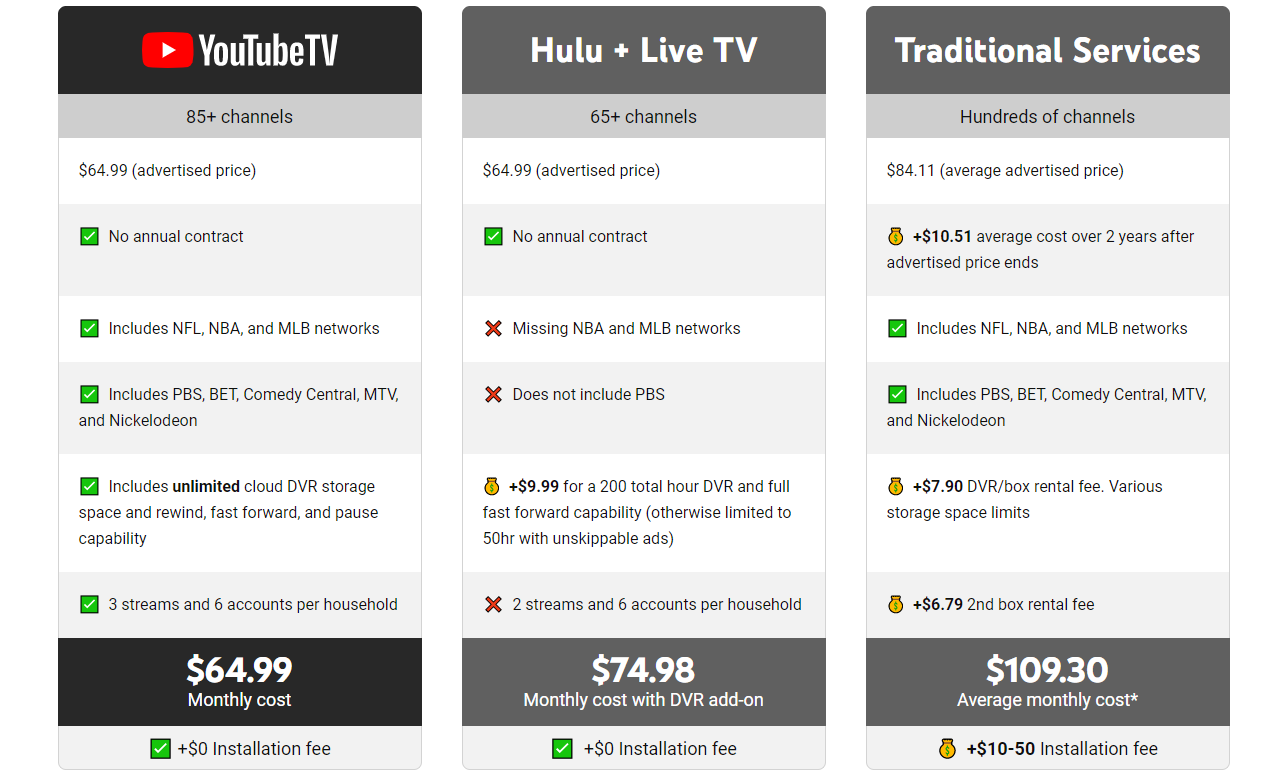
Hulu + Live TV, one of YouTube TV’s primary competitors, typically offers two simultaneous streams as part of its standard plan. This is less than YouTube TV’s three. However, Hulu + Live TV offers an “Unlimited Screens” add-on, which allows for unlimited streams within the home network and up to three mobile streams outside the home, mirroring the functionality of YouTube TV’s 4K Plus add-on in terms of stream count but without the 4K content benefit unless separately purchased. For households prioritizing a lower base cost and fewer simultaneous streams, Hulu might appeal, but YouTube TV generally offers more streams out-of-the-box.
Sling TV and fuboTV: Different Approaches to Streaming Limits
Sling TV offers varying stream limits depending on the package. Sling Orange (which includes Disney/ESPN channels) allows only one stream at a time, while Sling Blue (focused on Fox/NBC) allows three simultaneous streams. If you combine both (Sling Orange + Blue), you typically get four streams, but the Orange channels remain restricted to one. This can be confusing for households with diverse viewing habits.
fuboTV, aimed primarily at sports fans, generally offers 10 simultaneous streams at home and up to 2 streams on the go with its Pro plan. This is a significantly higher number than YouTube TV’s base plan and even surpasses the “unlimited at home” aspect for mobile streams from the 4K Plus add-on, making fuboTV a strong contender for very large households or sports bars that need many concurrent streams.
The Value Proposition of YouTube TV’s Streaming Model
YouTube TV’s standard three simultaneous streams strike a balance, offering more flexibility than some competitors’ base plans without immediately forcing an upsell. The 4K Plus add-on then caters effectively to power users and large families by providing practically unlimited in-home viewing. This tiered approach, combined with the robust Google Family Group integration, makes YouTube TV a highly adaptable and user-friendly option for managing diverse viewing needs across multiple screens. Its commitment to individual profiles and a clear upgrade path for expanded streaming ensures that most households can find a configuration that works for them.
In conclusion, answering “how many TVs can you have on YouTube TV?” involves more than a simple number. It encompasses understanding standard limits, premium upgrades, robust family sharing features, and smart network management. By leveraging YouTube TV’s comprehensive tools and best practices, every screen in your home can become a personalized portal to endless entertainment.
aViewFromTheCave is a participant in the Amazon Services LLC Associates Program, an affiliate advertising program designed to provide a means for sites to earn advertising fees by advertising and linking to Amazon.com. Amazon, the Amazon logo, AmazonSupply, and the AmazonSupply logo are trademarks of Amazon.com, Inc. or its affiliates. As an Amazon Associate we earn affiliate commissions from qualifying purchases.