
In an era defined by digital transformation and on-demand content, the way we consume television has evolved dramatically. Gone are the days when a cable box was the sole gateway to live programming. Today, streaming services like YouTube TV offer a compelling alternative, providing access to a vast array of live channels, sports, news, and on-demand content over the internet. For many, the transition can seem daunting, especially when it comes to integrating these services with existing home entertainment systems. This guide will demystify the process, offering a professional, insightful, and engaging roadmap to getting YouTube TV onto your television, ensuring you can enjoy your favorite shows with ease and clarity.
Understanding YouTube TV: Your Gateway to Live Television
Before diving into the technicalities of installation, it’s crucial to understand what YouTube TV is, why it stands out, and what devices are compatible with this innovative streaming solution.
What is YouTube TV? A Brief Overview
YouTube TV is a subscription-based live TV streaming service owned by Google. Unlike traditional cable or satellite TV, it delivers its content over the internet, allowing subscribers to watch live broadcasts from major networks, popular cable channels, and local sports and news affiliates. It’s designed to replicate the traditional television viewing experience, but with the added flexibility and features inherent to a digital platform. Key features include a cloud-based DVR with unlimited storage, allowing users to record shows and watch them at their convenience, and the ability to stream on multiple devices simultaneously. This blend of live programming and on-demand convenience makes YouTube TV a formidable player in the cord-cutting movement.
Why Choose YouTube TV? Benefits and Features
The appeal of YouTube TV extends beyond mere convenience. It offers a suite of benefits that enhance the user experience significantly:
- Extensive Channel Lineup: Subscribers gain access to over 100 channels, including major broadcast networks (ABC, CBS, FOX, NBC, The CW), popular cable channels (ESPN, TNT, AMC, CNN), and local sports networks, depending on geographical location.
- Unlimited Cloud DVR: This is a standout feature. Users can record as many shows as they want, with recordings stored for nine months. This eliminates storage concerns and provides unparalleled flexibility in viewing schedules.
- Family Sharing: A single YouTube TV subscription can support up to six accounts, each with its own personalized library and recommendations. This allows multiple members of a household to enjoy tailored viewing experiences simultaneously.
- Multi-Device Compatibility: YouTube TV is accessible on a wide range of devices, from smartphones and tablets to smart TVs, streaming media players, and gaming consoles, offering true flexibility in where and how you watch.
- Intuitive User Interface: Designed with user-friendliness in mind, the interface is clean and easy to navigate, making it simple to find live channels, browse on-demand content, and manage your DVR.
- No Contracts: Unlike traditional cable, YouTube TV operates on a month-to-month subscription model, allowing users to cancel or pause their service at any time without penalty.
Compatibility Check: Devices That Support YouTube TV
The first step in getting YouTube TV on your television is to ensure your device is compatible. YouTube TV boasts broad compatibility across a myriad of platforms, ensuring most modern home entertainment setups can support it. Compatible devices include:
- Smart TVs: Most smart TVs from brands like Samsung, LG, Vizio, HiSense, and Sony (running Android TV) manufactured in recent years.
- Streaming Media Players: Popular devices such as Roku, Amazon Fire TV Stick, Apple TV (4th generation and later), Google Chromecast, and NVIDIA Shield TV.
- Gaming Consoles: PlayStation 4, PlayStation 5, Xbox One, Xbox Series X, and Xbox Series S.
- Other Devices: Select cable boxes (e.g., Xfinity Flex), certain set-top boxes, and dedicated Android TV boxes.
Before proceeding, it’s wise to check your specific TV model or streaming device’s operating system to confirm its compatibility. This information is usually found in your device’s settings or owner’s manual.
Essential Steps Before Installation: Preparing Your Entertainment Hub
With an understanding of YouTube TV and confirmation of your device’s compatibility, the next phase involves preparing your home entertainment setup. These foundational steps are critical for a seamless installation and optimal streaming experience.
Internet Connection: The Foundation of Streaming
A stable and sufficiently fast internet connection is paramount for streaming YouTube TV. Unlike traditional broadcast, streaming relies entirely on your home network.
- Recommended Speed: For a smooth HD streaming experience, YouTube TV recommends a minimum download speed of 3 Mbps for standard definition, 7 Mbps for a single 1080p stream, and 13 Mbps for 4K streaming (if available and subscribed to 4K Plus). For households with multiple devices streaming simultaneously, higher speeds are advisable.
- Wired vs. Wireless: While Wi-Fi is convenient, an Ethernet connection directly from your router to your TV or streaming device offers greater stability and speed, reducing buffering and picture quality drops. If using Wi-Fi, ensure your router is positioned optimally and uses a modern standard (e.g., Wi-Fi 5 or 6) to handle the bandwidth demands.
YouTube TV Subscription: Getting Started
To access YouTube TV, you’ll need an active subscription. This process is straightforward:
- Visit the YouTube TV Website: Navigate to tv.youtube.com on a web browser (on a computer or smartphone).
- Sign In with Google Account: You will be prompted to sign in with your Google account. If you don’t have one, you’ll need to create one.
- Start Free Trial (Optional): YouTube TV often offers a free trial period. This is an excellent opportunity to explore the service before committing.
- Enter Payment Information: Even for a free trial, payment details are typically required to ensure uninterrupted service once the trial concludes.
- Confirm Subscription: Follow the on-screen prompts to complete your subscription. You will receive a confirmation email.
Google Account: The Key to Access
Your Google account is the central hub for your YouTube TV experience. It links your subscription, personalized settings, DVR recordings, and viewing history. Ensure you remember your Google account credentials (email and password), as you will use them to sign in to the YouTube TV app on your television. If you plan to use family sharing, each family member will also need their own Google account.
Step-by-Step Installation Guides for Popular TV Platforms
Once your internet is ready, your subscription is active, and your Google account is at hand, it’s time to install the YouTube TV app on your television. The process varies slightly depending on your device.
Smart TVs (LG WebOS, Samsung Tizen, Vizio SmartCast, Android TV)
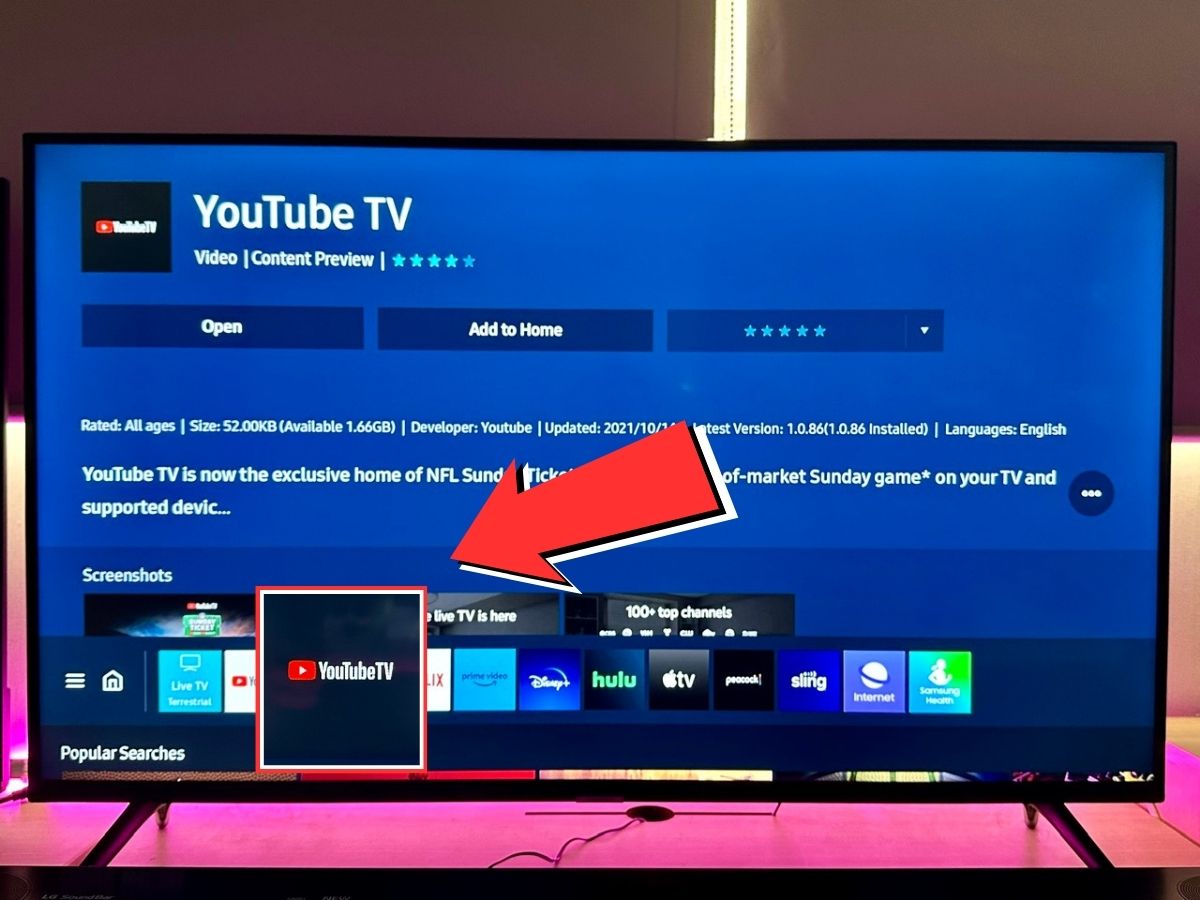
For most smart TVs, the process involves accessing the TV’s app store.
- Access Your Smart TV’s App Store:
- Samsung Tizen: Press the “Home” button on your remote, navigate to “Apps.”
- LG WebOS: Press the “Home” button, then select the “LG Content Store” icon.
- Android TV (Sony, Hisense, some Philips, TCL): Press the “Home” button, then navigate to the “Apps” row and select the “Google Play Store” icon.
- Vizio SmartCast: SmartCast TVs typically have pre-installed apps or a casting function. If not pre-installed, you might need to cast from a mobile device or use an external streaming stick.
- Search for “YouTube TV”: Use the search function within the app store.
- Download and Install: Select the YouTube TV app from the search results and choose “Install” or “Add to Home.”
- Launch the App: Once installed, launch YouTube TV from your home screen or apps list.
- Sign In: You will be prompted to sign in. The easiest method is usually to visit a provided URL on a computer or mobile device and enter an activation code displayed on your TV screen. Alternatively, you can sign in directly on the TV using your Google account credentials.
Streaming Devices (Roku, Amazon Fire TV Stick, Apple TV, Chromecast)
Streaming devices function similarly to smart TVs but have their own dedicated app ecosystems.
- Roku Devices:
- Go to “Streaming Channels” from the Roku home screen.
- Select “Search Channels” and type “YouTube TV.”
- Choose “Add Channel” and then “Go to Channel.”
- Launch the app and sign in with your Google account.
- Amazon Fire TV Stick/Cube:
- From the Fire TV home screen, navigate to the “Find” icon (magnifying glass) or say “Alexa, open YouTube TV.”
- Search for “YouTube TV.”
- Select the app and choose “Get” or “Download.”
- Open the app and sign in.
- Apple TV (4th Generation and Later):
- Open the “App Store” from the Apple TV home screen.
- Use the search function to find “YouTube TV.”
- Click “Get” or the cloud icon to download.
- Launch the app and sign in.
- Google Chromecast (with Google TV):
- From the home screen, navigate to the “Apps” tab.
- Select “Search for apps” or browse.
- Find and select “YouTube TV,” then choose “Install.”
- Launch and sign in.
- Older Chromecast: YouTube TV is cast from a mobile device or computer. Open the YouTube TV app on your phone/tablet, tap the “Cast” icon (rectangle with Wi-Fi signal), and select your Chromecast device.
Gaming Consoles (PlayStation, Xbox)
Gaming consoles also double as robust media centers.
- PlayStation (PS4, PS5):
- Navigate to the “Media” section (PS4) or “All Apps” / “TV & Video” (PS5) from the home screen.
- Search for “YouTube TV” in the PlayStation Store.
- Download and install the app.
- Launch the app and sign in.
- Xbox (Xbox One, Series X/S):
- From the Home screen, select “Store.”
- Use the search function to find “YouTube TV.”
- Select “Get” or “Install.”
- Launch the app from “My games & apps” and sign in.
Optimizing Your YouTube TV Experience
Once YouTube TV is successfully installed and you’re signed in, the journey doesn’t end there. Optimizing your viewing experience ensures you get the most out of your subscription.
Navigating the YouTube TV Interface
YouTube TV’s interface is designed for intuitive navigation:
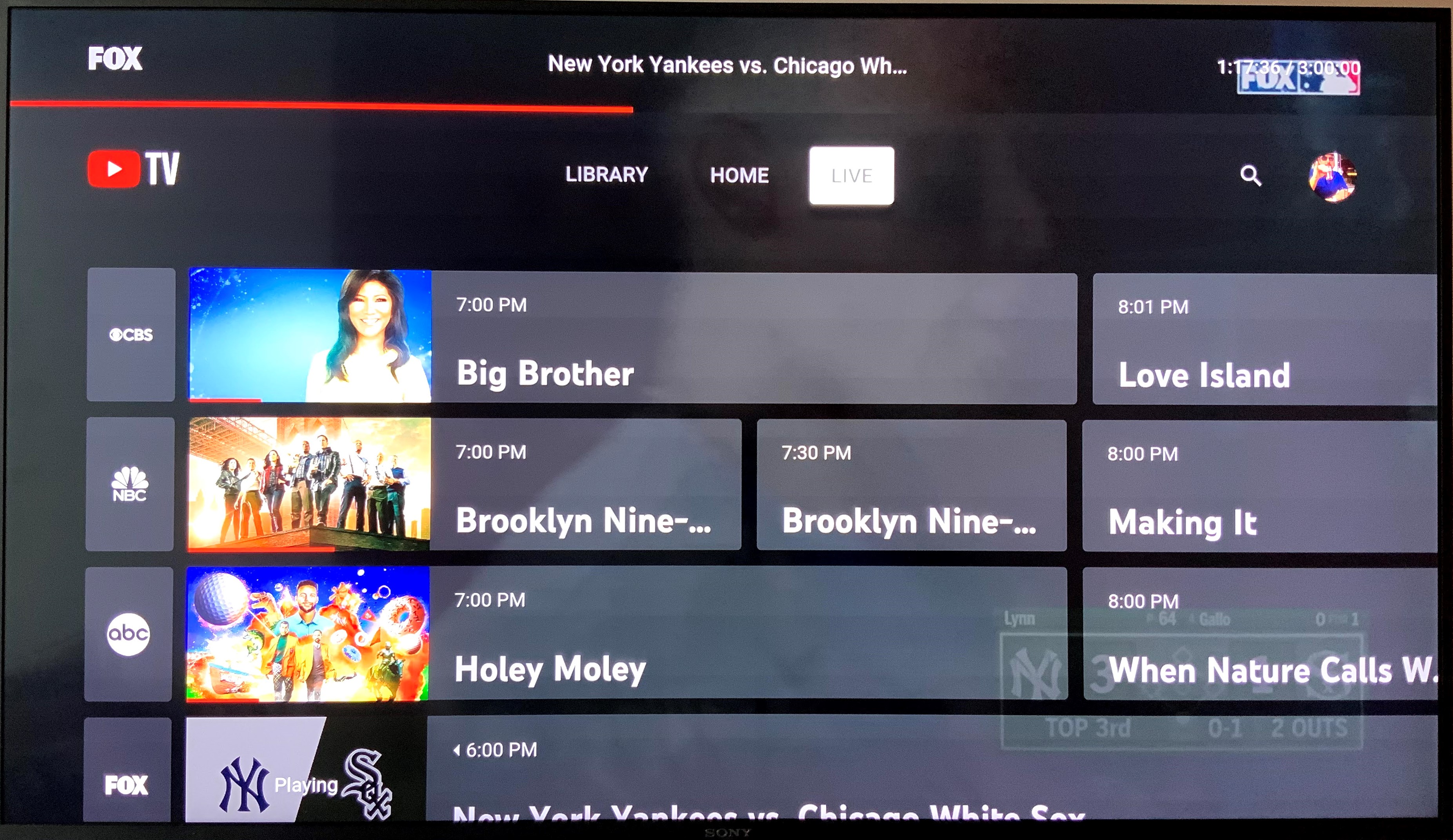
- Live Tab: This is your primary access point for live television. It features a traditional grid guide, allowing you to browse current and upcoming shows.
- Library Tab: Here you’ll find all your recorded shows and movies from the cloud DVR. You can also manage your recordings and schedule new ones.
- Home Tab: This personalized section offers recommendations based on your viewing history and what’s popular, along with quick access to recently watched channels.
- On-Demand: Many channels offer an on-demand library, accessible directly from the channel page or by searching for specific content.
- Search Function: A robust search bar allows you to find specific channels, shows, movies, or sports events quickly.
Take some time to explore each section and customize it to your preferences.
Customizing Your Channel Lineup and DVR
Personalization is a key advantage of YouTube TV.
- Customizing Live Guide: In the Live tab, you can reorder your channels or hide channels you don’t watch, making your guide cleaner and more efficient. This is usually done through the settings menu within the app or on the YouTube TV website.
- Managing Recordings: In the Library tab, you can easily access, organize, and delete recordings. YouTube TV allows you to add entire series to your library, ensuring every new episode is automatically recorded.
- Parental Controls: For households with children, setting up parental controls is crucial to restrict access to mature content. This is managed through your Google account settings and applied across all profiles.
Troubleshooting Common Issues
While YouTube TV is generally robust, occasional issues can arise.
- Buffering or Poor Quality: Often indicative of an internet speed issue. Try restarting your router and modem. If problems persist, consider upgrading your internet plan or using a wired connection.
- App Crashing/Freezing: Close the app completely and relaunch it. If that doesn’t work, try restarting your TV or streaming device. Ensure the app and your device’s operating system are up to date.
- Sign-in Problems: Double-check your Google account credentials. If you’ve forgotten your password, use Google’s account recovery tools.
- Location Issues: YouTube TV uses your home location to determine local channels. If you’re experiencing issues, ensure your device’s location services are enabled or manually update your home area through the YouTube TV settings on a web browser.
- No Sound/Picture: Check your TV’s volume and input settings. Ensure all cables are securely connected.
For persistent problems, consulting the YouTube TV help center or contacting their support is recommended.
Advanced Tips and Tricks for Seamless Viewing
To truly master your YouTube TV experience, consider these advanced strategies that enhance convenience, quality, and overall enjoyment.
Multi-Device Streaming and Family Sharing
Leverage YouTube TV’s family sharing to its fullest:
- Simultaneous Streams: A single YouTube TV subscription typically allows for three simultaneous streams. If you need more, the 4K Plus add-on provides unlimited streams at home, plus three on the go.
- Individual Profiles: Ensure each family member uses their own Google account profile within the family group. This keeps recommendations, watch history, and DVR libraries separate and personalized. To switch profiles on your TV, simply navigate to the profile icon within the YouTube TV app.
- Mobile Access: Remember that YouTube TV isn’t confined to your television. Download the app on your smartphone or tablet to watch on the go, making travel and commutes more entertaining.
Enhancing Picture and Sound Quality
Optimize your visual and auditory experience:
- TV Display Settings: Calibrate your television’s picture settings (brightness, contrast, color, sharpness) for optimal viewing. Many modern TVs have specific “Cinema” or “Filmmaker” modes that provide a more accurate picture.
- 4K Plus Add-on: For compatible content and devices, consider the 4K Plus add-on for enhanced picture quality and the ability to download recordings for offline viewing.
- Audio Setup: If you have a soundbar or home theater system, ensure your TV’s audio output is configured correctly (e.g., HDMI ARC/eARC, optical audio) to deliver surround sound or high-fidelity stereo. Adjust audio settings within the YouTube TV app (e.g., enabling surround sound if available) and on your sound system.

Exploring Add-ons and Premium Channels
YouTube TV offers a variety of optional add-ons to expand your content library:
- Premium Networks: You can subscribe to premium channels like HBO Max, Showtime, STARZ, and AMC+ directly through YouTube TV, consolidating your billing and access.
- Sports Packages: For niche sports enthusiasts, there are often specialized sports add-ons available.
- Entertainment Plus: Bundles popular entertainment-focused add-ons at a discount.
These add-ons are typically managed through your YouTube TV account settings on a web browser and can be added or removed at any time, providing ultimate flexibility in tailoring your content package.
Getting YouTube TV on your television is a straightforward process that unlocks a world of live and on-demand entertainment. By understanding the service, preparing your devices, following the installation steps, and optimizing your settings, you can seamlessly integrate this powerful streaming solution into your home entertainment system. Embrace the future of television with YouTube TV and enjoy a personalized, flexible, and comprehensive viewing experience.
aViewFromTheCave is a participant in the Amazon Services LLC Associates Program, an affiliate advertising program designed to provide a means for sites to earn advertising fees by advertising and linking to Amazon.com. Amazon, the Amazon logo, AmazonSupply, and the AmazonSupply logo are trademarks of Amazon.com, Inc. or its affiliates. As an Amazon Associate we earn affiliate commissions from qualifying purchases.