
Fractions are fundamental to mathematics, representing parts of a whole, ratios, and divisions. While they are a cornerstone of arithmetic, their representation and manipulation on digital devices, particularly calculators, can sometimes seem less intuitive than working with whole numbers or decimals. This article delves into the nuances of inputting, operating with, and interpreting fractions on various types of calculators, equipping you with the knowledge to master fractional calculations with ease and precision in the digital age.
The Fundamental Challenge: Representing Fractions Digitally
Before diving into specific calculator functions, it’s crucial to understand why fractions pose a unique challenge for digital input compared to integers or decimals. A calculator’s primary processing language is often based on decimal approximations, yet fractions offer exact representations that decimals sometimes cannot fully capture (e.g., 1/3 as 0.333…).
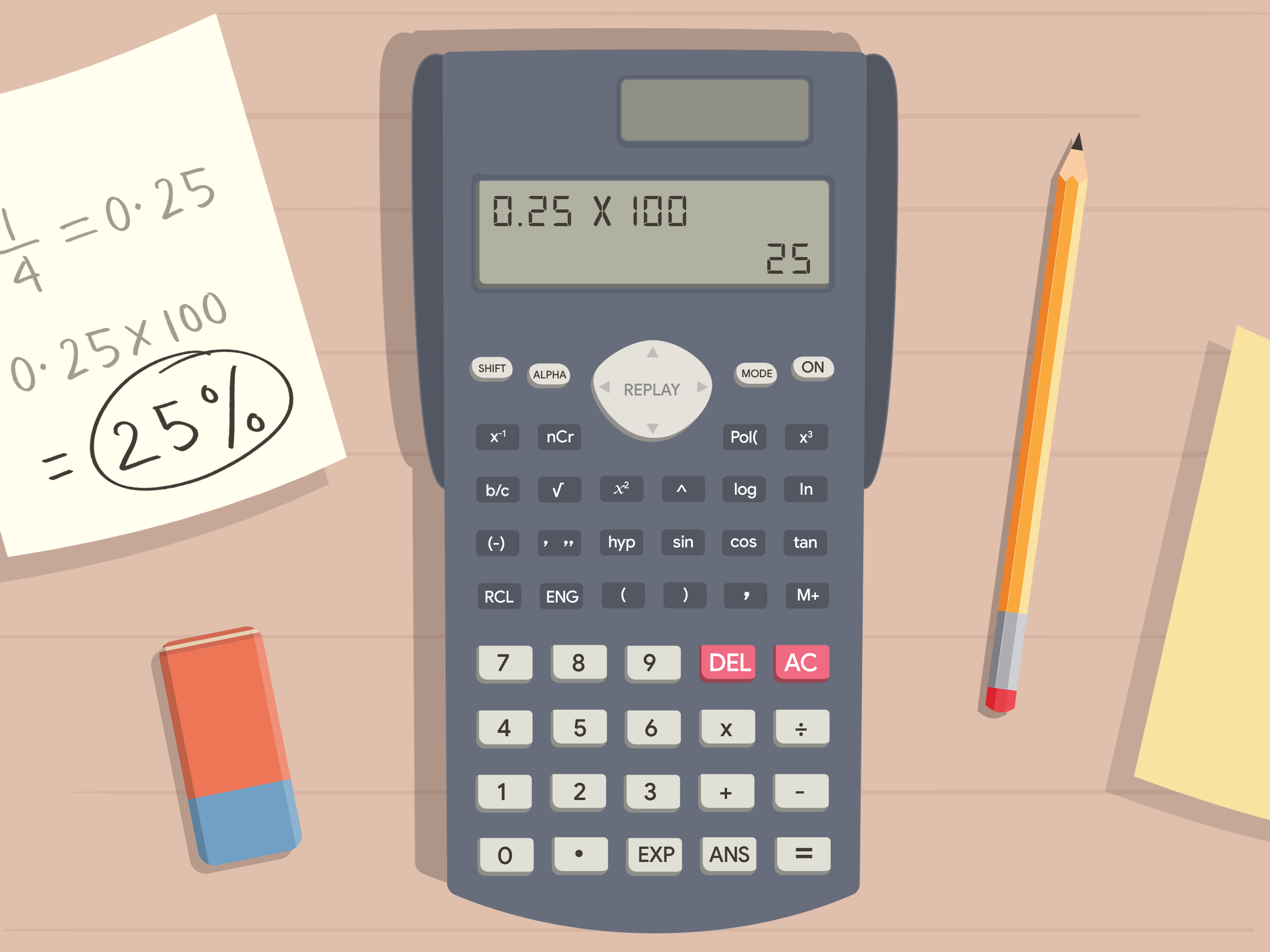
Why Fractions are Different: Understanding the Numerator/Denominator Structure vs. Decimal Representation
A fraction is inherently a division problem presented in a specific format: a numerator over a denominator. This structure conveys not just a value but also the relationship between two numbers. For instance, 1/2 explicitly tells us “one divided by two,” whereas its decimal equivalent, 0.5, only gives the result of that division. This structural information is vital in certain mathematical contexts, such as algebra or when simplifying expressions, where maintaining the fractional form is preferred or necessary for exactness.
Calculators, by design, excel at handling decimal numbers because their internal circuitry is optimized for binary arithmetic, which maps most cleanly to decimal system values. Converting a fraction like 3/4 to 0.75 is straightforward. However, converting 1/3 to a decimal yields an infinite non-repeating sequence (0.333…), which a calculator must approximate, potentially introducing tiny rounding errors in multi-step calculations.
The Calculator’s Native Language: Primarily Decimals and Integers
Most standard and scientific calculators are built around integer and floating-point (decimal) arithmetic. When you input “5 / 2,” the calculator typically processes it as 5 ÷ 2, resulting in 2.5. For many everyday calculations, this decimal output is perfectly acceptable. However, in academic, engineering, or financial contexts, preserving fractions or working with mixed numbers (like 2 1/2) is often essential.
The innovation in calculator design has been to bridge this gap, allowing users to input fractions directly, perform operations, and even convert between fractional and decimal forms without losing precision or clarity. This requires specialized keys, display modes, and internal algorithms that manage the exactness of fractions alongside the efficiency of decimal calculations.
The Need for Clarity: Avoiding Ambiguity in Complex Calculations
When dealing with complex mathematical expressions, especially those involving the order of operations (PEMDAS/BODMAS), clear input is paramount. A fraction can be interpreted as a grouped operation (numerator divided by denominator). If you input 1 + 2/3 + 4, without specific fraction keys, a calculator might interpret 2/3 as (2 ÷ 3), leading to 1 + 0.666... + 4. However, if the intent was (1 + 2) / (3 + 4), the interpretation changes dramatically. Dedicated fraction input methods ensure that the calculator understands your mathematical intent precisely, reducing errors and ambiguity.
Standard Calculators: Inputting and Interpreting Fractions
The method for writing fractions on a calculator largely depends on the type of calculator you are using. Scientific and graphing calculators are equipped with dedicated functions for this purpose, while basic calculators require a more manual approach.
Basic Scientific Calculators: Using the ‘a b/c’ or ‘x y/z’ Key
Most scientific calculators feature a specific key for entering fractions, commonly labeled a b/c, x y/z, or sometimes simply / with a shifted function to represent the fraction format. This key allows you to input proper fractions (numerator < denominator) and mixed numbers (a whole number part plus a proper fraction).
-
Entering a Simple Proper Fraction (e.g., 3/4):
- Type the numerator:
3 - Press the fraction key (e.g.,
a b/c). The display might show3┘or3_. - Type the denominator:
4 - Press
Enteror=. The display will typically show3┘4.
- Type the numerator:
-
Entering a Mixed Number (e.g., 2 1/2):
- Type the whole number part:
2 - Press the fraction key (e.g.,
a b/c). The display might show2┘. - Type the numerator of the fractional part:
1 - Press the fraction key again. The display might show
2┘1┘. - Type the denominator of the fractional part:
2 - Press
Enteror=. The display will show2┘1┘2.
- Type the whole number part:
-
Conversion between Improper and Mixed Fractions: Many scientific calculators allow you to toggle between mixed number and improper fraction displays using a dedicated shift function on the
a b/ckey (often labeledd/corF<>D). For example, after entering2┘1┘2, pressingShiftthena b/cmight convert it to5┘2.
Advanced Graphing Calculators: Enhanced Fraction Capabilities
Graphing calculators (like those from TI, Casio, or HP) offer more sophisticated methods for fraction input, often leveraging a visual interface that mimics how fractions appear on paper.
-
Using Templates/Menus for Fractional Input:
- Locate the fraction template function, usually found in a “Math” menu, “Fn” menu, or directly as a key. On a TI-84 Plus, for instance, you’d press
ALPHAthenY=to access then/d(numerator/denominator) template. - Once selected, the calculator display will show an empty fraction template (two boxes, one above the other, separated by a horizontal line).
- Use the arrow keys to navigate to the numerator box, type the numerator, then arrow down to the denominator box and type the denominator.
- Press
Enter. This method is highly intuitive as it visually represents the fraction.
- Locate the fraction template function, usually found in a “Math” menu, “Fn” menu, or directly as a key. On a TI-84 Plus, for instance, you’d press
-
Stacking Fractions in Expressions: Graphing calculators excel at handling complex expressions involving multiple fractions. You can input
(1/2) + (3/4) - (5/6)using the template multiple times, ensuring that each fraction is treated as a single entity within the larger expression. The visual display aids in verifying the correct input. -
Simplifying and Reducing Fractions: Many advanced calculators will automatically simplify fractional results or provide a function to do so. If you calculate
1/4 + 1/4, the calculator might display1/2directly, or if it displayed2/4, you could use aSimplifyorFraction Reducefunction (often found in theMathmenu) to get1/2.
Handling Division as a Fraction: Using the Division Symbol (/) as an Implicit Fraction
Even on basic four-function calculators, you can perform fraction-like operations using the division key (/). However, you must be extremely careful with the order of operations.
- Implicit Fractions: When you type
3 / 4, the calculator treats it as 3 ÷ 4, resulting in 0.75. If you need to perform calculations with this “fraction,” you need to be mindful of its decimal equivalent. - The Importance of Parentheses for Order of Operations: When combining operations, parentheses are crucial.
- To calculate
(1 + 2) / (3 + 4): You must use( 1 + 2 ) / ( 3 + 4 ) =. Without parentheses,1 + 2 / 3 + 4would be1 + (2 ÷ 3) + 4, yielding a very different result due to the standard order of operations (division before addition). - This is the most common pitfall when attempting to mimic fraction operations on calculators without dedicated fraction keys.
- To calculate
Beyond Basic Input: Fractional Operations and Conversions
Once fractions are correctly entered, calculators provide a robust suite of tools for manipulating them, converting between forms, and ensuring accuracy.
Performing Arithmetic with Fractions: Addition, Subtraction, Multiplication, and Division
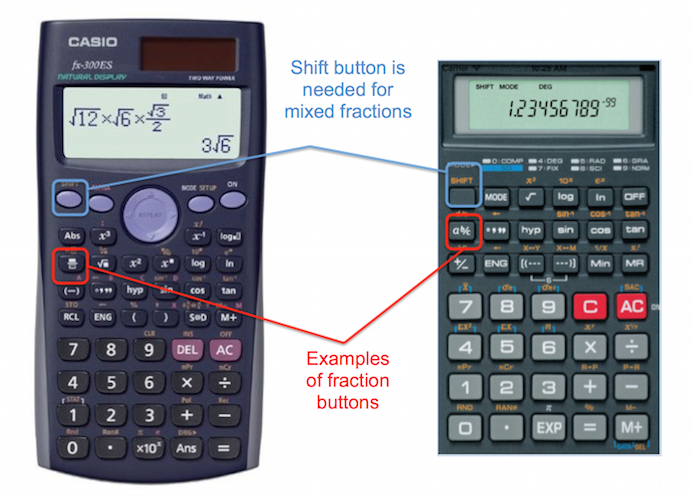
With fractions correctly entered using the a b/c key or templates, performing arithmetic operations is straightforward:
-
Addition (e.g., 1/2 + 1/3):
1a b/c2+1a b/c3=(Result:5┘6) -
Subtraction (e.g., 3/4 – 1/8):
3a b/c4-1a b/c8=(Result:5┘8) -
Multiplication (e.g., 2/3 * 4/5):
2a b/c3*4a b/c5=(Result:8┘15) -
Division (e.g., 5/6 ÷ 1/2):
5a b/c6÷1a b/c2=(Result:1┘2┘3or5┘3if improper) -
Common Pitfalls: Forgetting to enclose fractions in parentheses if they are part of a larger expression and your calculator treats them as simple division. For calculators with dedicated fraction keys, this is less of an issue, but always visually verify the input on the display.
Converting Between Forms
Calculators offer various functions to convert fractions to decimals and vice-versa, as well as between mixed numbers and improper fractions.
- Fraction to Decimal Conversion (the ‘F<>D’ or ‘S<>D’ key): After calculating a fractional result (e.g.,
5┘6), there’s usually a dedicated key to convert it to its decimal equivalent (e.g.,0.8333333). This key might be labeledF<>D(Fraction to Decimal),S<>D(Standard to Decimal), orToggleon some models. - Decimal to Fraction Conversion (limitations and accuracy): Many scientific and graphing calculators can attempt to convert a decimal back to a fraction. For example, entering
0.75and then using theF<>DorMATH->Fracfunction would yield3┘4. However, this function has limitations. It works best for decimals that are exact representations of simple fractions (e.g., 0.125 to 1/8). For repeating or long decimals (e.g., 0.333333), the calculator might give an approximation like333333/1000000or attempt to find a simpler fraction within a certain tolerance. Exact conversion from a truncated decimal back to its original fraction is often impossible. - Mixed Number to Improper Fraction: As mentioned earlier, this conversion is typically handled by pressing
Shift+a b/cor a similar function, toggling betweena b/candd/cdisplays.
Simplification and Reduction
Most scientific and graphing calculators are programmed to automatically simplify fractions to their lowest terms. If you calculate 2/4, the result will likely be 1/2. If a calculator initially shows an unsimplified fraction, there is often a Simplify or MATH->Frac option that will reduce it. This feature is invaluable for maintaining clarity and ensuring the final answer is in its standard form.
Specialized Calculators and Digital Tools for Fractions
Beyond dedicated physical calculators, a variety of digital tools offer excellent functionality for handling fractions, often with added benefits.
Online Fraction Calculators
Numerous websites provide specialized fraction calculators. These often offer:
- Clarity: Large, easy-to-read input fields and results.
- Step-by-step solutions: Many will show you the intermediate steps of how they arrived at the answer, which is excellent for learning and verification.
- Visual aids: Some display fractions graphically.
- No software installation: Accessible from any web browser.
- Example: WolframAlpha, Symbolab, various basic fraction calculators found via a quick search.
Calculator Apps for Smartphones/Tablets
The app stores are replete with calculator apps that rival or exceed the capabilities of physical scientific and graphing calculators. Many of these apps:
- User-friendly interfaces: Touch-based input for fraction templates is often more intuitive than navigating physical buttons.
- Advanced features: Some apps offer symbolic manipulation, variable support, and even graphing capabilities that are highly beneficial for advanced fraction work.
- Portability: Always available on your device.
- Example: Desmos Scientific Calculator, MyScript Calculator (allows handwriting input), various paid scientific calculator emulators.
Spreadsheet Software (Excel, Google Sheets)
Spreadsheets like Microsoft Excel or Google Sheets are powerful tools for data manipulation and calculation, including fractions.
- Custom Number Formats: You can format cells to display numbers as fractions (e.g.,
## ??/??for mixed numbers or??/??for proper fractions). This allows you to input0.5and have it display as1/2. - Using Formulas for Operations: You can perform arithmetic operations on cells containing fractional values. For example, if cell A1 has
1/2and B1 has1/3, a formula=A1+B1will correctly sum them. The key is often to input fractions as text first or use the correct decimal equivalent, then format the cell to display as a fraction. Care must be taken with input; typically, you’d enter=1/2directly into a cell for Excel to recognize it as a formula producing a fractional result that can then be formatted. Excel treats1 1/2as a mixed number and1/2as a date unless preceded by0. - Advantages: Ideal for large datasets involving fractions or for creating custom fractional calculation tools.
Tips for Mastering Fractional Calculations on a Calculator
Becoming proficient with fractions on a calculator requires a combination of understanding its features and adopting good practices.
Read Your Manual
This might seem obvious, but every calculator model is slightly different. The user manual is the definitive guide to your specific calculator’s fraction input methods, conversion functions, and any unique features. A quick review can save hours of frustration.
Practice Regularly
Like any skill, proficiency comes with practice. Start with simple addition and subtraction of fractions, then move on to multiplication, division, and mixed numbers. Gradually tackle more complex expressions involving multiple operations and conversions.
Understand the Display
Pay close attention to how your calculator displays fractions and decimals.
- Improper vs. Mixed: Know how to toggle between
5┘3(improper) and1┘2┘3(mixed number). - Decimal Approximation: Be aware when a decimal result is an approximation (e.g.,
0.333333333for1/3) and when it’s exact. - Error Messages: Familiarize yourself with common error messages related to fractions (e.g., division by zero, invalid input).
Leverage Parentheses
Even when using dedicated fraction keys, parentheses can enhance clarity, especially in complex multi-step problems or when ensuring specific order of operations. When in doubt, use parentheses. They rarely hurt and often prevent errors.

Verify Results
Whenever possible, double-check your fractional calculations.
- Estimation: Can you estimate the answer mentally to see if your calculator’s result is in the right ballpark?
- Manual Calculation: For critical problems, a quick manual check can confirm accuracy.
- Alternate Methods: If using an online calculator, try a different one to compare results.
Mastering how to write fractions on a calculator transforms a potentially cumbersome task into an efficient and accurate process. By understanding the distinct features of different calculator types and adopting best practices, you can confidently navigate the world of fractional mathematics in any digital environment.
aViewFromTheCave is a participant in the Amazon Services LLC Associates Program, an affiliate advertising program designed to provide a means for sites to earn advertising fees by advertising and linking to Amazon.com. Amazon, the Amazon logo, AmazonSupply, and the AmazonSupply logo are trademarks of Amazon.com, Inc. or its affiliates. As an Amazon Associate we earn affiliate commissions from qualifying purchases.