
Fractions, those seemingly simple representations of parts of a whole, have a notorious reputation for tripping up even the most mathematically inclined individuals. While fundamental to numerous fields—from cooking and construction to finance and engineering—their manipulation, particularly when combined with the precision of modern technology, can often feel counterintuitive. The advent of calculators promised to simplify arithmetic, yet many users find themselves staring blankly at a device when confronted with fractions, unsure of the correct input method or the meaning of the output. This guide demystifies the process, transforming your calculator from a perplexing black box into a powerful ally for mastering fractional arithmetic.
Understanding how to effectively use a calculator for fractions isn’t just about punching numbers; it’s about comprehending the tool’s logic, its specific functions, and the nuances of fractional representation. Whether you’re a student grappling with algebra, a professional needing quick calculations, or simply an enthusiast looking to sharpen your skills, mastering your calculator’s fraction capabilities can significantly enhance efficiency and accuracy. We’ll delve into the various types of calculators, their specific functionalities, common operational pitfalls, and the broader ecosystem of digital tools that can make fractions friendlier.
Deciphering Your Calculator’s Fraction Capabilities
Before diving into operations, it’s crucial to understand the fundamental differences in how various calculators handle fractions. Not all calculators are created equal, and their design dictates the ease with which you can manipulate fractional values. Identifying your device’s specific features is the first step towards seamless fraction calculation.
The Spectrum of Calculators: Basic vs. Scientific
Most people encounter two main types of physical calculators: basic arithmetic calculators and scientific calculators.
- Basic Arithmetic Calculators: These are typically designed for simple operations like addition, subtraction, multiplication, and division of whole numbers and decimals. While some may allow you to input decimals that represent fractions (e.g., 0.5 for 1/2), they generally lack dedicated fraction keys or the ability to display results as fractions. Their utility for complex fraction work is limited, often requiring manual conversion between fractions and decimals, which introduces potential rounding errors and adds extra steps.
- Scientific Calculators: These are the workhorses for students and professionals in STEM fields. They typically feature a multitude of functions, including trigonometry, logarithms, and crucially, dedicated fraction capabilities. Most scientific calculators will have a specific button (often labeled “a b/c”, “d/c”, or “F<>D”) that allows for direct fraction input and conversion. This is where your journey to calculator-aided fraction mastery truly begins. Modern graphing calculators, an advanced subset of scientific calculators, offer even more sophisticated fraction functionalities, often including symbolic manipulation and visual representations.
Identifying Dedicated Fraction Buttons
The key to efficient fraction work on a calculator lies in finding its dedicated fraction button. This button is your gateway to inputting, manipulating, and displaying fractions directly.
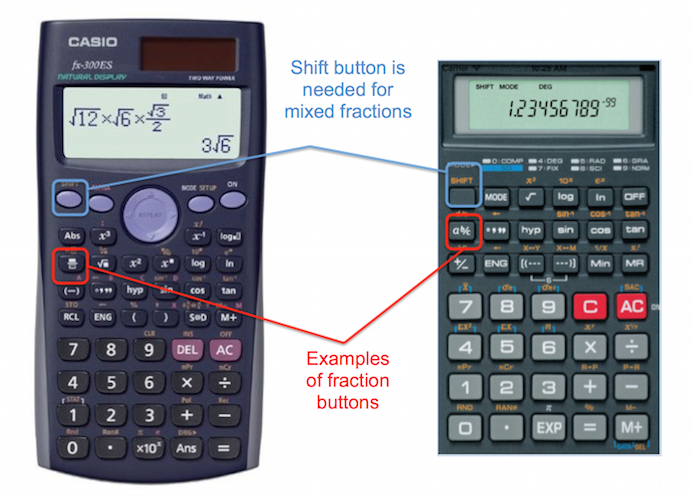
- “a b/c” or “d/c” Button: This is the most common label for a fraction button. It typically serves multiple purposes:
- Inputting proper or improper fractions: You’d usually enter the numerator, press the “a b/c” button, then enter the denominator. For mixed numbers, you’d enter the whole number part, press “a b/c”, enter the numerator, press “a b/c” again, then enter the denominator.
- Converting between mixed numbers and improper fractions: Pressing the button after a fractional result might toggle it between these forms.
- Converting between fractions and decimals: Often, a second function of this button (accessed via a “Shift” or “2nd” key) allows you to switch between fractional and decimal displays of your result.
- “F<>D” or Similar: Some calculators, particularly newer models, might have a dedicated button just for toggling between fraction and decimal display formats. This is incredibly useful for seeing both representations of your answer without re-calculating.
- Virtual Keyboards (Software Calculators): If you’re using a calculator app on a smartphone or computer, look for similar symbols or specific “fraction” input modes within the interface. These digital tools often present a more intuitive, visual way to input fractions, sometimes even allowing you to build the fraction vertically.
Familiarizing yourself with these buttons and their specific usage instructions, often found in your calculator’s manual, is paramount. A few minutes of experimentation can save hours of frustration.
Mastering Basic Fraction Operations
Once you’ve identified your calculator’s fraction-friendly features, performing fundamental operations becomes straightforward. The core idea is to input fractions as they are, let the calculator do the heavy lifting, and then interpret the results.
Entering Simple Fractions and Mixed Numbers
The most common hurdle is simply getting fractions into the calculator correctly.
- Proper/Improper Fractions (e.g., 3/4, 7/5):
- Enter the numerator (e.g.,
3). - Press the fraction button (e.g.,
a b/c). - Enter the denominator (e.g.,
4). - The display should show
3_4or3/4.
- Enter the numerator (e.g.,
- Mixed Numbers (e.g., 2 1/3):
- Enter the whole number part (e.g.,
2). - Press the fraction button (e.g.,
a b/c). - Enter the numerator of the fractional part (e.g.,
1). - Press the fraction button again (e.g.,
a b/c). - Enter the denominator of the fractional part (e.g.,
3). - The display should show
2_1_3or2 & 1/3.
- Enter the whole number part (e.g.,
It’s crucial to distinguish between pressing the fraction button once for an improper fraction and twice for a mixed number.
Adding and Subtracting Fractions
Once entered, adding and subtracting fractions is as simple as adding and subtracting whole numbers.
- Example: 1/2 + 1/3
- Input
1 a b/c 2. - Press the
+button. - Input
1 a b/c 3. - Press
=. - The calculator should display
5_6(for 5/6).
- Input
- Example: 2 1/4 – 1/2
- Input
2 a b/c 1 a b/c 4. - Press the
-button. - Input
1 a b/c 2. - Press
=. - The calculator should display
1_3_4(for 1 3/4).
- Input
The calculator automatically finds common denominators and simplifies the result, eliminating a common source of manual error.
Multiplying and Dividing Fractions
Multiplication and division follow a similar pattern, leveraging the calculator’s built-in logic.
- Example: 2/3 * 3/4
- Input
2 a b/c 3. - Press the
*(multiplication) button. - Input
3 a b/c 4. - Press
=. - The calculator should display
1_2(for 1/2).
- Input
- Example: 1/2 ÷ 1/4
- Input
1 a b/c 2. - Press the
÷(division) button. - Input
1 a b/c 4. - Press
=. - The calculator should display
2(since 1/2 divided by 1/4 is 2).
- Input
Converting Between Mixed Numbers and Improper Fractions
Many scientific calculators allow instant conversion between mixed numbers and improper fractions. This is typically done by pressing Shift (or 2nd) and then the fraction button (a b/c) after a fractional result is displayed. This can be invaluable for simplifying complex calculations or matching required answer formats.
Advanced Fractional Functionality and Beyond
Beyond basic arithmetic, modern scientific and graphing calculators offer sophisticated features that can streamline more complex fractional tasks, particularly useful in higher-level mathematics and scientific applications.
Simplifying Fractions and Greatest Common Divisors
While a calculator usually simplifies results automatically after an operation, some advanced models can simplify an already entered fraction. You might input 12 a b/c 16 and then, by pressing a specific Simplify or GCD (Greatest Common Divisor) function (often as a Shift or 2nd function of the fraction key), the calculator will display 3_4. This ensures fractions are always in their most reduced form.
Handling Complex Fractions and Expressions
Complex fractions (fractions where the numerator, denominator, or both contain fractions) can be tricky. Calculators handle these efficiently through the use of parentheses.
- Example: (1/2 + 1/3) / (1/4 – 1/5)
- Use parentheses for the numerator:
( 1 a b/c 2 + 1 a b/c 3 ) - Press the
÷button. - Use parentheses for the denominator:
( 1 a b/c 4 - 1 a b/c 5 ) - Press
=. - The calculator will compute the entire expression, giving a fractional result.
- Use parentheses for the numerator:
This approach emphasizes the importance of understanding the order of operations (PEMDAS/BODMAS) and using parentheses judiciously to ensure the calculator interprets your input correctly.
Fractions in Algebraic Contexts
Graphing calculators and advanced scientific calculators often integrate symbolic algebra capabilities. This means they can sometimes work with fractions that include variables (e.g., x/2 + y/3). While specific input methods vary by model, these calculators can simplify, add, subtract, multiply, and divide such expressions, displaying results in a fractional form that maintains the variables. This moves beyond simple numerical calculation into true algebraic manipulation, a powerful feature for advanced math students.
Common Pitfalls and Troubleshooting
Even with the right tools, missteps can occur. Understanding common errors and how to troubleshoot them can save time and prevent inaccurate results.
The Importance of Order of Operations (PEMDAS/BODMAS)
Calculators strictly adhere to the order of operations. If you’re mixing fractions with other operations, such as multiplication and addition, always use parentheses to explicitly define the groups you want calculated first. Failing to do so will lead to results that differ from your intended calculation. For example, 1/2 + 1/3 * 1/4 will be interpreted as 1/2 + (1/3 * 1/4), not (1/2 + 1/3) * 1/4.
Decimal Conversions and Rounding Errors
Most scientific calculators can toggle between fractional and decimal displays. While convenient, be mindful of rounding errors when converting back and forth. A calculator might display a fraction like 1/3 as 0.333333333. If you then perform further operations on this truncated decimal, the final result might not be perfectly precise if converted back to a fraction. For maximum accuracy, try to keep calculations in fractional form for as long as possible.
Display Limitations and Interpretations
Calculator displays have finite space. Very large numerators or denominators might be displayed in a scientific notation format (e.g., 1.23E10) or might not fit at all. In some cases, an improper fraction might be displayed, and you might need to manually convert it to a mixed number if that’s your preferred format, or vice versa. Always double-check if the calculator has automatically simplified a result or if it’s presenting an improper fraction that you need to convert to a mixed number.
Calculator-Specific Quirks
Each calculator model, even within the same brand, can have slight variations in button layout, menu navigation, and specific functionality. Always refer to your calculator’s user manual for the most accurate and detailed instructions. Online resources, manufacturer websites, and YouTube tutorials specific to your model can also be invaluable for learning its unique features and troubleshooting odd behaviors.
Leveraging Online and Software Calculators for Fractions
While physical calculators are indispensable, the digital realm offers a rich array of tools that can supplement or even replace traditional devices, often with enhanced user interfaces and capabilities.
Web-Based Fraction Calculators
Numerous websites offer free, intuitive fraction calculators. These typically feature clear input fields for numerators and denominators, sometimes even visual representations of fractions. Many can perform all basic operations, simplify fractions, and convert between mixed numbers, improper fractions, and decimals. They are excellent for quick checks, learning, or when you don’t have a physical scientific calculator at hand. Popular examples include Calculator.net, Symbolab, and various educational sites.
Smartphone Apps for Fraction Math
Dedicated calculator apps for iOS and Android devices range from basic scientific calculators (often built-in) to highly advanced graphing calculator emulators. Apps like “Fractions Calculator & Converter” or those from Casio and Texas Instruments (which emulate their physical counterparts) offer the full spectrum of fraction functionalities with the added convenience of portability and often a more user-friendly touch interface. Many even include step-by-step solutions, which are invaluable for learning.
Spreadsheet Software: Excel and Google Sheets
For users comfortable with spreadsheets, tools like Microsoft Excel or Google Sheets offer powerful ways to handle fractions, especially when dealing with large datasets or complex formulas. While they don’t have dedicated “fraction buttons,” you can input fractions as text (1/2) or use formulas to represent them. More importantly, they can perform arithmetic on decimal equivalents and format cells to display numbers as fractions (e.g., 1/2 instead of 0.5). This is particularly useful for financial modeling, engineering calculations, or inventory management where fractional quantities are common.

Advanced Mathematical Software
For the most demanding applications, software environments like Wolfram Alpha, MATLAB, Python with libraries like SymPy, or Mathematica provide symbolic manipulation capabilities that far exceed standard calculators. These tools can handle fractions with variables, complex algebraic expressions involving fractions, and perform advanced operations such as partial fraction decomposition, all while maintaining absolute precision. While overkill for basic arithmetic, they are essential for advanced academic and research environments.
In conclusion, understanding how to do fractions on a calculator is not just about pressing the right buttons; it’s about appreciating the technology’s design, leveraging its specific features, and knowing when to use which tool. From the humble scientific calculator to sophisticated software, mastering these digital aids empowers you to tackle fractional arithmetic with confidence and precision, making once-daunting calculations approachable and accurate. Embrace the technology, and fractions will cease to be a source of frustration, becoming instead another solvable challenge in your mathematical toolkit.
aViewFromTheCave is a participant in the Amazon Services LLC Associates Program, an affiliate advertising program designed to provide a means for sites to earn advertising fees by advertising and linking to Amazon.com. Amazon, the Amazon logo, AmazonSupply, and the AmazonSupply logo are trademarks of Amazon.com, Inc. or its affiliates. As an Amazon Associate we earn affiliate commissions from qualifying purchases.