
In the rapidly evolving landscape of digital entertainment, streaming services have become indispensable. Among the myriad options, Paramount Plus has carved out a significant niche, offering a rich library of content spanning live sports, breaking news, original series, blockbuster movies, and beloved classics from the ViacomCBS family. However, simply subscribing to a service isn’t enough; the ultimate goal for most users is to enjoy this content on the biggest screen in their home: the television. This comprehensive guide will walk you through every step, ensuring you can seamlessly bring Paramount Plus directly to your TV, regardless of your device setup.

Understanding Paramount Plus Compatibility and Prerequisites
Before diving into the installation process, it’s crucial to understand the foundational requirements and the range of devices that support Paramount Plus. This foundational knowledge will help you identify the most suitable method for your specific television setup.
Essential Prerequisites for Streaming
At its core, streaming Paramount Plus requires two primary components: an active subscription and a reliable internet connection.
- Paramount Plus Subscription: You’ll need to subscribe to Paramount Plus. This can typically be done through their official website, or via various app stores (Apple App Store, Google Play Store, Amazon Appstore) on your mobile device or streaming player. There are usually different tiers (e.g., with ads, ad-free), each offering access to the full content library, though some features like live sports might vary.
- Stable Internet Connection: A broadband internet connection is non-negotiable for streaming high-quality video. While specific speeds can vary, a minimum of 5 Mbps is recommended for standard definition, with 25 Mbps or higher ideal for HD and 4K UHD content. A wired Ethernet connection often provides the most stability, but a strong Wi-Fi signal is usually sufficient.
- Compatible Device: This is where the diversity of options comes into play. Paramount Plus is designed to work across a broad spectrum of smart TVs, streaming media players, and even gaming consoles.
Exploring Compatible Devices
Paramount Plus has broad compatibility, ensuring most modern households can access its content.
Smart TVs with Built-in Apps
Many contemporary smart TVs come with app stores that allow direct download of streaming services. Major brands known for direct Paramount Plus app support include:
- Samsung Smart TVs (models from 2017 or newer): Navigate to the Samsung Smart Hub.
- LG Smart TVs (models from 2018 or newer): Access the LG Content Store.
- Sony Smart TVs (Android TV): Find it in the Google Play Store.
- Vizio SmartCast TVs: The app should be available through the SmartCast interface.
- Hisense Smart TVs (Android TV or Roku TV): Depending on the operating system, use the respective app store.
- Philips Smart TVs (Android TV): Access the Google Play Store.
Dedicated Streaming Devices
These devices plug into your TV’s HDMI port and provide access to a vast array of streaming apps. They are often the most versatile and reliable option.
- Roku Devices (e.g., Roku Express, Roku Streaming Stick, Roku Ultra, Roku TVs): Search the Roku Channel Store.
- Amazon Fire TV Devices (e.g., Fire TV Stick, Fire TV Cube, Fire TV Edition Smart TVs): Look in the Amazon Appstore.
- Apple TV (4th Generation or later, tvOS): Find it in the Apple TV App Store.
- Google Chromecast (with Google TV) / Android TV Devices: Access the Google Play Store. Older Chromecast models can cast from a phone or tablet.
- NVIDIA Shield TV: As an Android TV device, it uses the Google Play Store.
Gaming Consoles
For gamers, their console doubles as a powerful media hub.
- PlayStation 4 and PlayStation 5: Download from the PlayStation Store.
- Xbox One, Xbox Series X, and Xbox Series S: Download from the Microsoft Store.
Step-by-Step Guides to Installing Paramount Plus on Your TV
Once you’ve identified your compatible device, the installation process is generally straightforward. While specific menu names might vary slightly between brands, the underlying steps remain consistent.
General Installation Process for Smart TVs and Streaming Devices
This covers the majority of direct app installations.
- Power On Your Device and Connect to the Internet: Ensure your smart TV or streaming device is turned on and connected to your home Wi-Fi network or via Ethernet.
- Navigate to the App Store/Home Screen:
- Smart TVs: Look for a “Smart Hub,” “LG Content Store,” “Google Play Store,” or a similar app market icon on your TV’s home screen or main menu.
- Streaming Devices (Roku, Fire TV, Apple TV, Android TV): Go to the device’s home screen, which usually displays a grid of installed apps and an option to access the app store.
- Search for Paramount Plus: Use the search function within the app store. Type “Paramount Plus” into the search bar.
- Select and Install the App: Once found, select the Paramount Plus app icon. You’ll typically see an “Install,” “Get,” or “Download” button. Click this to begin the installation.
- Open the App and Sign In: After installation, the app will appear on your home screen or app library. Open it. You will be prompted to sign in.
- On-Screen Login: Enter your Paramount Plus email and password directly using your TV remote’s on-screen keyboard.
- Activation Code (Recommended for ease): Many apps offer an activation code. The app will display a code and instruct you to visit a specific URL (e.g., paramountplus.com/tv) on a computer or mobile device. Enter the code on that webpage and log in with your credentials there. This usually activates the app on your TV automatically.
Installing on Gaming Consoles (PlayStation, Xbox)
The process is very similar to smart TVs and streaming devices, utilizing the console’s dedicated storefront.
- Turn On Your Console and Connect to the Internet: Ensure your PlayStation or Xbox is connected to the internet.
- Access the Console’s Store:
- PlayStation: Go to the “PlayStation Store.”
- Xbox: Go to the “Microsoft Store.”
- Search for Paramount Plus: Use the search function within the store to find “Paramount Plus.”
- Download and Install: Select the app and choose “Download” or “Get.”
- Launch and Log In: Once installed, launch the app from your game library or home screen and follow the on-screen prompts to sign in or activate using a web browser.
Using Casting Technologies (Chromecast, AirPlay)
If you have an older TV without smart features or a non-compatible smart TV, casting from a mobile device is an excellent alternative.
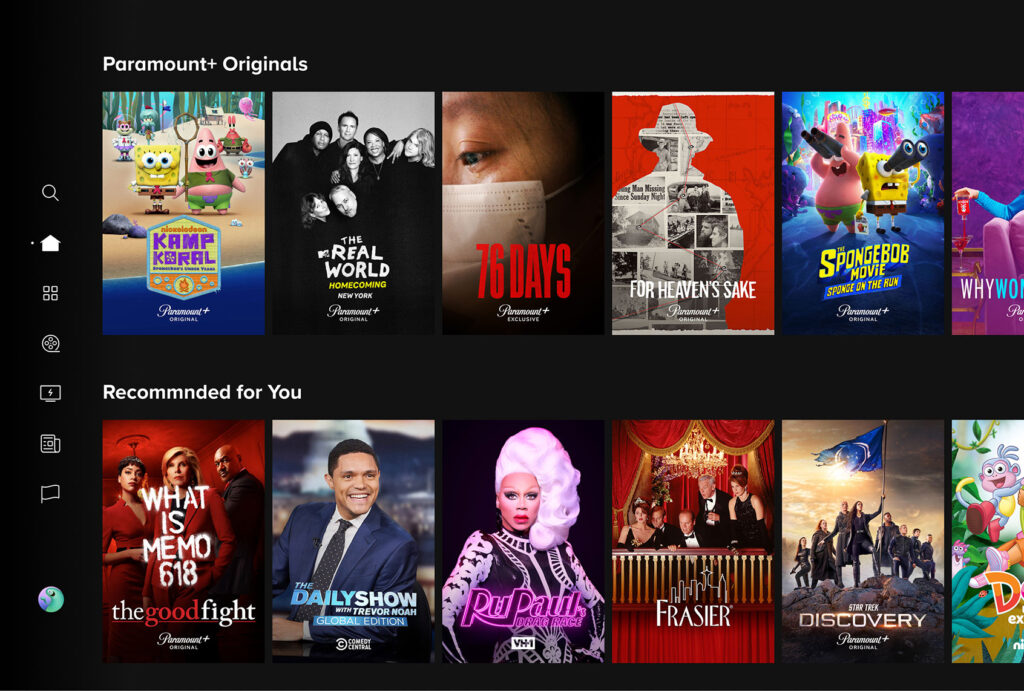
- Google Chromecast (and Built-in Chromecast/Google TV):
- Ensure your Chromecast device is set up and connected to the same Wi-Fi network as your smartphone or tablet.
- Open the Paramount Plus app on your mobile device (iOS or Android).
- Start playing a show or movie.
- Tap the “Cast” icon (a small rectangle with a Wi-Fi symbol) usually found in the top right or bottom right of the player.
- Select your Chromecast device from the list. The content will then begin playing on your TV.
- Apple AirPlay (Apple TV, AirPlay 2-compatible Smart TVs):
- Ensure your Apple device (iPhone, iPad, Mac) and your Apple TV or AirPlay 2-compatible smart TV are on the same Wi-Fi network.
- Open the Paramount Plus app on your Apple device.
- Start playing a show or movie.
- Tap the “AirPlay” icon (a rectangle with an upward-pointing triangle).
- Select your Apple TV or AirPlay-compatible smart TV from the list.
Optimizing Your Paramount Plus Experience
Getting the app installed is the first step. To truly enjoy your subscription, consider these tips for an optimal viewing experience.
Ensuring Network Stability
- Ethernet Connection: For critical devices like your primary streaming player or smart TV, a direct Ethernet cable connection to your router can eliminate Wi-Fi interference and provide the most consistent speeds.
- Wi-Fi Optimization: If using Wi-Fi, ensure your router is centrally located, free from obstructions, and consider upgrading to a newer router that supports Wi-Fi 6 for improved performance.
- Minimize Network Congestion: Avoid having too many devices streaming or downloading simultaneously on the same network, especially during peak hours.
Managing Profiles and Content
- User Profiles: Paramount Plus supports multiple user profiles. Create individual profiles for family members to get personalized recommendations and keep track of their watch history.
- Watchlist/My List: Utilize the watchlist feature to save shows and movies you want to watch later, making content discovery easier.
- Content Exploration: Spend time browsing the various categories, including live channels (like CBS News 24/7), sports sections, and specific brand hubs (e.g., Nickelodeon, MTV, Showtime via bundle).
Enhancing Video and Audio Quality
- Device Settings: Check your TV and streaming device settings to ensure they are configured for the highest possible resolution (e.g., 4K/UHD, HDR).
- Paramount Plus Settings: Within the Paramount Plus app, some devices might offer playback quality settings. Generally, the app will auto-detect the best quality for your connection, but it’s good to be aware.
- Audio Output: If you have a soundbar or home theater system, ensure your TV’s audio output is configured correctly (e.g., HDMI ARC/eARC, optical audio) for optimal surround sound.
Troubleshooting Common Issues
Even with the best preparation, technical glitches can occur. Here’s how to address some of the most common problems you might encounter.
App Not Loading, Crashing, or Freezing
- Force Close and Reopen: The first step is always to close the app completely and reopen it.
- Restart Your Device: A full restart of your smart TV, streaming device, or gaming console can resolve many temporary software conflicts.
- Clear Cache/Data: Go to your device’s app settings, find Paramount Plus, and try clearing its cache. This removes temporary files that might be corrupted. If that doesn’t work, try clearing data (be aware this will log you out).
- Reinstall the App: Uninstall Paramount Plus and then reinstall it from the app store.
Login and Account Problems
- Double-Check Credentials: Ensure you are entering your email and password correctly, paying attention to capitalization.
- Reset Password: If you’re unsure of your password, use the “Forgot Password” link on the Paramount Plus website.
- Check Subscription Status: Log into your Paramount Plus account on a web browser to ensure your subscription is active and not lapsed.
Buffering or Poor Video Quality
- Check Internet Speed: Use an online speed test (e.g., speedtest.net) on a device connected to the same network to verify your internet speed.
- Router Restart: Reboot your Wi-Fi router and modem. Unplug them for 30 seconds, then plug them back in.
- Reduce Network Traffic: Disconnect other devices that might be hogging bandwidth.
- Move Closer to Router: If on Wi-Fi, try moving your device closer to the router or using a Wi-Fi extender.
- Change Stream Quality (If Available): Some devices or apps allow you to manually lower the streaming quality, which can help with buffering.
Audio/Video Sync Issues
- Restart Content: Sometimes simply stopping and restarting the show or movie can resolve sync issues.
- Check Device Settings: Verify your TV’s audio delay settings (if available) and your streaming device’s audio output settings.
- Firmware Updates: Ensure your TV, streaming device, and sound system (if applicable) all have the latest firmware updates installed.
The Future of Streaming and Paramount Plus on TV
The way we consume media on our televisions is constantly evolving, and Paramount Plus, like other major players, is continuously adapting and innovating. As technology progresses, so too will the methods and features available for enjoying content.
Evolving Smart TV Integration
Smart TVs are becoming more sophisticated, offering tighter integration with streaming services and advanced features like voice control, personalized content hubs, and even integrated subscription management. Expect Paramount Plus to leverage these capabilities, providing more intuitive navigation and deeper personalization directly from your TV’s home screen. The line between a dedicated streaming device and a smart TV will continue to blur, making the “how-to” even simpler for future users.
Advanced Features and Content Formats
As broadband speeds increase and hardware becomes more powerful, expect Paramount Plus to expand its offerings in high-fidelity formats. This includes more 4K Ultra HD content, HDR (High Dynamic Range) for richer colors and contrast, and immersive audio experiences like Dolby Atmos. Ensuring your TV and audio system are compatible with these technologies will be key to unlocking the full potential of these advancements.
The Convergence of Content and Technology
The future will likely see even greater convergence between content platforms and technological ecosystems. We might see deeper integrations with smart home devices, personalized recommendations based on broader viewing habits across different platforms (with user consent), and new interactive features directly within the Paramount Plus app. The goal remains the same: to make accessing and enjoying your favorite shows and movies on your TV as seamless, high-quality, and engaging as possible.

Conclusion
Bringing Paramount Plus to your television is a straightforward process, thanks to its widespread compatibility across smart TVs, streaming devices, and gaming consoles. By following the step-by-step instructions outlined in this guide, you can quickly get set up and dive into a vast library of entertainment. Remember to ensure a stable internet connection, keep your devices updated, and troubleshoot common issues with patience. The world of streaming is at your fingertips, and with Paramount Plus on your TV, your next favorite show or movie is just a few clicks away. Enjoy the show!
aViewFromTheCave is a participant in the Amazon Services LLC Associates Program, an affiliate advertising program designed to provide a means for sites to earn advertising fees by advertising and linking to Amazon.com. Amazon, the Amazon logo, AmazonSupply, and the AmazonSupply logo are trademarks of Amazon.com, Inc. or its affiliates. As an Amazon Associate we earn affiliate commissions from qualifying purchases.