
In an increasingly digital world, the security of our online accounts, especially those linked to our finances, has never been more critical. PayPal, as one of the largest and most widely used online payment platforms, holds sensitive financial information and facilitates countless transactions daily. Ensuring its security, therefore, is paramount. This guide will walk you through the essential steps of changing your PayPal password, delve into the broader context of digital security, and equip you with best practices to safeguard your account against ever-evolving cyber threats. This isn’t just a tutorial; it’s a deep dive into maintaining your financial integrity in the digital realm, firmly rooted in the principles of robust technological security.
The Imperative of Regular Password Updates for Digital Security
While it might seem like a minor administrative task, regularly updating your passwords, particularly for high-value accounts like PayPal, is a cornerstone of effective digital security. The landscape of cyber threats is dynamic, and what might be considered a strong password today could be compromised tomorrow.
Understanding the Threat Landscape
Cybercriminals employ a myriad of sophisticated techniques to gain unauthorized access to accounts. These range from brute-force attacks, where algorithms guess countless password combinations, to dictionary attacks, which use common words and phrases. Beyond automated methods, there’s also the constant threat of data breaches from other services. If you use the same password across multiple platforms, a breach on a less secure site could inadvertently expose your PayPal account. Phishing attempts, social engineering, and malware are also prevalent, constantly attempting to trick users into revealing their credentials. Regular password changes act as a critical defense mechanism, minimizing the window of opportunity for attackers should one of these methods prove successful.
The Dangers of Reusing Passwords
The convenience of using the same password for multiple accounts often outweighs the perceived security risk for many users. However, this practice is akin to using the same key for your home, car, and office – if one key is compromised, everything is at risk. In the digital world, this vulnerability is amplified. When a cybercriminal obtains a username and password from one breached website, they will often try those same credentials on popular services like PayPal, banking sites, and email providers. This technique, known as “credential stuffing,” is highly effective precisely because of password reuse. A unique, complex password for PayPal ensures that even if other accounts are compromised, your financial hub remains secure.
Proactive Security Measures for Financial Platforms
Proactive security isn’t just about reacting to threats; it’s about anticipating them. For financial platforms like PayPal, this means adopting a mindset of continuous vigilance. Regular password changes are a fundamental part of this proactive stance. They are not merely a response to a perceived breach but a preventative measure that significantly reduces your exposure. Furthermore, combining strong, unique passwords with other security features, such as multi-factor authentication, creates a layered defense that is far more resilient than relying on a single security barrier. This approach underscores the tech category’s focus on system hardening and user-centric security protocols.
Step-by-Step Guide: Changing Your PayPal Password
Changing your PayPal password is a straightforward process designed to be accessible to all users. By following these steps, you can quickly enhance the security of your account.
Accessing Your PayPal Account Settings
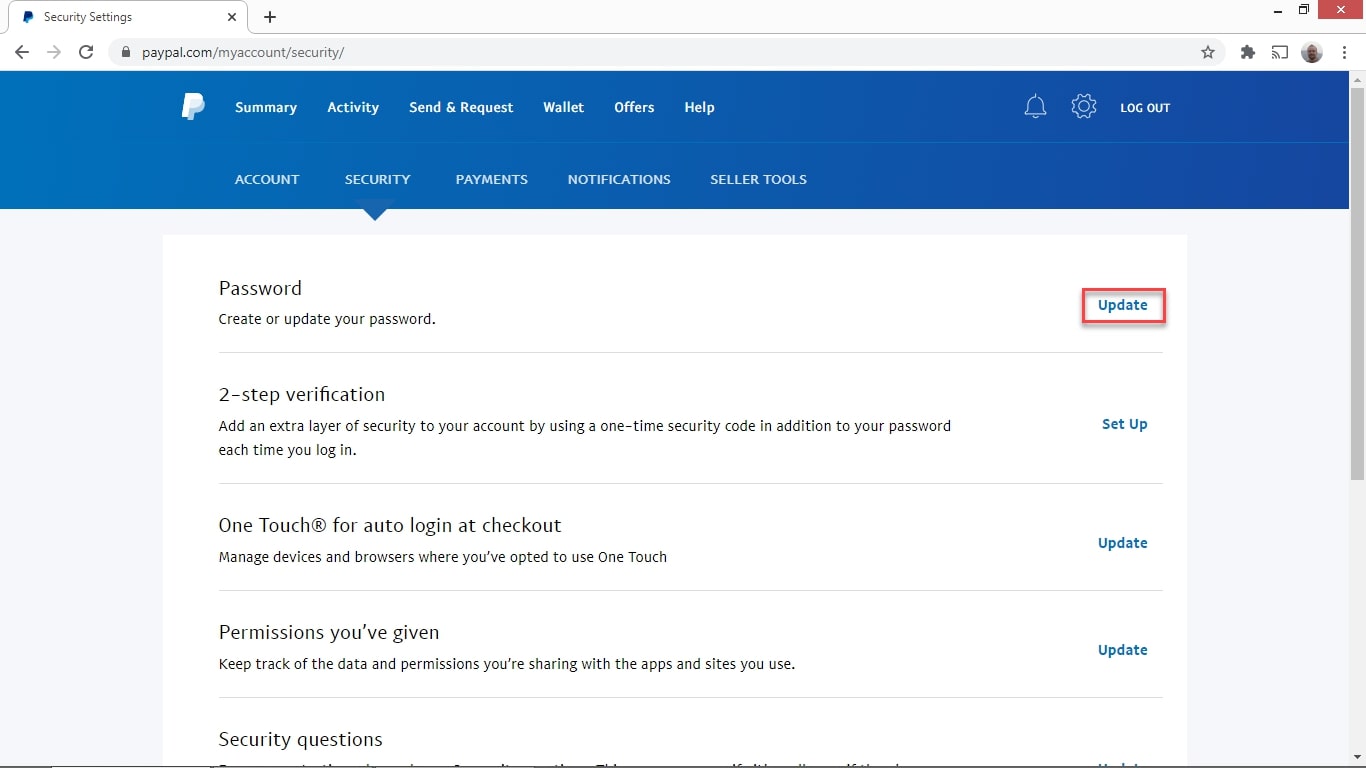
The first step is to log in to your PayPal account. Navigate to the official PayPal website or open the PayPal mobile app on your device. Enter your current email address (or phone number) and password. Once logged in, you’ll need to locate your account settings. On the website, this is typically found by clicking on the gear icon (Settings) in the top right corner of the page. In the mobile app, you’ll usually find the settings menu by tapping your profile icon or navigating through a ‘Menu’ or ‘More’ option.
Navigating to the Security Section
Within your account settings, you’ll see various tabs or categories. Look for a section explicitly labeled “Security” or “Login and Security.” This is where all your password, two-factor authentication, and security question settings reside. Click on this section to proceed. Here, you should see an option related to updating your password. It might be labeled “Change your password,” “Update password,” or similar.
Crafting a Robust New Password
This is arguably the most critical step. When prompted, you will typically need to enter your current password first to verify your identity. Then, you’ll be asked to input your new password, and often, to confirm it by typing it a second time. A robust password should adhere to the following best practices, which are standard in modern digital security:
- Length: Aim for a minimum of 12-16 characters. The longer the password, the harder it is to guess or crack.
- Complexity: Incorporate a mix of uppercase letters, lowercase letters, numbers, and special characters (e.g., !, @, #, $, %).
- Uniqueness: Never reuse a password from another account. Each account should have its own distinct password.
- Avoid Personal Information: Do not use easily guessable information like your name, birthdate, pet’s name, or common phrases.
- Consider Passphrases: Instead of single words, a memorable but complex passphrase (e.g., “MyDogLovesBacon$ButNot@Noon!”) can be much stronger and easier to remember than random characters.
PayPal typically provides a password strength indicator as you type, offering immediate feedback on how secure your chosen password is. Pay attention to this indicator and strive for the highest possible strength.
Confirming Your Password Change
After entering and confirming your new robust password, click the “Save,” “Update Password,” or “Submit” button. PayPal will then process the change. You should receive a confirmation message on screen, and often, an email notification to your registered email address confirming that your password has been successfully updated. This email serves as an important security alert; if you receive such an email but did not initiate the change, it’s a red flag indicating potential unauthorized access, and you should immediately contact PayPal support.
What to Do If You’ve Forgotten Your PayPal Password
Forgetting a password can be a frustrating experience, but PayPal provides a secure and structured process for regaining access to your account. This recovery mechanism is a standard feature in secure software applications, emphasizing user continuity alongside security.
Initiating the Password Recovery Process
If you can’t remember your password, do not attempt to guess it multiple times, as this could lead to your account being temporarily locked for security reasons. Instead, on the PayPal login page, look for a link that says “Having trouble logging in?” or “Forgot password?” Click on this link to begin the recovery process. You’ll typically be asked to enter the email address or phone number associated with your PayPal account. This is the first step in verifying your identity.
Verifying Your Identity
Once you’ve entered your email or phone number, PayPal will initiate an identity verification process. This is a crucial security step to ensure that only the legitimate account owner can reset the password. Common verification methods include:
- Email Link/Code: PayPal will send a secure link or a one-time verification code to your registered email address. You’ll need to access that email and follow the instructions or enter the code on the PayPal site.
- SMS Code: If you have a phone number linked to your account, PayPal might send a verification code via SMS.
- Security Questions: You might be prompted to answer security questions you set up when creating your account (e.g., “What was the name of your first pet?”).
- Automated Call: In some cases, PayPal might offer an automated phone call to a registered number, providing a code.
Choose the verification method that is most convenient and secure for you. It’s vital that you have access to at least one of these registered channels.
Setting a New, Secure Password
Once your identity has been successfully verified, PayPal will allow you to set a brand-new password. At this point, it’s critical to follow all the guidelines for crafting a robust password discussed earlier: use a long, complex, and unique combination of characters. Do not reuse your old password or any password you’ve used for other accounts. After you’ve entered and confirmed your new password, you should regain full access to your PayPal account.
Best Practices for PayPal Password Management and Account Security
Changing your password is a vital step, but it’s part of a broader ecosystem of digital security best practices. For a service like PayPal, adopting these additional tech-centric measures can provide an unparalleled level of protection.
Embracing Two-Factor Authentication (2FA)
Two-Factor Authentication (also known as 2-Step Verification or Multi-Factor Authentication, MFA) adds an extra layer of security beyond just your password. With 2FA enabled, even if someone manages to steal your password, they still won’t be able to access your account without the second factor. PayPal offers 2FA, typically via SMS codes sent to your registered phone or through an authenticator app (like Google Authenticator or Authy). Activating 2FA is highly recommended for all sensitive accounts, especially financial ones. It’s a simple yet incredibly effective technological safeguard.
Utilizing Password Managers
Remembering unique, complex passwords for every single online account can be a daunting task. This is where password managers come in. Tools like LastPass, 1Password, Bitwarden, or Dashlane securely store all your passwords in an encrypted vault, accessible only with a single master password. They can also generate strong, random passwords for new accounts and automatically fill in login details. A password manager is an invaluable tool for maintaining robust digital hygiene and adhering to the best practices of password uniqueness and complexity.
Recognizing and Avoiding Phishing Scams
Phishing is a deceptive tactic where cybercriminals attempt to trick you into revealing your login credentials by impersonating legitimate entities, often through fake emails, text messages, or websites. For PayPal users, phishing attempts are common. Always be suspicious of emails or messages asking for your password or personal information, especially if they contain urgent threats or unusual requests.
- Check the Sender: Verify the sender’s email address – look for subtle misspellings.
- Hover Over Links: Before clicking, hover your mouse over any links to see the actual destination URL. Ensure it leads to the official PayPal domain (paypal.com).
- Look for Red Flags: Poor grammar, generic greetings (“Dear PayPal User”), and urgent demands are common signs of phishing.
- Access Directly: When in doubt, always go directly to the official PayPal website by typing the URL into your browser, rather than clicking links in emails.
Regularly Reviewing Account Activity
Even with the strongest passwords and 2FA, vigilance is key. Regularly log in to your PayPal account and review your transaction history and activity log. Look for any unauthorized transactions or login attempts from unfamiliar locations. If you spot anything suspicious, report it to PayPal immediately. Many financial platforms also offer alerts for unusual activity, which you should enable.
The Broader Context of Digital Security: Beyond Just Passwords
While strong passwords are foundational, comprehensive digital security for financial transactions extends beyond just your PayPal login. It involves understanding and implementing security measures across your entire digital environment, a holistic approach central to the tech domain.
Software Updates and System Hygiene
Keeping your operating system (Windows, macOS, Android, iOS), web browsers, and all installed applications updated is crucial. Software updates often include critical security patches that fix vulnerabilities exploited by cybercriminals. Running outdated software is like leaving a back door open. Similarly, maintaining good “system hygiene” – using reputable antivirus software, regularly scanning for malware, and being cautious about what software you install – creates a more secure environment for your online activities.
Secure Wi-Fi Networks
When accessing your PayPal account, always ensure you are connected to a secure, private Wi-Fi network. Public Wi-Fi networks (at cafes, airports, etc.) are often unencrypted and susceptible to “eavesdropping,” where malicious actors can intercept your data, including login credentials. If you must use public Wi-Fi, consider using a Virtual Private Network (VPN) to encrypt your internet traffic, providing a secure tunnel for your data.
Educating Yourself Against Social Engineering
Social engineering involves manipulating people into divulging confidential information. This isn’t about exploiting technical vulnerabilities but human psychology. Attackers might impersonate customer service representatives, tech support, or even friends and family. They create believable scenarios to trick you into giving away passwords, PINs, or other sensitive details. Always be skeptical of unsolicited requests for personal information, verify identities independently, and remember that legitimate organizations like PayPal will never ask for your full password or PIN over the phone or email.
In conclusion, changing your PayPal password is a fundamental aspect of digital self-defense, easily accomplished but profoundly impactful. By following the outlined steps, adopting robust password practices, enabling 2FA, utilizing password managers, and maintaining overall digital vigilance, you can significantly fortify your online financial security. In the ever-evolving world of technology, staying informed and proactive about your security is not just an option; it’s a necessity.
aViewFromTheCave is a participant in the Amazon Services LLC Associates Program, an affiliate advertising program designed to provide a means for sites to earn advertising fees by advertising and linking to Amazon.com. Amazon, the Amazon logo, AmazonSupply, and the AmazonSupply logo are trademarks of Amazon.com, Inc. or its affiliates. As an Amazon Associate we earn affiliate commissions from qualifying purchases.