
In an increasingly digital world, the security of our online accounts is paramount. From banking to social media, and certainly to our entertainment platforms, safeguarding our personal data and access is a continuous responsibility. Spotify, as one of the most popular music streaming services globally, holds a significant place in many users’ daily lives, storing not just listening habits but also payment information (for premium subscribers) and personal preferences. Knowing how to effectively manage and, crucially, change your Spotify password is not merely a technicality but a fundamental aspect of maintaining your digital hygiene and security.
This guide will walk you through the process of changing your Spotify password, whether you know your current one or have forgotten it. Beyond the “how-to,” we’ll delve into the broader implications of password management, offering insights into why regular security checks are essential and best practices for protecting all your online identities. By the end, you’ll not only be equipped to secure your Spotify account but also better understand the strategic importance of robust digital security in the age of pervasive online threats.
Why Regular Password Maintenance is Crucial
In the digital realm, security is not a one-time setup but an ongoing commitment. Our online accounts are constantly under threat from malicious actors, making proactive password management an indispensable part of our digital lives. For a service like Spotify, which is accessed frequently across multiple devices, the stakes are higher than just losing access to your curated playlists; it could be a gateway to broader identity compromise if you reuse passwords.
The Evolving Threat Landscape
The internet’s rapid evolution has unfortunately been mirrored by the sophistication of cyber threats. We live in an era where data breaches are common occurrences, often exposing millions of user credentials from various services. Phishing attacks, where cybercriminals impersonate legitimate entities to trick users into revealing their login information, are also rampant. Furthermore, credential stuffing—an attack where stolen username/password pairs from one service are tried against many other services—exploits the common user habit of reusing passwords. If your Spotify password is the same as, or similar to, one exposed in another data breach, your account becomes an easy target. Regular password changes significantly mitigate this risk by invalidating any previously compromised credentials.
Proactive Security Measures
While reacting to a known threat or breach is necessary, adopting a proactive stance offers superior protection. Changing your Spotify password periodically, even when there’s no immediate indication of compromise, acts as a preventative measure. It’s akin to changing the locks on your home every few years, not because of a specific break-in attempt, but as a general best practice for security. This routine makes it harder for persistent attackers to maintain access if they’ve managed to compromise your credentials through a less obvious method. A fresh password disrupts any ongoing unauthorized access, ensuring that only you, with the most current key, can unlock your digital space.
Protecting Your Digital Identity
Your Spotify account, like many other online profiles, contributes to your overall digital identity. It might contain links to your social media, your email address, and payment details if you’re a premium subscriber. A compromised Spotify account isn’t an isolated incident; it can be a stepping stone for attackers to access other, more sensitive accounts, especially if they uncover personal information or patterns in your passwords. By diligently securing your Spotify account, you’re not just protecting your music experience; you’re reinforcing the broader security perimeter around your entire digital life. It’s an integral part of maintaining trust in your online interactions and safeguarding your personal information from unauthorized access and misuse.
Step-by-Step Guide: Changing Your Spotify Password (Known Password)
If you know your current Spotify password and simply wish to update it for security reasons, perhaps as part of your regular digital hygiene routine, the process is straightforward. It’s important to note that password changes are primarily managed through the Spotify website, not directly within the desktop or mobile applications.
Accessing Your Account Settings
- Open a Web Browser: Start by opening your preferred web browser (e.g., Chrome, Firefox, Safari, Edge) on your computer or mobile device.
- Navigate to the Spotify Website: Go to
www.spotify.com. - Log In to Your Account: In the top-right corner of the page, click on the “Log In” button. Enter your current username or email address and your existing password, then click “Log In.” If you use Facebook or Apple to log in, you will need to follow a slightly different path (see below).
- Go to Your Account Overview: Once logged in, click on your profile name (usually in the top-right corner) and select “Account” from the dropdown menu. This will take you to your Spotify account overview page.
Navigating to the Password Change Section
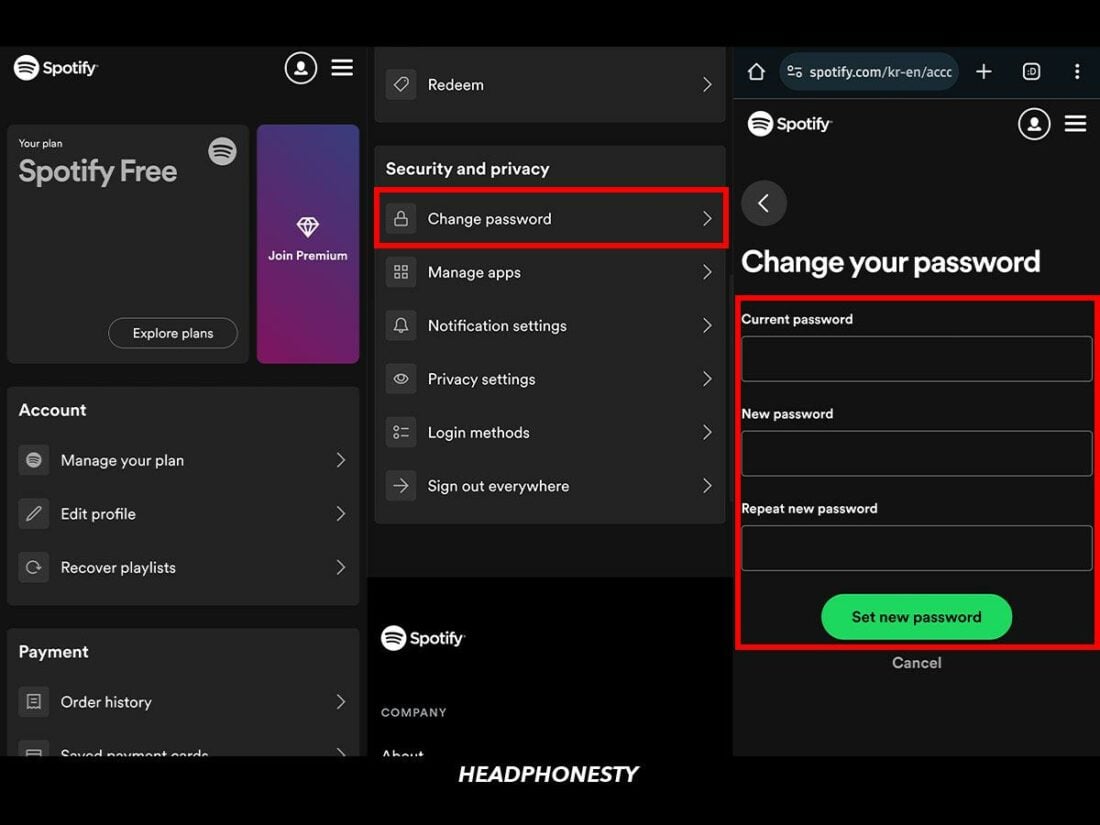
- Find the “Change Password” Option: On your account overview page, look at the left-hand sidebar or scroll down the page. You should see a section or link labeled “Change password.” Click on this link.
- Special Note for Facebook/Apple Logins: If you primarily log in using your Facebook or Apple account, you might not have a traditional Spotify password set up. In such cases, you’ll typically need to create one first to enable direct Spotify login. On the account page, there might be an option to “Set device password” or similar, which allows you to establish a standalone Spotify password. If you originally signed up with Facebook/Apple and want to set a distinct Spotify password, you may need to use the “Forgot your password?” flow with the email associated with your Facebook/Apple account to establish a new, direct Spotify password.
Entering and Confirming Your New Password
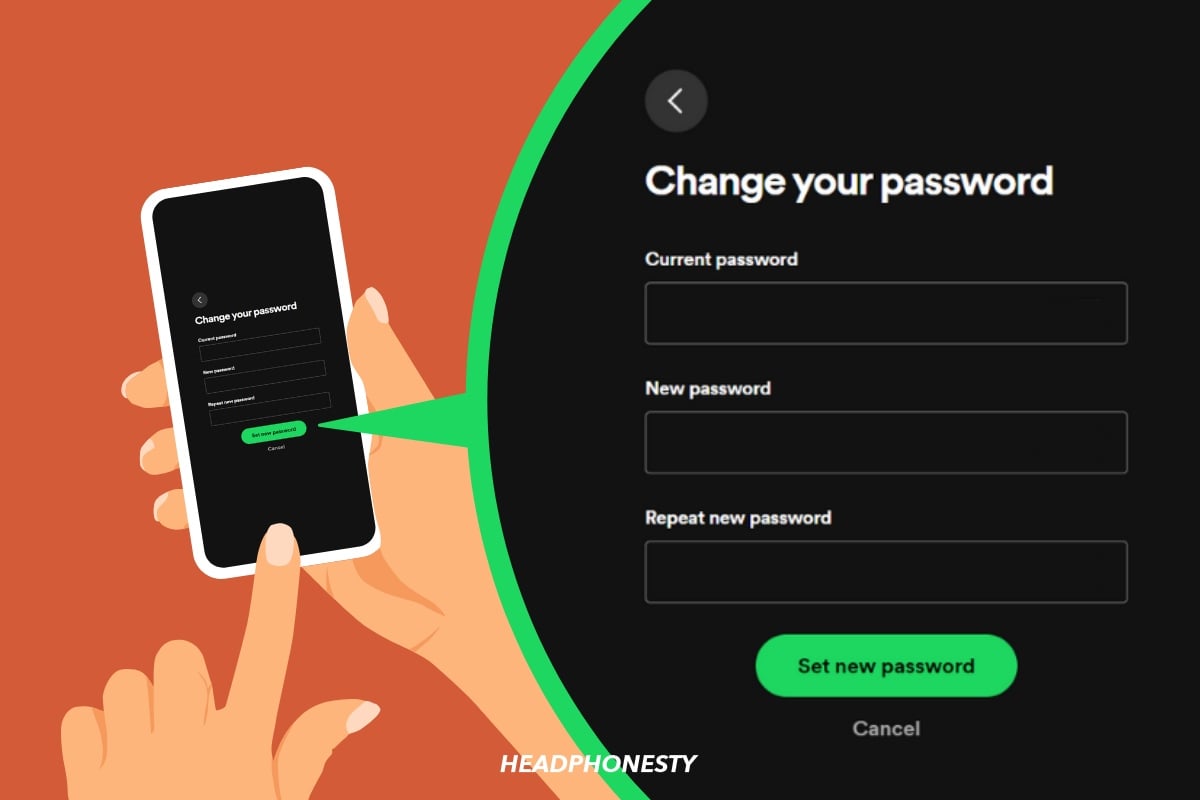
- Enter Current Password: In the “Change password” section, you will be prompted to enter your current password in the first field.
- Enter New Password: In the second field, type your desired new password.
- Confirm New Password: In the third field, re-enter your new password to confirm it.
- Click “Set New Password”: After ensuring both new password entries match and are strong (more on this below), click the “Set New Password” button.
- Confirmation: You should receive a confirmation message indicating that your password has been successfully changed. It’s a good practice to log out of all Spotify sessions (an option usually available in account settings, e.g., “Sign out everywhere”) and then log back in with your new password to ensure it’s working correctly and to revoke access from any potentially compromised sessions.
What to Do If You’ve Forgotten Your Spotify Password
Forgetting a password can be a frustrating experience, but Spotify provides a clear and secure process to regain access to your account. This procedure relies on email verification to ensure that only the legitimate account owner can reset the password.
Initiating the Password Reset Process
- Access the Password Reset Page: If you’re unable to log in, go to the Spotify login page at
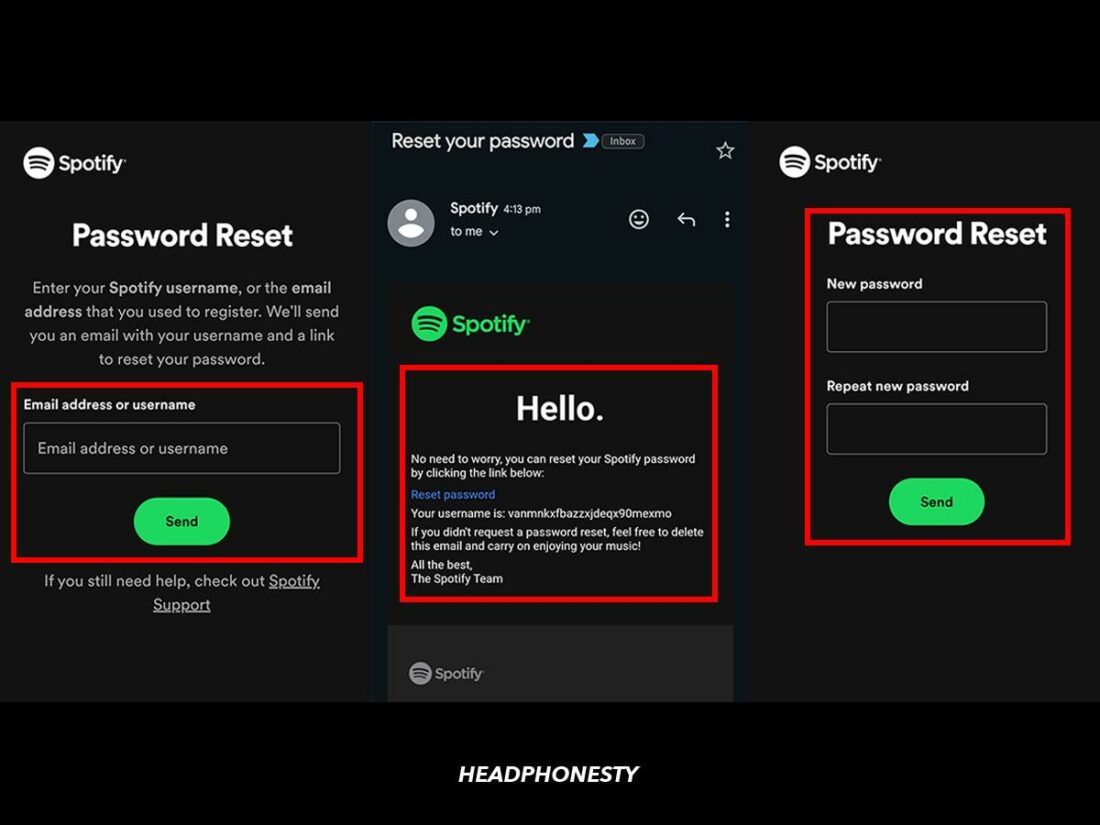
www.spotify.com/password/reset/. Alternatively, from the main login page, click on the “Forgot your password?” link. - Enter Your Registered Email or Username: You will be prompted to enter either the email address or username associated with your Spotify account. It’s crucial to use the correct information here, as this is how Spotify will identify your account and send the reset link.
- Complete reCAPTCHA: To confirm you’re not a robot, you might need to complete a reCAPTCHA challenge.
- Submit Request: Click the “Send” or “Send me the reset link” button.
Verifying Your Identity
- Check Your Email: Spotify will send a password reset email to the address linked to your account. Go to your email inbox (and check your spam or junk folder if you don’t see it in your primary inbox). The email will typically come from “Spotify” with a subject line like “Reset your password.”
- Open the Reset Link: Inside the email, you will find a link that says “Reset password” or something similar. Click on this link. This link is usually time-sensitive for security reasons, so try to use it promptly.
- Troubleshooting Email Issues: If you don’t receive the email, double-check that you entered the correct email address or username on the reset page. Also, ensure that Spotify’s emails aren’t being blocked by your email provider.
Creating a New Secure Password
- Enter New Password: Once you click the reset link in the email, you will be taken to a Spotify page where you can create a new password. Enter your desired new password into the first field.
- Confirm New Password: Re-enter the same new password in the second field to confirm it.
- Choose a Strong Password: This is a critical step. Do not reuse old passwords, especially ones that might have been compromised elsewhere. Opt for a password that is unique, long (at least 12-16 characters), and incorporates a mix of uppercase and lowercase letters, numbers, and symbols. Avoid easily guessable information like birthdays, names, or common words.
- Click “Send” or “Set New Password”: Once both fields match and you are confident in your new password’s strength, click the button to finalize the change.
- Confirmation and Relogin: You should receive a confirmation that your password has been successfully updated. You can now log in to Spotify with your new credentials. As a final security measure, consider signing out of all devices and then logging back in, ensuring all old sessions are terminated.
Best Practices for Spotify and General Password Security
Changing your Spotify password is an excellent start, but a comprehensive approach to digital security extends beyond just one account. Implementing robust password practices across all your online services is essential for protecting your entire digital footprint.
Crafting Unbreakable Passwords
The foundation of strong digital security is the password itself. Forget short, simple passwords that are easy to remember but also easy to guess or crack. The modern standard demands complexity and length. A truly strong password for Spotify, or any other service, should:
- Be Unique: Never reuse passwords across different accounts. If one service is compromised, all accounts sharing that password become vulnerable.
- Be Long: Aim for at least 12-16 characters. Length is often more important than extreme complexity in resisting brute-force attacks.
- Be Complex: Incorporate a mix of uppercase and lowercase letters, numbers, and special characters (e.g., !, @, #, $, %).
- Be Unpredictable: Avoid using personal information (names, birthdays, pet names), common words, or easily guessable sequences (e.g., “password123”). Consider using passphrases—a string of random, unrelated words—which are long and unique but easier for you to remember.
The Power of Password Managers
Remembering dozens of unique, complex passwords for all your online accounts is virtually impossible for most people. This is where password managers become invaluable tools. A password manager is an application that securely stores all your login credentials in an encrypted vault, accessible only by a single, strong master password.
- Generate Strong Passwords: Most password managers can generate highly complex and unique passwords for you with a single click.
- Autofill Logins: They seamlessly autofill your login details on websites and apps, saving you time and preventing phishing by only filling credentials on legitimate sites.
- Secure Storage: Your passwords are encrypted, making them safe even if your device is stolen.
- Cross-Device Sync: Many managers sync your vault across all your devices, ensuring you have access to your passwords everywhere.
- Examples: Popular password managers include LastPass, 1Password, Bitwarden, and Dashlane. Embracing a password manager is arguably the single most impactful step you can take to elevate your digital security.
Enabling Two-Factor Authentication (2FA)
While Spotify currently doesn’t offer native two-factor authentication for logging into your account (it relies on email verification for password resets), 2FA is a critical security layer that should be enabled wherever available for other online services. 2FA adds a second verification step beyond just your password, typically requiring a code sent to your phone, generated by an authenticator app, or using a physical security key. This drastically reduces the risk of unauthorized access, even if your password is stolen, as an attacker would also need physical access to your second factor. For services that offer 2FA, enable it immediately.
Beware of Phishing Attempts
Always be vigilant about emails or messages asking you to change your password or verify account details, especially if they contain links. Phishing scams are designed to mimic legitimate communications from companies like Spotify to trick you into revealing your credentials.
- Check the Sender: Scrutinize the sender’s email address. Does it look legitimate, or is there a subtle misspelling or unusual domain?
- Hover Over Links: Before clicking, hover your mouse over any links to see the actual URL they point to. If it doesn’t lead to
spotify.com(or a known official sub-domain), do not click it. - Look for Red Flags: Generic greetings, urgent demands, poor grammar, or unusual requests are common signs of phishing.
- Go Directly to the Source: If you receive a suspicious email, do not click its links. Instead, go directly to the official Spotify website by typing
www.spotify.cominto your browser and log in there to check for any alerts or messages. If a password change is genuinely needed, initiate it directly from the official website.
In conclusion, changing your Spotify password is a simple yet powerful act of digital self-defense. By understanding the process, embracing best practices for password creation and management, and remaining vigilant against evolving threats, you contribute significantly to the security of your Spotify account and your broader digital identity. Make password maintenance a regular part of your routine—your digital peace of mind depends on it.
aViewFromTheCave is a participant in the Amazon Services LLC Associates Program, an affiliate advertising program designed to provide a means for sites to earn advertising fees by advertising and linking to Amazon.com. Amazon, the Amazon logo, AmazonSupply, and the AmazonSupply logo are trademarks of Amazon.com, Inc. or its affiliates. As an Amazon Associate we earn affiliate commissions from qualifying purchases.