
In the intricate world of computing, where hardware and software constantly dance a complex ballet, a crucial orchestrator often goes unnoticed: the GPU driver. Far from a mere software utility, a Graphics Processing Unit (GPU) driver is the indispensable bridge that allows your computer’s operating system and applications to communicate effectively with your graphics card. Without it, the stunning visuals, smooth gameplay, and accelerated computations we take for granted would be impossible. Understanding what a GPU driver is, how it functions, and why its maintenance is paramount is key to unlocking the full potential of your system.

The Essential Bridge: Understanding the Role of a GPU Driver
At its core, a GPU driver is a piece of software that acts as an intermediary, translating commands and data between your operating system (like Windows, macOS, or Linux) and the GPU itself. It’s akin to a universal translator, ensuring that the high-level instructions from applications can be understood and executed by the highly specialized hardware of the graphics card.
Bridging Hardware and Software
Every component in your computer, from the CPU to the smallest USB device, requires a driver to function correctly. The GPU is no exception, but its driver carries a particularly heavy responsibility due to the demanding nature of graphics processing. When you launch a game, open a design application, or even simply navigate your desktop, the operating system sends requests to the GPU. These requests are not in a language the GPU natively understands. The GPU driver steps in, taking those generalized software commands and converting them into precise, low-level instructions that the GPU’s thousands of processing cores can act upon.
The Language Translator
Imagine trying to speak directly to a highly specialized engineer without knowing their technical jargon. You’d likely fail to convey your complex requirements. The GPU driver performs this critical translation. It interprets the generic graphics commands from an application (like “draw a red triangle” or “render this texture”) and translates them into the specific machine code and microcode instructions required by the particular GPU architecture (NVIDIA, AMD, or Intel). This translation also accounts for the specific capabilities and features of your graphics card model, ensuring that commands are optimized for its unique hardware.
Optimizing Performance and Features
Beyond mere translation, a GPU driver is central to optimizing performance. It contains algorithms and routines designed to maximize the efficiency of the GPU, ensuring that rendering tasks are handled as quickly and smoothly as possible. New driver versions often include performance enhancements for the latest games and applications, bug fixes, and support for emerging graphics technologies like DirectX Raytracing or NVIDIA DLSS. It’s not just about making things work; it’s about making them work better. The driver also exposes the advanced features of the GPU to the operating system and applications, allowing them to leverage capabilities like hardware acceleration for video encoding, complex shader effects, and parallel computing tasks.
Anatomy of a GPU Driver: Key Components and Functions
A GPU driver is not a monolithic piece of software but rather a complex ecosystem of components working in concert. These components are designed to handle different aspects of the interaction between the software stack and the graphics hardware.
Kernel Mode Driver
This is the most critical part of the driver, operating at the lowest level of the operating system, often referred to as “kernel mode.” In this privileged mode, the driver has direct access to the hardware and can manage resources efficiently. The kernel mode driver is responsible for direct hardware initialization, memory management on the GPU, interrupt handling, and scheduling tasks for the GPU’s processing units. Because it operates at such a low level, stability and security in the kernel mode driver are paramount; a bug here can lead to system crashes (like the infamous Blue Screen of Death).
User Mode Driver
Operating at a higher level, the user mode driver interacts with applications and the operating system’s graphics APIs (Application Programming Interfaces). When a game makes a call to DirectX or OpenGL, it’s the user mode driver that receives these calls, processes them, and prepares them for the kernel mode driver to send to the hardware. This separation helps improve system stability; an issue in the user mode driver is less likely to crash the entire system compared to a kernel mode issue. It also allows for more flexibility in how applications interact with the GPU without needing direct hardware access.
APIs and Shaders (DirectX, OpenGL, Vulkan)
A significant part of the GPU driver’s function is to implement and expose graphics APIs. These APIs, such as Microsoft’s DirectX, OpenGL, or the newer Vulkan, provide a standardized way for developers to program graphics without needing to understand the intricacies of every single GPU. The driver translates these API calls into the specific instructions for the underlying hardware. Furthermore, drivers manage the compilation and execution of shaders – small programs that run directly on the GPU to handle tasks like lighting, texturing, and geometry processing, which are crucial for realistic rendering.
Control Panel and Utilities
Beyond the low-level code, GPU drivers also come with user-facing software. NVIDIA Control Panel, AMD Adrenalin Software, and Intel Graphics Command Center are examples of these utilities. They provide a graphical interface for users to adjust various settings, such as display resolution, refresh rate, color profiles, 3D application settings (like anti-aliasing and anisotropic filtering), monitor performance, and even overclock the GPU. These tools are extensions of the driver, allowing users to fine-tune their graphics experience.
Why Keeping Your GPU Driver Updated is Crucial
Neglecting your GPU driver updates is akin to driving a high-performance car with outdated engine software – you might get by, but you’re missing out on optimal performance, stability, and security. Regular updates are not just about adding new features; they are fundamental to maintaining a healthy and efficient computing experience.
Unlocking Performance Enhancements
One of the most compelling reasons to update your GPU driver is for performance gains. Graphics card manufacturers continually optimize their drivers to squeeze more performance out of existing hardware. This is particularly noticeable with the release of new AAA games. A new driver might include specific optimizations that can significantly boost frame rates, reduce stuttering, or improve loading times in the latest titles. These optimizations are often achieved through more efficient resource allocation, improved shader compilation, or better utilization of specific hardware features.
Ensuring Stability and Bug Fixes

Software is never perfect, and GPU drivers are no exception. Bugs can lead to system crashes, graphical artifacts, freezing, or applications failing to launch. Manufacturers regularly release driver updates that specifically address these issues. If you’re experiencing stability problems, unusual visual glitches, or application crashes that seem graphics-related, updating your driver is often the first and most effective troubleshooting step. These updates fix identified vulnerabilities and improve the overall robustness of the system.
Enabling New Features and Technologies
Graphics technology evolves rapidly. New APIs, rendering techniques (like ray tracing), and display technologies (like high refresh rate monitors or adaptive sync) emerge frequently. New GPU drivers are essential for enabling support for these innovations. Without the latest driver, your GPU might not be able to leverage advanced features in new games, or you might not be able to fully utilize the capabilities of a new monitor or VR headset. Drivers also bring support for new professional applications and content creation tools that rely on specific GPU functionalities.
Security Vulnerability Patches
While less common than performance or stability fixes, GPU drivers can also have security vulnerabilities. Exploiting these vulnerabilities could potentially allow malicious actors to gain unauthorized access to your system or cause data corruption. Graphics card manufacturers are diligent in identifying and patching these security flaws. Keeping your drivers updated ensures that your system is protected against the latest known exploits related to your graphics hardware.
The Driver Ecosystem: Major Players and Installation Methods
The world of GPU drivers is dominated by a few key manufacturers, each with its own ecosystem of drivers and installation procedures. Understanding these players and their recommended methods is crucial for proper maintenance.
NVIDIA, AMD, and Intel: The Big Three
The vast majority of discrete GPUs come from either NVIDIA or AMD. NVIDIA provides GeForce drivers for their consumer graphics cards and Quadro drivers for professional workstations. AMD offers Radeon Software for their consumer GPUs and AMD Pro drivers for professional use. Intel, primarily known for integrated graphics found in CPUs, also provides drivers for their Iris Xe and Arc discrete graphics cards. Each manufacturer develops and maintains drivers specifically tailored to their hardware architecture, ensuring optimal performance and compatibility.
Manual Installation: The Direct Approach
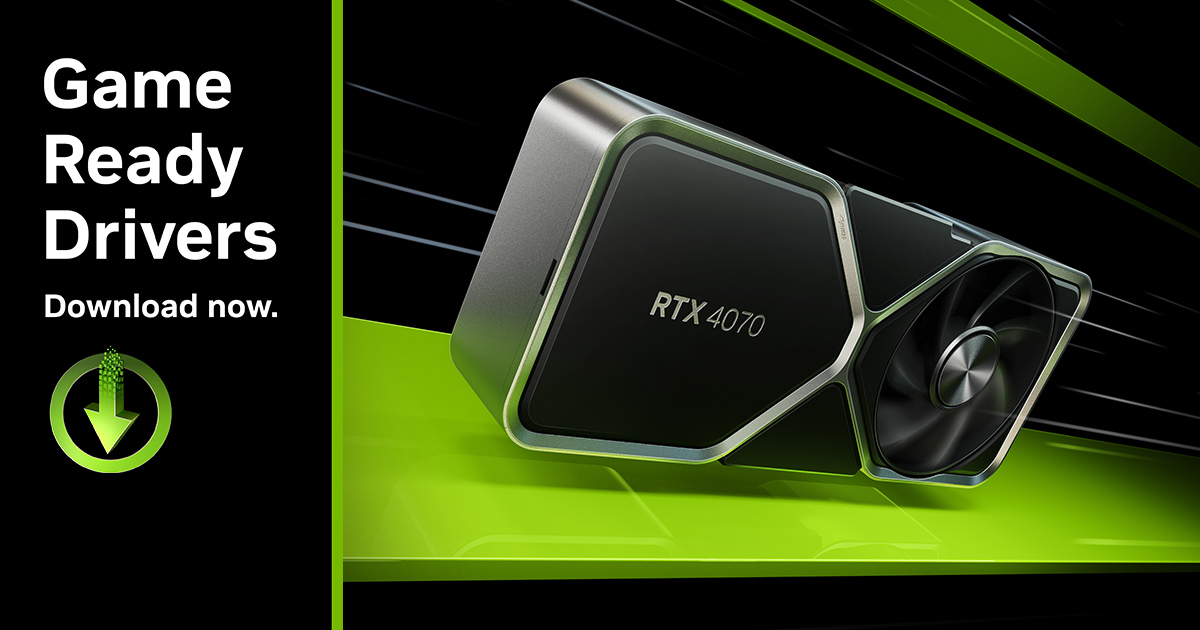
Many users prefer to download drivers directly from the manufacturer’s website. This method ensures you get the exact driver version you want, often allowing you to choose between “Game Ready” drivers (optimized for the latest games) or “Studio” drivers (optimized for creative applications) in the case of NVIDIA. The process typically involves:
- Visiting the manufacturer’s support website (NVIDIA, AMD, Intel).
- Selecting your specific GPU model and operating system.
- Downloading the latest stable driver package.
- Running the installer, which often guides you through the process, including options for a “clean installation.”
Automatic Updates: Convenience and Caution
Manufacturers also provide software utilities that can automatically detect and install driver updates. NVIDIA’s GeForce Experience, AMD’s Adrenalin Software, and Intel’s Graphics Command Center all offer this functionality. While convenient, automatic updates sometimes install beta drivers or may not offer the same granular control as manual installation. It’s often wise to review the driver release notes before installing, especially if you prioritize system stability for critical tasks. Windows Update can also sometimes deliver GPU driver updates, though these are typically older, more stable versions.
Clean Installation vs. Standard Update
When installing a new driver, you often have the option for a “standard” or “express” installation versus a “custom” or “clean” installation. A standard update simply overwrites existing driver files. A clean installation, however, performs a more thorough removal of previous driver components before installing the new ones. This helps prevent conflicts and resolve lingering issues from older driver versions. For major updates or when troubleshooting, a clean installation is often recommended, sometimes even requiring third-party tools like Display Driver Uninstaller (DDU) for a truly pristine removal.
Troubleshooting Common GPU Driver Issues
Despite their sophistication, GPU drivers are not immune to problems. Understanding common issues and their solutions can save you considerable frustration.
Graphics Artifacts and Crashes
If you’re seeing strange textures, flickering, lines on your screen, or experiencing sudden application crashes that point to graphics, your driver might be corrupt or outdated.
- Solution: Perform a clean installation of the latest stable driver. If the problem persists, try rolling back to a previous known-good driver version. In rare cases, this could indicate a hardware fault with the GPU itself.
Performance Drops and Stuttering
Suddenly experiencing lower frame rates, frequent stuttering, or slow rendering in applications that previously ran smoothly can often be driver-related.
- Solution: Update your driver to the latest version, especially if the issue coincides with a new game release. Check in-game settings; sometimes game updates can change default graphics options. Ensure your GPU isn’t overheating, which can cause thermal throttling.
Installation Failures
An update failing to install, or encountering error messages during the driver installation process, is a common headache.
- Solution: Disable any antivirus software temporarily during installation. Ensure you have the correct driver for your specific GPU model and operating system. Try running the installer as an administrator. If persistent, perform a clean uninstall of existing drivers using DDU in safe mode before attempting a fresh installation.
Driver Rollback and Reinstallation
Sometimes, a new driver version can introduce unforeseen issues or prove incompatible with older hardware or specific applications.
- Solution: Both Windows Device Manager and the manufacturer’s control panel software usually offer an option to “roll back driver” to the previous version. If a rollback isn’t available or doesn’t work, manually download and install a known stable older driver version. This emphasizes the importance of keeping a backup of a stable driver, especially if your system is critical.
In conclusion, the GPU driver is far more than a simple piece of software; it is the lifeblood of your graphics subsystem. It facilitates essential communication, optimizes performance, enables new technologies, and ensures stability. Understanding its role, keeping it updated, and knowing how to troubleshoot common issues are fundamental practices for anyone looking to maintain a high-performing, stable, and visually rich computing experience.
aViewFromTheCave is a participant in the Amazon Services LLC Associates Program, an affiliate advertising program designed to provide a means for sites to earn advertising fees by advertising and linking to Amazon.com. Amazon, the Amazon logo, AmazonSupply, and the AmazonSupply logo are trademarks of Amazon.com, Inc. or its affiliates. As an Amazon Associate we earn affiliate commissions from qualifying purchases.