
In the fast-evolving world of computing, your Graphics Processing Unit (GPU) is the powerhouse behind everything from high-fidelity gaming and intricate video editing to everyday web browsing. Yet, the raw power of your GPU is only as good as the software that dictates its operations: its drivers. Keeping these drivers updated is not merely a suggestion; it’s a critical component of PC maintenance that unlocks peak performance, enhances stability, and grants access to the latest technological advancements.
This guide will demystify the process of updating your GPU drivers, providing a step-by-step approach for users of NVIDIA, AMD, and Intel graphics cards. We’ll delve into why these updates are crucial, how to prepare your system, and what to do if you encounter issues, ensuring your rig operates at its absolute best.
Why Keeping Your GPU Drivers Updated Matters
Many users overlook the importance of driver updates, treating them as an optional chore rather than a vital routine. However, the impact of outdated drivers can range from minor annoyances to significant performance bottlenecks and system instability. Understanding these benefits underscores the necessity of regular updates.
Enhanced Gaming Performance
For gamers, this is often the most compelling reason to update. Graphics card manufacturers like NVIDIA and AMD continuously release new drivers optimized for the latest game titles. These optimizations can lead to noticeable increases in frames per second (FPS), smoother gameplay, and reduced stuttering, especially in graphically demanding environments. Day-one game patches often come hand-in-hand with corresponding driver updates designed to ensure the best possible experience right from launch. Without these updates, you might find yourself struggling to run new games smoothly, even on powerful hardware.
Improved System Stability and Bug Fixes
Drivers are complex pieces of software, and like any software, they can contain bugs. These bugs might manifest as crashes, freezing, graphical artifacts, or compatibility issues with certain applications or system configurations. Manufacturers frequently release driver updates that include fixes for these known issues, improving overall system stability and reliability. A persistent crash in a specific application or game, or even general system unresponsiveness, can often be resolved simply by installing the latest stable driver.
Access to New Features and Technologies
Modern GPUs are more than just rendering engines; they are sophisticated processors capable of supporting a myriad of advanced technologies. Driver updates are the gateway to these innovations. For instance, NVIDIA’s DLSS (Deep Learning Super Sampling) and Reflex, or AMD’s FSR (FidelityFX Super Resolution) and Anti-Lag, are features that significantly enhance visual quality or reduce latency. These technologies are often rolled out or substantially improved through new driver releases. For content creators, updated drivers can also bring performance enhancements to video encoding/decoding, hardware acceleration for creative applications, and support for new professional features, directly impacting workflow efficiency.
Security Vulnerability Patches
While less frequently highlighted, security is another crucial aspect of driver updates. Like any software, drivers can have vulnerabilities that could potentially be exploited by malicious actors. Manufacturers periodically identify and patch these security holes, protecting your system from potential threats. Running outdated drivers leaves your system exposed to known exploits, making regular updates a vital part of your digital security strategy.
Before You Begin: Essential Preparations
Before diving into the update process, a little preparation can save you a lot of headaches. Knowing your hardware and having a contingency plan ensures a smooth and safe update.
Identify Your GPU
The first and most critical step is to accurately identify your specific GPU model. Installing the wrong driver can lead to system instability, reduced performance, or even a non-functional display.
- Windows Device Manager: The simplest way is through Windows Device Manager. Press
Win + Xand select “Device Manager.” Expand the “Display adapters” section. Here, you’ll see your GPU listed (e.g., NVIDIA GeForce RTX 3070, AMD Radeon RX 6700 XT, Intel Iris Xe Graphics). If you have both integrated and dedicated graphics, both will be listed. - System Information (DxDiag): Another method is to use the DirectX Diagnostic Tool. Type
dxdiagin the Windows search bar and press Enter. Once it loads, navigate to the “Display” tab. Under “Device,” you’ll find the Name and Manufacturer of your GPU. - Physical Inspection: If your PC has a transparent side panel, or if you’re comfortable opening your desktop case, you can often find the model name printed directly on the graphics card itself.
Backup Your System (Optional but Recommended)
While driver updates are generally safe, there’s always a slim chance something could go wrong, leading to instability or an inability to boot. Creating a system restore point is a quick way to create a snapshot of your system’s state, allowing you to revert if issues arise.
- Create a System Restore Point: Search for “Create a restore point” in Windows. In the System Properties window, ensure “Protection” is turned on for your system drive, then click “Create…” and follow the prompts. Give it a descriptive name like “Before GPU Driver Update [Date]”.
For more critical systems or if you’re performing other major updates, consider a full system image backup.
Gather Necessary Information
Beyond your GPU model, you’ll also need to know your Windows version and whether it’s 32-bit or 64-bit. Most modern systems are 64-bit, but it’s good to confirm.
- Check Windows Version: Go to
Settings > System > About. Under “Windows specifications,” you’ll find the Edition, Version, and System type (e.g., “64-bit operating system, x64-based processor”). - Current Driver Version: You can see your current driver version in Device Manager (right-click your GPU, select “Properties,” then the “Driver” tab) or within the GPU manufacturer’s software (GeForce Experience, Radeon Software). This helps you confirm if the update was successful.
Step-by-Step Guide: Updating Your GPU Drivers
With your preparations complete, you’re ready to update. The most reliable method is always through the official channels provided by your GPU manufacturer.

Method 1: Using Official Driver Software (Recommended for Most Users)
This method is generally the easiest and most recommended as it often provides the best integration and features.
NVIDIA
- GeForce Experience (for GeForce GPUs):
- If you have an NVIDIA GeForce card, you likely have GeForce Experience installed. Open it.
- Navigate to the “Drivers” tab.
- GeForce Experience will automatically check for and display new drivers. Click “Download” if an update is available.
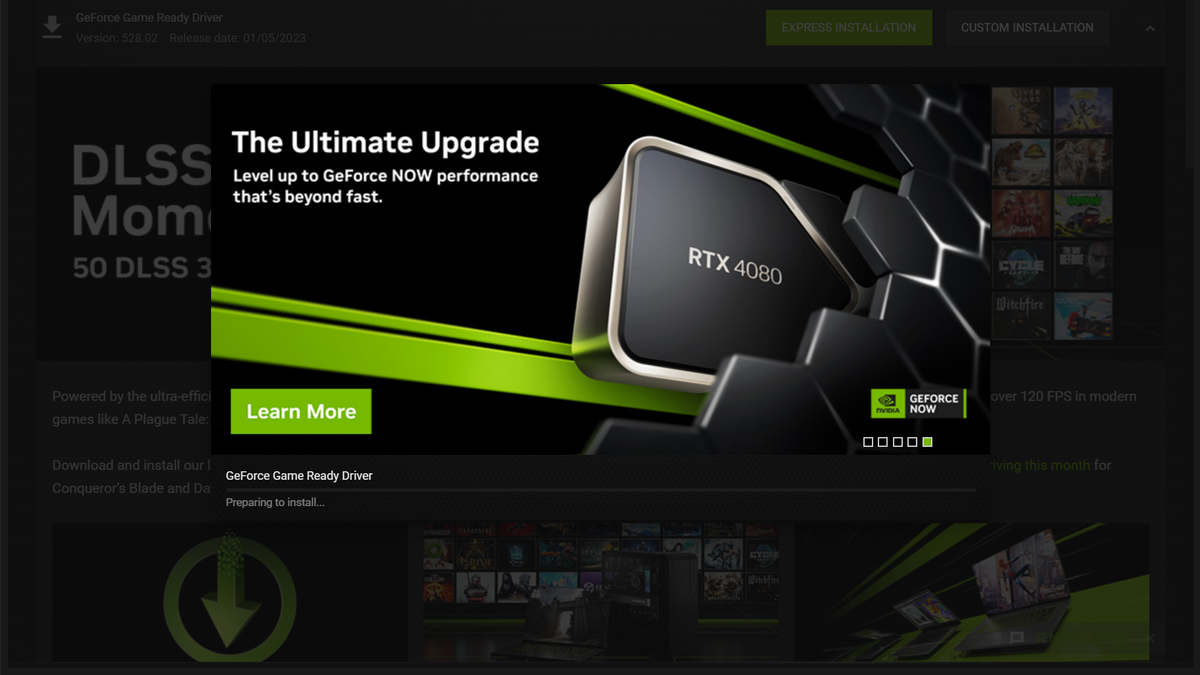
- Once downloaded, you’ll have two installation options: “Express Installation” (recommended for most users) or “Custom Installation.” Custom allows for selecting specific components and performing a “Clean Installation” (more on this below).
- Follow the on-screen prompts to complete the installation. Your screen may flicker or go black temporarily.
- Manual Download from NVIDIA Website:
- Go to the official NVIDIA Driver Download page:
www.nvidia.com/drivers. - Manually select your “Product Type” (e.g., GeForce), “Product Series” (e.g., GeForce RTX 30 Series), “Product” (your specific card, e.g., RTX 3070), “Operating System,” and “Windows Driver Type” (Game Ready Driver or Studio Driver).
- Click “Search,” then “Download” the latest driver package.
- Run the downloaded executable and follow the installer instructions. Choose “Custom (Advanced)” if you want to perform a clean installation.
- Go to the official NVIDIA Driver Download page:
AMD
- Radeon Software Adrenalin Edition (for Radeon GPUs):
- Open AMD Radeon Software Adrenalin Edition (usually accessible via the system tray or desktop right-click).
- Click the gear icon (Settings) in the top-right corner.
- Go to the “System” tab. You’ll see a “Check for Updates” button.
- If an update is available, click “Download.”
- Once downloaded, you can choose “Install” for a standard update or “Factory Reset” (which performs a clean installation, removing previous settings and drivers).
- Follow the prompts to complete the installation.
- Manual Download from AMD Website:
- Go to the official AMD Drivers & Support page:
www.amd.com/en/support. - You can use the “Auto-Detect and Install” tool for simplicity or manually select your “Graphics” series (e.g., AMD Radeon RX 6000 Series) and then your specific card.
- Select your “Operating System” and download the latest “Adrenalin Software.”
- Run the downloaded executable and follow the installer instructions, choosing the “Factory Reset” option for a clean install if desired.
- Go to the official AMD Drivers & Support page:
Intel (Integrated Graphics)
- Intel Driver & Support Assistant (IDSA):
- Intel provides a handy tool called IDSA that automatically identifies your Intel hardware and finds relevant driver updates. Download it from the official Intel website:
www.intel.com/content/www/us/en/support/detect.html. - Install and run IDSA. It will scan your system and present available updates for your integrated graphics and other Intel components.
- Follow the prompts to download and install the updates.
- Intel provides a handy tool called IDSA that automatically identifies your Intel hardware and finds relevant driver updates. Download it from the official Intel website:
- Manual Download from Intel Website:
- Visit
www.intel.com/content/www/us/en/support/products/graphics-drivers.html. - Select your specific Intel processor generation and model to find the correct integrated graphics driver.
- Download and run the installer.
- Visit
Method 2: Via Windows Device Manager (Less Recommended for Feature Updates)
While possible, updating via Device Manager is generally not the best approach for GPU drivers, as it often provides older, generic, or Microsoft-certified drivers rather than the latest, performance-optimized versions from the manufacturer.
- Press
Win + Xand select “Device Manager.” - Expand “Display adapters,” right-click your GPU, and select “Update driver.”
- Choose “Search automatically for drivers.” Windows will attempt to find a driver online or locally.
- If it finds a newer driver, it will install it. However, this is rarely the latest driver from NVIDIA, AMD, or Intel.
Performing a Clean Installation (Why and How)
A “clean installation” removes all previous driver files and settings before installing the new ones. This is highly recommended periodically, or if you’re experiencing persistent issues, switching GPU brands (e.g., from NVIDIA to AMD), or upgrading a generation (e.g., RTX 20 series to RTX 40 series). It helps prevent conflicts and ensures a fresh slate.
- NVIDIA/AMD Official Installers: Both NVIDIA (Custom Install -> “Perform a clean installation”) and AMD (Factory Reset) offer built-in clean installation options within their official driver installers. This is the simplest and safest way for most users.
- Using DDU (Display Driver Uninstaller): For the most thorough clean uninstall, especially when troubleshooting stubborn issues or switching GPU vendors, DDU is the gold standard.
- Download DDU from its official source (e.g.,
www.wagnardsoft.com). - Crucially, boot your PC into Safe Mode. This prevents Windows from loading any existing display drivers, allowing DDU to remove them completely.
- Run DDU, select “GPU” and your GPU vendor (NVIDIA, AMD, or Intel).
- Choose “Clean and restart.”
- After the restart, Windows will boot with a generic display driver. You can then proceed with a fresh installation of the latest drivers downloaded from your GPU manufacturer’s website.
- Download DDU from its official source (e.g.,
Post-Installation and Troubleshooting
After updating, it’s wise to verify the installation and be prepared to troubleshoot if anything goes awry.
Verify Driver Installation
- Check Device Manager: Open Device Manager, right-click your GPU, and go to “Properties” > “Driver” tab. Confirm the “Driver Version” and “Driver Date” reflect the newly installed driver.
- Check GPU Software: Open NVIDIA Control Panel, AMD Radeon Software, or Intel Graphics Command Center. These applications typically display the currently installed driver version.
- Run a Quick Test: Launch a game or demanding application you frequently use to ensure it runs smoothly and without graphical anomalies.
Common Issues and Solutions
- Black Screen/No Display: If your screen remains black after an update, especially after a clean install, your monitor might be connected to the integrated graphics instead of the dedicated GPU, or the new driver isn’t loading correctly.
- Solution: Reboot into Safe Mode. If you can get into Safe Mode, use DDU to clean uninstall the problematic driver, then reboot and try installing a known stable version.
- Performance Degradation/Crashes: If performance worsens or games crash frequently after an update.
- Solution: The new driver might be unstable or incompatible with your system. Use the “Driver Roll Back” option in Device Manager (under the driver tab) to revert to the previous version, or use DDU to clean uninstall and then install an older, known stable driver from the manufacturer’s archives.
- Installation Errors: If the driver installer fails to complete.
- Solution: Re-download the driver (the file might be corrupted). Temporarily disable any antivirus software. Ensure you have enough free disk space.
Driver Auto-Update Settings
Most GPU software (GeForce Experience, Radeon Software) offers options for automatic driver updates.
- Pros: Convenience, always having the latest features and bug fixes.
- Cons: New drivers can sometimes introduce unforeseen bugs or performance regressions for specific hardware/software combinations.
- Recommendation: For critical systems or those who value stability above all, manual updates offer more control. For gamers who want the absolute latest performance, automatic updates can be beneficial, but be aware of potential issues. You can usually configure these settings within the GPU control panel.
Best Practices for Driver Management
Maintaining an optimal computing experience involves more than just a one-time update. Establishing good driver management habits ensures long-term stability and performance.
Establish a Regular Update Schedule
How often should you update?
- Gamers: Consider updating with major new game releases, which often come with game-ready drivers. Quarterly updates are a good baseline.
- Content Creators/Professionals: Update when new drivers offer significant performance gains for your specific software or new features you require. Studio Drivers (NVIDIA) or Pro drivers (AMD) are often more stable for professional applications.
- General Users: Every 3-6 months, or whenever you notice a performance issue or encounter a new bug.
Monitor Release Notes
Before blindly installing an update, take a few minutes to read the release notes provided by NVIDIA, AMD, or Intel. These notes detail what issues have been fixed, what new features have been added, and which games have received optimizations. They can also warn you of any known issues with the new driver, helping you decide if you should wait for a subsequent, more stable release.
Consider Beta Drivers with Caution
Manufacturers sometimes release “beta” or “hotfix” drivers between major releases. These often address specific, urgent issues or provide very early optimizations for upcoming games.
- Pros: Early access to fixes or performance boosts.
- Cons: Beta drivers are less thoroughly tested and are more likely to contain new bugs or cause instability.
- Recommendation: Only install beta drivers if you are experiencing a specific issue that the beta driver explicitly addresses, and you are comfortable with potential instability. Always have a backup plan (restore point or DDU) before installing them.
Always Download from Official Sources
To protect your system from malware, corrupted files, or incorrect drivers, always download your GPU drivers directly from the official websites of NVIDIA, AMD, or Intel. Avoid third-party driver download sites, as these can be unreliable and potentially malicious.

Conclusion
Updating your GPU drivers is an indispensable part of maintaining a healthy, high-performing computer. It’s a simple yet powerful action that can significantly enhance your gaming experience, boost productivity, ensure system stability, and safeguard your digital environment. By following the comprehensive steps outlined in this guide – from identifying your hardware and preparing your system, to navigating the update process and troubleshooting potential issues – you can ensure your GPU always runs at its peak. Make regular driver updates a cornerstone of your PC maintenance routine, and enjoy a smoother, faster, and more reliable computing experience.
aViewFromTheCave is a participant in the Amazon Services LLC Associates Program, an affiliate advertising program designed to provide a means for sites to earn advertising fees by advertising and linking to Amazon.com. Amazon, the Amazon logo, AmazonSupply, and the AmazonSupply logo are trademarks of Amazon.com, Inc. or its affiliates. As an Amazon Associate we earn affiliate commissions from qualifying purchases.