
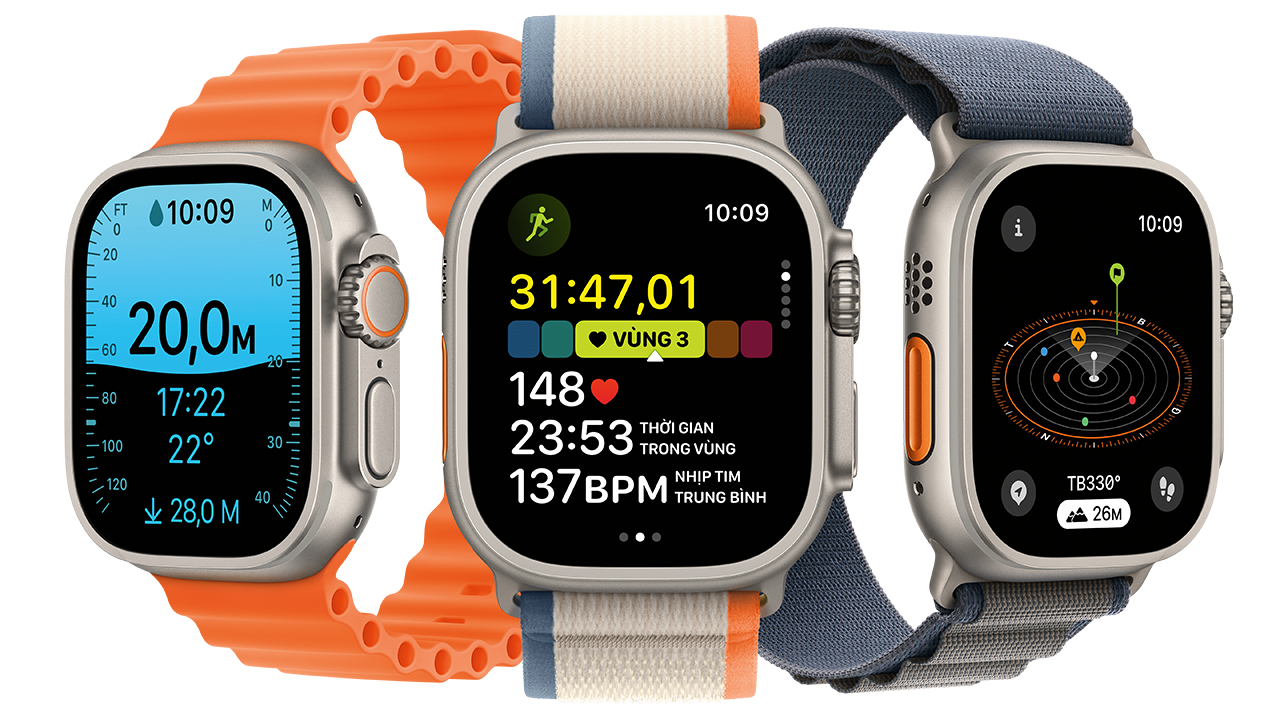
The Apple Watch Ultra 2 stands as a testament to modern wearable technology, offering unparalleled durability, advanced health metrics, and robust connectivity. For many, its ability to free us from our smartphones during workouts, commutes, or quick errands is a major draw. Among the myriad applications that enhance this autonomy, streaming music and audio content is paramount. Sirius XM, with its vast array of channels encompassing music, talk, news, and sports, is a coveted service for many audio enthusiasts. This comprehensive guide will walk you through the process of getting Sirius XM up and running on your Apple Watch Ultra 2, ensuring you can enjoy your favorite content directly from your wrist.

Understanding the Prerequisites for Sirius XM on Apple Watch Ultra 2
Before diving into the installation process, it’s crucial to understand the foundational requirements. Ensuring your devices and subscriptions are in order will pave the way for a smooth setup and an enjoyable listening experience. The Apple Watch Ultra 2, while powerful, still operates within an ecosystem that necessitates certain conditions for third-party apps like Sirius XM to function optimally.
Compatible Devices and OS Versions
The first and most obvious prerequisite is the device itself: an Apple Watch Ultra 2. This model, released in late 2023, boasts a faster S9 SiP, enhanced display, and superior GPS, all of which contribute to a seamless app experience. However, the Watch Ultra 2 doesn’t operate in isolation; it requires an iPhone for initial setup and management.
- iPhone: You will need a paired iPhone running iOS 17 or later. The iPhone acts as the hub for installing and managing apps on your Watch, including Sirius XM. Ensure your iPhone is updated to the latest available iOS version to guarantee compatibility and access to the newest features and security patches.
- WatchOS: Your Apple Watch Ultra 2 must be running WatchOS 10 or later. WatchOS 10 introduced a significant redesign and new capabilities, and app developers often target the latest OS versions to leverage these advancements. Keeping your WatchOS updated is crucial for app stability and performance. You can check and update your WatchOS via the Watch app on your iPhone.
Sirius XM Subscription Requirements
Having the right hardware and software is only half the battle; an active Sirius XM subscription is essential. Not all Sirius XM subscriptions grant streaming access, which is necessary for listening on your Apple Watch.
- Active Sirius XM Streaming Subscription: You must have a Sirius XM subscription that includes “streaming access.” This typically means a “SiriusXM Platinum,” “SiriusXM Music & Entertainment,” or a “SiriusXM Streaming” package. If your subscription is primarily for in-car listening without streaming capabilities, you will need to upgrade or add streaming access to your existing plan. You can verify your subscription details by logging into your account on the Sirius XM website or contacting their customer service.
- Sirius XM App on iPhone: While the goal is to listen on your Watch, the Sirius XM app must first be installed and configured on your paired iPhone. This app serves as the primary gateway for your Sirius XM account and often facilitates the initial synchronization of your preferences and login details with the Watch app.
Connectivity Needs
The Apple Watch Ultra 2 is a highly connected device, but understanding its connectivity hierarchy is vital for uninterrupted streaming.
- Wi-Fi or Cellular Connection: For direct streaming from your Apple Watch Ultra 2, you will need either a Wi-Fi connection or an active cellular plan for your Watch. The Ultra 2 is available only in a GPS + Cellular configuration, meaning it has the hardware capability for cellular connectivity. If you wish to leave your iPhone behind and stream Sirius XM, ensure you have an active cellular plan for your Watch from your mobile carrier. Without Wi-Fi or cellular, your Watch cannot access the internet to stream content directly.
- Bluetooth Connection (Initial Setup/Headphones): While not for streaming content itself, Bluetooth is critical for two aspects:
- The initial pairing and communication between your iPhone and Apple Watch for app installation and configuration.
- Connecting Bluetooth headphones (like Apple AirPods or other wireless earbuds) to your Apple Watch Ultra 2 for audio output. The Watch does not have a built-in speaker suitable for high-quality audio streaming, so headphones are a necessity.
By ensuring all these prerequisites are met, you establish a solid foundation for integrating Sirius XM into your Apple Watch Ultra 2 experience.
Step-by-Step Guide: Installing and Setting Up Sirius XM
Once you’ve confirmed all the prerequisites, the actual process of getting Sirius XM onto your Apple Watch Ultra 2 is straightforward. It involves installing the app on your iPhone first, then extending it to your Watch, and finally configuring it for standalone use.
Installing the Sirius XM App on Your iPhone
The journey begins with your iPhone, which acts as the control center for your Apple Watch.
- Open the App Store: On your iPhone, locate and tap the “App Store” icon.
- Search for Sirius XM: Tap on the “Search” tab (magnifying glass icon) at the bottom right. In the search bar at the top, type “Sirius XM” and tap “Search.”
- Download and Install: Locate the official “SiriusXM” app (usually the first result with the distinct red and white logo). Tap the “Get” button (or the cloud icon if you’ve previously downloaded it). You may need to authenticate with Face ID, Touch ID, or your Apple ID password.
- Launch and Log In: Once the app is installed, tap “Open.” When prompted, sign in using your Sirius XM username and password. This step is crucial as it authenticates your subscription and links your account to the app. Familiarize yourself with the iPhone app as it mirrors many of the features you’ll access on your Watch.
Installing the Sirius XM App on Your Apple Watch Ultra 2
With the iPhone app set up and logged in, the next step is to get the companion app onto your Apple Watch Ultra 2.
- Automatic Installation (Preferred): Often, if you have “Automatic App Install” enabled for your Apple Watch, the Watch version of Sirius XM will install automatically once you install it on your iPhone. To check if this is enabled:
- Open the “Watch” app on your iPhone.
- Tap “My Watch” at the bottom.
- Scroll down and tap “App Store.”
- Ensure “Automatic Downloads” is toggled ON.
- Manual Installation via Watch App: If the app doesn’t appear on your Watch automatically, you can manually install it:
- Open the “Watch” app on your iPhone.
- Tap “My Watch” at the bottom.
- Scroll down to the “Available Apps” section.
- Find “SiriusXM” in the list and tap the “Install” button next to it.
- Wait for the installation to complete. A progress circle will appear next to the app, and once finished, it will move to the “Installed on Apple Watch” section.
- Manual Installation via Watch App Store (Less Common): You can also install apps directly from the App Store on your Watch, though it’s often more convenient via the iPhone.
- On your Apple Watch Ultra 2, press the Digital Crown to go to the App View.
- Tap the “App Store” icon.
- Tap the search bar (or use Siri) and search for “SiriusXM.”
- Tap “Get” to download and install.
Configuring Sirius XM on Your Watch
Once the app is installed on your Watch, a brief configuration might be needed to ensure it’s fully functional, especially for standalone streaming.
- Open the Sirius XM App on Your Watch: From your Apple Watch Ultra 2’s app view, tap the Sirius XM icon to launch it.
- Initial Synchronization/Login: The first time you open the app, it might prompt you to confirm your login, which usually happens seamlessly if you’re already logged in on your iPhone and both devices are connected. In some cases, you might see a message directing you to your iPhone to authorize the Watch app. Follow any on-screen instructions that appear on either device.
- Verify Standalone Capability: For cellular models of the Watch Ultra 2, the Sirius XM app is designed to stream independently of your iPhone. Confirm this by attempting to play content while your iPhone is out of range or has its Bluetooth/Wi-Fi turned off. Ensure your Watch is connected to Wi-Fi or has an active cellular connection.
With these steps complete, your Apple Watch Ultra 2 is now ready to stream Sirius XM content.
Navigating and Enjoying Sirius XM on Your Wrist
Now that Sirius XM is installed and configured, it’s time to explore its features and enjoy your favorite channels directly from your Apple Watch Ultra 2. The app’s design on the Watch prioritizes ease of use and quick access, making it convenient for on-the-go listening.
User Interface and Controls
The Sirius XM app on the Apple Watch Ultra 2 is streamlined for a small screen, focusing on core playback functions and channel selection.
- Home Screen/Now Playing: Upon opening, you’ll typically see a “Now Playing” screen if you were recently listening, or a simplified home screen with options to browse. The large, bright display of the Ultra 2 makes this easy to read.
- Playback Controls: Standard playback controls are readily available:
- Play/Pause: A prominent button to start or stop the current stream.
- Skip/Rewind: Depending on the content (e.g., On Demand shows vs. live radio), you might have buttons to skip forward or backward. Live radio usually offers limited skipping functionality.
- Volume: Use the Digital Crown to adjust the volume. Rotating it clockwise increases volume, counter-clockwise decreases it. This tactile control is incredibly intuitive during activities.
- Browsing Channels/Content: The app provides options to browse different categories or your favorited channels. You can scroll through lists using the Digital Crown or by swiping on the screen. The interface is designed to minimize the need for precise tapping, making it usable even during a run.
- Force Touch/Haptic Touch (if applicable): While watchOS has evolved, sometimes a firm press on the screen (Haptic Touch) can reveal additional options or settings within an app. Experiment to see if Sirius XM utilizes this for context-specific menus.
Streaming Options and Offline Playback
Understanding how your Watch streams content and its limitations is key to managing expectations and maximizing your experience.

- Direct Streaming via Wi-Fi/Cellular: The primary method of consuming Sirius XM on your Apple Watch Ultra 2 is direct streaming. This means the Watch connects to the internet (via Wi-Fi or cellular) and pulls the audio feed in real-time. This requires a consistent network connection.
- Wi-Fi: When your Watch is connected to a known Wi-Fi network, it will use this for streaming, often conserving cellular data.
- Cellular: If you’re out of Wi-Fi range and your iPhone isn’t nearby, your Watch will automatically switch to its cellular connection (if active) to continue streaming. Be mindful of your data plan, as continuous streaming can consume significant data.
- Limitations on Offline Playback: As of the current versions of the Sirius XM app, offline downloads for content directly to the Apple Watch are generally not supported. This means you cannot download shows or music to your Watch to listen without an internet connection. Sirius XM focuses on live and on-demand streaming. If you need offline audio, you would typically use other apps that support Watch downloads (e.g., Apple Music, Spotify Premium, Audible). This is an important distinction, especially for users planning to go completely off-grid without network access.
- Using AirPods or Other Bluetooth Headphones: To hear any audio from your Watch, you must connect Bluetooth headphones.
- Pairing: Go to Settings > Bluetooth on your Apple Watch. Put your headphones into pairing mode, and they should appear in the list. Tap to connect.
- Seamless Switching: Once paired, your Watch will typically remember your headphones. When you start playing audio, it will automatically route sound to them if they are connected and nearby.
Personalization and Favorites
To enhance your listening experience, the Sirius XM Watch app typically allows access to some personalization features.
- Accessing Saved Channels/Favorites: The app often provides quick access to channels you’ve favorited or recently listened to on your iPhone. This saves you from having to search through the entire channel list every time. Look for a “Favorites” or “Recents” section within the app.
- Customizing Content (Limited): While extensive customization is usually done on the iPhone app, the Watch app aims to reflect your established preferences. Don’t expect to create new custom stations or manage your entire library from the Watch, but rather to enjoy what you’ve already curated.
By understanding these aspects of the Sirius XM Watch app, you can efficiently navigate its interface and leverage its streaming capabilities to bring your favorite audio content wherever your Apple Watch Ultra 2 takes you.
Troubleshooting Common Issues
While the process of getting Sirius XM on your Apple Watch Ultra 2 is generally smooth, you might occasionally encounter issues. Knowing how to troubleshoot these common problems can save you time and frustration, ensuring you get back to your listening quickly.
App Not Installing or Crashing
One of the most frequent issues users face is the app failing to install or crashing unexpectedly.
- Restart Devices: The classic IT solution for a reason. Restarting both your Apple Watch Ultra 2 and your iPhone can resolve many temporary software glitches.
- Watch: Hold down the side button until the power off slider appears, then drag it. To restart, hold the side button again until the Apple logo appears.
- iPhone: Follow standard iPhone restart procedures for your model.
- Check for Updates: Ensure both your iPhone’s iOS and your Watch’s watchOS are up to date. Outdated software can lead to compatibility issues. Also, check the App Store on your iPhone for any pending updates to the Sirius XM app itself. App developers frequently release updates to fix bugs and improve stability.
- Reinstall App: If restarting and updating don’t work, try deleting the Sirius XM app from both your iPhone and your Apple Watch, then reinstalling it from scratch.
- iPhone: Tap and hold the app icon, then select “Remove App” > “Delete App.”
- Watch: On your Watch, press the Digital Crown to view all apps, then tap and hold the Sirius XM icon. Tap the ‘X’ to delete. Alternatively, from the Watch app on your iPhone, go to “My Watch,” scroll to “Installed on Apple Watch,” tap the Sirius XM app, and toggle “Show App on Apple Watch” off. Then, go back to “Available Apps” and reinstall.
- Free Up Storage: Although Watch apps are generally small, ensure you have sufficient storage on your Apple Watch. Go to the Watch app on your iPhone > “My Watch” > “General” > “Usage” to check available space.
Connectivity Problems
Streaming audio requires a stable internet connection. Issues here are often related to Wi-Fi, cellular, or Bluetooth.
- Check Wi-Fi/Cellular Signal:
- Wi-Fi: Ensure your Watch is connected to a strong Wi-Fi network. You can verify this by swiping up from the Watch face to access Control Center and checking the Wi-Fi icon.
- Cellular: If using cellular, verify that your Watch has a good signal. The cellular icon (small dots) in Control Center indicates signal strength. Also, confirm your cellular plan for the Watch is active and data limits haven’t been exceeded.
- Verify Subscription Status: Double-check your Sirius XM account online to ensure your streaming subscription is active and in good standing. An expired or downgraded subscription will prevent streaming.
- Ensure Bluetooth is On and Devices are Paired:
- iPhone-Watch Connection: While streaming directly from the Watch doesn’t require the iPhone, ensure Bluetooth is on on both devices for general communication and initial setup.
- Headphone Connection: Crucially, ensure your Bluetooth headphones are properly paired and connected to your Apple Watch. If they disconnect, audio won’t play. Go to Watch Settings > Bluetooth to verify and reconnect.
- Reset Network Settings (iPhone): As a last resort for persistent connectivity issues, you can try resetting network settings on your iPhone (Settings > General > Transfer or Reset iPhone > Reset > Reset Network Settings). Be aware this will remove all saved Wi-Fi passwords.
Audio Playback Quality
Poor audio quality, such as stuttering or distorted sound, can also dampen the experience.
- Check Headphone Connection: Ensure your Bluetooth headphones are fully charged and securely connected to your Watch. Sometimes, weak battery or an unstable Bluetooth connection can lead to audio dropouts. Try pairing and connecting your headphones again.
- Consider Network Conditions: Streaming quality is directly dependent on your internet speed and stability. If you’re in an area with poor Wi-Fi or cellular signal, the audio quality might degrade, or the stream might buffer frequently. Move to an area with better reception if possible.
- Restart Streaming: Sometimes, simply pausing and restarting the playback within the Sirius XM app can resolve temporary buffering or quality issues.
- Check Watch Output: Ensure no other audio source is trying to play on your Watch (e.g., another app in the background).
By systematically addressing these common troubleshooting points, you can quickly diagnose and resolve most issues you might encounter while enjoying Sirius XM on your Apple Watch Ultra 2.
Maximizing Your Sirius XM Experience on the Ultra Watch 2
Having Sirius XM on your Apple Watch Ultra 2 isn’t just about functionality; it’s about enhancing your lifestyle with unparalleled convenience. To truly get the most out of this setup, consider these additional tips and insights.
Battery Life Considerations
Streaming audio, especially over cellular, is one of the most battery-intensive activities for any wearable. The Apple Watch Ultra 2 boasts impressive battery life, but continuous streaming will still drain it faster.
- Be Mindful of Streaming Duration: For long listening sessions, especially away from your iPhone, be aware of your battery levels. A full charge might last a full workday with moderate usage, but continuous cellular streaming could significantly reduce that to several hours.
- Optimize Settings:
- Lower Screen Brightness: Reduce the screen brightness on your Watch when not actively interacting with it.
- Disable Background App Refresh: For apps you don’t need constantly updating, turn off background app refresh (Watch app on iPhone > My Watch > General > Background App Refresh).
- Enable Low Power Mode: For critical situations where you need to preserve battery, enable Low Power Mode on your Watch (swipe up for Control Center, tap the battery percentage, toggle Low Power Mode). This will temporarily limit cellular usage for some apps and restrict background activities.
- Carry a Portable Charger for Longer Outings: If you plan on extended periods of streaming away from home or chargers, consider a small portable battery pack designed for Apple Watch or an external battery for your iPhone to top up your Watch via the paired phone.
Enhancing with Bluetooth Accessories
The true power of an audio streaming experience on the Apple Watch Ultra 2 comes with the right audio accessories.
- Importance of Quality Bluetooth Headphones: A good pair of Bluetooth headphones significantly elevates the listening experience. Look for headphones that offer:
- Comfort: Especially important for workouts or extended wear.
- Sound Quality: Clear audio reproduction to enjoy Sirius XM’s diverse content.
- Battery Life: To match or exceed your Watch’s streaming battery life.
- Sweat/Water Resistance: Crucial if you plan to use them during exercise.
- Apple AirPods, Beats Fit Pro, and other reputable brands offer seamless pairing and excellent performance with the Apple Watch.
- Easy Pairing Process: As mentioned earlier, pairing is simple: Put your headphones into pairing mode, go to Settings > Bluetooth on your Watch, and select them from the list. Once paired, your Watch will usually connect to them automatically when they’re nearby and powered on.
Ideal Use Cases
Understanding when and where Sirius XM on your Watch Ultra 2 shines can help you integrate it effectively into your daily routine.
- Workouts and Running: This is perhaps the most obvious and popular use case. Leave your bulky iPhone at home and enjoy music, podcasts, or live sports commentary directly from your wrist. The Watch Ultra 2’s robust GPS tracks your activity while Sirius XM keeps you entertained and motivated.
- Commuting without a Phone: For short trips to the store, walking the dog, or a quick bike ride, you can stay connected to your favorite news, talk shows, or music channels without the distraction of your phone.
- Quick Access to News/Music: Need to catch up on the latest headlines or put on some background music while doing chores? The Watch provides instant access, much faster than pulling out your phone, unlocking it, and navigating through apps.
- Outdoor Adventures: With its enhanced durability and water resistance, the Apple Watch Ultra 2 is built for the outdoors. Paired with cellular, it becomes a reliable companion for entertainment even when exploring remote areas, provided there’s cellular coverage.
By embracing these tips, you can transform your Apple Watch Ultra 2 into a truly versatile and indispensable audio companion, making your Sirius XM subscription more accessible and enjoyable than ever before.
Conclusion
The integration of Sirius XM on the Apple Watch Ultra 2 represents a significant step forward in making personal audio content more accessible and independent. From the detailed preparation of ensuring compatible devices and active subscriptions to the straightforward installation and navigation, this guide has aimed to equip you with all the knowledge needed to unlock this powerful combination.
The ability to stream your favorite music, talk shows, news, and sports directly from your wrist, without the constant tether of your iPhone, offers an unparalleled sense of freedom and convenience. Whether you’re hitting the trails, running errands, or simply enjoying a moment of solitude, your Apple Watch Ultra 2 ensures that your personalized audio universe is always just a tap away.
While specific features like offline downloads remain an area for potential future development for the Sirius XM app on WatchOS, the current streaming capabilities, especially over cellular, are robust and highly functional. By understanding the prerequisites, following the installation steps, and leveraging the troubleshooting tips, you can seamlessly integrate Sirius XM into your life, truly maximizing the potential of your Apple Watch Ultra 2 as a standalone media hub. Embrace the freedom, embrace the sound, and let your wrist be your gateway to endless audio entertainment.
aViewFromTheCave is a participant in the Amazon Services LLC Associates Program, an affiliate advertising program designed to provide a means for sites to earn advertising fees by advertising and linking to Amazon.com. Amazon, the Amazon logo, AmazonSupply, and the AmazonSupply logo are trademarks of Amazon.com, Inc. or its affiliates. As an Amazon Associate we earn affiliate commissions from qualifying purchases.