
In the rapidly evolving landscape of live TV streaming, services like YouTube TV have become indispensable for cord-cutters seeking flexibility and comprehensive channel lineups. One of the most common and critical questions users, especially families, have before subscribing is: “How many screens can I stream YouTube TV on at the same time?” This isn’t just a matter of convenience; it directly impacts the overall value proposition and user experience for multi-device households. Understanding YouTube TV’s simultaneous streaming policy, along with its options for expanding that capacity, is key to maximizing your subscription and ensuring everyone in your household can enjoy their favorite content without interruption.
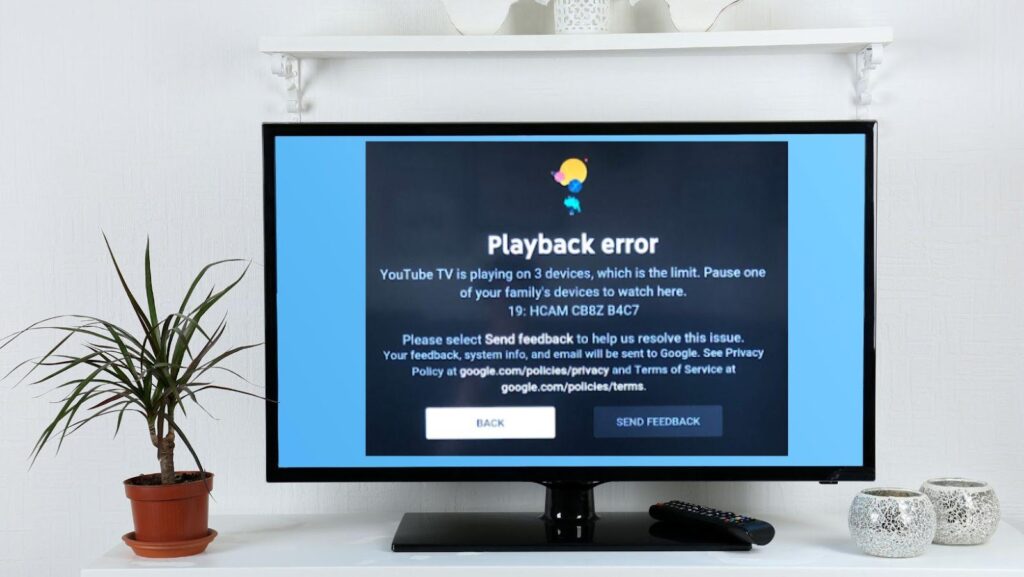
YouTube TV’s approach to simultaneous streams is designed to balance user convenience with content licensing agreements and service sustainability. Unlike traditional cable, where set-top boxes dictated the number of TVs, streaming services operate on a per-stream basis, often tied to an IP address. This guide will meticulously break down YouTube TV’s standard streaming limits, explore how the premium 4K Plus add-on can dramatically expand these capabilities, and demystify the intricacies of family sharing, providing practical advice for a seamless viewing experience across all your devices.
Understanding YouTube TV’s Core Simultaneous Stream Limits
At its foundation, YouTube TV offers a generous, yet specific, allowance for simultaneous streaming. This base allocation is crucial for most subscribers and forms the bedrock of their service usage.
The Standard Allowance: What Every Subscriber Gets
Every standard YouTube TV subscription comes with the ability to stream on three simultaneous devices at any given time. This means that three different members of your household, or you across three different devices, can be watching separate live TV channels or DVR recordings concurrently. For many small to medium-sized families or individuals with multiple screens (e.g., a TV, a tablet, and a smartphone), this limit is often sufficient. It allows one person to watch sports in the living room, another to catch a show in the bedroom, and a third to stream news on a mobile device, all from the same account. It’s a significant advantage over many traditional cable packages that might charge for additional outlets.
The Impact of Location and IP Address
A critical technical detail concerning simultaneous streams is the home network requirement. YouTube TV, like many streaming services, primarily links your subscription to a “home” location defined by your IP address. For the three standard simultaneous streams, all three streams must originate from the same home IP address. This ensures that the subscription is primarily used within a single household.
However, YouTube TV does offer some flexibility for “off-home” viewing. While connected to your home network, all three streams are fully available. If you take one device outside your home network (e.g., streaming on your phone at a coffee shop or a tablet at a friend’s house), that stream still counts towards your three-stream limit. The critical point is that while you can use the service outside your home, the primary concurrent use for the full three streams is generally expected to be within your registered home network. If you try to initiate a fourth stream from a different IP address, it will likely be blocked or prompt you to stop another stream. YouTube TV periodically requires you to check into your home network to confirm your location, typically every three months. This system is designed to prevent widespread account sharing across multiple disparate households, which violates terms of service and licensing agreements.
Defining “Simultaneous”: What Counts as a Screen?
When we talk about “screens” or “devices,” it’s important to clarify what YouTube TV considers a simultaneous stream. Essentially, any active playback of content – whether live TV, an on-demand show, or a recording from your cloud DVR – on a distinct device counts as one stream. This includes:
- Smart TVs: Directly running the YouTube TV app.
- Streaming Devices: Roku, Amazon Fire TV, Apple TV, Chromecast, gaming consoles (Xbox, PlayStation).
- Mobile Devices: Smartphones and tablets running the YouTube TV app.
- Web Browsers: Watching on a computer via the YouTube TV website.
If you have YouTube TV open on a device but are not actively playing content, it typically does not count as a stream. However, as soon as video playback begins, that device occupies one of your allotted simultaneous streams. It’s also worth noting that different profiles within a family group watching separately on different devices will each consume a stream.
Enhancing Your Streaming Capacity: The 4K Plus Add-On
For households that routinely exceed the standard three-stream limit, YouTube TV offers a powerful solution: the 4K Plus add-on. This premium feature significantly enhances streaming capabilities, alongside other valuable benefits.
Unlocking Unlimited Streams at Home
The primary draw of the 4K Plus add-on for multi-device households is the ability to stream on an unlimited number of devices simultaneously within your home network. This is a game-changer for large families, roommates, or avid viewers with multiple TVs and devices constantly in use. Imagine a scenario where kids are watching cartoons in one room, parents are watching a movie in another, someone is catching up on news in the kitchen, and a teenager is streaming a sports event on their gaming console – all at the same time, without contention. The 4K Plus add-on makes this level of concurrent viewing possible, provided all these streams originate from your registered home IP address.
This feature effectively removes the bottleneck of the three-stream limit for in-home viewing, transforming YouTube TV into a truly robust whole-home entertainment solution. It’s particularly appealing for homes with open-plan living where multiple screens are often active, or for special events like Super Bowl parties where different games or commentary might be preferred on various displays.
Extending Off-Home Streaming Beyond the Standard
While the “unlimited” aspect applies strictly to your home network, the 4K Plus add-on also provides an upgrade for off-home streaming. With 4K Plus, you still retain the ability to stream on three devices simultaneously outside your home network. This means that even when away from your primary residence, you can still have three individuals (or devices) watching content concurrently, whether they are traveling, at work, or simply out and about. This is the same number as the standard package’s total stream count, but importantly, these three off-home streams are independent of any unlimited in-home streams occurring simultaneously. Essentially, you get unlimited at home plus three separate streams on the go.
Additional Perks of the 4K Plus Package
Beyond the increased streaming capacity, the 4K Plus add-on provides several other technological enhancements that improve the overall viewing experience:
- 4K Ultra High Definition Content: As the name suggests, 4K Plus unlocks access to content in stunning 4K resolution. This includes live sports, on-demand programs, and select events from partnered networks (like ESPN, Fox Sports, and NBC Sports). For those with compatible 4K TVs and devices, this dramatically improves picture quality, offering sharper images and more vibrant colors.
- Offline Downloads: A highly convenient feature for mobile users, 4K Plus allows you to download DVR recordings to your mobile devices for offline viewing. This is perfect for long commutes, flights, or any situation where internet access is unreliable or unavailable. You can save your favorite shows and watch them later without consuming mobile data.
- Enhanced DVR Playback: While all YouTube TV subscribers get unlimited cloud DVR storage, 4K Plus offers an enhanced viewing experience for DVR content. It includes features like automatic ad-skipping on certain recordings (where available and permitted by content providers) and improved playback fidelity for 4K recorded content.
These additional features make the 4K Plus add-on a comprehensive upgrade for tech-savvy users and large households seeking the ultimate YouTube TV experience.
Navigating Family Sharing on YouTube TV
YouTube TV is designed with families in mind, offering robust features that allow multiple individuals to share a single subscription while maintaining personalized experiences. This is facilitated through Google’s Family Group system.
Setting Up a Family Group: Who Can Join?
To utilize family sharing on YouTube TV, you first need to establish a Google Family Group. The primary subscriber acts as the family manager and can invite up to five additional family members to join the group. Each invited member must have their own Google account and reside at the same physical address as the family manager. This “same household” rule is critical for compliance with content licensing and prevents widespread account sharing among unrelated individuals. Once invited and accepted, these family members gain access to the YouTube TV subscription.
The process of setting up a family group is straightforward:
- Go to families.google.com or access Family Link settings within your Google account.
- Invite family members by sending an email or text invitation.
- Once they accept, they are part of your Google Family Group and, by extension, gain access to the YouTube TV subscription.
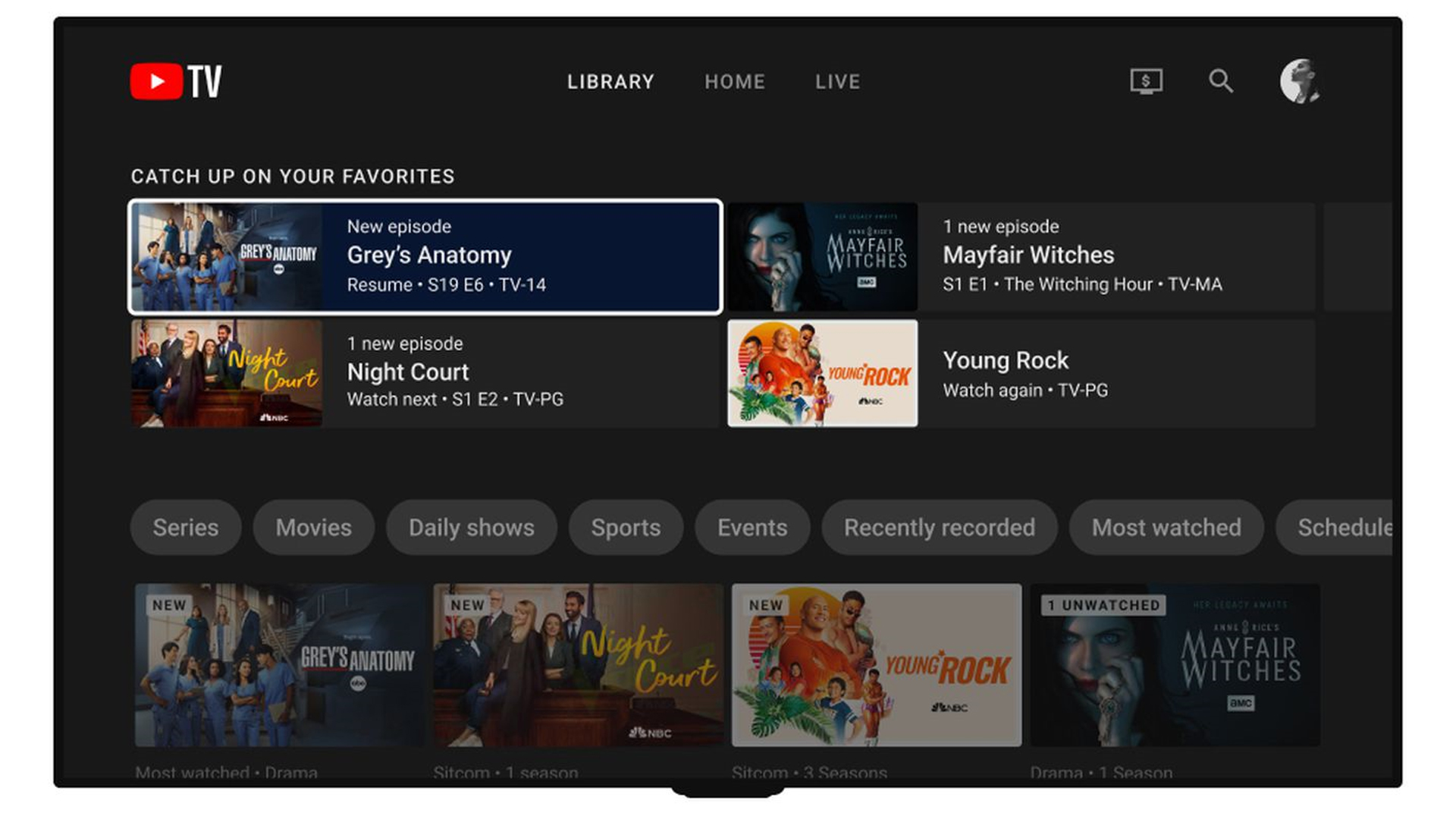
How Family Members Share the Same Subscription
When family members join the Google Family Group, they automatically get access to the YouTube TV service without needing a separate subscription or login credentials for YouTube TV itself. Each family member uses their own Google account to log into YouTube TV. This is a significant advantage because it maintains individual personalization while sharing the core service.
Despite sharing the subscription, each family member experiences YouTube TV as if they had their own account. They can:
- Create their own profile: This keeps their watch history, recommendations, and preferences separate.
- Manage their own cloud DVR: Each family member gets their own dedicated cloud DVR storage, allowing them to record shows independently without affecting others’ recordings or storage limits. All recorded content is stored in the cloud, so there’s no physical storage to worry about, and recordings are available for nine months.
- Set their own parental controls: If there are children in the family group, parents can set age-appropriate content restrictions for their individual profiles.
This setup ensures that while the cost is shared, the viewing experience remains highly personal and tailored to each individual’s tastes and needs, promoting harmonious co-viewing in a multi-user household.
Managing Profiles and Personal DVRs Within a Family Group
Effective management of profiles and DVRs is key to a smooth family sharing experience. As the family manager, you have oversight of who is in your Google Family Group, but once they’re in, each member largely manages their own YouTube TV profile.
- Switching Profiles: On most YouTube TV apps (Smart TVs, streaming devices), you can easily switch between profiles from the main menu. This ensures that recommendations, watch history, and DVR access are correct for the current viewer.
- DVR Organization: Each profile’s DVR is distinct. When a family member records a show, it appears in their library. This prevents libraries from becoming cluttered with content only relevant to one person. The unlimited DVR storage applies to the entire family group collectively, meaning everyone can record to their heart’s content without worrying about running out of space.
- Troubleshooting: If a family member encounters streaming limits or issues, ensure they are logged into their correct profile and that the device they are using is recognized as part of the family’s allowable streams. The family manager can also review active streams via their YouTube TV settings to diagnose if the simultaneous stream limit is being hit.
The integration of Google Family Groups with YouTube TV makes it an exceptionally user-friendly platform for households looking to share a premium streaming service without sacrificing individual preferences or privacy.
Practical Tips for Maximizing Your YouTube TV Experience
Beyond understanding the technical limits, there are several practical steps you can take to ensure a smooth and optimized YouTube TV experience for everyone in your home.
Troubleshooting Common Streaming Issues
Even with adequate streaming capacity, issues can arise. Here’s how to troubleshoot:
- Check Internet Speed: A stable and fast internet connection is paramount. For multiple HD streams, a minimum of 25-50 Mbps is recommended. For 4K streams, aim for 50 Mbps or higher. Use online speed tests to verify your connection.
- Restart Devices and Router: The classic IT solution often works. Power cycle your streaming devices, smart TVs, and especially your Wi-Fi router and modem. This can resolve temporary glitches.
- Clear App Cache/Data: Over time, the YouTube TV app can accumulate cache data that might cause performance issues. Clear the app’s cache (and data, if necessary) in your device’s settings.
- Update Apps and Firmware: Ensure your YouTube TV app and your streaming device’s operating system are up to date. Manufacturers frequently release updates to improve performance and fix bugs.
- Check YouTube TV Status: Occasionally, YouTube TV itself may experience outages. Check social media or dedicated status pages to see if there’s a widespread issue.
- Verify Home Location: If you encounter “not at home” errors, ensure your primary device has recently connected to your registered home network to re-verify your location.
Optimizing Your Home Network for Multiple Streams
A robust home network is essential for multiple simultaneous streams, especially when considering 4K content.
- Upgrade Your Router: An older or basic router might struggle with multiple high-bandwidth demands. Consider upgrading to a modern Wi-Fi 6 (802.11ax) router, which offers better efficiency and capacity for multiple devices.
- Prioritize Bandwidth (QoS): Many routers offer Quality of Service (QoS) settings, allowing you to prioritize traffic for streaming devices or specific applications like YouTube TV. This ensures that video streams get the bandwidth they need even when other devices are active.
- Use Ethernet Where Possible: For devices that are stationary and close to your router (e.g., main smart TV, gaming console), using an Ethernet cable provides a more stable and faster connection than Wi-Fi, freeing up wireless bandwidth for mobile devices.
- Minimize Wi-Fi Interference: Place your router in a central location, away from obstacles and other electronics that might cause interference (microwaves, cordless phones). If you live in a dense area, try switching your Wi-Fi channel to a less congested one.
Device Compatibility and Best Practices
Ensure all your devices are compatible and set up for optimal performance:
- Check YouTube TV’s Supported Devices List: Before investing in new hardware, verify it’s officially supported by YouTube TV for the best experience.
- Utilize Native Apps: Whenever possible, use the native YouTube TV app on your smart TV or streaming device rather than casting from a mobile device. Native apps often offer better performance and stability.
- Keep Devices Charged: For mobile streaming, ensure your devices are adequately charged to avoid interruptions during viewing.
- Manage Background Apps: Close unnecessary background applications on your streaming devices or computer to free up resources for YouTube TV.
By implementing these practical tips, you can significantly enhance the reliability and quality of your YouTube TV streaming experience across all your screens.
The Future of YouTube TV Streaming: Trends and Predictions
The streaming landscape is constantly evolving, driven by technological advancements and shifting consumer expectations. YouTube TV, as a major player, is continually adapting.
Evolving Device Support and Integration
We can expect YouTube TV to continue expanding its device support, particularly for emerging smart home ecosystems and next-generation gaming consoles. Integration with voice assistants (like Google Assistant and Amazon Alexa) will likely become even more seamless, allowing for sophisticated voice commands to control playback, switch channels, and even manage DVR recordings. As augmented reality (AR) and virtual reality (VR) technologies mature, there might even be experimental integrations for immersive viewing experiences, though this is likely further down the road. The trend towards integrating streaming services directly into smart TV operating systems will also likely deepen, making the user experience more fluid and less reliant on external streaming sticks.
Potential Changes in Streaming Policies
While YouTube TV’s current streaming policies are quite robust, they are not immutable. Factors such as content licensing costs, competitive pressures, and technological advancements could influence future adjustments. We might see:
- Tiered Stream Options: Beyond the 4K Plus add-on, YouTube TV could introduce more granular subscription tiers offering different numbers of simultaneous streams at varying price points, catering to a wider range of household sizes and budgets.
- Dynamic Stream Allocation: More intelligent systems could dynamically allocate streams based on usage patterns or device types, optimizing bandwidth and service delivery.
- Enhanced Location Verification: As methods for bypassing location restrictions become more sophisticated, YouTube TV (and other streaming services) might implement more stringent or advanced location verification techniques to enforce their home network policies.
- Focus on Personalization: Expect continued innovation in AI-driven personalization, not just for content recommendations but potentially for optimizing stream quality based on individual viewer preferences and network conditions.
The future of YouTube TV streaming will undoubtedly be shaped by its commitment to providing a flexible, high-quality, and increasingly personalized viewing experience, while navigating the complex technical and commercial realities of the digital entertainment industry.

Conclusion
YouTube TV offers a highly flexible and feature-rich live TV streaming experience, and understanding its simultaneous streaming capabilities is essential for all subscribers. The standard allowance of three concurrent streams, combined with robust family sharing features, provides ample viewing opportunities for most households. For those requiring even greater capacity, the 4K Plus add-on dramatically expands this to unlimited streams within your home network, alongside other valuable perks like 4K content and offline downloads.
By effectively utilizing Google’s Family Groups, optimizing your home network, and troubleshooting common issues, you can ensure a seamless and enjoyable experience across all your devices. As technology continues to advance, YouTube TV is poised to evolve further, promising even more integrated and personalized streaming solutions. Ultimately, YouTube TV’s commitment to delivering a versatile and high-performance streaming service makes it a compelling choice for modern households.
aViewFromTheCave is a participant in the Amazon Services LLC Associates Program, an affiliate advertising program designed to provide a means for sites to earn advertising fees by advertising and linking to Amazon.com. Amazon, the Amazon logo, AmazonSupply, and the AmazonSupply logo are trademarks of Amazon.com, Inc. or its affiliates. As an Amazon Associate we earn affiliate commissions from qualifying purchases.