
In an era defined by a myriad of streaming options, managing digital subscriptions has become a routine, yet sometimes confusing, aspect of modern life. YouTube TV, a prominent player in the live TV streaming market, offers a compelling alternative to traditional cable, but circumstances often lead users to consider cancelling their service. Whether it’s budget constraints, a shift in viewing habits, or a desire to explore other platforms, knowing how to efficiently manage your subscriptions, especially from the convenience of your iPhone, is essential. This guide provides a detailed walkthrough for cancelling YouTube TV on your Apple device, coupled with insights into subscription management best practices within the broader tech landscape.
Understanding Your YouTube TV Subscription Before Cancellation
Before diving into the mechanics of cancellation, it’s crucial to understand the nuances of your YouTube TV subscription. This foresight can prevent unexpected billing, ensure a smooth transition, and clarify what to expect after you’ve made the decision to cancel. Effective digital hygiene begins with an informed approach.
Why You Might Be Cancelling: Common Reasons and Considerations
The decision to cancel a streaming service like YouTube TV can stem from various factors, each with its own implications for your digital lifestyle. For many, cost is a primary driver. As subscription prices incrementally rise, users often re-evaluate their monthly expenditures, looking for opportunities to save. YouTube TV, while comprehensive, is not the cheapest option on the market, prompting some to seek more affordable alternatives or to downsize their streaming portfolio.
Another common reason is content fatigue or a shift in viewing preferences. Perhaps a competing service has acquired exclusive rights to shows or sports content you frequently watch, or your household’s entertainment needs have simply evolved. Technical issues, such as persistent buffering, app glitches, or incompatibility with certain devices, can also push users towards cancellation, despite the platform’s overall offerings. Moreover, the sheer volume of streaming services available can lead to “subscription overload,” where managing multiple platforms becomes cumbersome, encouraging consolidation or elimination. Understanding your personal motivation for cancelling will help affirm your decision and guide your subsequent choices in the streaming ecosystem.
What Happens When You Cancel? Navigating the End of Your Service
One of the most common questions regarding subscription cancellations is: “What happens immediately after I hit cancel?” With YouTube TV, like many subscription services, cancellation typically means your service will continue until the end of your current billing cycle. This means if you paid for the month on the 10th and cancel on the 15th, you will still have access to YouTube TV’s content until the 9th of the following month. You won’t receive a prorated refund for the unused portion of your current billing period, but you also won’t be charged for the next.
It’s important to note that cancelling your YouTube TV subscription does not delete your Google account or affect other Google services like YouTube Premium, Google Drive, or Gmail, unless those services are specifically linked in a way that cancellation of one impacts the other (which is not typically the case for standalone YouTube TV). Your library of saved shows (DVR content) will usually remain accessible until the end of your billing cycle. However, once the subscription officially ends, access to live TV channels, on-demand content, and your DVR recordings will cease. This grace period allows you to enjoy the service you’ve already paid for, providing a smooth off-ramp without immediate disruption.
Checking Your Subscription Status: Apple vs. Google Direct
A critical first step before attempting to cancel is to verify how you subscribed to YouTube TV. This distinction is paramount because the cancellation process differs significantly based on whether your subscription is managed directly through Google (via the YouTube TV website or app) or through Apple via the App Store.
If you initially signed up for YouTube TV on the YouTube TV website using a web browser, or if you signed up directly within the YouTube TV app but paid with a credit card not tied to your Apple ID, your subscription is managed by Google. In this scenario, you will need to cancel through the YouTube TV app or its website.
Conversely, if you subscribed to YouTube TV via the YouTube TV app on your iPhone or iPad and used your Apple ID for payment (often prompted during initial sign-up, leveraging Apple’s in-app purchase system), your subscription is managed by Apple. This means the billing and cancellation process falls under Apple’s subscription management settings, accessible directly from your iPhone’s system settings. Identifying your subscription source correctly will save you time and frustration, ensuring you follow the right path to cancellation.
Step-by-Step Cancellation via iPhone
Once you’ve identified how your YouTube TV subscription is managed, the cancellation process becomes straightforward. The iPhone, being a central hub for many digital activities, offers convenient ways to manage these subscriptions.
Method 1: Cancelling Through the YouTube TV App (If Subscribed Directly)
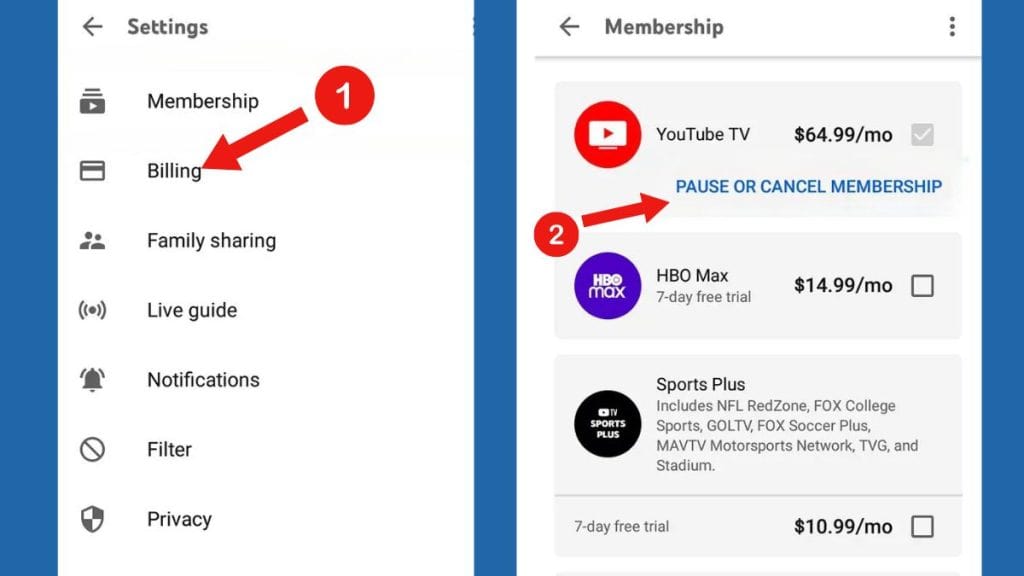
This method applies if your subscription is managed directly by Google. The YouTube TV app itself provides an intuitive interface for managing your membership.
- Open the YouTube TV App: Locate and tap the YouTube TV icon on your iPhone’s home screen to launch the application.
- Access Your Profile: In the top right corner of the screen, you’ll typically see your profile picture or an initial. Tap this to open the account menu.
- Navigate to Settings: From the account menu, select “Settings.” This will take you to a page with various options related to your YouTube TV experience.
- Go to Membership: Within the Settings menu, look for and tap on “Membership.” This section displays details about your current subscription.
- Manage Your Membership: On the Membership page, you should see an option to “Manage membership” or “Manage subscription.” Tap this. If your subscription is managed directly by Google, this option will usually direct you to a web page within the app or open a browser window.
- Find the Cancellation Option: On the management page, you will see details about your plan, billing date, and usually an option to “Pause” or “Cancel membership.” Tap on “Cancel membership.”
- Confirm Cancellation: YouTube TV will likely present you with a series of prompts, asking for feedback on why you’re cancelling and offering alternatives like pausing your subscription. Follow the on-screen instructions, confirming your decision to cancel. You will typically need to click through a few confirmation screens until you receive a final confirmation message.
Method 2: Cancelling Through iPhone Settings (If Subscribed via Apple App Store/iTunes)
If your YouTube TV subscription is billed through your Apple ID, you’ll need to use your iPhone’s system settings to manage it. This is a common practice for many apps offering subscriptions through Apple’s ecosystem.
- Open the Settings App: Tap the grey “Settings” icon on your iPhone’s home screen.
- Access Your Apple ID: At the very top of the Settings menu, you’ll see your name and profile picture (or “Sign in to your iPhone”). Tap on this section to access your Apple ID settings.
- Go to Subscriptions: Within your Apple ID settings, scroll down and tap on “Subscriptions.” This will open a page listing all active and expired subscriptions managed through your Apple ID.
- Locate YouTube TV: Find “YouTube TV” in your list of active subscriptions and tap on it.
- Cancel Subscription: On the YouTube TV subscription details page, you will see information about your current plan, renewal date, and a prominent “Cancel Subscription” button. Tap this button.
- Confirm Your Decision: A pop-up will appear asking you to confirm your cancellation. Tap “Confirm” to finalize the process.
Important Notes for Each Method

Regardless of the method used, always look for a confirmation message on screen and ideally, an email confirmation from YouTube TV or Apple. This email serves as proof that your cancellation request was processed. Keep this email for your records. Remember that your access typically continues until the end of your current billing period. If you change your mind before that period ends, you can usually re-subscribe or reactivate your membership without losing any settings.
Alternative Cancellation Methods and Troubleshooting
While cancelling directly via your iPhone is convenient, there are alternative methods and common issues that might arise, necessitating a different approach or some troubleshooting. Understanding these options ensures you’re never stuck.
Cancelling via a Web Browser (Desktop or Mobile)
For those who encounter issues with app-based cancellation, or simply prefer using a larger interface, cancelling YouTube TV via a web browser (on a desktop computer, laptop, or even a mobile browser on your iPhone) is a reliable alternative. This method is particularly useful if your subscription is managed directly by Google.
- Open a Web Browser: Launch Safari, Chrome, or any other web browser on your device.
- Go to YouTube TV Website: Navigate to tv.youtube.com.
- Sign In: Ensure you are signed in with the Google account associated with your YouTube TV subscription.
- Access Settings: Click on your profile picture in the top right corner, then select “Settings.”
- Manage Membership: Click on “Membership” from the left-hand menu.
- Cancel Membership: Locate the “Manage membership” section and click “Cancel membership.” Follow the on-screen prompts to complete the cancellation.
This web-based method can often bypass app-specific glitches and provide a clearer view of your account details, making it a robust backup option.
Dealing with Common Cancellation Issues
Even with clear instructions, users can sometimes face hurdles during the cancellation process.
- “Can’t Find Subscription”: If you followed Method 1 (app-based) but couldn’t find a cancellation option, it’s highly likely your subscription is managed by Apple. Revert to Method 2. Conversely, if you tried Method 2 (iPhone Settings) and YouTube TV wasn’t listed, your subscription is almost certainly managed directly by Google, and you should use the app or web browser.
- “Subscription Managed by Another Party”: This message explicitly tells you that your subscription is not directly managed by YouTube TV/Google (e.g., through Apple or possibly through a third-party bundle). It’s a cue to check your Apple ID subscriptions or any other platforms you might have used for bundling services.
- Billing Discrepancies: If you believe you’ve been incorrectly charged after cancelling, gather all confirmation emails (cancellation and initial subscription) and bank statements.
- Contacting YouTube TV Support: If all else fails, directly contacting YouTube TV support is your best course of action. Their help center can be accessed via the YouTube TV website, and they offer chat and email support. Be prepared to provide your account details and any relevant screenshots or error messages.
The “Pause” Option: A Flexible Alternative
Before completely cutting ties, consider YouTube TV’s “pause” option. This feature is a fantastic technological solution for temporary breaks, such as vacations, seasonal viewing shifts, or short-term budget adjustments. When you pause your subscription, you can select a duration (typically 4 weeks to 6 months), and your billing will automatically suspend during that period. Your library recordings are typically saved during the pause. Once the pause period ends, your subscription automatically resumes. This option provides flexibility without the hassle of full cancellation and re-subscription, making it an excellent feature for dynamic digital consumers.
Post-Cancellation Considerations and Digital Subscription Management
Cancelling YouTube TV is just one step in the broader landscape of digital subscription management. In an increasingly connected world, effectively managing your recurring services is crucial for financial health, data privacy, and overall digital well-being.
Verifying Cancellation and Billing Cycles
After cancelling, it’s prudent to perform a few checks to ensure everything is in order. First, confirm you received a cancellation email. If not, check your spam folder. Second, monitor your bank or credit card statements for the next month or two to ensure no further charges from YouTube TV appear. This vigilance helps catch any billing errors early. Understanding your billing cycle is also key; knowing when your access officially ends can influence decisions about when to transition to a new service or when to re-subscribe if desired.
Exploring Alternatives to YouTube TV
The streaming market is vibrant and competitive, offering numerous alternatives if YouTube TV no longer meets your needs. Competitors like Hulu + Live TV, Sling TV, FuboTV, and DirecTV Stream each offer unique channel lineups, pricing structures, and app experiences. From a technological standpoint, comparing these services involves looking at device compatibility (e.g., Apple TV, Roku, smart TVs, mobile apps), user interface design, DVR capabilities (cloud vs. local), and streaming quality options (HD, 4K). Researching these technical aspects will help you find a service that integrates seamlessly with your existing tech ecosystem and viewing preferences.
Best Practices for Managing Digital Subscriptions
Effective digital subscription management extends beyond just cancelling a single service. It’s about developing habits that promote financial prudence and digital security.
- Regular Audits: Periodically review all your active subscriptions (monthly or quarterly). Many financial tracking apps or even your bank’s online portal can list recurring charges, making this process easier. Identify services you no longer use or rarely use and cancel them.
- Understand Auto-Renewals: Be aware that most digital subscriptions are set to auto-renew by default. Always check this setting upon signing up and after any changes to your account.
- Use Financial Tracking Apps: Tools like Mint, YNAB, or even simple spreadsheet tracking can provide a clear overview of your spending on subscriptions, helping you identify areas for optimization.
- Digital Security Implications of Linked Accounts: Be mindful of which credit cards or payment methods are linked to your subscriptions. If a card expires or is compromised, updating it across multiple services can be a chore. Using virtual credit card numbers for subscriptions, where available, can add an extra layer of security.
- Leverage Trial Periods Wisely: When trying new services, set a calendar reminder to cancel before the trial ends if you don’t intend to subscribe, preventing unwanted charges.

The Future of Streaming and Personalization
As technology advances, the streaming landscape continues to evolve, offering increasingly personalized experiences and a greater number of niche services. This trend, while exciting, also means managing subscriptions will become even more intricate. Services are exploring AI-driven recommendations, dynamic pricing, and even bundled mini-subscriptions. By mastering the fundamental skills of subscription management on platforms like your iPhone today, you empower yourself to navigate this evolving digital future with confidence, ensuring your tech aligns with your financial and entertainment goals. The ability to seamlessly control your digital footprint, starting with a simple cancellation, is a powerful tool in the modern consumer’s arsenal.
aViewFromTheCave is a participant in the Amazon Services LLC Associates Program, an affiliate advertising program designed to provide a means for sites to earn advertising fees by advertising and linking to Amazon.com. Amazon, the Amazon logo, AmazonSupply, and the AmazonSupply logo are trademarks of Amazon.com, Inc. or its affiliates. As an Amazon Associate we earn affiliate commissions from qualifying purchases.